

Kali Linux Download – ISO for PC
Kali Linux Download provides a free and open-source Debian-based Linux distribution developed by OffSec for penetration testing, security research, digital forensics, and cybersecurity training. It includes a large collection of security-focused tools while also providing a complete Linux desktop environment.
The current official point release is Kali Linux 2026.2. For most modern Intel and AMD PCs, Kali provides 64-bit amd64 Installer, Live, and NetInstaller images.
If you currently use Windows 11 or Windows 10, you can download the official Kali ISO and create a bootable USB, run Kali in Live mode, use a virtual machine, or install it on compatible hardware.
Kali Linux 2026.2 at a Glance
| Details | Information |
|---|---|
| Operating System | Kali Linux |
| Current Point Release | Kali Linux 2026.2 |
| Developer | OffSec / Kali Linux |
| Base | Debian |
| PC Architecture | 64-bit amd64 |
| Image Types | Installer, Live, NetInstaller |
| Default Desktop | Xfce |
| Recommended Minimum RAM | 2 GB for default Xfce installation |
| Recommended Minimum Storage | 20 GB for default installation |
| License | Free and open source |
| Main Purpose | Security testing, research and training |
For a default Xfce desktop with the standard kali-linux-default package collection, Kali recommends aiming for at least 2 GB RAM and 20 GB disk space. More demanding security applications can require significantly more memory.
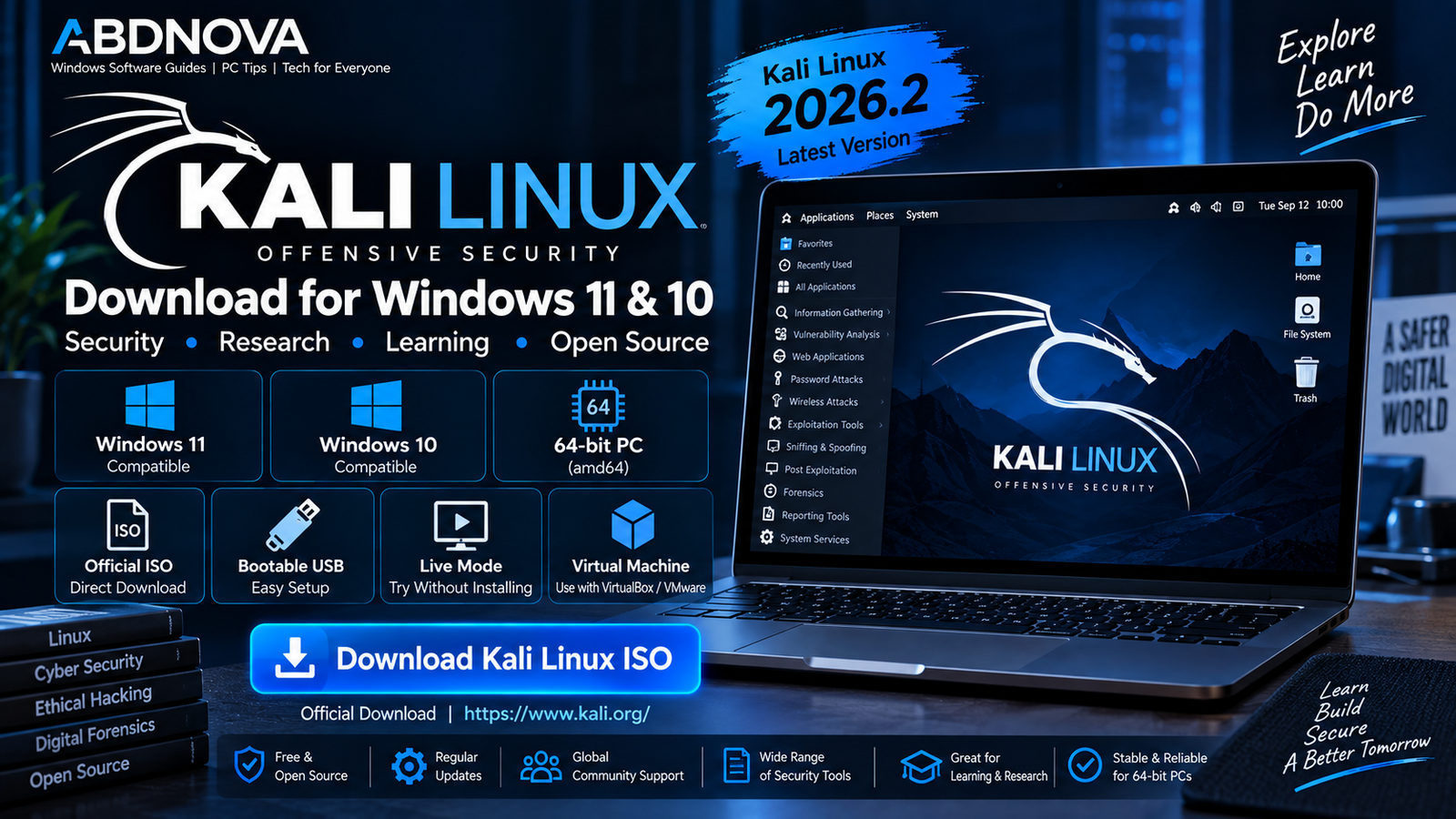
Kali Linux Download for Windows 11 & 10
You can download Kali Linux from a Windows 11 or Windows 10 computer and then use the ISO to create bootable installation media.
For a normal modern Intel or AMD 64-bit PC, the standard starting point is:
Kali’s official installation documentation recommends choosing the image marked Installer when you are unsure which image to use for a permanent installation.
Kali Linux is a complete operating system rather than a normal Windows application. However, Windows users can also run Kali through virtualization, WSL, or Live USB without immediately replacing Windows.
Which Kali Linux ISO Should You Download?
Installer Image
The regular Installer image is generally the recommended option for a permanent Kali Linux installation.
It contains a local copy of the standard packages needed during installation, which reduces dependence on downloading everything during setup.
Live Image
Choose the Live image if you want to boot Kali directly from USB and explore the operating system without immediately installing it on the internal drive.
Live mode is useful for:
- Testing hardware compatibility.
- Exploring the Kali desktop.
- Temporary security-testing environments.
- Using Kali without repartitioning Windows immediately.
Kali Live USB can also be configured with persistence when you need selected files and changes to remain available after rebooting.
NetInstaller
The NetInstaller provides a much smaller initial image but downloads packages over the internet during installation.
Because it depends on reliable network connectivity and may take longer, the regular Installer image is generally more convenient for a standard installation.
Kali Linux System Requirements
| Component | Guidance |
|---|---|
| Architecture | amd64-compatible 64-bit PC |
| RAM | Aim for at least 2 GB for default Xfce + kali-linux-default |
| Storage | Aim for at least 20 GB for default desktop installation |
| More Demanding Tools | 8 GB RAM or more may be appropriate |
| General Storage Planning | Around 60 GB provides room for broad installation configurations and additional data |
| Installation Media | USB/DVD boot support |
Kali’s hardware needs vary significantly depending on the applications and package collections you install. Security tools, browsers, virtual machines, large datasets, and simultaneous applications can require substantially more resources than the basic desktop.
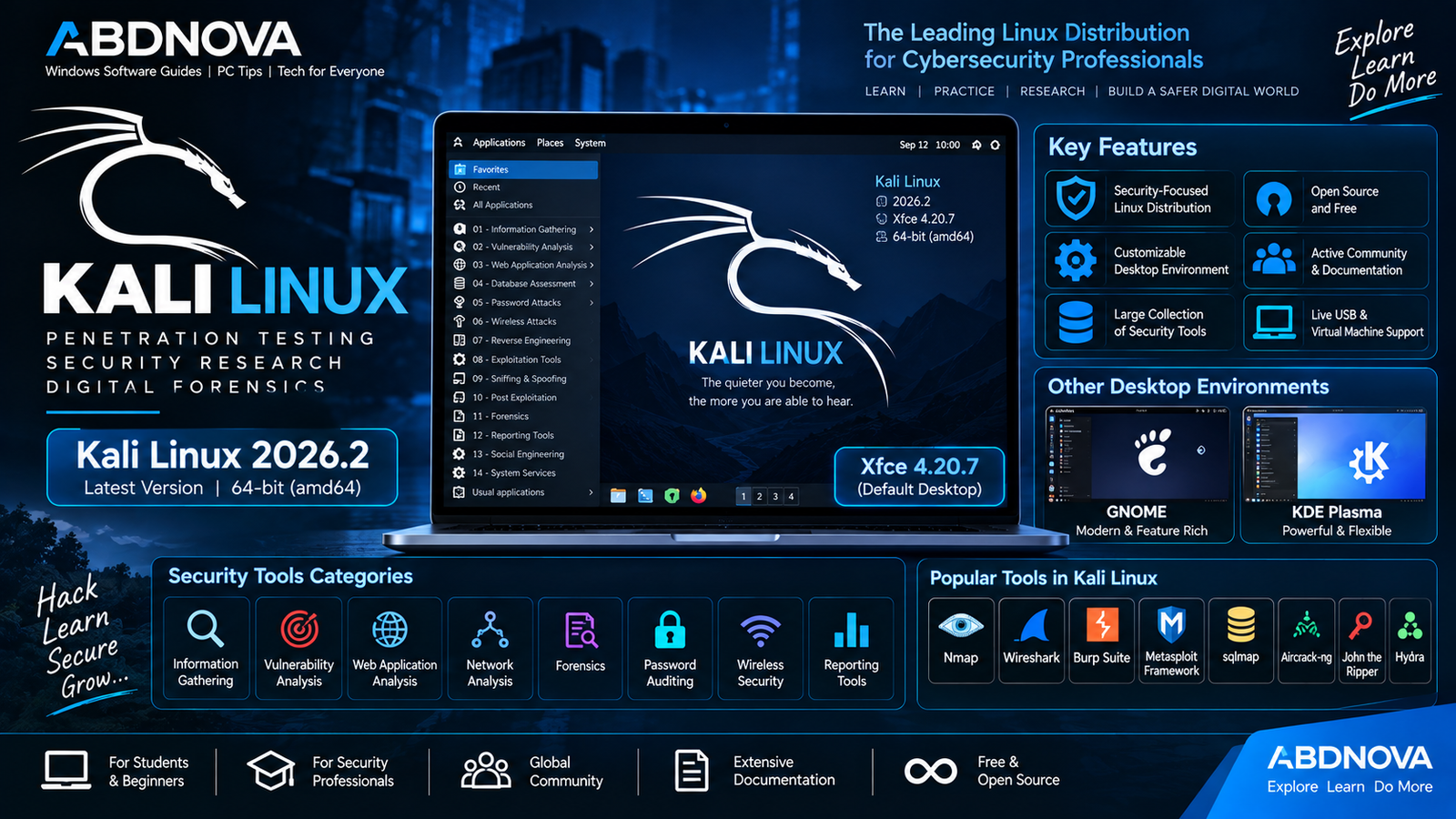
Kali Linux Main Interface, Security Tools & Key Features
Kali uses Xfce as its default desktop environment, providing a relatively lightweight graphical interface suitable for security work and general Linux administration.
Other desktop environments are also available in supported configurations, including GNOME and KDE Plasma.
Key Kali Linux Features
- Security-focused Linux environment.
- Large collection of cybersecurity tools.
- Live USB support.
- Persistent Live USB options.
- Full-disk encryption installation options.
- Pre-built virtual machine images.
- Multiple desktop environments.
- Regular package updates.
- Extensive official documentation.
- Open-source development.
Security Tool Collections
Kali provides metapackages that make it possible to install groups of security-related applications for different workflows.
The standard installation provides a useful default selection rather than requiring every available Kali package. Additional tools and package collections can be installed later when needed.
Kali Linux 2026.2 Desktop Updates
Kali Linux 2026.2 includes desktop and infrastructure updates. The release introduced updated GNOME 50 and KDE Plasma 6.6 options alongside Kali’s standard Xfce environment.
The release also includes improvements involving helper scripts, APT configuration format, virtual-machine boot optimization, and other quality-of-life changes.
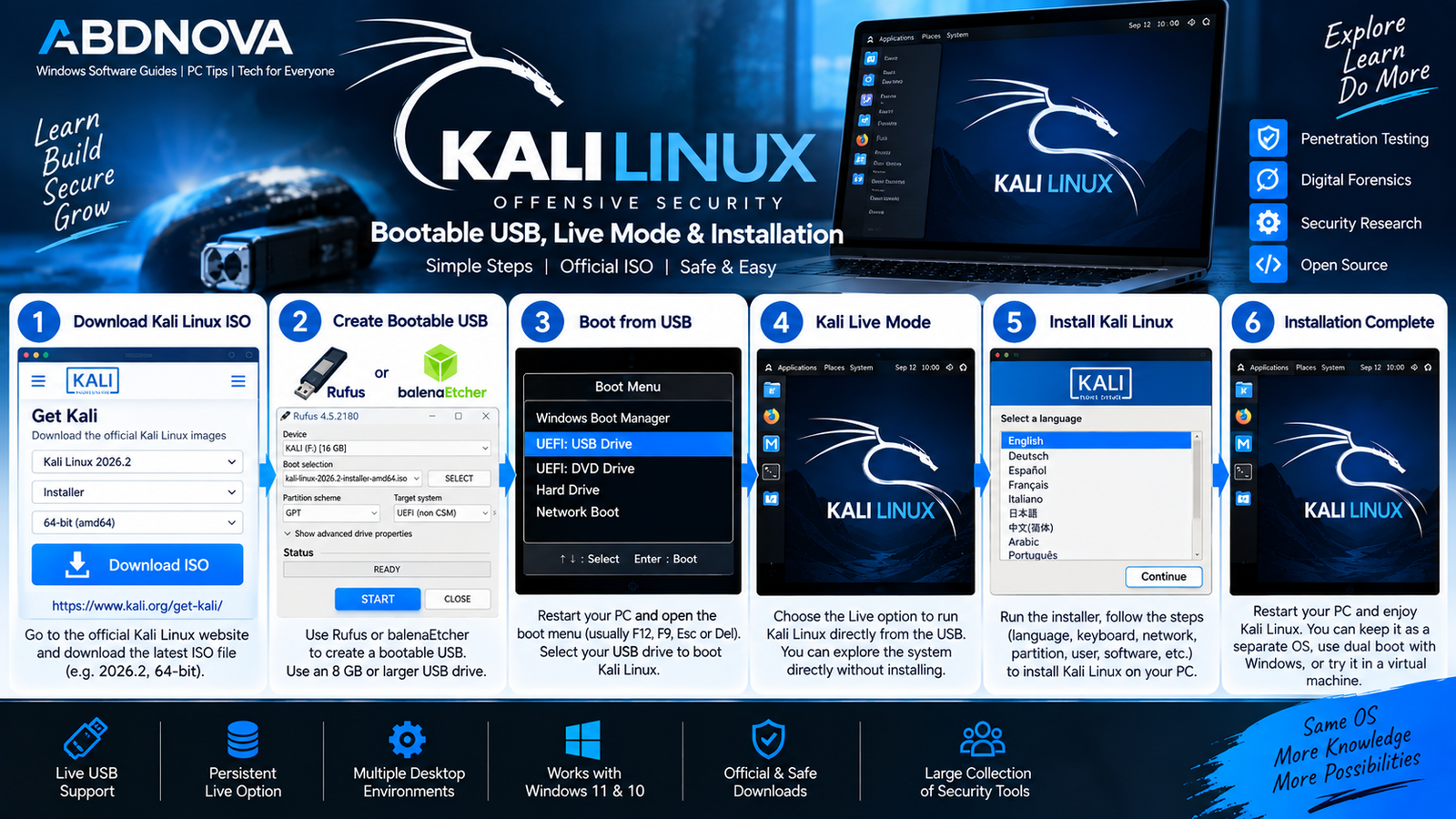
Kali Linux Bootable USB, Live Mode & Installation
Create a Kali Linux Bootable USB on Windows
Windows users can create a bootable Kali USB from the official ISO. Kali’s documentation identifies Etcher as a straightforward option and Rufus as another popular Windows tool.
An 8 GB or larger USB drive is recommended.
- Download the official Kali Linux ISO.
- Verify the downloaded ISO.
- Connect an 8 GB or larger USB drive.
- Open Etcher or Rufus.
- Select the Kali Linux ISO.
- Select the correct USB drive.
- Write the image.
- Restart the PC.
- Open the BIOS/UEFI boot menu.
- Boot from the Kali USB.
Kali Linux Live Mode
Live mode lets you start Kali Linux directly from USB without performing a permanent installation on the PC’s internal storage.
A standard Live session lets you explore Kali and test hardware before installing it. After shutting down, removing the USB, and restarting, the computer can return to its normally installed operating system unless you intentionally changed its disks.
How to Install Kali Linux on a PC
For a permanent installation:
- Back up important files.
- Boot from the Kali USB.
- Select Graphical install.
- Select the language and keyboard layout.
- Configure networking.
- Create your user account.
- Configure disk partitions carefully.
- Select the desktop and software packages.
- Install the GRUB boot loader.
- Restart into Kali Linux.
Using Kali Linux with Windows
You do not necessarily need to replace Windows to use Kali Linux.
Depending on your requirements, Kali can be used through:
- Live USB.
- VirtualBox.
- VMware.
- Hyper-V.
- WSL.
- A dedicated installation.
- An appropriate dual-boot configuration.
Official pre-built VMware and VirtualBox images are available. For users who are learning Kali, a virtual machine or Live USB can be a convenient way to experiment without immediately repartitioning the primary Windows drive.
Kali Linux for Virtual Machines
Kali provides official pre-built virtual machine images, which can reduce setup work compared with installing from an ISO manually.
Virtualization can be useful for:
- Cybersecurity labs.
- Training environments.
- Isolated testing.
- Learning Linux.
- Keeping Windows as the main operating system.
If you also work with containers from Windows, see our Docker Desktop Download for Windows guide.
Verify the Kali Linux ISO
ISO verification is particularly important for a security-focused operating system. Kali explicitly recommends downloading images only from official sources and verifying downloaded files against its published SHA-256 information.
On Windows, you can calculate the SHA-256 hash with:
certutil -hashfile kali-linux-2026.2-live-amd64.iso sha256Compare the resulting hash with the official checksum for the exact image you downloaded. If the values do not match, do not use the ISO.
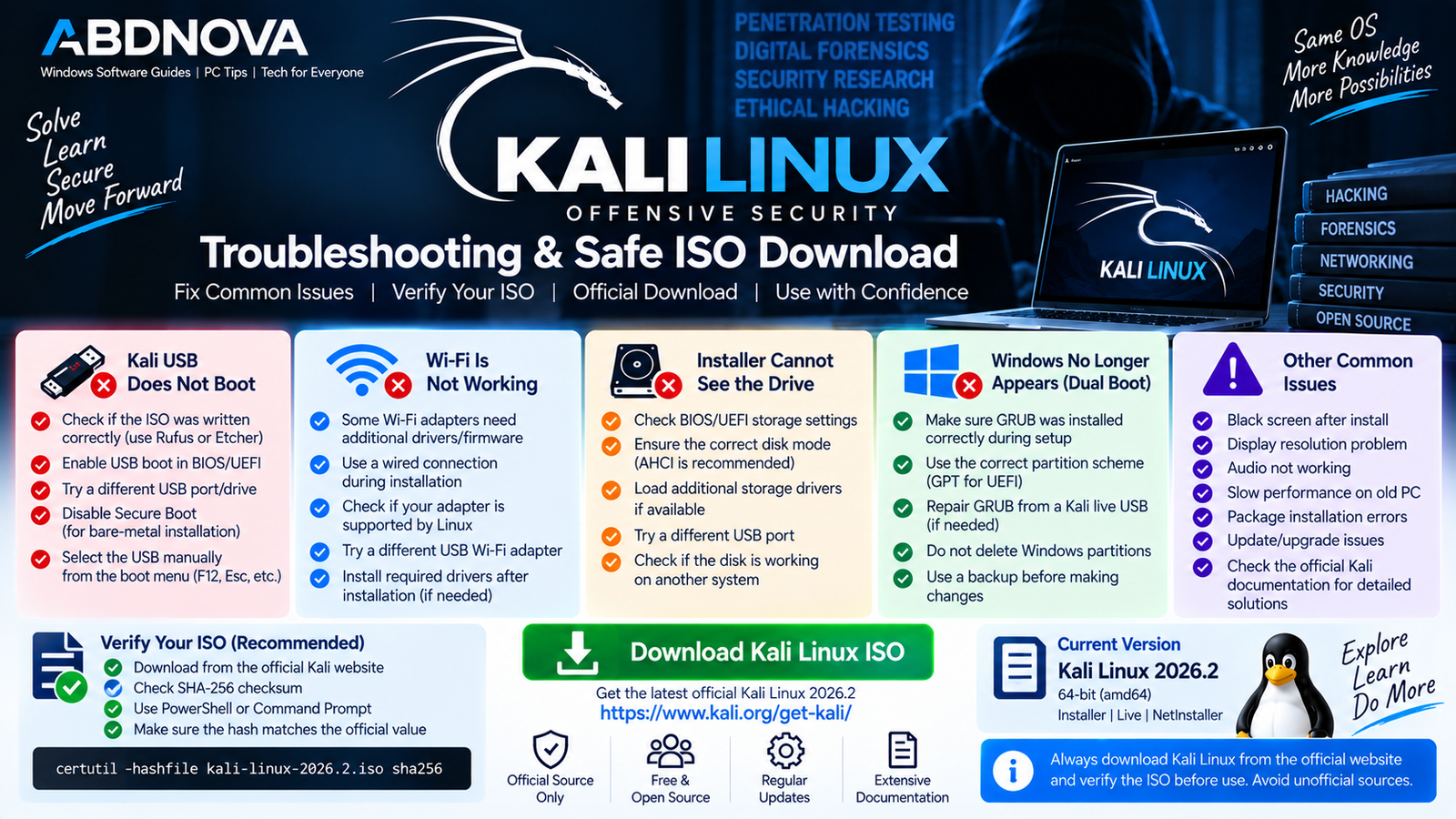
Kali Linux Troubleshooting & Safe ISO Download
Kali USB Does Not Boot
Try:
- Confirm the ISO was written correctly.
- Try another USB port.
- Open the PC’s BIOS/UEFI boot menu manually.
- Confirm USB boot is enabled.
- Select the correct USB device.
- Review the Secure Boot configuration for the documented bare-metal installation process.
Wi-Fi Is Not Detected
Some network adapters may require additional drivers or firmware. If the installer cannot detect a network interface, check the adapter model and Kali’s hardware and firmware documentation.
If available, Ethernet can provide temporary connectivity while troubleshooting Wi-Fi support.
Installer Cannot Access the Internet
Check the Ethernet or Wi-Fi connection and network configuration. If internet connectivity during installation is unreliable, the standard Installer image can be more convenient than NetInstaller.
Not Enough Disk Space
For the default Xfce desktop and standard Kali package selection, aim for at least around 20 GB of disk space. More storage is preferable if you intend to install additional tools, maintain large project files, or use broad package collections.
Windows Antivirus Detects Files on the Kali USB
Kali includes legitimate security-testing utilities, and some antivirus products may classify certain tools as potentially dangerous.
Do not automatically ignore security warnings. Confirm that the ISO came from Kali’s official website and verify its checksum before using it.
Safe Kali Linux ISO Download
Download Kali Linux only through the official Kali website. The official image repository provides Kali Linux 2026.2 Installer, Live, NetInstaller, virtual machine, and other supported images.
- Modified Kali ISO files.
- Unofficial Kali repacks.
- Unknown third-party ISO downloads.
- Images advertised as cracked or pre-activated.
- Unverified mirrors or file-sharing downloads.
Kali Linux is already free and open-source software. No crack, activation key, keygen, or modified installer is required.
Frequently Asked Questions
Is Kali Linux free?
Yes. Kali Linux is free and open-source software.
What is the latest Kali Linux version?
Kali Linux 2026.2 is the current official point release as of September 2026.
Which Kali Linux image should I download?
For a normal permanent installation on a modern 64-bit Intel or AMD PC, Kali recommends the Installer image when you are unsure which image to choose. Choose Live when you specifically want to run Kali from USB without installing it first.
Can I run Kali Linux from USB?
Yes. Kali provides Live images designed for bootable USB use. Persistence can also be configured if required.
Can I use Kali Linux with Windows 11 or Windows 10?
Yes. Windows users can use Kali through a Live USB, virtual machine, WSL, dedicated installation, or an appropriate multi-boot configuration.
How much RAM does Kali Linux need?
For the default Xfce desktop with the standard kali-linux-default package collection, Kali recommends aiming for at least 2 GB RAM. Resource-intensive applications can require substantially more memory.
How much storage does Kali Linux need?
A default desktop installation should have around 20 GB or more available. Kali notes that around 60 GB provides room for essentially any normal installation configuration plus additional storage.
Is Kali Linux suitable for beginners?
Kali can be used for learning Linux and cybersecurity, but its primary focus is security testing and research. Beginners should understand the purpose and authorization requirements of security tools before using them against other systems.
Should I verify the Kali Linux ISO?
Yes. Kali recommends verifying downloaded images against its official SHA-256 information before using or installing them.
Final Thoughts
Kali Linux Download provides a specialized Linux environment for cybersecurity learning, penetration testing, digital forensics, security research, and authorized security assessment.
For a permanent installation on a standard modern Intel or AMD 64-bit PC, the official Kali Linux 2026.2 amd64 Installer image is the simplest starting point. Live USB and official virtual machine images provide alternatives when you want to explore Kali without immediately replacing Windows.
Always obtain Kali from its official source, verify the ISO before use, back up important data before changing disk partitions, and use security-testing tools only on systems and networks you own or are authorized to test.
Download Kali Linux 2026.2
Get the official Installer, Live, or other Kali Linux images directly from Kali.


