


Inkscape Download for Windows
Inkscape is a free and open-source vector graphics editor for creating logos, icons, illustrations, diagrams, typography, posters, and other scalable graphics.
Unlike raster image editors that primarily work with pixels, Inkscape focuses on vector graphics, allowing designs to be resized without losing their original sharpness. Its primary file format is SVG (Scalable Vector Graphics), an open standard widely used for web graphics and design.
If you want to download Inkscape for Windows, this guide covers the official download, installation, Windows compatibility, SVG editing, major features, basic usage, Inkscape vs GIMP, and common troubleshooting.
Inkscape for Windows – Quick Overview
What Is Inkscape?
Inkscape is an open-source graphics application primarily designed for working with vector artwork.
It can be used to create:
Logos
Icons
Illustrations
Diagrams
Posters
Business cards
Typography
Infographics
Web graphics
Technical drawings
The application uses SVG as its native format and provides tools for drawing shapes, creating paths, working with text, applying gradients, managing layers, and editing individual vector nodes.
Because it is free and open source, you don’t need a paid subscription to use the standard Inkscape application.
Inkscape Features
Vector Graphics Editing
The main advantage of vector graphics is scalability.
For example, you can create a logo at a relatively small size and later enlarge it for:
Website → Business Card → Poster → Large Banner
without the same type of pixelation associated with enlarging a low-resolution raster image.
This makes Inkscape particularly useful for logo and icon design.
SVG Support
SVG stands for:
Scalable Vector Graphics
It is Inkscape’s primary file format.
SVG files can contain:
Shapes
Paths
Text
Colors
Gradients
Effects
Other vector information
Because SVG is widely supported by modern web browsers, Inkscape can also be useful for creating website graphics.
Drawing & Shape Tools
Inkscape provides a range of drawing tools.
You can create:
Rectangles
Squares
Circles
Ellipses
Stars
Polygons
Spirals
Freehand lines
Bezier curves
These simple objects can then be combined and modified to create much more complex designs.
Node Editing
One of the most important features for vector design is node editing.
A vector path consists of points and curves.
Using Inkscape’s Node tool, you can:
Move nodes
Add nodes
Delete nodes
Adjust curves
Change path shapes
Create custom designs
Learning node editing is particularly useful if you want to create logos or illustrations.
Text & Typography
Inkscape includes text tools for creating:
Titles
Logos
Labels
Posters
Typography artwork
You can adjust properties such as:
Font
Size
Alignment
Spacing
Position
You can also convert text into paths when a design workflow requires vector outlines.
Important
Before converting text to paths, consider keeping an editable copy of the original text.
Once converted to paths, it is no longer edited like normal text.
Layers & Objects
Complex designs can contain many individual elements.
Inkscape provides object and layer management tools to help organize them.
For example:
Background
Shapes
Illustrations
Text
Logo
Keeping artwork organized makes editing much easier as the project becomes more complex.
Fill, Stroke & Gradients
Inkscape lets you control both the inside and outline of vector objects.
Fill
Controls the interior appearance.
Stroke
Controls the object’s outline.
You can work with:
Solid colors
Gradients
Transparency
Stroke width
Stroke styles
These tools are essential for creating polished vector designs.
Inkscape Windows 11 & Windows 10
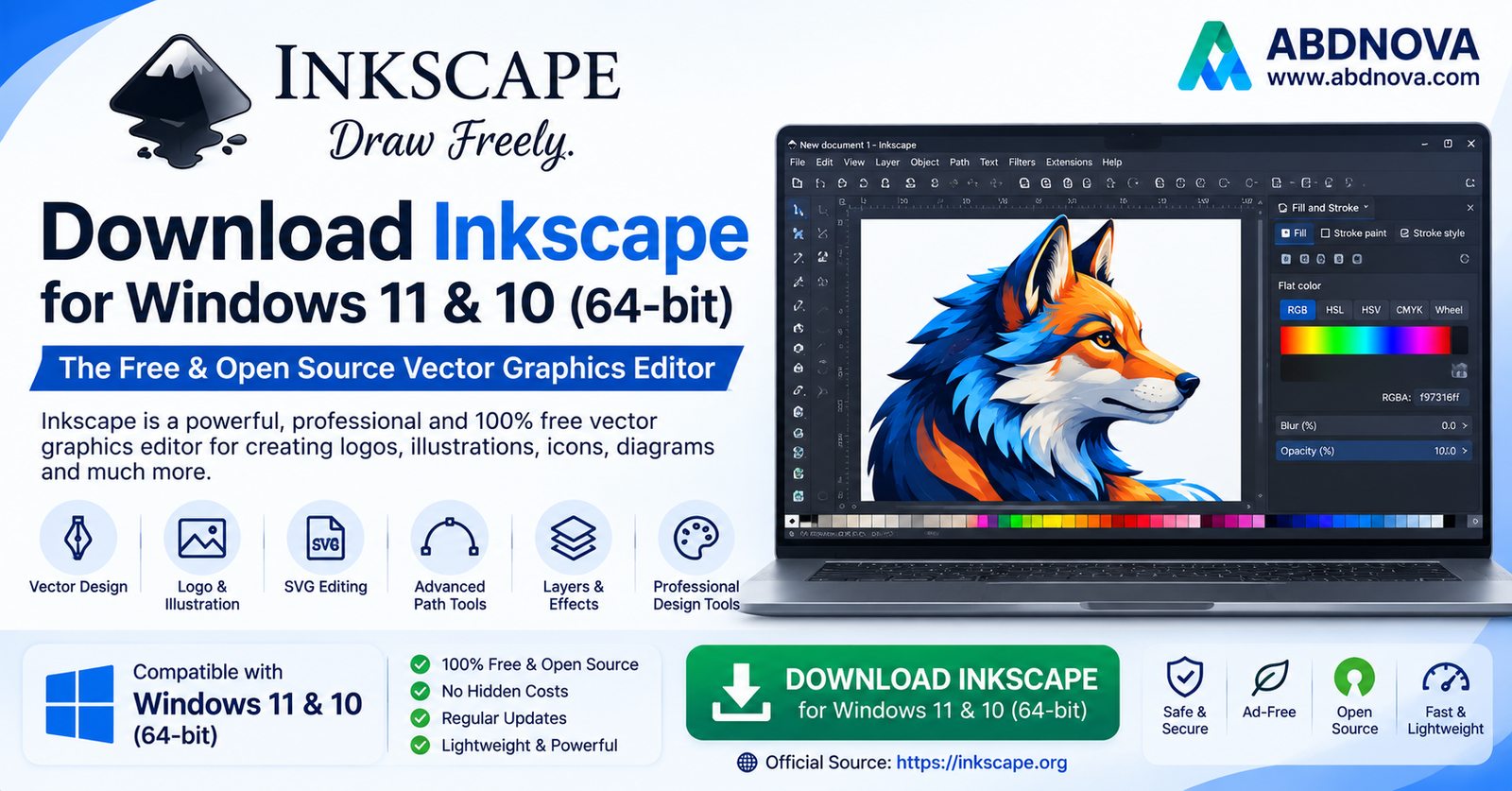
Inkscape provides Windows downloads through its official website.
For ABDNOVA visitors, the primary targets are:
Windows 11
and compatible:
Windows 10
However, system support can change between releases.
Therefore, users on older Windows versions should check the current requirements shown on Inkscape’s official download page before installing.
Official Inkscape Windows Download
Inkscape 64-bit
Most modern Windows PCs use a 64-bit operating system.
To check your computer:
Settings → System → About → System type
If Windows shows:
64-bit operating system, x64-based processor
choose the appropriate 64-bit/x64 Inkscape build offered on the official website.
Always match the installer architecture to your system rather than downloading a random build from a third-party site.
How to Download Inkscape for Windows
Downloading Inkscape is straightforward.
Step 1 — Visit Inkscape
Open the official Inkscape release/download page.
Step 2 — Select Windows
Choose Windows as your operating system.
Step 3 — Select the Appropriate Build
Choose the installer suitable for your Windows computer.
Step 4 — Download
Save the installation file.
Step 5 — Install
Open the downloaded installer and follow the setup instructions.
Use the official project rather than modified download packages.
How to Install Inkscape on Windows

After downloading the installer:
Open your Downloads folder.
Double-click the Inkscape installer.
Allow Windows to run the setup if prompted.
Follow the installation wizard.
Choose installation options if required.
Complete installation.
Launch Inkscape.
For most beginners, the default setup options should be sufficient.
Inkscape Main Interface
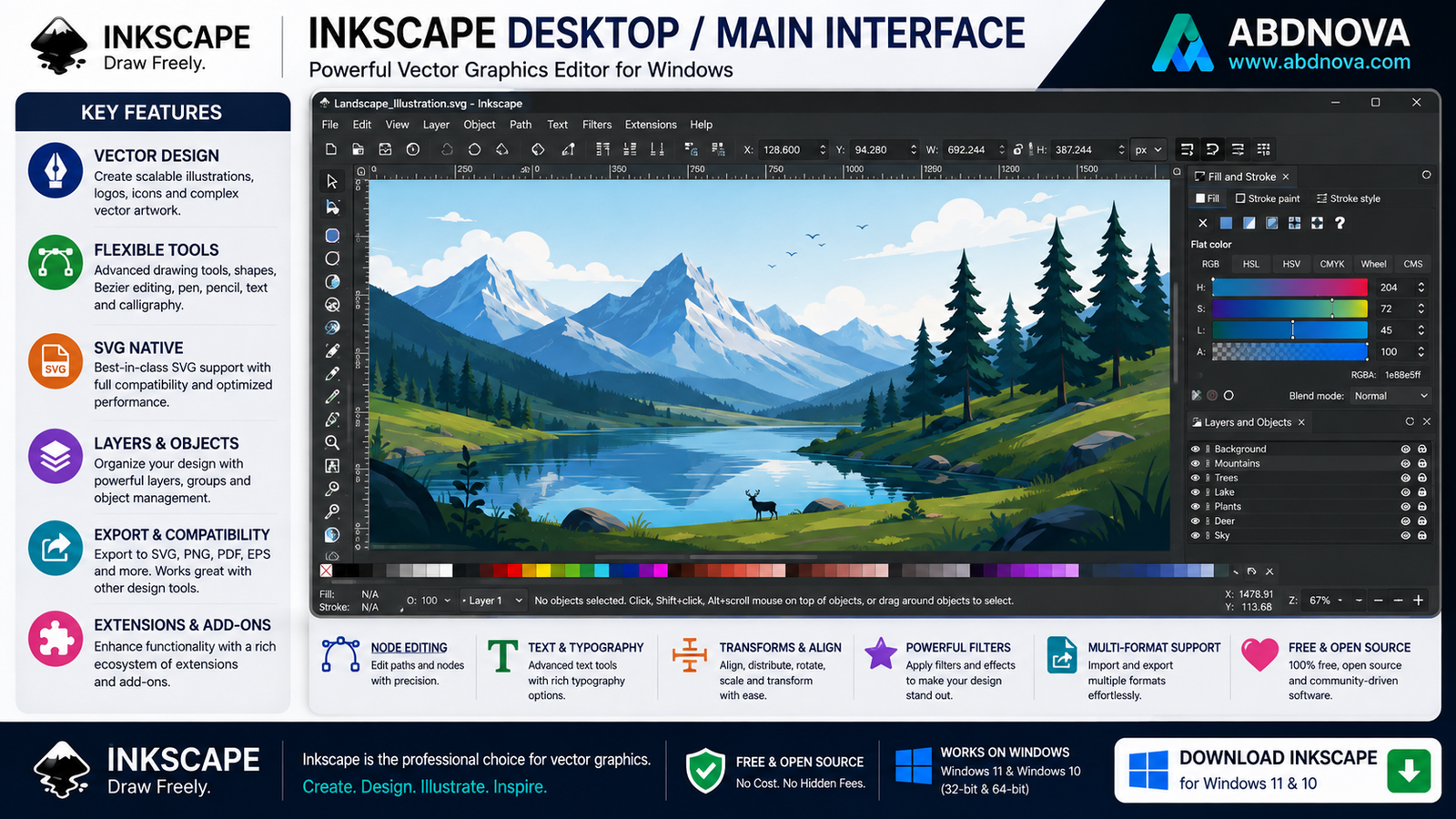
The Inkscape interface contains several important areas.
Canvas
The main area where you create your artwork.
Toolbar
Provides access to tools such as:
Selection
Shapes
Text
Drawing
Node editing
Zoom
Color Palette
Provides quick access to colors.
Tool Controls
Displays options related to the currently selected tool.
Layers and Objects
Helps organize different elements within a design.
The interface may seem complicated initially, but beginners only need a few tools to get started.
Basic Inkscape Tools for Beginners
Start with these:
Select Tool
Used to select, move, resize, and rotate objects.
Rectangle Tool
Creates rectangles and squares.
Ellipse Tool
Creates circles and ellipses.
Bezier Tool
Creates straight and curved paths.
Node Tool
Edits individual vector points and curves.
Text Tool
Adds text.
Fill and Stroke
Controls colors, outlines, gradients, and transparency.
Once you’re comfortable with these tools, learning more advanced features becomes much easier.
How to Create a Simple Logo in Inkscape

You don’t need advanced skills to create your first basic vector design.
Step 1 — Create a New Document
Open Inkscape.
Step 2 — Add a Shape
Create a circle, rectangle, or another basic shape.
Step 3 — Choose Colors
Apply a fill color and adjust the stroke if necessary.
Step 4 — Add Text
Use the Text tool to enter your brand or project name.
Step 5 — Arrange the Elements
Move, resize, and align your objects.
Step 6 — Save as SVG
Save the editable master design as:
.svg
Step 7 — Export
Export a PNG copy when you need a raster image for a website or social media.
Keeping the original SVG allows you to modify the vector design later.
How to Export PNG from Inkscape
Although Inkscape is a vector editor, it can export artwork as PNG.
The basic workflow is:
Create Design → Open Export → Choose Export Area → Select Image Size → Export PNG
This is useful when you need graphics for:
Websites
Social media
Presentations
Documents
Thumbnails
Keep the original SVG file as your editable master copy.
Inkscape SVG vs PNG
Understanding this difference is important.
SVG
Use for editable vector artwork.
PNG
Use when you need a standard raster image.
For logo projects, keeping the original SVG is highly recommended.
Inkscape vs GIMP
Related guide: See our GIMP Download for Windows article for photo editing and raster graphics.
Inkscape and GIMP are both free graphics applications, but they serve different purposes.
Choose Inkscape for:
Logos → Icons → SVG → Vector Illustration → Diagrams
Choose GIMP for:
Photos → Image Retouching → Pixel Editing → Raster Graphics
Many designers use both.
For example:
Create Logo in Inkscape → Edit/Prepare Raster Graphics in GIMP
Since ABDNOVA already has a GIMP Download for Windows article, this comparison section is an ideal place for internal linking.
Inkscape vs Adobe Illustrator
Adobe Illustrator is one of the best-known commercial vector graphics applications.
Inkscape provides an alternative for users who want vector design tools without purchasing a subscription.
Inkscape
Free
Open source
SVG-focused
Vector drawing
Logo design
Node editing
No subscription required
Adobe Illustrator
Commercial
Professional design ecosystem
Strong industry adoption
Advanced creative workflows
Adobe Creative Cloud integration
Which Should You Choose?
For beginners, students, hobbyists, open-source users, and many independent designers:
Inkscape can be an excellent choice.
Professional workflows that specifically require Adobe formats, collaboration, or Creative Cloud integration may favor Illustrator.
Inkscape vs CorelDRAW
Both applications can be used for vector design.
Inkscape
Free and open source.
CorelDRAW
Commercial graphics software with a broader professional design suite.
For someone who simply wants to learn vector design without paying for software, Inkscape offers a very accessible starting point.
Can Inkscape Open AI Files?
Adobe Illustrator .ai compatibility can depend on how the file was created and which features it uses.
Inkscape should not be treated as a perfect replacement for Illustrator when exchanging complex native AI projects.
For reliable cross-application workflows, formats such as:
SVG
may sometimes be more practical, depending on the project.
Always check important imported designs before editing or exporting them.
Inkscape PDF Support
Inkscape can work with PDF content in various workflows.
For example, you may import supported PDF artwork for editing or export designs to PDF.
However, complex PDFs may not reproduce perfectly because PDF files can contain:
Fonts
Transparency
Embedded images
Effects
Complex layouts
Always review the result after importing or exporting an important document.
Common Inkscape Problems

Inkscape Won’t Install
Try:
Restart Windows → Check System Compatibility → Download Fresh Installer → Install Again
Make sure you selected the correct Windows build.
Inkscape Won’t Open
Try:
Restart Windows
Update Inkscape
Update Windows
Reinstall Inkscape
Check graphics drivers
If the problem started after changing preferences or extensions, consider whether those changes caused the issue.
Inkscape Is Slow
Complex vector artwork can contain thousands of nodes or effects.
Try:
Reduce unnecessary nodes
Simplify complex paths
Limit heavy filters
Close unused applications
Work with smaller embedded raster images
Large or complex SVG files can require significantly more resources than simple artwork.
Fonts Look Different
This can happen if a font used in a document isn’t installed on your computer.
Possible solutions:
Install the required font
Replace it with an available font
Convert important final text to paths when appropriate
Again, keep an editable text copy before converting text to paths.
SVG Looks Different in Browser
SVG rendering can vary depending on:
Fonts
Filters
CSS
External resources
Browser support
For important web graphics, test the final SVG in multiple modern browsers.
PNG Export Looks Blurry
Check the export resolution and dimensions.
Because your original artwork is vector, you can export a larger PNG when you need more pixels.
For example:
800×800 → 1600×1600
can provide a higher-resolution raster output.
Is Inkscape Safe?
Yes, when downloaded from the official Inkscape project.
For safer installation:
Download from inkscape.org
Avoid modified installers
Avoid “Inkscape Pro cracked” downloads
Keep Inkscape updated
Be cautious with unknown extensions
Keep backups of important SVG projects
Inkscape is already free and open source, so there is no reason to download a cracked version.
Is Inkscape Free?
Yes.
Inkscape is free and open-source software.
You can use the standard application without purchasing a subscription.
Inkscape FAQ
Is Inkscape free?
Yes. Inkscape is free and open-source vector graphics software.
Does Inkscape work on Windows 11?
Yes, current compatible Windows builds are available through the official Inkscape project.
Does Inkscape work on Windows 10?
Compatible builds are available, although users should check the requirements of the current release, especially on older systems.
Is Inkscape available in 64-bit?
Yes. Inkscape provides builds for modern 64-bit Windows computers.
What is Inkscape mainly used for?
Inkscape is primarily used for creating and editing vector graphics such as logos, icons, illustrations, diagrams, and SVG artwork.
Can Inkscape create logos?
Yes. Logo design is one of the most common uses for vector graphics software such as Inkscape.
Can Inkscape edit photos?
Its main focus is vector graphics rather than photo editing. For photo editing, software such as GIMP is generally more appropriate.
Can Inkscape export PNG images?
Yes. Vector artwork can be exported to PNG at the required dimensions.
What format does Inkscape use?
Inkscape primarily uses SVG (Scalable Vector Graphics).
Is Inkscape an alternative to Adobe Illustrator?
It can be an excellent free alternative for many vector design tasks, although Illustrator and Inkscape have different workflows, ecosystems, and advanced capabilities.
Can Inkscape open PDF files?
It can import supported PDF content, but complex documents may not always reproduce perfectly.
Download Inkscape for Windows
Software: Inkscape Platform: Windows Category: Vector Graphics Editor License: Free & Open Source SVG: Supported PNG Export: Supported PDF: Supported Recommended Source: Official Inkscape Website
Download Inkscape for Windows
Download Inkscape — Official Website
Safe Download: Download Inkscape directly from the official Inkscape website. Avoid modified, cracked, or repackaged installers.
Final Verdict
Inkscape is an excellent free option for Windows users who need to create logos, SVG graphics, icons, illustrations, diagrams, typography, and other vector artwork.
Its biggest advantage is that you get a capable vector graphics editor without a subscription.
For beginners:
Download Inkscape → Install → Learn Shapes & Selection → Learn Node Editing → Create Design → Save SVG → Export PNG
More graphics software: You can also explore our Blender Download for Windows guide for 3D creation and graphics workflows.
Download Inkscape for Windows
Windows • Free & Open Source • Official Inkscape Download
Download Inkscape for WindowsABDNOVA does not host the installer. The button opens the official Inkscape project.


