


Blender Download for Windows
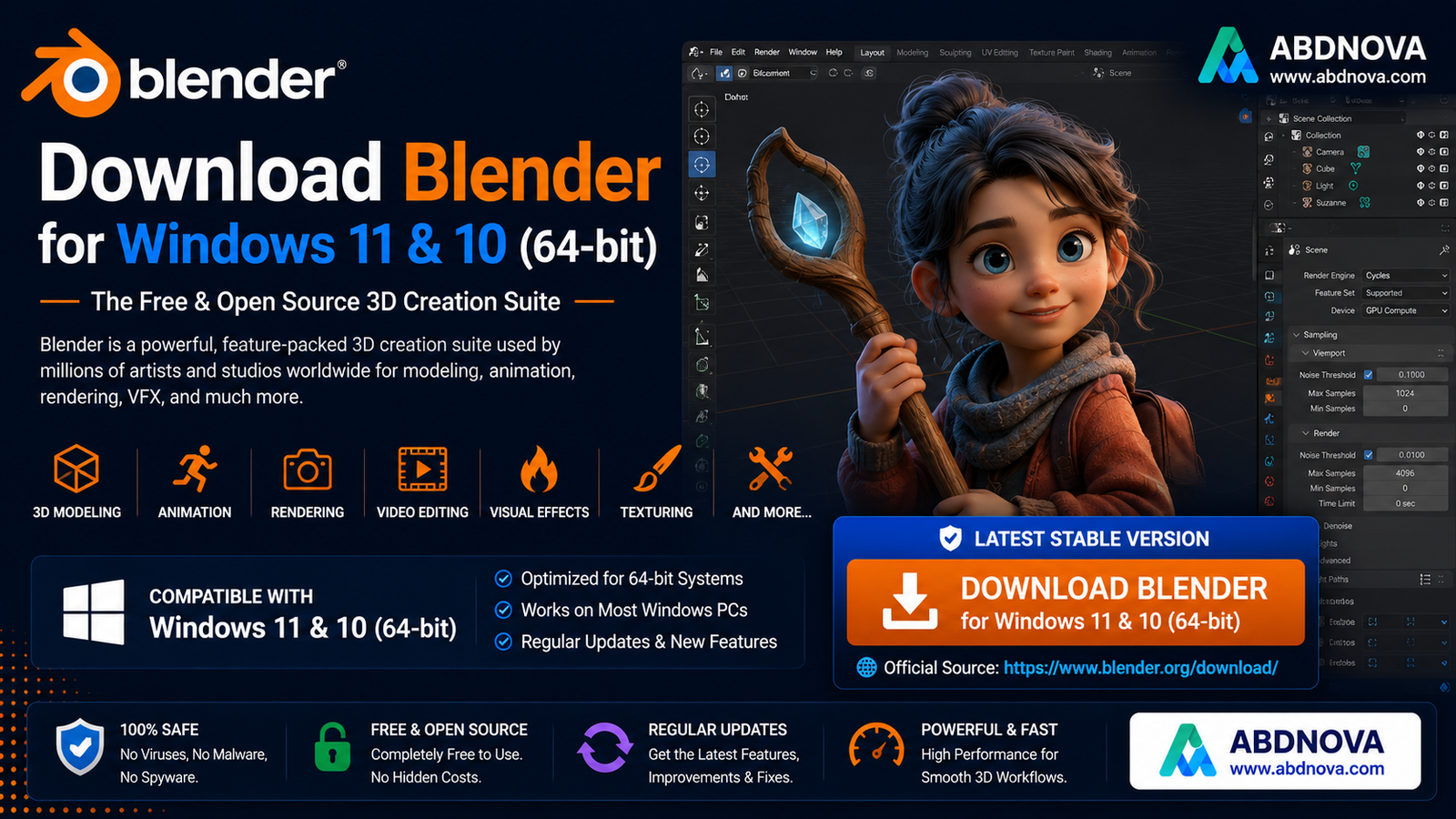
Blender is a powerful free and open-source 3D creation application for Windows. It can be used for 3D modeling, sculpting, animation, rendering, visual effects, motion graphics, video editing, and many other creative projects.
Whether you’re learning 3D design for the first time or working on professional projects, Blender provides an impressive collection of tools without requiring a paid subscription.
If you want to download Blender for Windows, this guide covers the official download, installation, Windows compatibility, x64 and ARM64 versions, basic setup, rendering, system requirements, and common troubleshooting.
Blender for Windows – Quick Overview
What Is Blender?
Blender is an open-source 3D creation suite.
Unlike applications designed for only one creative task, Blender combines many different tools into one package.
You can use Blender for:
3D modeling
Sculpting
Texturing
Animation
Rigging
Rendering
Compositing
Motion tracking
Visual effects
Video editing
2D animation
Python scripting
This makes Blender useful for everyone from beginners learning basic 3D modeling to artists creating complex animated scenes.
Blender Features
3D Modeling
3D modeling is one of Blender’s core features.
You can create objects using:
Meshes
Curves
Surfaces
Text
Modifiers
Geometry tools
A beginner might start with simple objects such as:
Cube → Table → Chair → Room → Building
More experienced artists can create detailed environments, products, vehicles, characters, and other complex models.
Sculpting
Blender includes digital sculpting tools that allow artists to shape models in a way similar to working with clay.
Sculpting is particularly useful for:
Characters
Faces
Creatures
Organic models
Detailed surfaces
You can combine modeling and sculpting workflows within the same project.
Animation
Blender includes a complete animation system.
You can animate:
Objects
Characters
Cameras
Lights
Materials
Properties
For character animation, Blender provides rigging tools that allow models to be controlled using digital skeletons.
This makes Blender useful for:
Short Films → Character Animation → Motion Graphics → Game Assets
Blender Rendering

Blender includes powerful rendering options.
Two important render engines are:
Eevee
Designed for fast real-time rendering and interactive workflows.
It’s useful when speed is important.
Cycles
A physically based path-tracing renderer designed for higher-quality realistic results.
Cycles can take longer to render, but it can produce highly realistic lighting, reflections, shadows, and materials.
Which Should Beginners Use?
Start with Eevee while learning and experimenting.
Move to Cycles when you need more realistic rendering and your hardware can handle the additional workload.
GPU Rendering
Rendering can be one of the most demanding Blender tasks.
Depending on your hardware and configuration, Blender can use compatible GPUs to accelerate certain rendering workloads.
A capable graphics card can significantly improve rendering performance compared with relying entirely on the CPU for supported workloads.
However, performance depends on:
GPU model
Available VRAM
Drivers
Render engine
Scene complexity
Resolution
Samples
A powerful GPU isn’t required just to learn Blender, but it becomes increasingly valuable for demanding scenes.
Blender Video Editing
Many new users don’t realize Blender also includes a video editor.
The Video Sequence Editor can be used for tasks such as:
Cutting clips
Arranging video
Adding audio
Transitions
Basic effects
Color adjustments
Exporting finished projects
However, Blender’s main strength remains 3D creation.
If your only goal is basic video conversion or compression, a dedicated application such as HandBrake may be simpler.
Since ABDNOVA already has a HandBrake article, this is a good opportunity for internal linking.
Blender Windows x64 vs ARM64
Current Blender builds are available for Windows x64 and ARM64 architectures.
Windows x64
This is the correct choice for most traditional Windows PCs using modern Intel or AMD processors.
Windows ARM64
Designed for compatible ARM-based Windows computers.
How to Check
Open:
Settings → System → About → System type
If your computer shows an:
x64-based processor
choose the x64 build.
If you’re using a supported ARM-based Windows computer, choose the appropriate ARM64 build.
Don’t choose ARM64 simply because it sounds newer—the version must match your computer’s processor architecture.
Blender Windows 11 & Windows 10
Blender runs on modern Windows computers, but its system requirements can change between major releases.
Before downloading, check Blender’s current official requirements if you’re using:
An older Windows version
Older graphics hardware
An older processor
A low-spec laptop
New Blender releases may change hardware or operating-system requirements.
For that reason, ABDNOVA shouldn’t permanently hard-code old requirements into the download button.
Blender System Requirements
Blender is considerably more demanding than lightweight applications such as Notepad++ or PuTTY.
Your required hardware depends heavily on what you want to create.
Basic Learning
Simple modeling and small projects can run on relatively modest modern hardware.
Larger Projects
Complex models, high-resolution textures, simulations, and rendering benefit from:
Faster multi-core CPU
More RAM
Dedicated GPU
More GPU VRAM
SSD storage
4K Rendering / Complex Scenes
These workloads can require substantially more resources.
Always check:
Blender Official Requirements & Download
before buying hardware specifically for Blender.
How to Download Blender for Windows
The safest source is Blender’s official website.
Step 1 — Visit Blender
Open the official Blender download page.
Step 2 — Select Windows
Choose the Windows version.
Step 3 — Check Architecture
Select the appropriate build for your computer:
x64
or, when appropriate:
ARM64
Step 4 — Download Blender
Save the official installer.
Step 5 — Install
Open the downloaded file and complete installation.
Download Blender for Windows — Official Website
How to Install Blender on Windows

After downloading Blender:
Open your Downloads folder.
Run the Blender installer.
Allow Windows to continue if prompted.
Follow the setup wizard.
Choose the installation location if necessary.
Complete installation.
Launch Blender.
For most users, the default installation settings are sufficient.
Blender Installer vs Portable Version
Blender can also be distributed in forms that don’t require a traditional installation workflow.
Installer
Best for most users.
Advantages:
Normal Windows installation
Start menu integration
Easier everyday access
Straightforward setup
Portable / Archive Build
Useful when you want Blender files in a standalone folder or need to keep multiple versions available.
This can be useful for advanced users testing different Blender versions.
Recommended for Beginners
Use the regular official installer.
It’s the simplest option.
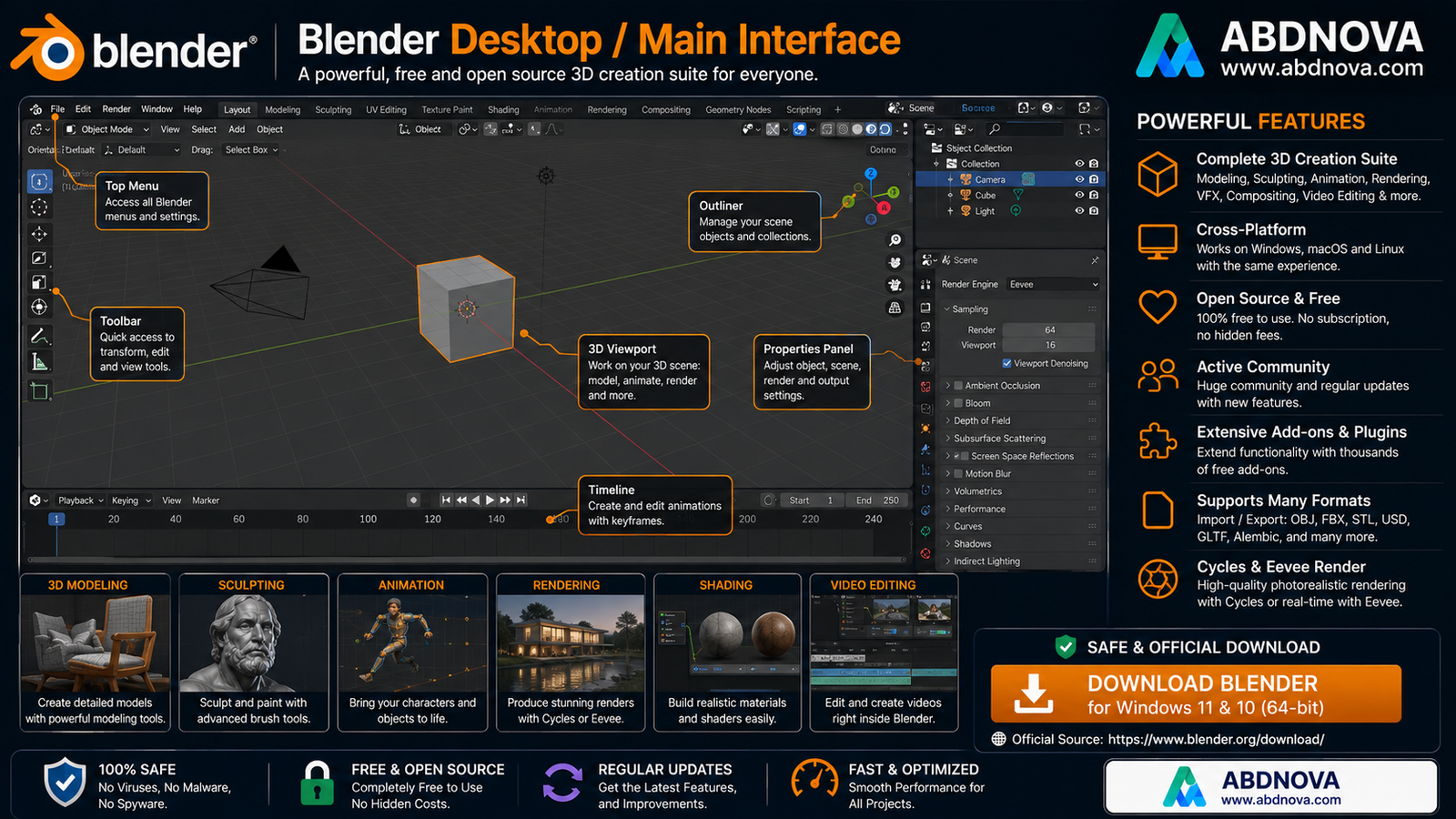
Blender Main Interface
The Blender interface can look intimidating the first time you open it.
But you don’t need to learn everything at once.
The main areas include:
3D Viewport
Where you create and manipulate objects.
Outliner
Shows objects and collections in your scene.
Properties
Controls settings for:
Objects
Materials
Rendering
Scene
World
Modifiers
Timeline
Used when creating animations.
Toolbar
Provides common selection, movement, rotation, scaling, and editing tools.
Start by learning only the basic interface.
Basic Blender Controls for Beginners
A few controls will make Blender much easier.
Select Object
Click the object.
Move
Press:
G
Rotate
Press:
R
Scale
Press:
S
Add Object
Press:
Shift + A
Delete
Press:
X
Undo
Press:
Ctrl + Z
These shortcuts are enough to start experimenting with basic objects.
How to Create Your First Blender Project
Here’s a simple beginner workflow.
Step 1 — Open Blender
Start with the default scene.
You’ll see the famous default cube.
Step 2 — Select the Cube
Click it.
Step 3 — Move It
Press:
G
and move your mouse.
Step 4 — Scale It
Press:
S
and resize the cube.
Step 5 — Add Another Object
Press:
Shift + A → Mesh
Choose another shape.
Step 6 — Save Your Project
Use:
File → Save As
Blender projects normally use the:
.blend
file format.
Blender Add-ons & Extensions
Blender’s functionality can be expanded with extensions and add-ons.
These can provide additional tools for:
Modeling
Animation
Materials
Import/export
Workflow automation
Rendering
Only install extensions from sources you trust.
Like other software extensions, third-party Blender add-ons may contain executable code.
Blender Python Scripting
Blender includes extensive Python support.
Advanced users can use Python for:
Automating repetitive tasks
Creating tools
Modifying scenes
Building add-ons
Procedural workflows
Beginners don’t need to learn Python before using Blender.
You can use most Blender features through its graphical interface.
Blender vs SketchUp
Both can be used for 3D work, but their focus differs.
Blender
Better suited to broad 3D creation, animation, sculpting, and rendering.
SketchUp
Often preferred for straightforward architectural and design modeling workflows.
Blender vs Maya
Autodesk Maya is widely used in professional animation and VFX pipelines.
Blender provides many overlapping capabilities while remaining free and open source.
Blender
Free
Open source
Modeling
Sculpting
Animation
Rendering
Video editing
Maya
Commercial software
Strong professional studio presence
Advanced animation and VFX workflows
For beginners who want to learn 3D without paying for software:
Blender is an excellent starting point.
Blender vs GIMP
These applications serve different purposes.
Blender
Primarily:
3D Graphics + Animation + Rendering
GIMP
Primarily:
2D Image Editing
You may use both in the same workflow—for example, creating textures in GIMP and using them on 3D objects in Blender.
ABDNOVA already has a GIMP Download for Windows article, so these pages can also be internally linked.
Related ABDNOVA guides: For 2D image editing, see GIMP Download for Windows. For vector graphics, see Inkscape Download for Windows. If you mainly need video conversion or compression, see HandBrake Download for Windows.
Common Blender Problems
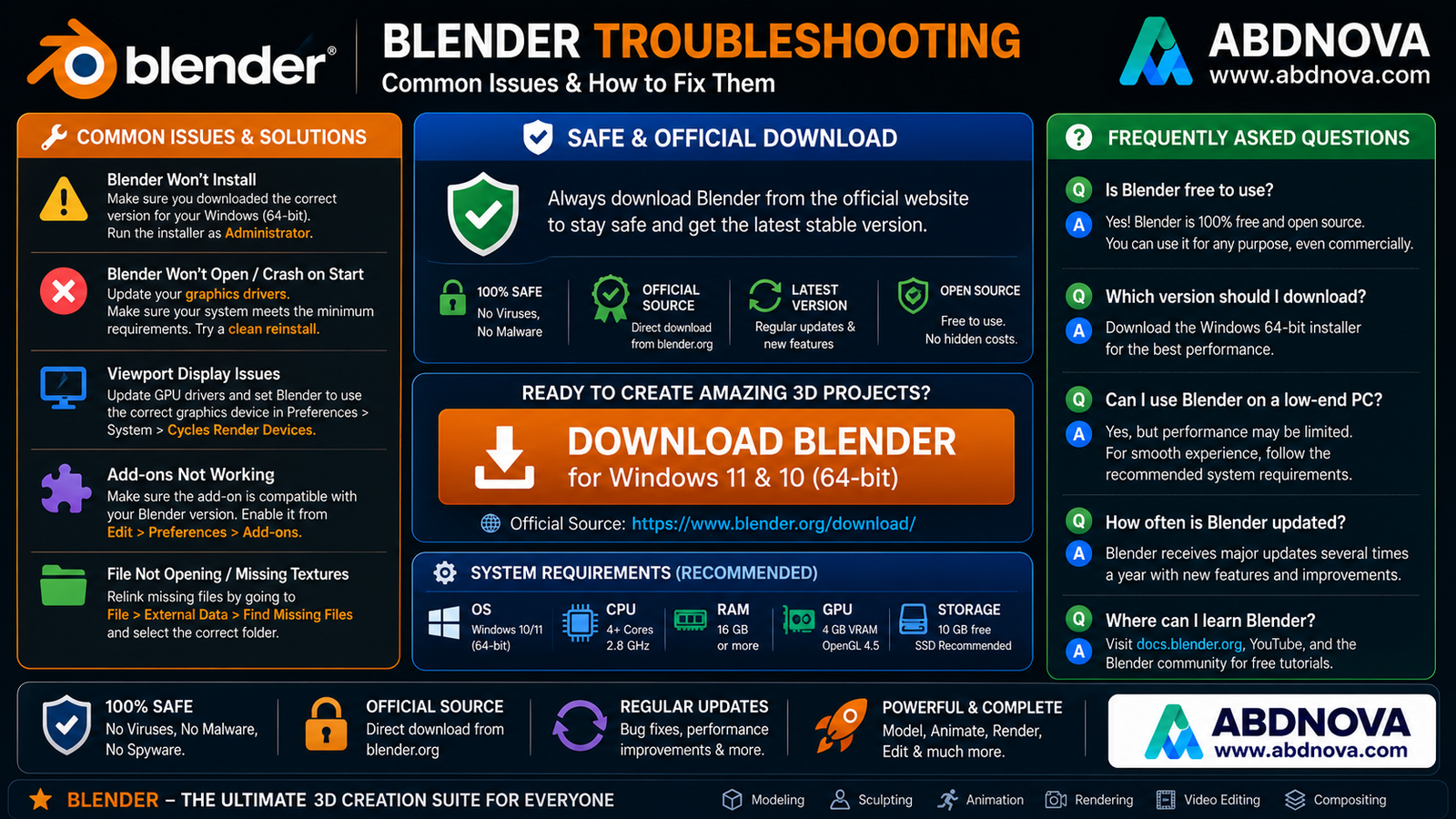
Blender Won’t Install
Try:
Restart Windows → Check System Requirements → Download Fresh Installer → Install Again
Make sure you selected the correct Windows architecture.
Blender Won’t Open
Possible causes include:
Unsupported hardware
Outdated GPU drivers
Incorrect Blender build
Damaged installation
Windows compatibility issues
Try updating your graphics driver and reinstalling Blender from the official source.
Blender Is Very Slow
Performance depends heavily on the project.
Try:
Close unnecessary applications
Reduce viewport complexity
Simplify the scene
Reduce high-resolution textures
Check available RAM
Update GPU drivers
Complex projects can be demanding even on powerful computers.
Blender Crashes While Rendering
Possible causes include:
Insufficient RAM
Insufficient VRAM
GPU driver problems
Very complex scenes
Hardware instability
Try lowering scene complexity or render settings and check whether your system has enough memory.
GPU Rendering Isn’t Available
Check:
GPU compatibility
Latest graphics drivers
Blender preferences
Selected rendering device
Current Blender hardware requirements
Not every GPU supports every Blender rendering feature.
Blender Interface Looks Too Small
On high-resolution displays, adjust Blender’s interface scaling through its preferences.
Windows display scaling can also affect application size.
Is Blender Safe?
Yes, when downloaded from Blender’s official website.
For safer use:
Download from blender.org
Avoid modified installers
Don’t download “Blender Pro cracked”
Keep Blender updated
Keep GPU drivers updated
Be careful with third-party add-ons
Back up important .blend projects
Blender is already free and open source, so there is no reason to search for cracked versions.
Is Blender Free?
Yes.
Blender is free and open-source software.
You can use it for learning, personal projects, and professional creative work without purchasing the application itself.
Blender FAQ
Is Blender free?
Yes. Blender is free and open-source software.
Does Blender work on Windows 11?
Yes, provided the computer meets the requirements of the Blender version you’re installing.
Can I use Blender on Windows 10?
Compatibility depends on the Blender release and hardware. Check Blender’s current official requirements before installing the newest version on an older Windows 10 PC.
Is Blender available in 64-bit?
Yes. Blender provides Windows x64 builds.
Does Blender support Windows ARM64?
Yes. Current official Blender builds include Windows ARM64 versions.
Can Blender edit videos?
Yes. Blender includes a Video Sequence Editor, although its primary focus is 3D creation.
Can Blender create animations?
Yes. Animation and rigging are major Blender features.
Can Blender render using a GPU?
Yes, on compatible hardware and supported render configurations.
Is Blender good for beginners?
Yes, although it has a learning curve. Beginners can start with basic modeling and gradually learn more advanced features.
Do I need a powerful PC for Blender?
Not necessarily for basic learning and simple models. Complex scenes, simulations and high-quality rendering benefit significantly from faster CPUs, more RAM and stronger GPUs.
What file format does Blender use?
Blender projects normally use the .blend file format.
Download Blender for Windows
Software: Blender Developer: Blender Foundation Platform: Windows Category: 3D Graphics & Animation License: Free & Open Source Windows x64: Available Windows ARM64: Available Recommended Source: Official Blender Website
Download Blender for Windows
Download Blender — Official Website
Safe Download: Download Blender directly from Blender’s official website. Avoid modified, cracked, or repackaged installers.
Final Verdict
Blender is one of the most capable free creative applications available for Windows. It combines 3D modeling, sculpting, animation, rendering, visual effects, video editing, and scripting in a single open-source package.
Beginners don’t need to learn every feature immediately. A simple starting workflow is:
Download Blender → Install → Learn Viewport → Practice Move/Rotate/Scale → Create Simple Models → Learn Materials & Rendering
Download Blender for Windows
Windows • x64 & ARM64 • Free & Open Source
Download Blender for WindowsChoose the Windows version that matches your PC architecture. ABDNOVA does not host the installer; the button opens Blender’s official website.


