
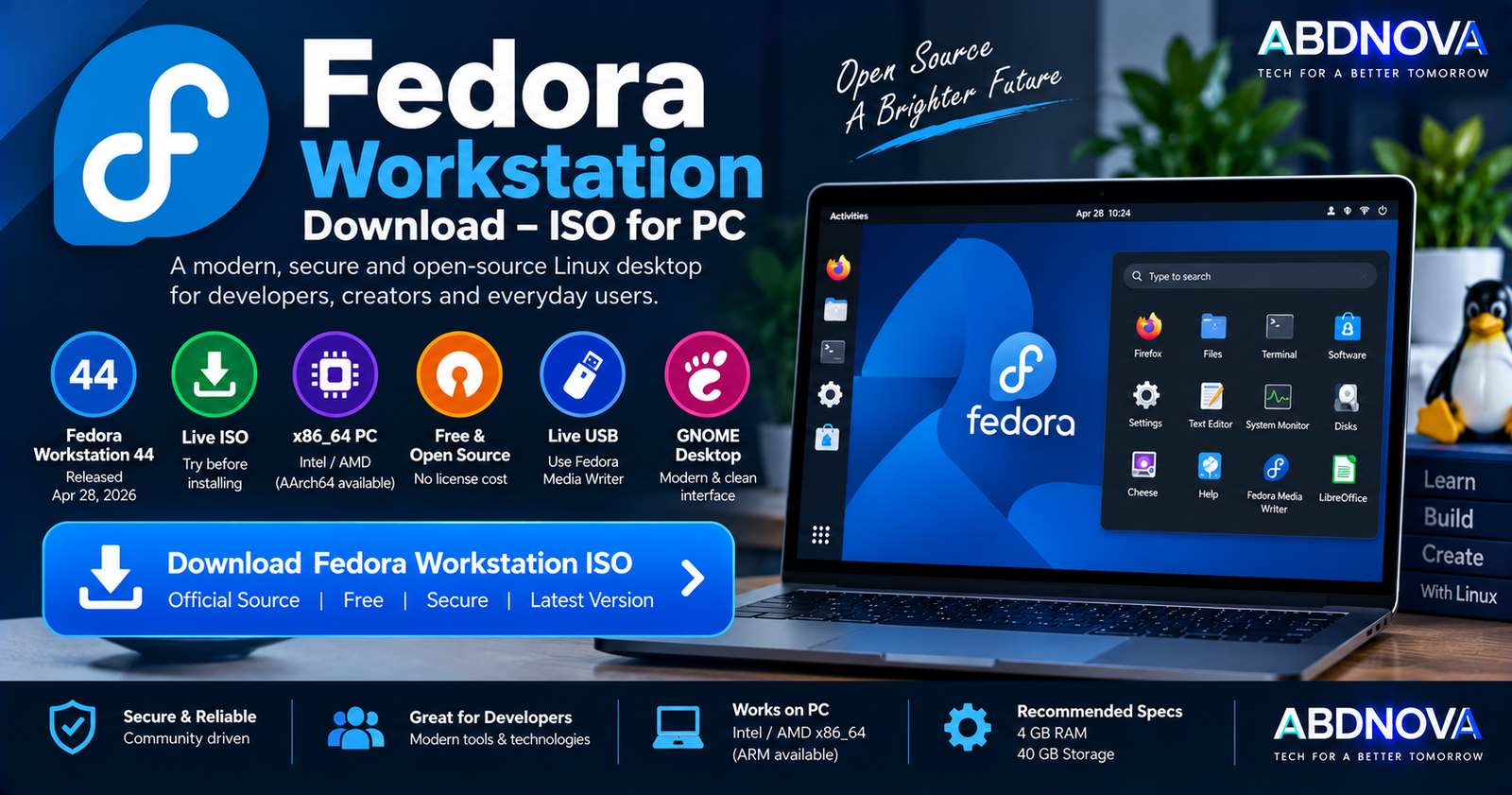

Fedora Workstation Download – ISO for PC
Fedora Workstation Download provides a free, open-source Linux operating system for desktop and laptop PCs. Developed by the Fedora community and sponsored by Red Hat, Fedora Workstation focuses on current Linux technologies, security, software development, and a clean GNOME desktop experience.
The current stable release is Fedora Workstation 44, released on April 28, 2026. Fedora Workstation 45 is currently available as a beta testing release, so users looking for a normal stable installation should download Fedora Workstation 44.
For a typical modern Intel or AMD desktop or laptop, the correct download is the Fedora Workstation 44 x86_64 Live ISO.
Fedora Workstation for PC at a Glance
| Details | Information |
|---|---|
| Operating System | Fedora Workstation |
| Current Stable Version | Fedora Workstation 44 |
| Release Date | April 28, 2026 |
| Desktop Environment | GNOME |
| PC Architecture | Intel/AMD x86_64 |
| ARM Version | AArch64 available |
| Recommended RAM | 4 GB or more |
| Recommended Storage | 40 GB or more |
| Installation Type | Live ISO |
| Live USB | Yes |
| Dual Boot | Yes |
| License | Free & Open Source |
| Developer/Community | Fedora Project |
Fedora notes that most Fedora Linux variants recommend approximately 4 GB RAM and 40 GB disk space to install and run. Fedora also notes that roughly doubling those resources may provide a better experience depending on usage.
Fedora Workstation 44 Stable
Fedora Linux 44 became officially available on April 28, 2026. Fedora Workstation is one of Fedora’s main desktop editions and provides a complete graphical Linux environment for everyday computing, development, learning, and open-source workflows.
The stable Workstation release is available for:
- Intel and AMD x86_64 PCs.
- ARM AArch64 systems.
What About Fedora Workstation 45 Beta?
Fedora Workstation 45 Beta was released on September 15, 2026. It is a pre-release version intended for testing and helping the Fedora community identify issues before the final release.
For a normal everyday or production PC, use:
rather than Fedora Workstation 45 Beta.
Fedora Workstation System Requirements
| Component | Recommended |
|---|---|
| RAM | 4 GB or more |
| Storage | 40 GB or more |
| Architecture | x86_64 for Intel/AMD PCs |
| ARM | AArch64 image available |
| Installation Media | Bootable USB / Live ISO |
An SSD and additional RAM can provide a better desktop experience, particularly when using multiple browser tabs, development environments, containers, virtual machines, or other demanding applications.
How to Download Fedora Workstation ISO
The safest source for a Fedora Workstation Download is the official Fedora Project website.
For a normal modern Intel or AMD PC, choose:
The Live ISO can be written to a USB flash drive and booted without immediately making permanent changes to the computer.
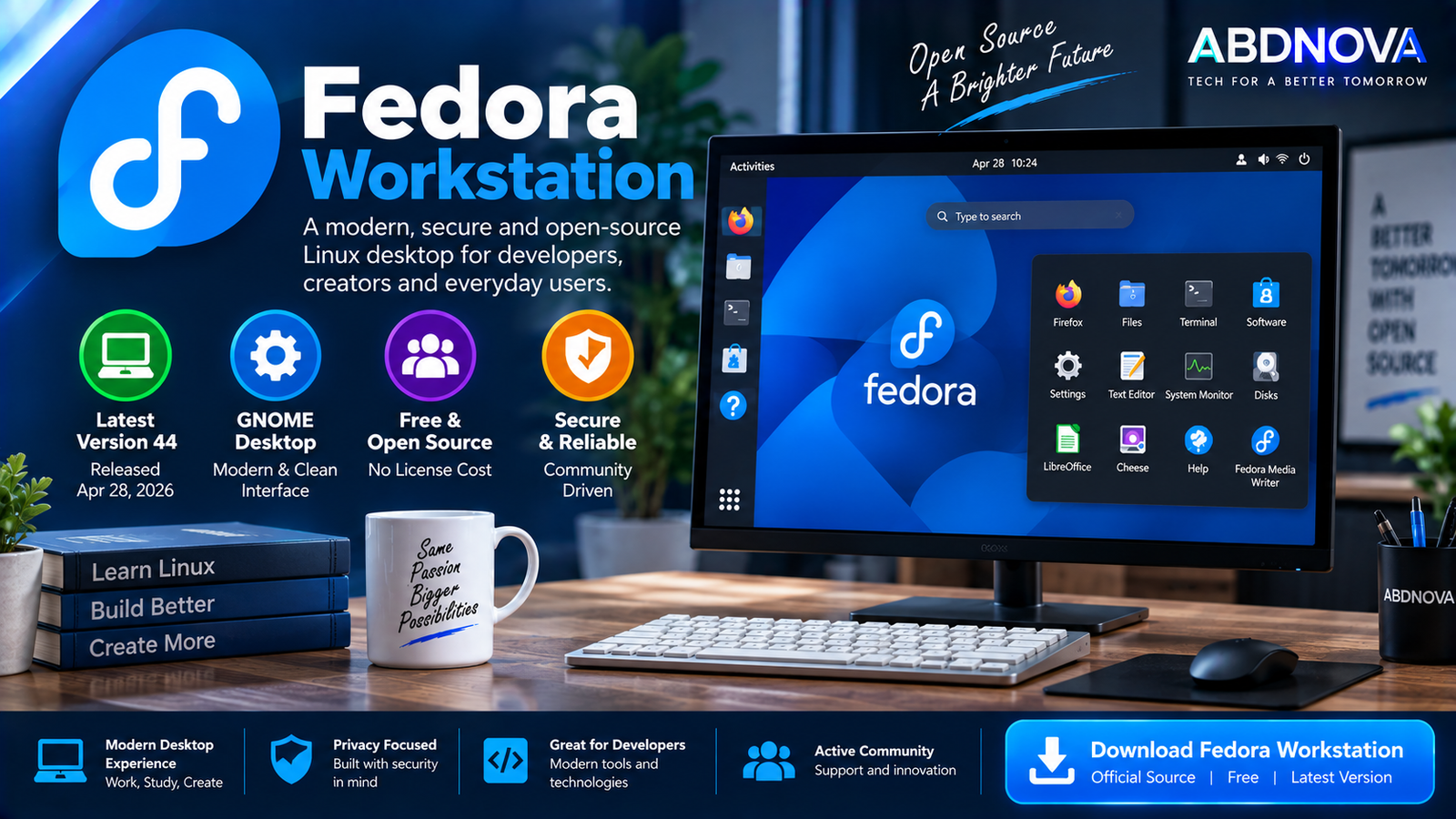
Fedora Workstation ISO for PC – Features & Download Options
Fedora Workstation is designed as a complete Linux desktop rather than a Windows application. The official Workstation image provides the GNOME desktop and the tools needed to test or install Fedora on compatible hardware.
Important download options include:
- x86_64 Live ISO for modern Intel and AMD PCs.
- AArch64 image for supported ARM systems.
- Fedora Media Writer for creating installation media.
- Checksum files for verifying downloads.
- OpenPGP verification for additional authenticity checking.
Verify the Fedora ISO
Fedora recommends verifying downloaded installation images for both security and integrity.
The verification process uses:
- SHA256 checksums.
- Fedora OpenPGP certificates.
- Signed checksum information.
A matching SHA256 checksum helps confirm that the image was not corrupted or modified, while OpenPGP verification provides additional assurance that the checksum information came from Fedora.
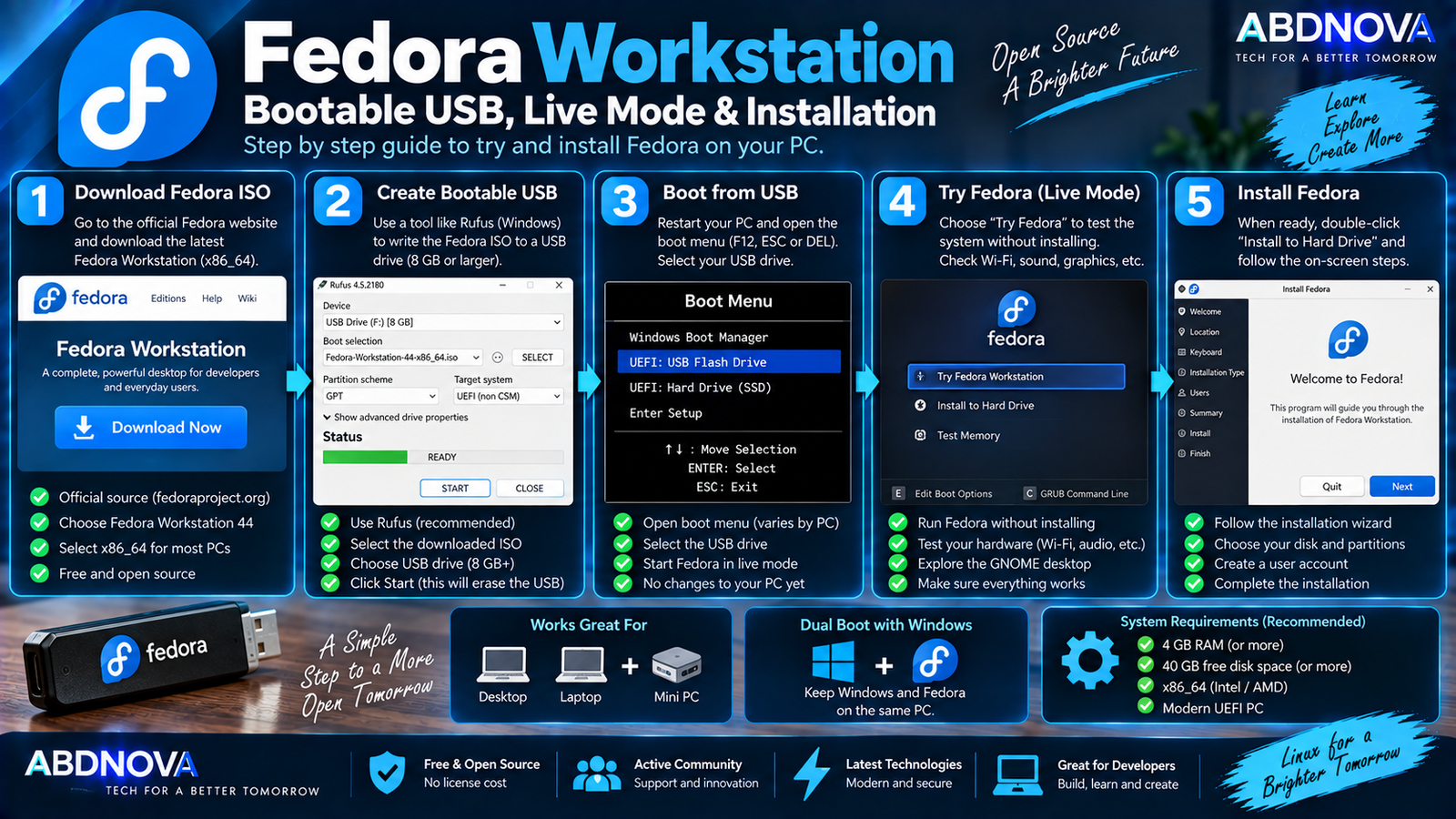
Fedora Workstation Bootable USB, Live Mode & Installation
Create a Fedora Bootable USB on Windows
After downloading the Fedora Workstation ISO, write it to a USB flash drive to create bootable installation media.
The general process is:
- Download Fedora Workstation 44.
- Insert a USB flash drive.
- Open Fedora Media Writer or another suitable image-writing tool.
- Select the Fedora Workstation ISO.
- Select the correct USB drive.
- Write the image.
- Wait for the process to complete.
- Restart the computer.
- Open the BIOS/UEFI boot menu.
- Select the Fedora USB.
Try Fedora Without Installing
One of the main advantages of the Fedora Workstation Live ISO is the ability to try Fedora before permanently installing it.
Use the live environment to test:
- Wi-Fi.
- Bluetooth.
- Audio.
- Keyboard.
- Mouse.
- Touchpad.
- Display.
- Graphics.
- Webcam.
- External devices.
If your important hardware works correctly, you can then proceed with installation.
Install Fedora Workstation on a PC
After booting Fedora from the USB, use the installer to install the operating system on the internal SSD or hard drive.
Before installation:
- Back up important files.
- Connect a laptop to power.
- Check Wi-Fi or Ethernet.
- Confirm the correct destination drive.
- Decide whether Fedora will replace the existing OS or coexist with it.
Fedora Workstation and Windows Dual Boot
Fedora Workstation and Windows can coexist on the same computer in a dual-boot configuration.
Windows 11 + Fedora Workstation
Windows 10 + Fedora Workstation
At startup, you can select which operating system to use. This is useful when you want Fedora for Linux development, programming, learning, or everyday work but still depend on Windows-specific applications or games.
Always create a current backup before modifying disk partitions.
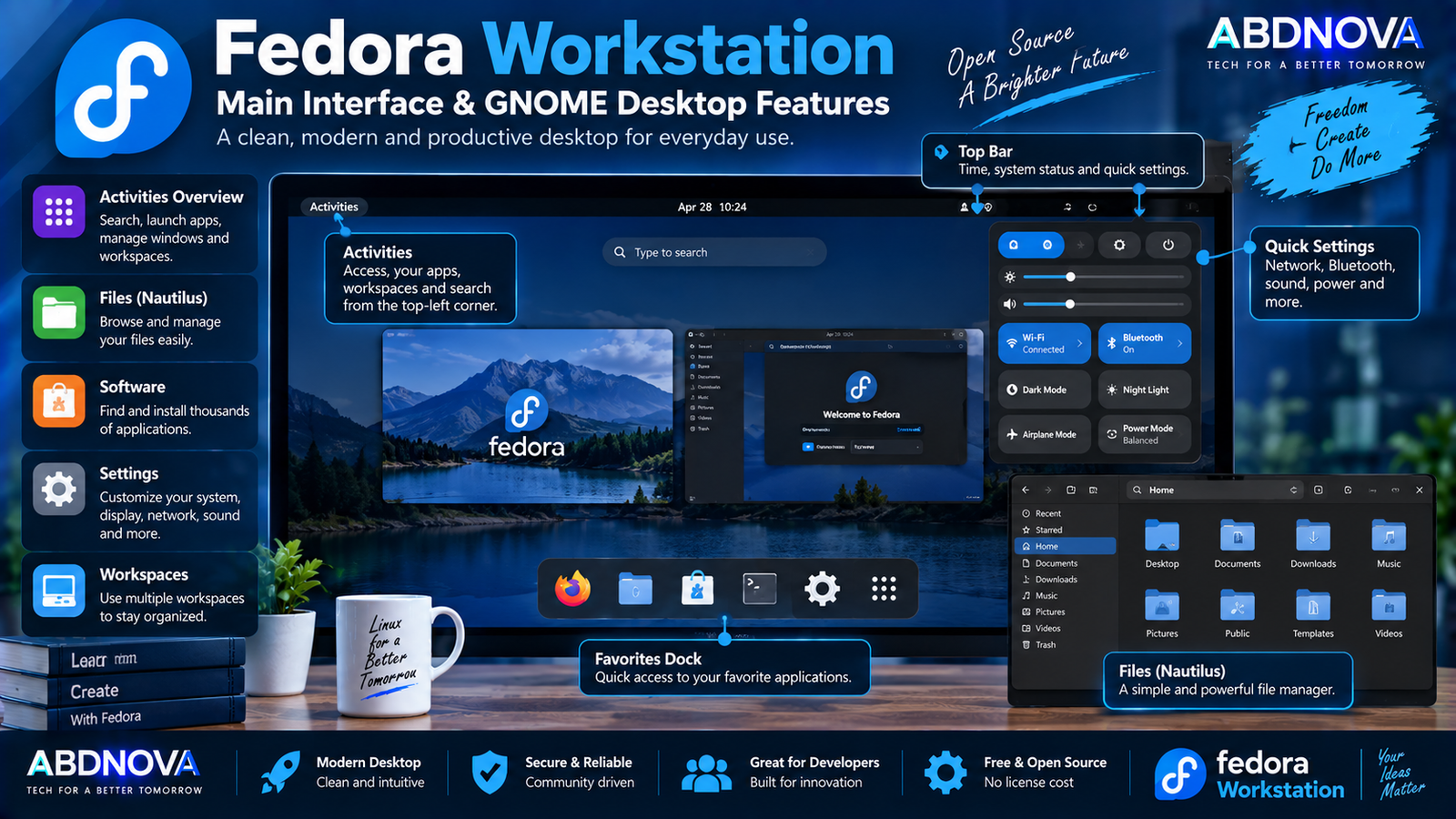
Fedora Workstation Main Interface & GNOME Desktop Features
Fedora Workstation uses the GNOME desktop environment. Instead of copying the traditional Windows desktop layout, GNOME provides a workflow centered around applications, search, workspaces, and the Activities overview.
Activities Overview
The Activities overview provides access to running applications, workspaces, search, and application launching.
Application Grid
Installed applications can be accessed through GNOME’s application grid.
Workspaces
Multiple workspaces help separate different activities. For example:
- Web browser on one workspace.
- Coding tools on another.
- Communication applications on another.
GNOME Files
GNOME Files provides graphical file and folder management for internal storage, external drives, and user files.
Quick Settings
Common controls for networking, Bluetooth, sound, power, and other system functions can be accessed quickly from the desktop.
Fedora Software & Applications
Fedora provides graphical software-management tools for finding and installing applications, while advanced users can also manage packages from the command line.
Common application categories include:
- Web browsers.
- Office software.
- Multimedia.
- Graphics.
- Development.
- Communication.
- Utilities.
- Games.
Fedora also supports modern Linux application technologies such as Flatpak.
Fedora Workstation for Developers
Software development is one of Fedora Workstation’s major use cases. It can provide a modern environment for:
- Python.
- C and C++.
- Rust.
- Java.
- JavaScript.
- Node.js.
- Git.
- Web development.
- Containers.
- Linux development.
- Cloud development.
- DevOps.
Fedora frequently adopts newer Linux technologies relatively early, making Workstation particularly useful for developers who want a current Linux environment.
If you also work with containers from Windows, see our Docker Desktop Download for Windows guide.
Fedora and Containers
Fedora is well suited to container-based development because Linux container technologies and development tools can run directly in the operating system.
This can be useful for:
- Backend development.
- Container testing.
- DevOps.
- Cloud applications.
- Server development.
- Linux software development.
Fedora Workstation for Everyday Use
Fedora is not limited to software development. It can also handle everyday desktop activities such as:
- Web browsing.
- Email.
- Office documents.
- Video playback.
- Music.
- Video calls.
- Photo management.
- File management.
- Messaging.
- Gaming.
Many popular applications either provide Linux versions or have Linux alternatives. Check important software compatibility before permanently replacing Windows.
Gaming on Fedora Workstation
Steam and Linux compatibility technologies such as Proton have made Linux gaming more practical, but compatibility is not identical to Windows.
Individual games may have problems because of:
- Anti-cheat systems.
- Proprietary launchers.
- Windows-only dependencies.
- Unsupported hardware features.
If PC gaming is important, check your specific games before removing Windows.
Fedora Workstation vs Linux Mint
| Feature | Fedora Workstation | Linux Mint |
|---|---|---|
| Default Desktop | GNOME | Cinnamon |
| Interface | Modern GNOME workflow | Traditional desktop |
| Release Approach | Frequent/current | More conservative desktop experience |
| Beginner Friendly | Yes | Yes |
| Live USB | Yes | Yes |
| Free/Open Source | Yes | Yes |
| Development Focus | Strong | Strong |
| Windows-like Layout | Less similar | More familiar |
| Package Base | RPM | DEB / Ubuntu |
| Package Manager | DNF | APT |
Linux Mint’s Cinnamon desktop may initially look more familiar to Windows users, while Fedora Workstation provides the GNOME workflow and tends to introduce users to newer Linux technologies sooner.
Fedora Workstation vs Ubuntu Desktop
| Feature | Fedora Workstation | Ubuntu Desktop |
|---|---|---|
| Desktop | GNOME | Customized GNOME |
| Package Base | RPM | DEB |
| Package Manager | DNF | APT |
| Free/Open Source | Yes | Yes |
| Live USB | Yes | Yes |
| Development | Strong | Strong |
| Release Style | Frequent/current | Regular + LTS releases |
| Enterprise Connection | Red Hat ecosystem | Canonical ecosystem |
Both are established Linux distributions, but their package ecosystems, release strategies, defaults, and desktop customization differ.
Fedora Workstation vs Windows 11
Fedora Workstation is a separate operating system rather than a Windows application. Windows .exe applications do not run natively on Fedora in the same way they do on Windows.
Fedora may be useful for users interested in:
- Linux.
- Open-source software.
- Programming.
- Development.
- Containers.
- Customization.
- Privacy-conscious computing.
Windows may still be necessary for specific Windows-only applications, peripherals, or games. A dual-boot configuration can provide access to both environments.
Fedora Workstation Updates
Fedora receives regular software, bug-fix, and security updates. Updates can include:
- Linux kernel updates.
- Security patches.
- GNOME updates.
- Application updates.
- Driver-related components.
- System libraries.
Keeping Fedora updated is important for security, software stability, and hardware compatibility.
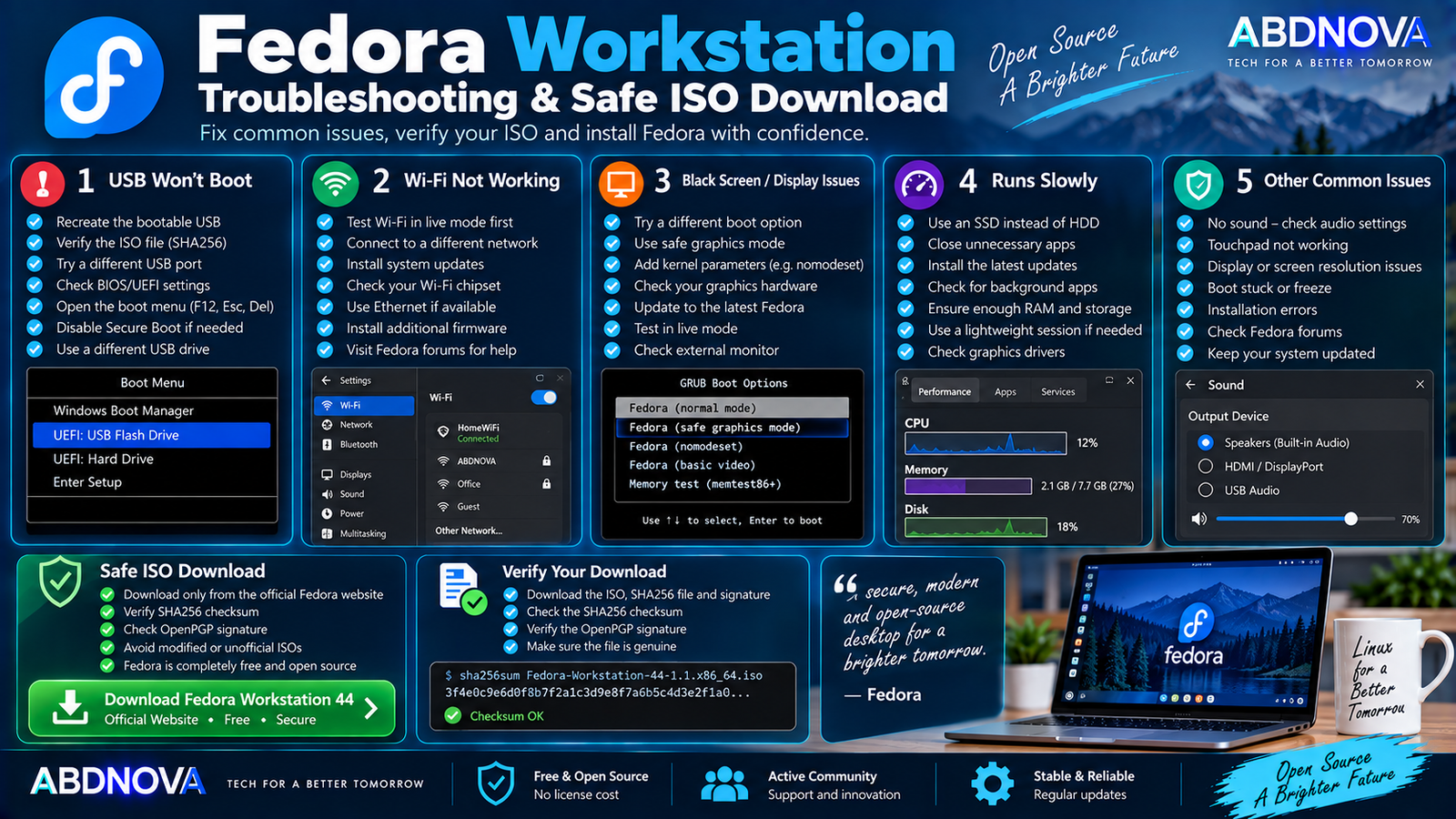
Fedora Workstation Troubleshooting & Safe ISO Download
Fedora USB Won’t Boot
Try:
- Recreate the bootable USB.
- Verify the downloaded ISO.
- Try another USB port.
- Check BIOS/UEFI settings.
- Open the PC’s boot menu manually.
- Confirm the correct USB device is selected.
Wi-Fi Doesn’t Work
Try:
- Test Wi-Fi from the live environment.
- Install available system updates.
- Check the Wi-Fi chipset.
- Use Ethernet temporarily if available.
- Check whether additional firmware or drivers are required.
Black Screen During Boot
Graphics-related compatibility issues can sometimes result in a blank or black screen during startup. Check Fedora’s boot troubleshooting options and verify that your graphics hardware is supported.
Fedora Runs Slowly
Try:
- Use an SSD instead of an HDD.
- Install current system updates.
- Close unnecessary applications.
- Check graphics support.
- Reduce unnecessary startup applications.
- Ensure sufficient RAM and free storage are available.
Fedora recommends around 4 GB RAM and 40 GB storage for most Fedora variants, with additional resources potentially providing a better experience.
Safe Fedora Workstation ISO Download
Download Fedora Workstation only from the Fedora Project and its official distribution infrastructure.
Fedora provides SHA256 checksum and OpenPGP verification for Workstation installation images.
- Fedora crack.
- Modified Fedora ISO.
- Pre-activated Fedora.
- Custom unlocked Fedora ISO.
- Unofficial Fedora repack.
- Patched Fedora.
- Unknown third-party ISO.
Fedora is already free and open-source software. No activation crack, product key, keygen, or patched installer is required.
Frequently Asked Questions
What is the latest stable Fedora Workstation version?
Fedora Workstation 44 is the current stable release as of September 2026. It was released on April 28, 2026.
What about Fedora Workstation 45?
Fedora Workstation 45 Beta was released on September 15, 2026. It is a pre-release testing version rather than the current stable Workstation release.
Is Fedora Workstation free?
Yes. Fedora Linux is free and open-source software.
Which Fedora ISO should I download for an Intel or AMD PC?
For a normal modern Intel or AMD desktop or laptop, download the Fedora Workstation 44 x86_64 Live ISO.
Can I try Fedora before installing it?
Yes. The Workstation Live ISO can boot from a USB flash drive, allowing you to try Fedora without making permanent changes to your computer.
How much RAM does Fedora Workstation need?
Fedora states that most Fedora variants recommend approximately 4 GB RAM to install and run.
How much storage does Fedora need?
Fedora recommends approximately 40 GB of disk space for most variants. More space is useful for applications, development tools, games, containers, and personal files.
Is Fedora Workstation available for ARM PCs?
Yes. Fedora Workstation 44 also provides an AArch64 image for supported ARM systems.
Can Fedora Workstation dual boot with Windows?
Yes. Fedora and Windows can coexist on the same PC. Back up important data before changing partitions.
Should I verify the Fedora ISO?
Yes. Fedora recommends verifying downloaded images for security and integrity using its checksum and OpenPGP verification process.
Final Thoughts
Fedora Workstation Download provides a modern GNOME-based Linux operating system for everyday computing, development, learning, containers, and open-source workflows.
Fedora Workstation 44 is the current stable release. For a typical Intel or AMD PC, download the official x86_64 Live ISO, verify the image, create a bootable USB, and use the live environment to test important hardware before making permanent changes to your existing Windows installation.
Fedora Workstation 45 Beta is available for testing, but users looking for a normal stable desktop installation should remain with Fedora Workstation 44 until the next stable release is available.
Download Fedora Workstation 44
Get the stable Fedora Workstation Live ISO directly from the Fedora Project.


