
eM Client Download for Windows 11 & 10
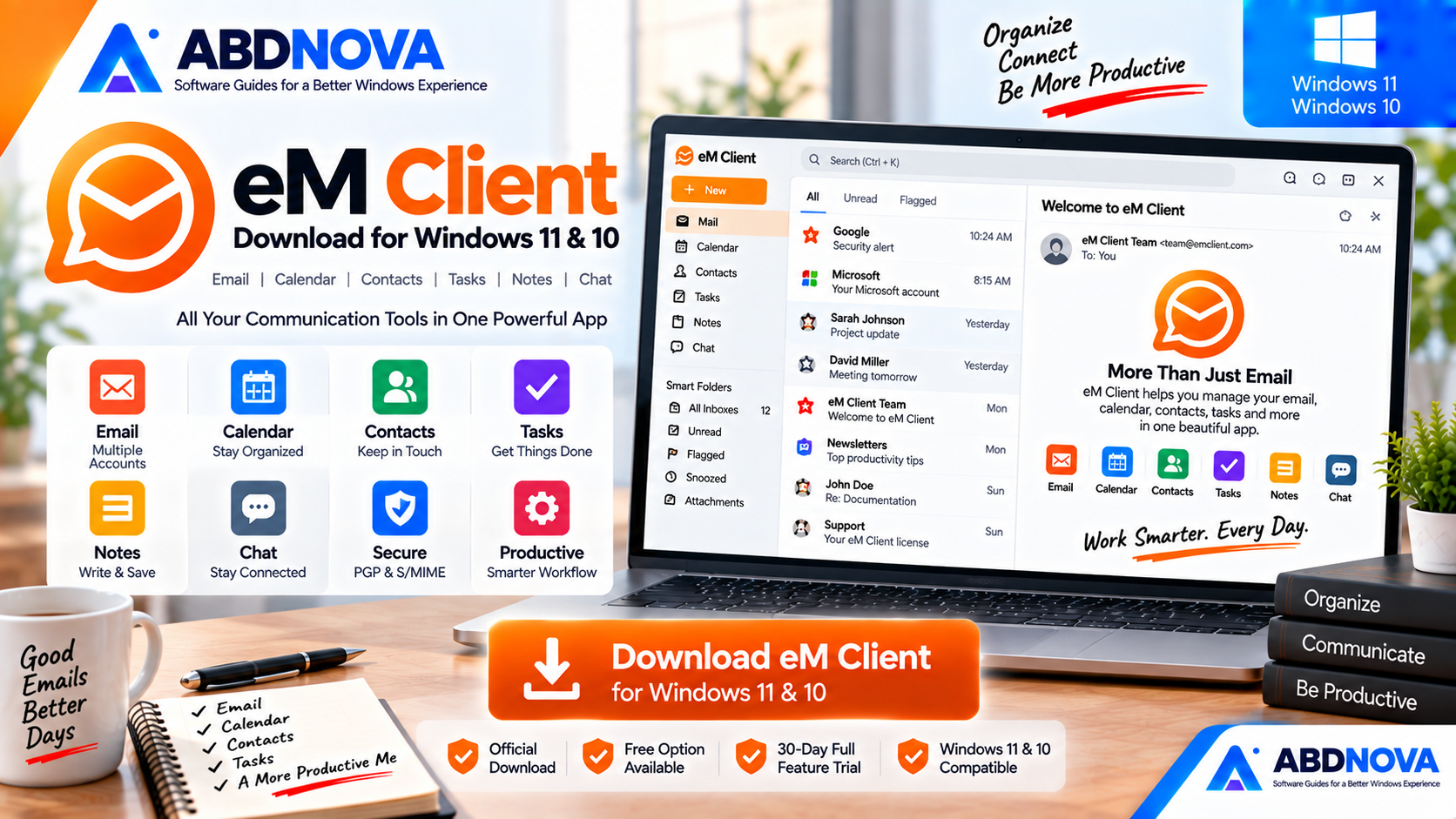
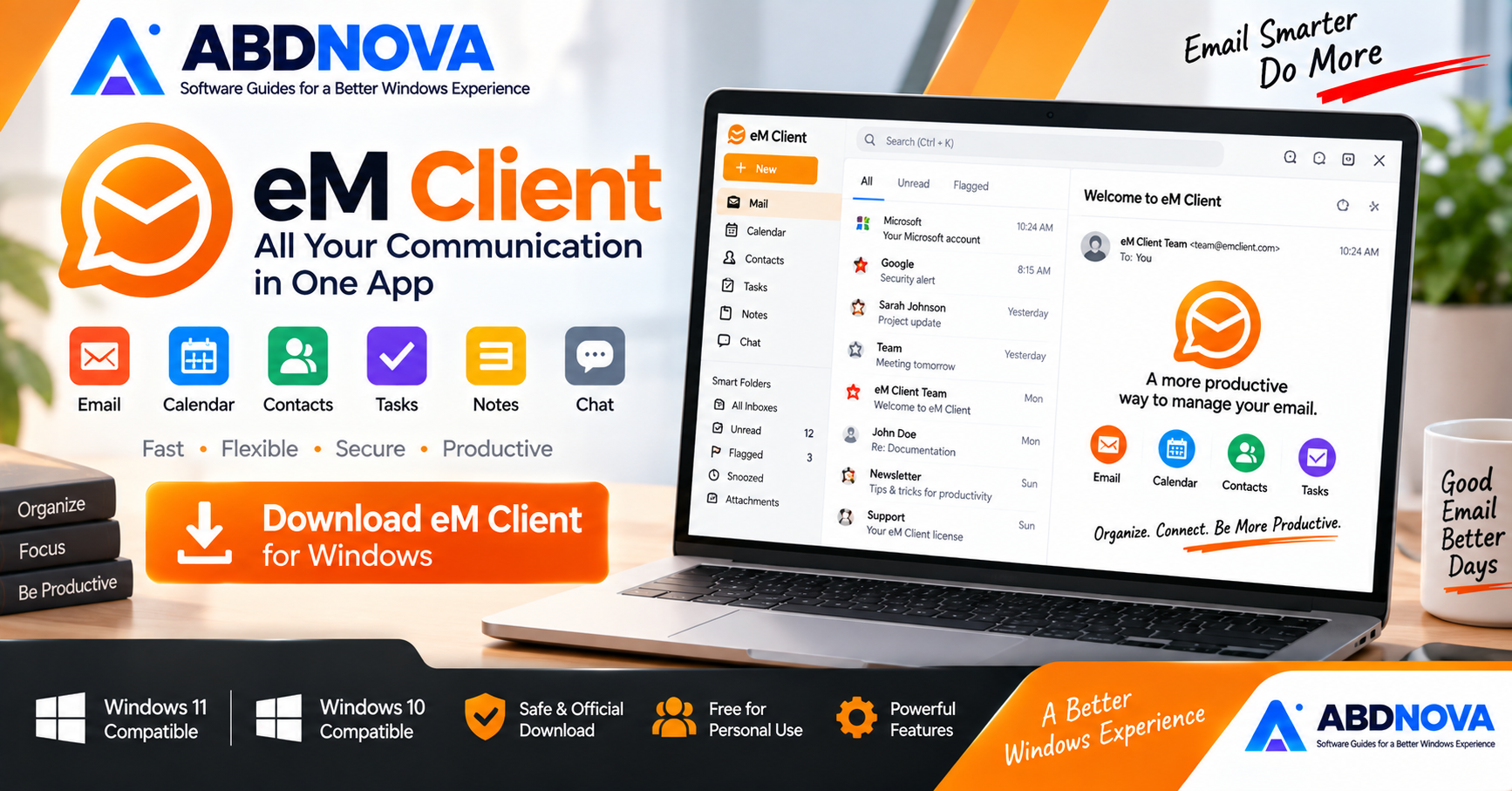
Download eM Client for Windows 11 and 10 to manage email, calendars, tasks, contacts, notes and supported chat services from one polished desktop application.
eM Client Download for Windows gives Windows users a full-featured email and productivity application that combines email, calendars, tasks, contacts, notes and chat inside one desktop interface.
It works with popular services including Gmail, Google Workspace, Microsoft 365, Outlook, Exchange, iCloud and standard IMAP, POP3 and SMTP accounts.
For users who want an alternative to Thunderbird or Microsoft Outlook, eM Client provides a polished interface together with productivity features such as Snooze, Watch for Replies, automatic backup, instant translation, encryption and AI-assisted writing.
eM Client Download for Windows – Quick Overview
| Information | Details |
|---|---|
| Software | eM Client |
| Category | Email & Productivity |
| Platform | Windows, macOS, Android, iOS |
| Windows 11 | Supported |
| Windows 10 | Supported |
| Free Option | Yes |
| Free Trial | 30 days of full features |
| Free License | Personal, non-commercial use |
| Free Account Limit | Up to 2 email accounts |
| Free Device Limit | 1 device |
| Yes | |
| Calendar & Tasks | Yes |
| Contacts | Yes |
| Notes | Yes |
| Chat | Yes |
| Gmail / Google Workspace | Yes |
| Microsoft 365 / Exchange | Yes |
| IMAP / POP3 / SMTP | Yes |
| PGP / S/MIME | Yes |
| Automatic Backup | Yes |
| AI Features | Available |
The Free license can be useful for personal email management, but its restrictions are important: personal non-commercial use only, up to two email accounts and one active device. :contentReference[oaicite:2]{index=2}
Download eM Client for Windows 11 & 10
The safest source is the official eM Client website.
New users receive a 30-day full-feature trial after first installation. After the trial expires, you can activate a Free license or purchase a Personal or Business license. :contentReference[oaicite:3]{index=3}
eM Client Free vs Personal vs Business
| Feature | Free | Personal | Business |
|---|---|---|---|
| Price | Free | Paid | Paid |
| Use Type | Personal, non-commercial | Individuals / freelancers / sole proprietors | Companies / institutions |
| Email Accounts | Up to 2 | Unlimited | Unlimited |
| Devices | 1 | Up to 3 under current offering | License based |
| Yes | Yes | Yes | |
| Calendar | Yes | Yes | Yes |
| Contacts | Yes | Yes | Yes |
| Tasks | Yes | Yes | Yes |
| Advanced Features | Restricted | Full | Full |
| Support | Community | VIP | VIP |
The current licensing model supports both subscription and one-time purchase options for paid licenses. :contentReference[oaicite:5]{index=5}
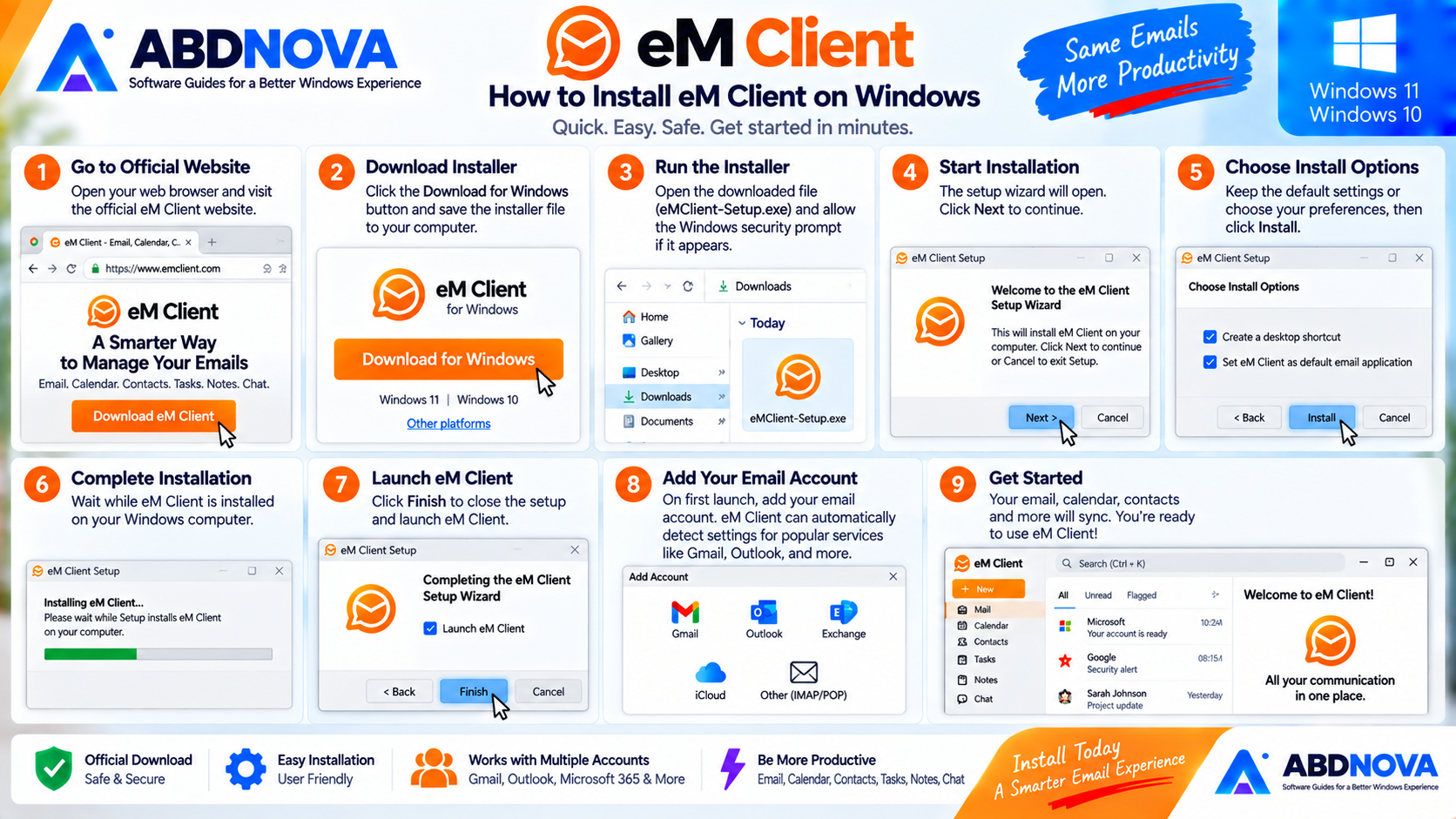
How to Install eM Client on Windows
- Open the official eM Client website.
- Download eM Client for Windows.
- Open the downloaded installer.
- Approve the Windows security prompt if it appears.
- Complete the installation.
- Launch eM Client.
- Add your email account.
- Allow automatic configuration where available.
- Complete your email provider’s authentication process.
- Let eM Client synchronize your mail and other selected data.
New users receive the full-feature trial period automatically after installing the application for the first time.
eM Client Main Interface & Key Features
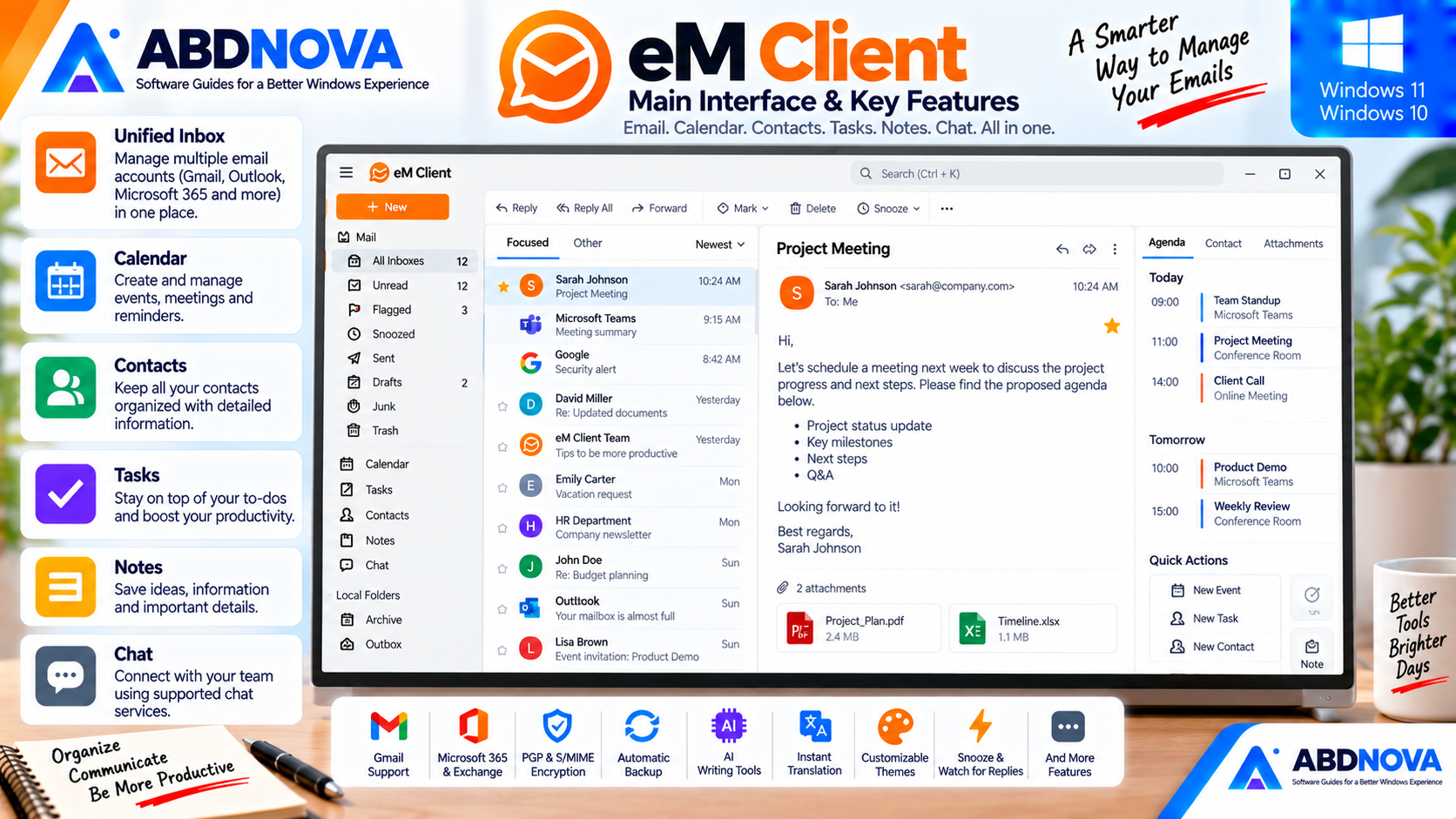
eM Client is designed as more than an inbox.
Mail — Send, receive, search and organize email.
Calendar — Manage meetings, appointments, schedules and invitations.
Tasks — Create and manage to-do items and reminders.
Contacts — Store and synchronize contact information.
Notes — Keep information alongside your communication workflow.
Chat — Access supported chat services without constantly switching applications.
Multiple Email Accounts
eM Client works with a broad range of email services and technologies.
- Gmail.
- Google Workspace.
- Microsoft Outlook.
- Microsoft 365.
- Exchange.
- iCloud.
- IMAP.
- POP3.
- SMTP.
This makes it useful if you use several providers but want to manage them from one Windows application.
eM Client Email, Calendar & Contacts
Gmail & Google Workspace
eM Client provides extensive Gmail and Google Workspace integration.
Supported synchronization can include:
- Email.
- Gmail labels.
- Calendars.
- Shared calendars.
- Contacts.
- Tasks.
- Free/Busy information.
Google account setup uses OAuth authentication, so authorization takes place through Google’s normal login system.
Microsoft 365 & Exchange
eM Client supports Microsoft 365 synchronization for email, calendars, tasks, contacts and notes.
Its Microsoft integration can also support shared mail/calendar folders and other server-side functionality.
This makes eM Client a genuine alternative worth considering when you need Microsoft account compatibility but do not necessarily want Outlook itself.
Calendar & Tasks
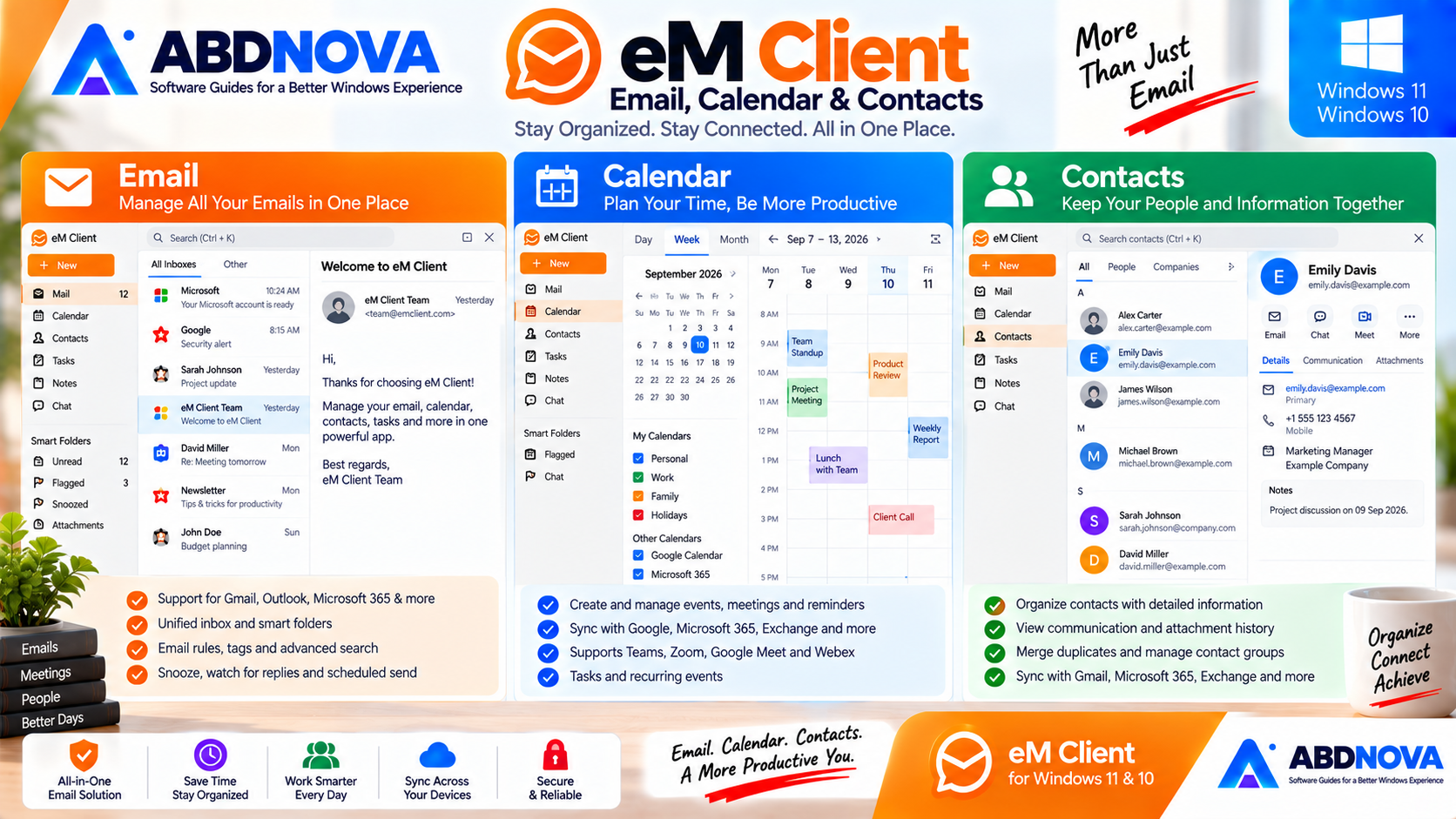
Calendar functionality is integrated directly into eM Client.
You can manage:
- Events.
- Meetings.
- Invitations.
- Reminders.
- Recurring schedules.
- Internet calendars.
- Tasks.
- Free/Busy information.
eM Client can also connect calendar events with online meeting services such as Microsoft Teams, Google Meet, Zoom and Webex.
Task Management
Tasks can synchronize across supported services and be organized with tags and reminders.
eM Client also provides a task view influenced by the Getting Things Done methodology.
Contacts
eM Client includes a dedicated contact manager.
Features can include:
- Multiple contact views.
- Communication history.
- Attachment history.
- Contact categorization.
- Contact merging.
- Duplicate management.
- Detailed contact fields.
- Synchronization with supported services.
Unique Sidebar
One of eM Client’s more distinctive interface features is its contextual Sidebar.
Depending on the selected content and configuration, the Sidebar can show:
- Agenda.
- Communication history.
- Calendar.
- Threads.
- Invitations.
- Attachment history.
Email Rules & Organization
eM Client includes rules for automatically organizing incoming and outgoing email.
You can also use:
- Tags.
- Gmail labels.
- Exchange categories.
- Folder colors.
- Conversation views.
- Thread views.
- Inbox Categories.
Snooze & Watch for Replies
Snooze lets an email temporarily leave your immediate workflow and return when you are ready to deal with it.
Watch for Replies helps track messages where you are waiting for another person to respond.
Scheduled Send
eM Client can schedule messages for a specific date and time.
This is useful for:
- Preparing email outside working hours.
- Communicating across time zones.
- Scheduling reminders or follow-ups.
- Preparing business communication in advance.
Templates, Signatures & Quick Text
Users who repeatedly send similar messages can save time with:
- Email templates.
- Signatures.
- Quick Text snippets.
Instant Translation
eM Client includes built-in message translation, allowing email content to be translated without repeatedly copying text into a separate translation tool.
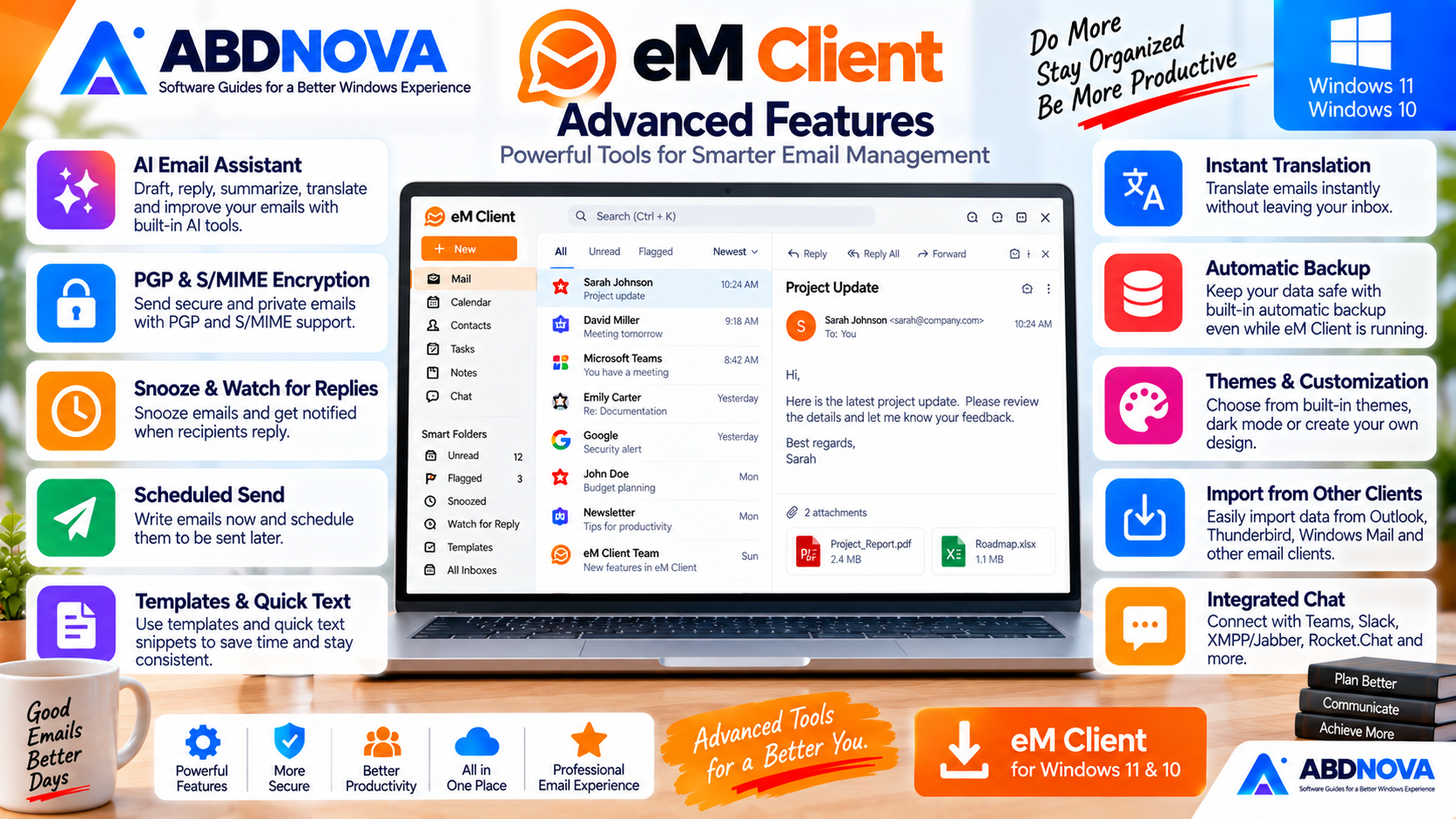
eM Client Advanced Features
AI Features
Current eM Client versions include AI-assisted email functionality.
AI tools can help with:
- Drafting emails.
- Generating replies.
- Summarizing messages.
- Proofreading.
- Translating.
- Changing tone.
- Shortening text.
- Expanding text.
PGP & S/MIME Encryption
eM Client supports encrypted email and digital signatures through:
- PGP.
- S/MIME.
Its PGP functionality can also work with eM Keybook and supported external key services for locating public keys.
Automatic Backup
eM Client includes an automatic backup tool and can create backups while the application is running.
Regular backups are worth configuring if your desktop email database contains important locally stored information.
Import from Other Email Clients
eM Client supports importing data from major email clients including:
- Microsoft Outlook.
- Outlook Express.
- Windows Mail.
- Thunderbird.
- Other supported clients.
If you are considering the open-source alternative, see our Thunderbird Download for Windows guide.
Themes & Customization
eM Client provides built-in themes, a dark theme, community-created themes and custom design options through its theme editor.
Chat
eM Client also integrates supported chat services.
Officially documented options include:
- XMPP / Jabber.
- Microsoft Teams.
- Slack.
- Rocket.Chat.
- IceWarp TeamChat.
Compatible services can also support group chat, channels and file transfer.
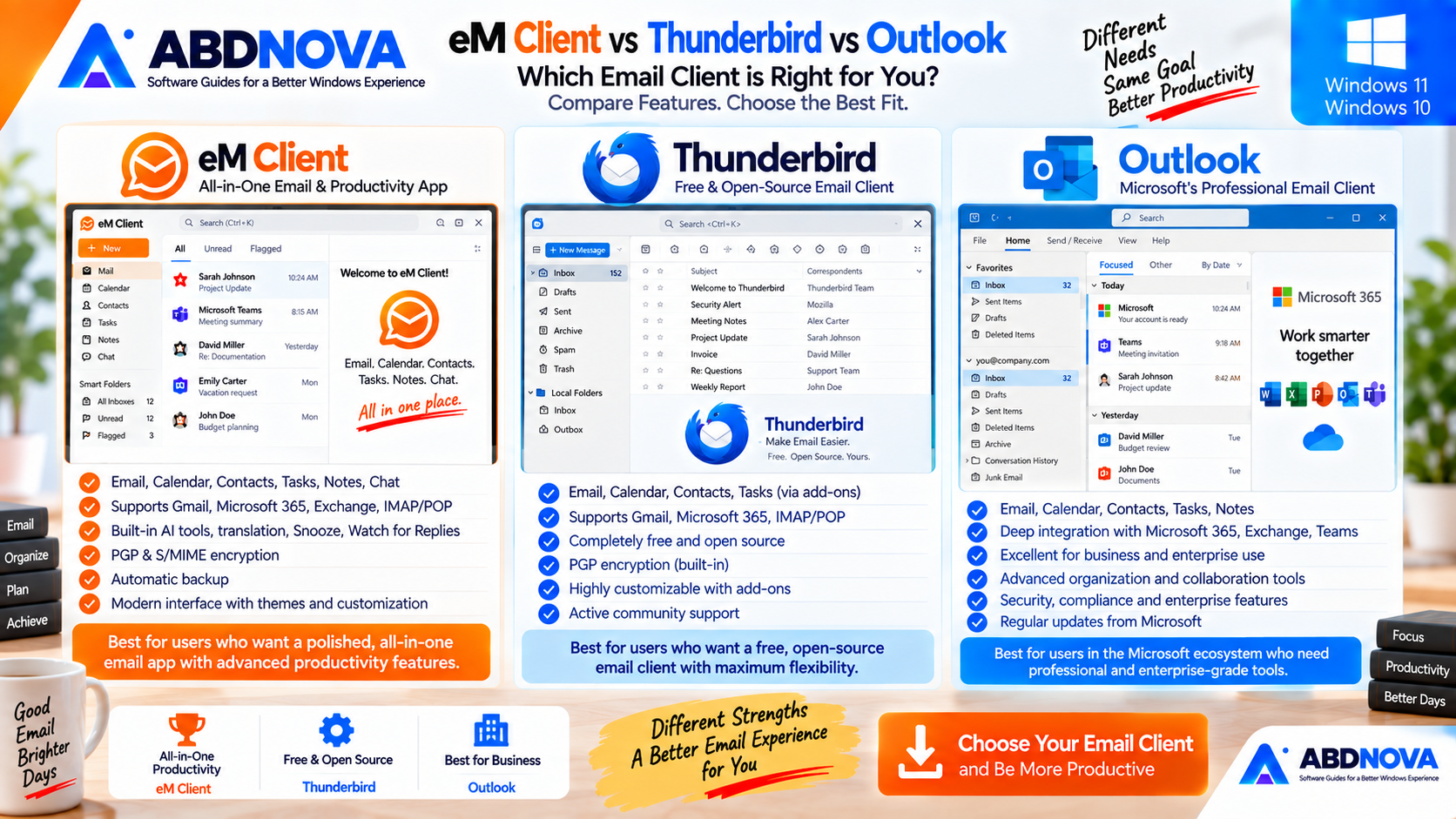
eM Client vs Thunderbird vs Outlook
| Feature | eM Client | Thunderbird | Outlook |
|---|---|---|---|
| Windows App | Yes | Yes | Yes |
| Free Option | Yes, restricted | Yes | Available options vary |
| Open Source | No | Yes | No |
| Multiple Accounts | Yes | Yes | Yes |
| Calendar | Yes | Yes | Yes |
| Contacts | Yes | Yes | Yes |
| Tasks | Yes | Yes | Yes |
| Gmail Support | Strong | Strong | Yes |
| Microsoft 365 | Strong | Improving | Excellent |
| PGP | Yes | Yes | Different approach |
| S/MIME | Yes | Yes | Yes |
| Automatic Backup | Built in | Profile-based backup | Different workflow |
| AI Email Tools | Built in | Different ecosystem | Available |
| Customization | Strong | Excellent | Moderate |
| Best For | Polished all-in-one email | Free/open-source flexibility | Microsoft ecosystem |
Choose eM Client if you want a polished all-in-one email program with strong Gmail and Microsoft compatibility, calendar, tasks, contacts, translation, encryption, backups and productivity features.
Choose Thunderbird if you want a completely free and open-source desktop email client with strong customization and an extensive add-on ecosystem.
Choose Outlook if your work revolves around Microsoft 365, Exchange, Teams and other Microsoft business services.
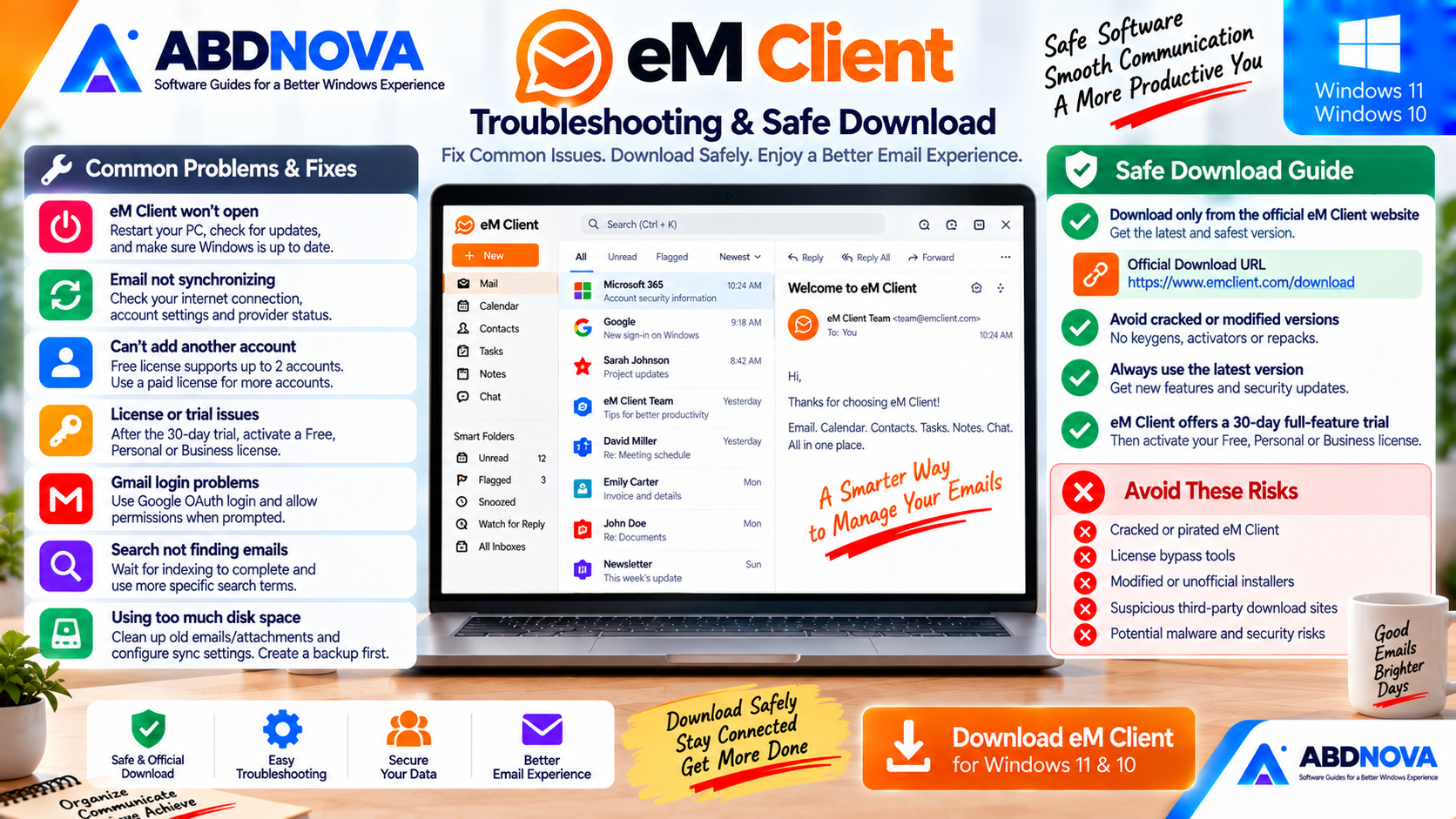
Troubleshooting eM Client on Windows
eM Client Won’t Open
Restart Windows and try opening the application again.
If the problem started after an update, check eM Client’s official support resources and make sure you are using the current Windows release.
Email Isn’t Synchronizing
Check:
- Internet connection.
- Account credentials.
- IMAP or Exchange settings.
- Provider status.
- Authentication method.
- Firewall or security software.
For Gmail, confirm that Google’s OAuth authorization process completed correctly.
Can’t Add Another Account
Check your license first.
The Free license supports a maximum of two accounts. Additional accounts require an appropriate paid license. :contentReference[oaicite:8]{index=8}
Free License Stopped Working After Trial
New installations initially receive the 30-day full-feature trial.
After it expires, register and activate the Free license or activate a purchased Personal or Business license. Without a valid license, eM Client can remain in offline mode. :contentReference[oaicite:9]{index=9}
Gmail Login Problems
Use eM Client’s normal account setup and complete Google’s OAuth authorization process in the browser when prompted.
Search Isn’t Finding an Email
Allow synchronization and indexing to finish, confirm you are searching the correct account or folder and try more specific search terms.
eM Client Is Using Too Much Disk Space
Large mailboxes and downloaded attachments can consume substantial storage.
Review unnecessary messages and attachments and configure synchronization appropriately.
Safe Official eM Client Download
Download eM Client only from the developer’s official website.
There is no need to use cracked or modified installers because the official product provides a 30-day full-feature trial and a Free license for qualifying personal, non-commercial users.
- eM Client Crack.
- License bypass tools.
- Activators.
- Modified installers.
- Unofficial repacks.
- Random third-party download mirrors.
Frequently Asked Questions
Is eM Client free?
Yes. eM Client provides a Free license, but it is limited to personal, non-commercial use and has feature and account restrictions.
How many accounts can I use with eM Client Free?
The current Free license supports up to two email accounts.
Can I use eM Client Free for business?
No. The Free license is only for personal, non-commercial use. Businesses and organizations require an appropriate Business license. :contentReference[oaicite:10]{index=10}
Does eM Client work with Gmail?
Yes. eM Client supports Gmail and Google Workspace synchronization for email, calendars, contacts, tasks and other supported Google services.
Does eM Client support Microsoft 365?
Yes. eM Client supports Microsoft 365 synchronization for email, calendars, tasks, contacts and notes.
Does eM Client support Exchange?
Yes. Exchange is among eM Client’s supported email technologies and services.
Does eM Client support IMAP and POP?
Yes. eM Client supports IMAP, POP3 and SMTP.
Does eM Client have a calendar?
Yes. It includes integrated calendar and task management with synchronization for supported services.
Can eM Client import Thunderbird data?
Yes. Thunderbird is among the email clients from which eM Client can import supported data.
Does eM Client support encrypted email?
Yes. eM Client supports PGP and S/MIME encryption and signing functionality.
Does eM Client include backup functionality?
Yes. eM Client provides an automatic backup tool that can operate while the application is running.
Is eM Client open source?
No. eM Client is proprietary software. If open-source software is a priority, Thunderbird is a stronger fit.
Final Thoughts
eM Client Download for Windows is a strong option for users who want email, calendar, tasks, contacts, notes and communication tools inside one polished desktop application.
Its compatibility with Gmail, Google Workspace, Microsoft 365, Exchange, IMAP and other services makes it practical for users who manage accounts from different providers.
Features such as Snooze, Watch for Replies, automatic backup, message translation, PGP/S/MIME, AI assistance, templates, Quick Text, advanced contacts and calendar integration give eM Client considerably more depth than a basic mail application.
The main limitation is licensing. The Free edition is intended for personal, non-commercial use and supports only two accounts, while professional and heavier users may need Personal or Business licensing.
If you prefer a fully free and open-source alternative, see our Thunderbird Download for Windows guide.
For Windows 11 and Windows 10 users looking for a polished alternative to Thunderbird or Outlook, eM Client is well worth considering.
Download eM Client for Windows
Get the current Windows desktop application directly from the official eM Client website. ABDNOVA recommends official sources only.