
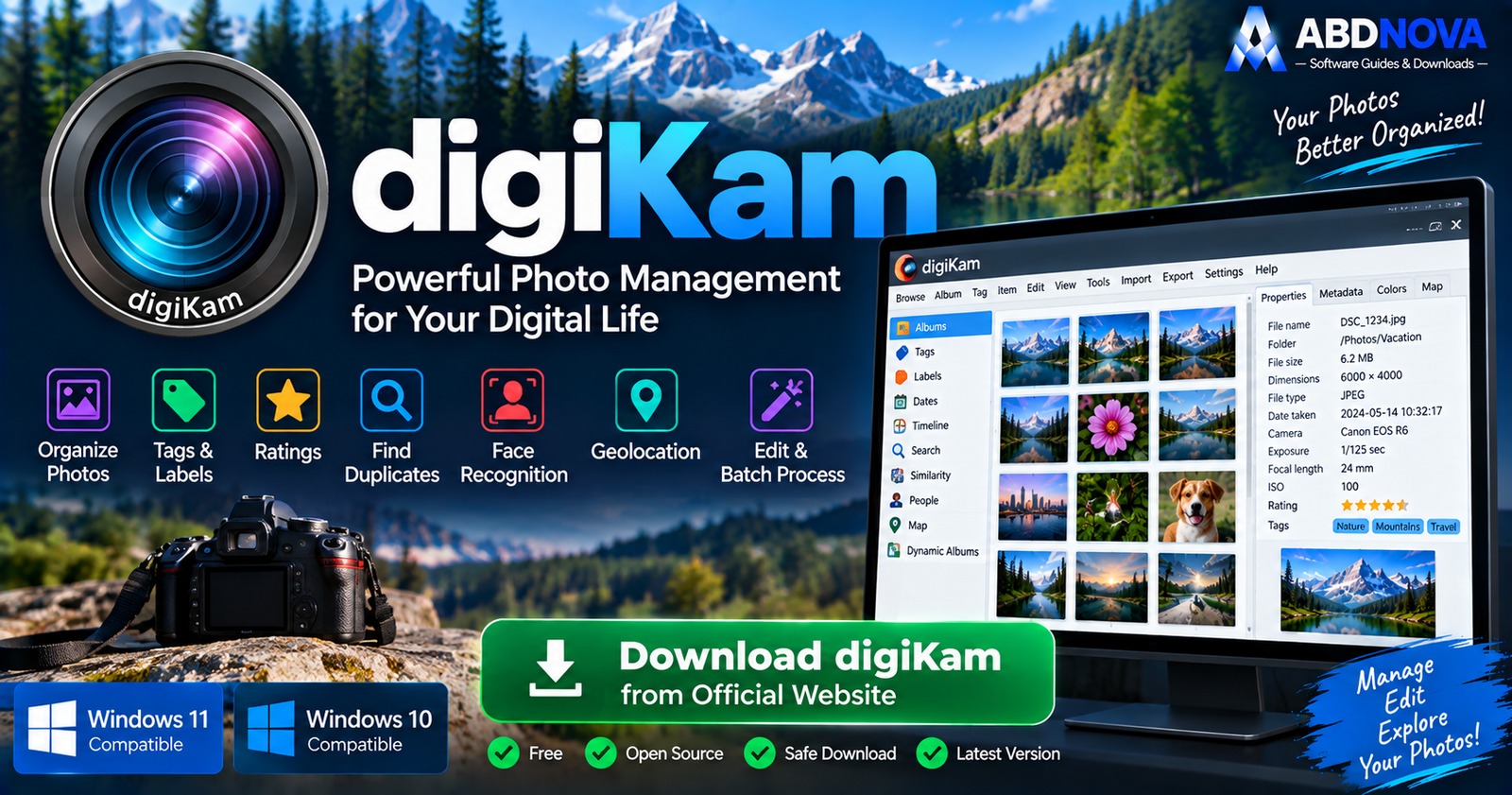

digiKam Download for Windows – Photo Manager & Image Organizer

Download digiKam for Windows 11 and 10 to organize, search, tag, edit and batch-process large photo collections with RAW, metadata and AI tools.
digiKam Download for Windows gives Windows 11 and Windows 10 users a powerful free and open-source photo management application designed for large image libraries.
Unlike a basic image viewer, digiKam works more like a complete Digital Asset Management (DAM) system. It combines albums, hierarchical tags, ratings, metadata, face detection and recognition, similarity search, geolocation, RAW processing, image editing, camera importing and batch processing in one application.
It is particularly useful for photographers and users who have thousands of photos stored across cameras, phones, external drives and multiple folders.
digiKam Download for Windows – Quick Overview
| Information | Details |
|---|---|
| Software | digiKam |
| Current Stable Version | 9.1.0 |
| Type | Photo Manager / DAM / Image Editor |
| Windows 11 | Supported |
| Windows 10 | Supported |
| Architecture | 64-bit |
| Price | Free |
| Open Source | Yes |
| RAW Support | Yes |
| HEIF / HEIC | Yes |
| WebP | Yes |
| AVIF | Yes |
| JPEG XL | Yes |
| Face Detection | Yes |
| Face Recognition | Yes |
| AI Auto-Tags | Yes |
| Ratings & Labels | Yes |
| EXIF / IPTC / XMP | Yes |
| Geolocation | Yes |
| Similarity Search | Yes |
| Batch Processing | Yes |
| Camera Import | Yes |
| Official Source | digiKam.org |
What Is digiKam?
digiKam is an open-source professional photo-management application available for Windows, Linux and macOS.
digiKam can manage:
- JPEG photos.
- PNG images.
- TIFF files.
- WebP.
- HEIF / HEIC.
- AVIF.
- JPEG XL.
- Camera RAW files.
- Videos.
- Other supported media formats.
Its main strength is not simply opening images. digiKam is designed to build and manage an organized, searchable photo library.
digiKam Windows Requirements & Download Options
The official digiKam download page currently provides a 64-bit Windows build for Windows 10 or later.
The official project also provides a standalone archive for users who prefer a portable-style installation. The normal installer remains the easiest option for most Windows users.
How to Install digiKam on Windows
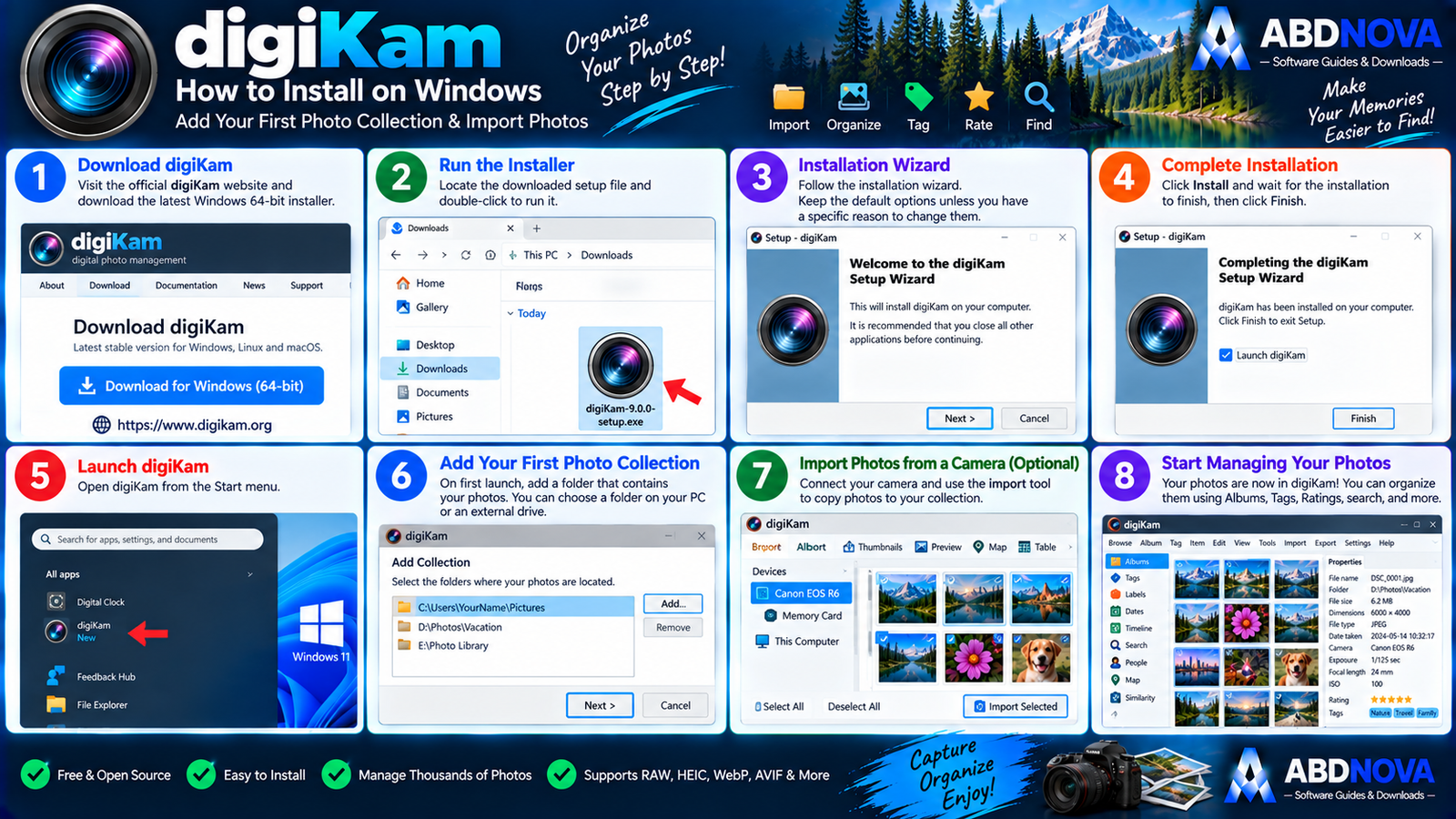
- Visit the official digiKam download page.
- Select the Windows download.
- Choose the current stable 64-bit package.
- Save the installer to your PC.
- Open the downloaded setup file.
- If Windows displays User Account Control, verify the official source and continue.
- Follow the installation wizard.
- Launch digiKam from the Start menu.
- Select the folder or drive containing your photo collection.
- Allow digiKam to create its database and scan the collection.
Add Your First Photo Collection
During initial setup, digiKam needs to know where your photographs are stored.
For example:
or
External Drive → Photo Library
digiKam then builds its database and begins reading thumbnails, metadata and organizational information.

digiKam Main Interface – Albums, Thumbnails & Sidebars
digiKam’s interface contains substantially more photo-management tools than lightweight image viewers.
Albums
Albums normally correspond to directories containing your photographs, RAW files or videos. Hierarchical sub-albums are supported.
Thumbnail View
The main thumbnail view lets you browse large collections visually.
Preview
Select a photo to open a larger preview for closer inspection.
Left Sidebar
The left sidebar provides organizational and discovery tools such as:
- Albums.
- Tags.
- Labels.
- Dates.
- Timeline.
- Search.
- Similarity.
- Map Search.
- People.
Right Sidebar
The right sidebar can display:
- Properties.
- Metadata.
- Colors.
- Maps.
- Captions.
- Versions.
- Filters.
- Tools.
If you need a lighter application focused more on browsing and format support, see our XnView MP Download for Windows guide.

digiKam Photo Organization – Albums, Tags, Ratings & AI
Organize Photos with Albums
Albums provide the physical organizational structure of a digiKam photo collection.
For example:
Hierarchical albums make it easier to manage large libraries without keeping every photograph in a single folder.
Tags & Categories
Tags provide a second organizational layer that does not depend on physical folders.
One photograph can have several tags such as:
- Travel.
- Mountains.
- Sunset.
- Family.
Ratings, Pick Labels & Color Labels
digiKam can classify photographs using star ratings, Pick Labels and Color Labels.
This is useful when sorting a large photo shoot into:
- Best photos.
- Keep.
- Review.
- Reject candidates.
Face Detection & Face Recognition
One of digiKam’s biggest advantages over lightweight image viewers is its photo-management AI functionality.
Face Detection identifies faces appearing in photographs, while Face Recognition can help organize and recognize known people after the appropriate recognition workflow has been established.
This is especially useful for large family, wedding, event and portrait collections.
AI Auto-Tags
digiKam can use local AI models to analyze image contents and generate searchable keywords automatically.
Aesthetic Detection
digiKam can also use image-quality analysis to help evaluate photographs using factors such as blur, noise, exposure and compression depending on the configured workflow.
Powerful Photo Search
Photos can be searched using:
- Tags.
- Ratings.
- Labels.
- Dates.
- Time ranges.
- Geolocation.
- Similarity.
- Faces.
- Advanced properties.
Find Similar or Duplicate Photos
Similarity tools can help locate visually similar or duplicate photographs created through repeated camera imports, phone backups, merged drives or multiple edited copies.

digiKam Advanced Features – RAW, Metadata & Batch Processing
RAW Photo Support
digiKam is particularly suitable for photographers because its integrated Image Editor supports RAW workflows alongside color management and extensive metadata functionality.
Modern Image Formats
Current digiKam documentation includes support for modern formats including:
- WebP.
- HEIF / HEIC.
- AVIF.
- JPEG XL.
- Camera RAW.
- Traditional image formats.
digiKam Image Editor
The integrated Image Editor includes practical tools such as:
- Red-eye correction.
- Color correction.
- Noise reduction.
- Special effects.
- Color management.
- RAW processing.
- Metadata handling.
digiKam also integrates G’MIC-Qt, providing access to a large range of open-source image-processing filters.
Batch Queue Manager
The Batch Queue Manager (BQM) is one of digiKam’s most powerful tools for users who process hundreds of photographs.
Batch workflows can include:
- Resize.
- Convert.
- Rename.
- RAW decoding.
- DNG conversion.
- Metadata operations.
- Watermarking.
- Image adjustments.
- G’MIC processing.
Multiple operations can be chained together.
EXIF, IPTC & XMP Metadata
digiKam provides extensive metadata management for:
- EXIF.
- IPTC.
- XMP.
- GPS information.
Metadata can include camera model, capture date, exposure information, copyright, author, captions, keywords and GPS location.
Geolocation & Map Tools
The Geolocation Editor can manage coordinates and map information associated with photographs.
This is especially useful for travel photography and location-based collections.
Import Photos from a Camera
digiKam includes dedicated camera-import tools for previewing, downloading and organizing photographs.
Light Table & Photo Comparison
The Light Table helps photographers compare similar shots for:
- Focus.
- Composition.
- Facial expression.
- Exposure.
- Motion blur.
digiKam 9.1 – Current Stable Release
digiKam 9.1.0 is the current stable release verified for this article.
It builds on the major 9.0 generation with additional database, preview, search, import, usability and performance improvements.
For normal use, install the latest stable release instead of an older 9.0 build or a weekly development snapshot.

digiKam vs XnView MP vs FastStone vs Windows Photos
| Feature | digiKam | XnView MP | FastStone | Windows Photos |
|---|---|---|---|---|
| Image Viewing | Excellent | Excellent | Excellent | Good |
| Photo Management | Excellent | Excellent | Good | Basic |
| RAW Workflow | Strong | Strong | Good | Limited |
| Albums & Tags | Advanced | Strong | Basic | Basic |
| Ratings & Labels | Advanced | Yes | Limited | Limited |
| Face Recognition | Yes | Different workflow | No | Platform dependent |
| AI Auto-Tagging | Yes | Limited | No | Platform dependent |
| Similarity Search | Yes | Yes | Limited | Limited |
| EXIF / IPTC / XMP | Advanced | Strong | Good | Basic |
| Geolocation | Advanced | Good | Limited | Basic |
| Batch Processing | Advanced BQM | Excellent | Excellent | Limited |
| Image Editor | Strong | Basic / Moderate | Good | Basic |
| Best For | Large professional libraries | Advanced organization | Fast viewing & editing | Simple everyday viewing |
digiKam vs XnView MP
digiKam is more suitable for users who need a complete database-driven photo library with face recognition, AI tagging, advanced metadata, albums and camera workflows.
XnView MP is a strong alternative when broad format support, fast browsing and powerful batch tools matter more than a full DAM workflow.
digiKam vs FastStone Image Viewer
FastStone Image Viewer is easier and lighter for fast viewing, basic editing and image comparison.
digiKam is more appropriate for very large organized libraries, metadata-heavy workflows and advanced searching.
digiKam vs IrfanView
If your priority is extremely lightweight image viewing and utility-style conversion rather than managing a complete photo database, see our IrfanView Download for Windows guide.

digiKam Troubleshooting
digiKam Takes Time on First Launch
This can be normal when importing a large collection.
digiKam may need to:
- Build its database.
- Read metadata.
- Generate thumbnails.
- Scan photo collections.
Allow the initial processing to finish before judging normal performance.
Face Recognition Is Slow
AI analysis can be computationally demanding for very large photo libraries.
Try:
- Processing collections in stages.
- Closing unnecessary programs.
- Allowing background tasks to complete.
- Using suitable acceleration where supported and configured.
Thumbnails Load Slowly
Large high-resolution collections require more thumbnail processing. Keep digiKam updated, use fast storage where possible and allow thumbnail generation to complete.
RAW File Doesn’t Display Correctly
Update digiKam first, particularly when using a recently released camera model.
RAW compatibility evolves as support for new cameras and formats is added.
Database or Collection Problems
Back up your original photographs and important digiKam data before making major library or database changes.
Is digiKam Safe?
Yes, when downloaded from the official digiKam project.
The official download page provides file-verification information and states that release files are signed with GnuPG.
- digiKam Crack.
- digiKam Pro Crack.
- digiKam Premium.
- Pre-Activated digiKam.
- Modified digiKam.
- Third-party repacks.
digiKam is already free and open source, so there is no legitimate reason to use a cracked or modified build.
Safe digiKam Download for Windows
The safest source for digiKam Download for Windows is the official digiKam website.
Use the official digiKam download page to get the latest stable 64-bit Windows build.
Frequently Asked Questions
Does digiKam work on Windows 11?
Yes. digiKam supports 64-bit Windows 10 or later, including Windows 11.
Does digiKam work on Windows 10?
Yes. Windows 10 is the current minimum supported Windows generation for the official Intel build.
Is digiKam free?
Yes. digiKam is free and open-source software.
What is the current digiKam version?
The current stable release verified for this article is digiKam 9.1.0.
Is digiKam 64-bit?
Yes. The current official Windows download is 64-bit.
Does digiKam support RAW photos?
Yes. RAW photography and RAW processing are major parts of digiKam’s photo-management and editing workflow.
Does digiKam support HEIC?
Yes. Current digiKam documentation includes HEIF and HEIC support.
Does digiKam support WebP?
Yes. WebP is supported.
Can digiKam recognize faces?
Yes. digiKam includes face detection and recognition functionality for organizing photo collections.
Does digiKam send photos to the cloud for AI?
Its documented deep-learning functionality runs locally on the computer, while optional model files can be downloaded when required.
Can digiKam find duplicate photos?
Yes. Similarity-search functionality can help locate duplicate and visually similar photographs.
Can digiKam batch-process photos?
Yes. Its Batch Queue Manager can combine multiple processing operations into reusable workflows.
Is digiKam better than a basic photo viewer?
It is substantially more powerful for large organized collections, but users who only want to open images quickly may prefer a lighter viewer such as XnView MP, FastStone or IrfanView.
Final Thoughts
digiKam Download for Windows is a strong choice for Windows users who have outgrown basic image viewers and need serious photo-library management.
Its combination of RAW support, albums, hierarchical tags, ratings, labels, EXIF/IPTC/XMP metadata, face detection and recognition, AI Auto-Tags, similarity search, geolocation, camera import, Light Table, Image Editor and Batch Queue Manager makes it especially suitable for photographers and very large collections.
For normal use, choose the latest stable 64-bit Windows release directly from digiKam’s official website.
Ready to download digiKam?
Get the latest stable 64-bit Windows build directly from the official digiKam website. ABDNOVA recommends official sources only.


