


CCleaner Download for Windows – Free PC Cleaner & Optimizer
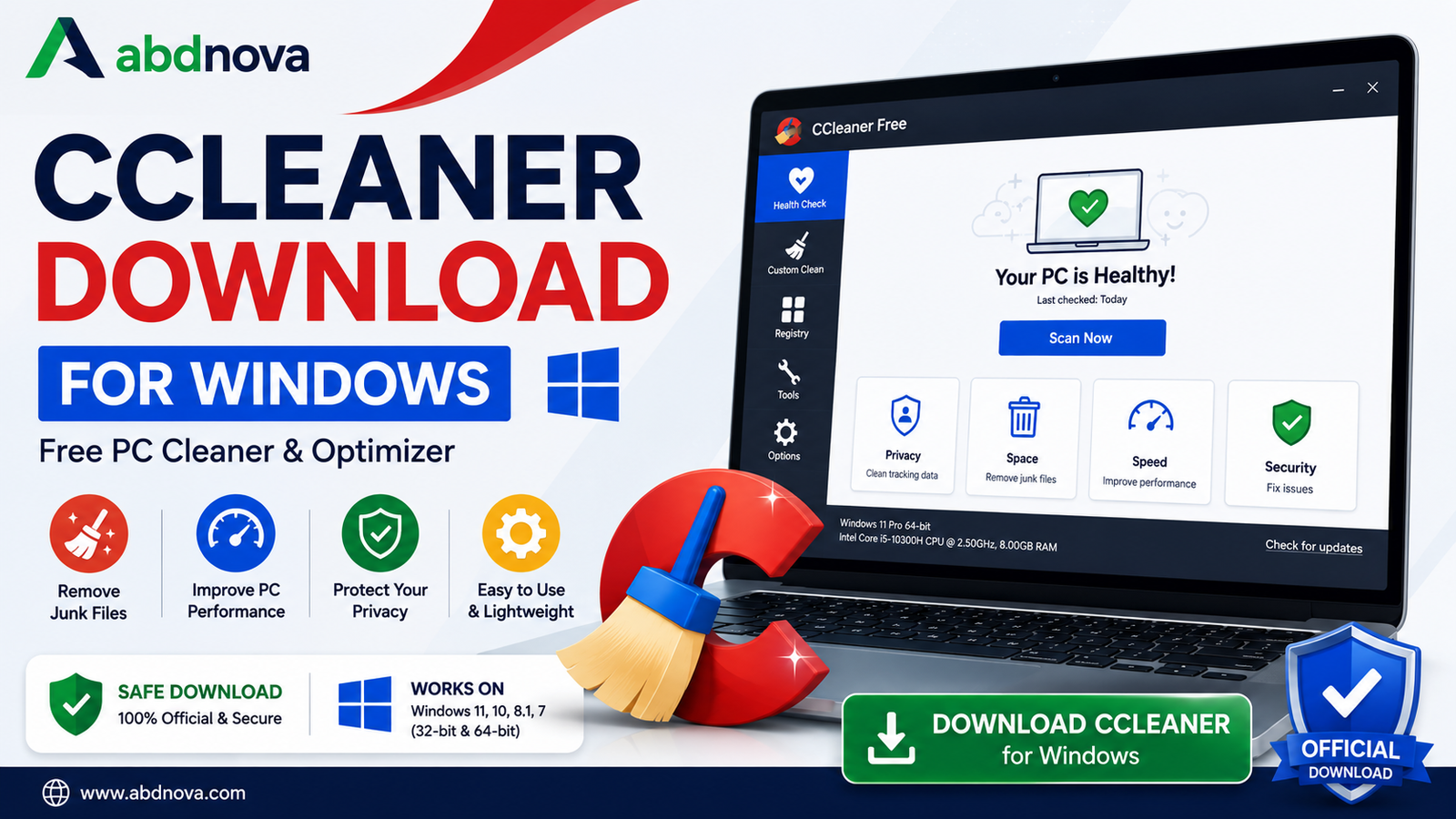
Download CCleaner for Windows to clean temporary files, browser data, cached files, and other unnecessary data that can take up storage space.
CCleaner is a popular Windows PC cleaning and optimization utility. It can help remove temporary files, browser data, cached files, cookies, logs, and other unnecessary data that may accumulate over time.
The free version provides essential cleaning tools, while CCleaner Professional adds extra automation, optimization, monitoring, updating, and support features.
In this guide, you will learn how to download CCleaner safely, compare Free vs Professional, check Windows compatibility, install it, use Health Check and Custom Clean, understand registry-cleaning risks, and troubleshoot common problems.
CCleaner Download – Quick Overview
| Information | Details |
|---|---|
| Software | CCleaner |
| Developer | CCleaner |
| Category | PC Cleaner / System Optimization |
| Platform | Windows |
| License | Free & Paid |
| Windows Support | Windows 11, 10, 8.1 & 7 |
| 32-bit / 64-bit | Supported |
| Junk File Cleaning | Yes |
| Browser Cleaning | Yes |
| Health Check | Yes |
| Professional Version | Available |
| Recommended Source | Official CCleaner Website |
What Is CCleaner?
CCleaner is a Windows utility designed primarily to clean unnecessary files and help users manage different areas of their PCs. Windows, browsers, and applications can create temporary files, cached data, logs, cookies, and other files that are no longer needed.
CCleaner can help with:
- Removing temporary files.
- Cleaning browser data.
- Removing cookies and history.
- Cleaning application-generated junk.
- Freeing storage space.
- Managing startup applications.
- Checking PC health.
- Updating supported software.
- Performance optimization.
- Registry cleaning for advanced users.
CCleaner Key Features

Junk File Cleaner
CCleaner can identify unnecessary data generated by Windows and supported applications. Removing selected junk files can help recover disk space, especially on computers that have not been cleaned for a long time.
Browser Cleaning
Web browsers can accumulate cache, cookies, browsing history, and temporary internet data. CCleaner can remove selected browser data, but deleting certain cookies may sign you out of websites.
Health Check
Health Check provides a guided maintenance workflow. It can examine areas related to privacy, storage, application updates, and startup or performance items depending on the current version and plan.
Custom Clean
Custom Clean gives you more control over which Windows and application categories are analyzed and cleaned.
Performance Optimizer
CCleaner’s Performance Optimizer is designed to reduce unnecessary background activity from applications. Actual performance improvements depend on the PC and software running in the background.
Startup Management
CCleaner can help review programs that start automatically with Windows. Do not disable unknown startup items without understanding what they do.
CCleaner Registry Cleaner
CCleaner includes registry-cleaning functionality, but registry cleaning should be treated differently from normal temporary-file cleanup. For most everyday users, aggressive registry cleaning is not necessary for routine Windows maintenance.
- Review detected entries.
- Create a backup when offered.
- Avoid deleting entries you do not understand.
- Do not expect dramatic speed improvements.
CCleaner Free vs Professional

| Feature | CCleaner Free | CCleaner Professional |
|---|---|---|
| Basic PC Cleaning | Yes | Yes |
| Junk File Removal | Yes | Yes |
| Browser Cleaning | Yes | Yes |
| Health Check | Yes | Yes |
| Advanced Automation | Limited | Yes |
| Scheduled Cleaning | No | Yes |
| Real-Time Monitoring | No | Yes |
| Priority Support | No | Yes |
| Additional Optimization Tools | Limited | Yes |
For many users, CCleaner Free is enough if the main goal is occasional temporary-file and browser-data cleaning. Professional is more useful if you specifically want automated maintenance, monitoring, scheduled cleaning, and other premium features.
Does CCleaner Really Make a PC Faster?
CCleaner can free storage space and reduce some unnecessary background activity, but it cannot fix every slow computer. Performance problems can also come from low RAM, old hardware, nearly full storage, malware, overheating, failing drives, Windows issues, or too many background programs.
It is better to view CCleaner as a maintenance and cleanup utility rather than a guaranteed PC speed booster.
CCleaner Windows Compatibility
The source document lists support for Windows 11, Windows 10, Windows 8.1, Windows 7, and both 32-bit and 64-bit Windows. Users on older operating systems should also consider the security status of Windows itself, not just whether CCleaner technically runs.
CCleaner 32-bit vs 64-bit
Most modern PCs use 64-bit Windows. To check your system type, open Settings → System → About and look for System type. Use CCleaner’s official installer instead of searching unknown websites for architecture-specific downloads.
CCleaner Installed vs Portable
The standard installed version is best for most users who regularly use CCleaner on the same PC. CCleaner has also historically provided portable builds through official resources, which can be useful for USB drives, troubleshooting, and technician workflows.
If you need a portable version, use an official CCleaner source when available and avoid unofficial repackaged versions.
CCleaner Online vs Offline Installer
A full or offline installer can be useful for limited-internet environments or installing CCleaner on several PCs. Always check CCleaner’s current official download/build options rather than relying on an old installer from an unknown mirror.
How to Download CCleaner for Windows
The safest method is to download CCleaner from the official developer website.
- Visit the official CCleaner website.
- Choose the Free or Professional option that fits your needs.
- Start the official download.
- Wait for the installer to finish downloading.
- Optionally review the file properties, publisher information, and digital signature before running it.
How to Install CCleaner on Windows

- Open the setup file: Go to Downloads and double-click the installer.
- Check the UAC prompt: Confirm that the publisher information looks correct.
- Review installation options: Read the setup screens and optional selections carefully.
- Install CCleaner: Continue with the installation.
- Launch CCleaner: Open the application when setup is complete.
How to Use CCleaner
For basic PC cleaning, the workflow is simple:
Open CCleaner → Analyze/Scan → Review Results → Clean
The important step is reviewing results before deletion. Do not treat every detected item as something that must automatically be removed.
How to Use CCleaner Health Check
- Open CCleaner and select Health Check.
- Start the scan.
- Review the results.
- Apply only the fixes you are comfortable with.
CCleaner Custom Clean
Custom Clean provides more detailed control over temporary files, browser cache, browser history, cookies, Recycle Bin contents, application caches, logs, and other supported categories.
Be Careful When Cleaning Browser Data
Browser cleaning can improve privacy and recover storage, but removing cookies and session data may sign you out of websites or remove saved preferences. Review browser-cleaning selections carefully before starting.
CCleaner Troubleshooting
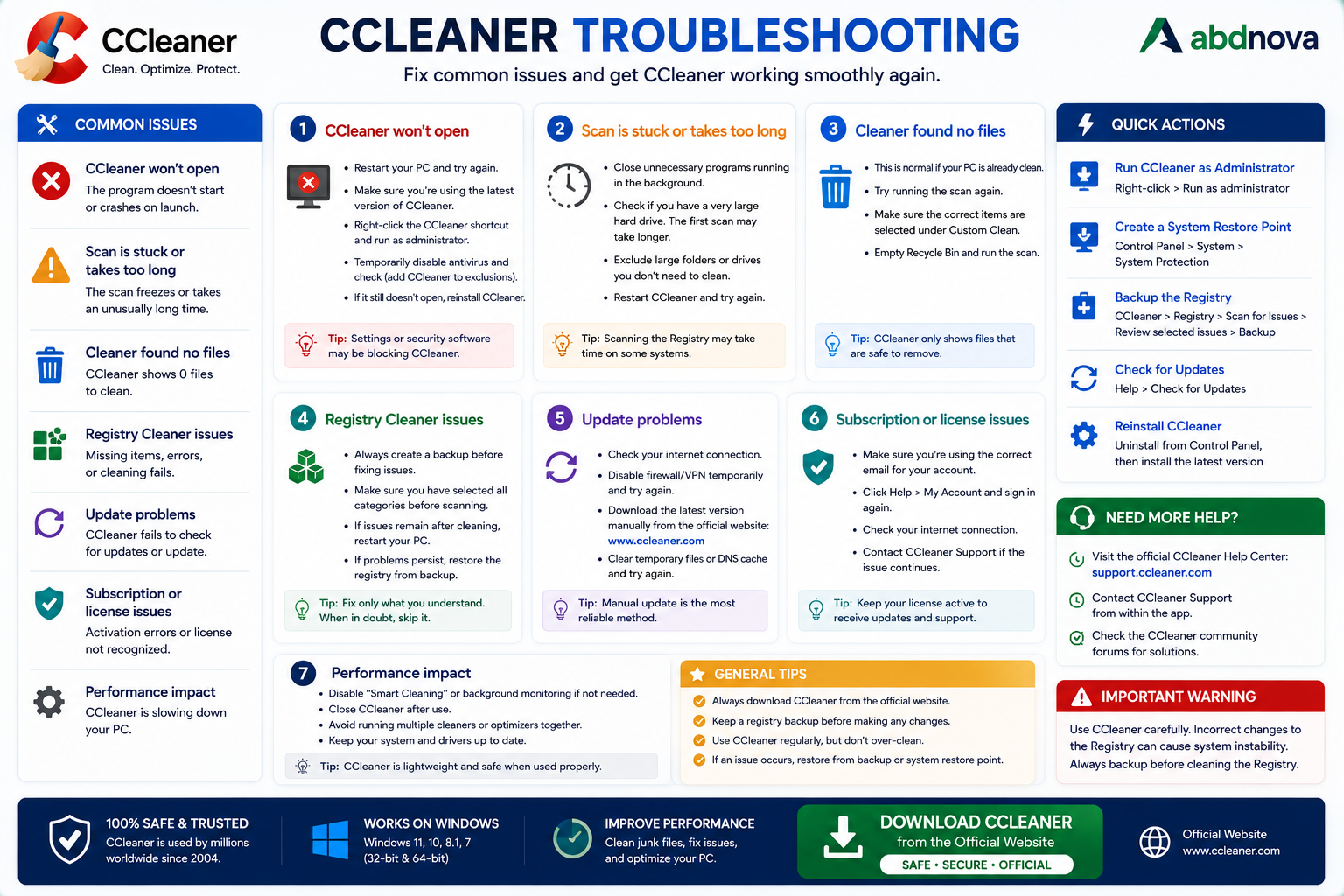
CCleaner Won’t Install
Restart Windows, download a fresh installer from the official CCleaner website, confirm that your Windows version is supported, check available storage, and install pending Windows updates.
CCleaner Won’t Open
Restart Windows, check CCleaner and Windows updates, close unnecessary background applications, and reinstall CCleaner if necessary.
CCleaner Is Stuck While Cleaning
Give it time, close unnecessary applications and browsers, restart CCleaner, and try cleaning fewer categories at once.
CCleaner Can’t Clean Browser Files
Close browsers such as Google Chrome, Microsoft Edge, and Mozilla Firefox, then run the cleaning process again.
CCleaner Update Failed
Check your internet connection, restart CCleaner and Windows, review firewall or security settings, and download the current official installer if needed.
CCleaner Deleted Something I Needed
This is why the recommended workflow is Analyze → Review → Clean. Recovery depends on what was deleted, so review cleaning selections carefully before starting.
CCleaner vs Windows Built-In Cleanup Tools
Windows 11 and Windows 10 already include storage-management tools such as Settings → System → Storage and Storage Sense. CCleaner can still be useful if you prefer one interface for multiple cleaning tasks, browser cleanup, Health Check, startup management, and additional Professional tools.
Is CCleaner Necessary?
No. CCleaner is optional. Windows can function normally without it. It is most useful for users who prefer a dedicated cleanup and maintenance utility with more controls than Windows’ built-in tools.
Frequently Asked Questions
Is CCleaner free?
Yes. CCleaner provides a free Windows version, while Professional options add more features.
Is CCleaner safe?
CCleaner is legitimate PC maintenance software. Download it from the official CCleaner website and review cleaning selections before deleting data.
Does CCleaner work on Windows 11?
Yes. The source document lists Windows 11 as supported.
Does CCleaner work on Windows 10?
Yes. The source document lists Windows 10 as supported.
Is CCleaner available for 32-bit and 64-bit Windows?
Yes. The source document lists both 32-bit and 64-bit support.
Is CCleaner Portable available?
CCleaner has provided portable builds through official resources. Use official sources when available.
Will CCleaner make my PC faster?
It can help by freeing storage or reducing some unnecessary background activity, but it cannot fix every hardware or Windows performance problem.
Does CCleaner remove viruses?
No. CCleaner is primarily a cleaning and optimization utility, not a replacement for dedicated antivirus or anti-malware protection.
Should I use CCleaner Registry Cleaner?
Routine registry cleaning is generally unnecessary for normal Windows maintenance. If you use it, review entries carefully and create a backup first.
Is CCleaner Free enough?
For basic PC and browser cleaning, CCleaner Free may be enough. Consider Professional only if you need additional automation, optimization, monitoring, or support features.
If you are dealing with malware or suspicious software rather than ordinary junk files, you can also check our Malwarebytes Download for Windows guide.
Final Thoughts
CCleaner remains a practical Windows utility for users who want to clean unnecessary files, remove selected browser data, recover storage space, and access several maintenance tools from one interface.
CCleaner Free should be enough for many users who only need occasional basic cleaning. Professional adds more automation and optimization features, but it should be chosen based on the features you actually need.
The safest workflow is simple: Download from the official source → Install carefully → Analyze → Review → Clean.
Ready to download CCleaner?
Get the latest supported Windows version from the official CCleaner website. ABDNOVA recommends official download sources only.


