


CapCut Download for Windows – Video Editor for PC
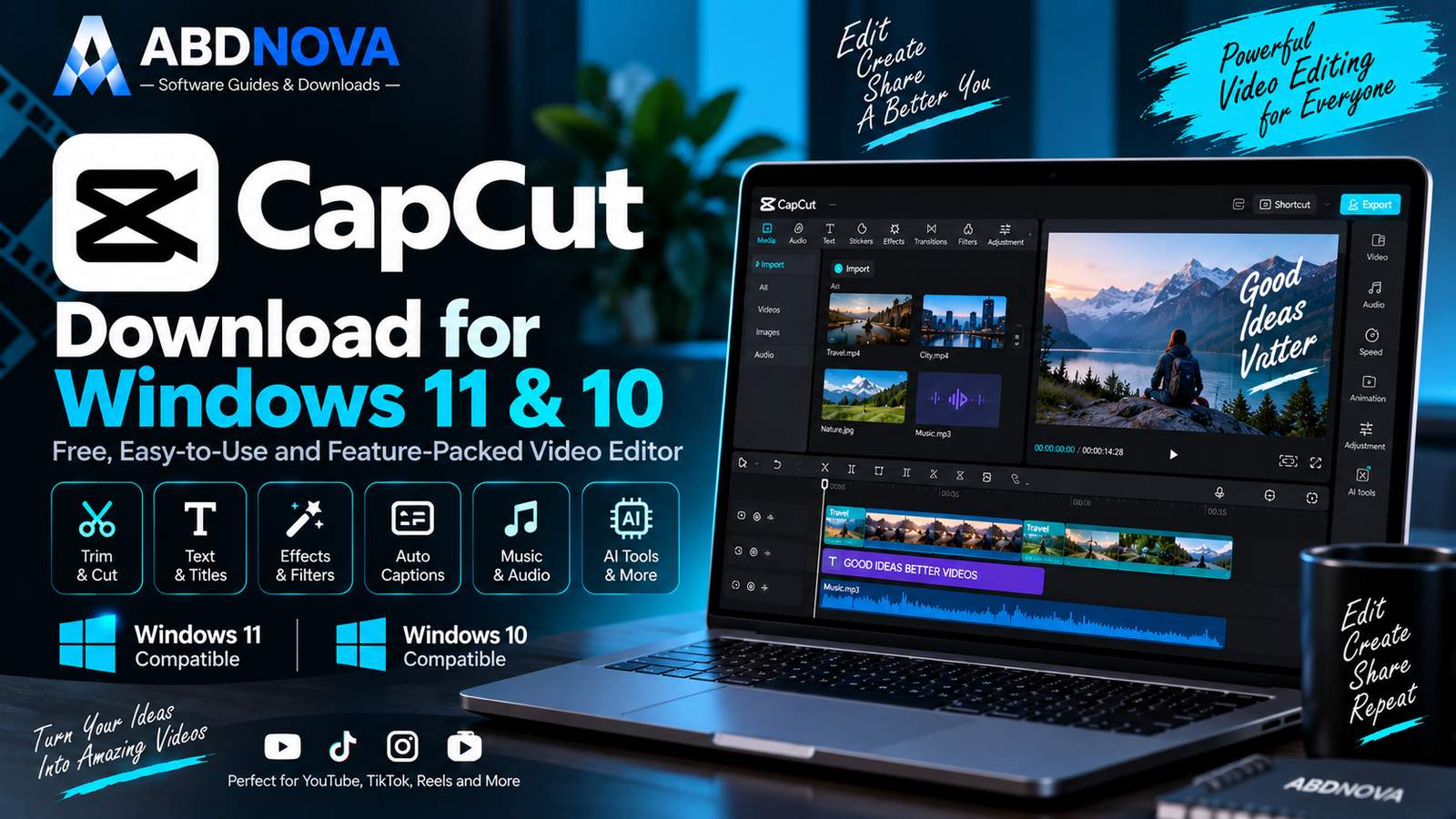
Download CapCut for Windows 11 and 10 to edit videos with a multi-track timeline, Auto Captions, keyframes, effects, transitions, background removal and AI tools.
CapCut Download for Windows gives PC users a modern video editor designed for YouTube videos, Shorts, TikTok, Instagram Reels, presentations, promotional videos and other social-media content.
CapCut Desktop combines traditional timeline editing with AI-powered features. You can trim and split clips, add text, music, transitions and effects, generate automatic captions, animate with keyframes, remove backgrounds, use chroma key, adjust colors and export finished projects from one interface.
CapCut has a free version, while some advanced AI tools, effects, templates and other premium assets require CapCut Pro.
CapCut Download for Windows – Quick Overview
| Information | Details |
|---|---|
| Software | CapCut Desktop |
| Developer | CapCut / ByteDance |
| Type | Video Editor |
| Windows 11 | Supported |
| Windows 10 | Supported |
| Recommended OS | Windows 10/11 64-bit |
| Free Version | Yes |
| Pro Version | Available |
| Timeline Editing | Yes |
| Auto Captions | Yes |
| Keyframes | Yes |
| Chroma Key | Yes |
| Background Removal | Yes |
| AI Tools | Yes |
| Color Adjustment | Yes |
| 4K Editing / Export | Hardware-dependent |
| Official Sources | CapCut Website / Microsoft Store |
What Is CapCut for Windows?
CapCut Desktop is the Windows version of CapCut’s video-editing platform.
CapCut includes:
- Multi-track timeline editing.
- Video trimming and splitting.
- Transitions and effects.
- Filters and color adjustments.
- Text and titles.
- Auto Captions.
- Keyframe animation.
- Speed controls.
- Background removal.
- Chroma key.
- Audio and sound effects.
- AI-powered editing tools.
- Export controls.
- Social-media-oriented workflows.
Its interface is designed to be approachable for beginners while still providing enough tools for more experienced content creators.
CapCut System Requirements
| Component | Minimum | Recommended |
|---|---|---|
| Operating System | Windows 10 64-bit or later | Windows 10/11 64-bit |
| Processor | Intel Core i3 or equivalent AMD | Intel Core i5 / AMD Ryzen 5 |
| RAM | 4 GB | 8–16 GB |
| Graphics | Integrated GPU or around 2 GB VRAM | Dedicated GPU with 4 GB+ VRAM |
| Storage | About 10 GB free | SSD recommended |
Basic 1080p editing can work on modest hardware, but 4K footage, multiple layers, AI processing and complex effects benefit significantly from a stronger CPU, more RAM, dedicated graphics and SSD storage.
Where to Download CapCut for Windows
There are two official ways to obtain CapCut on Windows.
Official CapCut Website
Visit CapCut’s website and choose the Windows desktop download.
Microsoft Store
You can also search for CapCut in Microsoft Store and install the official app from there.

How to Install CapCut on Windows
- Open the official CapCut website.
- Select Download for Windows.
- Wait for the installer to finish downloading.
- Open the downloaded setup file.
- Follow the installation prompts.
- Allow installation to complete.
- Launch CapCut from the desktop or Start menu.
- Sign in if needed using an available account method.
- Select Create project.
- Import your video, image and audio files.
How to Edit Your First Video in CapCut
- Create a new project.
- Import your video.
- Drag it to the timeline.
- Trim or split unwanted sections.
- Add text or captions.
- Add music or other audio.
- Add transitions and effects.
- Preview the complete project.
- Select Export and choose the output settings.

CapCut Main Interface – Media, Preview, Timeline & Export
Media Panel
The Media Panel is where you import videos, images, audio and other project assets.
Preview Window
The preview monitor shows what your current edit looks like and lets you check cuts, effects, text, animations and transitions before exporting.
Timeline
The timeline is the main CapCut editing workspace.
You can arrange:
- Video clips.
- Audio.
- Music.
- Text.
- Captions.
- Overlays.
- Effects.
Editing Panel
Selecting an item in the timeline exposes editing controls such as:
- Position.
- Scale.
- Rotation.
- Opacity.
- Animation.
- Speed.
- Color.
- Audio.
- Effects.
Export
When the project is finished, CapCut allows you to configure options such as resolution, frame rate, bitrate and codec before saving the final video.

CapCut Video Editing – Timeline, Keyframes, Color & 4K
Timeline Editing
CapCut supports multi-track editing, making it possible to combine multiple video clips, overlays, music, sound effects, titles and captions in one project.
Keyframe Animation
Keyframes allow you to animate supported properties over time.
CapCut can keyframe properties such as:
- Position.
- Scale.
- Rotation.
- Opacity.
This can be used for zoom animations, pan effects, moving titles, animated overlays and opacity fades.
Transitions & Effects
CapCut includes transitions, filters, video effects, text animations, stickers, sound effects, music and motion effects.
The exact asset catalog changes over time, and some items may require CapCut Pro.
Color Adjustment
CapCut provides more than simple one-click filters.
Depending on the current desktop version, color tools can include:
- Color adjustments.
- Color wheels.
- Auto Adjust.
- Filters.
CapCut 4K Editing & Export
CapCut Desktop can handle 4K projects on compatible hardware.
CapCut’s current documentation says 4K export availability depends on hardware, platform, app version and project settings.
If you also need a command-line multimedia processing tool for conversion, resizing or encoding, see our FFmpeg Download for Windows guide.

CapCut Auto Captions & AI Tools Explained
Auto Captions
Auto Captions can analyze spoken audio and create timed captions automatically.
A common workflow is:
Captions → Auto Captions → Select audio/language → Generate
After generation, you can edit:
- Caption text.
- Timing.
- Font.
- Style.
- Position.
- Animation.
CapCut AI Tools
Current CapCut desktop workflows can include AI-powered tools such as:
- Auto Captions.
- Script to Video.
- Auto Reframe.
- AI background removal.
- AI video generation.
- Text-to-speech.
- Video translation.
- AI People Remover.
- Image inpainting.
- Relighting.
Feature availability can vary by version, region and whether the feature belongs to the Free or Pro tier.
Auto Reframe
Auto Reframe can help adapt content to different aspect ratios, including:
- YouTube: 16:9.
- YouTube Shorts: 9:16.
- TikTok: 9:16.
- Instagram Reels: 9:16.
Background Removal & Chroma Key
CapCut provides AI background removal as well as traditional chroma-key tools.
These features are useful for:
- Green-screen videos.
- Presenter overlays.
- Product videos.
- Social-media effects.
- Custom backgrounds.
Auto Cut
CapCut also offers Auto Cut, which can help automatically trim and synchronize footage around audio, scripts or beat patterns where the feature is available.
CapCut Free vs CapCut Pro
| Feature | CapCut Free | CapCut Pro |
|---|---|---|
| Basic Editing | Yes | Yes |
| Trim & Split | Yes | Yes |
| Timeline Editing | Yes | Yes |
| Basic Text | Yes | Yes |
| Basic Transitions | Yes | Yes |
| Keyframes | Yes | Yes |
| Selected AI Tools | Available | More access |
| Premium Effects | Limited | Yes |
| Premium Assets | Limited | Yes |
| Advanced AI Features | Limited / varies | More access |
| Cloud / Advanced Services | Limited / varies | More access |
Can CapCut Export Without a Watermark?
CapCut’s current desktop information indicates that ordinary basic desktop editing workflows can export supported projects without automatically adding a CapCut watermark.
However, certain templates, premium assets or specific workflows may have their own restrictions, so always preview the finished project before exporting.
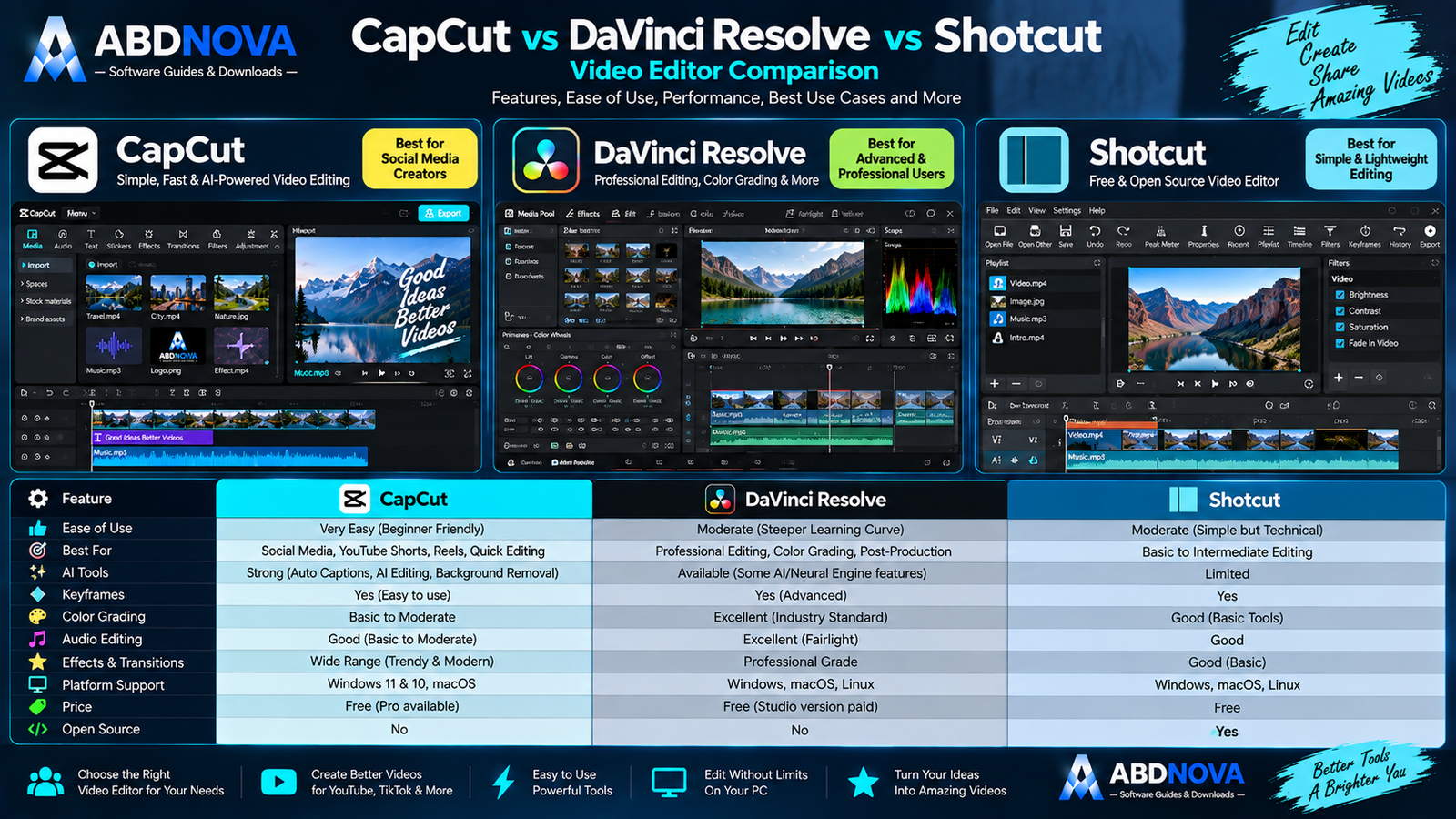
CapCut vs DaVinci Resolve vs Shotcut
| Feature | CapCut | DaVinci Resolve | Shotcut |
|---|---|---|---|
| Beginner Friendly | Excellent | Moderate | Moderate |
| Timeline Editing | Yes | Yes | Yes |
| Social Media Editing | Excellent | Excellent | Good |
| AI Tools | Strong | Strong | Limited |
| Auto Captions | Yes | Available depending on edition/features | More limited |
| Keyframes | Yes | Yes | Yes |
| Advanced Color Grading | Good | Excellent | Good |
| Professional Post Production | Good | Excellent | Moderate |
| Templates / Trending Effects | Excellent | Moderate | Limited |
| Free Version | Yes | Yes | Yes |
| Open Source | No | No | Yes |
CapCut vs DaVinci Resolve
CapCut is particularly attractive for fast social-media editing, captions, templates and AI-assisted workflows.
DaVinci Resolve is more suitable when you need deeper professional editing, advanced color grading, audio work and post-production features.
CapCut vs Shotcut
Shotcut is a free and open-source desktop editor with a more traditional editing workflow.
CapCut is easier to recommend when social-media content, AI tools, trending effects and fast content creation are the priorities.
Is CapCut Good for YouTube?
Yes. CapCut can be used for:
- YouTube videos.
- YouTube Shorts.
- Tutorials.
- Gaming videos.
- Vlogs.
- Product videos.
- Educational content.
- Screen recordings.
- Promotional videos.
Is CapCut Good for TikTok and Instagram Reels?
Short-form vertical content is one of CapCut’s strongest use cases because it combines 9:16 projects, Auto Captions, effects, templates, text animations, music, speed tools, AI features and Auto Reframe.
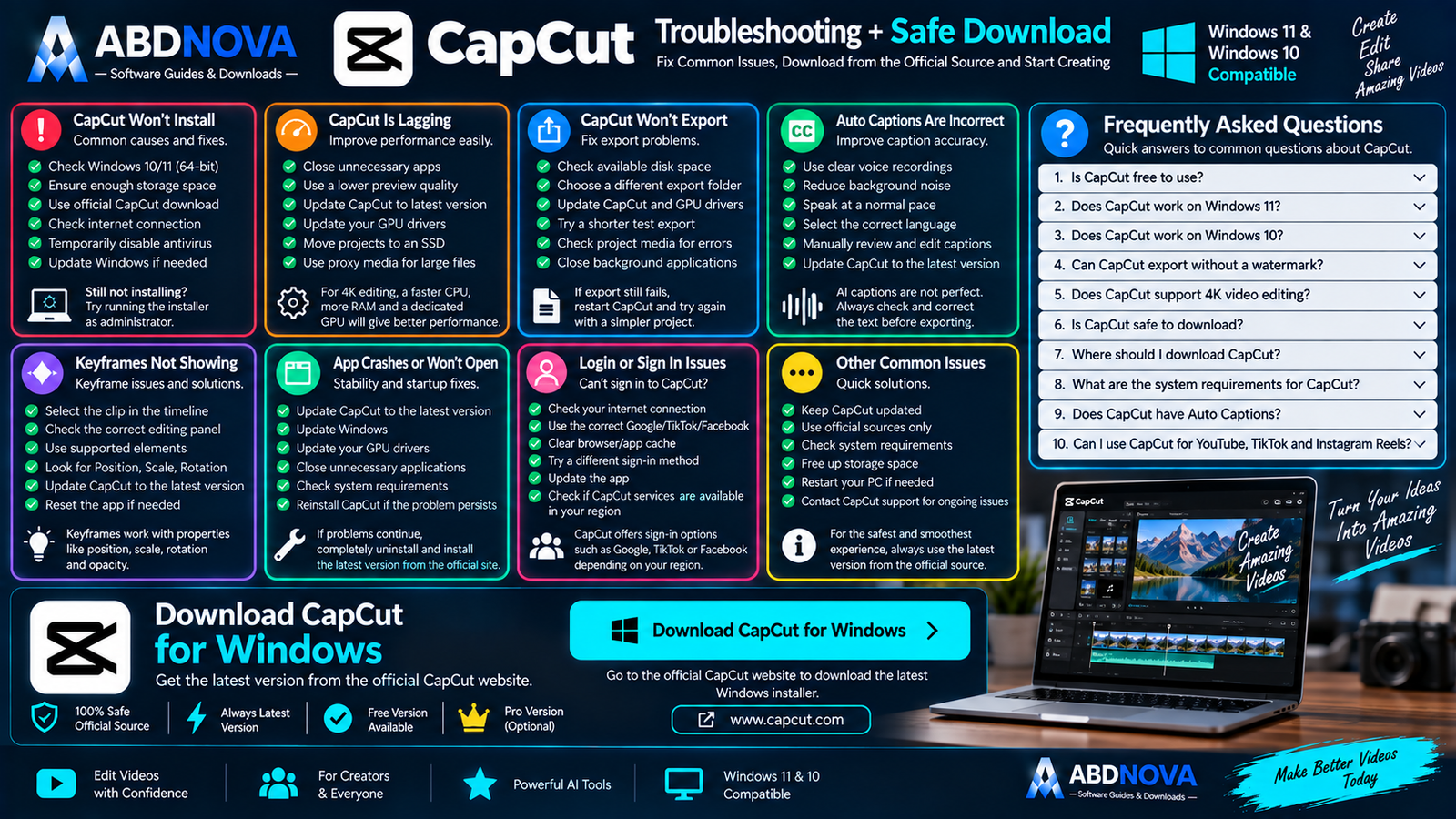
CapCut Troubleshooting
CapCut Won’t Install
Check Windows compatibility, available storage, internet connection, Windows updates, security restrictions and whether you downloaded CapCut from an official source.
CapCut Is Lagging
Try:
- Closing unnecessary applications.
- Lowering preview quality.
- Updating CapCut.
- Updating graphics drivers.
- Moving project media to an SSD.
- Freeing storage space.
- Using proxy media for demanding projects where available.
CapCut Won’t Export
Check free disk space, export location, project media, GPU drivers, available RAM and CapCut updates.
Try a short test export to determine whether the issue affects all projects or only one specific project.
Auto Captions Are Incorrect
Use cleaner voice audio where possible and reduce competing background noise or music.
After generation, manually correct incorrect words, punctuation, timing and caption segmentation.
Keyframes Aren’t Showing
Select the correct clip and open the relevant editing controls for properties such as position, scale, rotation or opacity.
Missing keyframe controls can also occur when an unsupported element is selected or the app is outdated.
How to Update CapCut
Keep CapCut updated because new versions can include feature improvements, performance changes, compatibility updates and security fixes.
Safe CapCut Download for Windows
The safest source for CapCut Download for Windows is CapCut’s official website.
Use the official CapCut Desktop page to get the current Windows version.
- CapCut Pro Crack.
- CapCut MOD.
- CapCut Premium Activated.
- CapCut Repack.
- CapCut Pro Free Lifetime.
- Pre-activated CapCut.
Use CapCut’s legitimate free version or purchase CapCut Pro through the official service if you need premium functionality.
Frequently Asked Questions
Does CapCut work on Windows 11?
Yes. CapCut’s current desktop guidance recommends Windows 10 or Windows 11 64-bit for the best stability and performance.
Does CapCut work on Windows 10?
Yes. Current CapCut desktop guidance lists Windows 10 64-bit or later for the latest Windows desktop experience.
Is CapCut free?
Yes. CapCut provides a free version, while CapCut Pro and selected advanced features require payment.
Can CapCut edit 4K video?
Yes. 4K editing and export are supported on compatible systems, but performance depends heavily on CPU, RAM, GPU, storage and project complexity.
Does CapCut support Auto Captions on Windows?
Yes. CapCut Desktop includes Auto Captions, although some advanced options can vary by version or region.
Does CapCut have keyframes?
Yes. CapCut supports keyframe animation for properties including position, scale, rotation and opacity.
Can CapCut remove backgrounds?
Yes. CapCut provides AI background removal and traditional chroma-key workflows.
Can I use CapCut for YouTube Shorts?
Yes. CapCut’s timeline, captions, effects, vertical-video tools, Auto Reframe and AI features make it well suited to Shorts.
Can CapCut export without a watermark?
Normal desktop editing workflows can export supported projects without an automatic CapCut watermark, although templates or certain premium workflows may have different restrictions.
Where should I download CapCut?
Use CapCut’s official website or the official Microsoft Store listing.
Should I download CapCut Pro Crack?
No. Use CapCut’s official free edition or purchase CapCut Pro legitimately.
Is CapCut safe?
Yes, when downloaded from CapCut’s official website or Microsoft Store.
Final Thoughts
CapCut Download for Windows is a strong choice for Windows 11 and Windows 10 users who want a video editor that is easier to learn than many traditional professional editing applications while still providing advanced tools.
Its combination of multi-track timeline editing, Auto Captions, keyframes, effects, transitions, color controls, background removal, chroma key and AI-powered features makes it especially useful for YouTube, Shorts, TikTok, Instagram Reels and promotional content.
The free edition is enough for many normal editing workflows, while CapCut Pro provides access to additional premium assets and advanced features. Always use the current official Windows version instead of cracks or repackaged installers.
Ready to download CapCut?
Get the current Windows desktop editor directly from CapCut’s official website. ABDNOVA recommends official sources only.


