

balenaEtcher Download for Windows
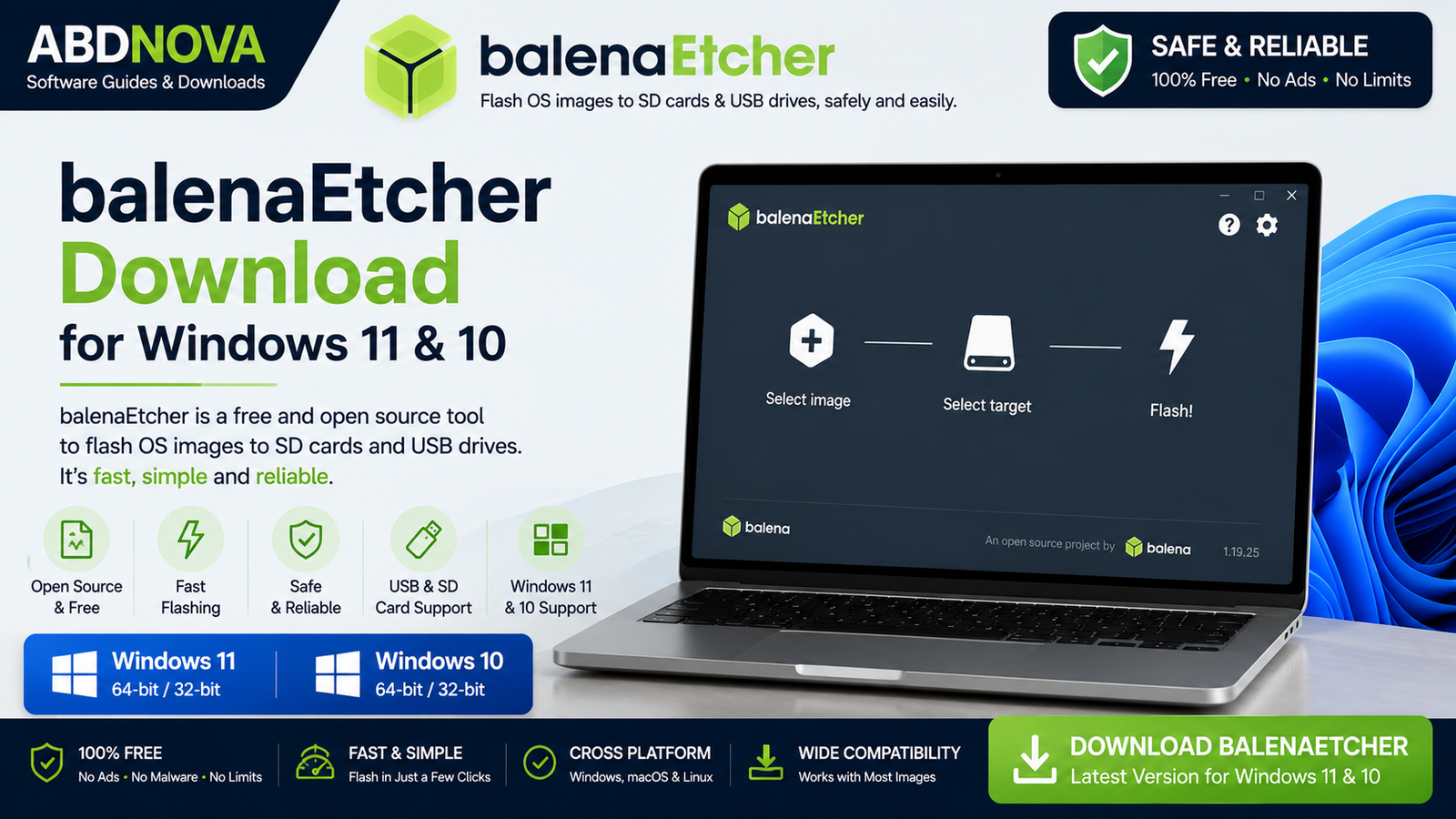
balenaEtcher Download for Windows provides a simple way to flash supported ISO and IMG disk images to USB drives and SD cards. Its beginner-friendly workflow focuses on three steps: select an image, choose the correct target drive, and start flashing.
balenaEtcher Download for Windows – Overview
| Software | balenaEtcher |
| Also Known As | Etcher |
| Developer | balena |
| Platform | Windows |
| Compatible OS | Windows 11 & Windows 10 |
| Category | Bootable USB / Image Flasher |
| License | Free & Open Source |
| Best For | USB and SD card image flashing |
What Is balenaEtcher?
balenaEtcher, commonly called Etcher, is an image-flashing utility developed by balena. It is designed to write supported disk images to removable storage such as USB flash drives, SD cards, and microSD cards through an adapter.
The basic workflow is:
Select Image → Select Target → Flash
balenaEtcher Main Interface and Flash from File
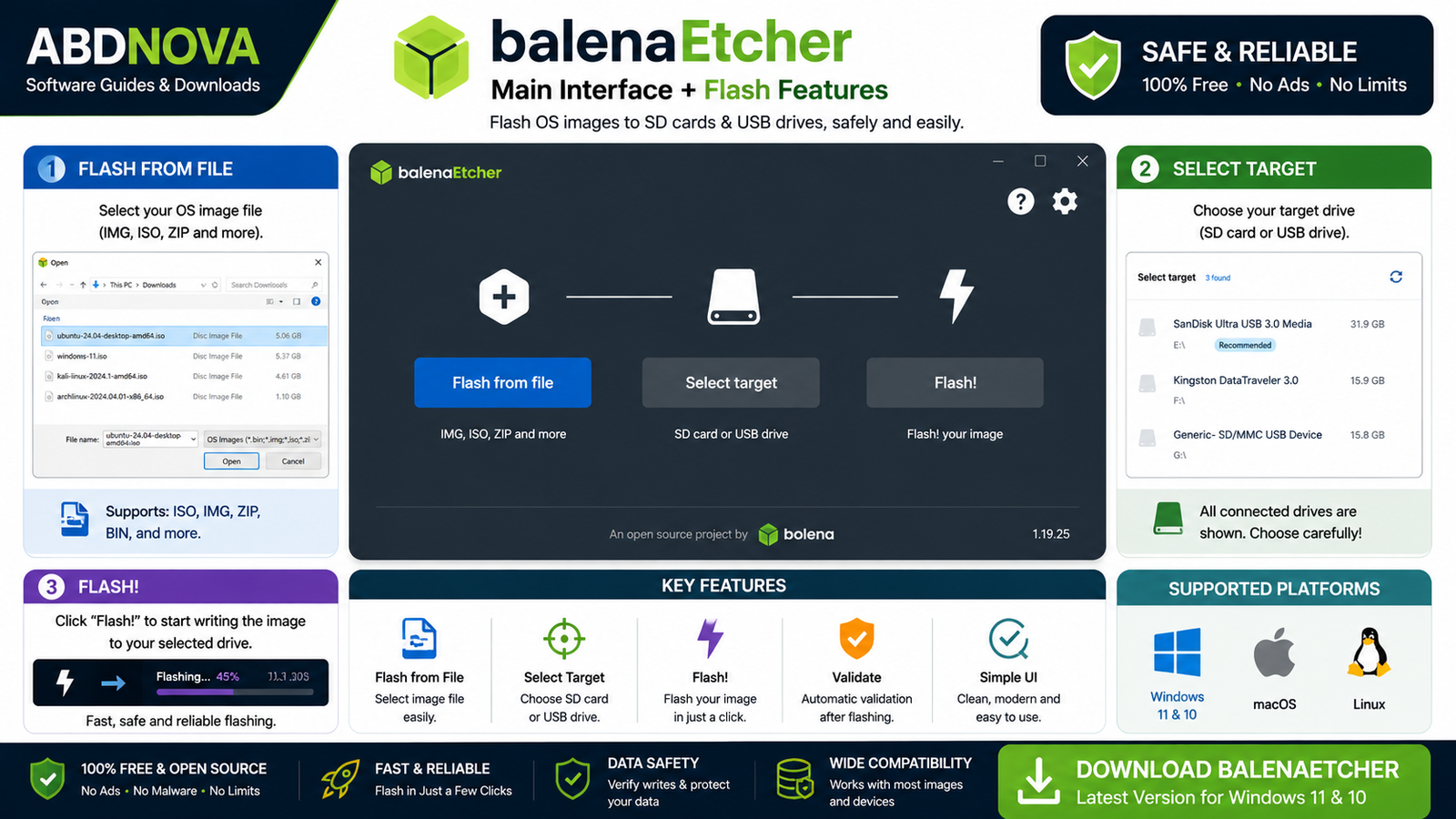
Etcher keeps the flashing process simple instead of showing many advanced configuration options. Select the image file, choose the correct USB drive or SD card, and begin flashing.
Flash ISO and IMG Images
balenaEtcher can write supported disk-image files to removable storage. Common uses include Linux installation media, recovery utilities, Raspberry Pi operating-system images, and other supported bootable or flashable disk images.
Automatic Verification
After writing an image, Etcher can verify the flashed data. Verification helps detect write problems caused by unreliable storage, damaged media, bad connections, or other errors.
Target Drive Protection
Selecting the wrong destination is one of the biggest risks with disk-imaging software. Etcher is designed to make target selection easier, but you should always manually verify the drive name and capacity before starting.
balenaEtcher ISO Flashing, Bootable USB and SD Card Creation
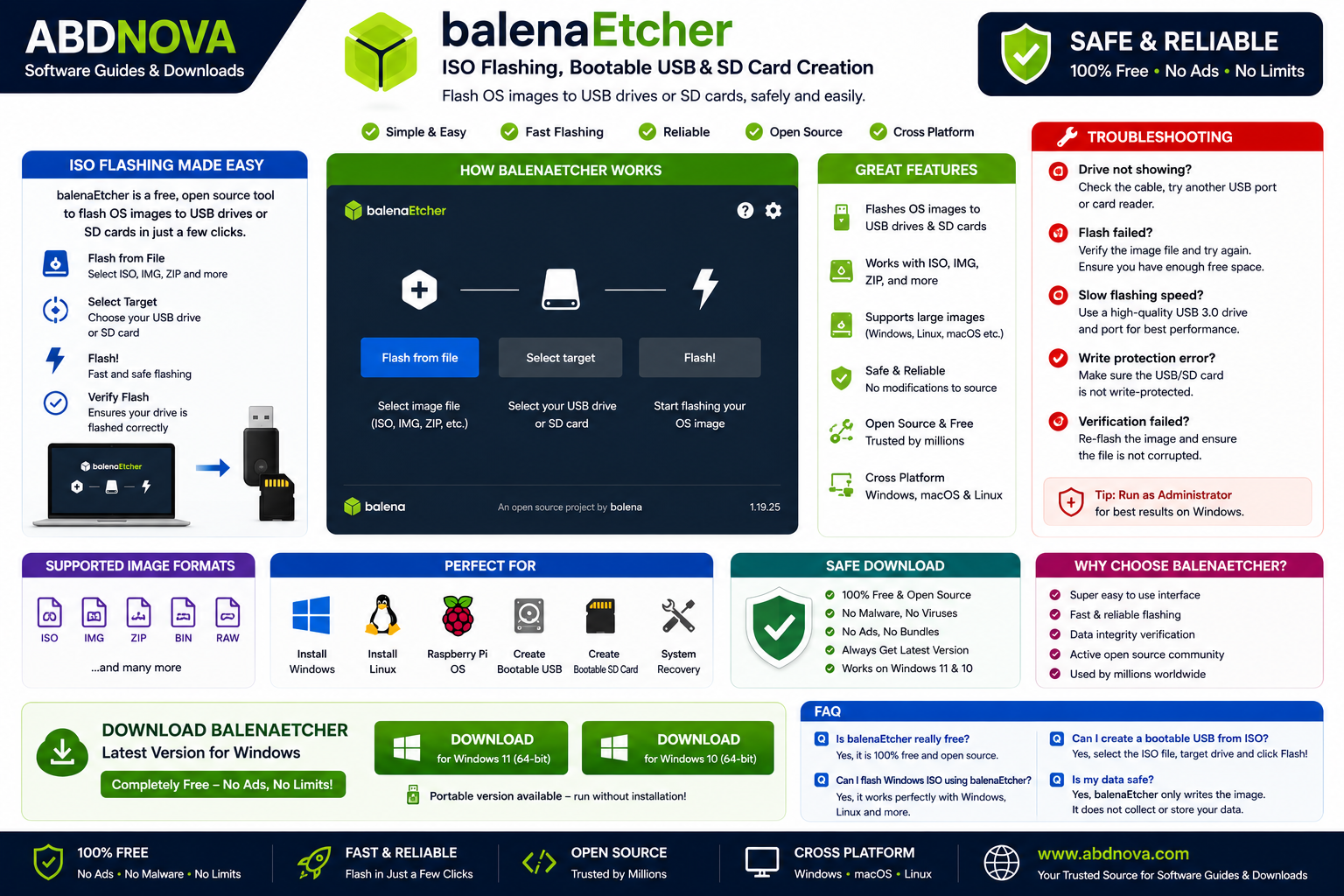
Create a Bootable USB with balenaEtcher
Download the appropriate bootable image from the operating system or project’s official source, connect the USB drive, select the image in Etcher, choose the target, and start flashing. Whether the finished drive boots successfully depends on the source image and target computer.
Warning: Flashing normally overwrites the existing data and partition structure on the selected target. Back up important files first.
Flash an SD Card
The SD-card process is nearly identical: insert the card, select the image, select the correct SD card, flash it, wait for verification, and safely remove the card. This workflow is especially useful for Raspberry Pi and other single-board-computer images.
How to Install balenaEtcher on Windows + Create a Bootable USB
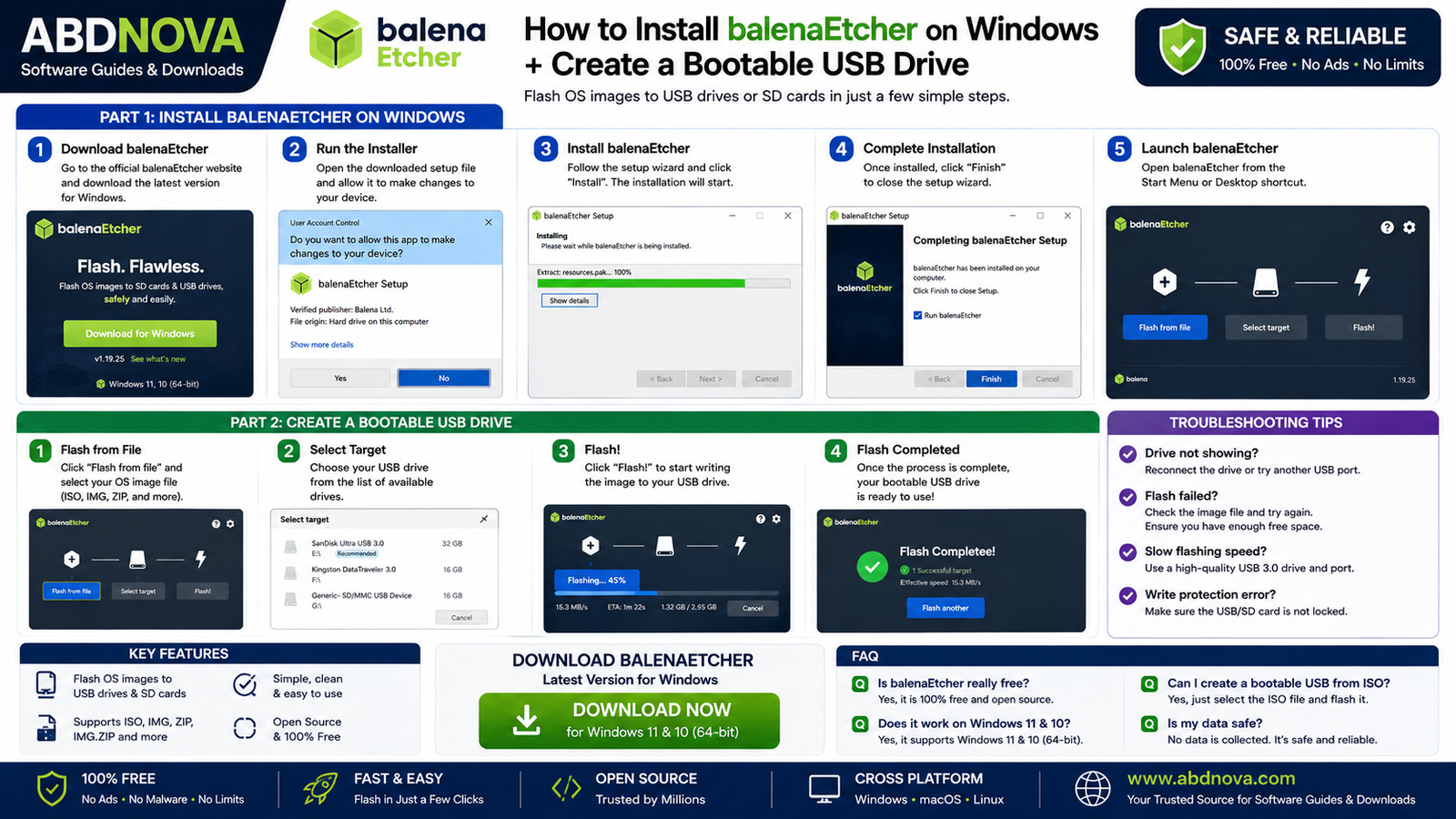
- Visit the official balenaEtcher website.
- Download the appropriate Windows version.
- Open the installer and verify its source if Windows displays a security prompt.
- Follow the setup instructions and complete installation.
- Launch balenaEtcher.
- Select Flash from file and choose your ISO, IMG, or supported image.
- Select the correct USB drive or SD card.
- Double-check the target drive name and capacity.
- Start flashing and allow verification to finish.
- Safely eject the device when complete.
balenaEtcher vs Rufus
balenaEtcher focuses on straightforward image flashing with minimal configuration, making it particularly convenient for Linux, Raspberry Pi, and SD-card images. Rufus provides more advanced partition, file-system, BIOS/UEFI, and Windows installation options.
Related Guide: See our Rufus Download for Windows guide for advanced bootable USB creation.
balenaEtcher vs Ventoy
Etcher writes an image directly to the target drive. Ventoy uses a different approach: after installing Ventoy to a USB drive, you can typically copy multiple supported ISO files to it and choose between them when booting.
Related Guide: Read our Ventoy Download for Windows guide if you want a multiboot USB workflow.
balenaEtcher System Requirements
- Operating System: Windows 11 / Windows 10
- Processor: Modern compatible Intel or AMD processor
- RAM: 2 GB or more recommended
- Storage: Enough space for Etcher and the downloaded image
- USB Port / Card Reader: Required for removable media
- Internet: Required for downloads
- Administrator Permission: May be required during flashing
Common balenaEtcher Problems and Solutions
Flash Failed Error
Reconnect the USB drive or SD card, try another USB port, restart Etcher or Windows, download the image again, or test another storage device. Repeated failures can indicate faulty media or an adapter problem.
USB Drive Not Detected
Check whether Windows detects the drive in Disk Management. Try another USB port, card reader, cable, or restart Windows.
Etcher Stuck on Flashing
Large images and slower storage devices can take time. Do not disconnect the device during an active write. If the process remains inactive for an unusually long time, check the image, drive, and connection before retrying.
Verification Failed
A verification failure can indicate a failing SD card, faulty USB drive, bad card reader, connection problem, or corrupted image. Re-download the image and test another device if the issue continues.
Windows Asks to Format the Drive
Some Linux or device images contain partitions or file systems Windows cannot read. If you just successfully flashed the image and intend to boot or use it in another device, do not immediately format it simply because Windows displays this message.
USB Shows Less Storage After Flashing
The flashed image may create a partition layout that does not use the drive’s full visible capacity in Windows. If you later want to return the USB to normal storage, remove the flashed partitions and recreate a standard partition using appropriate Windows disk-management tools after confirming you no longer need the image.
Can balenaEtcher Create a Windows 11 Installation USB?
Etcher can write disk images, but Windows installation images can require additional treatment. For Windows 11 or Windows 10 installation media, a dedicated Windows USB creation workflow such as Rufus or Microsoft’s official tools is generally more appropriate.
Is balenaEtcher Free?
Yes. balenaEtcher is free and open-source software for normal image-flashing use.
Is balenaEtcher Safe?
balenaEtcher is a legitimate image-flashing utility when obtained from the official balena source. Download operating-system images from legitimate sources, back up the target drive, verify the selected destination, and never disconnect the storage device while it is being flashed.
balenaEtcher FAQ
Is balenaEtcher free?
Yes. balenaEtcher is free and open-source software.
Does balenaEtcher work on Windows 11?
Current Etcher releases support modern Windows systems. Check the official release information for exact current compatibility.
Can balenaEtcher create a bootable USB?
Yes, if the disk image you flash is itself bootable and compatible with the target computer.
Can balenaEtcher flash ISO files?
Yes. Etcher supports many commonly used disk-image formats, including ISO images.
Can balenaEtcher flash IMG files?
Yes. IMG flashing is a common Etcher use, particularly for Raspberry Pi and other single-board-computer images.
Does flashing erase the USB drive?
Yes. You should assume flashing will overwrite the existing contents and partition structure of the selected target.
Final Thoughts
balenaEtcher is a straightforward choice for flashing supported ISO and IMG images to USB drives and SD cards. Its simple three-step interface and post-flash verification make it especially useful for Linux, Raspberry Pi, and other image-based projects.
If you are looking for balenaEtcher Download for Windows, use the official balenaEtcher source and always verify the target drive before clicking Flash.
Ready to download balenaEtcher?
Windows • Free & Open Source • Official Download
ABDNOVA does not host the balenaEtcher installer. The button opens the official balenaEtcher download page.


