

Ventoy Download for Windows — Create Multi-Boot USB

Download Ventoy — a free and open-source tool for creating multi-boot USB drives with multiple ISO and other supported image files.
Ventoy is a free and open-source tool for creating a bootable USB drive that can store and boot multiple ISO, WIM, IMG, VHD(x), and EFI files. After installing Ventoy on a USB drive, you can simply copy supported image files to the USB and select the one you want from the Ventoy boot menu.
This means you do not need to recreate or reformat the USB every time you add another operating-system image. You can keep Windows 11, Windows 10, Ubuntu, Linux Mint, recovery tools, and other supported bootable images on one USB drive.
In this guide, you will learn how to download Ventoy for Windows, install it on a USB drive, choose MBR or GPT, use Secure Boot, add multiple ISO files, update Ventoy, and troubleshoot common boot problems.
Ventoy for Windows Overview
| Information | Details |
|---|---|
| Software | Ventoy |
| Developer | Ventoy Project |
| Category | Bootable USB / System Utility |
| Platform | Windows / Linux |
| Windows Tool | Ventoy2Disk.exe |
| License | Open Source |
| Multi-Boot | Yes |
| Image Formats | ISO, WIM, IMG, VHD/VHDX, EFI |
| Legacy BIOS | Supported |
| UEFI / Secure Boot | Supported |
What Is Ventoy?
Ventoy is a multi-boot USB solution that works differently from traditional ISO-writing tools. Instead of writing one ISO to the USB and then recreating the drive when you want another image, Ventoy lets you install its boot framework once and then copy supported image files directly to the USB.
One Ventoy USB can contain:
- Windows 11 ISO
- Windows 10 ISO
- Ubuntu ISO
- Linux Mint ISO
- Debian ISO
- Windows PE tools
- Recovery utilities
- Other supported bootable images
Ventoy Main Features

Multi-Boot USB Support
The biggest advantage of Ventoy is the ability to keep multiple bootable image files on one USB drive. When the computer starts from the USB, Ventoy displays a boot menu so you can select the image you want.
Copy ISO Files Directly
After the initial Ventoy installation, you can generally copy supported image files to the USB like normal files. There is no need to extract the ISO or recreate the USB each time you add another image.
Support for ISO, WIM, IMG, VHD/VHDX and EFI
Ventoy supports multiple boot-image formats, giving advanced users more flexibility than a tool limited only to ISO files.
Large ISO File Support
Ventoy supports ISO files larger than 4 GB, which is useful for modern Windows installation images and other large bootable files.
Legacy BIOS, UEFI and Secure Boot
Ventoy supports older x86 Legacy BIOS systems and multiple UEFI environments, including x86_64 UEFI and ARM64 UEFI. Secure Boot support is also available on compatible systems.
Ventoy vs Traditional Bootable USB Tools
| Method | Workflow |
|---|---|
| Traditional USB Tool | Write one ISO → recreate USB for another ISO |
| Ventoy | Install Ventoy once → copy multiple ISOs → select from boot menu |
This is why Ventoy is especially useful for IT technicians and advanced users who regularly work with multiple operating systems and recovery tools.
Ventoy vs Rufus
| Feature | Ventoy | Rufus |
|---|---|---|
| Multiple ISO Files | Yes | Usually one image at a time |
| Add ISO by Copying | Yes | No |
| Multi-Boot Menu | Yes | No |
| Windows ISO | Yes | Yes |
| Linux ISO | Yes | Yes |
| MBR / GPT | Yes | Yes |
| UEFI / Secure Boot | Yes | Yes |
If you only need to create one Windows installation USB, Rufus Download may be simpler. If you want one USB containing Windows, Linux, recovery tools, and multiple ISO files, Ventoy is usually more convenient.
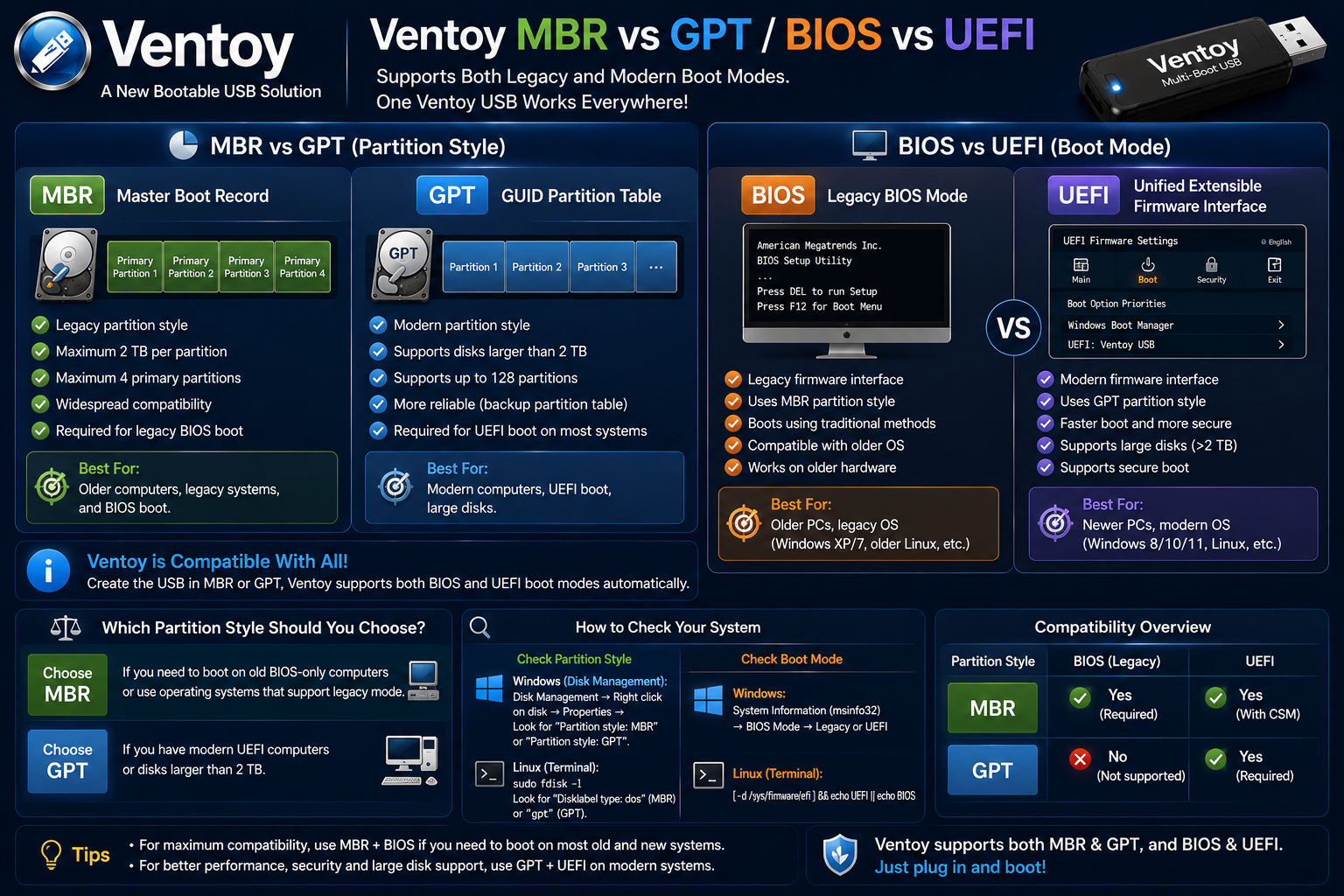
Ventoy MBR vs GPT
Ventoy supports both MBR and GPT partition styles. MBR is the older partitioning scheme and is commonly associated with Legacy BIOS. GPT is newer and is commonly used with modern UEFI-based computers.
Older Legacy BIOS computer: MBR may be appropriate.
Modern UEFI computer: GPT is commonly appropriate.
The correct choice depends on the target hardware and boot configuration, so do not assume one setting works for every computer.
How to Download Ventoy for Windows
The safest way to download Ventoy is from the official Ventoy website. For Windows users, download the official Windows ZIP package and optionally verify the SHA-256 checksum provided by the project.
How to Install Ventoy on a USB Drive

- Download Ventoy: Get the latest Windows ZIP package from the official Ventoy website.
- Extract the ZIP: Extract the downloaded archive to a folder.
- Open Ventoy2Disk.exe: Launch the included Windows GUI tool.
- Connect the USB: Insert the USB flash drive you want to prepare.
- Select the correct USB: Check the drive name and capacity carefully.
- Choose MBR or GPT: Match the partition style to your intended boot environment.
- Click Install: Ventoy will prepare the USB drive.
- Confirm the warning: Continue only after backing up important files.
How to Add ISO Files to Ventoy
After Ventoy is installed, you can copy supported image files directly to the Ventoy partition. You can also organize ISO files into folders and subfolders.
Example:
Ventoy USB → Windows 11.iso → Windows 10.iso → Ubuntu.iso → Linux Mint.iso → WinPE.iso
How to Create a Multi-Boot USB With Ventoy
The process has two main stages:
- Install Ventoy on the USB drive.
- Copy your supported ISO and other image files to the USB.
When the computer boots from the Ventoy USB, you can select which operating system or utility you want to start.
How to Boot From a Ventoy USB
- Insert the Ventoy USB into the target computer.
- Restart the computer.
- Open the computer’s boot menu.
- Select the Ventoy USB.
- Wait for the Ventoy boot menu.
- Select the ISO or image you want to boot.
- Press Enter.
Common boot-menu keys can include F12, F11, F9, Esc, or F8, depending on the computer manufacturer.
How to Update Ventoy
Ventoy2Disk.exe includes an Update function for existing Ventoy USB drives. According to the project documentation, the upgrade process is designed to preserve files stored on the first partition. Even so, keeping a backup of important files is a good practice.
Ventoy Troubleshooting
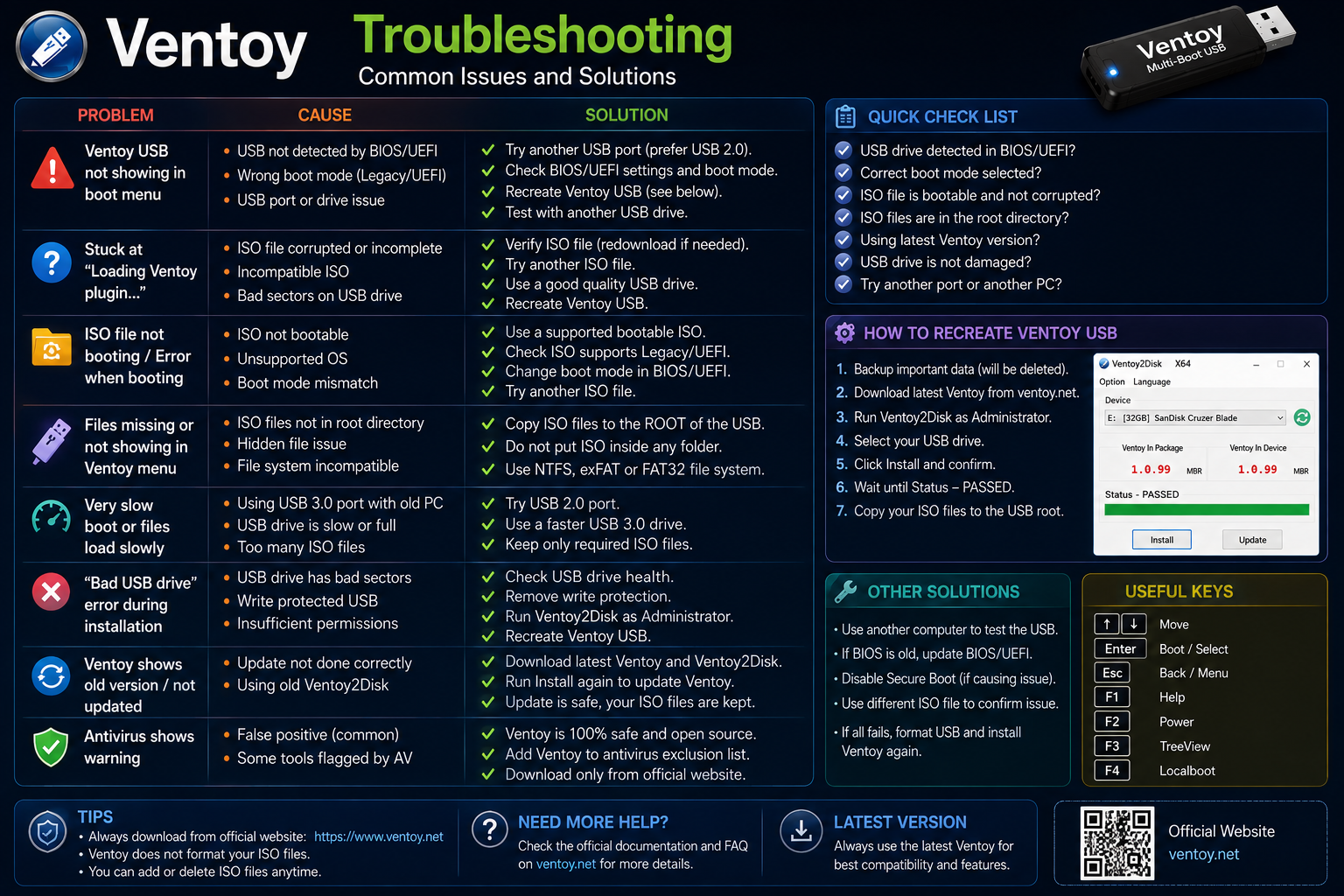
Ventoy2Disk Cannot Detect My USB
Reconnect the USB, try another port, check whether Windows detects the drive, restart Ventoy2Disk, close applications that may be using the USB, or test another USB drive.
Ventoy Installation Failed
Ventoy needs to modify the USB partition table during installation. Security software or another application can sometimes interfere. Reconnect the USB, restart Ventoy2Disk, close programs that may be using the drive, and try again carefully.
Ventoy USB Does Not Boot
Check the boot order, boot-menu selection, BIOS/UEFI mode, MBR/GPT configuration, Secure Boot settings, USB port, and USB drive condition.
Ventoy Does Not Show My ISO
Confirm that the image file is on the Ventoy partition, uses a supported extension, is not corrupted, and was downloaded from a reliable source.
Secure Boot Problems
Ventoy supports Secure Boot, but some computers may require key enrollment or additional configuration. Follow the official Ventoy Secure Boot instructions for your release instead of disabling security features immediately.
Ventoy Gets Stuck Scanning Files
This can happen when there are too many files on the disk. Ventoy search configuration can be used to limit which directories are scanned.
Is Ventoy Free?
Yes. Ventoy is an open-source bootable USB solution and does not require a commercial license for normal use.
Frequently Asked Questions
What is Ventoy used for?
Ventoy is used to create multi-boot USB drives that can store and boot multiple ISO, WIM, IMG, VHD(x), and EFI files.
Can Ventoy create a Windows bootable USB?
Yes. You can copy a supported Windows ISO to the Ventoy USB and select it from the boot menu.
Can I put multiple Windows ISOs on one Ventoy USB?
Yes. You can keep multiple Windows and other supported image files on the same USB drive.
Do I need to format the USB every time I add an ISO?
No. After the initial Ventoy installation, you can usually copy supported image files directly to the USB.
Does Ventoy support Linux?
Yes. Ventoy supports a wide range of Linux distributions and other operating-system images.
Does Ventoy support files larger than 4 GB?
Yes. Ventoy supports large ISO files.
Does Ventoy support GPT and MBR?
Yes. Ventoy supports both GPT and MBR partition styles.
Does Ventoy support UEFI and Legacy BIOS?
Yes. Ventoy supports Legacy BIOS and multiple UEFI environments.
Does Ventoy support Secure Boot?
Yes. Secure Boot is supported, although some systems may require extra steps during the first boot.
Will installing Ventoy erase my USB?
Yes. A normal Ventoy installation formats the target drive, so back up important files first.
Can I update Ventoy without deleting my ISO files?
Ventoy provides an Update function designed to preserve files on the first partition.
Is Ventoy better than Rufus?
It depends on your needs. Rufus is simple for creating a single bootable USB, while Ventoy is especially convenient for storing multiple operating systems and tools on one USB.
Final Thoughts
Ventoy is a practical choice for users who want more than a single-purpose bootable USB. Its biggest advantage is the ability to keep multiple operating systems, recovery tools, and other supported image files on one USB and choose what to boot from a menu.
For Windows users, Linux users, IT technicians, computer repair professionals, and advanced users, Ventoy can turn one USB drive into a flexible multi-boot toolkit.
Ready to download Ventoy?
Get the current Windows package from the official Ventoy website. We recommend downloading software only from official sources.


