
Adobe Premiere Pro Download for Windows 11 & 10
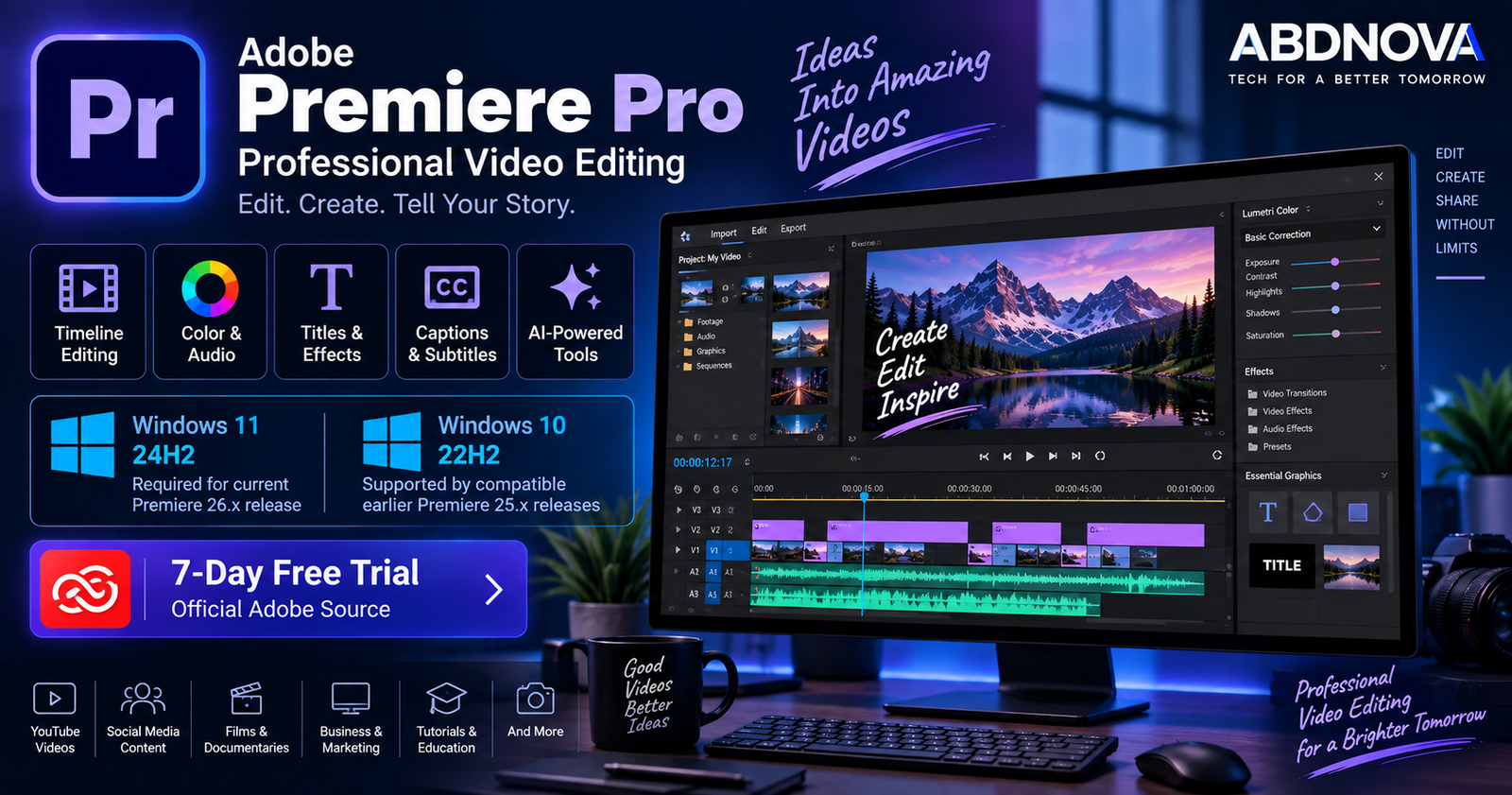
Adobe Premiere Pro Download for Windows gives video editors access to Adobe’s professional nonlinear video-editing application, now branded simply as Adobe Premiere. It combines timeline editing with color correction, audio tools, titles, captions, effects, transitions, collaboration features, AI-assisted workflows, and detailed export controls.
Premiere can be used for YouTube videos, social media content, advertisements, tutorials, interviews, podcasts, documentaries, short films, commercial productions, multicamera projects, and 4K or higher-resolution video editing.
Adobe Premiere for Windows at a Glance
| Details | Information |
|---|---|
| Software | Adobe Premiere |
| Developer | Adobe |
| Category | Professional Video Editing |
| Current Release Checked | Premiere 26.5 |
| Current Windows Requirement | Windows 11 24H2 |
| Windows 10 | Compatible earlier releases such as Premiere 25.x |
| Minimum RAM | 8 GB |
| Recommended RAM | 16 GB for HD |
| 4K Recommendation | 32 GB RAM or more |
| Current Minimum GPU Memory | 4 GB |
| Recommended GPU Memory | 8 GB |
| Minimum Storage | 8 GB plus additional installation and media space |
| License | Paid subscription |
| Free Trial | 7 days |
| Installation | Adobe Creative Cloud |
Adobe Premiere Pro for Windows 11 & 10
Adobe Premiere on Windows 11
Windows 11 is the supported Windows platform for the latest Premiere release. Adobe’s current Premiere 26.x requirements specify Windows 11 version 24H2.
Premiere can handle many types of projects, including:
- YouTube video editing.
- Social media videos.
- Short films.
- Tutorials.
- Product videos.
- Interviews.
- Video podcasts.
- Commercial projects.
- Documentaries.
- Multicam productions.
- 4K and higher-resolution workflows.
Adobe recommends 16 GB RAM for HD media and 32 GB or more for 4K and higher-resolution editing.
Adobe Premiere on Windows 10
Windows 10 compatibility requires additional attention with current Premiere releases. Adobe’s latest Premiere 26.x requirements no longer list Windows 10 and instead require Windows 11 24H2.
However, Adobe’s Premiere 25.x requirements include Windows 10 64-bit version 22H2. This means a Windows 10 user should not assume that the newest Premiere version will install.
Press Windows + R, type winver, and press Enter.
Adobe Premiere System Requirements
| Component | Current Premiere 26.x Requirement |
|---|---|
| Operating System | Windows 11 version 24H2 |
| Processor | Intel 6th Gen or newer / AMD Ryzen 1000 series or newer with AVX2 |
| Recommended Processor | Intel 11th Gen+ with Quick Sync or AMD Ryzen 3000 / Threadripper 3000 series or newer |
| RAM | 8 GB minimum |
| HD Editing | 16 GB RAM recommended |
| 4K+ Editing | 32 GB RAM or more recommended |
| GPU Memory | 4 GB minimum; 8 GB recommended |
| Storage | 8 GB minimum plus additional installation space |
| Recommended Storage | Fast internal SSD for Premiere/cache plus high-speed media drive |
| Display | 1920 × 1080 minimum |
| Internet | Required for activation and Adobe online services |
The 8 GB storage figure is only the application installation minimum. Real video-editing projects can consume tens or hundreds of gigabytes depending on resolution, codec, project length, cache, proxies, and exported files.
How to Download & Install Adobe Premiere on Windows
Premiere should be downloaded directly through Adobe and installed with the Creative Cloud desktop application.
- Open Adobe’s official Premiere page.
- Select Free Trial or an appropriate paid plan.
- Sign in with your Adobe account or create one.
- Complete Adobe’s trial or subscription setup.
- Download the Creative Cloud desktop application.
- Install and open Creative Cloud.
- Open Apps and locate Premiere.
- Select Install.
- Wait for installation to complete.
- Launch Premiere from Creative Cloud or the Windows Start menu.
Adobe Premiere Main Interface & Key Features
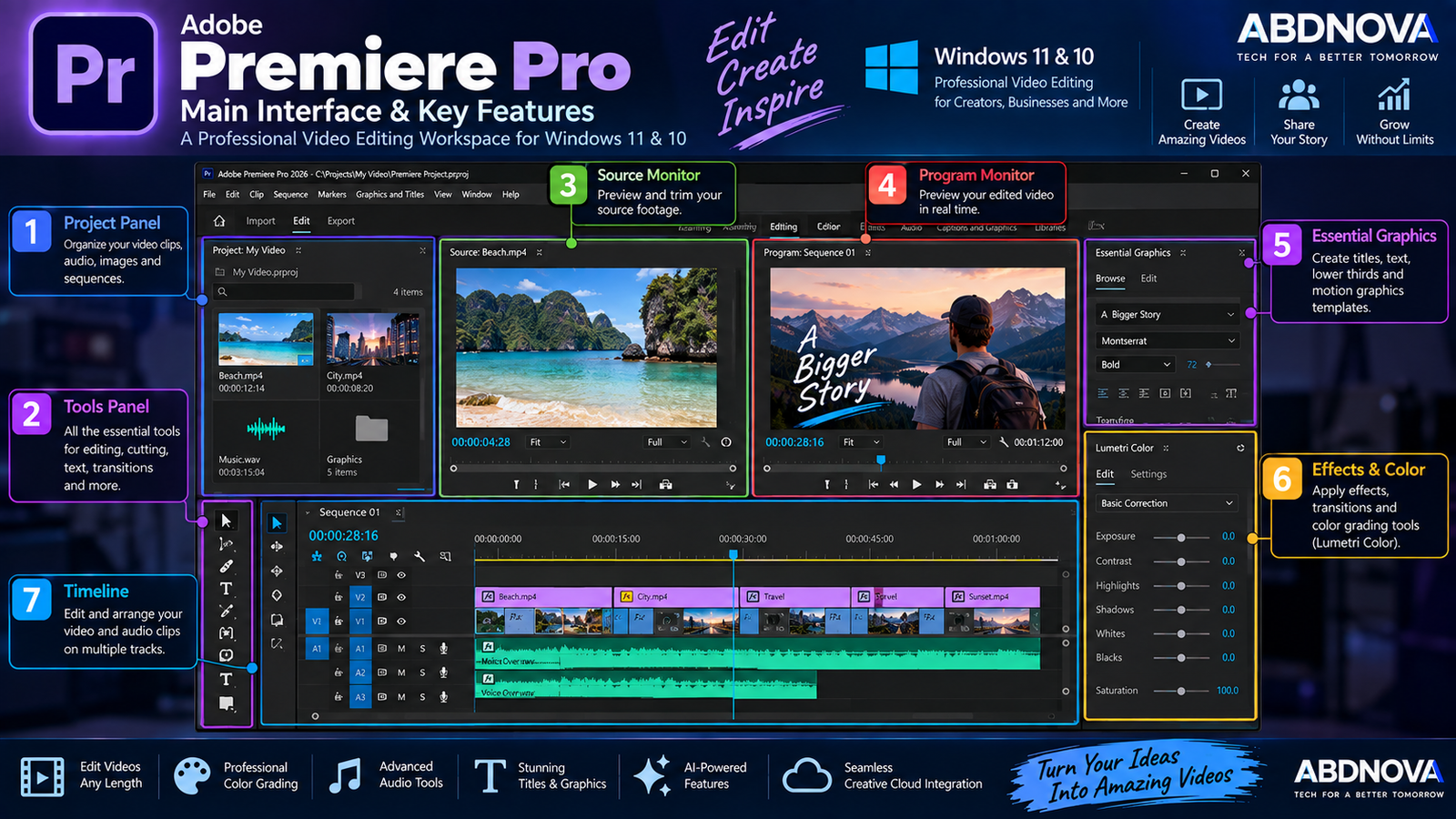
Premiere’s professional workspace is built around several panels that work together during editing.
Project Panel
The Project panel contains imported videos, audio files, graphics, images, and sequences. Footage can be organized into bins to make larger projects easier to manage.
Source Monitor
The Source Monitor lets you preview source footage and select the portion you want to use before adding it to the timeline.
Program Monitor
The Program Monitor displays the current edited sequence so you can preview the result of your timeline changes.
Timeline
The Timeline is Premiere’s central editing area. Video and audio clips are arranged across tracks, allowing editors to cut footage, change timing, add music, create transitions, layer graphics, and build a complete video.
Timeline Video Editing
Premiere provides a traditional nonlinear editing workflow. You can:
- Cut and trim clips.
- Move and rearrange footage.
- Create multiple video and audio tracks.
- Adjust clip speed.
- Add transitions.
- Apply video effects.
- Add titles and graphics.
- Synchronize video and audio.
- Edit multicamera footage.
- Create nested sequences.
Keyboard shortcuts can significantly improve editing speed once you become familiar with the workflow.
Color Correction & Color Grading
Premiere includes professional color tools for correcting footage and creating a consistent visual style. Editors can adjust exposure, contrast, white balance, saturation, highlights, shadows, and individual colors.
Color grading can then be used to establish a consistent mood or visual identity across a project.
Audio Editing
Premiere includes tools for adjusting volume, mixing tracks, improving dialogue, adding music, applying effects, and balancing different audio sources.
AI-assisted tools such as Enhance Speech can be particularly useful for interviews, tutorials, podcasts, and YouTube videos where dialogue clarity is important.
Titles, Graphics, Effects & Transitions
Editors can add:
- Titles.
- Lower thirds.
- Captions.
- Shapes.
- Logos.
- Animated graphics.
- Video transitions.
- Visual effects.
Motion Graphics templates can also be used to build more sophisticated title and graphics sequences.
Adobe Premiere Video Editing, AI Tools & Export
Text-Based Editing
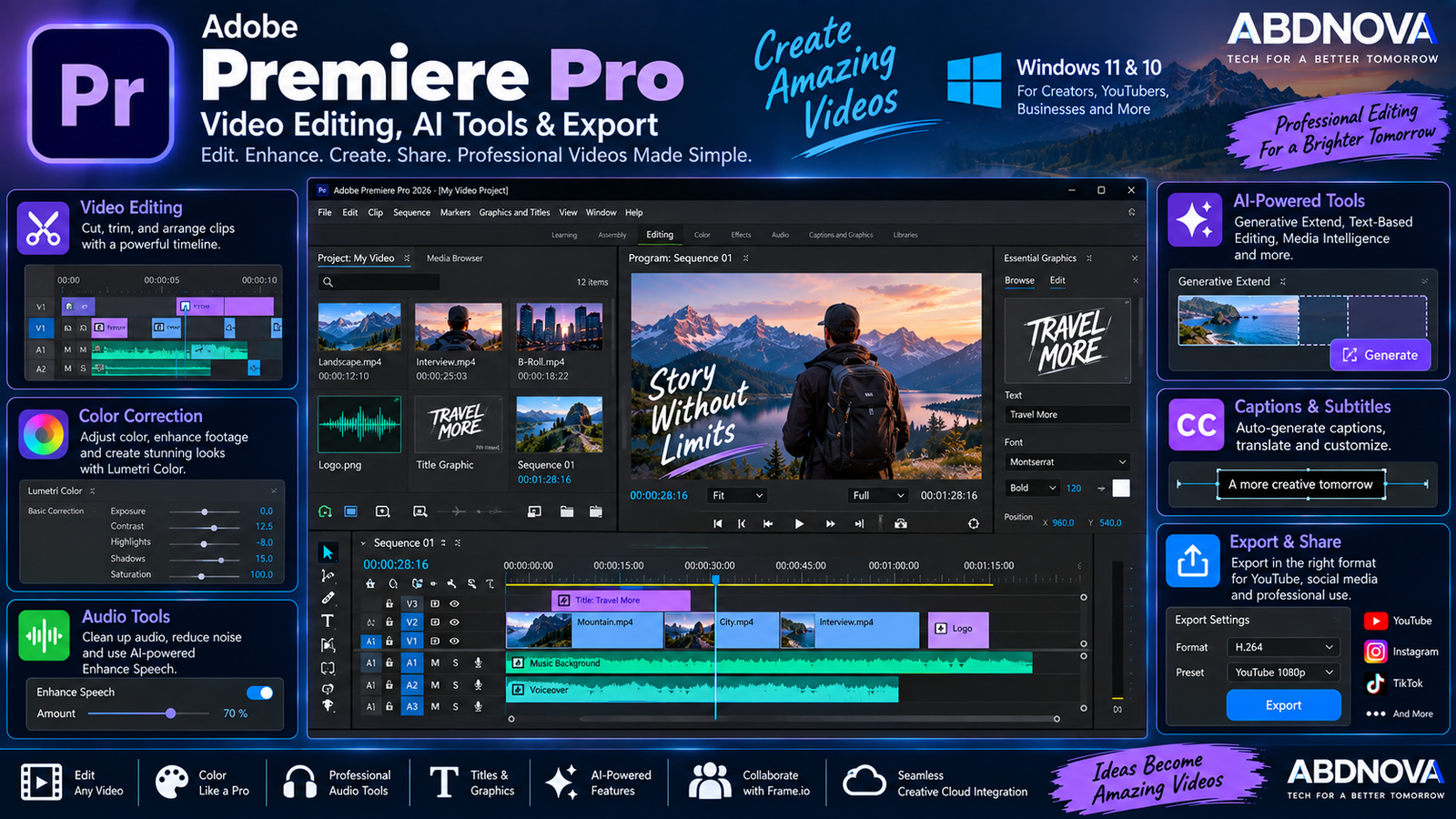
Text-Based Editing provides another way to work with dialogue-heavy footage. Premiere can create a transcript from spoken dialogue, allowing editors to use transcript-based operations to help construct and refine an edit.
This is particularly useful for interviews, documentaries, podcasts, presentations, and talking-head videos.
Speech to Text & Captions
Premiere can automatically transcribe speech and generate captions. Captions can then be reviewed and customized before export.
Translate Captions can help prepare captioned content for audiences using different languages.
AI-Powered Media Intelligence
Media Intelligence provides AI-powered search tools for projects containing large amounts of footage. Editors can locate media using visual descriptions, spoken words where transcripts are available, and embedded metadata.
This can reduce the time spent manually opening clips while searching for a specific shot.
Generative Extend
Generative Extend uses generative AI to extend video or audio when a small amount of additional material is required.
It can be useful when a shot ends slightly too early or when additional ambient audio helps smooth an edit.
Generative Media Tool in Premiere 26.5
Premiere 26.5 introduces the Generative Media Tool directly into the editing workflow. It can generate video clips and sound effects from prompts and add generated results to a sequence as editable clips.
Availability of generative models, features, and credits can depend on Adobe’s current plans, region, and terms.
Paper Edit
Premiere 26.5 also introduces Paper Edit. Editors can select lines from transcripts and use them to quickly construct sequences.
This can be particularly useful for interview, documentary, and other dialogue-heavy productions.
Frame.io Integration
Premiere includes Frame.io integration for collaborative review. Teams and clients can provide feedback, and comments can be connected more directly with relevant points in the editing workflow.
This is useful for agencies, production teams, clients, and remote collaborators.
Exporting Videos from Adobe Premiere
After editing is complete, Premiere can export finished sequences for:
- YouTube.
- Social media.
- Websites.
- Client delivery.
- Local playback.
- Professional post-production.
Choose export settings according to the destination. Resolution, frame rate, codec, bitrate, audio settings, and platform requirements all affect the finished file.
Premiere is commonly used together with After Effects in professional post-production workflows. Premiere handles timeline-based video editing, while After Effects is designed for motion graphics, animation, compositing, and visual effects. See our Adobe After Effects Download for Windows guide for more details.
Adobe Premiere vs DaVinci Resolve vs VEGAS Pro
| Adobe Premiere | DaVinci Resolve | VEGAS Pro |
|---|---|---|
| Professional nonlinear editing | Professional nonlinear editing | Windows-focused nonlinear editing |
| Strong Adobe ecosystem integration | Integrated Resolve ecosystem | Independent production ecosystem |
| Color, audio, captions and AI tools | Strong color, VFX and audio tools | Video, effects and audio workflow |
| Creative Cloud collaboration | Integrated post-production workflow | Traditional Windows editing workflow |
These editors provide different workflows and ecosystems. The practical choice depends on project requirements, hardware, collaboration needs, existing software, and budget.
Is Adobe Premiere Free?
No. The Premiere desktop application is paid software. Adobe currently provides a 7-day free trial containing the full application and latest updates.
The trial automatically converts to a paid Creative Cloud membership after seven days unless it is cancelled. Adobe’s plans, prices, and promotions can change, so check current details directly with Adobe.
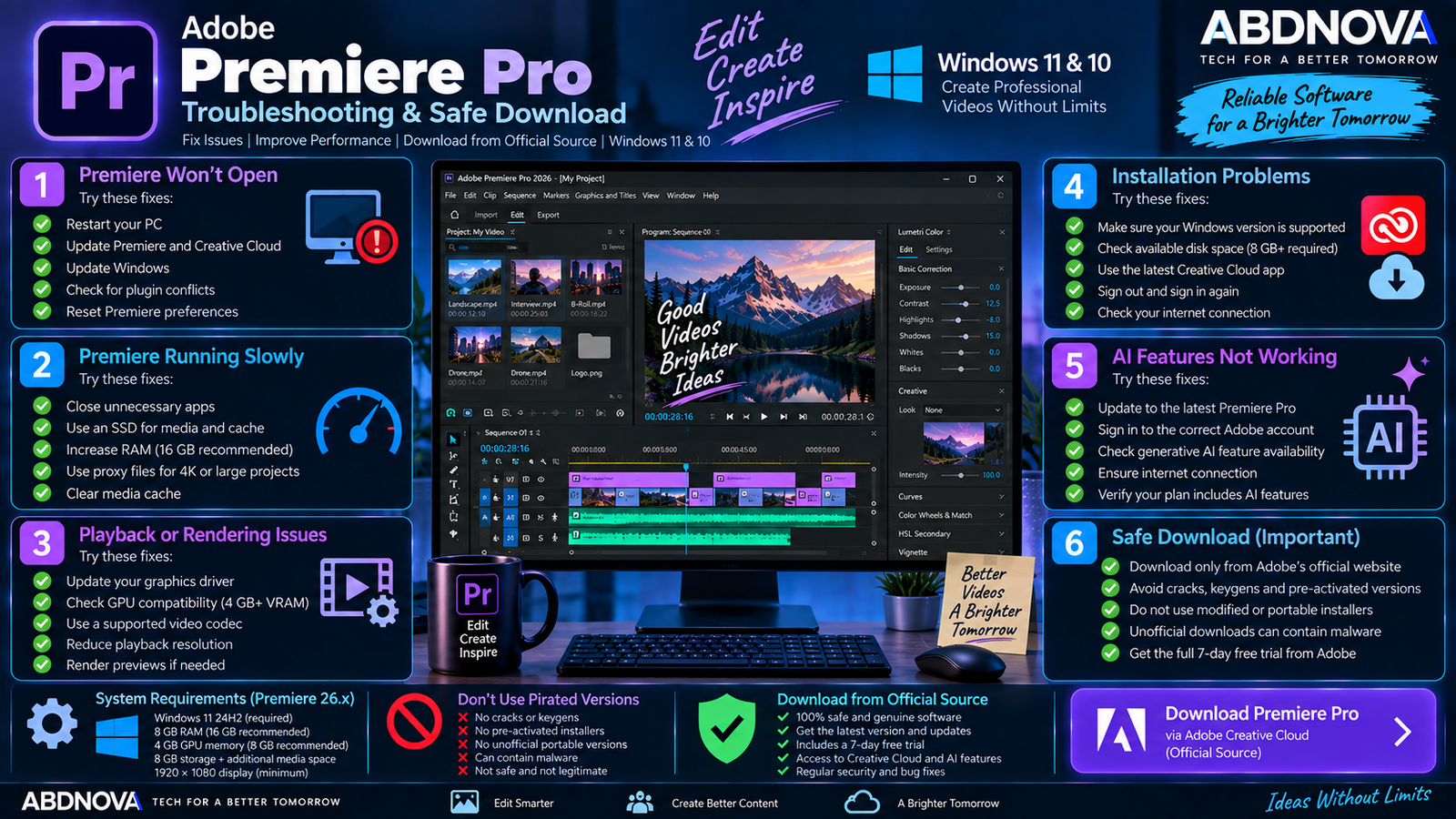
Adobe Premiere Troubleshooting & Safe Download
Premiere Does Not Open
Restart Windows first. If Premiere still does not open:
- Check Creative Cloud for Premiere updates.
- Install pending Windows updates.
- Update your NVIDIA, AMD, Intel, or Qualcomm graphics driver as appropriate.
- Check recently installed third-party plugins.
- Verify your Premiere version and Windows compatibility.
Premiere Is Running Slowly
High-resolution footage, demanding codecs, effects-heavy timelines, and insufficient system resources can reduce editing performance.
Try:
- Closing unnecessary programs.
- Using a fast SSD.
- Checking available RAM.
- Updating GPU drivers.
- Reducing playback resolution where appropriate.
- Using proxy media for demanding footage.
- Clearing unnecessary media cache when appropriate.
Adobe recommends 16 GB RAM for HD media and 32 GB or more for 4K and higher-resolution workflows.
Playback Is Choppy
Choppy preview playback does not necessarily mean the exported video will be choppy. High-resolution footage and heavily compressed codecs can require significant decoding power.
Reducing preview resolution or creating proxies can make editing smoother without changing the original source footage.
Premiere Shows GPU Problems
For current Premiere 26.x Windows requirements, Adobe lists at least 4 GB GPU memory and recommends 8 GB.
Update the graphics driver and restart Premiere after installing the update.
Premiere Will Not Install
Check the operating system first. Current Premiere 26.x requires Windows 11 24H2. A Windows 10 computer may therefore fail the current-version compatibility check even when its hardware is otherwise capable.
Also check:
- Available disk space.
- Creative Cloud updates.
- Internet connectivity.
- Your Adobe account.
- Processor and AVX2 compatibility.
- GPU compatibility.
Generative AI Features Are Missing
Update Premiere to a current compatible release and confirm that you are signed in with the correct Adobe account.
Generative features can depend on the Premiere version, Creative Cloud plan, supported region, generative credits, and Adobe’s current feature rollout.
How to Update Adobe Premiere
Check the Premiere update information before installing a major new version.
Safe Adobe Premiere Download
Use Adobe’s official website and Creative Cloud application to obtain Premiere.
- Premiere Pro Crack.
- Pre-Activated Premiere.
- Premiere Keygen.
- Free Full Version.
- Portable Premiere Pro.
- Modified Creative Cloud.
- Repacked Adobe Installer.
Unofficial installers can contain modified application files, malware, unwanted programs, or credential-stealing software.
Frequently Asked Questions
Does Adobe Premiere work on Windows 11?
Yes. Adobe’s current Premiere 26.x requirements specify Windows 11 version 24H2.
Does Adobe Premiere work on Windows 10?
Compatible earlier releases do. Adobe lists Windows 10 22H2 for Premiere 25.x, while current Premiere 26.x requires Windows 11 24H2.
What is the latest Adobe Premiere version?
The current release checked is Adobe Premiere 26.5, released in September 2026.
How much RAM does Adobe Premiere need?
The current minimum is 8 GB. Adobe recommends 16 GB for HD media and 32 GB or more for 4K and higher-resolution workflows.
How much GPU memory does Premiere need?
Current Premiere 26.x Windows requirements specify at least 4 GB GPU memory, with 8 GB recommended.
Is Adobe Premiere free?
The desktop application is paid software, but Adobe currently provides a 7-day full trial.
Can Adobe Premiere edit 4K video?
Yes. Adobe provides recommended specifications for 4K and higher-resolution workflows, including 32 GB or more RAM and 8 GB GPU memory.
Does Adobe Premiere have AI features?
Yes. Current features include Media Intelligence, Generative Extend, Text-Based Editing, transcription and caption tools, and newer generative workflows. Premiere 26.5 also introduces the Generative Media Tool and Paper Edit.
Final Thoughts
Adobe Premiere Pro Download for Windows provides a comprehensive professional video-editing environment combining timeline editing, color, audio, titles, captions, collaboration, text-based workflows, export tools, and increasingly integrated AI features.
The main compatibility consideration in 2026 is Windows support. Current Premiere 26.x requires Windows 11 24H2, while Windows 10 users need a compatible earlier release such as Premiere 25.x.
For a safe installation and reliable updates, use Adobe’s official Premiere page and Creative Cloud instead of cracked, modified, pre-activated, or third-party installers.
Download Adobe Premiere for Windows
Get the official Premiere desktop application and 7-day trial directly from Adobe.