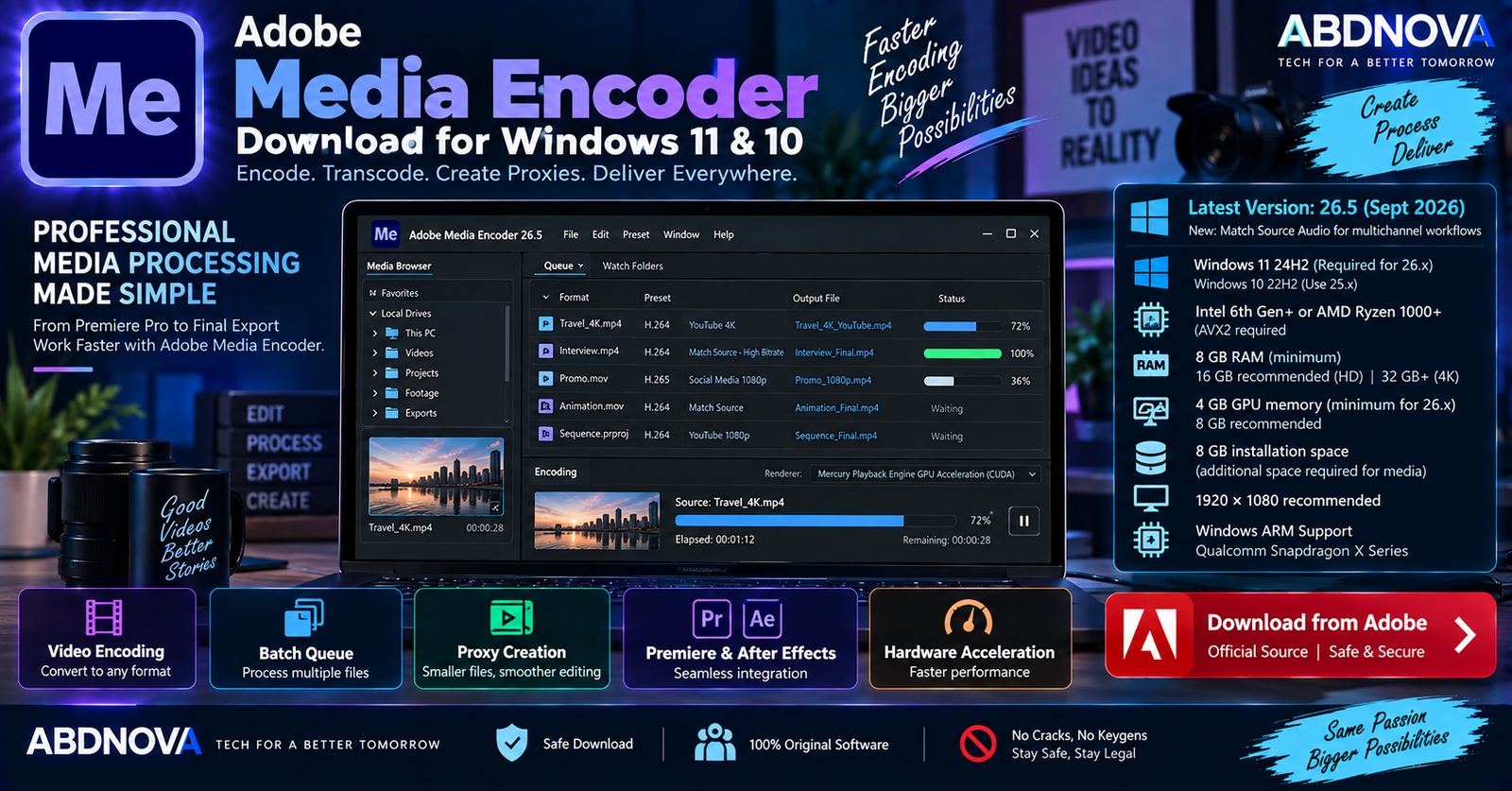

Adobe Media Encoder Download for Windows 11 & 10
Adobe Media Encoder Download for Windows provides Adobe’s dedicated application for media encoding, transcoding, proxy creation, rendering, and batch processing. It works closely with Premiere and After Effects while also handling standalone media-processing jobs.
Media Encoder is particularly useful when you need to convert media formats, create editing proxies, prepare several output versions, process multiple files through a Queue, or automate repetitive encoding work.
The current Adobe Media Encoder 26.5 release arrived in September 2026. Windows users should note an important compatibility difference: current 26.x releases require Windows 11 24H2, while Windows 10 22H2 users can use a compatible Media Encoder 25.x release.
Windows 11 24H2 → Current Media Encoder 26.x
Windows 10 22H2 → Compatible Media Encoder 25.x
Adobe Media Encoder for Windows at a Glance
| Details | Information |
|---|---|
| Software | Adobe Media Encoder |
| Developer | Adobe |
| Category | Video Encoding & Media Processing |
| Current Version | 26.5 — September 2026 |
| Current Windows Support | Windows 11 24H2 |
| Windows 10 | Use compatible Media Encoder 25.x on Windows 10 22H2 |
| Processor | Intel 6th Gen+ or AMD Ryzen 1000+ |
| CPU Feature | AVX2 required |
| RAM | 8 GB minimum |
| Recommended RAM | 16 GB HD / 32 GB+ 4K |
| GPU Memory | 4 GB minimum for current 26.x; 8 GB recommended |
| Storage | 8 GB plus additional media/cache storage |
| Recommended Display | 1920 × 1080 or greater |
| Windows ARM | Native support on compatible Snapdragon X Series systems |
| License | Adobe Creative Cloud |
| Official Source | Adobe |
What’s New in Adobe Media Encoder 26.5?
Media Encoder 26.5 introduces Match Source Audio for multichannel workflows. It can detect and apply source-audio properties such as sample rate and channelization, helping preserve the original audio configuration while reducing manual export setup.
Other notable improvements introduced during the 26.x generation include:
- Native Windows ARM support.
- Media Intelligence integration.
- Job-count information in the Queue panel.
- Content Credentials preferences during export.
- Sony BURANO V3 format support.
- Additional professional media-workflow improvements.
Adobe Media Encoder for Windows 11
Current Media Encoder 26.x releases require Windows 11 version 24H2 for standard Intel and AMD Windows PCs.
Using the current release gives access to Adobe’s latest format support, performance improvements, encoding features, Media Intelligence integration, Windows ARM support, and other 26.x improvements.
Adobe Media Encoder for Windows 10
The current Media Encoder 26.x generation does not list Windows 10 as a supported operating system.
Adobe’s Media Encoder 25.x generation supports Windows 10 64-bit version 22H2 or later. Therefore, Windows 10 users should use a compatible 25.x version rather than installing an unsupported 26.x build.
Adobe Media Encoder System Requirements
| Component | Current 26.x Requirement |
|---|---|
| Processor | Intel 6th Generation+ or AMD Ryzen 1000 Series+ |
| CPU Feature | AVX2 support required |
| Operating System | Windows 11 24H2 |
| RAM | 8 GB minimum |
| Recommended RAM | 16 GB for HD; 32 GB+ for 4K and higher |
| GPU | 4 GB GPU memory minimum; 8 GB recommended |
| Storage | 8 GB plus additional temporary and media storage |
| Display | 1024 × 768 minimum; 1920 × 1080+ recommended |
Adobe recommends an Intel 11th Generation or newer CPU with Quick Sync, or an AMD Ryzen 3000/Threadripper 3000 Series or newer CPU for stronger performance.
A fast internal SSD is recommended for the application and cache, with additional high-speed storage for media. Video projects can consume hundreds of gigabytes, so the application’s installation size should not be confused with actual project-storage requirements.
Windows ARM Requirements
Native Windows ARM support was introduced in Media Encoder 26.0. Compatible ARM systems use a Qualcomm Snapdragon X Series processor with Windows 11 24H2.
Adobe specifies 16 GB RAM for Windows ARM systems along with a compatible Qualcomm Adreno GPU driver.
How to Download & Install Adobe Media Encoder
The safest method is to install Media Encoder directly through Adobe and Creative Cloud Desktop.
- Open Adobe’s official Media Encoder page.
- Sign in with your Adobe account.
- Install Creative Cloud Desktop if required.
- Open Creative Cloud Desktop.
- Go to Apps.
- Find Media Encoder.
- Select Install.
- Wait for installation to finish.
- Launch Media Encoder.
Internet access and registration are required for activation, subscription validation, and applicable online services.
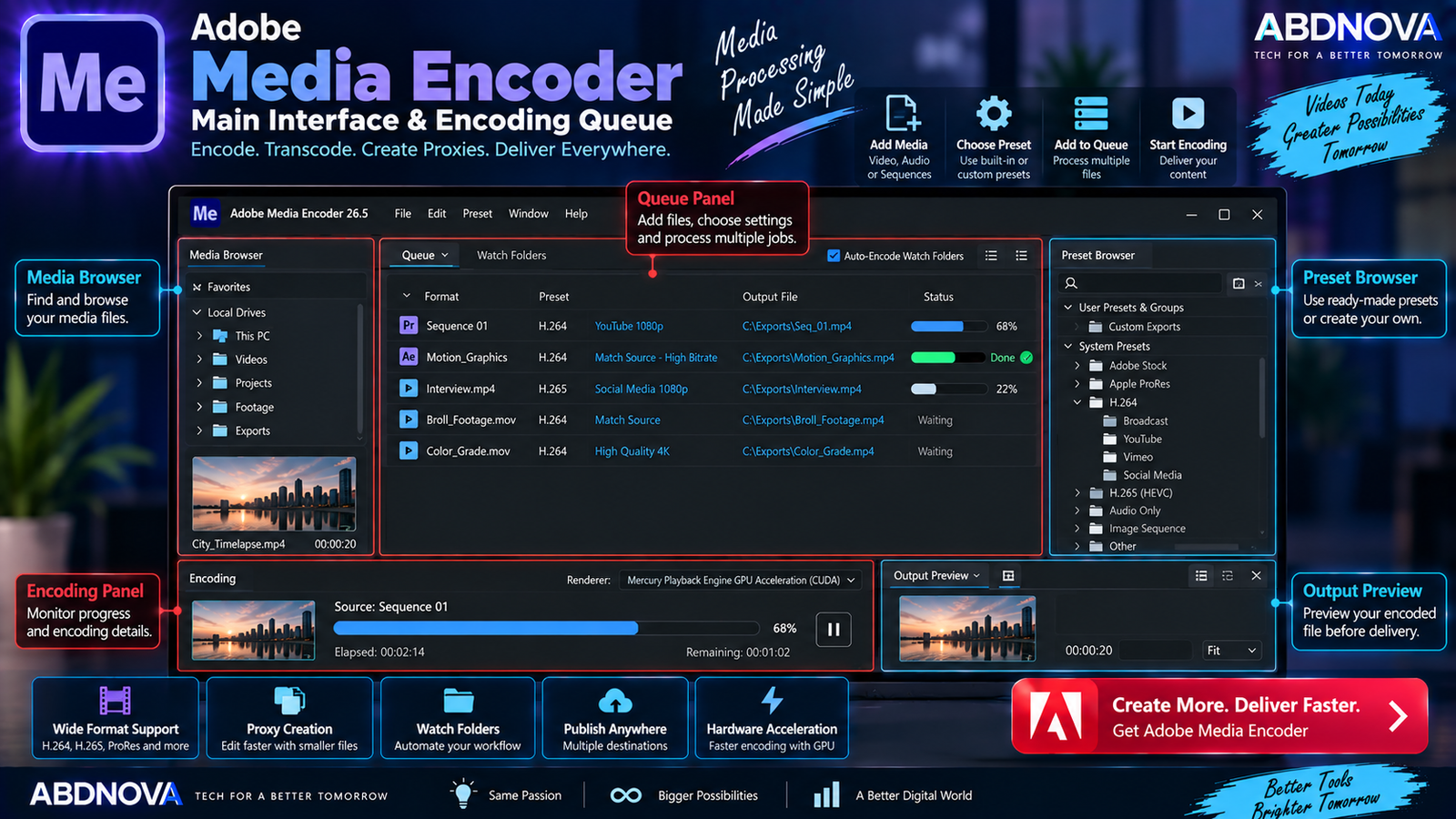
Adobe Media Encoder Main Interface & Encoding Queue
Media Encoder has a focused interface built around preparing, organizing, and processing media jobs. Its most important areas include the Queue, Media Browser, Preset Browser, and Encoding panel.
Queue Panel
The Queue is the center of the Media Encoder workflow. It can contain:
- Video files.
- Audio files.
- Premiere sequences.
- After Effects compositions.
- Proxy jobs.
- Multiple output versions.
Instead of exporting one file, waiting for it to finish, and then configuring another, you can prepare several jobs and process them together.
Media Browser
The Media Browser helps locate and import media. It is particularly useful with professional camera formats that use structured folders instead of a single standalone video file.
Preset Browser
Presets save frequently used encoding configurations. This reduces repetitive setup and helps maintain consistent export settings across multiple projects.
Encoding Panel
The Encoding panel displays information about the job currently being processed, making it easier to monitor long exports or large batches.
Queue-Based Batch Encoding
Batch processing is one of Media Encoder’s biggest advantages. A single Queue can contain outputs such as:
4K master file
1080p delivery version
Smaller web version
Audio-only output
Proxy files
Media Encoder can process these jobs without requiring each export to be configured from scratch.
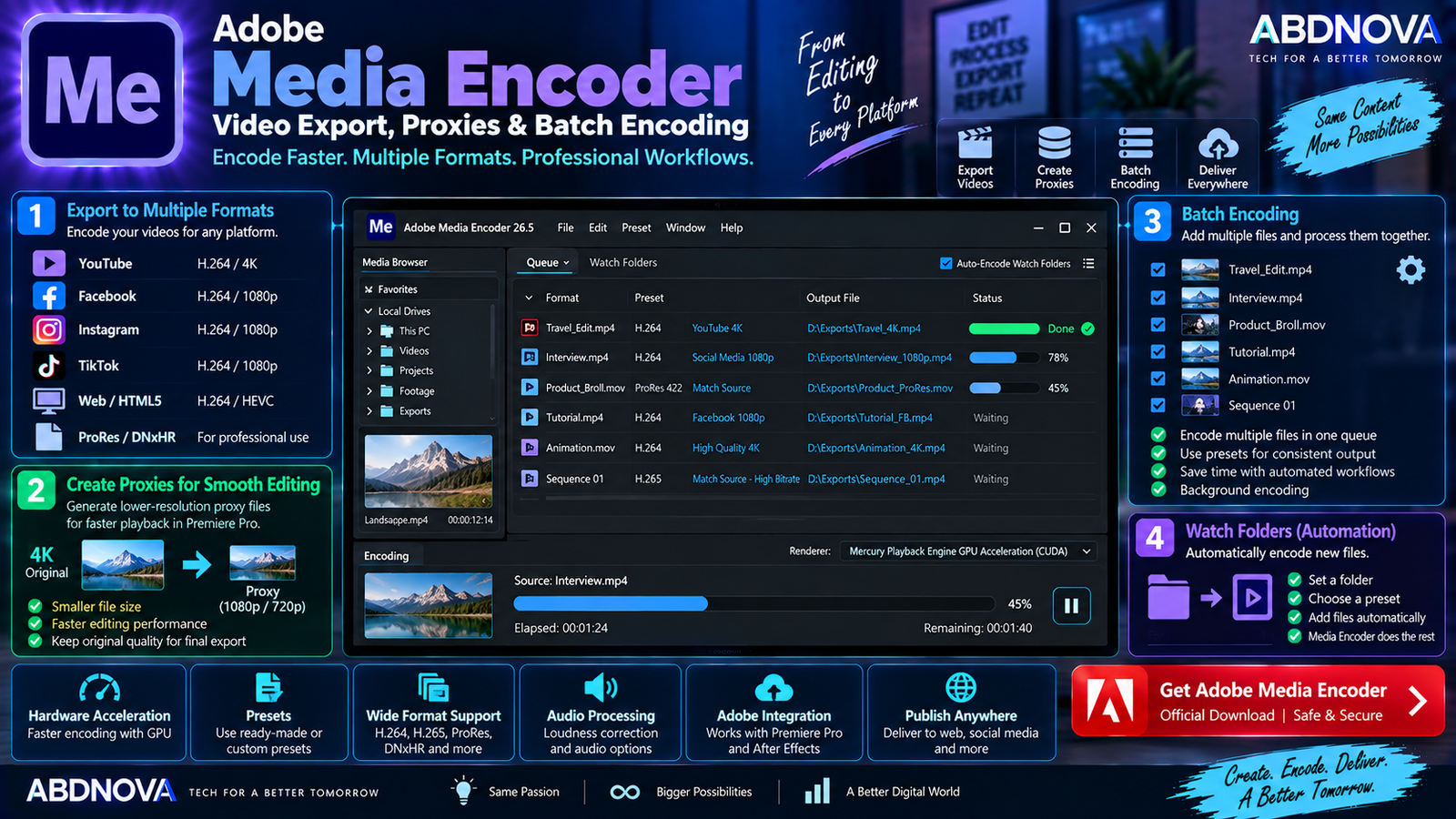
Adobe Media Encoder Video Export, Proxies & Batch Encoding
Video Transcoding
Transcoding converts media from one format or encoding configuration into another. Common uses include:
- Converting camera footage.
- Creating editing-friendly media.
- Reducing file size.
- Preparing web video.
- Standardizing mixed footage.
- Generating delivery files.
- Creating archive copies.
Proxy Creation
High-resolution 4K and 8K footage can be demanding to edit. Media Encoder can create smaller proxy files that are easier for Premiere to process.
Original 4K/8K footage → Media Encoder → Lightweight proxies → Edit in Premiere → Export using originals
This can significantly improve editing responsiveness on systems that struggle with demanding source footage.
Premiere Integration
Media Encoder integrates closely with Adobe Premiere. Instead of rendering directly inside Premiere, an editor can send an export job to Media Encoder and continue working while the encoding job is processed separately.
After Effects Integration
After Effects compositions can also be sent into Media Encoder workflows when motion-graphics or VFX projects require standard delivery formats or multiple output versions.
For motion-graphics and VFX workflows, see our Adobe After Effects Download for Windows guide.
Watch Folders
Watch Folders can automate repetitive encoding work.
Files placed into a monitored folder can automatically enter the assigned encoding workflow.
Destination Publishing
Destination Publishing can automate parts of the delivery workflow after encoding. Combined with presets and Watch Folders, it can be useful when many files need to be processed consistently.
Time Tuner
Time Tuner can adjust a video’s duration during the Media Encoder workflow without requiring extensive manual re-editing. It can be useful when a deliverable must fit a specific runtime.
LUTs & Color Processing
Media Encoder can apply supported LUT and color-processing settings during export. Major creative color-grading decisions, however, are generally better handled in an editing application before final encoding.
Loudness Correction
Loudness-related processing can be included in automated output workflows, helping produce multiple deliverables with consistent audio specifications.
Match Source Audio
Media Encoder 26.5 improves Match Source Audio for multichannel workflows. It can automatically detect and match source properties such as sample rate and channelization.
Media Intelligence
Media Encoder 26.0 introduced Media Intelligence integration. Adobe’s workflow can analyze video so that Premiere can search analyzed footage after import, which can be useful for large media libraries.
Content Credentials
Media Encoder 26.2 added Content Credentials preferences during export. Applicable export information can include content-authenticity details such as linked social accounts and generative-AI usage.
Supported Formats
Media Encoder processes a wide range of professional video, audio, image, and camera formats. Common workflows include:
- H.264.
- HEVC/H.265.
- QuickTime-based workflows.
- Professional camera media.
- Image sequences.
- Audio formats.
- Proxy formats.
Exact codec availability can depend on the operating system, hardware, Media Encoder version, and project settings.
Hardware-Accelerated Encoding
Compatible systems can use supported hardware acceleration for parts of the encoding and decoding workflow. Performance depends on the processor, GPU, codec, source media, effects, resolution, and export settings.
Adobe Media Encoder vs Premiere
| Feature | Media Encoder | Premiere |
|---|---|---|
| Video Editing | No | Yes |
| Timeline Editing | No | Yes |
| Encoding | Core purpose | Yes |
| Batch Processing | Strong | More limited |
| Queue Management | Core feature | Basic export workflow |
| Proxy Creation | Yes | Integrated workflow |
| Watch Folders | Yes | No |
| Best Use | Encoding & automation | Video editing |
Media Encoder is not a replacement for Premiere. Premiere is designed to create and edit video, while Media Encoder specializes in processing, converting, and delivering media.
Adobe Media Encoder vs HandBrake
HandBrake is a standalone video transcoding application, while Media Encoder is designed around professional Adobe production workflows.
Media Encoder’s main advantages for Adobe users include its Premiere and After Effects integration, Queue system, presets, proxy creation, Watch Folders, and automated processing features.
HandBrake can be useful for straightforward standalone conversion, while Media Encoder is particularly suited to creators already working within Adobe’s video ecosystem.
Is Adobe Media Encoder Free?
Adobe provides Media Encoder through its Creative Cloud ecosystem and offers trial access through its official Media Encoder page. Availability can depend on your Adobe plan.
Avoid websites advertising permanently activated, patched, or cracked copies of Media Encoder.
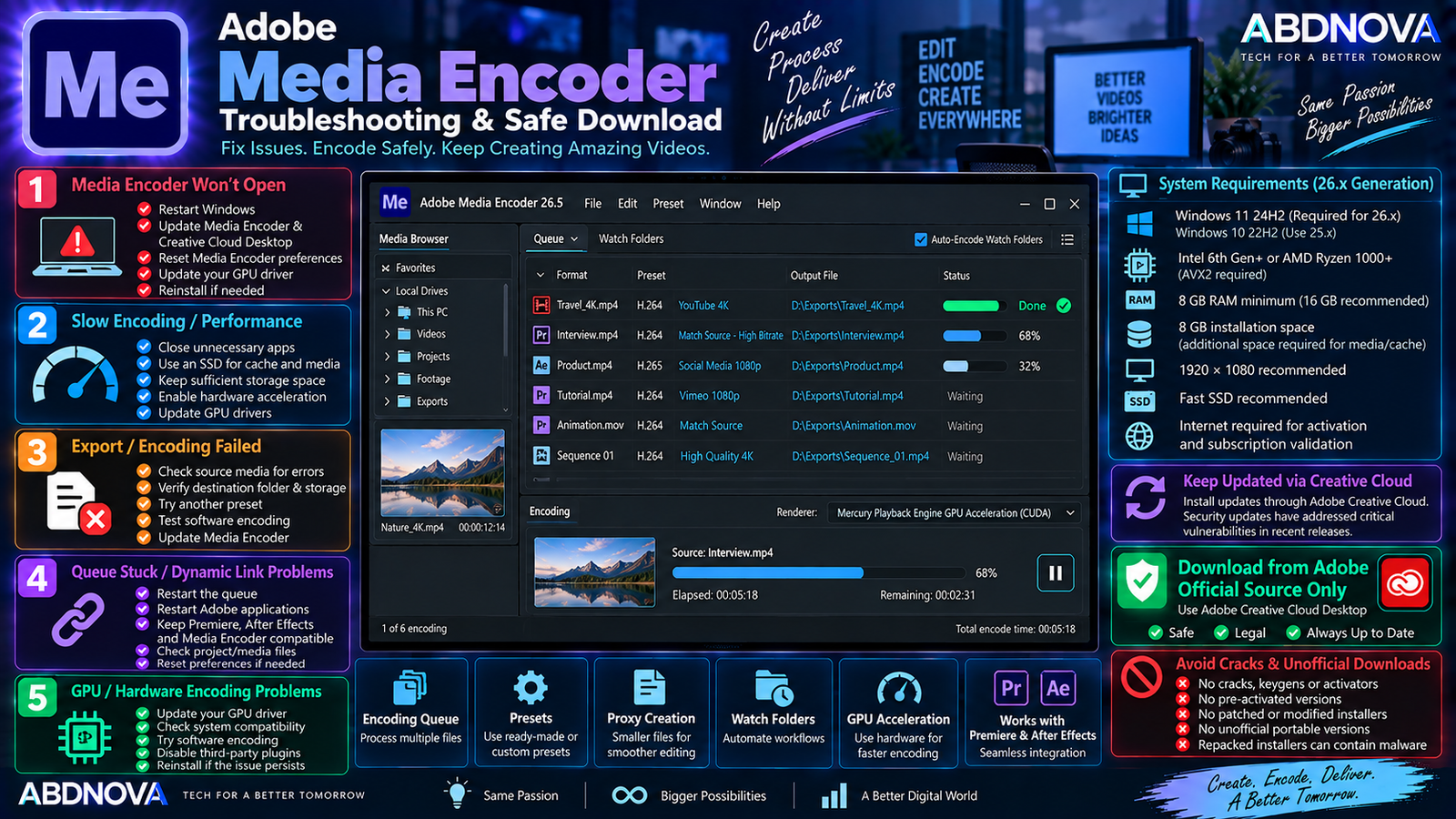
Adobe Media Encoder Troubleshooting & Safe Download
Media Encoder Won’t Open
Try:
- Restart Windows.
- Update Media Encoder.
- Update Creative Cloud Desktop.
- Update Windows.
- Update the GPU driver.
- Reset Media Encoder preferences.
- Temporarily disable problematic third-party plugins.
- Reinstall Media Encoder if necessary.
Also verify that the installed Media Encoder generation supports your Windows version.
Media Encoder Is Running Slowly
Encoding performance depends heavily on the source media, codec, effects, resolution, and hardware.
For better performance:
- Close unnecessary applications.
- Use supported hardware acceleration.
- Update GPU drivers.
- Store media on a fast drive.
- Use an SSD for cache.
- Keep sufficient free storage.
- Use 16 GB or more RAM for HD workflows.
- Consider 32 GB+ RAM for 4K workflows.
Media Encoder Export Fails
- Check the error message.
- Verify sufficient storage.
- Try another output location.
- Check the source media.
- Temporarily disable problematic effects.
- Update Media Encoder and related Adobe apps.
- Update the GPU driver.
- Try software encoding when appropriate.
- Test another export preset.
If the export repeatedly fails at the same point, a specific source clip, frame, effect, or asset may be responsible.
Media Encoder Is Stuck in the Queue
- Pause and restart the Queue.
- Restart Media Encoder.
- Check the source file.
- Check available storage.
- Verify the destination drive.
- Test another preset.
- Update Adobe applications.
For Premiere and After Effects jobs, keeping compatible application versions installed can also help avoid Dynamic Link-related problems.
GPU Acceleration Problems
If Media Encoder crashes or reports GPU-related errors:
- Update the GPU driver.
- Verify that the GPU meets Adobe’s requirements.
- Restart Windows.
- Test another renderer or encoding mode when available.
- Remove unstable overclocking.
- Update Media Encoder.
Current Media Encoder 26.x requires at least 4 GB of GPU memory on standard NVIDIA, Intel, and AMD Windows configurations, with 8 GB recommended.
Premiere Project Won’t Queue Correctly
If Premiere cannot send a project to Media Encoder:
- Update Premiere.
- Update Media Encoder.
- Keep compatible versions installed.
- Restart both applications.
- Restart Creative Cloud Desktop.
- Check the project for problematic media.
- Try exporting a small test sequence.
Version mismatches between Adobe video applications can cause workflow problems.
How to Update Adobe Media Encoder
Because Media Encoder works closely with Premiere and After Effects, keeping related Adobe video applications on compatible versions is generally preferable.
Safe Adobe Media Encoder Download
Download Media Encoder only through Adobe and its official Creative Cloud system.
- Media Encoder cracks.
- Media Encoder keygens.
- Media Encoder activators.
- Pre-activated Media Encoder copies.
- Lifetime-activated copies.
- Patched Adobe Media Encoder.
- Modified Creative Cloud installers.
- Unofficial portable versions.
- Repacked Adobe bundles.
Modified installers can contain malware, steal credentials, interfere with Adobe updates, or damage an existing Creative Cloud installation.
Frequently Asked Questions
Does Adobe Media Encoder work on Windows 11?
Yes. Current Media Encoder 26.x officially requires Windows 11 24H2.
Does Adobe Media Encoder 26.5 work on Windows 10?
Windows 10 is not listed for current Media Encoder 26.x. Adobe’s Media Encoder 25.x generation supports Windows 10 64-bit version 22H2 or later.
What is the latest Adobe Media Encoder version?
As of September 2026, Adobe lists Media Encoder 26.5 as the latest release.
How much RAM does Media Encoder need?
Current requirements specify 8 GB minimum, with 16 GB recommended for HD and 32 GB or more for 4K and higher-resolution workflows.
Does Media Encoder support Windows ARM?
Yes. Native Windows ARM support was introduced in Media Encoder 26.0 for compatible Qualcomm Snapdragon X Series systems.
Can Media Encoder create proxies?
Yes. Proxy creation is one of Media Encoder’s core media-processing workflows.
Can I use Media Encoder without Premiere?
Yes. Media Encoder is its own application and can process standalone media jobs, although tight integration with Premiere and After Effects is one of its major advantages.
Is Media Encoder a video editor?
No. Media Encoder is primarily designed for encoding, transcoding, proxy creation, rendering, and media processing. Use a video editor such as Premiere for full timeline editing.
Final Thoughts
Adobe Media Encoder Download for Windows provides a specialized workflow for encoding, transcoding, proxy creation, batch processing, rendering, and automated media delivery.
Its Queue, presets, Watch Folders, proxy workflow, hardware acceleration, and tight integration with Premiere and After Effects can save substantial time when processing large amounts of media or preparing several versions of the same project.
For current Media Encoder 26.5, Windows users should remember the compatibility change: Windows 11 24H2 is required for current 26.x releases, while Windows 10 22H2 users can use a compatible Media Encoder 25.x version.
For safe installation and updates, obtain Media Encoder directly through Adobe rather than using cracks, activators, modified Creative Cloud installers, or unofficial repacks.
Download Adobe Media Encoder for Windows
Get Adobe Media Encoder directly from the official Adobe website.