
FreeFileSync Download for Windows – Folder Sync & Backup Guide
FreeFileSync is a file synchronization and backup application designed to compare folders and synchronize only the files that need to be updated. It is useful for keeping data synchronized between a Windows PC, external hard drive, USB drive, network location, and other supported storage.
Instead of manually copying the same folders every time something changes, FreeFileSync can compare the source and destination, show the differences, and perform the required synchronization.
For Windows users, it is particularly useful for document backups, photo libraries, work projects, external-drive backups, and recurring folder synchronization.
FreeFileSync for Windows 11 & 10
FreeFileSync is available for Windows as well as macOS and Linux. As of September 2026, the current official release is FreeFileSync 14.12, released on September 9, 2026.
| Detail | Information |
|---|---|
| Software | FreeFileSync |
| Current Version | 14.12 |
| Platforms | Windows, macOS & Linux |
| Main Use | Folder synchronization & file backup |
| Sync Modes | Two Way, Mirror, Update & Custom |
| Standard Edition | Personal use by private individuals |
| Donation Edition | Additional supporter features |
| Business Edition | Commercial and organizational use |
FreeFileSync Main Interface, Folder Comparison & Sync Features
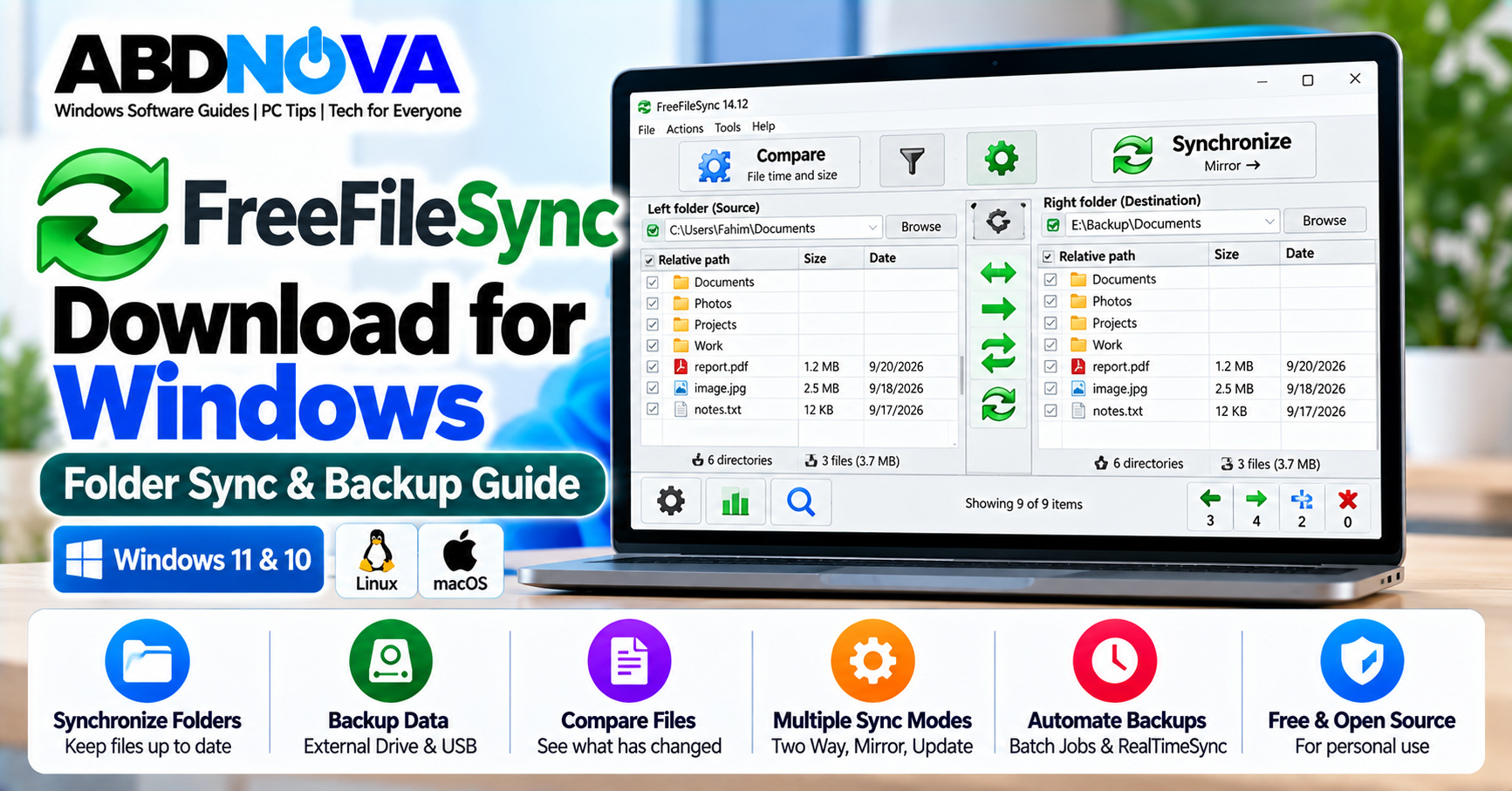
The FreeFileSync interface is built around two main folder locations. The left and right sides represent the folders you want to compare and synchronize.
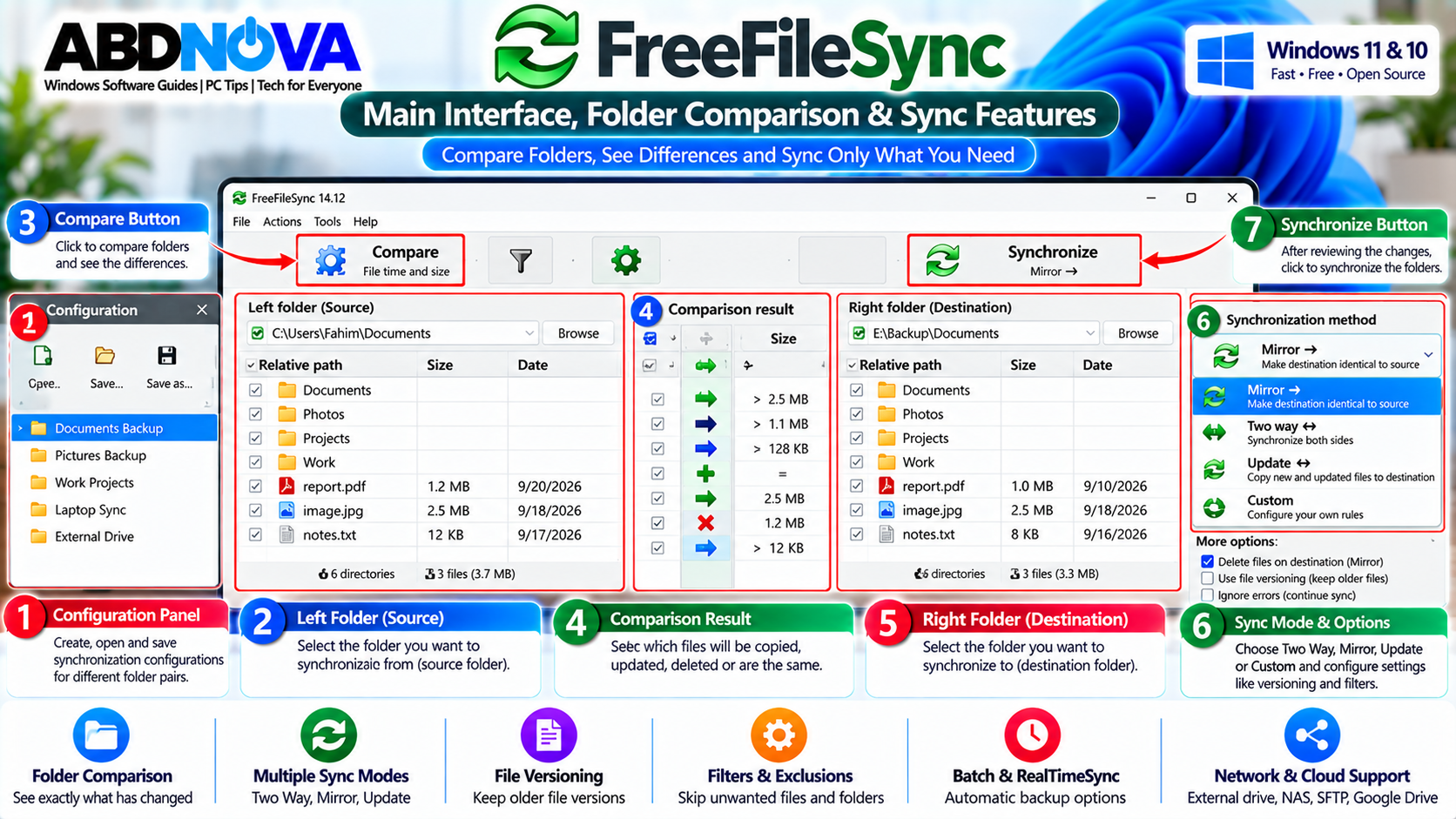
Left: C:\Users\YourName\Documents
Right: E:\Backup\Documents
After selecting both folders, click Compare. FreeFileSync analyzes the locations and displays the differences before synchronization begins.
This preview is important because you can review which files FreeFileSync plans to copy, update, or delete before allowing those changes.
FreeFileSync Key Features
- Folder comparison
- Two-way synchronization
- Mirror synchronization
- Update synchronization
- Custom synchronization rules
- File versioning
- Multiple folder pairs
- Filters and exclusions
- Batch synchronization jobs
- RealTimeSync automation
- Network drive support
- SFTP support
- MTP device support
- Google Drive support
- File-content comparison
- Move detection
- Command-line operation
- Windows Volume Shadow Copy support
If your backup workflow uses cloud storage instead of a local or external drive, see our Google Drive for Desktop Download for Windows guide.
How to Install & Sync Folders With FreeFileSync on Windows
Download the Windows installer directly from the official FreeFileSync website and then configure the folders you want to synchronize.
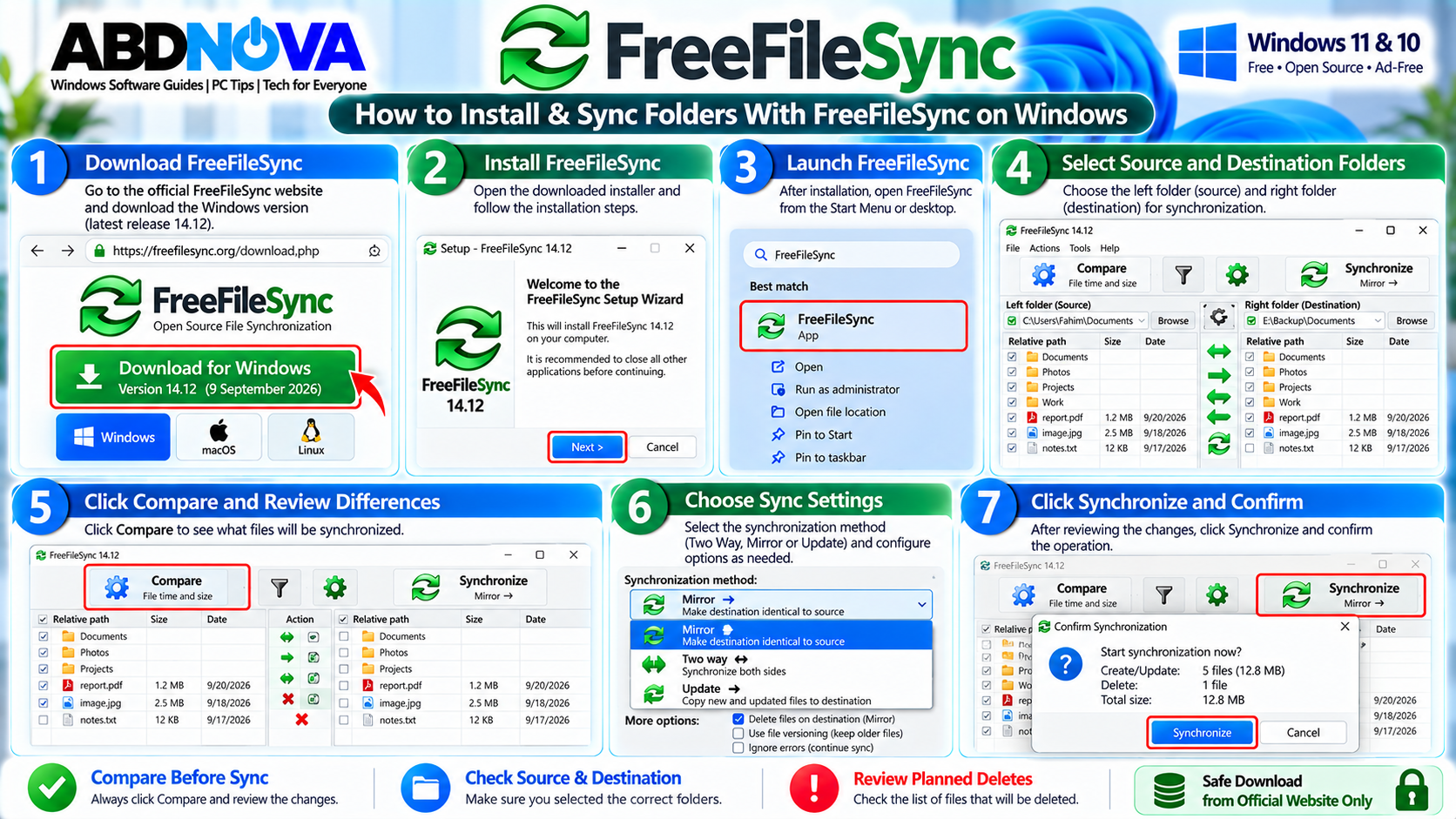
How to Install FreeFileSync
- Download the official Windows installer.
- Open the FreeFileSync setup file.
- Approve the Windows security prompt if requested.
- Read and accept the license terms.
- Follow the installation instructions.
- Select the installation options you need.
- Complete installation.
- Launch FreeFileSync.
You normally do not need to uninstall an older FreeFileSync version before installing a newer release. A newer installer can update the existing installation.
How to Sync Two Folders
For example, you might synchronize:
Backup: E:\Work Backup
- Select the left folder.
- Select the right folder.
- Choose the comparison settings.
- Click Compare.
- Review the detected differences.
- Select the appropriate synchronization method.
- Review the planned actions.
- Click Synchronize.
- Confirm the operation.
- Wait for synchronization to finish.
FreeFileSync Comparison Methods
File Time and Size
This method is useful for normal synchronization and backup tasks. Files are compared using their modification time and size, allowing FreeFileSync to quickly identify files that may require synchronization.
File Content
FreeFileSync can compare the actual contents of files when you need to determine whether they are bit-for-bit identical.
Content comparison is slower because the application must read the contents of the files rather than relying only on metadata.
File Size
Files can also be compared based only on size. This can be useful in special situations where timestamps are unreliable and full content comparison would take too long.
FreeFileSync Two Way vs Mirror vs Update & File Versioning
Choosing the correct synchronization mode is one of the most important parts of using FreeFileSync safely.
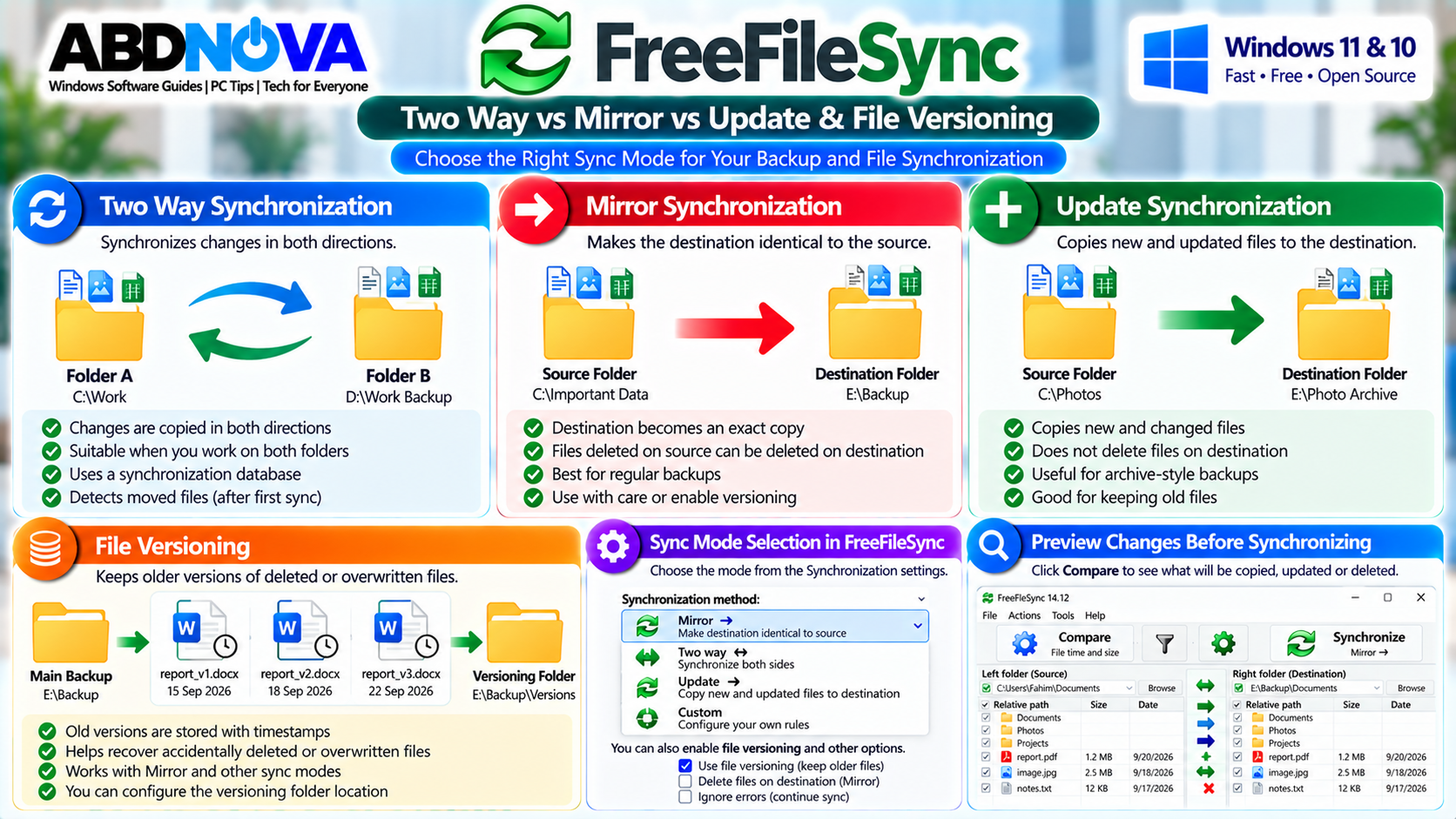
Two Way Synchronization
Two Way is designed for situations where both folder locations are actively used and files can change on either side.
FreeFileSync uses database files to remember the previous synchronization state and determine which side has changed since the previous synchronization.
Mirror Synchronization
Mirror is useful when one folder is the primary source and you want the destination to closely match it.
New and updated source files are copied to the destination. If a source file is deleted, Mirror can also apply that deletion to the destination.
Update Synchronization
Update is useful when you want new and changed files copied to the destination without automatically removing destination files simply because they disappeared from the source.
This can work well for certain archive-style workflows, such as copying photos to a backup location before removing them from the original device.
Two Way vs Mirror vs Update
| Mode | Typical Use | Direction |
|---|---|---|
| Two Way | Both locations actively change | Folder A ↔ Folder B |
| Mirror | Destination should closely match source | Source → Exact Backup |
| Update | Growing archive-style backup | Source → Growing Backup |
Do not select a synchronization mode only by its name. Review the actions FreeFileSync displays before running the job.
Backup Files to an External Hard Drive
A common FreeFileSync use is backing up important Windows folders to an external HDD or SSD.
↓
E:\Backup\Documents
Connect the external drive, select the source and destination folders, run a comparison, and choose the synchronization method that matches your backup strategy.
Mirror can be useful when the destination should closely follow the source. If you want older or deleted files to remain recoverable, consider whether Update or Versioning better matches your needs.
FreeFileSync File Versioning
Versioning adds protection when files are deleted or overwritten during synchronization. Instead of immediately losing an older file, FreeFileSync can move it into a separate versioning folder.
E:\Backup\Old Versions
Versioning can be useful if you accidentally overwrite a document, delete an important file, need an older copy, or want additional protection when using Mirror.
Multiple Folder Pairs & Filters
FreeFileSync can synchronize multiple folder pairs in a single configuration.
Pictures → Backup\Pictures
Projects → Backup\Projects
This allows several important folders to be included in one synchronization configuration.
Exclude Files and Folders
Filters can exclude content that you do not want synchronized, such as:
- Temporary files
- Cache folders
- Unnecessary downloads
- Large files you do not want duplicated
- Specific file extensions
- Application-generated temporary data
Save a FreeFileSync Configuration
After configuring your folder pairs and synchronization settings, save the configuration so you do not need to select the same folders and options every time.
Saved configurations can be useful for routines such as:
- Documents Backup
- Photos Backup
- Work Project Sync
- External Drive Backup
FreeFileSync Automatic Backup & RealTimeSync
FreeFileSync can automate repetitive synchronization workflows using batch jobs and RealTimeSync.
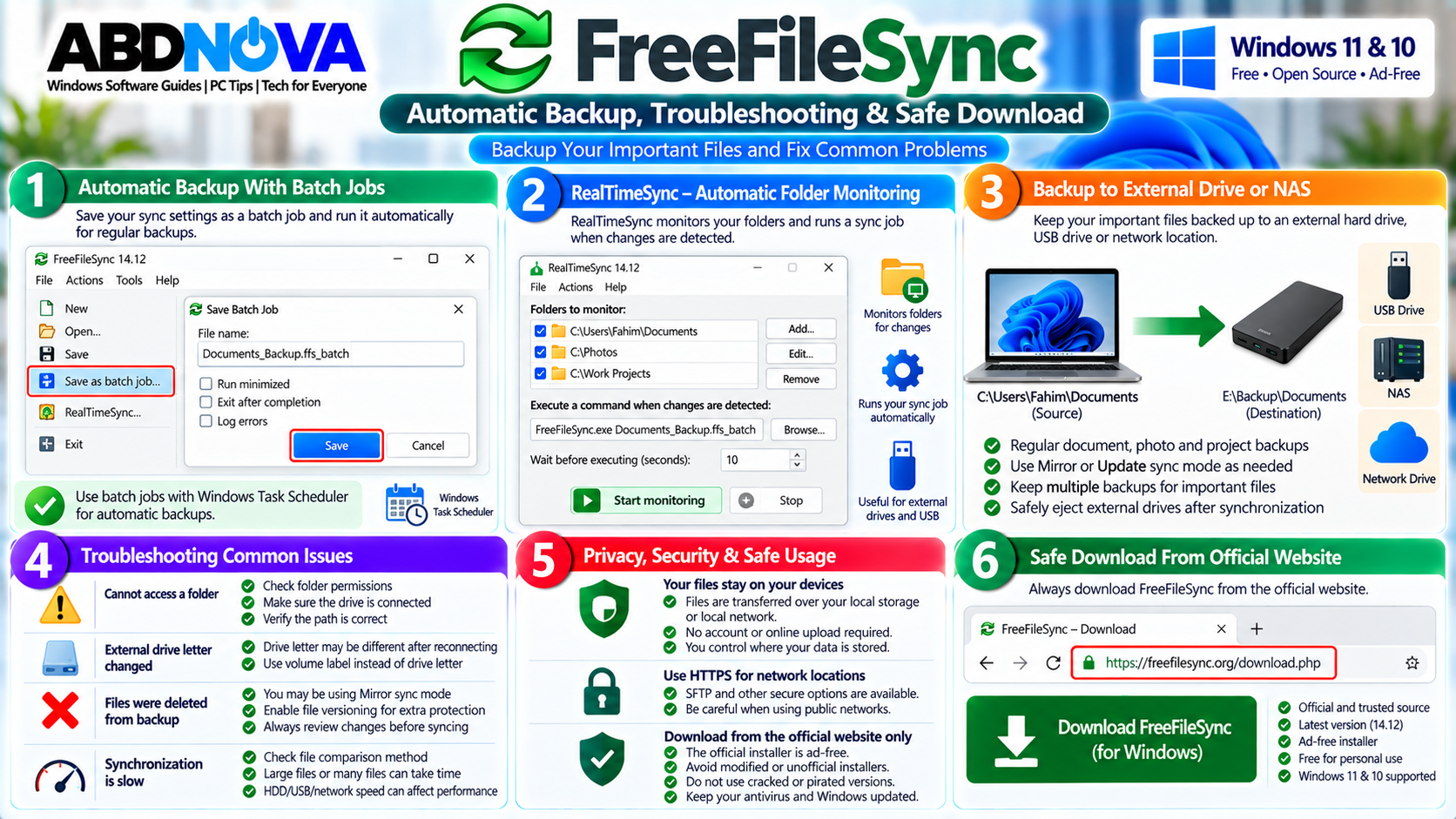
Automatic Backup With Batch Jobs
Synchronization configurations can be saved as batch jobs and run without manually setting up the graphical interface each time.
Batch jobs can also be launched from the command line, making them useful for scheduled and automated backup workflows.
RealTimeSync
RealTimeSync monitors selected directories for file-system changes. After detecting changes and waiting for the configured idle period, it can launch a command such as a FreeFileSync batch job.
It can also react when a monitored directory becomes available, such as when a USB drive is connected.
FreeFileSync Portable Version
A portable Windows version is available as a Donation Edition feature. It can be run from locations such as a USB flash drive or external drive without a normal local installation.
However, the FreeFileSync documentation recommends local installation for the best overall Windows experience because some integration features are unavailable in portable mode.
FreeFileSync Standard vs Donation vs Business Edition
| Edition | Intended Use | Notes |
|---|---|---|
| Standard | Personal use by private individuals | Core synchronization functionality |
| Donation | Project supporters | Additional features including Portable ZIP, automatic updater, parallel file copy and email notifications |
| Business | Commercial and organizational use | Commercial licensing and managed-environment features |
Commercial users and organizations should review the current official licensing terms before deployment.
FreeFileSync Is Not a Full System Image
FreeFileSync primarily synchronizes files and folders. It should not be confused with full disk-imaging or system-cloning software.
For example, synchronizing your Documents folder to an external drive creates copies of those files. It does not automatically create a complete bootable Windows image containing the operating system, applications, recovery partitions, and every system setting.
For important Windows installations, folder synchronization can therefore be one part of a broader backup and recovery strategy. You can also read our Windows 11 System Restore guide to understand a separate Windows recovery option.
FreeFileSync Troubleshooting
FreeFileSync Cannot Access a Folder
Check whether your Windows account has permission to access the folder. For external and network locations, also verify that:
- The drive is connected.
- The network location is online.
- The path is correct.
- Windows can access the folder normally.
- The destination is not read-only.
Try opening the folder directly in File Explorer first.
External Drive Letter Changed
Windows can assign a different drive letter to an external drive after reconnecting it, which may break a saved synchronization path.
FreeFileSync supports working with volume labels, which can help in situations where external-drive letters change.
Files Were Deleted From the Backup
Check which synchronization mode was used. Mirror is specifically designed to make the destination match the source, so source-side deletions can result in corresponding destination changes.
Consider Versioning or another synchronization strategy if deleted files need to remain recoverable.
Antivirus Shows a Warning
Download FreeFileSync only from the official website. Newly released applications can occasionally trigger heuristic or reputation-based antivirus warnings.
Synchronization Is Slow
Performance can depend on:
- Number of files
- File sizes
- HDD or SSD performance
- USB connection speed
- Network speed
- Comparison method
- Antivirus scanning
- Destination performance
File-content comparison is naturally slower than comparing file time and size because the complete files need to be read.
Safe FreeFileSync Download
Always download FreeFileSync directly from the official FreeFileSync website.
Avoid:
- Modified installers
- Unofficial repacks
- Cracked Donation Editions
- Pirated Business Editions
- Unknown portable packages
- Third-party installers containing bundled software
The official FreeFileSync installer is currently described by the project as ad-free.
Backup Safety Tips
- Verify the source and destination folders.
- Click Compare before the first synchronization.
- Review planned copy and delete operations.
- Understand Two Way, Mirror, and Update before selecting one.
- Consider Versioning for important files.
- Test new configurations using non-critical data.
- Keep another backup of irreplaceable files.
- Safely eject external drives after synchronization.
- Do not treat one synchronized drive as your only backup.
Frequently Asked Questions
Is FreeFileSync free?
The Standard Edition can be used by private individuals for personal use. Commercial use and organizational deployment require the appropriate Business Edition under the current licensing terms.
Does FreeFileSync work on Windows 11?
Yes. FreeFileSync is available for modern Windows systems and can be used on Windows 11.
Can I use FreeFileSync for backup?
Yes. It is commonly used to synchronize folders to external drives, network locations, and other storage.
What is the difference between Mirror and Update?
Mirror makes the destination closely match the source, including applicable deletions. Update copies new and changed data while retaining destination files according to its update behavior.
What is Two Way synchronization?
Two Way is designed for locations where files can change on both sides. FreeFileSync uses its synchronization database to determine changes since the previous synchronization.
Can FreeFileSync keep deleted or overwritten files?
Yes. File Versioning can preserve deleted or overwritten files in a separate versioning location when configured.
Can FreeFileSync automatically synchronize folders?
Yes. Batch jobs, command-line operation, scheduling workflows, and RealTimeSync can be used for automation.
Does FreeFileSync have a portable version?
Yes, but the Windows Portable ZIP is a Donation Edition feature. The project recommends local installation for the full Windows experience.
Is FreeFileSync a disk-cloning program?
No. FreeFileSync primarily synchronizes files and folders and is not a replacement for a complete disk-image or system-cloning solution.
Final Thoughts
FreeFileSync is a flexible solution for Windows users who want more control over folder synchronization and file backups. It can compare large folder structures, copy only required changes, synchronize multiple folder pairs, preserve older versions, and automate recurring jobs.
The most important step is choosing the correct synchronization method. Two Way, Mirror, and Update behave differently, particularly when files are changed or deleted.
For important data, review the comparison results before synchronization and consider Versioning where appropriate. A synchronized folder should not be your only copy of irreplaceable data.
Download FreeFileSync for Windows
Get the current Windows installer directly from the official FreeFileSync website.