
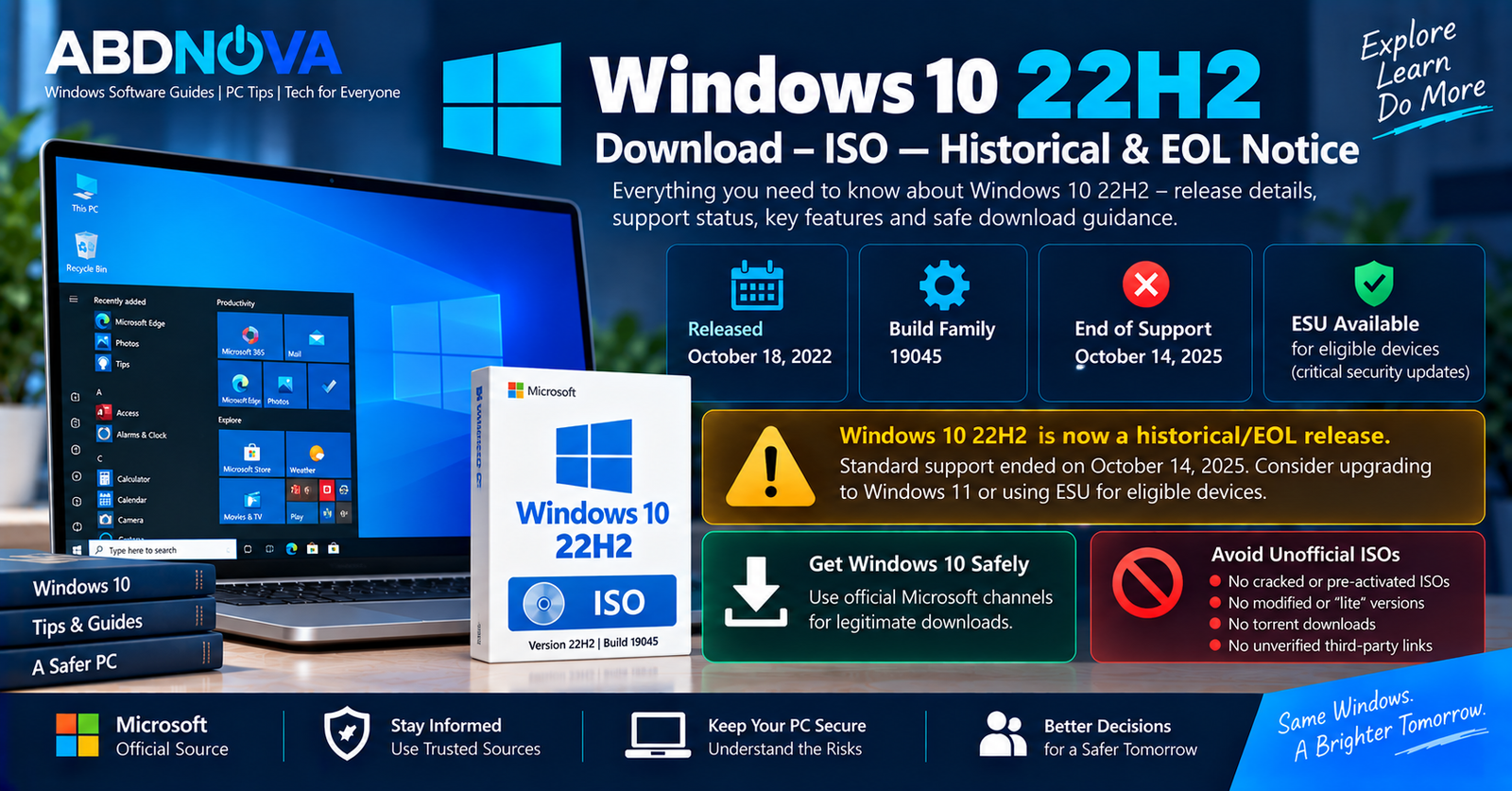

Windows 10 22H2 Download – ISO Historical & EOL Guide
Windows 10 22H2 Download refers to the final feature version of standard Windows 10, also known as the Windows 10 2022 Update. Microsoft released version 22H2 on October 18, 2022, and it uses the 19045 OS build family.
Windows 10 22H2 reached its normal end of support on October 14, 2025. Standard Home, Pro, Enterprise, and Education installations are therefore beyond normal servicing, although eligible Windows 10 22H2 devices can continue receiving critical and important security updates through Microsoft’s Extended Security Updates program.
Windows 10 22H2 Release Details
| Detail | Information |
|---|---|
| Developer | Microsoft |
| Product | Windows 10 |
| Version | 22H2 |
| Name | Windows 10 2022 Update |
| Release Date | October 18, 2022 |
| OS Build Family | 19045 |
| Feature Update Status | Final standard Windows 10 feature version |
| Normal Support | Ended |
| End of Support | October 14, 2025 |
| ESU | Available for eligible devices |
| Bootable USB | Supported with legitimate media |
| Clean Installation | Supported with legitimate media |
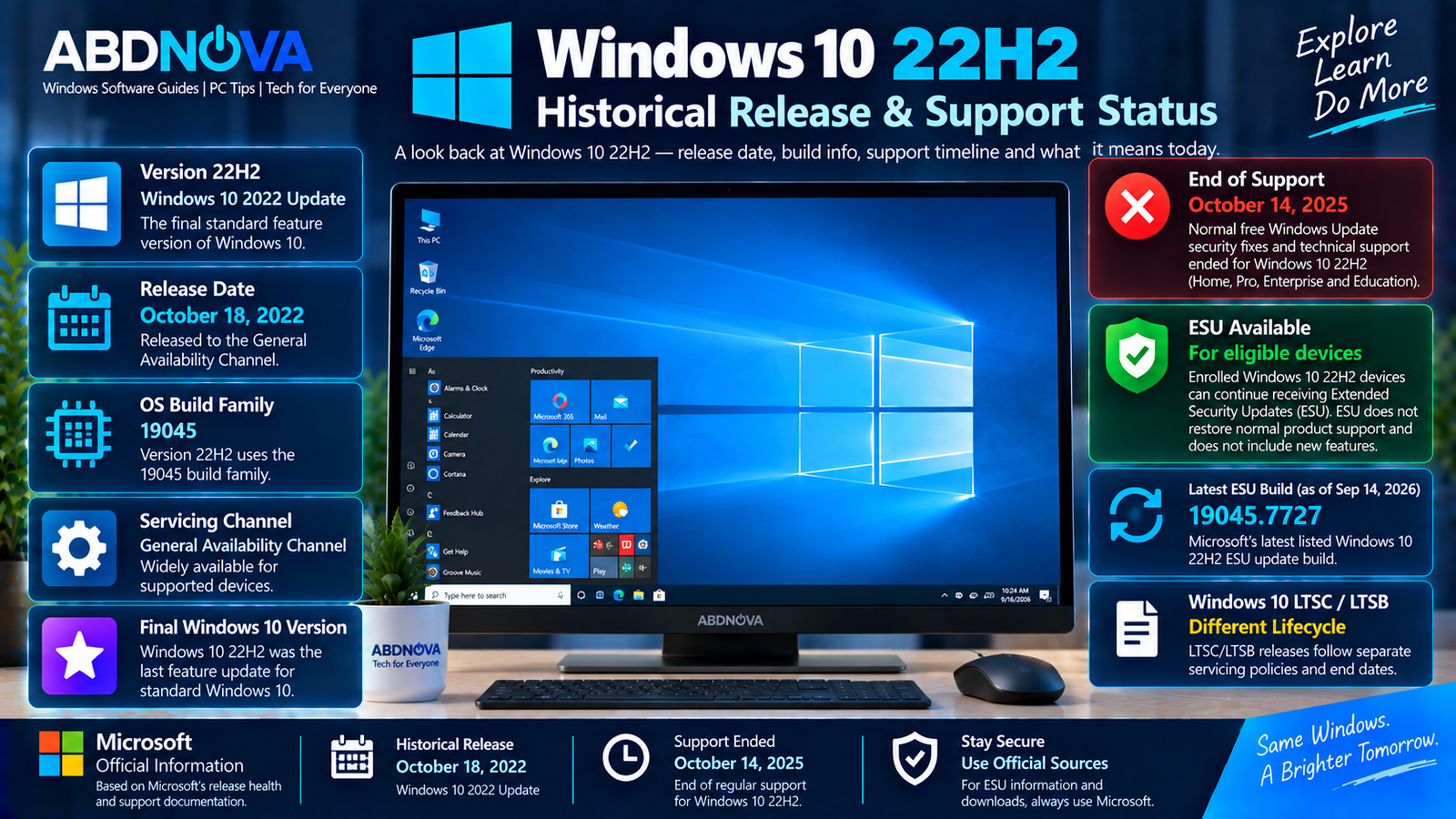
Windows 10 22H2 Historical Release & Support Status
Windows 10 22H2 was Microsoft’s final feature update for the standard Windows 10 servicing channel.
Unlike some earlier Windows releases with major visible changes, version 22H2 was a relatively scoped update focused primarily on quality improvements to the existing Windows 10 experience. It also included cumulative improvements from earlier Windows 10 releases.
Compatible earlier Windows 10 installations could move to version 22H2 through an enablement package, making the upgrade relatively small on applicable systems.
Is Windows 10 22H2 End of Life?
Yes. Normal support for Windows 10 22H2 ended on October 14, 2025.
After end of support, normal Windows 10 installations stopped receiving Microsoft’s regular security servicing, preview updates, technical assistance, and fixes through the standard support lifecycle.
Windows 10 22H2 Extended Security Updates
Microsoft provides an Extended Security Updates (ESU) program for eligible Windows 10 22H2 systems that need additional time to transition away from Windows 10.
ESU delivers applicable critical and important security updates. It does not return Windows 10 to normal support and does not provide new Windows features, general product improvements, or normal technical support.
Microsoft’s current release history continues to list post-EOL 22H2 builds for systems receiving extended-security servicing.
Windows 10 22H2 Build Status in 2026
The original Windows 10 22H2 build family remains 19045.
Because Microsoft continues publishing applicable ESU servicing updates, enrolled systems can have build numbers newer than the final normal-support build. This does not mean Windows 10 22H2 has returned to standard support.
Can You Still Use Windows 10 22H2?
Yes. Windows 10 does not stop functioning simply because its normal support lifecycle has ended.
Existing applications, files, local accounts, and compatible hardware can continue to operate. The more important consideration is ongoing security servicing.
A Windows 10 PC that is no longer receiving security updates becomes increasingly unsuitable for long-term internet-connected use. Eligible systems can use ESU temporarily while transitioning to a supported Windows platform.
Why Would Someone Still Need Windows 10 22H2?
Legitimate use cases can include:
- Older hardware
- Legacy application compatibility
- Business applications
- Testing environments
- Virtual machines
- IT labs
- Historical software testing
- Specialized peripherals
- Temporary migration scenarios
- ESU-enrolled computers
Before performing a fresh Windows 10 installation, check whether the PC and required applications can instead use a currently supported Windows release.
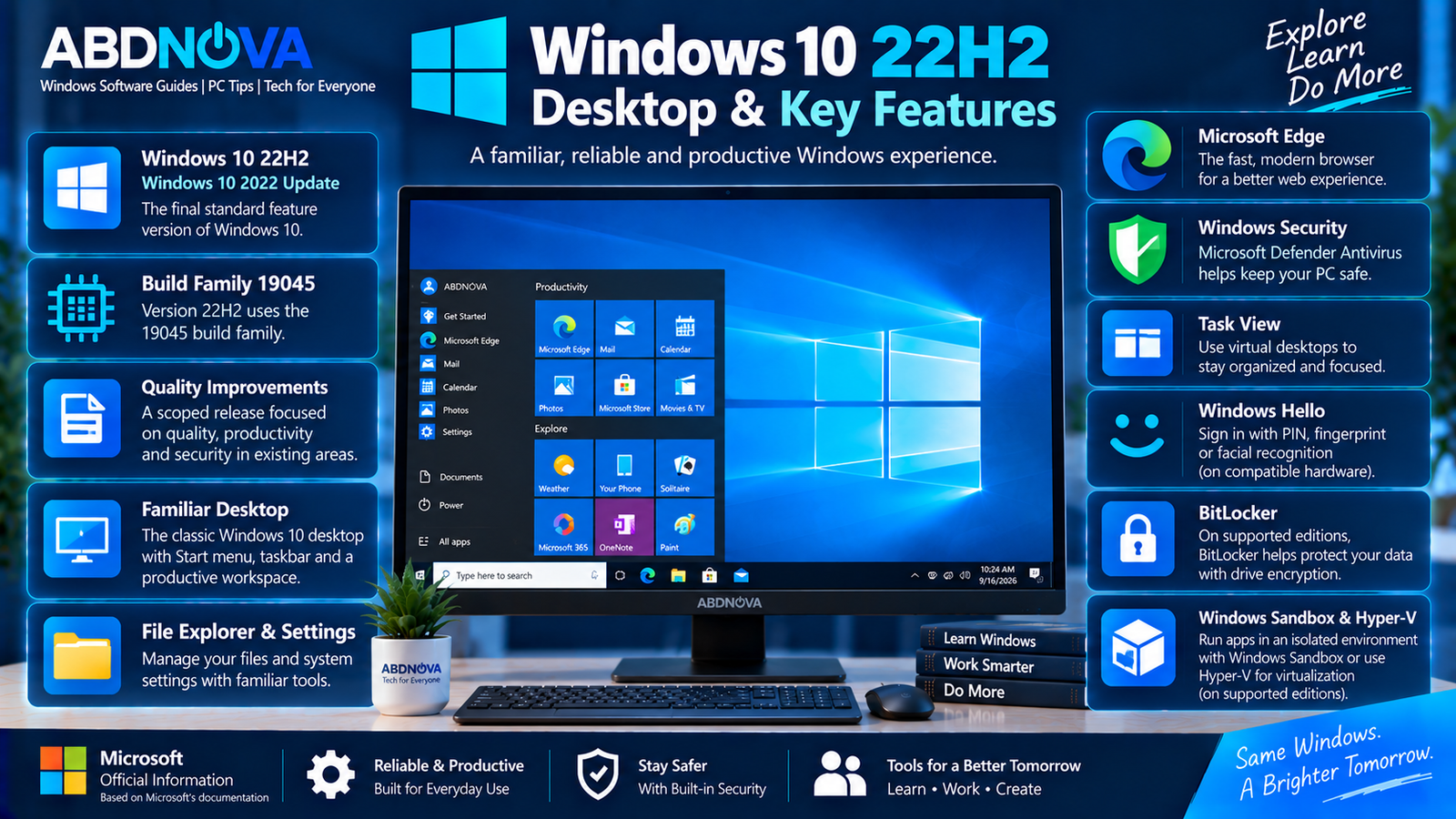
Windows 10 22H2 Desktop & Key Features
Familiar Windows 10 Desktop
Windows 10 22H2 retains the familiar Windows 10 desktop environment, including the Start menu, taskbar, notification area, File Explorer, Settings, Control Panel, and traditional desktop applications.
Microsoft Edge
Modern Windows 10 installations use the Chromium-based Microsoft Edge browser.
If you need a standalone browser installer, see our Microsoft Edge Offline Installer guide.
Windows Security
Windows 10 includes Windows Security with Microsoft Defender Antivirus, firewall controls, device-security features, ransomware-protection options, and other safeguards.
Security effectiveness depends heavily on keeping the operating system properly serviced and updated.
Virtual Desktops
Task View allows users to organize applications across multiple virtual desktops, helping separate different tasks and workspaces.
Windows Hello
Compatible hardware can use Windows Hello authentication options such as a PIN, fingerprint reader, or facial recognition.
BitLocker
Supported Windows editions can use BitLocker drive encryption to help protect stored data.
Windows Sandbox
Supported editions provide Windows Sandbox for running compatible software in an isolated temporary Windows environment.
Hyper-V
Compatible Pro, Enterprise, and Education editions can use Microsoft’s Hyper-V virtualization technology.
Windows 10 22H2 System Requirements
Typical Windows 10 requirements include:
- 1 GHz or faster compatible processor
- 1 GB RAM for 32-bit or 2 GB for 64-bit
- Appropriate storage space
- DirectX 9 or later graphics with a compatible WDDM driver
- Compatible display
32-bit and 64-bit Windows 10
Windows 10 historically supported both 32-bit (x86) and 64-bit (x64) installations. Most modern PCs use 64-bit Windows because it supports more memory and current 64-bit applications.
Before using historical installation media, check:
Settings → System → About → System type
You can also check the processor specifications on the PC manufacturer’s official support site.
How to Check Your Windows 10 Version
Press Windows + R, type:
winverand press Enter.
A Windows 10 22H2 installation should report Version 22H2 with an OS build beginning with 19045.
Windows 10 22H2 vs Windows 11
Windows 10 22H2 and current Windows 11 releases now have very different lifecycle positions. Windows 10 22H2 is beyond normal support, while supported Windows 11 versions continue receiving normal servicing.
Windows 11 also has stricter hardware requirements, including TPM 2.0 and Secure Boot capability. As a result, some older Windows 10 PCs cannot officially move to Windows 11.
If your PC is compatible, see our Windows 11 ISO Download guide for Microsoft’s currently supported Windows platform.
Windows 10 22H2 vs Windows 10 LTSC
Windows 10 22H2 should not be confused with Windows 10 LTSC releases.
Version 22H2 is the final General Availability Channel version of regular Windows 10. Windows 10 Enterprise LTSC releases follow their own servicing policies and lifecycle dates.
For example, Windows 10 Enterprise LTSC 2021 follows a different support timeline, while Windows 10 IoT Enterprise LTSC 2021 has an even longer separate lifecycle.
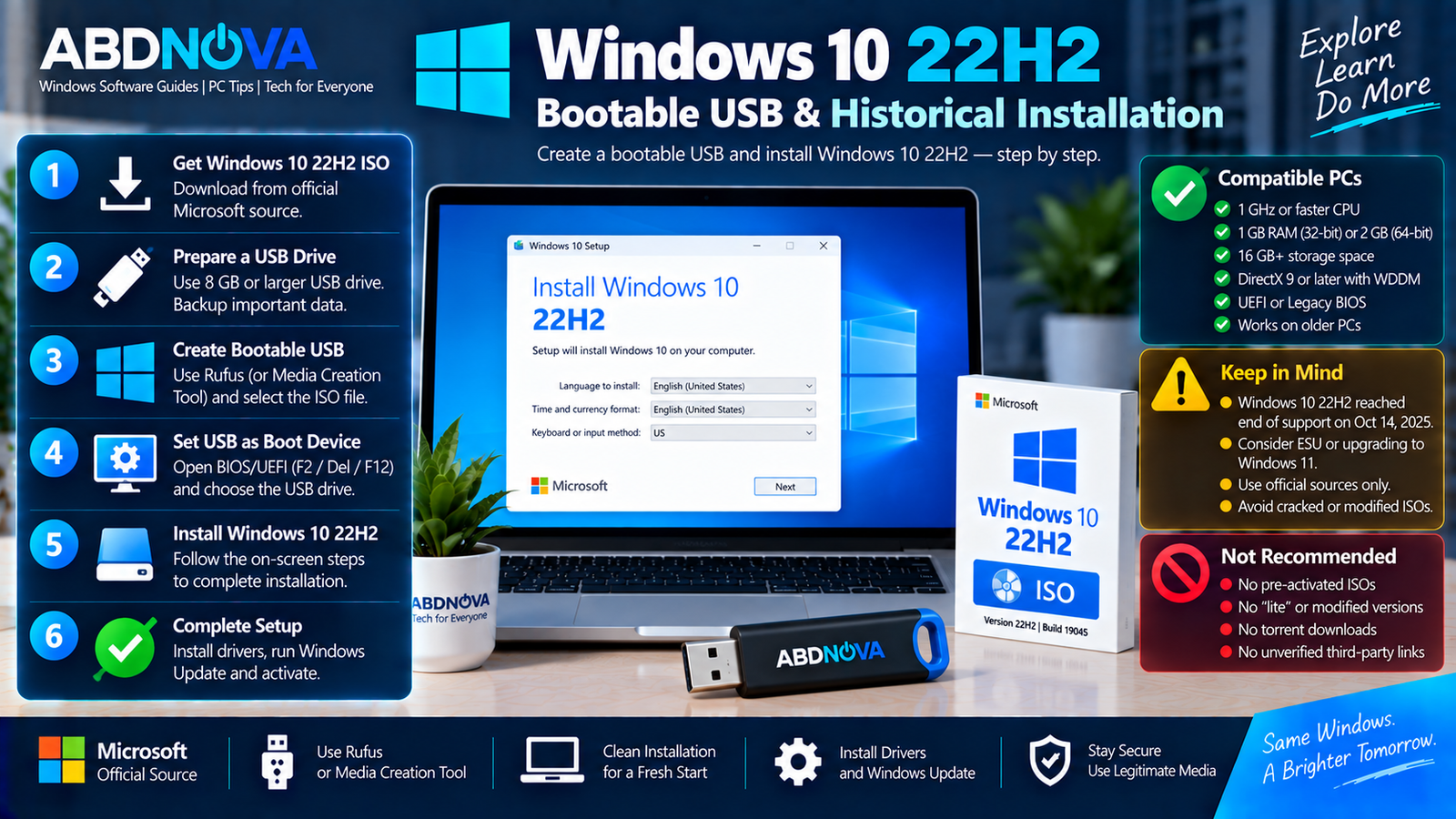
Windows 10 22H2 Bootable USB & Historical Installation
If you have a legitimate Windows 10 22H2 ISO, it can be used to prepare bootable installation media for a compatible PC.
You generally need:
- Legitimate Windows 10 installation media
- A blank USB flash drive
- At least 8 GB USB capacity
- A compatible PC
- A backup of important files
Create a Windows 10 Bootable USB
For existing legitimate Windows installation media, a typical process is:
- Connect the USB flash drive.
- Open a trusted bootable-media utility.
- Select the correct USB drive.
- Select the Windows 10 ISO.
- Choose the appropriate partition and boot configuration.
- Create the installation media.
- Restart the PC.
- Open the BIOS or UEFI boot menu.
- Select the USB drive.
- Start Windows Setup.
For Microsoft’s standard Windows 10 media workflow, see our Windows 10 Media Creation Tool guide.
Clean Install Windows 10 22H2
Back up important personal files before starting a clean installation.
- Boot the PC from the installation USB.
- Select the language and keyboard layout.
- Choose Install now.
- Enter a legitimate product key or use the appropriate activation option.
- Select the correct Windows edition.
- Accept the license terms.
- Select the required installation type.
- Choose the correct drive or partition.
- Complete Windows Setup.
- Install appropriate device drivers.
- Run Windows Update.
Windows 10 Activation
Downloading or installing Windows does not provide a Windows license.
Activation requires a valid product key or digital license appropriate for the Windows edition being installed. A computer that previously had a properly activated matching edition may reactivate automatically after connecting to Microsoft’s activation services.
Avoid Windows images described as:
- Pre-activated
- Cracked
- Permanently activated
- Activation bypassed
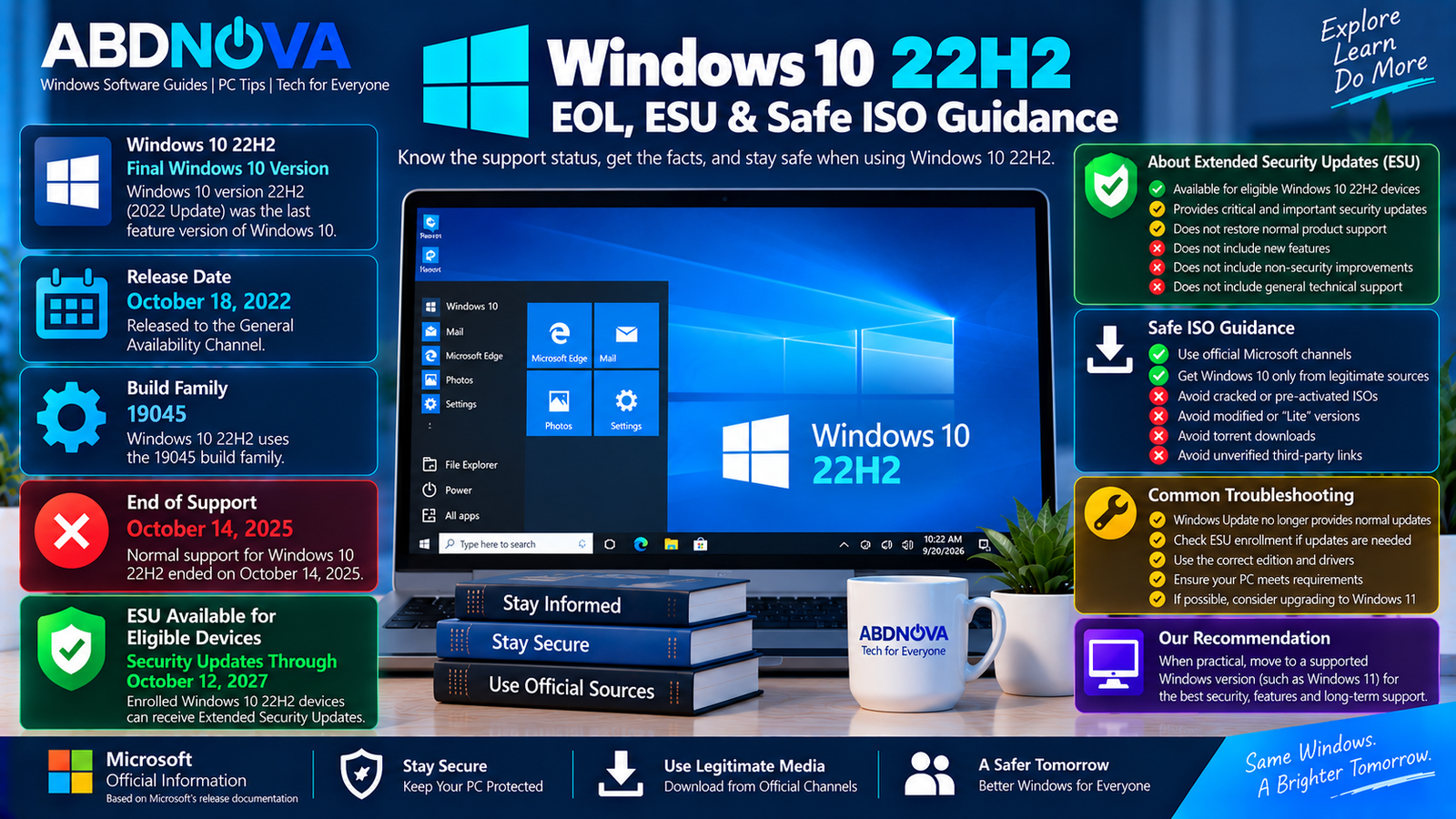
Windows 10 22H2 EOL, ESU & Safe ISO Guidance
Windows 10’s end-of-support status makes safe sourcing particularly important. An old ISO found through a search engine should not be assumed to be an original Microsoft image simply because its filename looks legitimate.
Avoid:
- Cracked Windows 10 ISOs
- Pre-activated Windows images
- Modified or “Lite” editions
- Torrent downloads
- Unknown ISO mirrors
- Unverified cloud-storage links
- Activation-bypass packages
For Windows installation media, prioritize Microsoft’s official Windows channels and legitimate Microsoft licensing resources.
Historical Windows 10 22H2 ISO Availability
Windows 10 22H2 is now an end-of-support release. If you specifically require historical 22H2 installation media, verify what Microsoft currently makes available through the licensing or download channel applicable to you.
Windows Update No Longer Provides Normal Updates
Windows 10 22H2 reached normal end of support in October 2025. If the PC needs continued Windows 10 security coverage, check whether it qualifies for Microsoft’s ESU program.
ESU Updates Are Not Appearing
Confirm that the computer is running an eligible Windows 10 22H2 edition and that ESU enrollment has been completed successfully.
Microsoft maintains Windows 10 release-health information for ESU servicing and current known issues.
PC Does Not Boot from USB
Check the BIOS or UEFI boot menu and confirm that the USB drive is detected. If necessary, recreate the installation media and verify the correct partition scheme and boot mode.
SSD or Hard Drive Is Missing During Setup
Some PCs require storage-controller drivers before Windows Setup can detect an SSD or hard drive.
Download the appropriate driver from the PC, motherboard, or storage-controller manufacturer’s official support website.
Driver Problems After Installation
Install available Windows servicing updates and then obtain missing chipset, graphics, Wi-Fi, Bluetooth, audio, and other device drivers from the hardware manufacturer’s official support site.
Newer hardware may have limited Windows 10 driver support, so verify compatibility before performing a clean installation.
Frequently Asked Questions
Is Windows 10 22H2 still supported?
Normal Windows 10 22H2 support ended on October 14, 2025. Eligible Windows 10 22H2 devices can receive applicable critical and important security updates through Microsoft’s ESU program.
Was Windows 10 22H2 the final Windows 10 version?
Yes. Microsoft identifies version 22H2 as the final feature version of standard Windows 10.
When was Windows 10 22H2 released?
Microsoft lists Windows 10 version 22H2 as available from October 18, 2022.
What is the Windows 10 22H2 build number?
Windows 10 22H2 uses the OS build 19045 family.
Does Windows 10 stop working after EOL?
No. Existing Windows 10 installations can continue operating, but standard installations are no longer covered by normal Windows 10 servicing and technical support.
What is Windows 10 ESU?
Extended Security Updates provide eligible Windows 10 22H2 systems with critical and important security updates during the transition away from Windows 10. ESU does not provide new Windows features or normal technical support.
Is Windows 10 LTSC also EOL?
Not necessarily. LTSC and LTSB products follow separate lifecycle schedules. Their support dates should be checked individually rather than using the standard Windows 10 22H2 end-of-support date.
Should I download a modified Windows 10 ISO because 22H2 is old?
No. End-of-support status does not make cracked, modified, pre-activated, torrent, or unverified Windows installation media safe or legitimate.
Final Thoughts
Windows 10 22H2 Download remains relevant as a historical Windows release because version 22H2 was the final feature version of standard Windows 10. It was released in October 2022, uses the 19045 build family, and reached normal end of support on October 14, 2025.
Windows 10 can still have legitimate uses on older hardware, legacy systems, testing environments, virtual machines, and ESU-enrolled devices. However, users should understand the security implications of relying on an operating system that has already passed its normal support lifecycle.
For installation media, use legitimate Microsoft channels and avoid cracked, modified, pre-activated, torrent, or unverified third-party Windows 10 ISO files.
Windows 10 Official Download
Check Microsoft’s official Windows 10 page for the installation options currently available for your device.


