
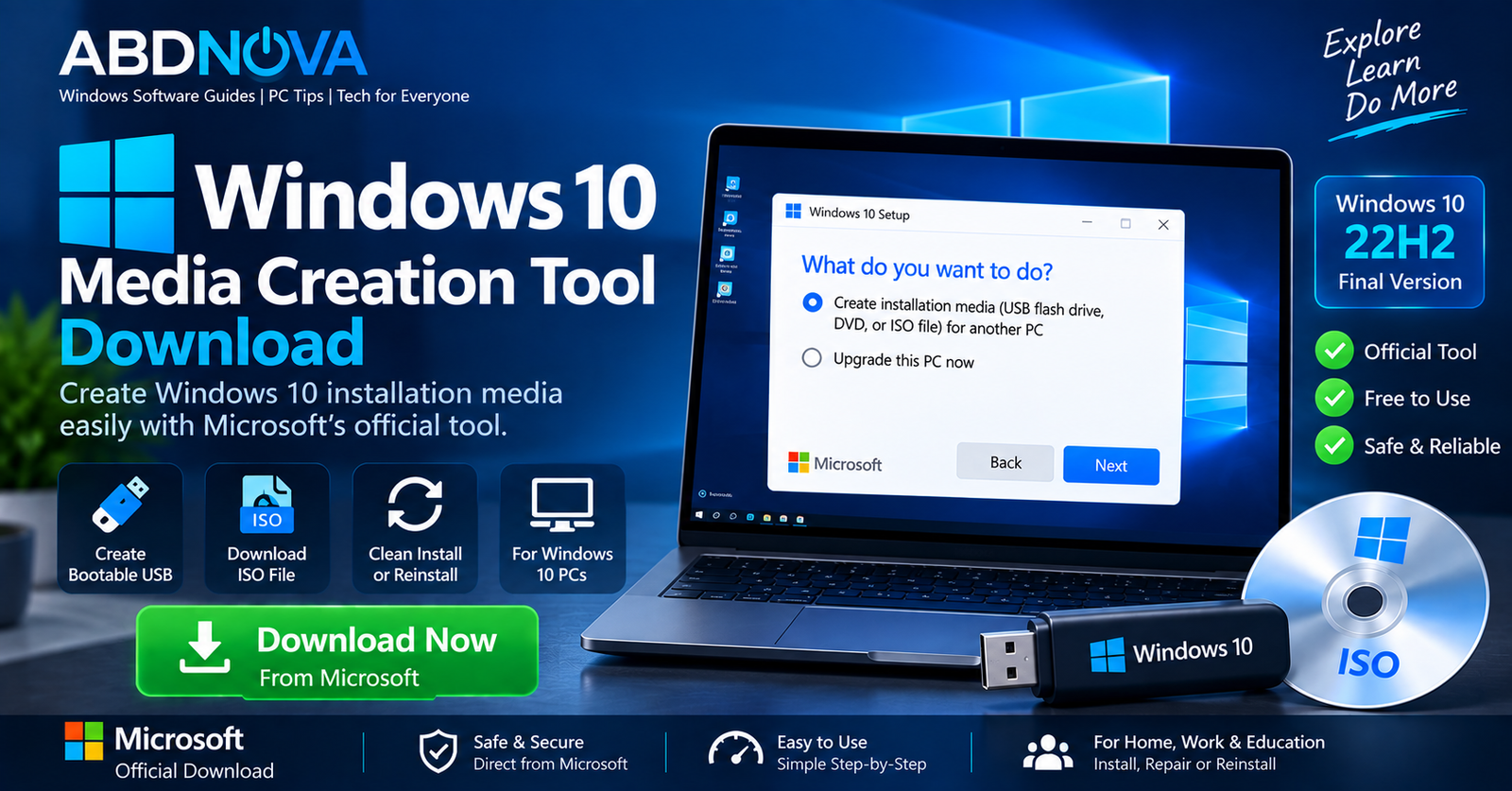

Windows 10 Media Creation Tool Download
Windows 10 Media Creation Tool Download provides Microsoft’s official utility for downloading Windows 10 and creating installation media. You can use it to create a bootable USB flash drive, save a Windows 10 ISO file, reinstall Windows, or prepare recovery media.
Windows 10 version 22H2 is the final Windows 10 feature release. Standard Windows 10 support ended on October 14, 2025, but Microsoft’s current documentation still provides the Windows 10 Media Creation Tool and instructions for creating installation media.
What Is Windows 10 Media Creation Tool?
Windows 10 Media Creation Tool is a small Windows utility developed by Microsoft. It automates the process of downloading Windows 10 setup files and preparing installation media.
You can use the tool to:
- Create a Windows 10 bootable USB.
- Download a Windows 10 ISO file.
- Reinstall Windows 10.
- Perform a clean installation.
- Create recovery or repair media.
- Prepare installation media for another compatible PC.
Microsoft identifies the downloaded program as MediaCreationTool.exe. The Windows version may also appear in the filename, such as MediaCreationTool_22H2.exe.
Windows 10 Media Creation Tool Details
| Detail | Information |
|---|---|
| Developer | Microsoft |
| Tool | Windows 10 Media Creation Tool |
| Final Windows 10 Feature Release | Version 22H2 |
| Executable | MediaCreationTool.exe |
| Installation Media | USB / ISO |
| USB Requirement | Blank 8 GB or larger USB drive |
| Internet Connection | Required for download |
| Standard Windows 10 Support | Ended October 14, 2025 |
| Official Source | Microsoft |
Windows 10 Support Has Ended
There is an important difference between Windows 10 installation media still being available and the operating system remaining under standard support.
Windows 10 reached the end of standard support on October 14, 2025. Microsoft no longer provides normal free security updates, feature updates, or technical assistance for standard Windows 10 installations.
Windows 10 PCs do not stop working simply because support has ended. Eligible systems may have Extended Security Updates options, while Microsoft recommends Windows 11 for compatible PCs.
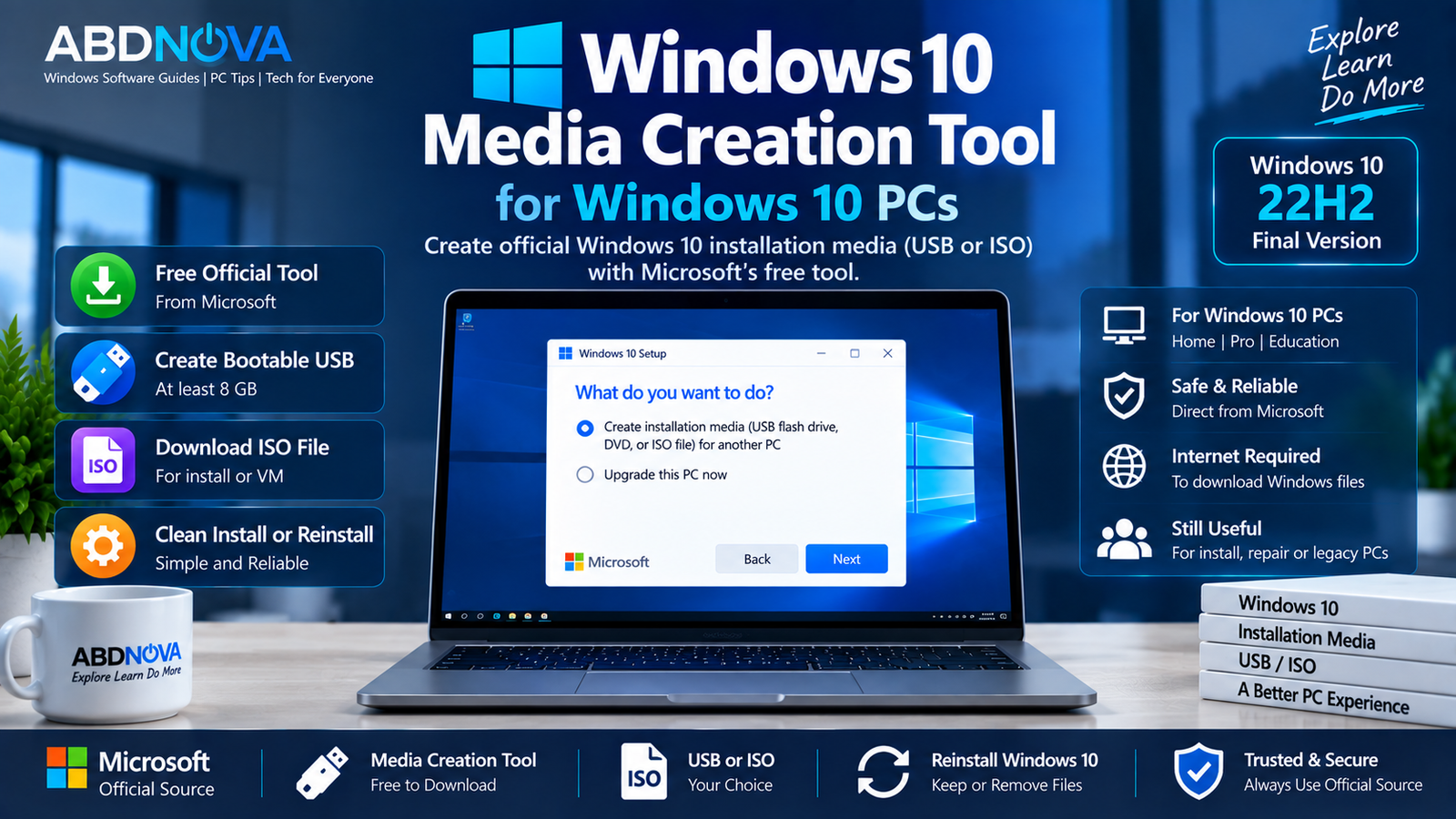
If you need the original installation image separately, see our Windows 10 ISO Download guide for Windows 10 ISO options and installation media information.
If your PC supports Microsoft’s newer operating system, you can also check our Windows 11 ISO Download guide before deciding which Windows version to install.
Windows 10 Media Creation Tool for Windows 10 PCs
Media Creation Tool remains useful when you need installation or recovery media for an existing Windows 10 computer.
Typical uses include:
- Reinstalling an existing Windows 10 system.
- Creating recovery installation media.
- Saving an official Windows 10 ISO.
- Preparing a bootable USB.
- Performing a clean installation when necessary.
- Preparing installation media for compatible legacy hardware.
Windows 10 Media Creation Tool Requirements
You need a working Windows PC with a reliable internet connection to download the Windows installation files.
For USB installation media, prepare a blank USB flash drive with at least 8 GB of storage.
You may also need a valid Windows product key. However, a key may not be required during installation when the computer already has a digital license or an appropriate product key stored in its firmware.
How to Download Windows 10 Media Creation Tool
- Open Microsoft’s official Windows 10 download page.
- Find Create Windows 10 installation media.
- Select Download Now.
- Save MediaCreationTool.exe.
- Run the downloaded program.
- Follow the Media Creation Tool instructions.
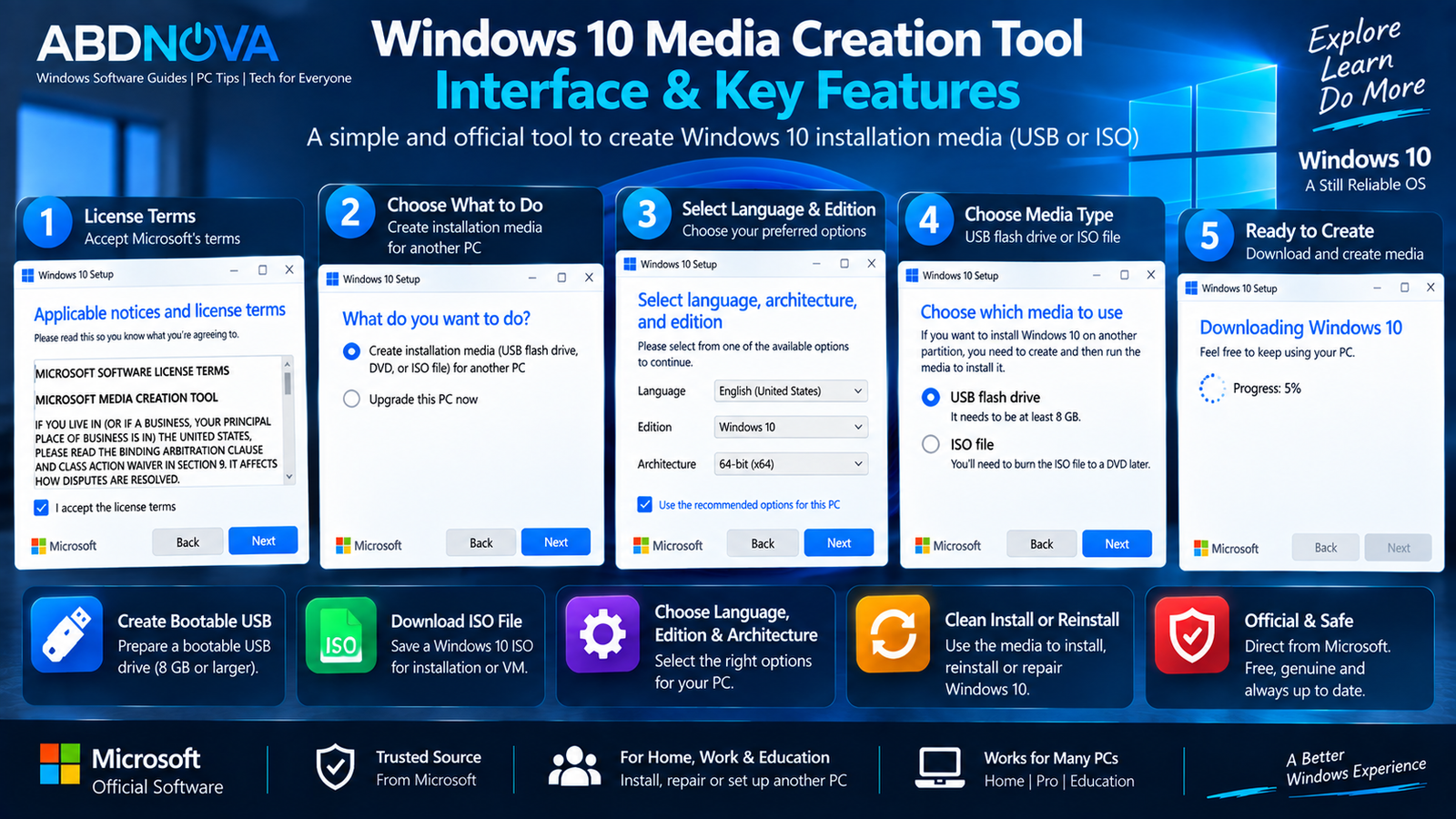
Windows 10 Media Creation Tool Interface & Key Features
Media Creation Tool provides a guided interface that handles the major steps required to download Windows setup files and prepare installation media.
Create Installation Media
You can select the option to create installation media for another PC rather than immediately reinstalling the computer you are currently using.
Choose Windows Options
The tool allows you to select the appropriate Windows 10 language, edition, and architecture for the destination computer.
Windows 10 supports both 32-bit and 64-bit configurations, although most modern PCs use 64-bit Windows.
Create a Bootable USB
Media Creation Tool can automatically download the required Windows files and prepare a USB flash drive for installation or recovery.
Save an ISO File
Instead of writing directly to USB, you can select ISO file and save the Windows 10 ISO to your computer for later use.
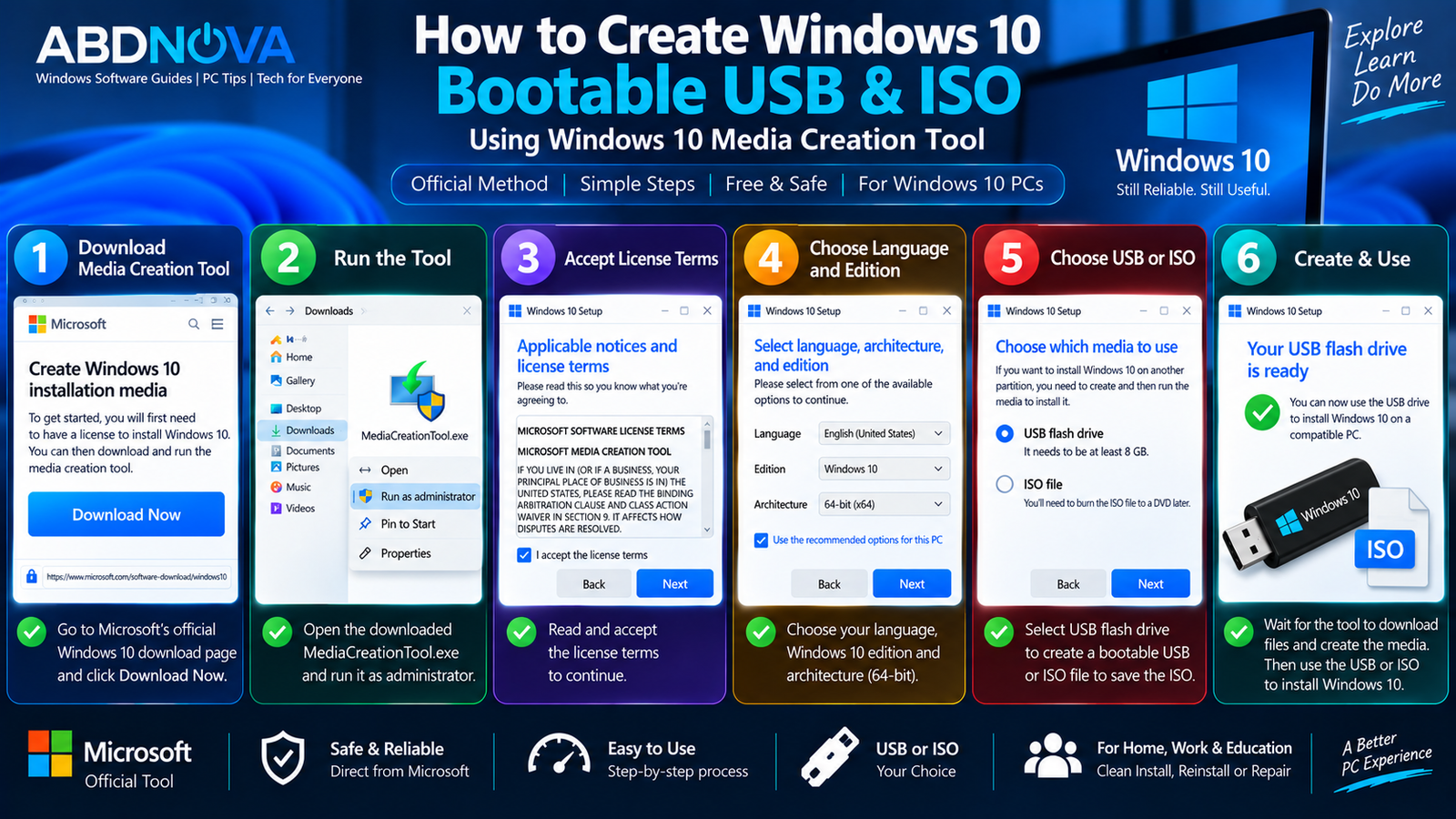
How to Create Windows 10 Bootable USB & ISO
Create a Windows 10 Bootable USB
Prepare a blank USB flash drive with at least 8 GB of capacity before starting.
- Download Windows 10 Media Creation Tool from Microsoft.
- Run the downloaded executable.
- Accept Microsoft’s applicable license terms when prompted.
- Select the option to create installation media for another PC.
- Choose the appropriate language, Windows 10 edition, and architecture.
- Select USB flash drive.
- Connect and select the correct 8 GB or larger USB drive.
- Allow Media Creation Tool to download Windows files.
- Wait while the tool prepares the bootable USB.
- Finish the process when the installation media is ready.
Download Windows 10 ISO Using Media Creation Tool
Media Creation Tool can also save an ISO instead of writing the installation files directly to USB.
- Run Windows 10 Media Creation Tool.
- Select the option to create installation media.
- Choose the required language, edition, and architecture.
- When asked which media to use, select ISO file.
- Choose where to save the ISO.
- Wait for Windows 10 to download.
The ISO can be stored for later installation, used with a virtual machine, or used to prepare other supported installation media.
Install or Reinstall Windows 10 Using Installation Media
After creating the installation media, it can be used to reinstall Windows 10.
Reinstall Windows 10 from an Existing Installation
For an in-place reinstall, connect or mount the installation media, open it in File Explorer, and run setup.exe.
Depending on the installation scenario, Windows Setup can provide retention options such as:
- Keep personal files and apps — preserves personal data, applications, and settings.
- Keep personal files only — preserves personal data but removes installed applications.
- Keep nothing — removes personal data, applications, and settings.
Clean Install Windows 10 from USB
A bootable USB can also be used for a clean Windows installation.
- Connect the Windows 10 USB.
- Restart the computer.
- Open the boot menu or UEFI/BIOS settings.
- Boot from the USB device.
- Start Windows Setup.
- Select the appropriate destination drive or partition carefully.
- Complete the Windows installation.
A clean installation can remove existing files, programs, and settings. Back up important data before proceeding.
Windows 10 Media Creation Tool vs ISO
| Option | Best For |
|---|---|
| Media Creation Tool | Automatically downloading Windows and creating installation media |
| ISO File | Saving Windows 10 for later use, virtual machines, DVDs, or manual media creation |
| Bootable USB | Installing, reinstalling, or repairing Windows on a physical PC |
Media Creation Tool is usually the simpler option when your goal is to create a Windows 10 bootable USB directly.
Windows 10 System Requirements
| Component | Minimum Requirement |
|---|---|
| Processor | 1 GHz or faster processor or SoC |
| RAM | 1 GB for 32-bit / 2 GB for 64-bit |
| Storage | 32 GB or larger |
| Graphics | DirectX 9 or later with WDDM 1.0 driver |
| Display | 800 × 600 or higher |
These are Microsoft’s basic Windows 10 requirements rather than recommendations for comfortable everyday performance.
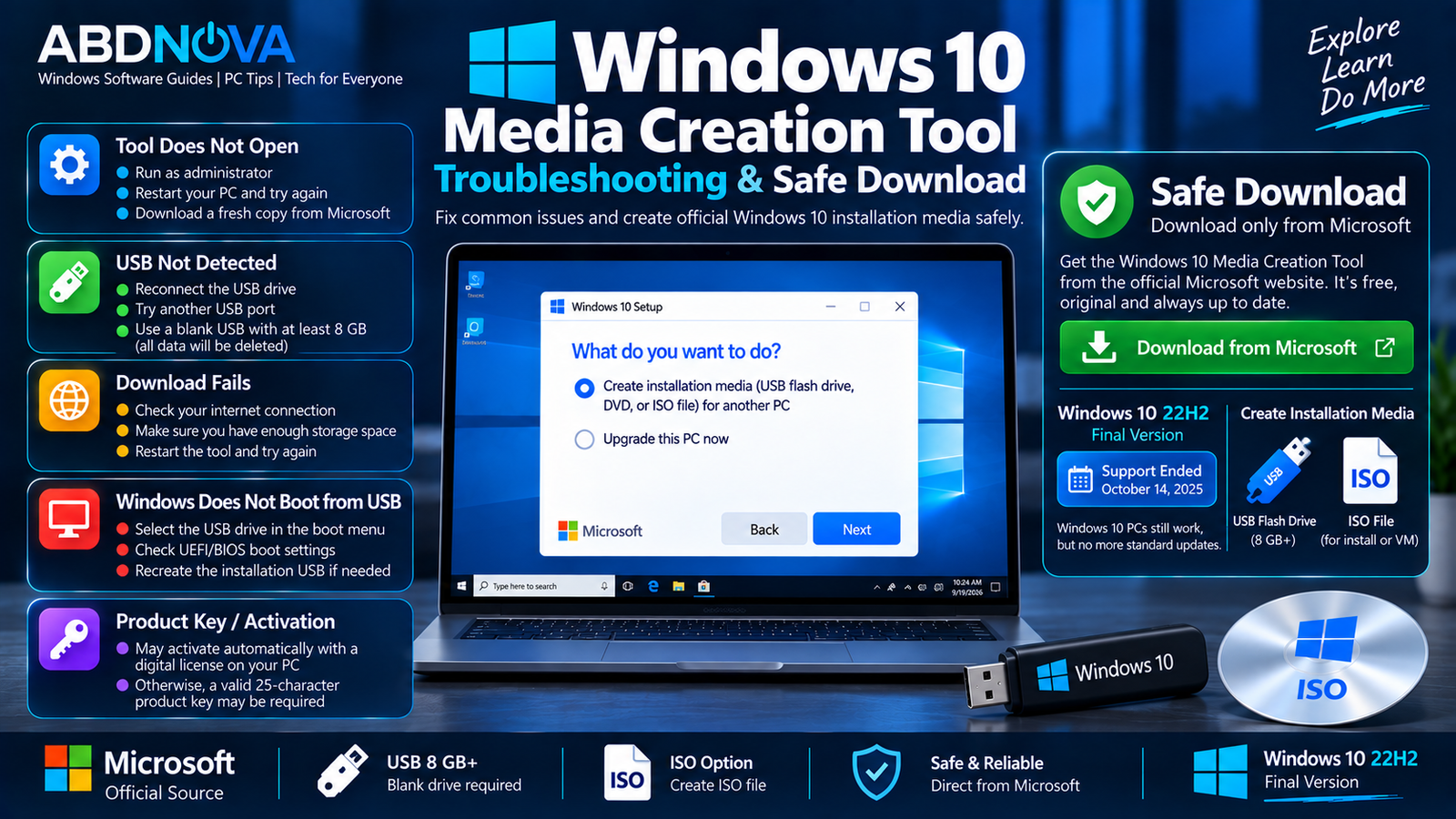
Windows 10 Media Creation Tool Troubleshooting & Safe Download
Media Creation Tool Does Not Open
Right-click the downloaded executable and select Run as administrator.
If the tool still fails, restart Windows and download a fresh copy directly from Microsoft instead of using an old executable saved previously.
USB Flash Drive Is Not Detected
Make sure Windows detects the USB drive normally before opening Media Creation Tool.
Reconnect the drive, try another USB port, and confirm that the USB has at least 8 GB of storage.
Windows Download Fails
Check that the internet connection is stable and that the computer has sufficient free disk space. Restart Media Creation Tool and try again if the download was interrupted.
Not Enough USB Space
Use a blank USB flash drive with at least 8 GB of capacity. Remember that creating installation media deletes the USB’s existing contents.
Windows Does Not Boot from USB
Open the computer’s boot menu and manually select the USB drive.
If it still does not appear, check the UEFI/BIOS boot configuration or recreate the installation USB.
Product Key Is Requested
Some PCs activate Windows automatically through an existing digital license or a product key embedded in the device firmware. Other installations may require a valid Windows product key.
Safe Windows 10 Media Creation Tool Download
Use Microsoft’s official Windows download resources whenever you need Windows 10 installation media.
Microsoft’s current documentation still provides instructions for obtaining Windows 10 Media Creation Tool even though standard Windows 10 support ended in October 2025.
- Modified Media Creation Tool executables.
- Unofficial Windows ISO files.
- Pre-activated Windows images.
- Windows cracks or activators.
- Third-party repackaged installers.
Frequently Asked Questions
Is Windows 10 Media Creation Tool still available?
Yes. Microsoft’s current Windows installation-media documentation still directs users to the Windows 10 download site to obtain Media Creation Tool.
What is the final Windows 10 version?
Windows 10 version 22H2 is the final Windows 10 feature release.
Is Windows 10 still supported?
Standard Windows 10 support ended on October 14, 2025. Windows 10 PCs continue to function, but standard installations no longer receive normal free security updates or Microsoft technical support.
How large should the USB drive be?
Microsoft specifies a blank USB flash drive with at least 8 GB of storage for Windows installation media.
Can Media Creation Tool download a Windows 10 ISO?
Yes. Media Creation Tool can save an ISO file instead of writing Windows installation files directly to a USB drive.
Can I reinstall Windows 10 without deleting personal files?
Depending on how Windows Setup is launched and the installation scenario, options can include keeping personal files and apps, keeping personal files only, or keeping nothing. Back up important data before reinstalling Windows.
Should I install Windows 10 on a new PC in 2026?
Windows 10 installation media can still be useful for recovery, reinstalling existing systems, testing, compatibility requirements, and legacy hardware. However, standard Windows 10 support has ended, and Microsoft recommends moving compatible PCs to Windows 11.
Final Thoughts
Windows 10 Media Creation Tool Download remains useful for creating a bootable USB, saving an official Windows 10 ISO, reinstalling an existing Windows 10 system, and preparing recovery media.
Windows 10 22H2 is the final feature release, and standard support ended on October 14, 2025. If you still need Windows 10 installation media, use Microsoft’s official tool, keep backups of important files, and understand the security implications of running Windows 10 outside standard support.
Download Windows 10 Media Creation Tool
Get the official Windows 10 Media Creation Tool directly from Microsoft.


