

Windows 11 25H2 Download – ISO for PC
Windows 11 25H2 Download is officially available from Microsoft for compatible PCs. Windows 11 version 25H2, also called the Windows 11 2025 Update, is Microsoft’s current standard Windows 11 release and can be downloaded as an official ISO.
Microsoft provides a multi-edition Windows 11 25H2 ISO for conventional x64 PCs. The ISO uses your product key or digital license to unlock the appropriate Windows edition. Microsoft also provides separate Windows 11 Arm64 installation media for compatible Arm-based PCs.
You can use the official ISO to create a bootable USB, perform a clean installation, reinstall Windows 11, install Windows in a virtual machine, or prepare installation media for another compatible computer.
If you want a broader overview of Microsoft’s Windows 11 ISO options, see our Windows 11 ISO Download guide.
Windows 11 25H2 ISO Details
| Detail | Information |
|---|---|
| Developer | Microsoft |
| Product | Windows 11 |
| Version | 25H2 |
| Official Name | Windows 11 2025 Update |
| Release Date | September 30, 2025 |
| ISO Type | Multi-edition |
| PC Architecture | x64 |
| Arm PCs | Separate Arm64 ISO available |
| Bootable USB | Supported |
| Virtual Machine | Supported |
| Official Source | Microsoft |
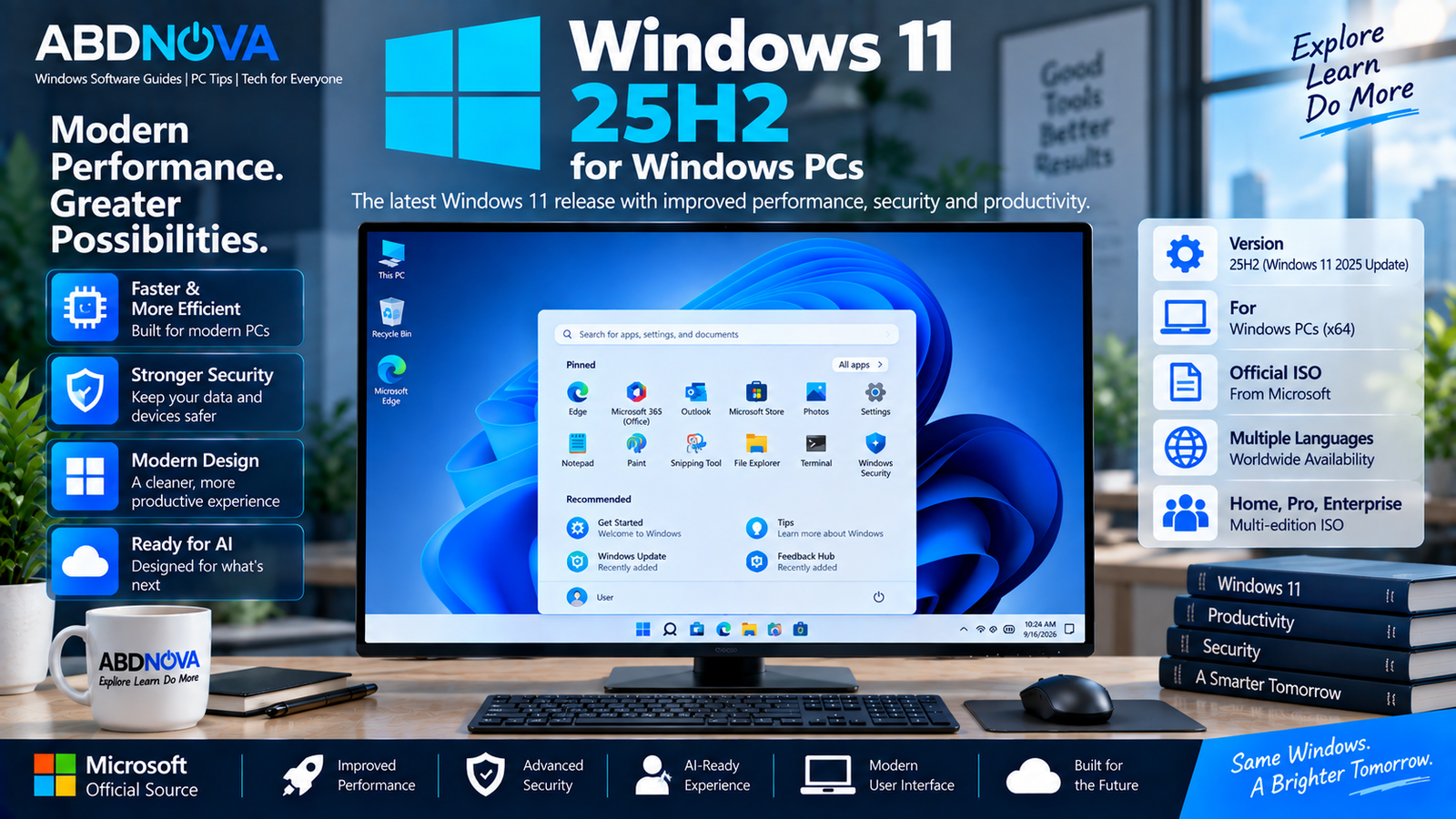
Windows 11 25H2 for Windows PCs
Windows 11 version 25H2 is a feature update to Windows 11. It includes features and fixes delivered through the Windows 11 24H2 servicing cycle together with changes associated with the 25H2 release.
For PCs already running an up-to-date version of Windows 11 24H2, Microsoft uses an enablement package to move the system to 25H2. Many of the required files are already present on an updated 24H2 installation, allowing the transition to be relatively small and quick.
For clean installations, virtual machines, reinstallations, and bootable installation media, Microsoft’s Windows 11 ISO remains useful.
Windows 11 25H2 Download Options
Microsoft provides several official ways to install Windows 11 25H2. The best method depends on whether you are upgrading the current PC or creating installation media.
Windows 11 Installation Assistant
Windows 11 Installation Assistant is designed primarily for upgrading the PC you are currently using.
Microsoft notes that Installation Assistant works with x64 processors and does not run on Arm-based PCs.
For step-by-step information, see our Windows 11 Installation Assistant Download guide.
Windows 11 Installation Media
Microsoft’s installation-media option can create media for installing or reinstalling Windows 11. This is useful when preparing another compatible PC or when you want reusable installation media.
Windows 11 25H2 ISO
The official ISO is suitable when you want to:
- Create a Windows 11 bootable USB
- Perform a clean installation
- Reinstall Windows 11
- Install Windows in a virtual machine
- Keep official installation media
- Install Windows on another compatible PC
Microsoft describes the standard x64 download as a multi-edition ISO that uses the product key to unlock the appropriate Windows edition.
How to Download Windows 11 25H2 ISO from Microsoft
Use Microsoft’s official Windows 11 download page and locate the Download Windows 11 Disk Image (ISO) for x64 devices section.
- Open Microsoft’s official Windows 11 download page.
- Scroll to the Windows 11 Disk Image (ISO) section.
- Select the Windows 11 multi-edition ISO.
- Choose the required product language.
- Confirm your selection.
- Use Microsoft’s download option to obtain the ISO.
Windows 11 25H2 x64 vs Arm64
| Architecture | Designed For | ISO |
|---|---|---|
| x64 | Most compatible Intel and AMD PCs | Standard multi-edition Windows 11 ISO |
| Arm64 | Compatible Windows-on-Arm PCs | Separate Microsoft Arm64 ISO |
If you are unsure which architecture your PC uses, open:
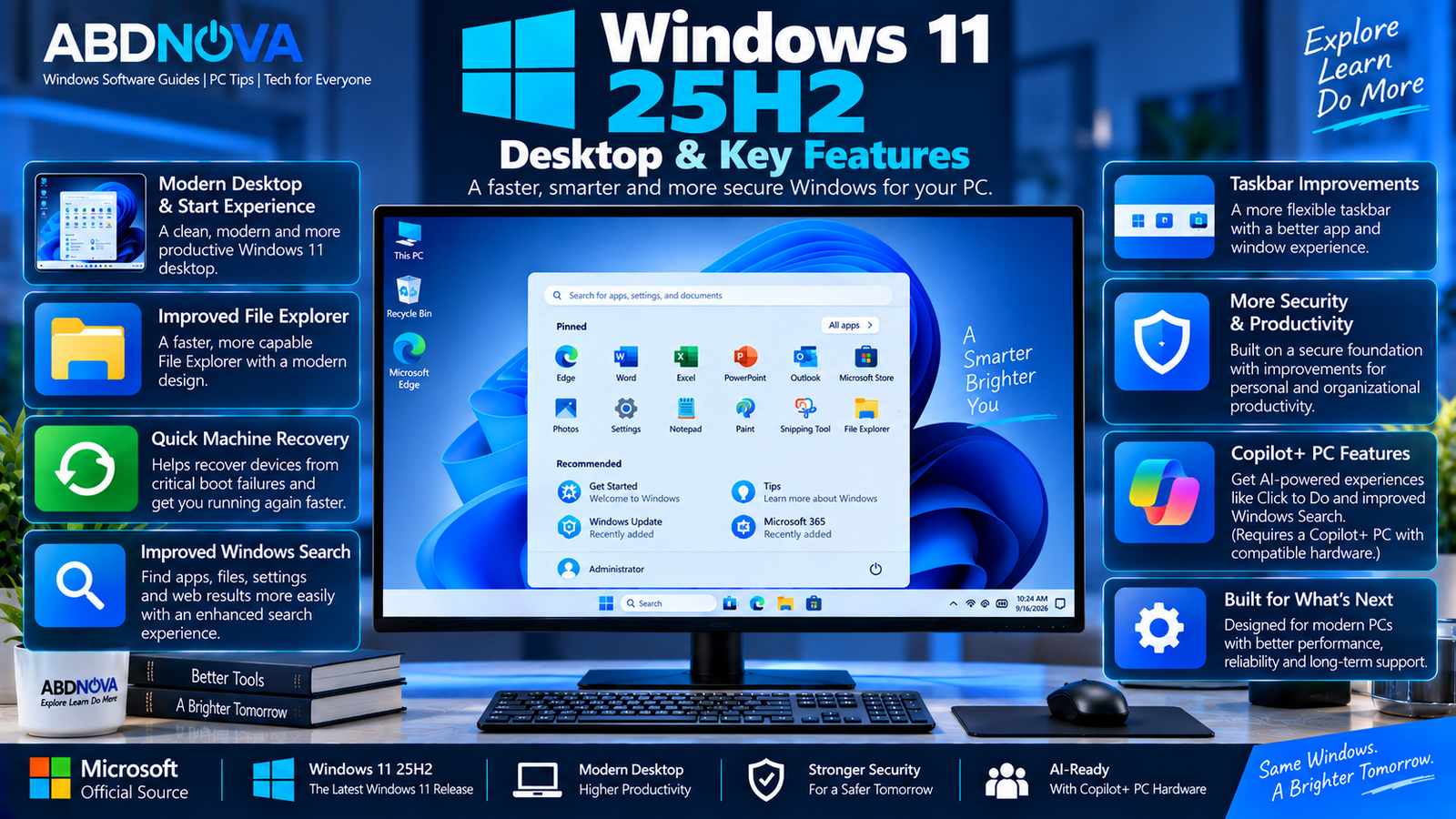
Windows 11 25H2 Desktop & Key Features
Windows 11 25H2 includes improvements delivered through the Windows 11 24H2 servicing cycle along with changes associated with the 25H2 release.
Modern Windows 11 Experience
Windows 11 25H2 continues Microsoft’s modern Windows interface with the Start menu, taskbar, Settings, File Explorer, Snap layouts, multiple desktops, Windows Security, Microsoft Store, and other integrated Windows features.
Quick Machine Recovery
Microsoft lists Quick Machine Recovery among the capabilities associated with the Windows 11 25H2 generation. It is designed to help recover devices experiencing certain widespread boot problems.
Enterprise and IT Improvements
Windows 11 25H2 includes changes relevant to device management, security, deployment, and enterprise environments.
These improvements are particularly relevant to organizations managing Windows devices at scale.
Copilot+ PC Features
Some Windows 11 capabilities are specifically designed for Copilot+ PCs and depend on compatible hardware.
Windows 11 25H2 System Requirements
A computer must meet Microsoft’s Windows 11 hardware requirements before installing Windows 11 25H2.
Important requirements include:
- Compatible 64-bit processor
- TPM 2.0
- UEFI firmware
- Secure Boot capability
- At least 4 GB RAM
- At least 64 GB storage
- DirectX 12-compatible graphics
- Compatible display
Some Windows features require additional hardware beyond these baseline requirements.
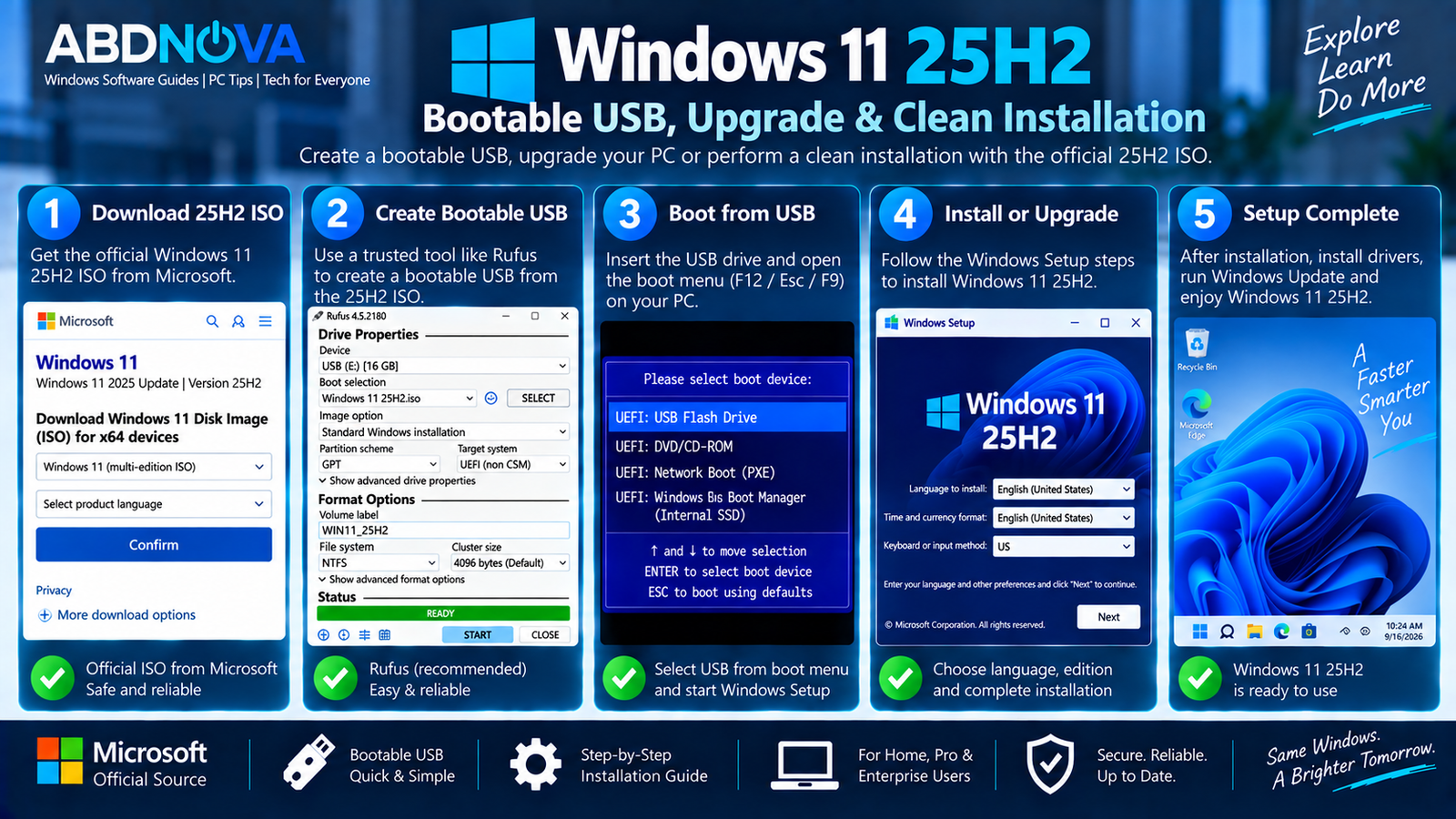
Windows 11 25H2 Bootable USB, Upgrade & Clean Installation
Create a Windows 11 25H2 Bootable USB
The official Windows 11 25H2 ISO can be used to create bootable installation media. Microsoft recommends a blank USB drive with at least 8 GB of capacity.
- Download the official Windows 11 25H2 ISO.
- Connect a blank USB flash drive.
- Open a trusted bootable USB creation utility.
- Select the Windows 11 ISO.
- Select the correct USB drive.
- Use the appropriate UEFI/GPT configuration for the target PC.
- Create the bootable USB.
- Restart the target PC.
- Open the system boot menu.
- Select the USB drive.
The exact key used to open the boot menu varies by PC or motherboard manufacturer.
Clean Install Windows 11 25H2
Boot the computer from the prepared USB drive. Windows Setup allows you to select your language and keyboard configuration before proceeding with installation.
For a clean installation, carefully select the correct destination drive and partition.
After Windows installation:
- Connect to the internet.
- Run Windows Update.
- Install available security and cumulative updates.
- Install any necessary device drivers.
- Check Windows activation.
- Restore your applications and personal files.
Upgrade from Windows 11 24H2 to 25H2
If your computer already runs Windows 11 24H2, you may not need to download the complete ISO.
Microsoft uses an enablement package for the 24H2-to-25H2 transition. Updated 24H2 systems already contain many of the required components, allowing the enablement package to activate the 25H2 functionality.
Check:
For details about the previous release and its lifecycle, see our Windows 11 24H2 Download guide.
Upgrade from Windows 10 to Windows 11 25H2
A compatible Windows 10 PC can also move to Windows 11 25H2. Before upgrading, verify that the computer meets Microsoft’s Windows 11 hardware requirements.
If you need the original Windows 10 installation media instead, see our Windows 10 ISO Download guide.
Windows 11 25H2 in a Virtual Machine
The Windows 11 25H2 ISO can also be used to create a virtual machine. This is useful for:
- Software testing
- Windows administration
- Development
- IT training
- Compatibility testing
- Windows feature testing
- Isolated lab environments
Configure the virtual machine with appropriate resources and ensure that the virtualization platform can satisfy the relevant Windows 11 security requirements.
Windows 11 25H2 Support
Microsoft lists Windows 11 25H2 Home and Pro support through October 13, 2027. Enterprise editions follow Microsoft’s longer servicing period for the release.
Keep Windows Update enabled and install current security updates to maintain the latest security, reliability, and compatibility fixes.
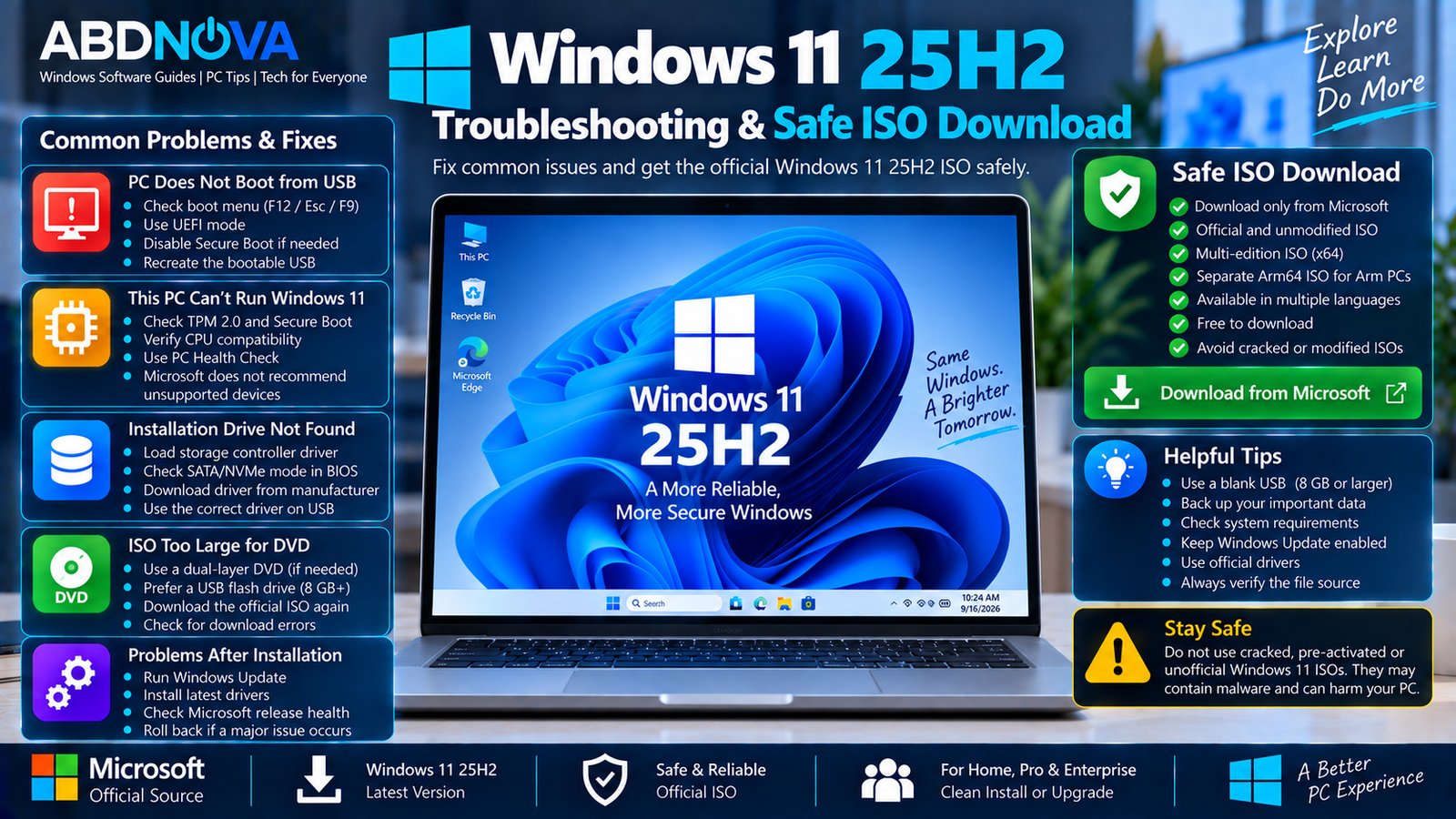 Windows 11 25H2 Troubleshooting & Safe ISO Download
PC Does Not Boot from USB
Restart the computer and open its boot menu. Confirm that the USB drive appears as a bootable UEFI device.
If the drive does not appear, recreate the installation media and check the PC’s UEFI/BIOS configuration.
Windows 11 Says the PC Is Unsupported
Check the processor, TPM 2.0, Secure Boot capability, RAM, storage, and other Windows 11 hardware requirements.
Microsoft does not recommend installing Windows 11 on hardware that fails the minimum requirements.
Installation Drive Is Missing
Windows Setup may require a storage-controller driver for certain hardware configurations.
Download the appropriate driver from the PC, motherboard, or storage-controller manufacturer’s official support page.
ISO Does Not Fit on a DVD
If Windows reports that the disk image is too large for a standard DVD, a higher-capacity dual-layer DVD may be required.
For most users, a USB flash drive is the more convenient installation method.
Problems After Installing Windows Updates
Check Microsoft’s Windows release-health information before assuming that an installation or update problem is hardware-related.
Microsoft continues publishing known and resolved issues for Windows 11 25H2.
Safe Windows 11 25H2 ISO Download
The safest Windows 11 25H2 Download source is Microsoft itself. The official Windows 11 ISO already supports clean installation, bootable USB creation, reinstalling Windows, and virtual machines.
- Pre-activated Windows ISOs
- Cracked Windows 11 downloads
- Modified Windows 11 25H2 images
- Activation bypass packages
- Custom “Lite” versions
- Unofficial repacks
- Unknown ISO mirrors
Using Microsoft’s original installation image reduces the risk of installing an operating system modified with unwanted software or unauthorized changes.
Frequently Asked Questions
Is Windows 11 25H2 officially available?
Yes. Microsoft identifies Windows 11 2025 Update, version 25H2, as an official Windows 11 release and currently provides Windows 11 25H2 installation options.
Can I download Windows 11 25H2 ISO directly from Microsoft?
Yes. Microsoft’s Windows 11 download page provides an official multi-edition ISO for compatible x64 PCs.
Is Windows 11 25H2 free?
Downloading Windows installation media does not provide a free Windows license. Activation depends on having an appropriate product key, digital license, or entitlement.
Is Windows 11 25H2 available for Arm PCs?
Yes. Microsoft provides a separate Windows 11 Arm64 ISO for compatible Arm-based PCs.
How large should my USB drive be?
Microsoft specifies a blank USB drive with at least 8 GB of capacity when preparing Windows 11 installation media.
Do I need the ISO to upgrade from Windows 11 24H2?
Usually not. Microsoft uses an enablement package for supported Windows 11 24H2 devices moving to 25H2, and Windows Update can deliver the upgrade to eligible PCs.
Can I install Windows 11 25H2 on an unsupported PC?
Microsoft does not recommend installing Windows 11 on devices that fail its minimum system requirements and warns that unsupported installations can experience compatibility and update-support problems.
Can I use Windows 11 25H2 ISO in a virtual machine?
Yes. Microsoft’s Windows 11 ISO can be used for installation media or a compatible virtual machine.
Final Thoughts
Windows 11 25H2 Download is available directly from Microsoft as the Windows 11 2025 Update. The official x64 ISO is a multi-edition image suitable for bootable USB drives, clean installations, reinstallations, upgrades, and virtual machines.
Microsoft also provides separate installation media for compatible Arm64 systems. If your computer already runs an updated Windows 11 24H2 installation, Windows Update may provide the smaller 25H2 enablement-package upgrade without requiring a complete ISO download.
For the safest installation, use Microsoft’s original Windows 11 image, confirm that your computer meets Windows 11 requirements, back up important data, and install current Windows updates after setup.
Download Windows 11 25H2 from Microsoft
Get the official Windows 11 ISO and installation options directly from Microsoft.


