
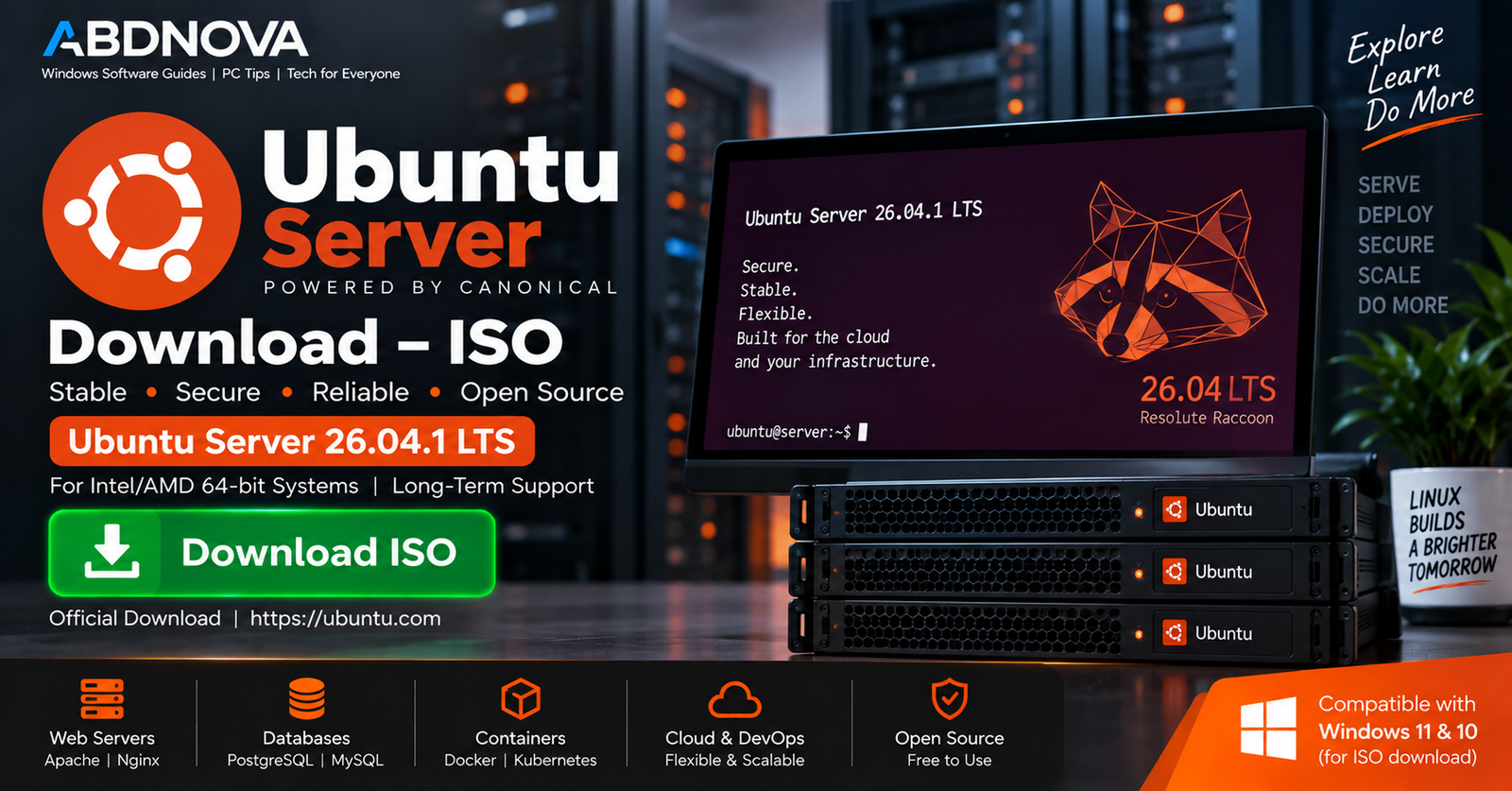

Ubuntu Server Download – ISO
Ubuntu Server Download provides a free and open-source Linux server operating system developed by Canonical. It is designed for web servers, file servers, databases, containers, virtualization, cloud workloads, development environments, and other infrastructure.
The current LTS release is Ubuntu Server 26.04.1 LTS (Resolute Raccoon). For a typical modern Intel or AMD PC or server, Canonical provides a 64-bit amd64 server installation image.
Windows 11 and Windows 10 users can download the Ubuntu Server ISO, create a bootable USB, install it on compatible hardware or a virtual machine, and manage the server locally or remotely through SSH.
Ubuntu Server 26.04.1 LTS at a Glance
| Details | Information |
|---|---|
| Operating System | Ubuntu Server |
| Latest LTS | Ubuntu Server 26.04.1 LTS |
| Codename | Resolute Raccoon |
| Developer | Canonical |
| Architecture | Intel/AMD 64-bit (amd64) |
| Download Size | Approximately 3 GB |
| Installation Media | ISO |
| Desktop GUI | Not installed by default |
| Primary Interface | Command line / terminal |
| License | Free and open source |
| Standard LTS Support | 5 years |
What Is Ubuntu Server?
Ubuntu Server is the server-focused edition of Ubuntu. Instead of installing a complete graphical desktop by default, it starts with a relatively lean environment designed for running services and administering systems.
It can be used for everything from a small home file server to web hosting, databases, containers, virtual machines, development systems, and large cloud infrastructure.
Most administration is performed through the command line or remotely through tools such as SSH.
Ubuntu Server 26.04.1 LTS
For most users setting up a new long-term server, Ubuntu Server 26.04.1 LTS is the current LTS starting point.
Ubuntu 26.04 LTS uses the Linux 7.0 kernel and includes updated server technologies and database packages.
As an LTS release, Ubuntu 26.04 receives standard security updates and critical bug fixes for five years, through April 2031.
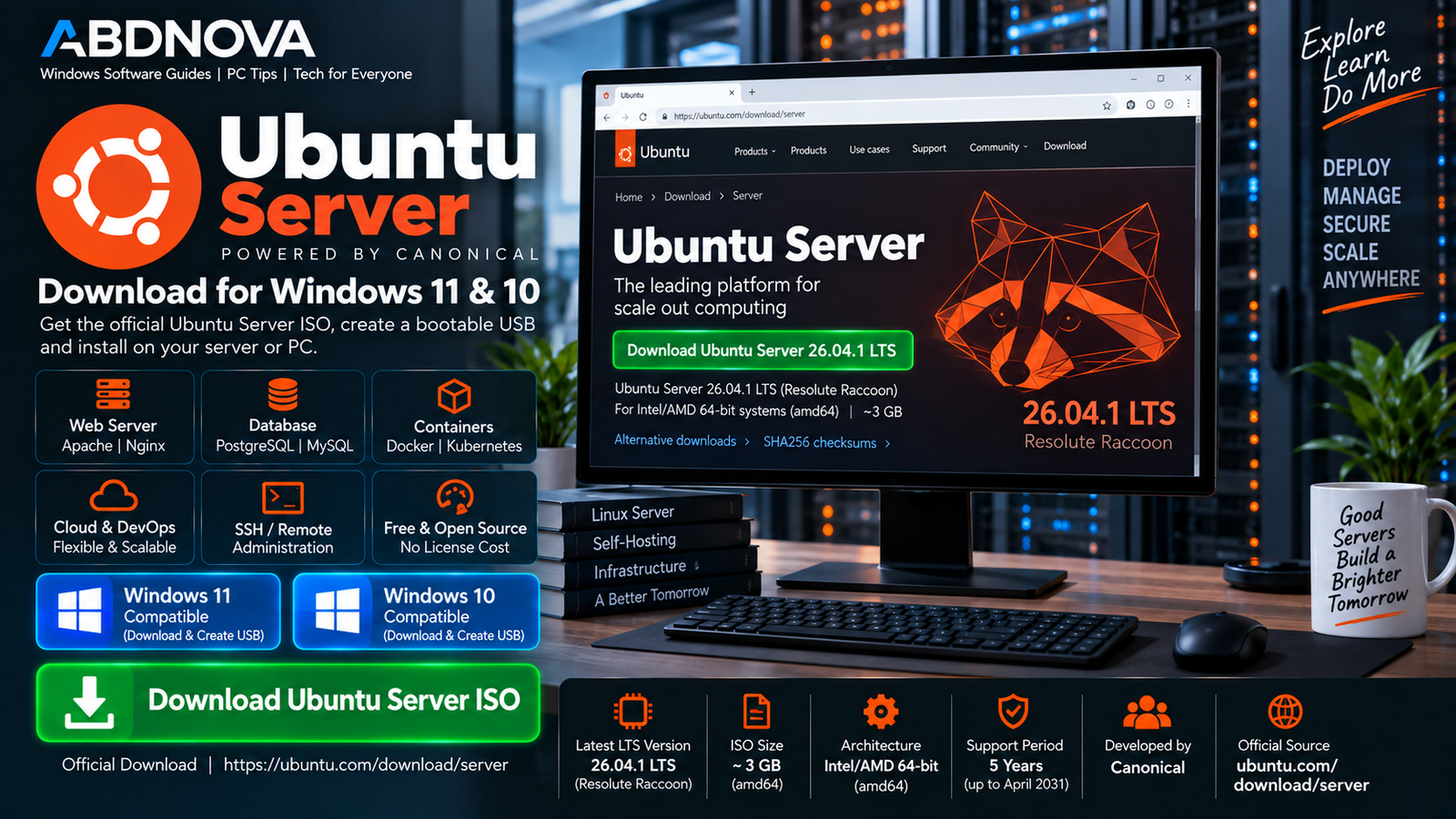
Ubuntu Server Download for Windows 11 & 10
You can download the Ubuntu Server ISO using a Windows 11 or Windows 10 computer and then use the ISO to prepare bootable installation media.
For a normal modern Intel or AMD computer, choose:
The server install image installs Ubuntu permanently for server use and does not install a graphical desktop interface by default.
Ubuntu Server is a complete operating system, not a standard Windows application. The ISO is therefore used as bootable installation media or inside a virtual machine rather than installed as a normal Windows .exe.
Ubuntu Server System Requirements
| Component | Baseline |
|---|---|
| Architecture | Intel/AMD 64-bit (amd64) |
| System Memory | 1.5 GB baseline for ISO installation |
| Free Disk Space | 5 GB minimum for ISO installation |
| Suggested Storage | 25 GB or more for a more practical installation |
| Installation Media | USB port or DVD drive |
Actual requirements depend heavily on the server workload. Web applications, databases, containers, virtual machines, logs, backups, and multiple users can require substantially more memory and storage.
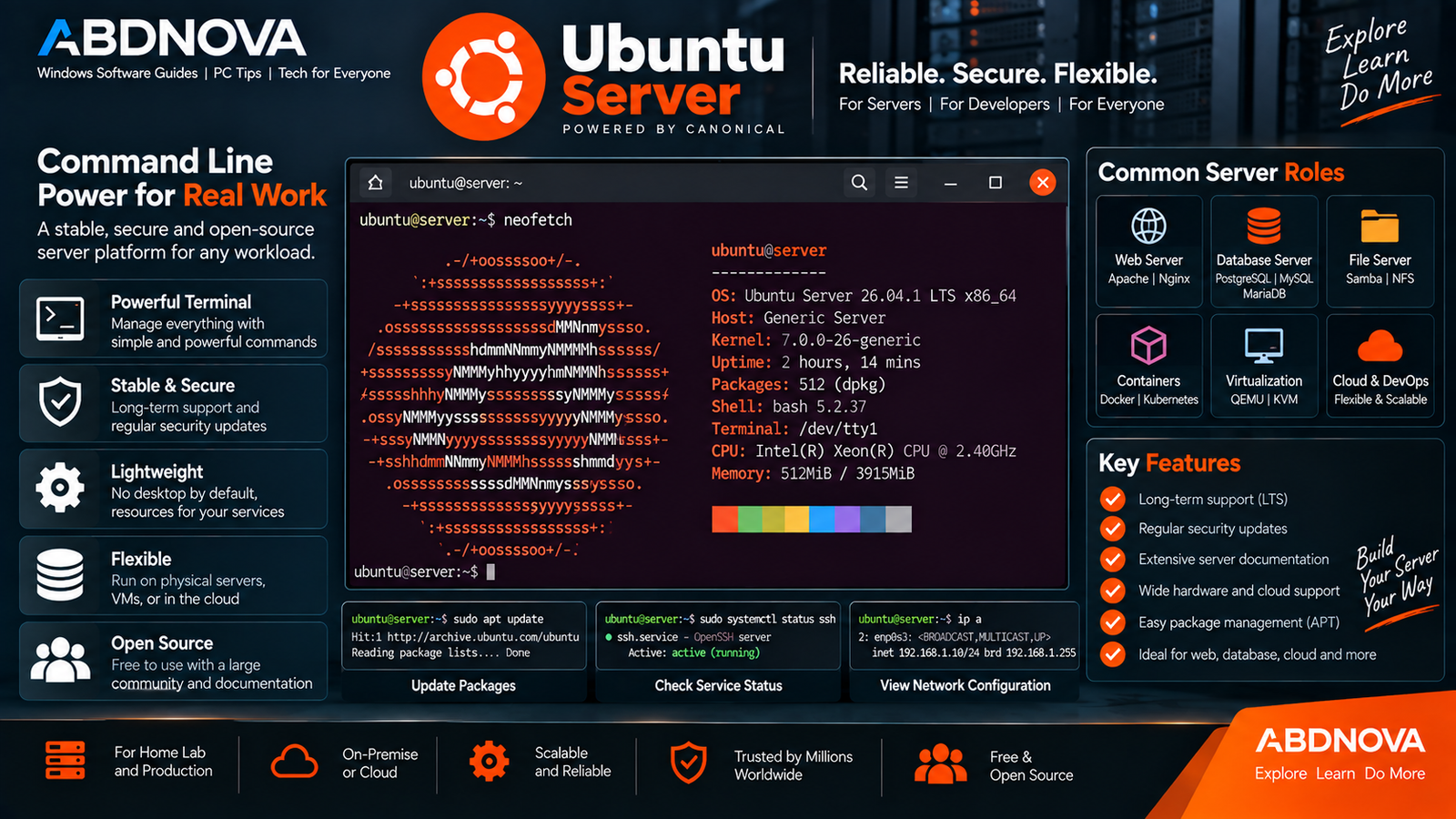
Ubuntu Server Terminal, Server Roles & Key Features
After installation, Ubuntu Server primarily provides a command-line environment. This keeps the base system relatively lean while allowing administrators to install only the software and services they require.
Typical administrative tasks include:
- Installing and updating packages.
- Managing users and permissions.
- Configuring networking.
- Managing disks and storage.
- Configuring SSH.
- Running web and database services.
- Monitoring system resources.
- Managing security settings.
Web Server
Ubuntu Server can run web-server technologies such as Apache and Nginx for websites, APIs, and web applications.
Database Server
Common database platforms available for Ubuntu Server include PostgreSQL, MySQL, and MariaDB.
File Server
An Ubuntu Server system can provide centralized file storage and sharing across a home, office, or business network.
Docker & Containers
Ubuntu Server is commonly used as a host operating system for containerized applications. If you also manage containers from a Windows PC, see our Docker Desktop Download for Windows guide.
Virtualization
Ubuntu Server supports virtualization workloads and technologies such as QEMU, allowing the server to host virtual machines when suitable hardware resources are available.
Cloud & Development
Ubuntu Server can also provide development, testing, cloud, automation, and deployment environments.
Ubuntu Server Command Line & Remote Administration
The terminal is the primary management interface for Ubuntu Server. Administrators can perform most configuration and maintenance without a graphical desktop.
If you administer Linux systems from Windows, Windows Terminal provides a convenient Windows interface for command-line tools and SSH sessions.
Install OpenSSH Server
Remote administration is one of the most useful features of a Linux server.
During Ubuntu Server installation, you can select the option to install OpenSSH Server. This allows another computer on the network to connect securely to the server using SSH.
The Ubuntu installer can also import SSH keys for key-based authentication.
After installation, administrators can manage the server remotely without keeping a monitor and keyboard permanently connected.
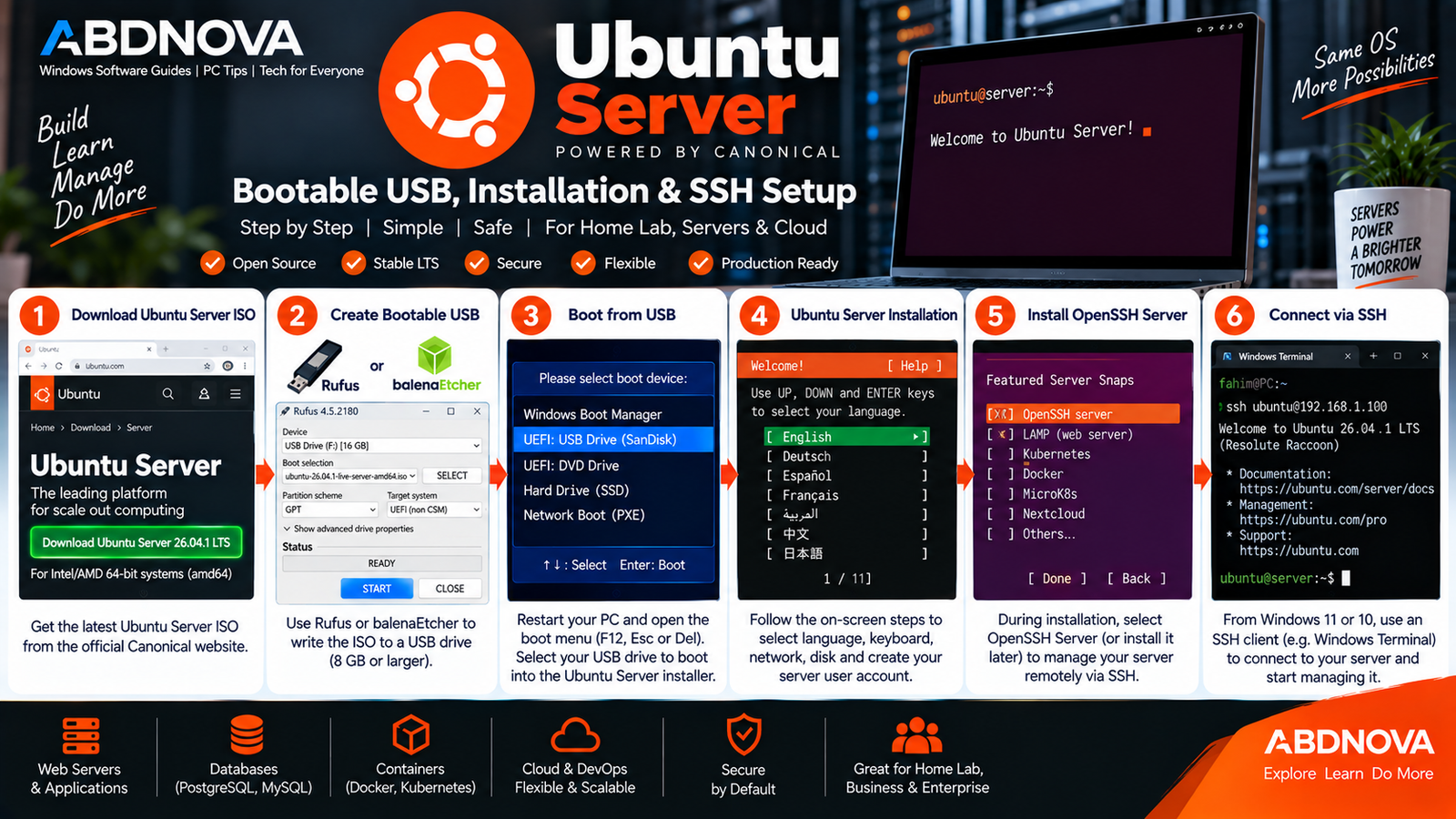
Ubuntu Server Bootable USB, Installation & SSH Setup
Create an Ubuntu Server Bootable USB on Windows
Windows 11 and Windows 10 users can prepare the Ubuntu Server installer from the downloaded ISO.
- Download the official Ubuntu Server ISO.
- Connect a suitable USB flash drive.
- Open a trusted image-writing application.
- Select the Ubuntu Server ISO.
- Select the correct USB drive.
- Write the ISO to the USB.
- Restart the target computer.
- Open its BIOS/UEFI boot menu.
- Boot from the USB drive.
How to Install Ubuntu Server
Once the bootable USB is ready:
- Boot the computer from the Ubuntu Server USB.
- Select your preferred language.
- Configure the keyboard layout.
- Configure the network.
- Configure a proxy if required.
- Select or configure the installation disk.
- Create the server profile, username, and password.
- Configure SSH if required.
- Select any additional server software offered.
- Complete the installation and restart.
The installer provides a straightforward default setup while also supporting more advanced networking and storage configuration when required.
SSH Setup
If OpenSSH Server was selected during installation, find the server’s IP address and connect to it from another computer using an SSH client.
On a Windows PC with an SSH client available, a typical connection follows this format:
ssh username@server-ip-addressReplace the username and server address with the values configured for your own Ubuntu Server.
Ubuntu Server on a Windows PC
You can use a Windows 11 or Windows 10 PC to download the Ubuntu Server ISO and create the installation USB.
Ubuntu Server can then be installed:
- Directly on compatible PC hardware.
- On a dedicated server.
- Inside a virtual machine.
- In a home lab.
- On cloud infrastructure.
If you only need an Ubuntu command-line environment inside Windows rather than a separate server installation, Ubuntu is also available through Windows Subsystem for Linux (WSL).
Ubuntu Server vs Ubuntu Desktop
| Feature | Ubuntu Server | Ubuntu Desktop |
|---|---|---|
| Primary Purpose | Servers and infrastructure | Desktop and laptop use |
| Default GUI | No | Yes |
| Primary Interface | Terminal / SSH | Graphical desktop |
| Web & Database Services | Common server use | Possible but not primary focus |
| Containers | Common server workload | Supported |
| Everyday Desktop Apps | Not the primary focus | Primary focus |
Both editions share the Ubuntu ecosystem, but Ubuntu Desktop targets everyday PC use while Ubuntu Server emphasizes networking, services, remote administration, storage, containers, virtualization, and infrastructure.
Ubuntu Server LTS vs Previous LTS Releases
Ubuntu Server 26.04.1 LTS is the current LTS download. Canonical also continues to provide supported previous LTS releases for users with specific compatibility or organizational requirements.
For a new installation, the latest LTS is generally the natural starting point unless particular hardware, software, certification, or deployment requirements call for an older supported release.
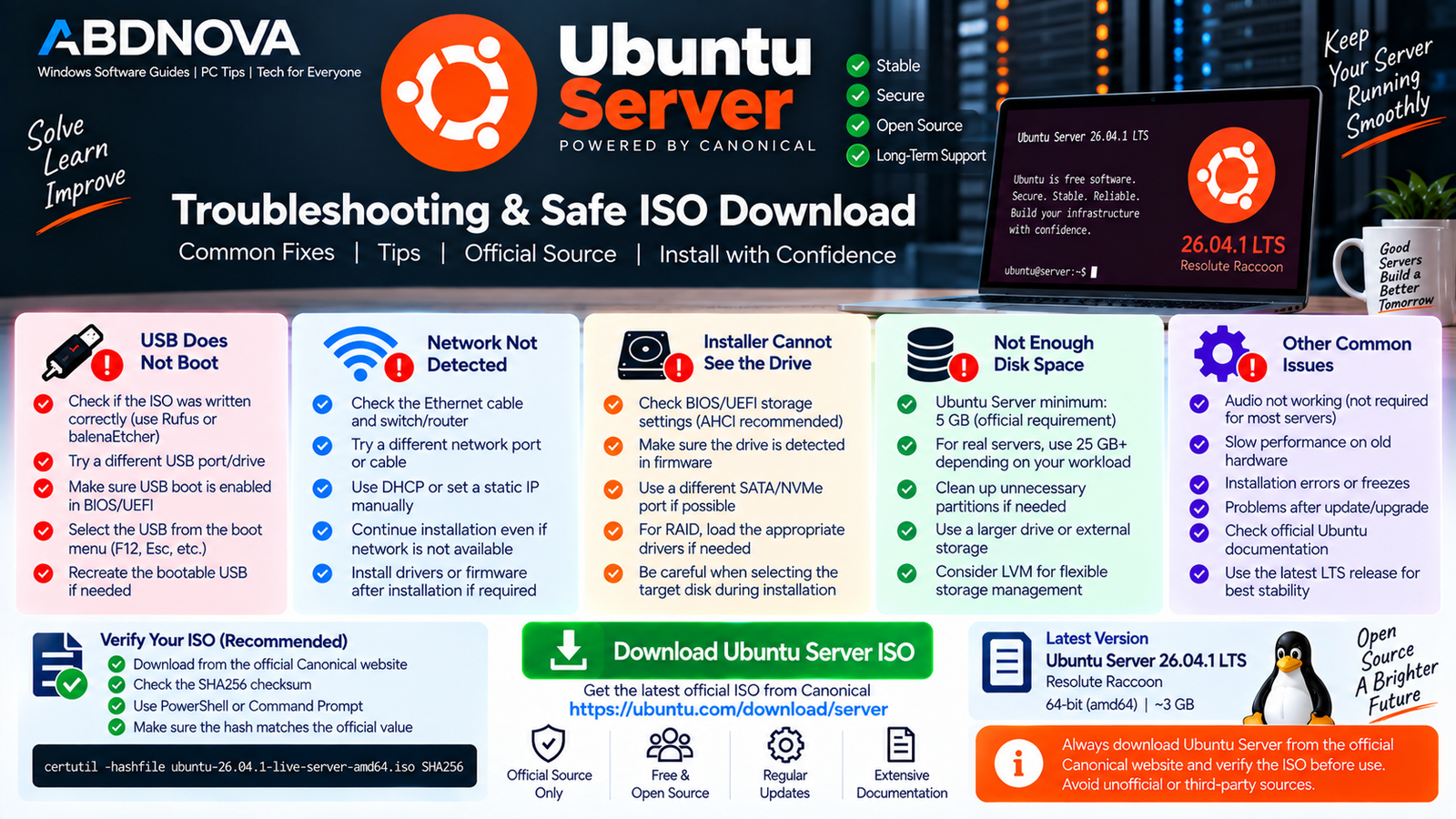
Ubuntu Server Troubleshooting & Safe ISO Download
Ubuntu Server USB Does Not Boot
Try:
- Confirm that the ISO was written correctly.
- Check that USB booting is enabled in BIOS/UEFI.
- Restart the computer and open its boot menu.
- Select the USB device manually.
- Try another USB port if necessary.
Network Is Not Detected
Check the Ethernet cable and network hardware first. The installer normally attempts to configure wired network interfaces automatically using DHCP.
If automatic configuration fails, review the interface and network settings carefully before continuing.
Installer Cannot See the Drive
Check the BIOS/UEFI storage configuration and confirm that the drive itself is detected by the computer’s firmware.
Be particularly careful when changing storage settings on a computer that already contains Windows or another operating system.
Not Enough Disk Space
The base Ubuntu Server installation can start with modest storage, but applications, updates, logs, databases, containers, virtual machines, and user data can consume significantly more space over time.
For many practical installations, allocating at least 25 GB or more provides more useful working space than the basic installation minimum.
Cannot Connect Through SSH
Check that:
- OpenSSH Server is installed.
- The SSH service is running.
- The server has a valid IP address.
- The client is connecting to the correct address.
- Network and firewall rules permit the connection.
Safe Ubuntu Server ISO Download
Download Ubuntu Server directly from Canonical’s official Ubuntu website rather than third-party ISO-hosting websites.
The official download page provides Ubuntu Server 26.04.1 LTS for Intel/AMD 64-bit systems and access to alternative architectures, torrents, mirrors, and previous releases.
- Modified Ubuntu Server ISO files.
- Unofficial repacks.
- Unknown third-party ISO downloads.
- Pre-modified server images from untrusted sources.
- Unverified file-sharing downloads.
Ubuntu Server is already free and open-source software. You do not need a crack, activation key, or modified installer.
Frequently Asked Questions
What is the latest Ubuntu Server LTS version?
Ubuntu Server 26.04.1 LTS (Resolute Raccoon) is the current LTS release as of September 2026.
Is Ubuntu Server free?
Yes. Ubuntu Server is free to download and use, and Canonical provides official installation images.
Does Ubuntu Server have a desktop interface?
Ubuntu Server does not install the standard Ubuntu graphical desktop by default. It is primarily administered through the command line and remote-management tools such as SSH.
Can I install Ubuntu Server on a normal PC?
Yes. The amd64 server ISO supports compatible 64-bit Intel and AMD PCs and servers.
How much RAM does Ubuntu Server need?
Canonical currently lists 1.5 GB system memory as the baseline for the Ubuntu Server 26.04.1 LTS ISO installation. Real-world servers may require substantially more depending on their workloads.
How much storage does Ubuntu Server need?
The current download page lists 5 GB of free disk space as a baseline. For a practical server, more storage should be allocated according to applications, logs, databases, containers, and other data.
Can I create an Ubuntu Server USB from Windows 11 or 10?
Yes. Download the official ISO using Windows and use an image-writing application to create the bootable USB.
Can I manage Ubuntu Server remotely?
Yes. OpenSSH Server can be installed during setup, allowing administrators to securely manage the server remotely through SSH.
How long is Ubuntu Server 26.04 LTS supported?
Ubuntu 26.04 LTS receives standard security updates and critical fixes for five years, through April 2031.
Final Thoughts
Ubuntu Server Download provides a flexible Linux platform for web hosting, databases, file sharing, containers, virtualization, development, home labs, and many other server workloads.
Ubuntu Server 26.04.1 LTS is the current long-term-support choice for a new Intel or AMD 64-bit server. Its command-line-focused design keeps the base installation relatively lean while allowing administrators to install the services they actually require.
Download the official ISO directly from Canonical, create a bootable USB, back up important data, and carefully review the target disk and network configuration before installation.
Download Ubuntu Server 26.04.1 LTS
Get the official Intel/AMD 64-bit Ubuntu Server ISO directly from Canonical.


