
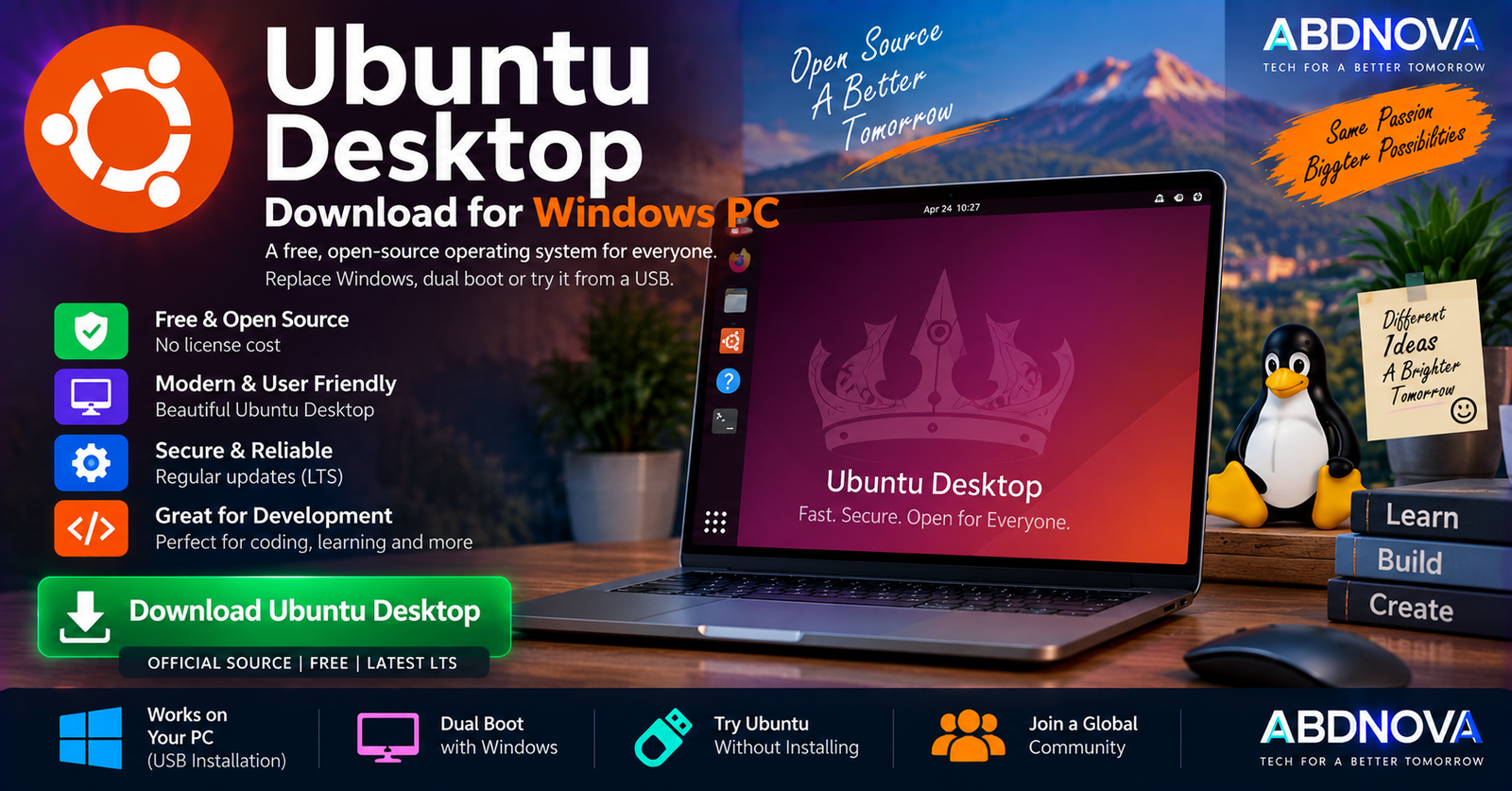

Ubuntu Desktop Download for Windows PC
Ubuntu Desktop Download for Windows PC lets Windows users download the official Ubuntu ISO and install or test a complete Linux desktop operating system. Ubuntu can replace Windows, run alongside Windows in a dual-boot setup, boot temporarily from a USB drive, or run inside a virtual machine.
Ubuntu Desktop is not a normal Windows application. The ISO file is an operating-system installation image. For a traditional installation, you download the ISO on Windows, write it to a bootable USB drive, restart the PC, and boot from that USB.
The current Long-Term Support release is Ubuntu 26.04.1 LTS — Resolute Raccoon. LTS releases are designed for longer-term use, and Ubuntu 26.04 LTS receives five years of standard security updates and critical fixes through April 2031.
Ubuntu Desktop for Windows PC at a Glance
| Details | Information |
|---|---|
| Operating System | Ubuntu Desktop |
| Developer | Canonical / Ubuntu |
| Type | Linux Desktop Operating System |
| Latest LTS | Ubuntu 26.04.1 LTS |
| Codename | Resolute Raccoon |
| Architecture | Intel/AMD 64-bit; ARM64 available |
| Processor | 2 GHz dual-core or better |
| RAM | 6 GB minimum |
| Storage | 25 GB free space |
| Intel/AMD ISO Size | Approximately 5.9 GB |
| Installation Media | Bootable USB |
| License | Free & Open Source |
| LTS Standard Support | 5 years |
| Dual Boot with Windows | Yes |
| Try Before Installing | Yes |
| Ubuntu on WSL | Available separately |
| Official Source | Ubuntu |
Ubuntu 26.04.1 LTS
Ubuntu 26.04.1 LTS is the current Long-Term Support Desktop release. For most users who want a stable Linux installation for everyday use, development, work, or learning, the LTS release is the straightforward choice because of its longer support period.
Ubuntu 26.04 includes a modern GNOME-based desktop and updates across the operating system. Highlights include:
- GNOME 50 desktop environment.
- Linux Kernel 7.0.
- Improved fractional scaling.
- Updated document viewer.
- Updated image viewer.
- Updated terminal emulator.
- Updated video player.
- Accessibility improvements.
- Cloud identity authentication support.
- TPM-backed full-disk encryption management.
- Improved support for modern hardware.
Ubuntu Desktop System Requirements
| Component | Ubuntu 26.04 LTS Requirement |
|---|---|
| Processor | 2 GHz dual-core processor or better |
| Memory | 6 GB RAM minimum |
| Storage | 25 GB free disk space |
| Installation | USB port or suitable installation media |
| Internet | Recommended for downloads and updates |
An SSD and additional RAM are preferable for smoother everyday use, especially if you plan to use development tools, browsers with many tabs, virtual machines, or demanding applications.
For significantly lower-specification computers, lighter Ubuntu flavors such as Xubuntu or Lubuntu may be more suitable.
How to Download Ubuntu Desktop on a Windows PC
For a typical Intel or AMD Windows desktop or laptop, download the 64-bit Intel/AMD Ubuntu Desktop ISO directly from Ubuntu.
- Open the official Ubuntu Desktop download page.
- Locate Ubuntu 26.04.1 LTS.
- Select the Intel/AMD 64-bit image for a typical Windows PC.
- Save the ISO to your Windows drive.
- Wait for the download to complete.
- Create bootable installation media before attempting to install Ubuntu.
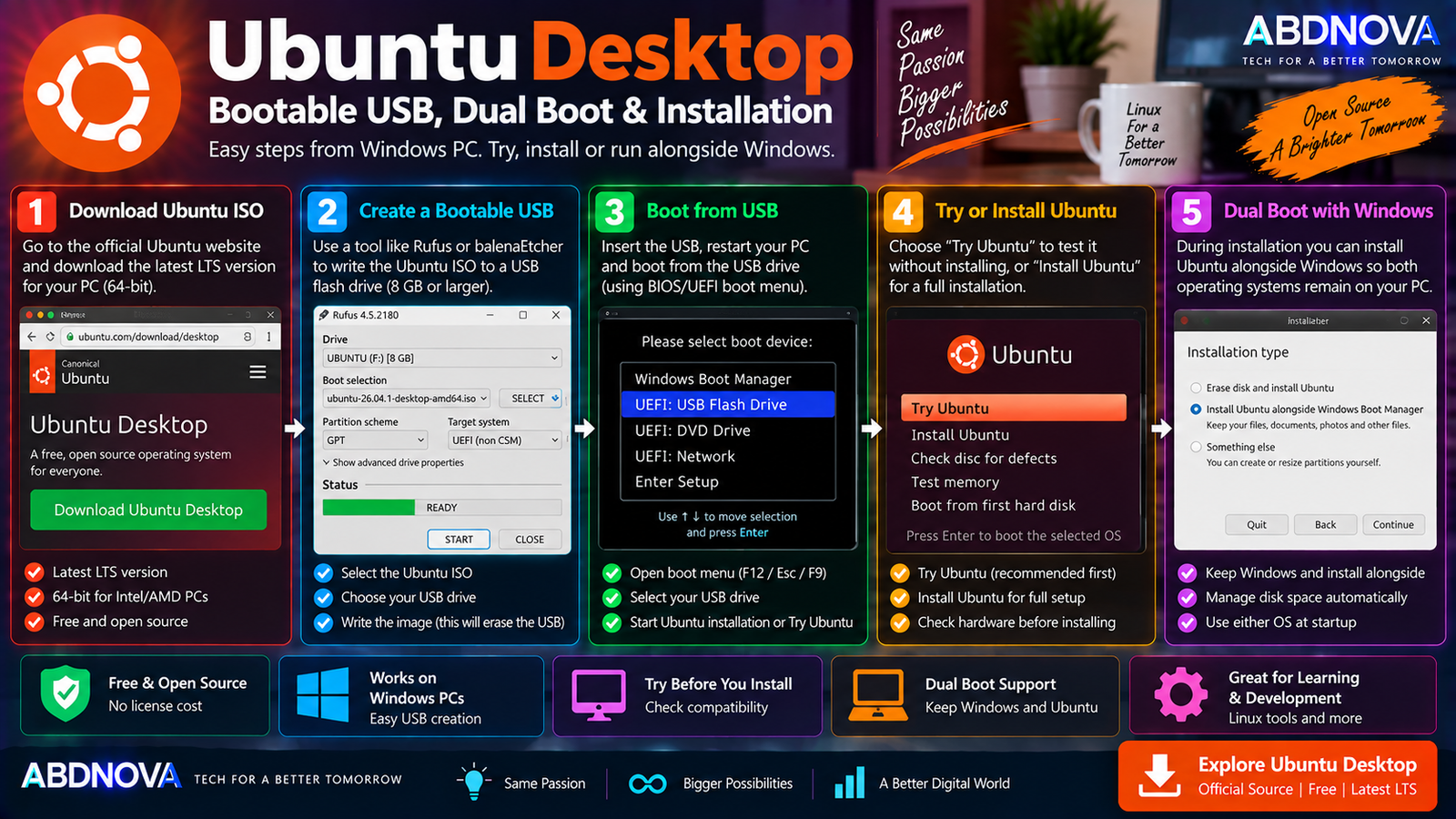
Ubuntu Desktop Bootable USB, Dual Boot & Installation
Create an Ubuntu Bootable USB on Windows
You cannot make proper Ubuntu installation media by simply copying the ISO file onto a USB drive. The ISO must be written to the USB using a compatible image-writing application.
You will need:
- Ubuntu Desktop ISO.
- An 8 GB or larger USB flash drive.
- A Windows PC.
- A compatible USB image-writing tool.
A typical Windows process is:
- Download the official Ubuntu ISO.
- Insert the USB flash drive.
- Open a compatible image-writing application such as Rufus or balenaEtcher.
- Select the Ubuntu ISO.
- Select the correct USB device.
- Write the image to the USB.
- Wait until the process finishes.
- Safely eject the USB.
- Restart the computer.
- Open the PC’s boot menu and boot from the USB.
Try Ubuntu Without Installing
You do not need to immediately replace Windows. A bootable Ubuntu USB can be used to test the Ubuntu Desktop experience without first installing it to your internal drive.
This is useful for checking whether important hardware works correctly, including:
- Wi-Fi.
- Bluetooth.
- Keyboard.
- Touchpad.
- Audio.
- Display.
- Graphics hardware.
Testing the live environment before changing disk partitions is particularly useful when installing Ubuntu on a laptop or unfamiliar hardware.
Install Ubuntu Alongside Windows
Ubuntu can coexist with Windows in a dual-boot configuration. Both operating systems remain installed, and you choose which one to start when the PC boots.
Windows → Windows applications and games
Ubuntu → Linux applications and development tools
Before resizing partitions or installing another operating system, back up important Windows files.
Dual Boot vs Replacing Windows
Dual Boot
Dual boot is useful if you still depend on Windows applications or games but also want a full native Ubuntu installation.
Replace Windows
Ubuntu can also become the PC’s only operating system. This provides the full drive to Ubuntu, but selecting an erase-disk installation option can remove the existing Windows installation.
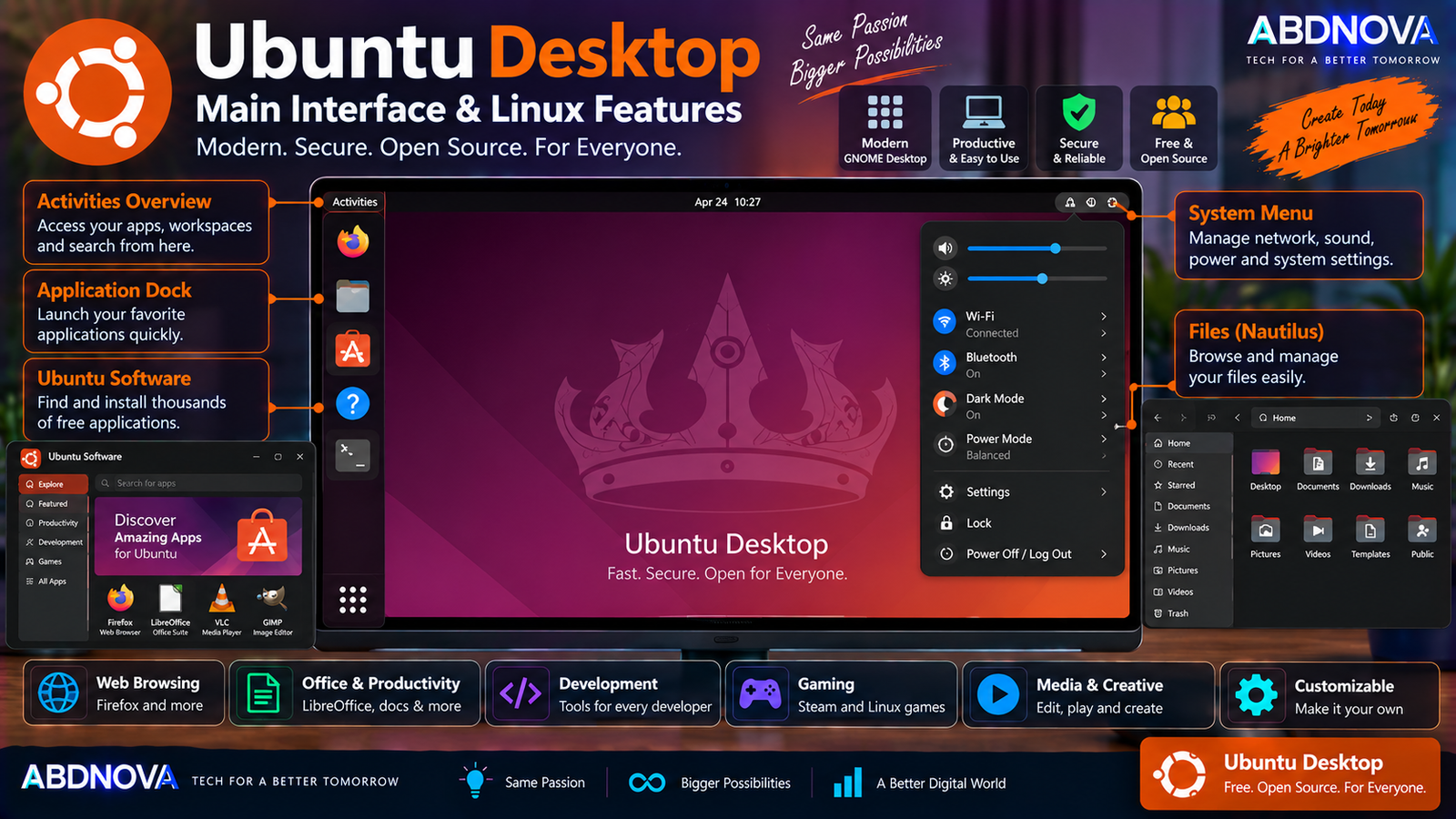
Ubuntu Desktop Main Interface & Linux Features
Ubuntu Desktop provides a full graphical desktop environment rather than requiring users to work entirely from a command line.
The desktop provides access to:
- Applications.
- Files and folders.
- System settings.
- Networking.
- Notifications.
- Workspaces.
- Software management.
- Terminal tools.
Ubuntu 26.04 uses GNOME 50 as the foundation of its desktop experience. Windows users may need some adjustment, but everyday concepts such as windows, folders, settings, application launchers, and task switching remain familiar.
Ubuntu App Center & Software
Ubuntu includes graphical software-management tools for discovering and installing applications.
Common desktop software categories include:
- Web browsers.
- Messaging.
- Office and productivity.
- Development.
- Gaming.
- Media playback.
- Content creation.
Ubuntu highlights applications and ecosystems such as Firefox, Chrome, Discord, Steam, and OBS Studio as examples of software available for everyday desktop use.
Ubuntu for Developers
Ubuntu is widely used as a Linux development environment. Common workloads include:
- Python.
- Java.
- JavaScript.
- Node.js.
- Git.
- Docker.
- Web development.
- Cloud development.
- AI and machine learning.
- Server administration.
If you work with containers on Windows as well, see our Docker Desktop Download for Windows guide.
Windows users who work heavily from the command line can also see our Windows Terminal Download for Windows guide.
Ubuntu Security & Updates
Ubuntu receives regular operating-system and security updates. Ubuntu 26.04 LTS receives five years of standard security updates and critical fixes, through April 2031.
Ubuntu Pro provides additional extended security and maintenance options beyond the standard LTS period.
Ubuntu Desktop vs Windows 11
| Feature | Ubuntu Desktop | Windows 11 |
|---|---|---|
| OS Family | Linux | Windows |
| License | Free / Open Source | Proprietary |
| Desktop | GNOME-based | Windows desktop |
| Linux Development | Native | WSL available |
| Windows EXE Apps | Not natively compatible | Native |
| Linux Package Management | Native | Limited |
| Dual Boot | Can coexist with Windows | Can coexist with Ubuntu |
| Gaming | Supported; compatibility varies | Broader native PC-game support |
| Customization | Extensive | Moderate |
| Linux Terminal Tools | Native | Available through WSL |
Ubuntu is not designed to be a Windows clone. Before replacing Windows completely, check whether the software, games, peripherals, and professional applications you rely on are available or compatible with Linux.
Ubuntu Desktop vs Ubuntu on WSL
Ubuntu Desktop and Ubuntu on Windows Subsystem for Linux are different solutions.
Ubuntu Desktop
Use Ubuntu Desktop when you want:
- A complete graphical Ubuntu operating system.
- The GNOME desktop environment.
- Linux as your main operating system.
- A dual-boot configuration.
- A dedicated Linux installation.
Ubuntu on WSL
WSL allows an Ubuntu/Linux environment to run inside Windows without setting up a traditional dual-boot installation.
It is particularly useful for developers who need Linux commands, development tools, and shell workflows while continuing to use Windows as their primary operating system.
Run Ubuntu Desktop in a Virtual Machine
Another option is to run Ubuntu inside virtualization software while Windows remains the main operating system.
A virtual machine can be useful for:
- Learning Linux.
- Testing Ubuntu.
- Development.
- Software testing.
- Training.
- Experimenting without repartitioning the PC.
Performance depends on the CPU, RAM, and storage allocated to the virtual machine.
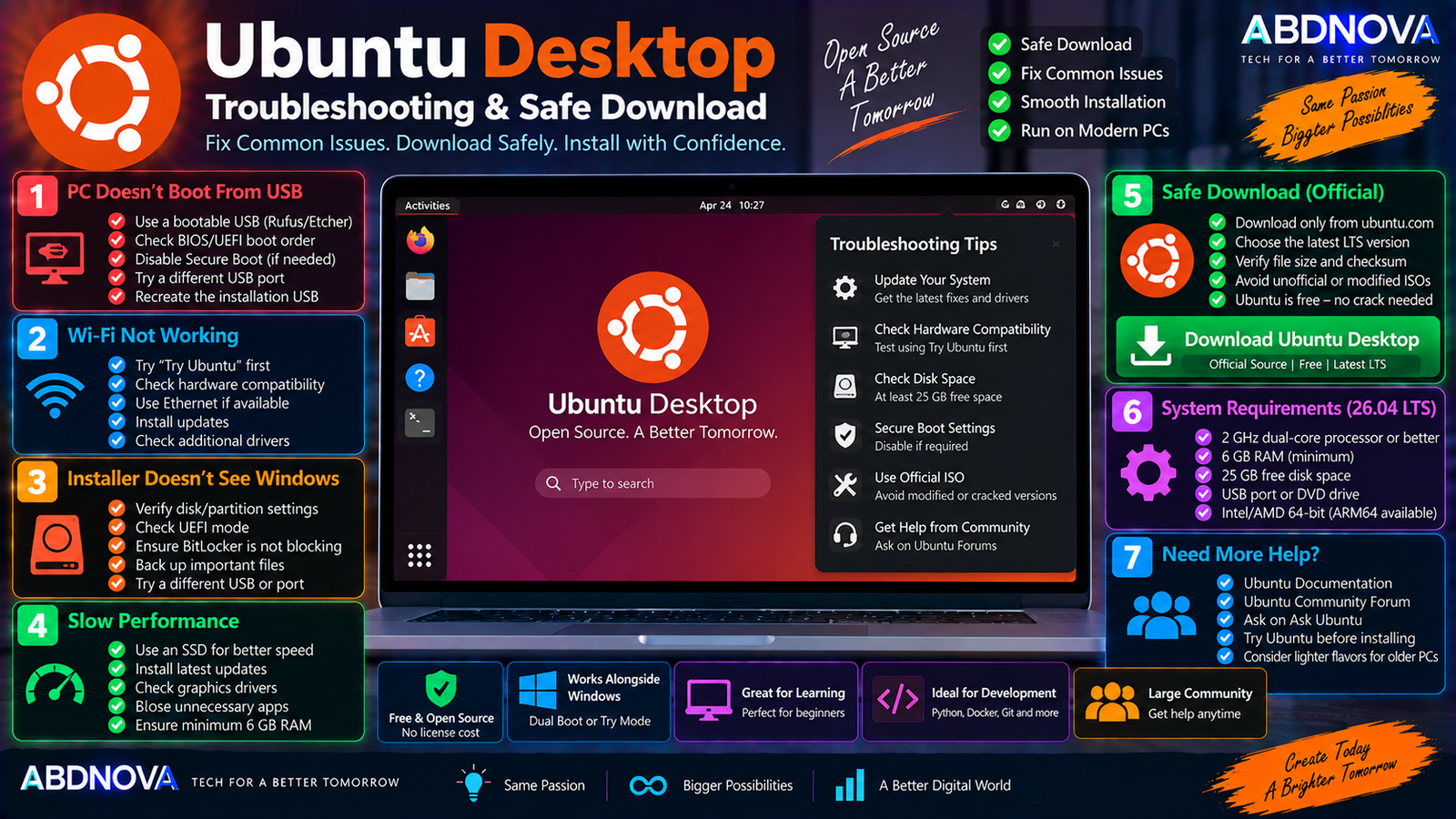
Ubuntu Desktop Troubleshooting & Safe Download
PC Doesn’t Boot From the Ubuntu USB
Check that:
- The USB was created as bootable installation media.
- The correct Ubuntu ISO was used.
- The USB is detected by BIOS/UEFI.
- The correct boot device was selected.
- Boot-order settings are correct.
- The image-writing process completed successfully.
If necessary, recreate the installation USB and try again.
Wi-Fi Doesn’t Work
Use the live Ubuntu environment to test the wireless adapter before installing. If Wi-Fi is unavailable:
- Check hardware support.
- Use Ethernet temporarily if available.
- Install available updates.
- Check additional drivers.
- Verify that airplane mode is disabled.
Ubuntu Installer Doesn’t See Windows
Do not immediately continue with a disk-erasing option. First check:
- Whether Windows still boots normally.
- Disk encryption status.
- Drive configuration.
- Available free space.
- UEFI settings.
- Existing partitions.
Ubuntu Runs Slowly
Possible improvements include:
- Install Ubuntu on an SSD.
- Close unnecessary applications.
- Install current updates.
- Check graphics drivers.
- Increase available RAM.
- Check hardware compatibility.
Ubuntu 26.04 Desktop officially lists 6 GB RAM and 25 GB of free storage for a comfortable Desktop experience. For lower-specification hardware, consider a lighter Ubuntu flavor.
How to Update Ubuntu Desktop
Ubuntu includes built-in update tools. Regular updates provide:
- Security patches.
- Bug fixes.
- Application updates.
- Hardware compatibility improvements.
- General system improvements.
LTS users can remain on a supported long-term release rather than installing every interim Ubuntu release.
Safe Ubuntu Desktop Download
Always download Ubuntu Desktop from Ubuntu’s official website or an official Ubuntu mirror.
- Modified Ubuntu ISO.
- Pre-activated Ubuntu.
- Ubuntu crack.
- Custom unlocked Ubuntu.
- Unknown repacked ISO.
- Modified security ISO.
Ubuntu itself is free and open source, so there is no legitimate reason to download a so-called cracked or activated Ubuntu ISO.
Frequently Asked Questions
Is Ubuntu Desktop free?
Yes. Ubuntu Desktop is free to download and use.
What is the latest Ubuntu Desktop LTS version?
As of September 2026, Ubuntu 26.04.1 LTS, Resolute Raccoon, is the current LTS Desktop release.
Can I install Ubuntu on a Windows 11 PC?
Yes. You can install Ubuntu as the main operating system, configure a dual-boot setup, test it from USB, run it in a virtual machine, or use an Ubuntu environment through WSL depending on your needs.
Can I install Ubuntu alongside Windows 10?
Yes. A compatible PC can run Windows and Ubuntu in a dual-boot configuration.
Does Ubuntu run Windows EXE programs?
Windows EXE applications are not natively supported in the same way they are on Windows. Linux versions, web applications, compatibility solutions, or alternative applications may be available depending on the program.
Can I try Ubuntu without deleting Windows?
Yes. Create a bootable Ubuntu USB and use the live environment to test Ubuntu before installing it to the internal drive.
How much RAM does Ubuntu Desktop need?
Ubuntu Desktop 26.04 officially lists 6 GB RAM as the minimum for a comfortable experience.
How much storage does Ubuntu Desktop need?
Canonical lists 25 GB of free storage for Ubuntu Desktop 26.04.
What size USB drive do I need for Ubuntu?
Current Ubuntu Desktop documentation specifies an 8 GB or larger USB stick for creating installation media.
Is Ubuntu WSL the same as Ubuntu Desktop?
No. Ubuntu Desktop is a complete graphical operating system. Ubuntu on WSL provides an Ubuntu/Linux environment within Windows.
Final Thoughts
Ubuntu Desktop Download for Windows PC is useful for Windows users who want a free, open-source desktop operating system, a native Linux development environment, or a second operating system alongside Windows.
The current Ubuntu 26.04.1 LTS provides a modern GNOME-based desktop and five years of standard security maintenance, while offering several ways to get started: bootable USB, live testing, dual boot, a dedicated installation, virtualization, or WSL for users who only need a Linux environment inside Windows.
For beginners, a safer approach is to download the official ISO, create a bootable USB, use the live Ubuntu environment first, confirm that important hardware works, back up Windows data, and only then decide whether to install Ubuntu permanently.
Download Ubuntu Desktop
Get the latest Ubuntu Desktop LTS ISO directly from Ubuntu.


