

Zotero Download for Windows 11 & 10

Download Zotero for Windows 11 and 10 to collect research sources, organize references, read and annotate PDFs, create citations and build bibliographies.
Zotero Download for Windows gives students, researchers, academics and writers a free and open-source reference manager for collecting, organizing and citing research materials.
Zotero can manage journal articles, books, reports, webpages, PDFs, notes, tags, citation information and other research material inside one searchable library.
It also includes a built-in PDF reader, browser Connector, Word integration, synchronization, automatic bibliographies and plugin support, making it useful for complete research workflows rather than only storing references.
Zotero Download for Windows – Quick Overview
| Information | Details |
|---|---|
| Software | Zotero |
| Developer | Digital Scholar / Zotero community |
| Current Release Series | Zotero 10 |
| Latest Stable Version | 10.0.1 |
| Windows 11 | Supported |
| Windows 10 | Supported |
| Windows 64-bit | Yes |
| Windows ARM | Yes |
| Windows 32-bit | Yes |
| Installer | Yes |
| ZIP Package | Yes |
| License | Free & Open Source |
| Browser Connector | Chrome, Edge, Firefox |
| Built-in PDF Reader | Yes |
| PDF Annotation | Yes |
| Word Integration | Yes |
| LibreOffice Integration | Yes |
| Google Docs Integration | Yes |
| Data Sync | Free & Unlimited |
| Free Zotero Storage | 300 MB for attachments |
| Plugins | Yes |
What Is Zotero?
Zotero is a research and reference-management application designed to help users build, organize and cite a research library.
Zotero can manage:
- Journal articles.
- Books.
- Book chapters.
- Reports.
- Conference papers.
- Webpages.
- PDF files.
- Notes.
- Tags.
- DOIs.
- URLs.
- Authors and publication information.
Zotero is especially useful for theses, dissertations, academic papers, literature reviews, research reports and citation-heavy writing projects.
Zotero 10 for Windows
Zotero 10 was released on August 17, 2026, followed by Zotero 10.0.1 on August 24, 2026.
Zotero 10 introduced major improvements including:
- Redesigned Advanced Search.
- Faster full-text searches.
- Reading Mode for PDFs.
- Lower memory use in reader tabs.
- Improved citation dialog.
- Improved PDF and EPUB handling.
- Better Windows 11 PDF/EPUB handler detection.
- Security and stability improvements.
Which Zotero Windows Version Should You Download?
Windows 64-bit
For most Intel and AMD Windows PCs, choose the regular 64-bit installer.
Windows ARM
Zotero also provides an official ARM build for compatible Windows-on-ARM devices.
Windows 32-bit
A 32-bit Windows build is also available for systems that specifically require it.
Installer vs ZIP
The normal installer is recommended for most users.
Zotero also provides ZIP packages that can be extracted and run from a folder. Zotero recommends the installer where possible because the ZIP version does not automatically register all normal file handlers.
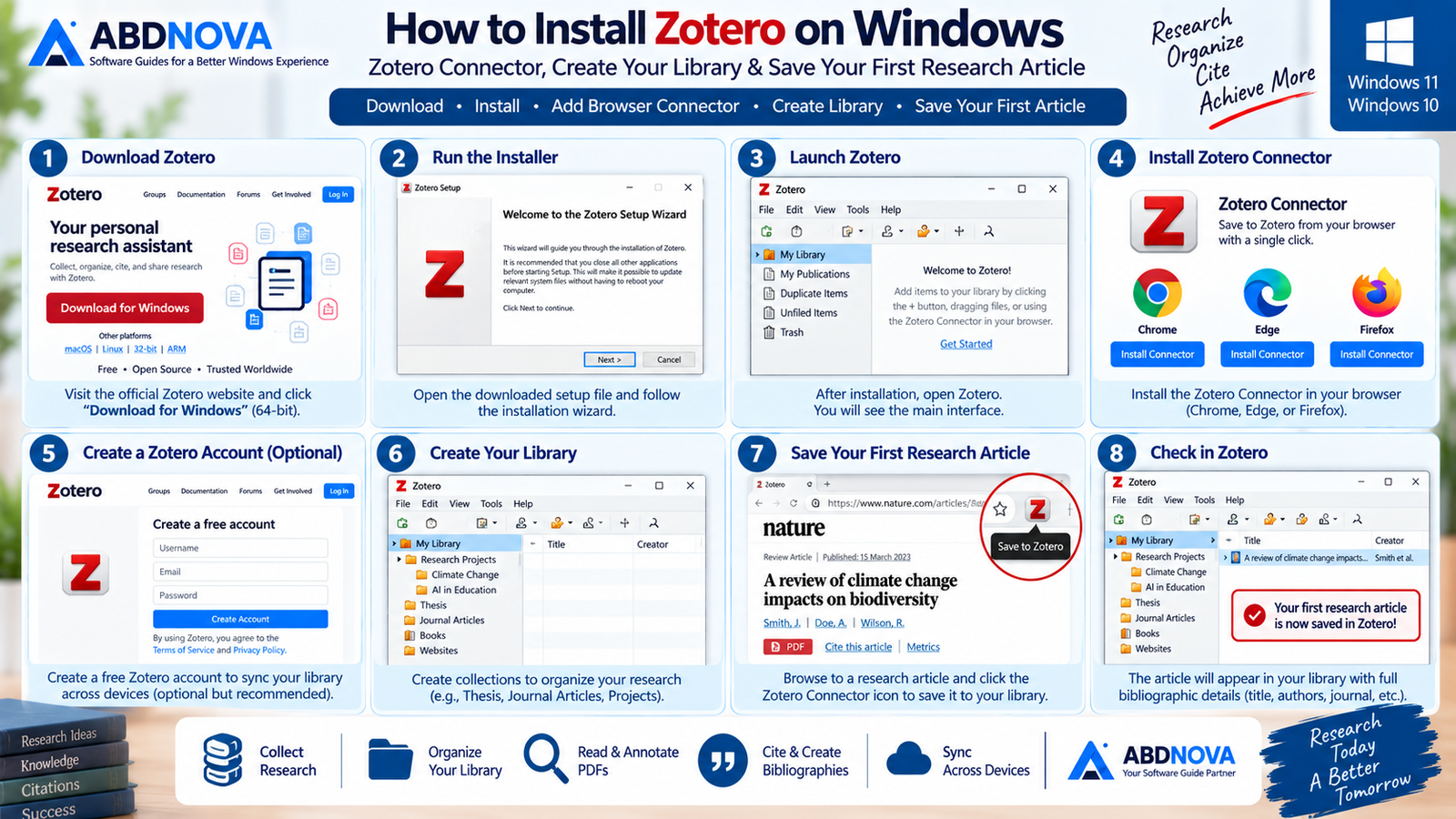
How to Install Zotero on Windows
- Visit the official Zotero download page.
- Choose the appropriate Windows installer.
- For most PCs, select the 64-bit installer.
- Open the downloaded setup program.
- Follow the Windows installation wizard.
- Launch Zotero.
- Install the Zotero Connector for your browser.
- Optionally sign in to a Zotero account for synchronization.
Official Zotero instructions for Windows simply require running the downloaded setup program. Zotero also recommends installing the Connector for browser-based research capture.
Install Zotero Connector
The Zotero Connector is one of the most important parts of the research workflow.
Official connectors are available for:
- Google Chrome.
- Microsoft Edge.
- Mozilla Firefox.
The Connector detects bibliographic information on supported websites and lets you save research items with a single click.

Zotero Main Interface & Research Library
Zotero’s desktop interface is organized around a research library rather than ordinary folders.
My Library
My Library contains your main collection of saved research items.
Collections and Subcollections
You can organize research into collections for:
- Courses.
- Research projects.
- Thesis chapters.
- Literature reviews.
- Topics.
- Client or work projects.
A single reference can appear in multiple collections without creating duplicate copies of the main item.
Tags
Tags provide another flexible way to organize references.
Examples:
Notes
Notes can store research summaries, quotations, observations and ideas linked to individual sources or broader projects.
Duplicate Items
Zotero includes a Duplicate Items collection that can identify possible duplicate references and help merge them while preserving useful metadata.

Zotero Research Workflow Explained
Save Journal Articles from Your Browser
When viewing a supported article, book, webpage, library catalog or database result, clicking the Zotero Connector can save bibliographic data directly to your library.
Depending on the source, Zotero may capture:
- Title.
- Author.
- Publication.
- Date.
- DOI.
- URL.
- Abstract.
- Other bibliographic metadata.
- Available PDF attachments.
Organize Sources with Collections and Tags
A practical research workflow can look like:
Built-in PDF Reader
Zotero includes an integrated PDF reader so research papers can be read without constantly switching to another application.
The reader supports:
- Text highlighting.
- Underlining.
- Annotations.
- Notes.
- Annotation colors.
- Links back to PDF pages.
- Annotation search.
Annotations can be transferred into Zotero notes while preserving useful links back to the relevant PDF page and citation information.
If you also need a dedicated PDF reader outside your research library, see our Adobe Acrobat Reader Download guide. For a very lightweight alternative, see SumatraPDF Download for Windows.
Zotero 10 Reading Mode
Zotero 10 adds a reflowable Reading Mode for PDFs with adjustable typography and cleaner reading layout. Highlights, underlines and notes can still be created while using this mode.

Zotero Advanced Features
Create Citations in Microsoft Word
Zotero integrates with Microsoft Word and can insert citations directly into documents.
Official system requirements list support for Word 2010–2024 and Microsoft 365 on Windows, excluding Word 2010 Starter Edition.
Word integration can:
- Add citations.
- Edit citations.
- Create bibliographies.
- Change citation styles.
- Refresh citations after metadata changes.
Automatic Bibliographies
Zotero can automatically build a bibliography from the references cited in your document.
Citation Styles
Zotero can format citations according to the style selected for a document.
This can dramatically reduce the work required when switching between different academic or publishing styles.
LibreOffice and Google Docs
Zotero also integrates with LibreOffice and Google Docs, making it useful beyond Microsoft Word.
Zotero Sync
Zotero stores research data locally by default, while an optional Zotero account enables synchronization between computers and access through the web library.
Synchronization includes two separate parts:
- Data Sync — library items, notes, tags, links and research metadata.
- File Sync — PDFs and other attachment files.
Zotero provides free unlimited data syncing. Attachment storage is separate and includes 300 MB of free Zotero Storage, with larger plans available.
Zotero Web Library
The web library lets you access synchronized research from another browser or computer.
The desktop application remains Zotero’s primary full-featured environment because it provides stronger offline and local-library functionality.
Automatic File Renaming
Zotero can automatically rename PDF attachments using bibliographic metadata.
Instead of:
you can maintain cleaner filenames based on information such as author and title.
Group Libraries
Group libraries let multiple users collaborate on shared research collections.
This is useful for:
- Research teams.
- University projects.
- Shared literature reviews.
- Lab groups.
- Collaborative papers.
Zotero Plugins
Zotero can be extended using third-party plugins.
Plugins generally use .xpi files and can be installed through:
Dedicated PDF Editing
Zotero’s reader is excellent for academic annotation, but it is not designed to replace a full PDF editor. If you need deeper PDF content editing, forms and advanced document tools, see our PDF-XChange Editor Download for Windows guide.

Zotero vs Mendeley vs EndNote
| Feature | Zotero | Mendeley | EndNote |
|---|---|---|---|
| Reference Management | Yes | Yes | Yes |
| Free Desktop Option | Yes | Yes | Generally commercial |
| Open Source | Yes | No | No |
| Browser Capture | Excellent | Available | Available |
| PDF Reading / Annotation | Yes | Yes | Yes |
| Word Integration | Yes | Yes | Yes |
| Collections / Tags | Yes | Yes | Yes |
| Plugin Ecosystem | Strong | More limited | Extensions / integrations |
| Local Library | Yes | Yes | Yes |
| Best For | Flexible research and citation workflow | Research / library ecosystem | Advanced professional academic workflows |
Zotero’s biggest advantages are its free open-source model, excellent browser capture, local research library, strong citation workflow and flexible plugin ecosystem.
The best choice still depends on your institution, collaboration requirements, publishing workflow and whether your colleagues already use another reference-management platform.
Zotero System Requirements on Windows
- Windows 10 or later.
- Windows 11 supported.
- Chrome current Stable or Extended Stable for Connector.
- Edge current Stable or Extended Stable for Connector.
- Firefox 115 or newer for Connector.
- Microsoft Word 2010–2024 or Microsoft 365 for Windows integration.
These requirements are confirmed in current Zotero documentation.

Zotero Troubleshooting
Zotero Connector Isn’t Saving References
First make sure both Zotero and the browser Connector are updated.
The Connector normally communicates with the Zotero desktop application.
If Zotero is open but the Connector still cannot communicate with it, restart the browser and confirm the Connector has the required browser permissions.
Zotero Tab Is Missing from Microsoft Word
The Word plugin normally installs automatically when Zotero starts.
If it is missing:
- Open Zotero settings.
- Find the Word Processor Plugins section.
- Reinstall the Microsoft Word add-in.
- Restart Word.
Duplicate References Appear
Open Duplicate Items and review Zotero’s potential matches.
Zotero can merge duplicate references while keeping useful metadata.
Sync Isn’t Working
Check:
- Your Zotero account connection.
- Sync settings.
- Internet connection.
- Whether the issue affects data sync or attachment-file sync.
Remember that data synchronization and file synchronization are separate functions.
Back Up Your Zotero Library
Do not rely exclusively on synchronization as a backup.
Zotero recommends regularly backing up its data directory as part of a proper computer backup strategy.
Is Zotero Safe?
Yes, when downloaded directly from the official Zotero project.
Zotero is free and open source, so there is no reason to use cracked, repacked or modified installers.
- Zotero Crack.
- Zotero Premium Crack.
- Zotero Activated.
- Modified Zotero.
- Third-party repacks.
- Unknown installers.
Safe Zotero Download for Windows
The safest source for Zotero Download for Windows is the official Zotero website.
Use the official Zotero download page to get Zotero 10 and the Zotero Connector.
Frequently Asked Questions
Is Zotero free?
Yes. Zotero is free and open-source reference-management software.
Does Zotero work on Windows 11?
Yes. Zotero requires Windows 10 or later, so Windows 11 is supported.
What is the current Zotero version?
The current release series is Zotero 10. The latest stable changelog entry verified for this article is Zotero 10.0.1, released August 24, 2026.
Is Zotero available in 64-bit?
Yes. Zotero provides a 64-bit Windows installer and ZIP package.
Does Zotero support Windows ARM?
Yes. Official Windows ARM installer and ZIP packages are available.
Is Zotero available for 32-bit Windows?
Yes. Official 32-bit Windows installer and ZIP packages are also available.
Can Zotero save journal articles from a browser?
Yes. The Zotero Connector can recognize bibliographic information on supported webpages and save it directly to your library.
Can Zotero annotate PDFs?
Yes. Zotero includes an integrated PDF reader with highlighting, underlining, annotations, notes and related research tools.
Can Zotero create citations in Microsoft Word?
Yes. Zotero’s Word integration can add and edit citations and automatically build bibliographies.
Does Zotero sync between computers?
Yes. Zotero provides free unlimited data syncing. Attachment-file syncing is separate and includes 300 MB of free Zotero Storage.
Does Zotero have a browser extension?
Yes. Zotero Connector is available for Chrome, Edge and Firefox.
Can Zotero create bibliographies automatically?
Yes. Zotero can generate a bibliography automatically from references cited in supported word processors.
Final Thoughts
Zotero Download for Windows is an excellent choice for students, researchers, academics and writers who need a complete reference-management workflow.
Its combination of browser capture, collections and tags, integrated PDF reading and annotation, Word integration, citation management, automatic bibliographies, synchronization, automatic file renaming, group libraries and plugin support makes it much more than a simple citation tool.
Because Zotero is free, open source and supports both Windows 11 and Windows 10, users can build a serious research-management system without purchasing commercial reference software.
Ready to download Zotero?
Get Zotero 10 and the Zotero Connector directly from the official Zotero website. ABDNOVA recommends official sources only.


