

ImageMagick Download for Windows 11 & 10
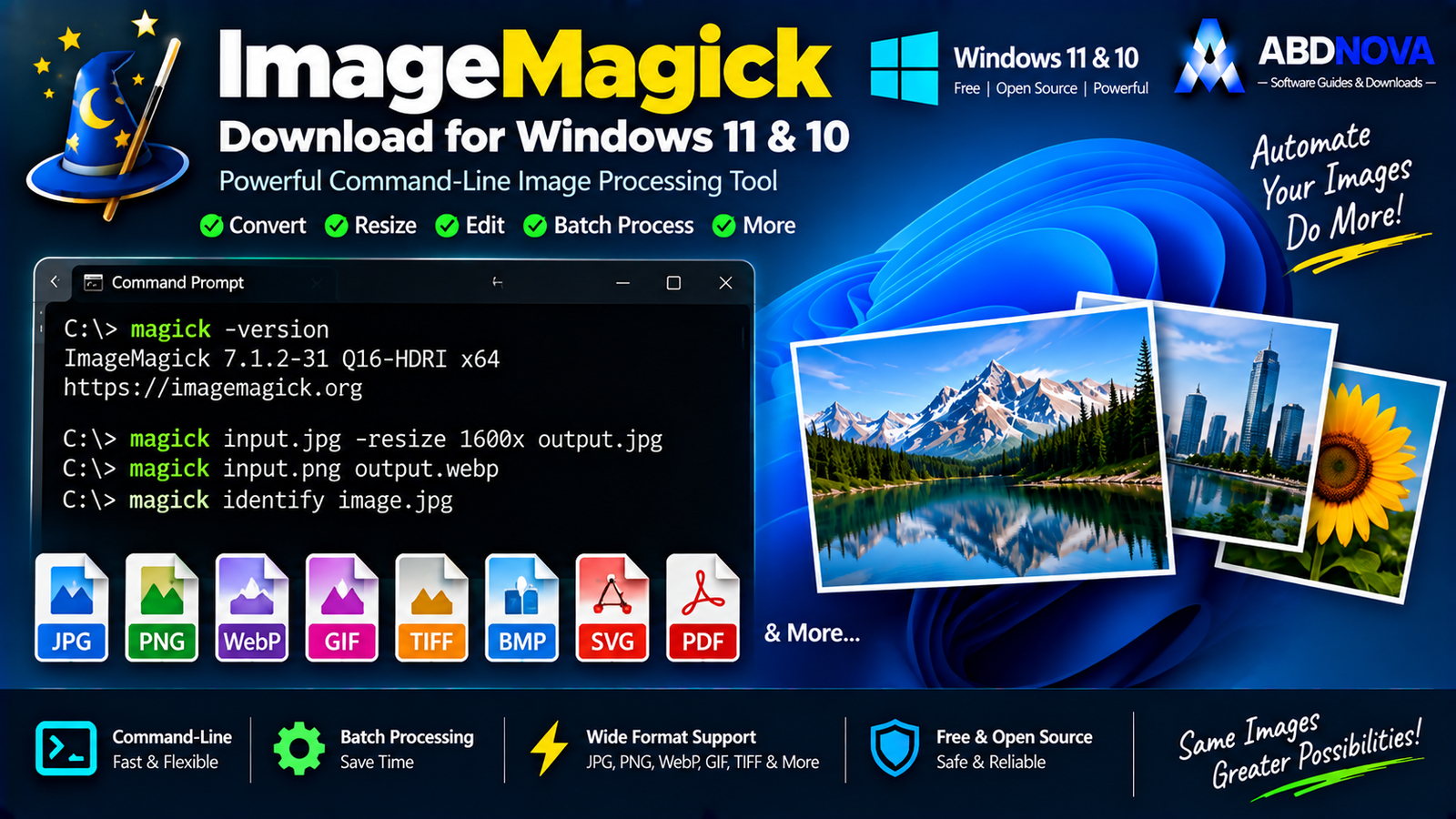
Download ImageMagick for Windows 11 and 10 to convert, resize, crop, compress, analyze, combine and automate image-processing tasks from the command line.
ImageMagick Download for Windows gives developers, website owners, administrators and advanced users a powerful free and open-source toolkit for automated image processing.
Unlike a traditional GUI photo editor, ImageMagick is built primarily around command-line tools such as magick, identify and mogrify.
It can convert formats, resize and crop images, compress files, strip metadata, rotate photos, add text and watermarks, create GIFs and montages, inspect image properties and process entire folders through scripts.
ImageMagick Download for Windows – Quick Overview
| Information | Details |
|---|---|
| Software | ImageMagick |
| Current Windows Version | 7.1.2-31 |
| Type | Image Processing / Conversion Toolkit |
| Windows 11 | Supported |
| Windows 10 | Supported |
| x64 | Yes |
| ARM64 | Yes |
| x86 | Yes |
| Installer | Yes |
| Portable | Yes |
| Command Line | Main workflow |
| GUI Photo Editor | No |
| Batch Processing | Excellent |
| Resize / Crop | Yes |
| Format Conversion | Yes |
| Compression | Yes |
| Watermarking | Yes |
| Image Analysis | Yes |
| Q8 / Q16 Builds | Yes |
| HDRI Builds | Yes |
| winget | Supported |
| License | Free & Open Source |
What Is ImageMagick?
ImageMagick is an open-source toolkit for creating, editing, composing, converting and analyzing digital images.
ImageMagick is especially useful for:
- Developers.
- Website administrators.
- System administrators.
- Designers.
- Photographers.
- Automated publishing workflows.
- Batch image conversion.
- Server-side image processing.
- Scripts and build pipelines.
The key difference from a normal photo editor is automation. Instead of opening every image manually, ImageMagick lets you describe the required operation with commands and repeat it across many files.
Which ImageMagick Windows Version Should You Download?
The official Windows page currently recommends the following package for most modern Intel or AMD 64-bit PCs:
x64
Use x64 for most current Intel and AMD Windows 11 or Windows 10 computers.
ARM64
ImageMagick also provides ARM64 builds for compatible Windows-on-ARM devices.
x86
32-bit x86 builds remain available, although most modern Windows PCs should use x64.
ImageMagick Q8 vs Q16
Q8
Q8 uses 8 bits per pixel component and generally consumes fewer system resources.
Q16
Q16 uses 16 bits per pixel component and preserves greater image precision when reading or writing 16-bit images.
It also requires approximately twice the resources of a Q8 build.
What Does HDRI Mean?
HDRI stands for High Dynamic Range Imaging.
HDRI-enabled builds allow intermediate pixel calculations with greater numerical range and precision.
DLL vs Static Build
DLL Build
DLL packages use ImageMagick libraries as dynamic-link libraries.
Static Build
Static packages include required components in a statically linked configuration.
For a normal 64-bit Windows installation, the official project recommends the DLL-based Q16-HDRI build.
ImageMagick Portable Version
ImageMagick also provides official portable archives that can be extracted and used without a traditional installer or normal Registry installation.
Portable choices include Q8, Q16 and Q16-HDRI builds for supported architectures.

How to Install ImageMagick on Windows
- Open the official ImageMagick download page.
- Scroll to Windows Binary Release.
- For most 64-bit PCs, choose the recommended Q16-HDRI x64 DLL installer.
- Download the EXE.
- Run the installer.
- Complete the installation options.
- Allow ImageMagick to be available from the command line where appropriate.
- Open Command Prompt or Windows Terminal.
Verify ImageMagick Installation
Run:
magick -version
You should see the installed ImageMagick version and build information.
You can also test ImageMagick with:
magick logo: logo.gifmagick identify logo.gif
If you frequently work from a modern command-line environment, see our Windows Terminal Download for Windows guide.
Install ImageMagick with winget
ImageMagick can also be installed through Windows Package Manager.
winget install ImageMagick.Q16-HDRIwinget install ImageMagick.Q16winget install ImageMagick.Q8

ImageMagick Command Line Explained
The modern ImageMagick command-line entry point is:
magick
A simple processing model is:
Convert JPG to PNG
magick photo.jpg photo.png
Convert PNG to WebP
magick image.png image.webpmagick image.png -quality 80 image.webp
Resize an Image
Resize a large photo to 1600 pixels wide while maintaining proportions:
magick photo.jpg -resize 1600x photo-small.jpg
Crop an Image
magick photo.jpg -crop 1200x630+0+0 cropped.jpg
This can be useful for automated featured-image, banner and thumbnail workflows.
Force Exact Dimensions
magick photo.jpg -resize 1200x630! output.jpg
Compress JPEG Images
magick input.jpg -quality 82 output.jpg
Lower quality usually reduces file size but can introduce more visible compression artifacts.
If you prefer a graphical Windows application specifically for easy batch image compression, see our Caesium Image Compressor Download for Windows guide.
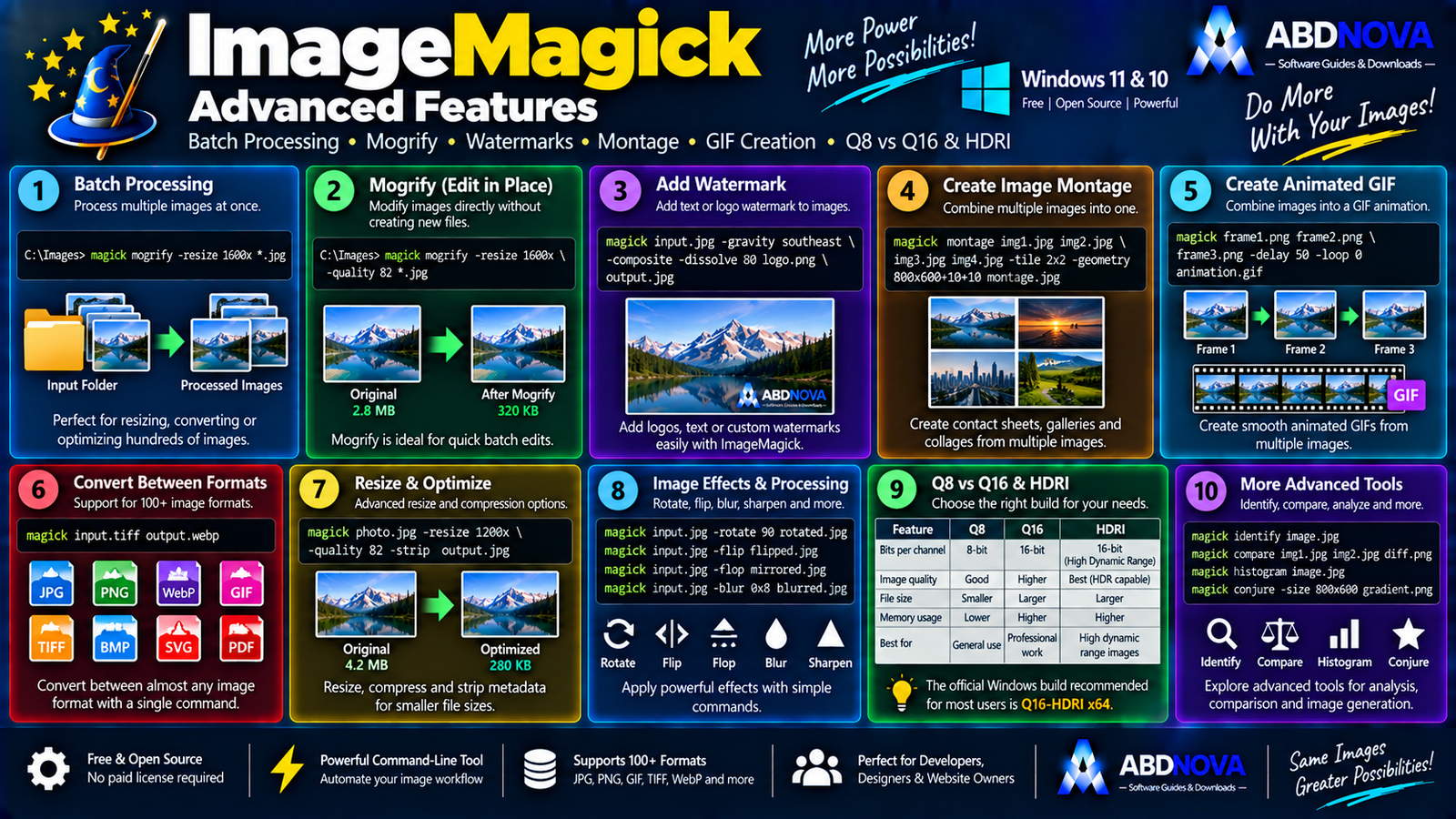
ImageMagick Advanced Features – Batch Processing, Metadata & Watermarks
Strip Metadata
Image files can contain camera, GPS, EXIF, software and other embedded information.
To remove profiles and comments:
magick input.jpg -strip output.jpg
Rotate an Image
magick photo.jpg -rotate 90 rotated.jpg
Flip and Flop
Vertical flip:
magick input.jpg -flip output.jpg
Horizontal mirror:
magick input.jpg -flop output.jpg
Add Text to Images
ImageMagick can automatically create:
- Watermarks.
- Labels.
- Captions.
- Dynamic thumbnails.
- Automated banners.
Add a Watermark
A common workflow is:
This is useful when a large library of website images must be branded automatically.
Batch Resize Multiple Images
The mogrify command is designed for modifying batches of images.
magick mogrify -resize 1600x *.jpg
Identify Image Information
magick identify photo.jpg
This can report details such as dimensions, format, color information and other file characteristics.

ImageMagick Formats, GIFs, Montages & Multi-Core Processing
Supported Image Formats
ImageMagick supports a very broad image-format ecosystem.
Common workflows include:
- JPEG.
- PNG.
- WebP.
- TIFF.
- GIF.
- BMP.
- SVG.
- ICO.
- PDF.
- HEIC / HEIF.
- AVIF.
- RAW-related workflows.
Create an Animated GIF
magick frame1.png frame2.png frame3.png animation.gif
Additional options can control frame timing, looping, optimization, dimensions and colors.
Create an Image Montage
ImageMagick can combine many pictures into a single sheet for:
- Contact sheets.
- Product grids.
- Screenshot comparisons.
- Before/after layouts.
- Thumbnail collections.
Multi-Core Processing
ImageMagick can automatically run suitable operations in parallel on multi-core systems.
Large high-resolution images can still consume significant RAM and CPU resources, so more memory is beneficial for demanding batch workloads.
ImageMagick Security Policy
The official project strongly recommends configuring an appropriate security policy for the environment where ImageMagick is used.
This becomes particularly important when:
- Processing user-uploaded files.
- Running ImageMagick on a web server.
- Accepting unknown or untrusted documents.
- Using external delegates.
- Automating untrusted input.

ImageMagick vs GraphicsMagick vs FFmpeg vs Caesium
| Feature | ImageMagick | GraphicsMagick | FFmpeg | Caesium |
|---|---|---|---|---|
| Image Conversion | Excellent | Excellent | Good | Good |
| Command Line | Excellent | Excellent | Excellent | GUI-focused |
| Batch Processing | Excellent | Excellent | Excellent | Excellent GUI workflow |
| Resize / Crop | Advanced | Advanced | Strong | Practical |
| Image Composition | Advanced | Advanced | Video-oriented | Limited |
| Watermarking | Advanced | Yes | Yes | Limited |
| Image Analysis | Advanced | Strong | Media-oriented | Basic |
| GIF / Animation | Yes | Yes | Yes | No |
| Video Processing | No | No | Excellent | No |
| Easy GUI | No | No | No | Yes |
| Automation | Excellent | Excellent | Excellent | Limited |
| Best For | Automated image processing | IM-style command-line workflows | Video/audio/media processing | Easy image compression |
ImageMagick is best when image conversion, manipulation and automation are the main goal.
For video, audio and broader media-processing automation, see our FFmpeg Download for Windows guide.
For users who want easy graphical image compression instead of command-line processing, see our Caesium Image Compressor Download for Windows guide.
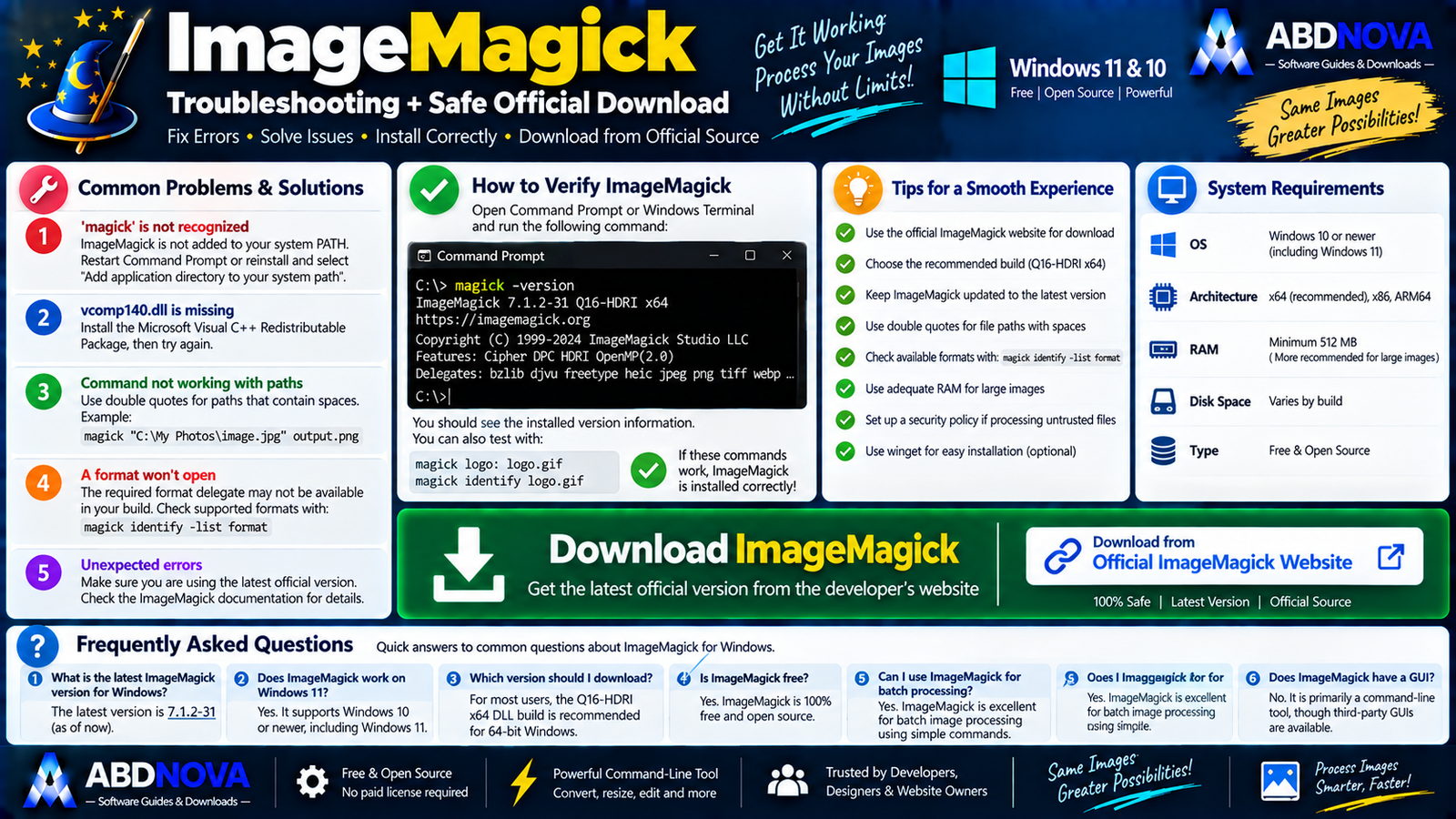
ImageMagick Troubleshooting
magick Is Not Recognized
Close and reopen Command Prompt or Windows Terminal after installation, then run:
magick -version
If the command is still unavailable, check whether ImageMagick is correctly available through PATH.
Missing vcomp140.dll
The official ImageMagick Windows documentation notes that affected systems may require the Microsoft Visual C++ Redistributable Package.
Commands Work Differently on Windows
Windows command-line paths should generally be enclosed in double quotes.
magick "C:\Pictures\image.png" "C:\Pictures\image.jpg"
File Path Contains Spaces
Always quote paths containing spaces:
magick "C:\My Photos\photo.jpg" "C:\Output Photos\photo.webp"
A Format Won’t Open
The required delegate or format support may not be available in the installed build.
Check:
magick -versionmagick identify -list format
Is ImageMagick Safe?
Yes, when downloaded from the official ImageMagick project and used with an appropriate configuration for your environment.
- ImageMagick Crack.
- ImageMagick Pro.
- ImageMagick Premium.
- Pre-Activated ImageMagick.
- Unknown modified builds.
ImageMagick itself is already freely available, so there is no legitimate reason to use a cracked or modified package.
Safe ImageMagick Download for Windows
The safest source for ImageMagick Download for Windows is the official ImageMagick website.
Use the official ImageMagick download page and select the appropriate Windows binary release.
Frequently Asked Questions
What is the latest ImageMagick version for Windows?
The current Windows release verified for this article is ImageMagick 7.1.2-31.
Does ImageMagick work on Windows 11?
Yes. ImageMagick supports Windows 10 or newer, including Windows 11.
Does ImageMagick work on Windows 10?
Yes. Windows 10 is officially supported.
Which ImageMagick build should most Windows users download?
The official project currently recommends the Q16-HDRI x64 DLL build for most 64-bit Windows PCs.
Does ImageMagick support ARM64 Windows?
Yes. Official ARM64 Windows builds are available.
Is ImageMagick portable?
Yes. Official portable archives are available for supported Windows architectures.
Can ImageMagick resize images?
Yes. Resizing is one of ImageMagick’s core capabilities.
Can ImageMagick convert JPG to WebP?
Yes, when WebP support is available in the installed build.
Can ImageMagick compress images?
Yes. ImageMagick provides quality and format options that can be used to optimize JPEG, WebP and other supported images.
Can ImageMagick batch-process images?
Yes. Batch and scripted processing are among its strongest features.
Does ImageMagick have a normal photo-editing GUI?
No. ImageMagick is primarily a command-line and API-driven image-processing toolkit rather than a conventional graphical photo editor.
Is ImageMagick free?
Yes. ImageMagick is free and open-source software.
Final Thoughts
ImageMagick Download for Windows is one of the most flexible options for users who want to automate image processing rather than perform every task manually in a graphical editor.
Its ability to convert, resize, crop, compress, rotate, inspect, compose, watermark, batch-process and generate image outputs from scripts makes it especially valuable for developers, website administrators, automated content pipelines and advanced Windows users.
For most modern Intel or AMD Windows PCs, use the current official Q16-HDRI x64 DLL build unless you have a specific requirement for another architecture or precision configuration.
Ready to download ImageMagick?
Get the current Windows installer or portable package directly from the official ImageMagick website. ABDNOVA recommends official sources only.


