


OpenShot Download for Windows – Free Video Editor for PC

Download OpenShot for Windows 11 and 10 to edit videos with multi-track timelines, transitions, effects, keyframes, titles, color tools and flexible export options.
OpenShot Download for Windows gives Windows 11 and Windows 10 users a free and open-source video editor with an approachable interface and a useful collection of editing tools.
OpenShot combines timeline editing, multiple tracks, transitions, video and audio effects, titles, keyframe animation, color controls and flexible exporting without requiring a paid subscription.
The newer OpenShot 4.0 release also introduces built-in screen, webcam, microphone and system-audio recording, improved color grading with wheels and curves, LUT support, video scopes and locally processed machine-learning subject isolation.
OpenShot Download for Windows – Quick Overview
| Information | Details |
|---|---|
| Software | OpenShot Video Editor |
| Current Stable Release | OpenShot 4.0 |
| Release Date | August 30, 2026 |
| Type | Video Editor |
| License | Free & Open Source |
| Windows 11 | Supported |
| Windows 10 | Supported |
| 64-bit Windows | Yes |
| 32-bit Installer | Available from official download page |
| Timeline Editing | Yes |
| Multiple Tracks | Yes |
| Transitions | Yes |
| Keyframe Animation | Yes |
| Video & Audio Effects | Yes |
| Titles | Yes |
| Color Grading | Improved in OpenShot 4.0 |
| Screen Recording | New in 4.0 |
| Webcam / Microphone Recording | New in 4.0 |
| Subscription Required | No |
| Official Source | OpenShot.org |
What Is OpenShot?
OpenShot is a cross-platform, open-source nonlinear video editor designed for users who want more control than a basic cutter without immediately moving to a complex professional editing suite.
OpenShot can be used for:
- YouTube videos.
- Tutorials.
- Family videos.
- Presentations.
- Social-media videos.
- Product videos.
- Slideshows.
- Educational content.
- Screen-recorded tutorials.
- Basic to intermediate editing projects.
Unlike editors built mainly around premium templates and subscription-based AI features, OpenShot’s main editor is completely free and open source.
OpenShot System Requirements
| Component | Minimum | Better for Editing |
|---|---|---|
| Operating System | 64-bit Windows | Windows 10/11 64-bit |
| Processor | 64-bit multi-core x86-64 | 6+ cores recommended |
| CPU Speed | About 2.7 GHz turbo | 3.4 GHz+ recommended |
| RAM | 4 GB | 16 GB+ recommended |
| Installation Storage | About 1 GB | SSD recommended |
| Media Storage | Depends on project | Large SSD recommended |
Basic editing can work on modest hardware. High-resolution footage, many tracks, multiple effects, long projects and disk caching benefit from additional RAM, faster multi-core processing and SSD storage.
OpenShot Free EXE vs Microsoft Store
Free EXE Installer
The official OpenShot website provides direct Windows installers.
For most current Windows PCs, choose the 64-bit EXE installer. A 32-bit installer is also listed on the official download page.
The free EXE version contains the normal OpenShot features and uses manual updating.
Microsoft Store
OpenShot also offers a Microsoft Store version for Windows 10 and Windows 11 with easier installation and automatic updates.

How to Install OpenShot on Windows
- Open the official OpenShot download page.
- Select the Windows section.
- Choose the 64-bit EXE installer for most Windows 11 and Windows 10 PCs.
- Download the installer.
- Open the downloaded EXE file.
- Follow the setup instructions.
- Finish installation.
- Launch OpenShot from the Start menu or desktop shortcut.
How to Edit Your First Video with OpenShot
- Launch OpenShot.
- Import your video, images and audio.
- Drag the main video onto a timeline track.
- Arrange the clips in the correct order.
- Trim or slice unwanted sections.
- Add music on another track.
- Add titles where needed.
- Add transitions or effects.
- Preview the complete project.
- Select Export Video.
The basic workflow is:
Import → Timeline → Edit → Preview → Export

OpenShot Main Interface, Timeline & Project Files
Project Files
The Project Files area contains the video, audio and image files imported into your project.
Video Preview
The Preview Window displays the current result while you edit.
Timeline
The timeline is where most editing takes place.
You can arrange:
- Video.
- Images.
- Audio.
- Titles.
- Transitions.
- Effects.
Tracks
Tracks allow multiple elements to be layered.
Example multi-track layout:
- Track 3: Text or title.
- Track 2: Main video.
- Track 1: Background music.
Transitions & Effects Panels
OpenShot includes panels for Project Files, Transitions, Effects and other editing resources.
Properties
The Properties panel lets you modify selected clips, effects and transitions.
OpenShot also supports customizable dockable panels, allowing the editing workspace to be rearranged according to your preference.

OpenShot Video Editing – Timeline, Keyframes, Transitions & Effects
Multi-Track Timeline Editing
OpenShot’s timeline allows clips and other project elements to overlap and interact.
You can:
- Move clips.
- Trim clips.
- Slice clips.
- Layer media.
- Add audio.
- Position titles.
- Add effects.
- Add transitions.
- Adjust timing.
- Animate properties.
OpenShot Transitions
Transitions help move visually between scenes.
OpenShot supports effects such as fades and wipes, and overlapping two clips can automatically create a transition between them.
OpenShot Effects
OpenShot 4.0 documents dozens of built-in video and audio effects that can modify image appearance, color, brightness, contrast, audio, masks and other visual properties.
Many effect properties can also be animated using keyframes.
OpenShot Keyframe Animation
Keyframes allow properties to change over time rather than remaining fixed.
They can be used for:
- Position.
- Scale.
- Rotation.
- Opacity.
- Effects.
- Motion.
- Zooms.
- Animated overlays.
Titles & Text
OpenShot includes an SVG-based Title Editor with templates.
You can create:
- Intro titles.
- Lower thirds.
- Names.
- Headings.
- Credits.
- Text overlays.
Export Videos from OpenShot
When editing is complete:
Export Video → Choose settings → Export Video
OpenShot’s default export workflow produces a broadly compatible MP4 using H.264 video and AAC audio.
Advanced export options can control:
- Video profile.
- Resolution.
- Frame rate.
- Output format.
- Video codec.
- Audio codec.
- Quality.
- Advanced encoding settings.
For more advanced media conversion, encoding and codec workflows, see our FFmpeg Download for Windows guide.

OpenShot 4.0 Features – Recording, Color View & ML Tools
OpenShot 4.0 is a significant update that expands the editor beyond its older basic workflow.
Built-in Screen, Webcam & Audio Recording
OpenShot 4.0 can record:
- Screen.
- Webcam.
- Microphone.
- System audio.
This is particularly useful for software tutorials, educational content, demonstrations, presentations and voice-over projects.
A tutorial creator can potentially use one workflow:
Record Screen → Add to Project → Edit → Add Titles/Music → Export
New Color View
OpenShot 4.0 introduces a dedicated Color View with stronger correction and grading capabilities.
Tools include:
- Color wheels.
- Curves.
- LUTs.
- Video scopes.
- Color presets.
These tools give users more control over exposure, color balance, tonal adjustments and creative looks without moving to a more complex professional editor.
ML-Powered Subject Isolation
OpenShot 4.0 adds locally processed machine-learning models for subject isolation.
The local-processing approach allows some intelligent editing workflows without making the software primarily dependent on cloud-based AI processing.
Creative Effects
The OpenShot 4.0 release also expands creative workflows with tools for animated audio visualization, cinematic looks and other effects.
Can OpenShot Edit 4K Video?
Yes, but practical editing performance depends on the computer.
4K footage requires more CPU performance, RAM, storage bandwidth and free disk space than basic 1080p editing.
For demanding projects, OpenShot recommends significantly stronger hardware than the minimum requirements, including 16 GB or more RAM and fast SSD storage.
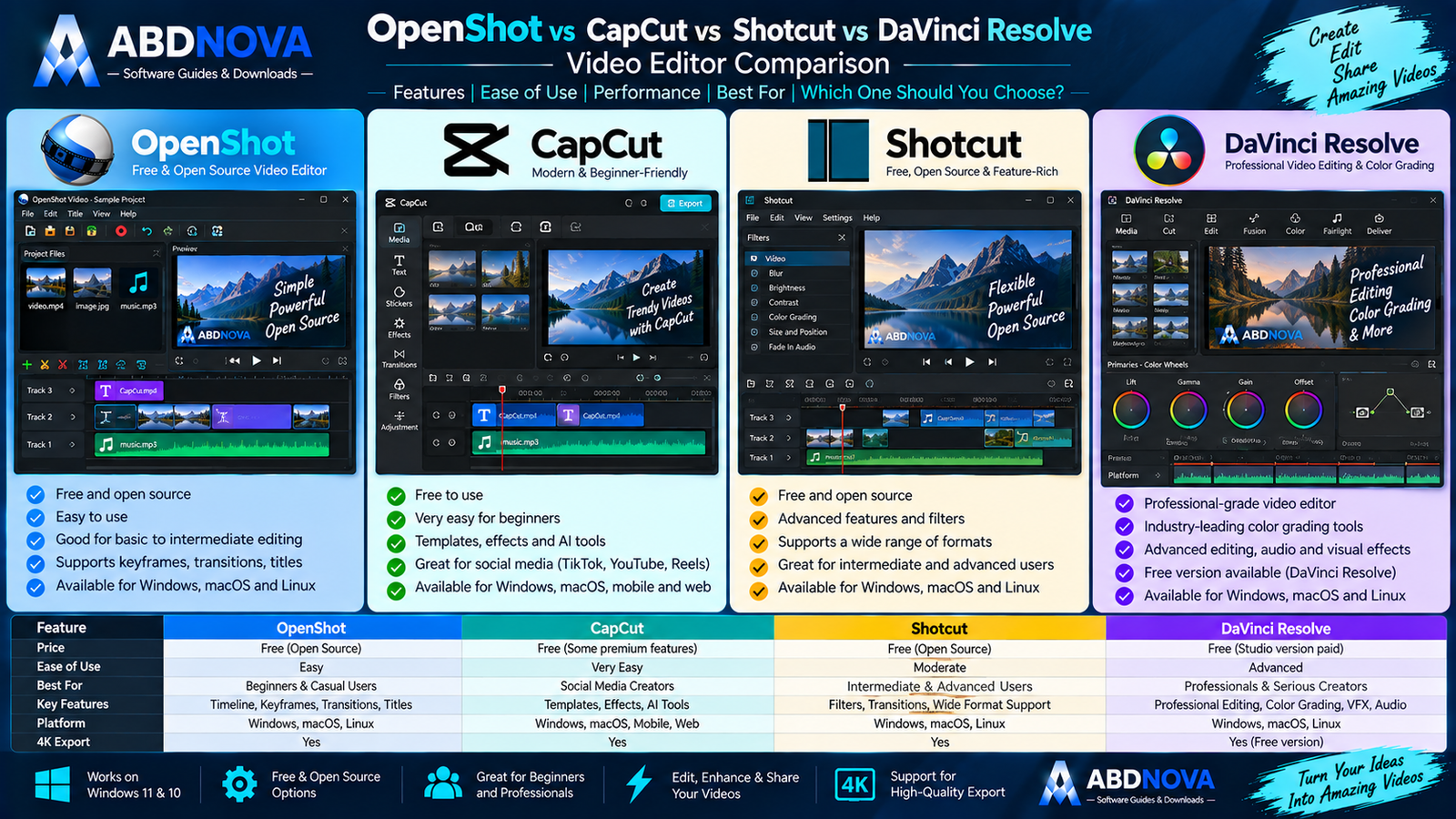
OpenShot vs CapCut vs Shotcut vs DaVinci Resolve
| Feature | OpenShot | CapCut | Shotcut | DaVinci Resolve |
|---|---|---|---|---|
| Beginner Friendly | Excellent | Excellent | Moderate | More advanced |
| Free Version | Yes | Yes | Yes | Yes |
| Open Source | Yes | No | Yes | No |
| Timeline Editing | Yes | Yes | Yes | Yes |
| Keyframes | Yes | Yes | Yes | Yes |
| Transitions | Yes | Yes | Yes | Yes |
| AI-Focused Editing | Limited / local ML | Strong | Limited | Strong professional tools |
| Color Tools | Much improved in 4.0 | Good | Good | Excellent |
| Screen Recording | Built-in in 4.0 | Feature-dependent | Different workflow | Different workflow |
| Social Media Focus | Good | Excellent | Good | Excellent |
| Subscription Required | No | No for basic use | No | No for free edition |
| Best For | Beginner/general open-source editing | Social/AI editing | Flexible open-source editing | Professional post-production |
OpenShot vs CapCut
OpenShot is a good choice when you want a completely open-source editor with traditional timeline editing and no requirement for a Pro subscription.
CapCut is stronger for trend-driven social-media creation, templates and AI-assisted workflows.
For the social-media-focused alternative, see our CapCut Download for Windows guide.
OpenShot vs Shotcut
Both OpenShot and Shotcut are free and open source.
OpenShot is generally easier for beginners, while Shotcut can appeal to users who want a more technical desktop editing workflow and deeper configuration.
OpenShot vs DaVinci Resolve
DaVinci Resolve is designed for much deeper professional editing, color grading, audio and post-production workflows.
OpenShot is easier to learn and more suitable when you want straightforward general editing without the complexity of a professional suite.
Is OpenShot Good for Beginners?
Yes. OpenShot is especially suitable for beginners because its basic workflow is easy to understand:
Import → Drag to Timeline → Edit → Preview → Export
Is OpenShot Good for YouTube?
Yes. OpenShot can handle regular videos, tutorials, educational content, product videos, slideshows, voice-over videos, screen-recorded tutorials and intro/outro creation.

OpenShot Troubleshooting
OpenShot Is Lagging
Try:
- Close unnecessary applications.
- Reduce demanding preview workloads.
- Use optimized preview media where appropriate.
- Move source footage to an SSD.
- Free disk space.
- Update OpenShot.
- Avoid excessive effects during the early editing stage.
OpenShot Won’t Open
Restart Windows and make sure you are using the latest stable OpenShot version.
If problems started after upgrading, OpenShot documentation also provides reset or clean-install troubleshooting for damaged or incompatible previous configuration settings.
Missing Interface Panels
If a panel is accidentally closed or moved, use:
View → Views → Simple View
to restore a standard interface layout.
Video Won’t Export
Try the default export configuration first.
Also check:
- Available disk space.
- Output folder.
- Source media files.
- Project profile.
- Export resolution.
- Whether a particular clip or effect causes the problem.
A short test export can help determine whether the problem affects OpenShot generally or only one project.
Is OpenShot Safe?
Yes, when downloaded directly from OpenShot’s official website.
- OpenShot Crack.
- OpenShot MOD.
- OpenShot Premium.
- OpenShot Pro Activated.
- Modified OpenShot.
- Repacked OpenShot.
The official OpenShot editor is already free and open source, so there is no legitimate reason to download a cracked or modified version.
Safe OpenShot Download for Windows
The safest source for OpenShot Download for Windows is the official OpenShot website.
Use the official OpenShot download page and choose the latest stable Windows installer rather than a Daily Build unless you specifically need development testing.
Frequently Asked Questions
Does OpenShot work on Windows 11?
Yes. OpenShot supports current 64-bit Windows systems including Windows 11.
Does OpenShot work on Windows 10?
Yes. Windows 10 is supported, and OpenShot also provides a Microsoft Store option for Windows 10 and Windows 11.
Is OpenShot free?
Yes. The official OpenShot EXE installer is free and open source.
What is the latest stable OpenShot version?
The current stable release is OpenShot 4.0, released August 30, 2026.
Does OpenShot have keyframes?
Yes. OpenShot supports keyframe animation for properties such as position, scale, rotation, opacity, effects and motion.
Does OpenShot support transitions?
Yes. OpenShot includes transitions, and overlapping two clips can automatically create a transition.
Can OpenShot record my screen?
Yes. OpenShot 4.0 adds integrated screen, webcam, microphone and system-audio recording.
Does OpenShot have color grading?
Yes. OpenShot 4.0 introduces Color View with color wheels, curves, LUTs, presets and video scopes.
Can OpenShot edit 4K video?
Yes, although smooth 4K editing depends heavily on CPU performance, RAM, storage speed, project complexity and available disk space.
Can OpenShot export MP4?
Yes. OpenShot’s normal default export creates an MP4 with H.264 video and AAC audio.
Is OpenShot open source?
Yes. OpenShot is free and open-source video-editing software.
Where should I download OpenShot?
Use the official OpenShot website and select the latest stable Windows installer.
Is OpenShot safe?
Yes, when downloaded directly from the official OpenShot project.
Final Thoughts
OpenShot Download for Windows is a strong choice for Windows 11 and Windows 10 users who want a capable video editor without paying for a subscription or dealing with an overly complex professional interface.
OpenShot 4.0 significantly expands the editor with built-in screen and webcam recording, stronger color grading, LUTs, scopes and locally processed ML tools while keeping its familiar timeline-based editing workflow.
For beginners, YouTube creators, tutorial makers and everyday video projects, OpenShot provides a useful balance between simplicity and editing control while remaining completely free and open source.
Ready to download OpenShot?
Download the original, unmodified OpenShot Windows installer obtained from the official OpenShot release.


