


PyCharm Download for Windows 11 & 10

Download PyCharm for Windows 11 and Windows 10 to write, run, debug, test, and manage Python projects with virtual environments, packages, Git, Jupyter, and JetBrains development tools.
PyCharm Download for Windows gives Python developers a complete integrated development environment from JetBrains for writing, running, debugging, testing, and managing Python projects.
Instead of simply editing .py files, PyCharm understands project structure, Python interpreters, dependencies, environments, imports, functions, classes, packages, and frameworks.
This allows it to provide intelligent code completion, inspections, refactoring, debugging, package management, virtual environments, Git integration, terminal access, testing tools, and Jupyter Notebook support in one application.
The current stable release is PyCharm 2026.2.1.
PyCharm Download for Windows – Quick Overview
| Information | Details |
|---|---|
| Software | PyCharm |
| Developer | JetBrains |
| Current Version | 2026.2.1 |
| Software Type | Python IDE |
| Windows 11 | Supported |
| Windows 10 | Supported |
| x86-64 | Supported |
| ARM64 | Supported |
| Core Features | Free |
| Pro Features | Subscription |
| Pro Trial | 30 Days |
| Jupyter Notebook | Included in Free Core |
| Python 3 Support | 3.9–3.15 |
| Python 2 | 2.7 with Limitations |
| Debugger | Yes |
| Virtual Environments | Yes |
| Package Management | Yes |
| Git Integration | Yes |
| Integrated Terminal | Yes |
| Plugins | Yes |
| Official Source | JetBrains |
What Is PyCharm?
PyCharm is JetBrains’ dedicated IDE for Python development.
PyCharm is useful for:
- Python programming.
- Web development.
- Data science.
- Jupyter Notebooks.
- Automation scripts.
- Testing and debugging.
- Package and dependency management.
- Git-based projects.
- Django and Flask development with applicable Pro features.
Its biggest advantage over a basic editor is project awareness. PyCharm understands Python code relationships and can use that information for completion, inspections, navigation, refactoring, debugging, and environment management.
PyCharm Free vs Pro – Important Change
Older tutorials often describe separate PyCharm Community Edition and PyCharm Professional Edition downloads.
That is no longer the current product model.
Starting with PyCharm 2025.1, JetBrains moved to a single unified PyCharm product.
Free Core Features
PyCharm’s essential Python-development functionality remains free, including Jupyter Notebook support.
PyCharm Pro
Advanced professional functionality is available through a Pro subscription.
30-Day Pro Trial
New installations automatically include a 30-day Pro trial. When the trial ends, you can subscribe or continue using the free core functionality.
PyCharm System Requirements
| Requirement | Details |
|---|---|
| Processor | x86-64 or ARM64, 4 cores |
| Total RAM | 8 GB |
| RAM Available to IDE | 3 GB |
| Disk Space | 10 GB |
| Display | 1280 × 720 or Higher |
| Windows | Windows 10 / Windows 11 |
For larger Python projects, Docker workloads, databases, Jupyter notebooks, and data-science environments, additional RAM and SSD storage can provide a smoother experience.
Does PyCharm Include Python?
No. PyCharm and Python are different things.
PyCharm is the development environment.
Python is the programming language runtime and interpreter.
To develop Python applications, you need a supported Python interpreter configured in PyCharm.
If Python is not installed yet, follow our Python Download for Windows guide to install Python on Windows 11 or 10 before configuring the interpreter in PyCharm.
Run PyCharm → no separate Java installation required
Run Python code → Python interpreter required
Supported Python Versions
Current PyCharm 2026.2 documentation supports Python 3.9 through Python 3.15. Legacy Python 2.7 support remains limited.
For new projects, use a currently supported Python 3 release compatible with your libraries and deployment environment.
How to Install PyCharm on Windows & Set Up Python

Step 1: Download PyCharm
Open JetBrains’ official PyCharm download page and select Windows.
Step 2: Choose the Correct Architecture
Most Intel and AMD PCs use the normal x86-64 Windows installer. JetBrains also provides ARM64 support for compatible Windows-on-ARM devices.
Step 3: Run the Installer
Open the downloaded EXE and verify that it came from JetBrains before approving the Windows security prompt.
Step 4: Choose Installation Options
Depending on the installer version, available Windows integration options may include shortcuts, file associations, context-menu integration, and command-line launcher support.
Step 5: Complete Installation
Finish setup and launch PyCharm from the Start menu or desktop shortcut.
Step 6: Install or Configure Python
Make sure an appropriate Python interpreter is installed and available for the project.
Create Your First Python Project
- Open PyCharm.
- Select New Project.
- Choose a Pure Python project.
- Select the project location.
- Configure the Python interpreter or environment.
- Create the project.
- Create a file named main.py.
Enter:
print("Hello, ABDNOVA!")Run the file with the Run button. The output should appear in the Run tool window.
PyCharm Main Interface & Python Development Workspace

Project Tool Window
The Project view displays folders, Python files, packages, configuration files, and other project resources.
Code Editor
The editor provides syntax highlighting, completion, inspections, formatting, quick fixes, navigation, and refactoring.
Run Tool Window
When you execute Python code, the Run tool window displays program output, errors, exit codes, and execution details.
Debug Tool Window
The debugger provides breakpoints, variable inspection, watches, frames, call stacks, and step controls.
Integrated Terminal
PyCharm includes an integrated terminal so you can run Python, pip, Git, virtual-environment, testing, Docker, and other commands without constantly switching applications.
If you prefer a dedicated multi-tab command-line environment outside the IDE, see our Windows Terminal Download for Windows guide.
PyCharm Code Completion, Refactoring & Inspections
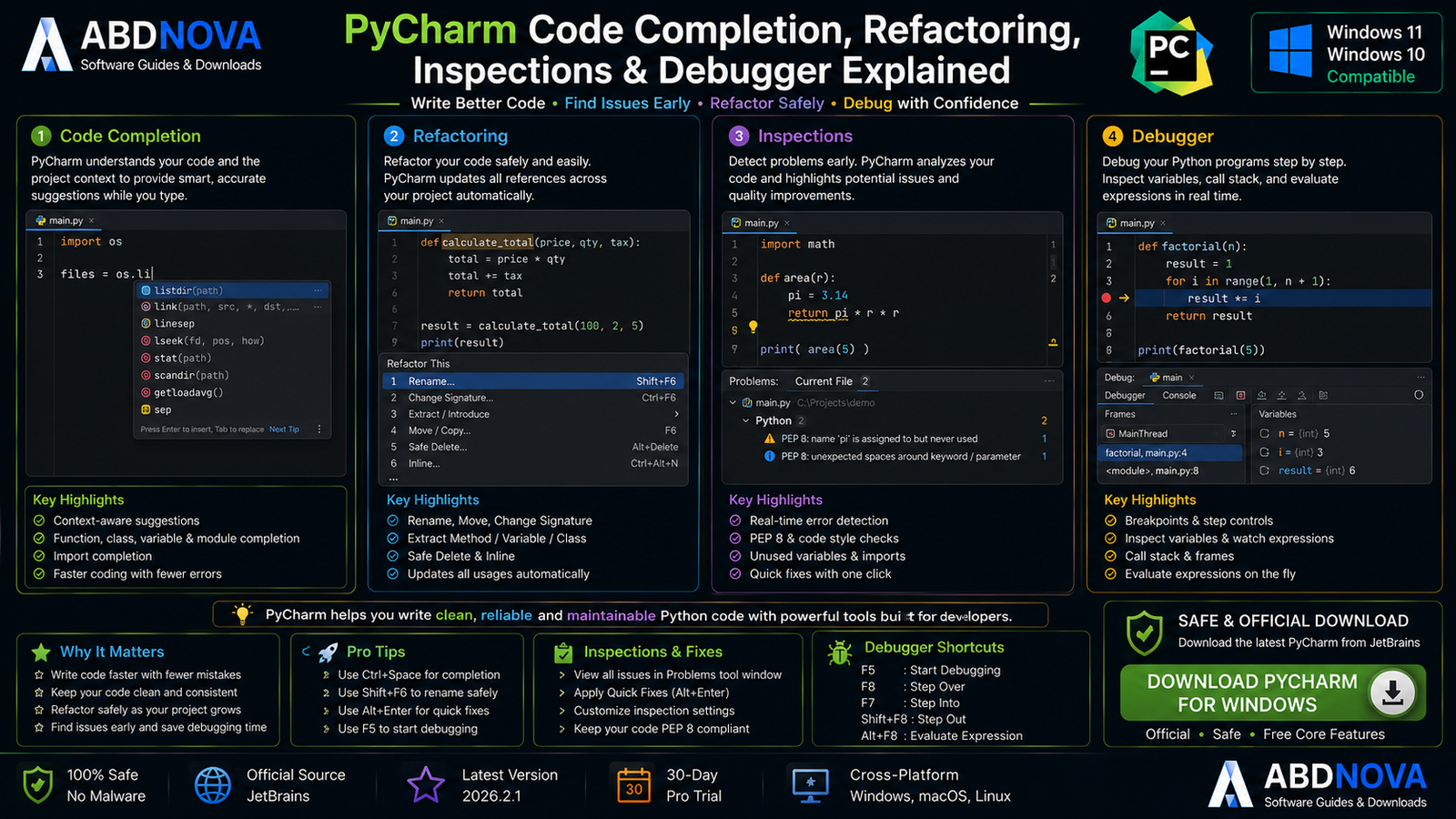
Smart Code Completion
PyCharm analyzes your Python code and project context to provide relevant completion suggestions.
Instead of only matching text, it can use its understanding of variables, functions, classes, imports, packages, and types.
Code Inspections
PyCharm continuously checks code and can identify:
- Syntax errors.
- Unresolved references.
- Type problems.
- Unused imports.
- Duplicate code.
- Style issues.
- Suspicious code.
Many warnings include quick fixes.
Refactoring
Common PyCharm refactoring operations include:
- Rename.
- Move.
- Extract Method.
- Extract Variable.
- Change Signature.
- Inline.
- Safe Delete.
Because PyCharm understands Python project relationships, these operations are generally safer than blind text replacement.
PyCharm Debugger
Instead of relying entirely on print statements, you can set breakpoints and inspect a program while it is running.
The debugger can help inspect variable values, program flow, function calls, expressions, and stack frames step by step.
PyCharm 2026.2 uses debugpy as the default debugger engine for Python projects and Jupyter notebooks.
PyCharm Virtual Environments, pip, Packages, Git & Jupyter

Python Virtual Environments
Different Python projects often need different package versions.
For example:
Project A: one Django version
Project B: another Django version
Virtual environments isolate each project’s interpreter and dependencies, reducing conflicts between projects.
PyCharm can work with multiple Python interpreters and environments and lets each project use its appropriate environment.
Python Package Management
PyCharm includes a Python Packages tool window for inspecting and managing packages for the selected interpreter.
For standard Python environments, pip can be used for package installation. Conda environments can use Conda.
requirements.txt
Many Python projects define dependencies in:
requirements.txtFor example:
requests
flask
pandas
pyproject.toml
Modern Python projects increasingly use:
pyproject.tomlPyCharm understands modern dependency-management workflows and provides support for tools such as Poetry and uv.
uv, Poetry & Hatch Workspaces
PyCharm 2026.2 includes improved multi-project workspace support for uv, Poetry, and Hatch.
This is particularly useful for monorepos or groups of related Python packages.
Git Integration
Common Git workflows are integrated into PyCharm, including:
- Viewing changed files.
- Reviewing diffs.
- Committing changes.
- Working with branches.
- Pulling and pushing.
- Resolving conflicts.
- Viewing history.
Jupyter Notebook Support
Jupyter Notebook support is now part of PyCharm’s free core functionality.
This is useful for data analysis, machine learning, education, research, experimentation, and visualization.
Django, Flask & Web Development
PyCharm can also support professional Python web-development workflows. Advanced framework tooling for technologies such as Django and Flask is available through applicable Pro functionality.
Docker Development
Python applications are often packaged and tested in containers. If your workflow uses Docker, see our Docker Desktop Download for Windows guide for containers, Docker Compose, WSL 2, volumes, and local development.
Testing & Plugins in PyCharm
Integrated Testing
PyCharm helps developers run tests, debug tests, inspect failures, navigate between tests and source code, and review test results from inside the IDE.
Plugins
PyCharm can be extended through the JetBrains Marketplace with themes, languages, productivity features, development integrations, and specialized tools.
What’s New in PyCharm 2026.2
The PyCharm 2026.2 generation includes several improvements for modern Python development.
- debugpy as the default debugger engine.
- Editor minimap.
- Pyrefly integration for faster type insights.
- Improved uv, Poetry, and Hatch workspaces.
- Better Python code insight and refactoring.
- Updated package-management experience.
- Rust plugin support for Python extensions in applicable Pro workflows.
PyCharm 2026.2.1 also includes additional Jupyter-related improvements and maintenance fixes.
PyCharm vs VS Code vs IDLE vs IntelliJ IDEA

PyCharm vs VS Code
| Feature | PyCharm | VS Code |
|---|---|---|
| Main Focus | Python IDE | Multi-Language Editor |
| Python Experience | Built Around Python | Extension-Based |
| Code Completion | Excellent | Strong with Extensions |
| Refactoring | Excellent | Strong |
| Debugger | Built In | Extension-Supported |
| Virtual Environments | Integrated | Supported |
| Package Management | Integrated | Terminal / Extensions |
| Jupyter | Integrated | Extension-Based |
| Git | Integrated | Integrated |
| Resource Usage | Higher | Generally Lighter |
| Best For | Dedicated Python Development | Flexible Multi-Language Work |
PyCharm vs IDLE
IDLE is suitable for basic Python learning, small scripts, and simple experiments.
PyCharm is more appropriate for larger projects, debugging, refactoring, virtual environments, package management, Git, testing, web development, and data-science workflows.
PyCharm vs IntelliJ IDEA
Both are JetBrains IDEs, but they focus on different primary ecosystems.
PyCharm: primarily Python development.
IntelliJ IDEA: primarily Java, Kotlin, and JVM development.
If Python is the center of your workflow, PyCharm usually provides the more focused experience.
For Java development, another popular open-source option is Eclipse. See our Eclipse IDE download for Windows guide for installation, Java setup, plugins, debugging, and workspace configuration.
Is PyCharm Free?
Yes. PyCharm’s core functionality is free.
The unified PyCharm installation includes a 30-day Pro trial. After the trial ends, users can purchase a Pro subscription or continue using the free core features.
This means current PyCharm should no longer be described simply as separate Community and Professional downloads.
Is PyCharm Safe?
Yes. The genuine PyCharm installer downloaded directly from JetBrains is legitimate development software.
Because the core PyCharm experience is legitimately free, there is no reason to use a cracked or modified installer.
PyCharm Troubleshooting
PyCharm Won’t Start
Restart Windows, update to the latest stable PyCharm release, disable recently installed plugins, check available RAM and disk space, and reinstall from JetBrains if necessary.
Python Interpreter Not Found
Installing PyCharm does not automatically guarantee that a usable Python interpreter is configured for your project.
Install a supported Python version and configure it as the project’s interpreter.
Package Is Installed but Import Doesn’t Work
A common cause is installing a package into a different Python environment.
Check which interpreter the project is using and verify that the package is installed into that same environment.
PyCharm Is Slow
Try:
- Allowing initial indexing to finish.
- Closing unused projects.
- Removing unnecessary plugins.
- Closing memory-heavy applications.
- Using SSD storage.
- Keeping PyCharm updated.
Virtual Environment Isn’t Working
Check the interpreter path, environment location, project interpreter selection, installed dependencies, and Python-version compatibility.
If necessary, create a new environment and reinstall the project’s required dependencies.
Jupyter Notebook Won’t Run
Check the selected Python environment, required Jupyter packages, kernel/interpreter, project dependencies, and PyCharm version.
How to Update PyCharm
PyCharm normally checks for updates automatically and many updates are applied as patches followed by an IDE restart.
JetBrains Toolbox can also manage PyCharm installations and updates.
How to Uninstall PyCharm
On Windows, PyCharm can normally be removed through:
Settings → Apps → Installed apps → PyCharm → Uninstall
If you also want to remove project-independent caches or configuration data, review JetBrains’ official uninstall documentation before deleting folders manually.

Safe PyCharm Download – Important
Always download PyCharm directly from JetBrains.
Official source: JetBrains PyCharm for Windows.
- PyCharm Crack.
- PyCharm Professional Crack.
- JetBrains License Key Generator.
- Pre-Activated PyCharm.
- Patched PyCharm.
- Modified PyCharm Installer.
- Unofficial repacks.
- Torrent or unknown third-party downloads.
The official unified PyCharm product already provides free core functionality plus a 30-day Pro trial.
Frequently Asked Questions
What is the latest PyCharm version?
The current stable release is PyCharm 2026.2.1.
Does PyCharm support Windows 11?
Yes. Windows 11 is officially supported.
Does PyCharm support Windows 10?
Yes. Windows 10 is officially supported.
Is PyCharm free?
Yes. Core functionality is free, while advanced Pro functionality requires a subscription after the trial period.
Is PyCharm Community Edition still separate?
No. PyCharm is now a unified product, and the essential Community functionality is part of the free core.
Does PyCharm include a Pro trial?
Yes. New installations include a 30-day Pro trial.
Can I keep using PyCharm after the Pro trial?
Yes. You can continue using the free core functionality after the trial expires.
Does PyCharm include Python?
No. Install or configure an appropriate Python interpreter for Python development.
Do I need Java to run PyCharm?
No. JetBrains Runtime is bundled with PyCharm.
Does PyCharm support Python 3.15?
Yes. Current documentation lists Python 3.9 through Python 3.15 as supported Python 3 versions.
Does PyCharm support ARM64 Windows?
Yes. Current JetBrains system requirements include Windows ARM64 support.
Does PyCharm support virtual environments?
Yes. PyCharm can manage project-specific Python interpreters and virtual environments.
Does PyCharm support pip?
Yes. PyCharm can manage packages for Python environments using pip and other supported package-management workflows.
Does PyCharm support Jupyter Notebook?
Yes. Jupyter support is included in the current free core functionality.
Is PyCharm good for beginners?
Yes. Beginners can create and run simple Python projects while gradually learning debugging, environments, packages, Git, testing, and other IDE features.
PyCharm or VS Code – which should I use?
Choose PyCharm when Python is the center of your workflow. VS Code may be preferable if you want a lighter editor and regularly work across many different languages.
Is PyCharm safe?
Yes, when downloaded directly from JetBrains and used with trusted plugins and project files.
Final Thoughts
PyCharm is one of the strongest Windows development environments for users whose primary programming language is Python.
It combines intelligent code completion, inspections, refactoring, debugging, virtual environments, package management, Git integration, terminal access, testing, Jupyter support, plugins, and modern Python tooling inside one IDE.
The current unified product model also makes the choice simpler. You install one PyCharm product, receive a 30-day Pro trial, and can continue using the free core functionality afterward if you do not need Pro features.
For Python development, remember that PyCharm itself is not the Python interpreter. Make sure a supported Python installation or environment is configured for your project.
For the safest current Windows build, download PyCharm directly from JetBrains.
Ready to download PyCharm?
Get the latest Windows version directly from JetBrains. ABDNOVA recommends official sources only.


