
1Password Download for Windows 11 & 10
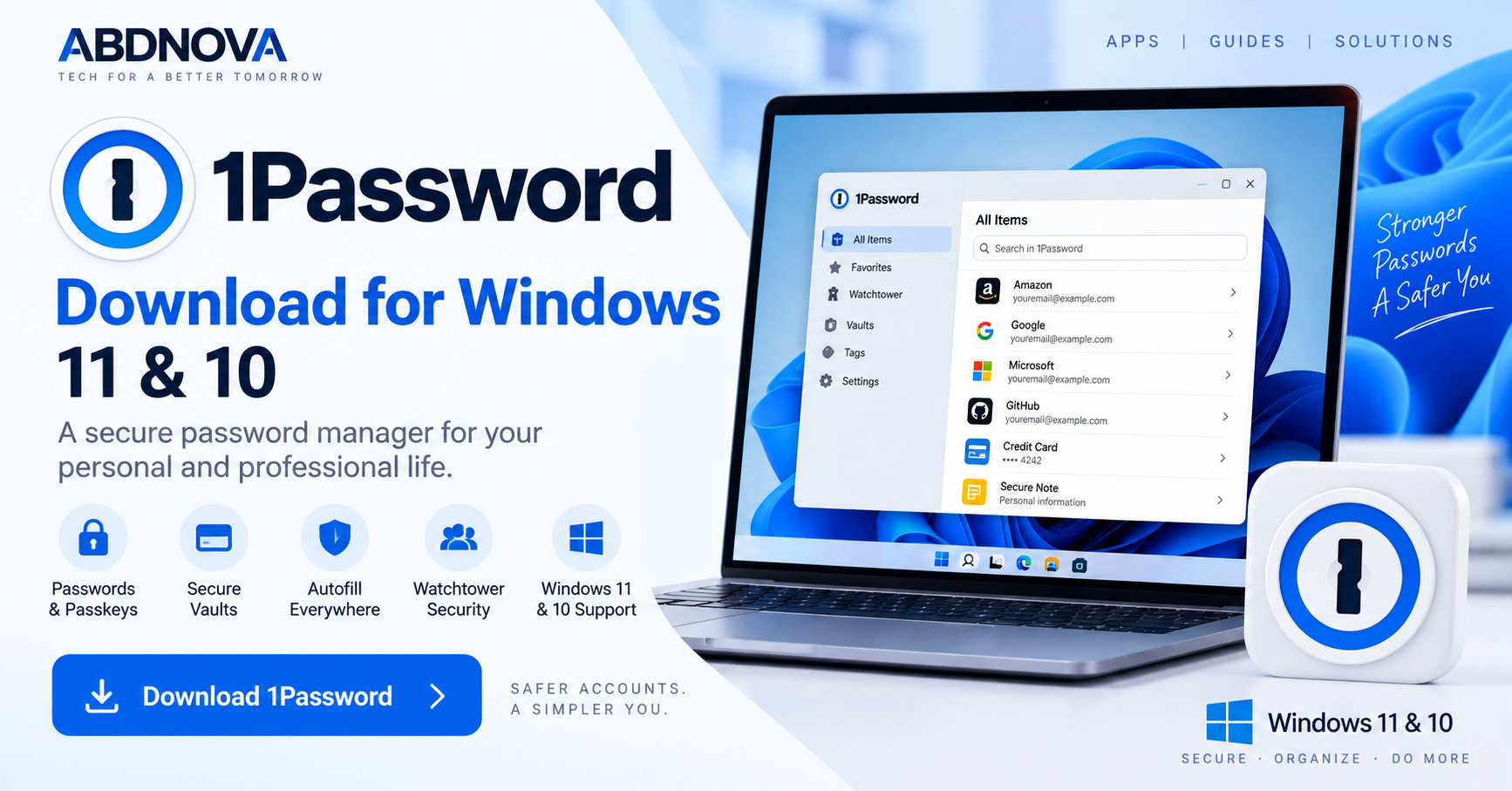
Download 1Password for Windows 11 and 10 to securely manage passwords, passkeys, payment information, secure notes and other sensitive information from one encrypted account.
1Password Download for Windows gives Windows users a secure password-management application for storing passwords, passkeys, credit card information, secure notes, identities and other private data.
Instead of remembering a different password for every website and application, you can store your credentials inside encrypted 1Password vaults and access them when needed.
The Windows desktop app works with 1Password browser extensions to provide password generation, automatic saving, autofill, passkeys, Watchtower security alerts, Quick Access, Windows Hello and other tools designed to make account security easier.
1Password for Windows at a Glance
| Information | Details |
|---|---|
| Software | 1Password |
| Developer | 1Password |
| Current Windows Generation | 1Password 8 |
| Current Stable Windows Version | 8.12.36 |
| Stable Release Date | September 8, 2026 |
| Windows Requirement | Windows 10 64-bit or later |
| Windows 11 | Supported |
| Password Generator | Yes |
| Passkeys | Supported |
| Browser Autofill | Yes |
| Windows Hello | Supported |
| Security Monitoring | Watchtower |
| Quick Access | Yes |
| Free Plan | No permanent full personal free plan |
| Free Trial | 14 days for current personal plans |
| Microsoft Store | Available |
The current official stable Windows release is 1Password 8.12.36, released September 8, 2026.
Download 1Password for Windows 11 & 10
The safest way to get 1Password is directly from the official developer.
The current Windows application is designed for 64-bit Windows 10 or later. 1Password is also available through Microsoft Store.
- 1Password Crack.
- Premium-unlocked versions.
- Modified installers.
- Pre-activated releases.
- Third-party repacks.
- Unknown download mirrors.
A modified password manager can create a serious privacy and security risk.
1Password for Windows 11
1Password works well on Windows 11 and can integrate with modern Windows security features.
Windows 11 users can manage their saved passwords and private information through the desktop app while using the browser extension for website logins and autofill.
Supported Windows 11 systems can also use features such as:
- Windows Hello.
- Passkey integration.
- Browser autofill.
- Quick Access.
- Watchtower.
Windows Hello
When Windows Hello is configured, 1Password can use supported biometric or device authentication methods to unlock the application more conveniently.
Depending on your computer, this may include:
- Fingerprint authentication.
- Facial recognition.
- Other supported Windows Hello methods.
You should still remember your 1Password account password because the application may require it in certain situations.
1Password for Windows 10
1Password 8 supports 64-bit Windows 10.
The standard current requirement is Windows 10 64-bit or later.
The MSIX installer has an additional Windows 10 version requirement, while supported MSI deployment options may be appropriate for some compatible systems.
Windows 10 users can still access core 1Password features including:
- Vaults.
- Password generation.
- Browser integration.
- Autofill.
- Quick Access.
- Watchtower.
- Windows Hello on supported computers.
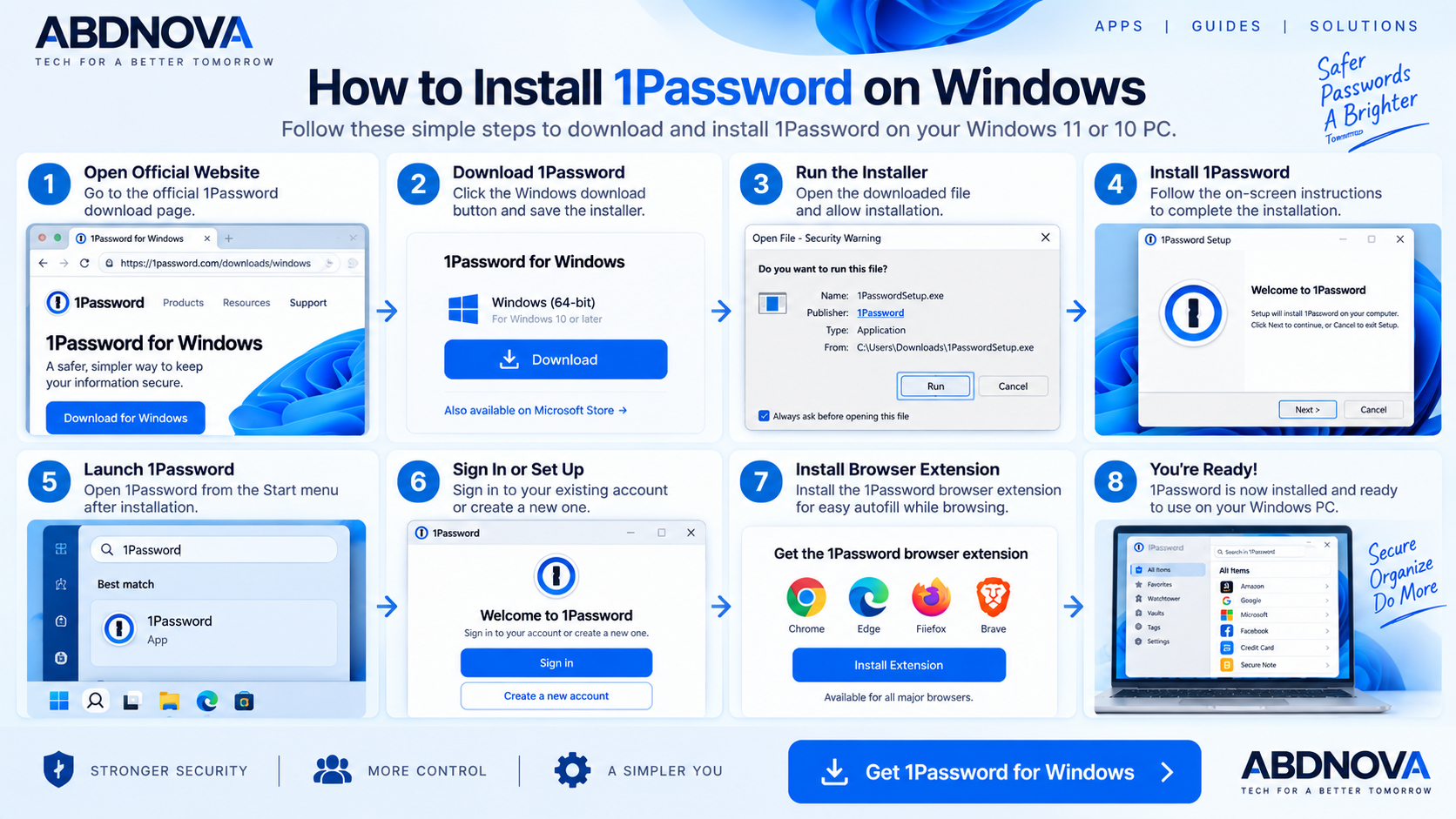
How to Install 1Password on Windows
- Open the official 1Password Windows download page.
- Select the Windows download.
- Download the official 64-bit installer.
- Open the downloaded installation file.
- Allow installation to complete.
- Launch 1Password.
- Sign in to your existing account or follow the available account setup process.
- Install the official browser extension if you want autofill in your browser.
After signing in, your available vaults and saved information will appear inside the desktop application.
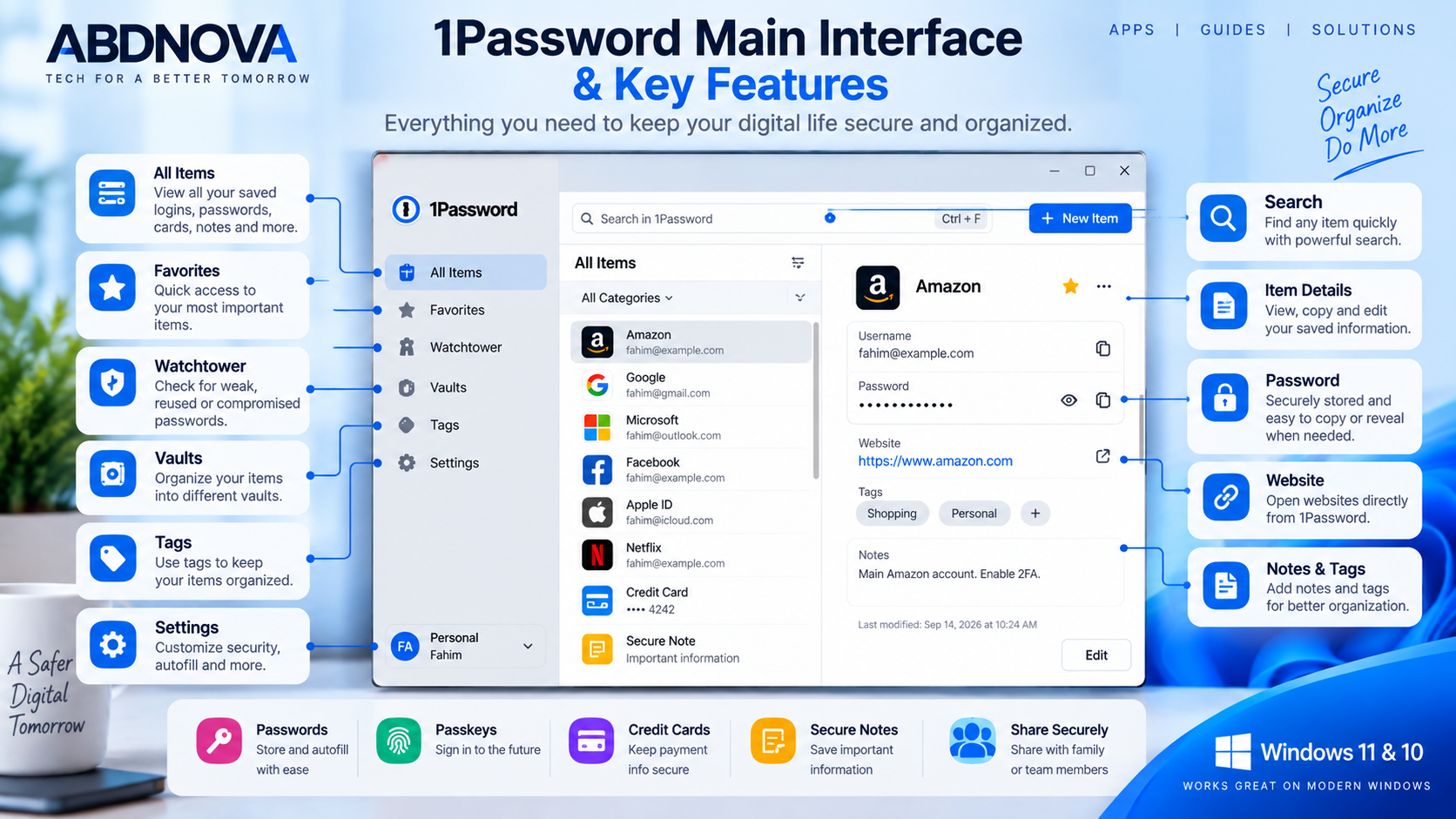
1Password Main Interface & Key Features
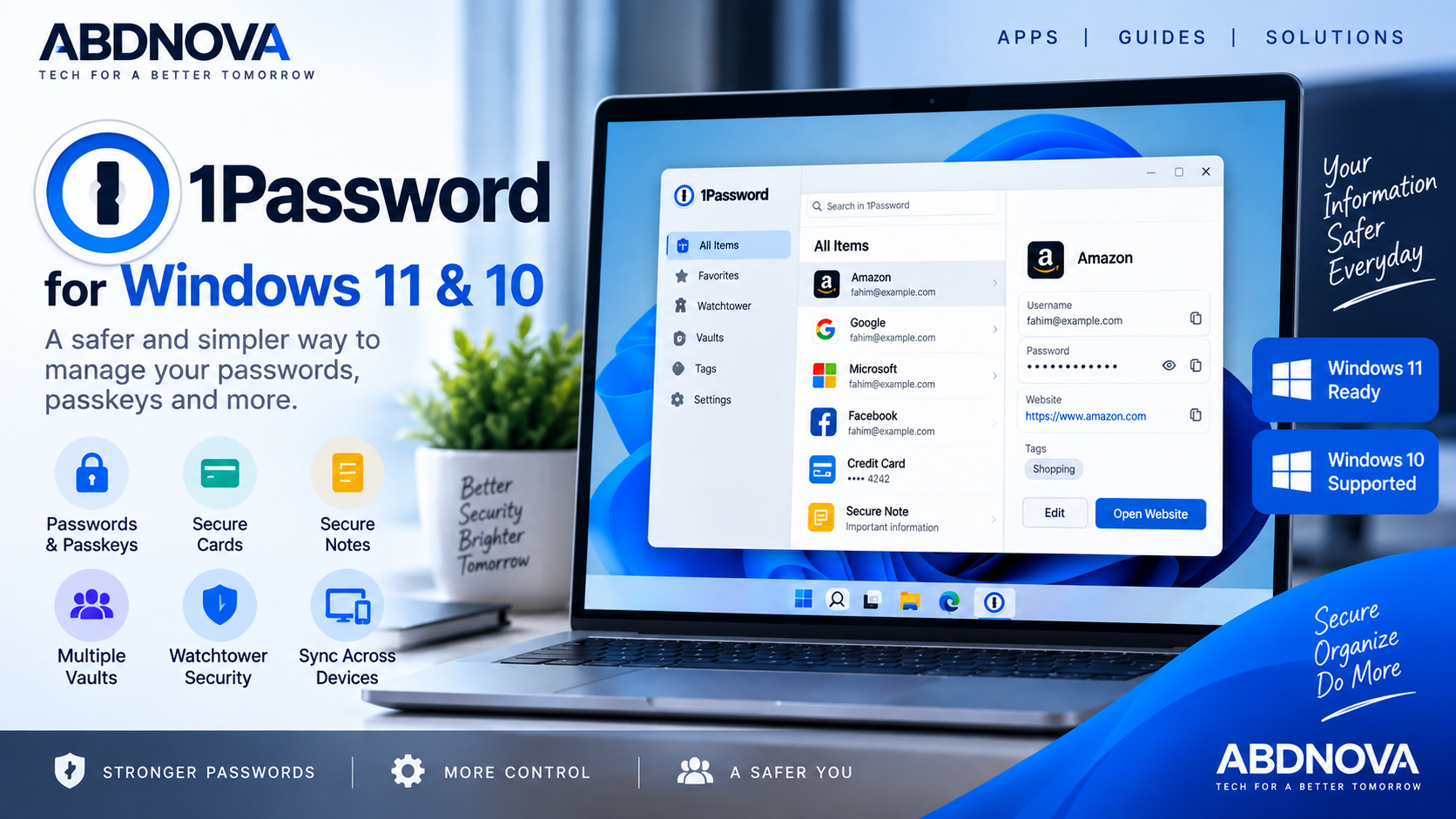
1Password organizes private information using vaults and different item types.
The desktop interface gives you access to information such as:
- Saved logins.
- Passwords.
- Passkeys.
- Credit cards.
- Identities.
- Secure notes.
- Documents.
- Other supported private records.
Search makes it easier to find an item quickly rather than manually browsing a large collection of credentials.
Favorites provide faster access to frequently used items, while separate vaults can keep personal, work and shared credentials organized.
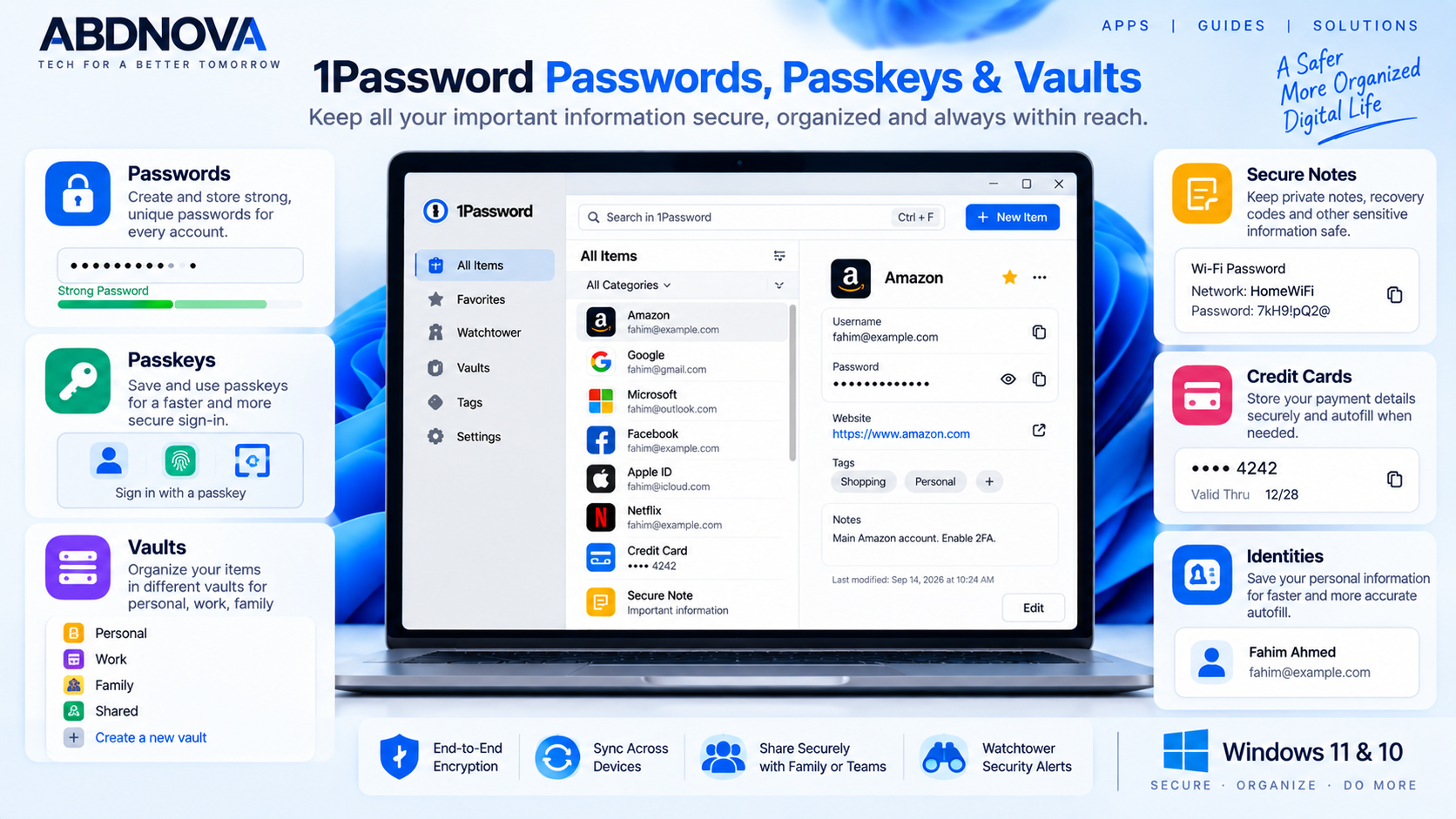
1Password Passwords, Passkeys & Vaults
Password Generator
Password management is the main purpose of 1Password.
Instead of reusing one memorable password across several accounts, you can create a unique password for each service and securely store it inside 1Password.
The built-in password generator can create strong passwords when you:
- Register for a new account.
- Change an existing password.
- Replace a weak or reused credential.
Using a unique password for every service reduces the damage that can occur if one website suffers a credential breach.
Passkeys
1Password also supports passkeys on compatible websites and applications.
A passkey can allow you to sign in without using a conventional password.
When supported, 1Password can:
- Create passkeys.
- Save passkeys.
- Organize passkeys.
- Use saved passkeys again for sign-in.
On supported Windows systems, 1Password can also integrate with Windows passkey-management functionality.
Vaults & Secure Items
1Password is not limited to ordinary usernames and passwords.
Vaults can contain:
- Logins.
- Passwords.
- Passkeys.
- Credit cards.
- Identities.
- Secure notes.
- Documents.
- Software-related information.
- Other private records.
Separate vaults can help organize information by purpose.
For example, you might use different vaults for:
- Personal accounts.
- Work accounts.
- Family information.
- Financial services.
- Shared credentials.
Secure Sharing
1Password provides secure ways to share selected information when another trusted person needs access to a password, Wi-Fi credential or other saved item.
This can be safer and more organized than sending sensitive passwords through ordinary chat messages or email.
Families can also use shared vaults while keeping private vaults separate.
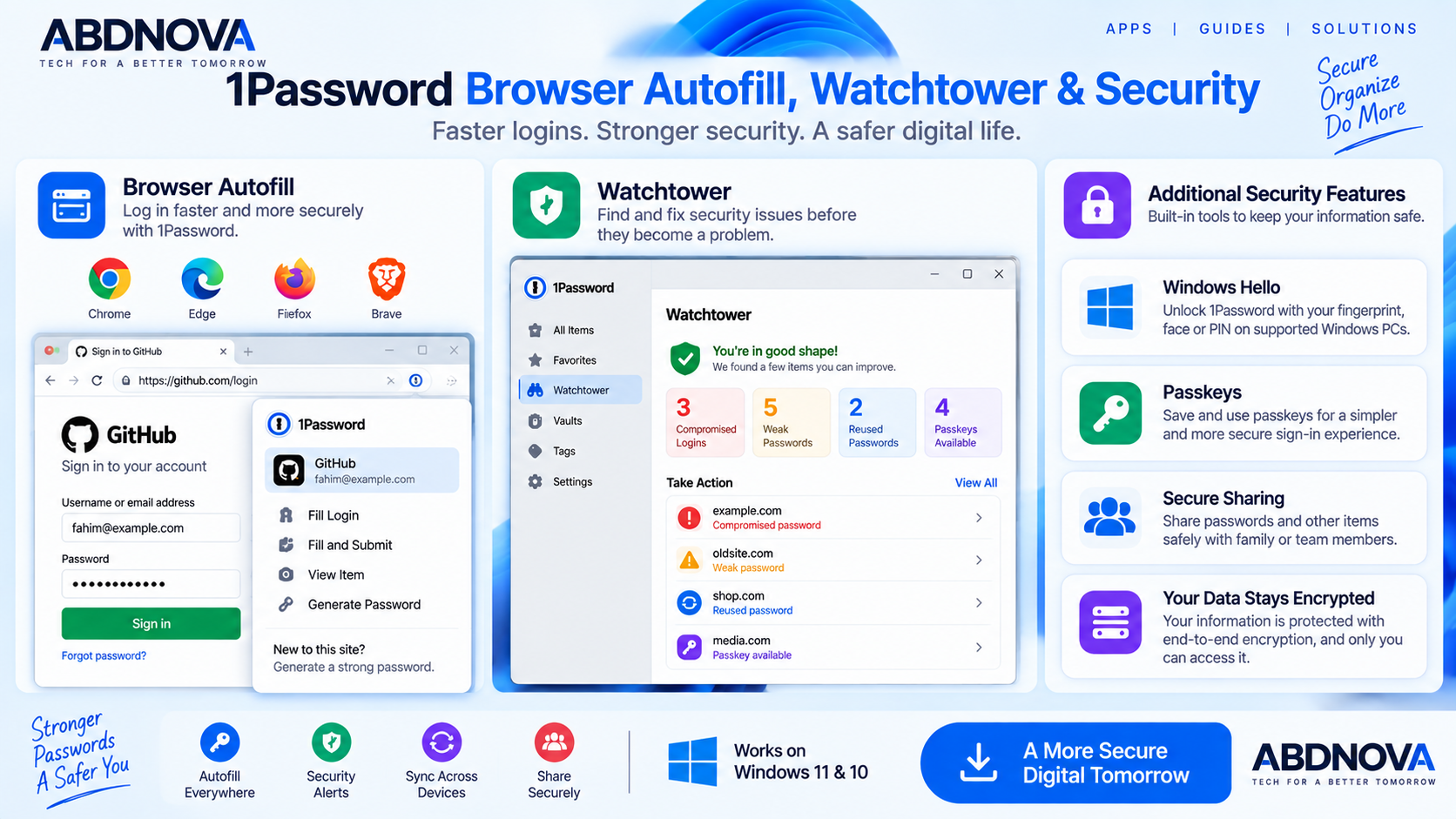
1Password Browser Autofill, Watchtower & Security
Browser Extension & Autofill
The official 1Password browser extension is an important part of the Windows experience.
1Password supports major Windows browsers including:
When you visit a website with saved login information, 1Password can suggest the appropriate credentials directly in the browser.
Autofill can work with supported information such as:
- Usernames.
- Passwords.
- Addresses.
- Credit card information.
- Identity information.
- One-time passwords in supported configurations.
When creating a new account, the extension can also suggest a generated password and save the new login.
Quick Access
Quick Access gives you a faster way to search your 1Password information without opening the complete desktop interface.
The default Windows shortcut is:
You can use Quick Access while working in another Windows application and search across available accounts and collections.
Watchtower Security
Watchtower helps identify security issues involving information stored inside 1Password.
Depending on your saved information, Watchtower can highlight issues such as:
- Weak passwords.
- Compromised credentials.
- Security concerns involving saved logins.
- Accounts that may support stronger sign-in methods.
- Logins that may be upgradeable to passkeys.
This gives users a practical way to review password security instead of waiting until an account has already been compromised.
Windows Hello Setup
If Windows Hello already works on your PC, you can enable it in:
Windows Hello can make routine unlocking more convenient, but it does not eliminate the need to know your 1Password account password.
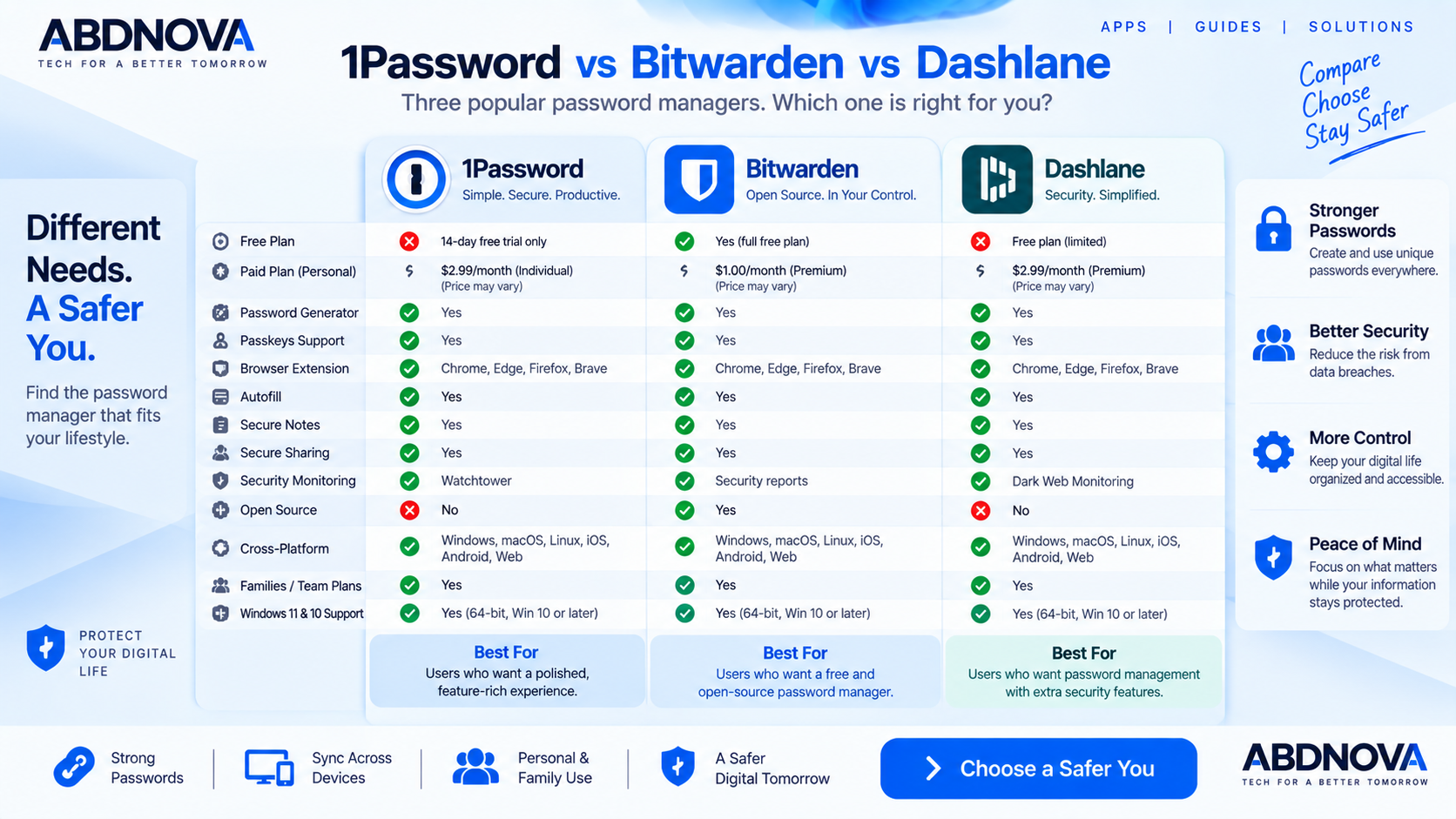
1Password vs Bitwarden vs Dashlane
| Feature | 1Password | Bitwarden | Dashlane |
|---|---|---|---|
| Password Manager | Yes | Yes | Yes |
| Password Generator | Yes | Yes | Yes |
| Browser Autofill | Yes | Yes | Yes |
| Passkeys | Yes | Yes | Yes |
| Secure Vaults | Yes | Yes | Yes |
| Security Monitoring | Watchtower | Available security tools | Available security tools |
| Windows Hello | Yes | Available | Available |
| Permanent Personal Free Plan | No | Yes | Plan dependent |
| Open Source | No | Yes | No |
| Best For | Polished premium password management | Free/open-source password management | Password management with added security services |
1Password is a strong choice for users who prioritize a polished interface, organized vaults, Watchtower, passkeys, secure sharing, Windows Hello and broad browser integration.
Bitwarden is particularly attractive for users who want an open-source password manager and a permanent free option.
Dashlane combines password management with additional security-focused services through its own subscription ecosystem.
Is 1Password Free?
1Password is not currently a permanently free password manager for individual users.
Current Individual and Families plans provide a 14-day free trial. After the trial, a paid subscription is required to continue using those plans.
Pricing and promotions can change, so check 1Password’s official pricing page before purchasing.
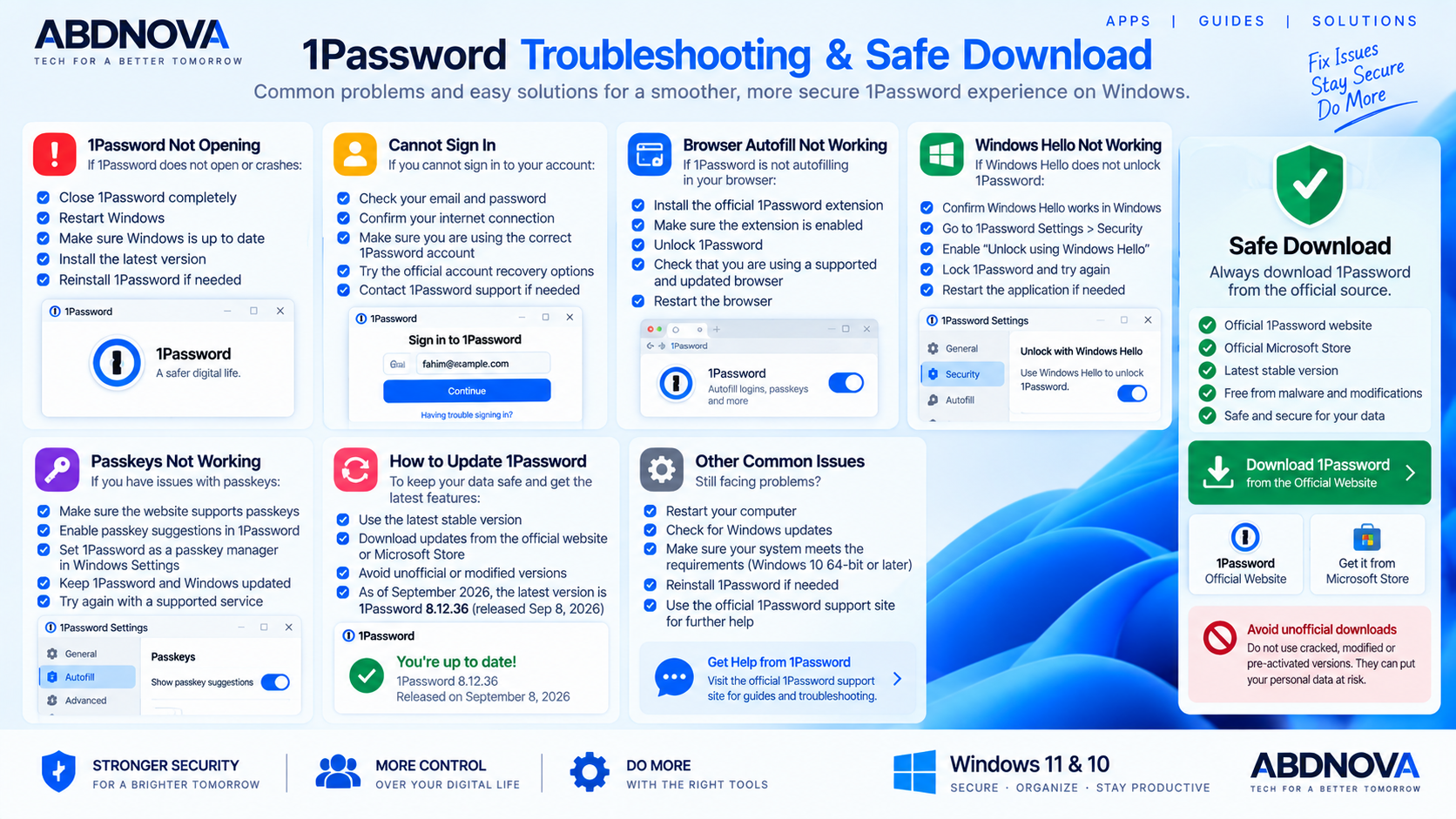
1Password Troubleshooting on Windows
1Password Not Opening
If 1Password does not open correctly:
- Close 1Password completely.
- Open it again.
- Restart Windows.
- Make sure Windows is updated.
- Confirm your PC meets the 64-bit Windows requirement.
- Install the latest stable 1Password version.
- Reinstall from the official installer if necessary.
Cannot Sign In to 1Password
Confirm that you are entering the correct account information and signing in to the correct 1Password account.
Also check your internet connection.
If your account belongs to a company or organization, sign-in behavior may depend on that organization’s 1Password configuration.
Use official recovery documentation if you need account-recovery help.
1Password Browser Autofill Not Working
If saved credentials are not appearing in your browser:
- Make sure the official 1Password extension is installed.
- Confirm that the extension is enabled.
- Unlock 1Password.
- Use a supported and updated browser.
- Check that the saved login contains the correct website address.
- Restart the browser.
- Update both 1Password and the browser extension.
If you need a current supported browser, ABDNOVA also has Windows guides for Google Chrome, Microsoft Edge and Mozilla Firefox.
Windows Hello Not Working
- Confirm Windows Hello works normally in Windows.
- Open 1Password.
- Go to Settings → Security.
- Check that Unlock using Windows Hello is enabled.
- Lock 1Password.
- Try unlocking again.
- Restart 1Password if necessary.
Remember that 1Password can still request your account password in certain situations even when Windows Hello is enabled.
Passkeys Not Working
Make sure your Windows version, 1Password version and target website or application all support the feature.
On a supported system:
- Open and unlock 1Password.
- Open Settings.
- Select Autofill.
- Enable passkey suggestions.
- Configure 1Password as an available passkey manager in Windows where supported.
Passkeys are still being adopted across online services, so availability varies between accounts and websites.
How to Update 1Password
Keeping a password manager current is particularly important because updates can contain security, reliability and compatibility improvements.
The current official stable Windows release verified for this article is 1Password 8.12.36, released September 8, 2026.
If your installed version is significantly older or updating fails, download the latest stable Windows installer directly from 1Password.
Safe 1Password Download
Always download 1Password from the official 1Password website or its official Microsoft Store distribution.
Software: 1Password 8
Current stable Windows release: 8.12.36
Windows: Windows 10 64-bit or later
Official installer: Yes
Crack required: No
Activator required: No
Because 1Password can contain passwords, passkeys, payment details and other sensitive data, the source of the installer is especially important.
Frequently Asked Questions
Is 1Password available for Windows 11?
Yes. 1Password 8 supports compatible 64-bit Windows 11 PCs.
Can I use 1Password on Windows 10?
Yes. The current desktop application supports 64-bit Windows 10 or later.
What is the latest stable 1Password version for Windows?
The current stable Windows release verified for this article is 1Password 8.12.36, released September 8, 2026.
Is 1Password free?
1Password does not currently provide a permanent full personal free plan. Current Individual and Families plans include a 14-day trial before a paid subscription is required.
Can 1Password generate strong passwords?
Yes. 1Password includes password-generation tools for creating strong, unique credentials.
Does 1Password support passkeys?
Yes. 1Password can save and use passkeys on compatible websites and applications.
Can 1Password autofill passwords in Chrome and Edge?
Yes. 1Password provides browser extensions for major browsers including Chrome, Edge, Firefox and Brave.
Does 1Password work with Windows Hello?
Yes. On compatible Windows PCs, Windows Hello can be used to make unlocking 1Password more convenient.
What is 1Password Watchtower?
Watchtower helps identify potential security issues involving saved credentials, such as weak or compromised passwords and supported accounts that may benefit from stronger sign-in methods.
Can I use 1Password on multiple devices?
Yes. 1Password is designed to work across supported computers, phones, tablets and browsers associated with your account and subscription.
Final Thoughts
1Password Download for Windows is a strong choice for users who want to replace reused, manually managed or insecurely stored passwords with a more organized password-management system.
Its combination of encrypted vaults, password generation, passkeys, browser autofill, Quick Access, Windows Hello, Watchtower, secure sharing and cross-device access makes it suitable for people managing anything from a few important accounts to hundreds of online credentials.
The main consideration is pricing. 1Password is a paid service rather than a permanently free personal password manager, so users specifically looking for a no-cost option may want to compare Bitwarden and other alternatives first.
For Windows 11 and compatible 64-bit Windows 10 PCs, use the current stable 1Password 8 desktop application and keep both the desktop app and browser extension updated.
Download 1Password for Windows
Get the current stable Windows application directly from 1Password. ABDNOVA recommends official software sources only.