
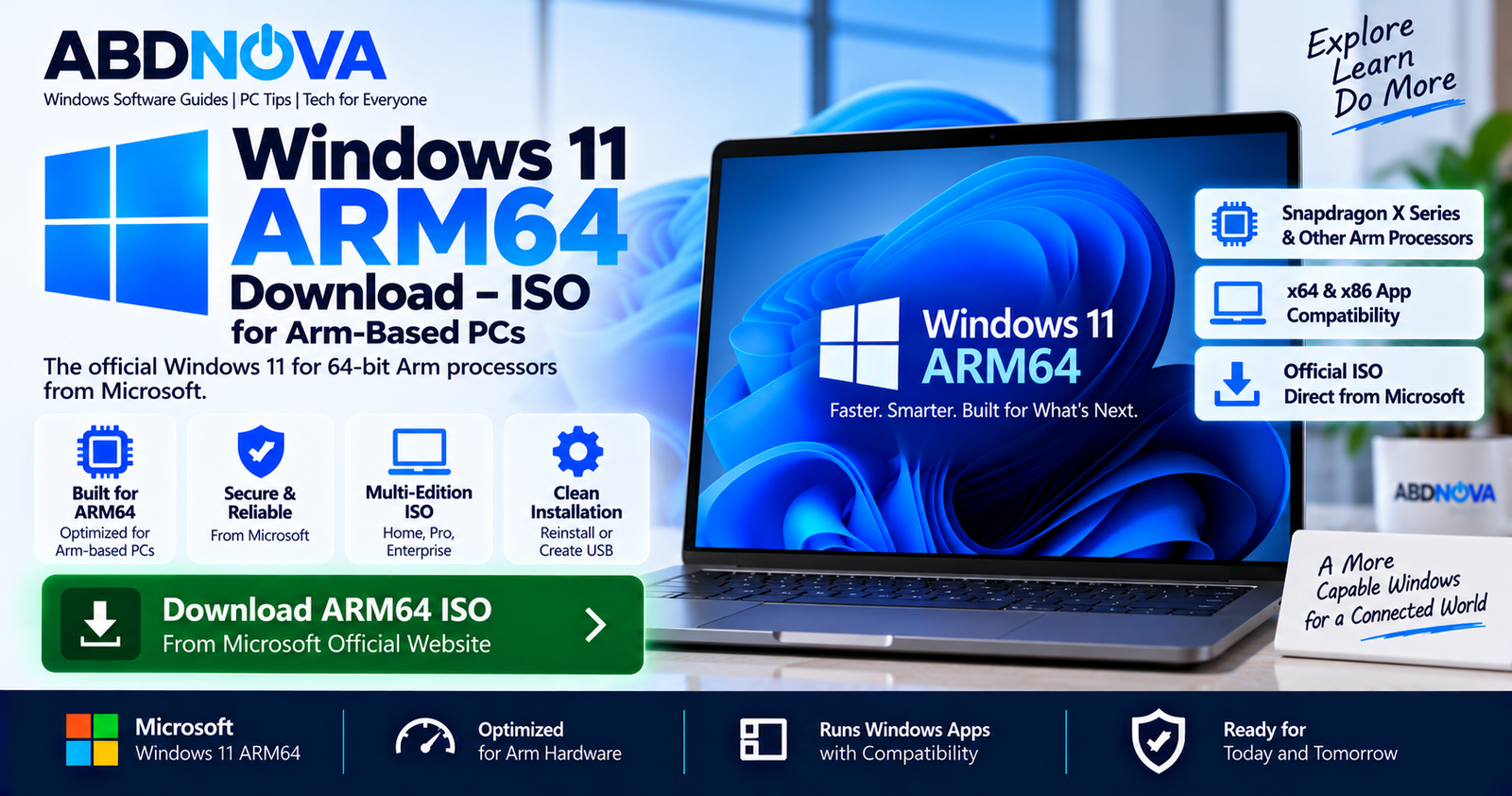

Windows 11 ARM64 Download – ISO & Installation Guide
Windows 11 ARM64 Download is available directly from Microsoft for PCs powered by compatible 64-bit Arm processors. The official Arm64 ISO can be used to reinstall Windows, upgrade a compatible Arm PC, create supported virtual machines, or manually prepare bootable installation media.
Microsoft’s current official download is the Windows 11 2025 Update, version 25H2. It is a multi-edition Arm64 ISO, with the appropriate Windows edition determined by the device’s product key or digital license.
Windows 11 ARM64 Details
| Detail | Information |
|---|---|
| Developer | Microsoft |
| Product | Windows 11 |
| Architecture | Arm64 |
| Current Official Release | Windows 11 25H2 |
| ISO Type | Multi-edition |
| Processor | 64-bit Arm-based processor |
| Installation | ISO, manual bootable USB, or mounted ISO |
| VM Support | Supported on compatible Arm platforms |
| Minimum USB Size | 8 GB |
| Official Source | Microsoft |
| Activation | Valid product key or digital license |
If you need the normal Windows 11 ISO for an Intel or AMD computer, see our Windows 11 ISO Download guide.
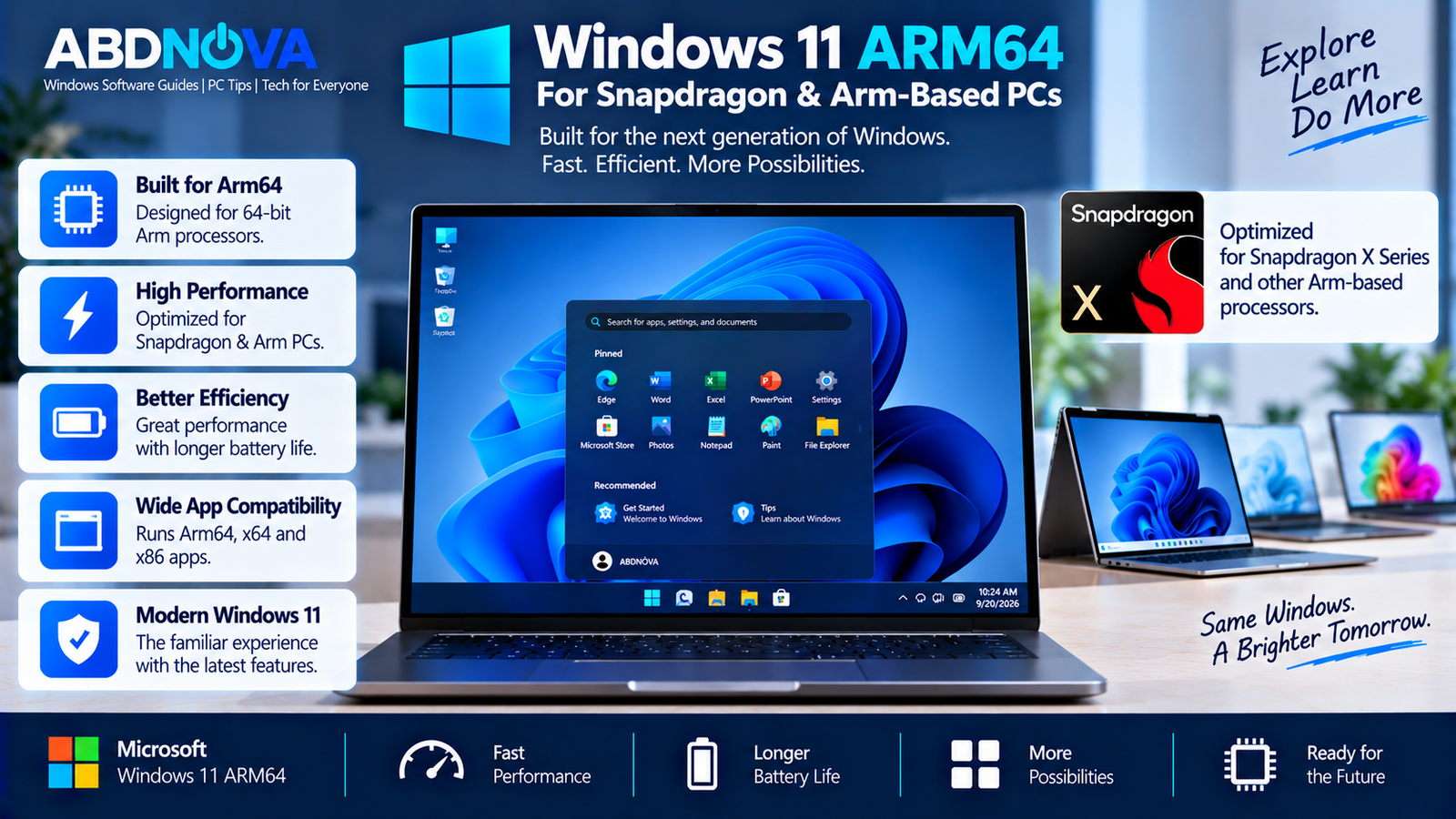
Windows 11 ARM64 for Snapdragon & Arm-Based PCs
ARM64 describes the 64-bit Arm architecture used by a growing range of Windows PCs. Windows 11 on Arm runs natively on Arm-based hardware while also providing compatibility for many existing Windows applications.
Modern Windows on Arm computers include devices powered by processors such as the Snapdragon X family and other compatible Arm platforms.
ARM64 vs x64 Windows 11
| Feature | Windows 11 ARM64 | Windows 11 x64 |
|---|---|---|
| Architecture | Arm64 | x86-64 |
| Typical Processor | Snapdragon / compatible Arm | Intel / AMD |
| Official ISO | Yes | Yes |
| Native Apps | Arm64 | x64 |
| x64/x86 Apps | Compatibility / emulation | Native |
| Bootable USB | Yes, with device considerations | Yes |
How to Check Whether Your PC Is ARM64
Before downloading Windows 11 ARM64, check the processor architecture.
- Open Settings.
- Select System.
- Open About.
- Check System type.
You can also open System Information and check the System Type field. If the computer has a 64-bit Arm-based processor, the Microsoft Arm64 ISO is the appropriate architecture.
Official Windows 11 ARM64 ISO
Microsoft now provides a dedicated Windows 11 download page for Arm-based PCs. The current official release is Windows 11 25H2.
The download is a multi-edition ISO. The applicable product key or digital license determines which Windows edition is activated.
The official ISO can be used to:
- Reinstall Windows 11 on a compatible Arm PC
- Perform a clean installation
- Upgrade a compatible running Windows installation
- Create manual bootable installation media
- Create Windows 11 Arm virtual machines on supported hardware
For information about the current 25H2 release itself, see our Windows 11 25H2 Download guide.
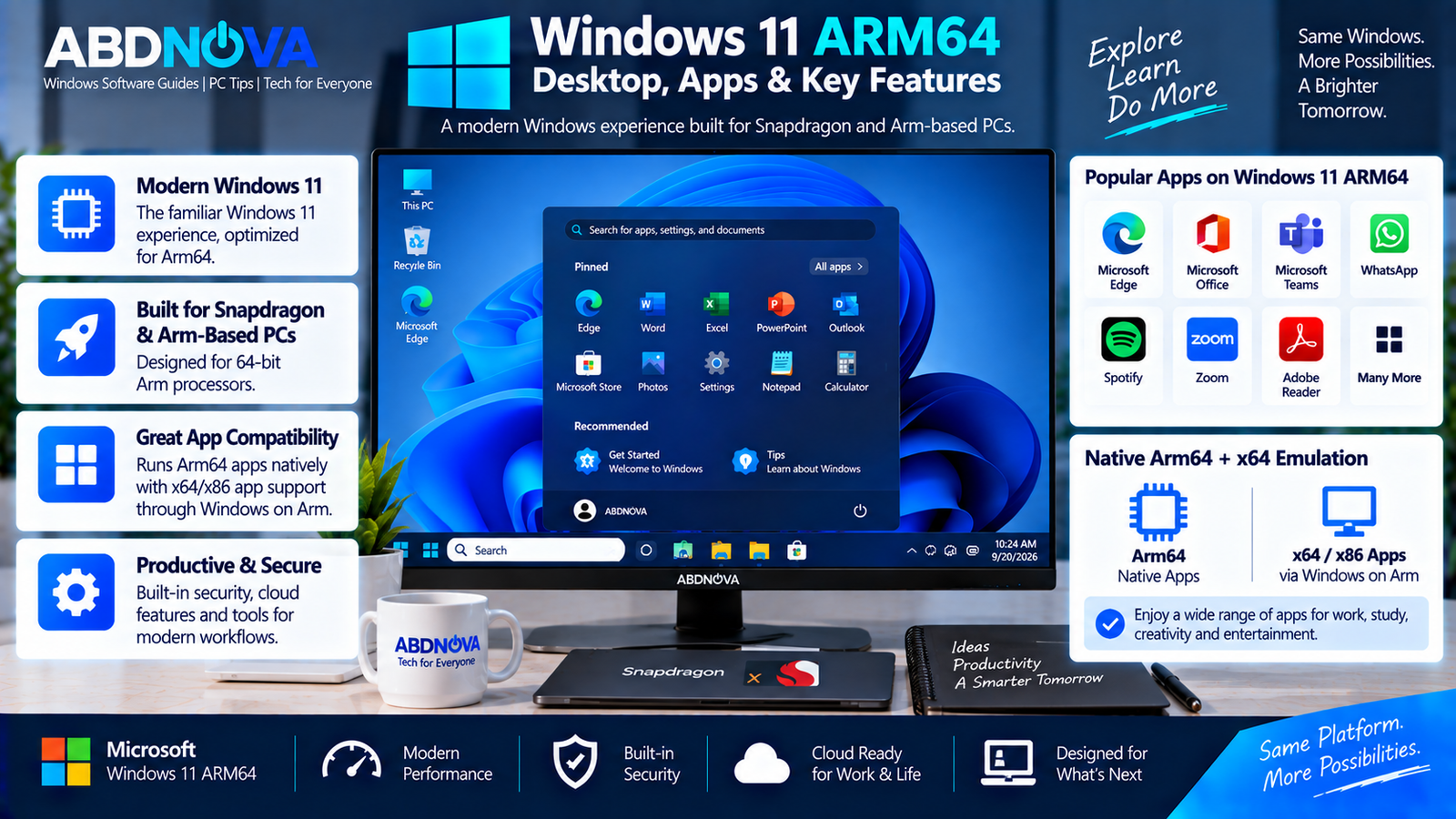
Windows 11 ARM64 Desktop, Apps & Key Features
Windows 11 Experience on Arm
Windows 11 on Arm provides the familiar Windows 11 desktop, Settings, File Explorer, security features, productivity tools, and supported Windows applications while running on Arm-based hardware.
Native Arm64 Applications
Native Arm64 applications are generally preferable because they are compiled specifically for the architecture and can take better advantage of Arm hardware.
x64 and x86 Application Compatibility
Windows on Arm also includes compatibility technology that allows many existing x64 and x86 Windows applications to run on Arm PCs.
However, applications that rely heavily on specialized drivers, low-level system components, hardware integrations, or older compatibility technologies should be checked individually before relying on them for important work.
Before Installing Windows 11 ARM64
Before downloading or reinstalling Windows, confirm that the PC contains a compatible 64-bit Arm processor and meets the applicable Windows 11 requirements.
You should also have:
- A reliable internet connection
- Sufficient storage for the ISO
- A backup of important files
- Compatible Arm64 hardware
- Current device firmware
- Appropriate manufacturer drivers
- A valid Windows license for permanent activation
For manually creating installation media, Microsoft recommends a blank USB flash drive with at least 8 GB of space.
ARM64 Drivers Are Important
Driver availability is particularly important when reinstalling Windows on Arm. Microsoft warns that bootable installation media created from an Arm64 ISO may require manufacturer drivers before the media can successfully boot.
This makes Arm installation more device-specific than a typical x64 Windows installation.
Snapdragon X Series Devices
Microsoft documents an easier installation path for newer Snapdragon X Series PCs. These devices can boot from the Windows Arm ISO and begin Windows installation without requiring additional manufacturer drivers simply to start Setup.
Full device functionality may not be available immediately after installation. If necessary, connect through Ethernet using a compatible dongle or dock and run Windows Update to retrieve remaining drivers.
Older Snapdragon Devices
Previous Snapdragon generations can require manufacturer drivers to be added to the Windows installation image before booting.
Without the required drivers, installation media may:
- Fail to boot
- Boot without working keyboard or touchpad
- Fail to detect storage
- Have no networking
- Leave other hardware unavailable
For older Arm devices, manufacturer recovery media may therefore be the safer option.
How to Download Windows 11 ARM64 ISO
Open Microsoft’s dedicated Windows 11 Arm64 download page and locate Download Windows 11 Disk Image (ISO) for Arm-based PCs.
- Select the available Windows 11 multi-edition ISO.
- Click Download Now.
- Select the product language.
- Confirm your selection.
- Download the Arm64 ISO.
- Save it to a location with sufficient storage.
Microsoft-generated ISO download links can be time-limited, so complete the download within the period displayed on the Microsoft website.
Verify the Windows 11 ARM64 ISO
Microsoft publishes SHA-256 values that can be used to verify the integrity and authenticity of the downloaded ISO.
Open PowerShell and run:
Get-FileHash "C:\Path\To\Windows11_ARM64.iso"Compare the SHA-256 result with Microsoft’s published value for the language you downloaded. A matching hash confirms that the file matches Microsoft’s published image.
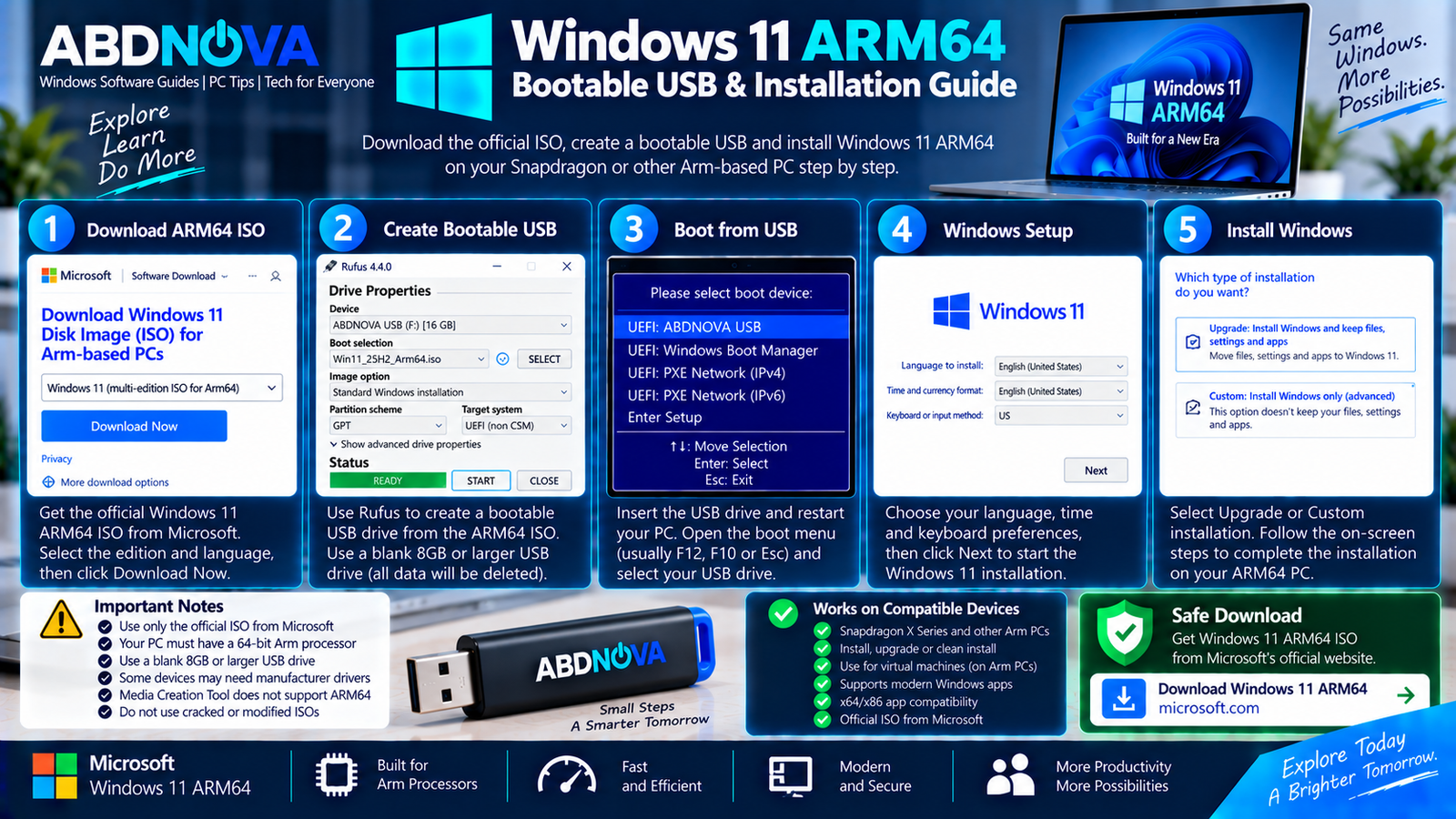
Windows 11 ARM64 Bootable USB & Installation Guide
Install Windows Directly From the ARM64 ISO
If Windows is already running on a compatible Arm PC, you can mount the ISO directly.
- Locate the downloaded ISO.
- Right-click the ISO and select Mount.
- Open the virtual disc created by Windows.
- Run setup.exe.
- Follow Windows Setup.
This method can be used to begin an upgrade from a compatible running Windows installation.
Create a Windows 11 ARM64 Bootable USB
The official Arm64 ISO can also be used to manually create bootable installation media.
- Download the official Microsoft Arm64 ISO.
- Connect a blank USB drive with at least 8 GB of space.
- Open an appropriate bootable-media utility.
- Select the USB drive.
- Select the downloaded Arm64 ISO.
- Confirm the appropriate configuration.
- Create the installation media.
- Restart the Arm PC.
- Open the device’s boot menu.
- Select the USB drive.
Media Creation Tool and ARM64
Do not confuse this workflow with the standard Windows 11 Media Creation Tool. For Windows on Arm, use Microsoft’s dedicated Arm64 ISO and an appropriate manual installation-media workflow.
If you are working with a normal x64 Windows PC instead, see our Windows 11 Media Creation Tool Download guide.
Clean Install Windows 11 ARM64
After successfully booting compatible Arm64 installation media:
- Select the language and keyboard settings.
- Start Windows Setup.
- Select the appropriate installation option.
- Choose the target storage device.
- Complete Windows installation.
- Finish the initial Windows setup.
- Connect to the internet.
- Run Windows Update.
- Install device-manufacturer drivers.
- Check Device Manager for missing hardware.
Windows 11 ARM64 Virtual Machines
The official Arm64 ISO can also be used for virtual machines on supported Arm platforms.
On a Windows on Arm PC, the ISO can be used to create a Windows 11 Arm VM through Hyper-V where supported.
There is an important architecture limitation: Hyper-V on an x64 Windows PC does not support Arm64 virtual machines.
Arm-based Apple Silicon Macs can also run Windows Arm virtual machines through supported virtualization solutions, although platform-specific limitations may apply.
Windows 11 ARM64 Activation
The official Windows 11 Arm64 download is a multi-edition ISO. The appropriate product key or digital license determines the Windows edition.
A compatible PC with an existing digital license may activate automatically after Windows connects to Microsoft’s activation services.
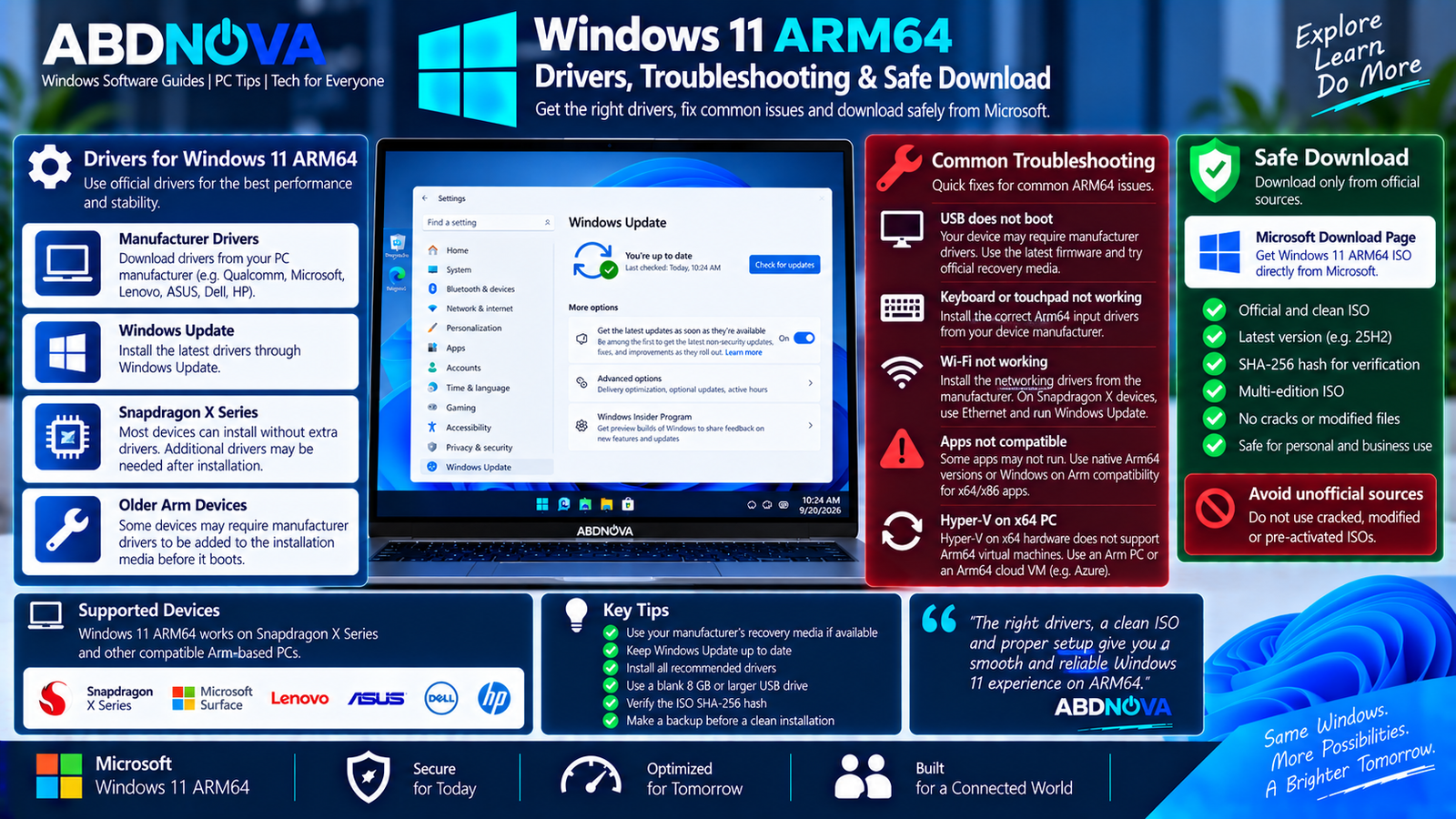
Windows 11 ARM64 Drivers, Troubleshooting & Safe Download
ARM64 USB Does Not Boot
Some Arm devices require manufacturer drivers to be included in the installation media before the USB can boot successfully.
Check the PC manufacturer’s recovery-media and driver documentation before recreating the installation media.
Keyboard or Touchpad Does Not Work
This can occur on older Arm devices when required manufacturer drivers are missing from the installation image.
Older Snapdragon systems may require the appropriate drivers to be integrated into the installation media.
Wi-Fi Does Not Work After Installation
Install the correct Arm64 networking drivers from the device manufacturer.
On Snapdragon X Series systems, use an Ethernet connection through a compatible adapter or dock if necessary, then run Windows Update to retrieve remaining drivers.
ISO Will Not Boot on an Intel or AMD PC
This is expected. Windows 11 Arm64 is specifically designed for PCs with 64-bit Arm processors. Intel and AMD Windows PCs generally require the x64 Windows 11 ISO.
ARM64 VM Does Not Start in Hyper-V on an x64 PC
Hyper-V on x64 hardware does not support Arm64 virtual machines. Use appropriate Arm hardware or another supported Arm virtualization environment.
Safe Windows 11 ARM64 Download
Use Microsoft’s dedicated Windows 11 Arm64 download page whenever you need the standard Windows 11 Arm ISO.
Microsoft also provides SHA-256 hash values so you can verify that the downloaded ISO matches the original Microsoft image.
Avoid:
- Unofficial ISO download websites
- Torrent releases
- Random cloud-storage links
- Modified Windows images
- Pre-activated Arm64 ISOs
- Activation-bypass releases
Frequently Asked Questions
What is the current Windows 11 ARM64 ISO version?
Microsoft’s current official Arm64 download page lists Windows 11 2025 Update, version 25H2.
Is Windows 11 ARM64 officially available as an ISO?
Yes. Microsoft provides Windows 11 Arm64 ISO files directly through its official Windows download website.
Is ARM64 the same as x64?
No. ARM64 is designed for 64-bit Arm processors, while x64 Windows is primarily used with 64-bit Intel and AMD processors.
Can I create a bootable USB from the ARM64 ISO?
Yes. The Arm64 ISO can be used to manually create bootable installation media, although some devices require manufacturer drivers before the media can boot correctly.
Can I use Windows Media Creation Tool for ARM64?
For Windows 11 on Arm, use Microsoft’s dedicated Arm64 ISO and the supported manual installation-media workflow rather than relying on the standard Media Creation Tool workflow.
How large should the USB drive be?
Microsoft recommends a blank USB flash drive with at least 8 GB of space.
Do Snapdragon X PCs need extra drivers before installation?
Microsoft says Snapdragon X Series systems can boot from the Windows Arm ISO and begin installation without additional drivers simply to start Setup. Additional drivers may still be required afterward for full functionality.
Should I use the Microsoft ISO or manufacturer recovery media?
The Microsoft ISO can be appropriate for a standard clean installation. However, manufacturer recovery media can be preferable when available because it includes drivers tested for that specific Arm device.
Final Thoughts
Windows 11 ARM64 Download gives owners of Arm-based Windows PCs an official Microsoft source for reinstalling Windows, upgrading compatible systems, creating supported virtual machines, and manually preparing installation media.
The current official release is Windows 11 25H2, and the ISO is specifically designed for PCs with 64-bit Arm processors. The main installation consideration compared with x64 Windows is driver support: newer Snapdragon X systems have a simpler installation path, while some older Arm PCs may require manufacturer drivers or recovery media.
Always verify your PC architecture before downloading, back up important data before reinstalling Windows, and use Microsoft’s official ISO rather than modified or pre-activated installation images.
Download Windows 11 ARM64 ISO
Get the current multi-edition Windows 11 Arm64 ISO directly from Microsoft.


