

Todoist Download for Windows 11 & 10
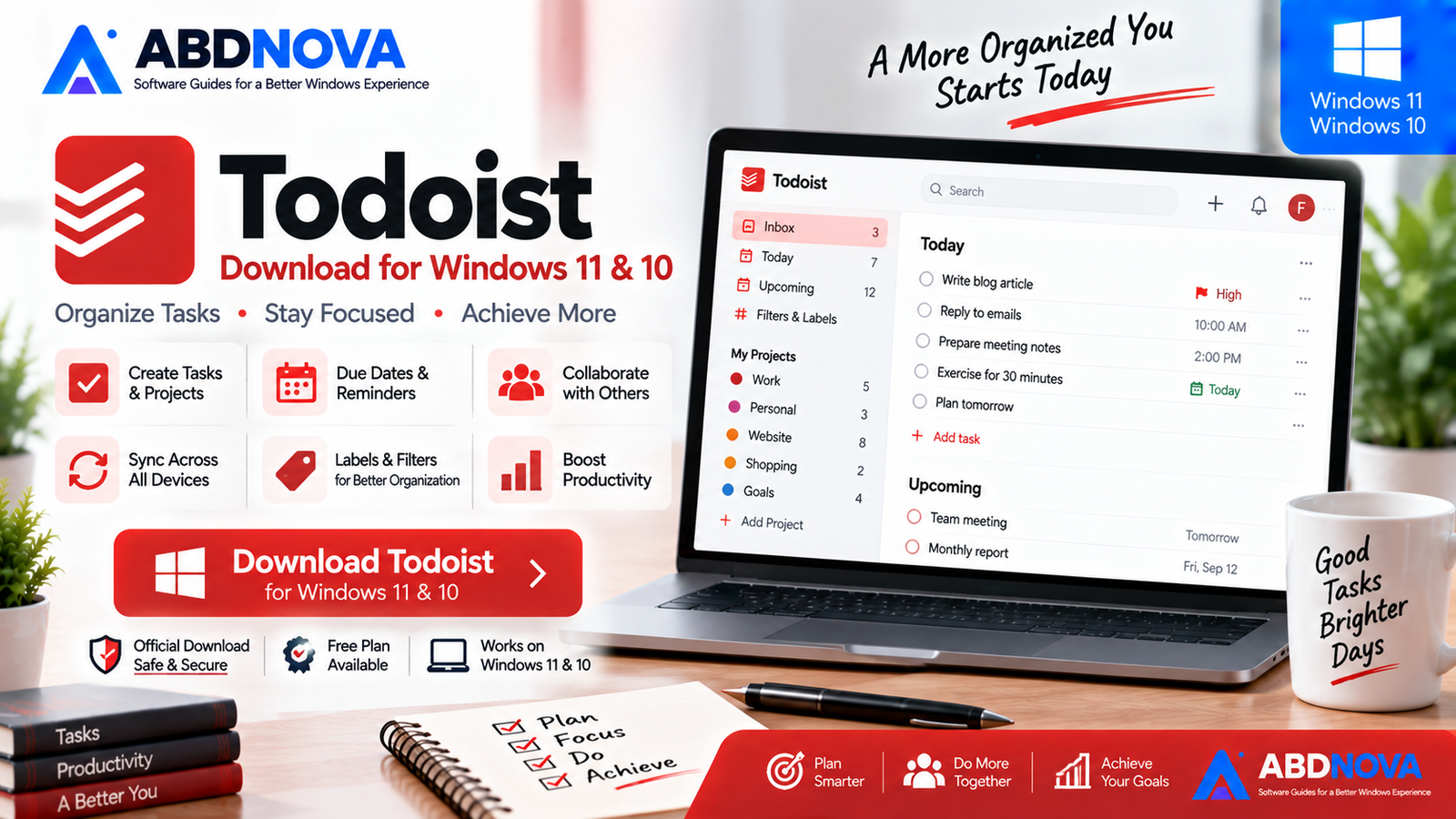
Download Todoist for Windows 11 and 10 to organize tasks, projects, recurring routines, deadlines, reminders, calendars and collaborative work from the desktop.
Todoist Download for Windows gives users a focused desktop task manager for organizing personal tasks, work projects, recurring routines, deadlines and shared responsibilities.
The Windows desktop app provides quick access to Inbox, Today, Upcoming, projects, labels, filters, calendar tools and other productivity features without keeping a browser tab open.
Todoist officially supports both Windows 10 and Windows 11 and synchronizes tasks with supported Todoist apps on other devices.
Todoist Download for Windows – Quick Overview
| Information | Details |
|---|---|
| Software | Todoist |
| Developer | Doist |
| Category | Task Management & Productivity |
| Windows 11 | Supported |
| Windows 10 | Supported |
| Free Plan | Beginner |
| Paid Plans | Pro & Business |
| Projects & Tasks | Yes |
| Recurring Tasks | Yes |
| Priorities | P1–P4 |
| Labels | Yes |
| Filters | Yes |
| Calendar Integration | Google Calendar & Outlook |
| Reminders | Yes |
| Board Layout | Yes |
| Calendar Layout | Pro / Business |
| Task Durations | Pro / Business |
| Collaboration | Yes |
| Windows Quick Add | Ctrl + Space |
What Is Todoist?
Todoist is a task manager and to-do list application designed to keep personal and professional work organized without becoming a full enterprise project-management platform.
Todoist can be used for:
- Daily to-do lists.
- Work projects.
- Personal planning.
- Recurring routines.
- Deadlines.
- Appointments.
- Editorial workflows.
- Shopping lists.
- Bill reminders.
- Team projects.
It can remain simple for users who only want a daily checklist, while projects, sections, labels, filters and calendar tools provide more structure when needed.
Is Todoist Free?
Yes. Todoist provides a free Beginner plan.
Users who need higher limits or more advanced planning functionality can upgrade to Pro or Business.
| Feature | Beginner | Pro | Business |
|---|---|---|---|
| Active Projects | 5 | 300 | Higher team-oriented limits |
| Core Task Management | Yes | Yes | Yes |
| Calendar Integration | Yes | Yes | Yes |
| Board Layout | Yes | Yes | Yes |
| Calendar Layout | No | Yes | Yes |
| Task Durations | No | Yes | Yes |
| Custom Reminders | More limited | Yes | Yes |
| Team Features | Limited | Personal | Strongest team workflow |
For basic personal task management, the Beginner plan is a sensible place to start. Upgrade only when the additional project limits, calendar layout, durations, reminders or team features become useful.
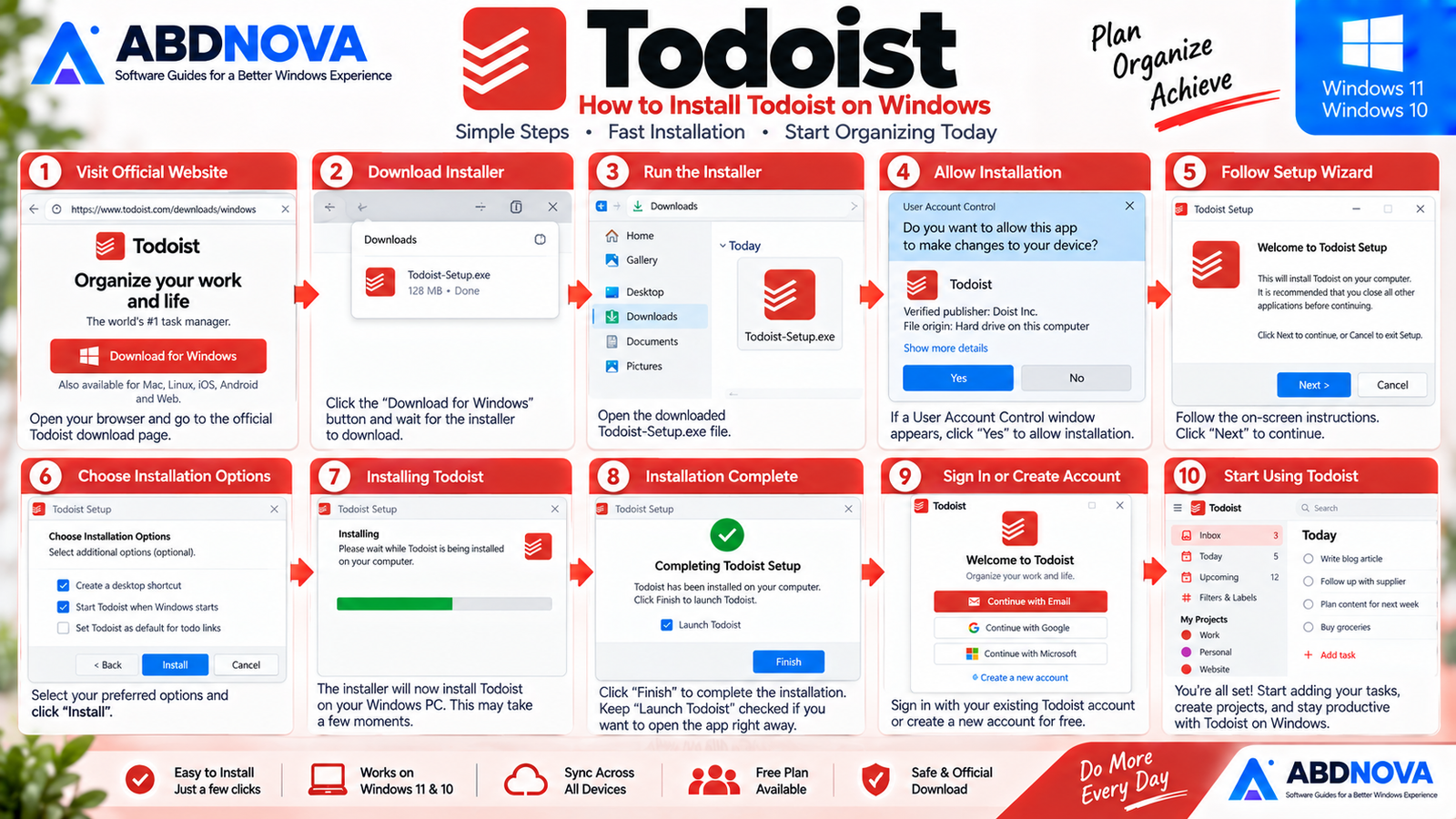
How to Install Todoist on Windows
- Open the official Todoist Windows download page.
- Download the Windows desktop application.
- Open the downloaded installer.
- Complete the installation.
- Launch Todoist.
- Sign in or create a Todoist account.
- Add your first task.
- Create projects as needed.
After signing in, your tasks can synchronize with Todoist on other supported devices.
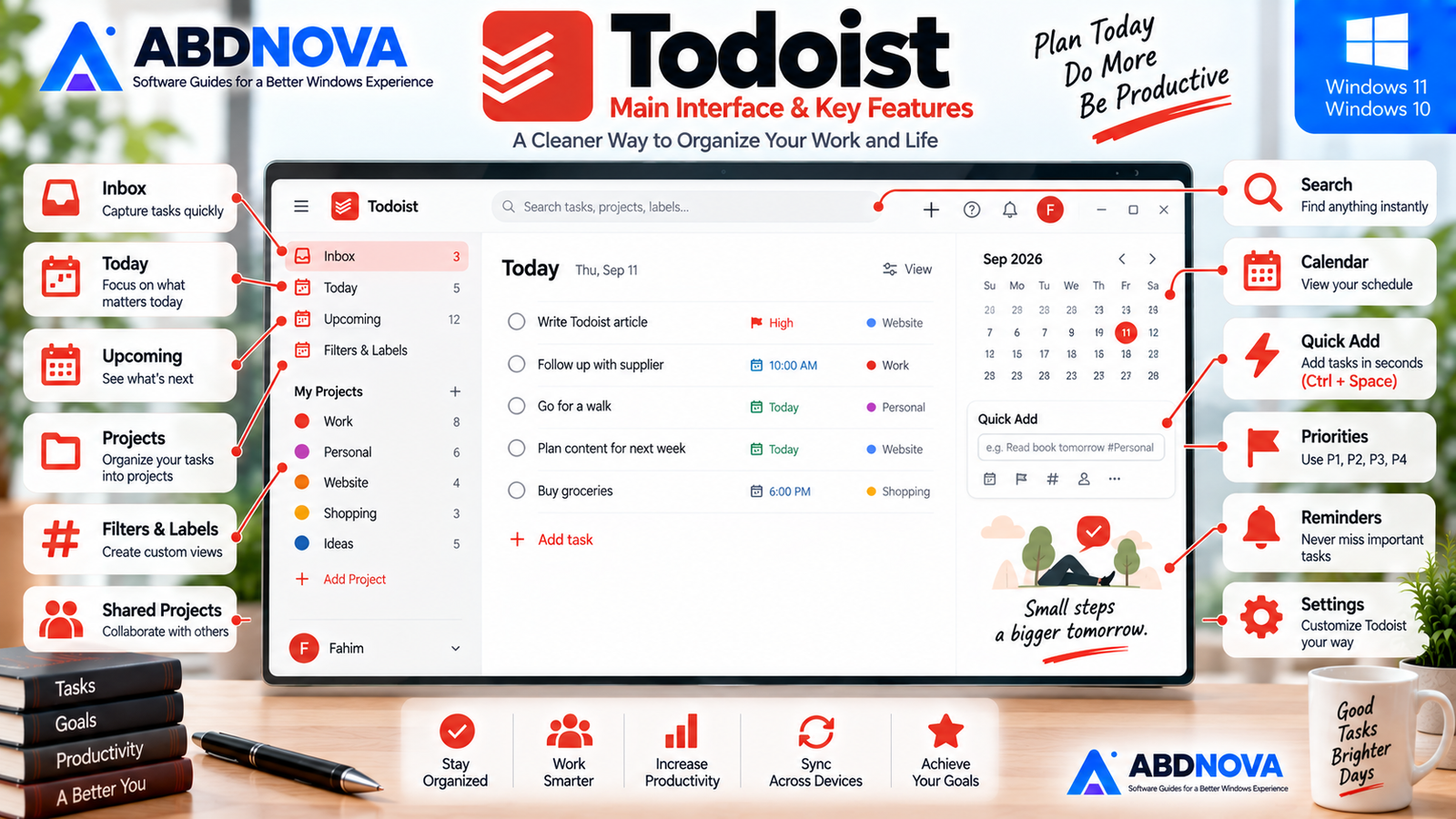
Todoist Main Interface & Key Features
Todoist uses a clean interface designed to keep frequently used planning tools easy to reach.
Main areas include:
- Inbox.
- Today.
- Upcoming.
- Projects.
- Labels.
- Filters.
- Completed tasks.
- Search.
- Calendar tools.
- Settings.
Inbox
The Inbox is useful as a temporary capture area when you want to record a task quickly without immediately deciding where it belongs.
Today
The Today view focuses on tasks scheduled for the current day.
Upcoming
Upcoming gives a broader view of scheduled work so you can see what is coming next.
Projects
Projects separate different areas of work or life.
Work
- Reports.
- Meetings.
- Supplier follow-ups.
Personal
- Shopping.
- Bills.
- Exercise.
Website
- Write article.
- Prepare images.
- Publish post.
- Check indexing.
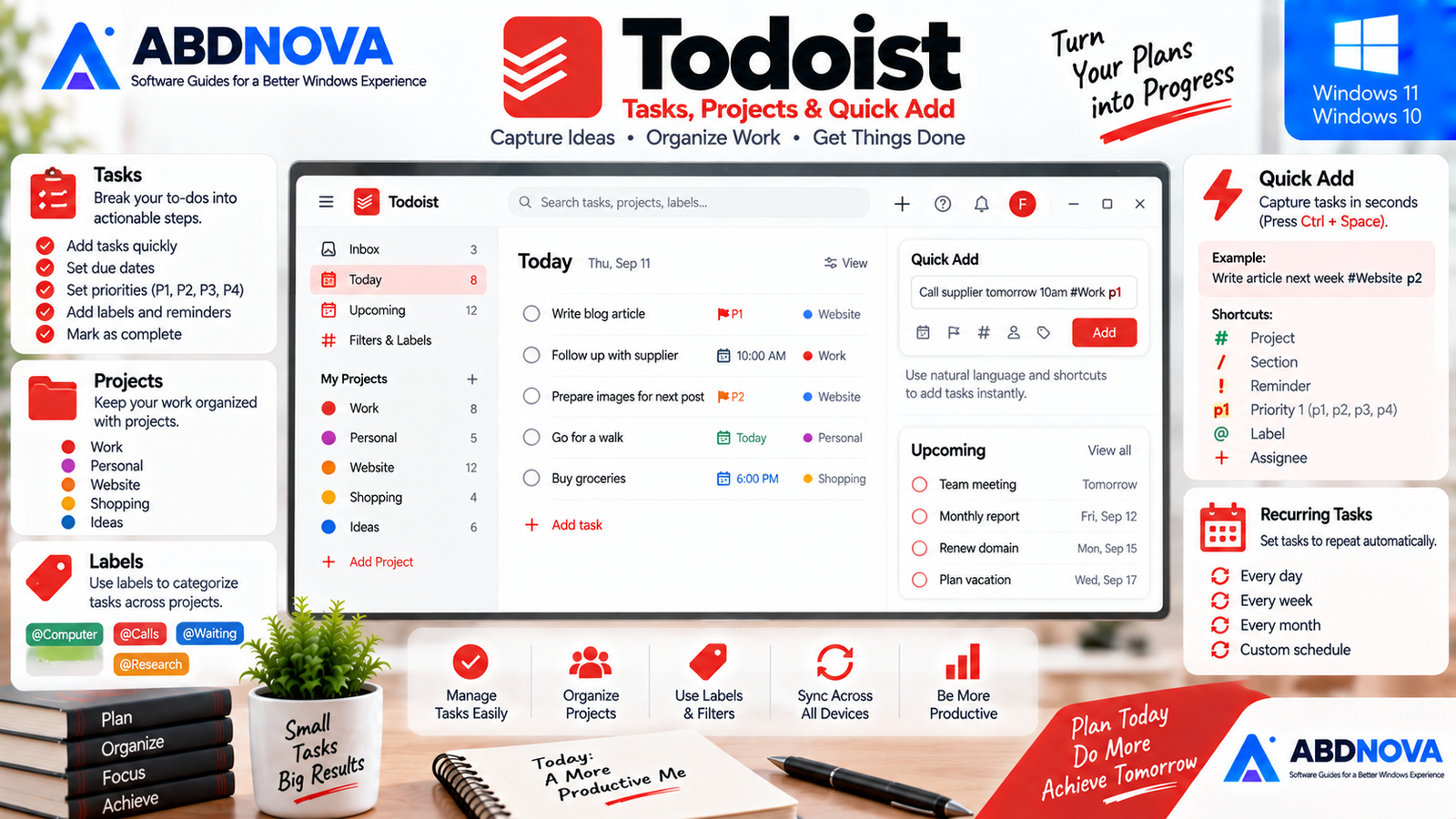
Todoist Tasks, Projects & Quick Add
Quick Add
Quick Add is one of Todoist’s most useful desktop features.
On Windows, the default global Quick Add shortcut is:
The shortcut can work even when the Todoist desktop application is minimized.
Quick Add can recognize shortcuts for:
- Project.
- Section.
- Priority.
- Assignee.
- Label.
- Reminder.
- Deadline.
This makes it possible to capture work without interrupting what you are doing in another Windows application.
Tasks, Projects & Sections
Tasks are the foundation of Todoist.
A task can be simple:
or more structured:
Projects provide higher-level organization, while sections divide those projects into stages or categories.
Website Project
To Do- Research software.
- Write article.
- Featured image.
- Installation image.
- Comparison image.
- Upload images.
- Add internal links.
- Publish article.
Due Dates & Recurring Tasks
Todoist is particularly useful for recurring work.
Instead of manually recreating the same task every day, week or month, you can assign a recurring schedule.
After completing the recurring task, Todoist moves it to its next scheduled occurrence.
Examples include:
- Weekly reports.
- Monthly bills.
- Daily exercise.
- Regular backups.
- Content publishing.
- Cleaning routines.
- Recurring meetings.
- Maintenance tasks.
Priorities
Todoist uses four priority levels:
Inside Quick Add, you can type p1, p2, p3 or p4 while creating the task.
Labels & Filters
Projects organize tasks by subject, while labels can group tasks across different projects.
Common labels might include:
- Work.
- Computer.
- Calls.
- Shopping.
- Waiting.
Filters can then create custom views from task information, giving users with many projects more control than a simple checklist app.
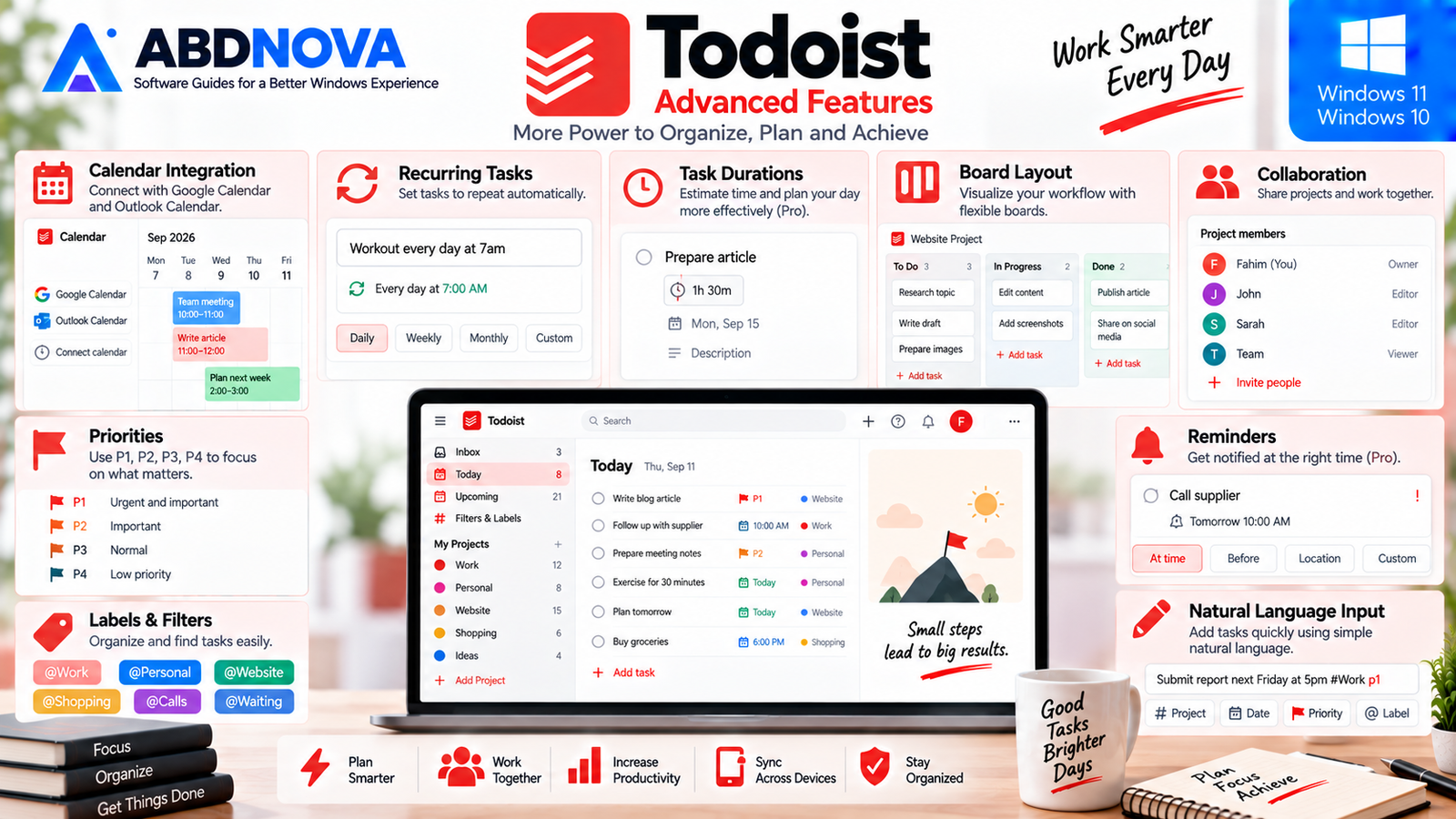
Todoist Advanced Features
Calendar Integration
Todoist currently integrates with both Google Calendar and Outlook Calendar.
Calendar events can appear alongside Todoist tasks in Today and Upcoming, and time-blocked Todoist tasks can synchronize to the connected calendar.
Calendar Layout
Todoist Pro and Business users can apply a visual Calendar layout.
This weekly or monthly grid makes it easier to identify schedule gaps, rearrange tasks and create a realistic plan.
Calendar Feeds
Todoist also supports calendar subscription feeds.
Tasks containing dates can be exposed to compatible calendar applications through iCal feeds.
You can use:
- Account calendar feeds.
- Individual project calendar feeds.
Reminders
Todoist can send notifications when tasks need attention.
Depending on the task, plan and reminder type, reminders can be:
- Automatic.
- Custom.
- Recurring.
- Location-based.
Examples include:
- Call supplier at 10:00 AM.
- Submit report before meeting.
- Pay bill tonight.
- Check website update.
- Leave for appointment.
Task Durations & Time Blocking
Todoist Pro and Business support task durations.
You can estimate how long a task should take and use Calendar layout to plan realistic time blocks.
This is useful when a long daily task list would otherwise exceed the amount of time actually available.
Board Layout
Todoist projects do not need to use only conventional lists.
Board layout provides a column-based workflow such as:
This is useful for:
- Content production.
- Small projects.
- Editorial workflows.
- Personal planning.
- Team workflows.
Collaboration
Todoist can also support shared work.
Shared projects and team workspaces allow multiple people to coordinate tasks instead of maintaining completely separate lists.
Depending on the workspace and plan, Todoist can support assignments and additional team-oriented project management.
Keyboard Shortcuts
Keyboard shortcuts can make the Windows desktop app much faster.
Besides Ctrl + Space for global Quick Add, the Quick Add interface supports shortcuts such as:
/ — Section
+ — Assignee
% — Label
p1–p4 — Priority
! — Reminder
{date} — Deadline
Todoist and Other Productivity Workflows
Todoist focuses primarily on actionable tasks and projects rather than long-form note storage.
If you also need a broader notes-and-productivity workspace with Web Clipper, files and calendar-oriented note management, see our Evernote Download for Windows guide.
If your workflow is more focused on local Markdown notes, backlinks, Graph View and connected personal knowledge management, see our Obsidian Download for Windows guide.
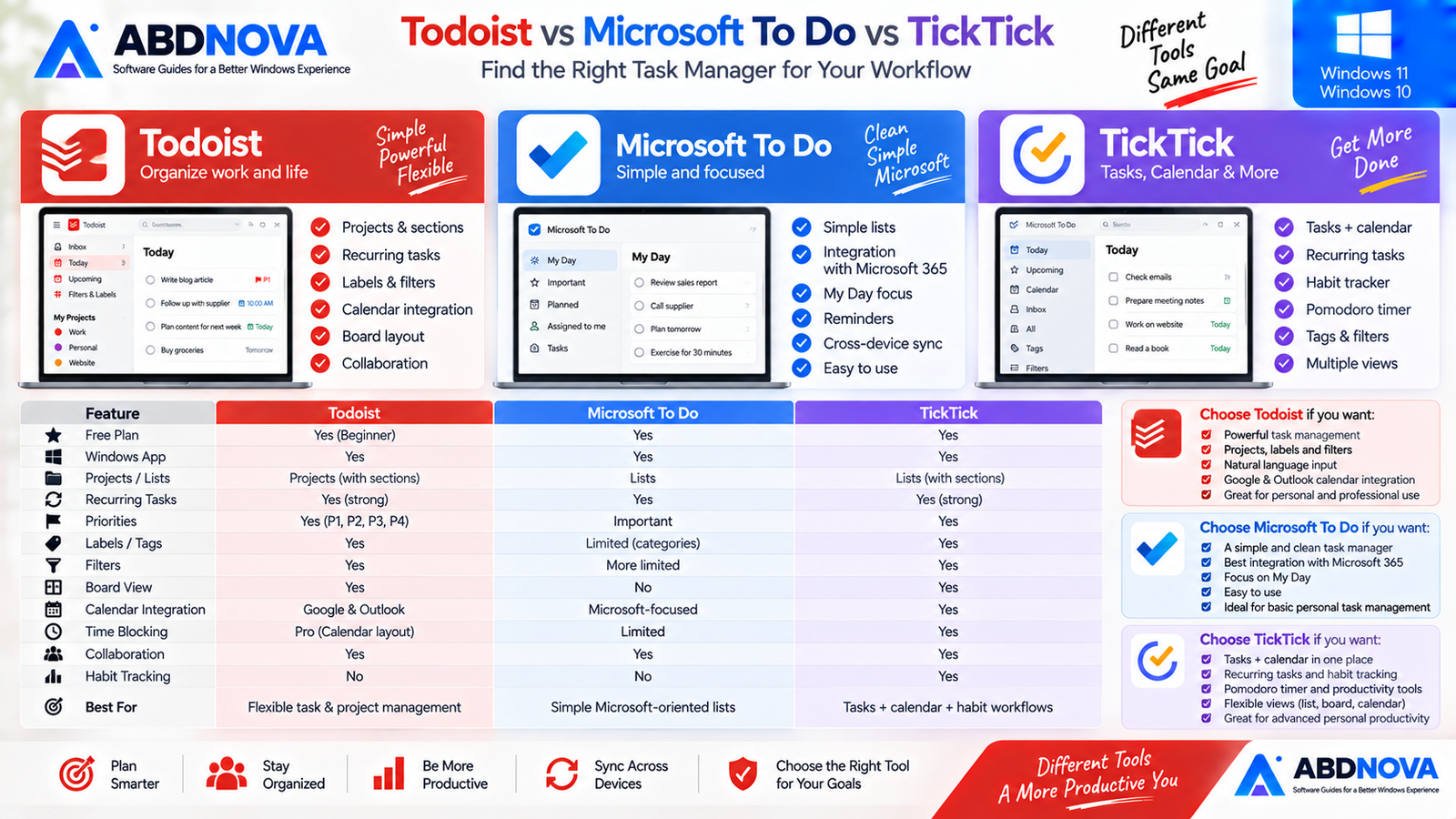
Todoist vs Microsoft To Do vs TickTick
| Feature | Todoist | Microsoft To Do | TickTick |
|---|---|---|---|
| Free Option | Yes | Yes | Yes |
| Windows App | Yes | Yes | Yes |
| Projects / Lists | Projects | Lists | Lists |
| Recurring Tasks | Strong | Yes | Strong |
| Priorities | Yes | Important | Yes |
| Labels / Tags | Yes | Different approach | Yes |
| Filters | Yes | More limited | Yes |
| Board View | Yes | No | Available |
| Calendar Integration | Google & Outlook | Microsoft-focused | Available |
| Time Blocking | Pro / Business | Limited | Strong |
| Collaboration | Yes | Yes | Yes |
| Quick Capture | Excellent | Good | Good |
| Best For | Flexible tasks & projects | Simple Microsoft-oriented lists | Tasks + calendar + habit workflows |
Todoist is especially attractive when you want fast task capture, flexible projects, natural scheduling, filters, labels, recurring tasks and cross-platform productivity.
Microsoft To Do is simpler and works particularly well for users already centered on Microsoft’s ecosystem.
TickTick is worth considering when calendar planning and additional personal productivity features are especially important.
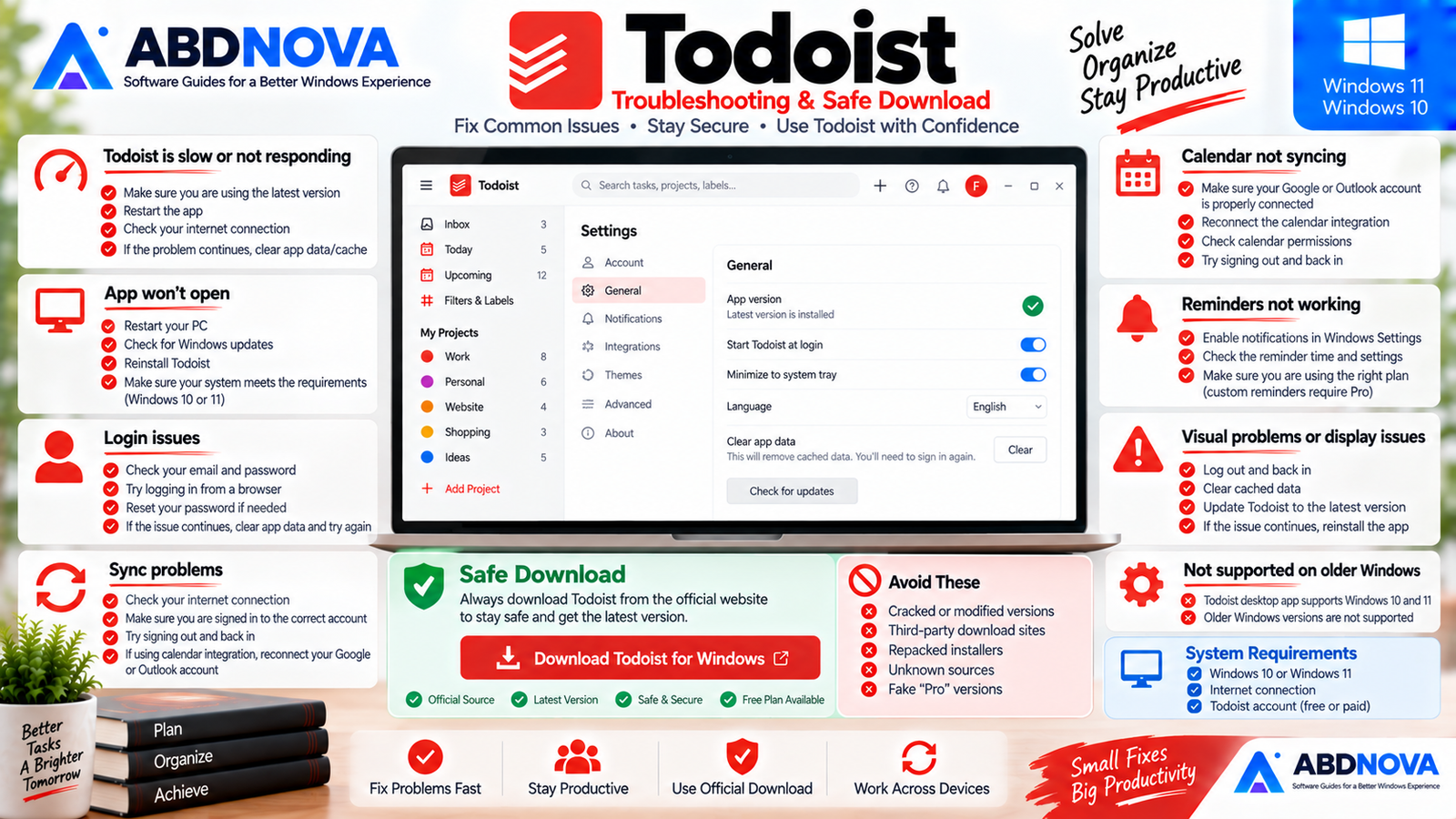
Todoist Troubleshooting on Windows
Todoist Is Slow or Behaving Strangely
Make sure both Windows and Todoist are up to date.
Todoist’s current desktop system requirements support Windows 10 and Windows 11.
Visual Problems or Login Issues
Todoist recommends logging out and back in when outdated or corrupted cached content may be causing desktop-app problems.
If necessary, clearing the application’s data can remove cached pages or scripts associated with visual or login issues.
Calendar Isn’t Syncing
Confirm that your Google Calendar or Outlook Calendar account is still connected correctly.
Todoist provides dedicated troubleshooting guidance for both integrations.
Reminder Didn’t Appear
Check that Todoist notifications are allowed in Windows and verify that the reminder has been configured correctly.
Also remember that some custom or advanced reminder functionality depends on your plan.
Todoist Won’t Run on an Older Windows PC
The current desktop requirement is Windows 10 or Windows 11.
Older Windows versions are outside Todoist’s current supported desktop requirements.
Is Todoist Safe?
Yes, when you install it from Todoist’s official Windows download page.
Todoist already provides a free Beginner plan, so there is no reason to use cracked, repacked or modified installers.
- Todoist Crack.
- Todoist Pro Crack.
- Todoist Premium Crack.
- Activated Todoist.
- Modified installers.
- Unofficial repacks.
Safe Todoist Download for Windows
The safest source for Todoist Download for Windows is the official Todoist website.
Use the official Todoist for Windows download page to get the current desktop application.
Frequently Asked Questions
Is Todoist free?
Yes. Todoist offers a free Beginner plan. Pro and Business add higher limits and additional features.
Does Todoist support Windows 11?
Yes. Windows 11 is officially supported by the current Todoist desktop application.
Does Todoist still support Windows 10?
Yes. Windows 10 remains listed in Todoist’s current desktop system requirements.
Can Todoist create recurring tasks?
Yes. Recurring tasks automatically move to their next scheduled occurrence after completion.
Does Todoist work with Google Calendar?
Yes. Google Calendar is supported by Todoist’s current Calendar integration.
Does Todoist work with Outlook Calendar?
Yes. Outlook Calendar is also supported.
Does Todoist have a Windows Quick Add shortcut?
Yes. The default global Quick Add shortcut on Windows is Ctrl + Space.
Can I use Todoist for team projects?
Yes. Todoist supports shared projects and offers Business features for team-oriented workflows.
Does Todoist have Board layout?
Yes. Todoist projects can use a Board layout for column-based workflows.
Does Todoist support time blocking?
Yes. Pro and Business users can use Calendar layout and task durations for time-blocking workflows.
Do I need Todoist Pro?
Not necessarily. Start with Beginner if its limits are sufficient. Pro becomes more useful when you need higher project limits, Calendar layout, task durations, custom reminders and other advanced planning features.
Final Thoughts
Todoist Download for Windows is a strong choice for users who want a focused task manager without turning everyday planning into a complicated project-management system.
Its combination of Quick Add, projects, sections, priorities, labels, filters, recurring dates, calendar integration, reminders, board layout, collaboration and keyboard shortcuts provides enough flexibility for both simple personal lists and more structured work.
The free Beginner plan is sufficient to test the core workflow, while Pro adds more serious planning tools such as Calendar layout, task durations, custom reminders and much higher limits.
If your workflow also requires long-form notes and web capture, Evernote is more note-oriented. If you prefer connected Markdown knowledge and local files, Obsidian is the stronger knowledge-management companion.
Download Todoist for Windows
Get the current Windows desktop application directly from Todoist. ABDNOVA recommends official sources only.


