

TeamViewer Download for Windows – Secure Remote Access & Support
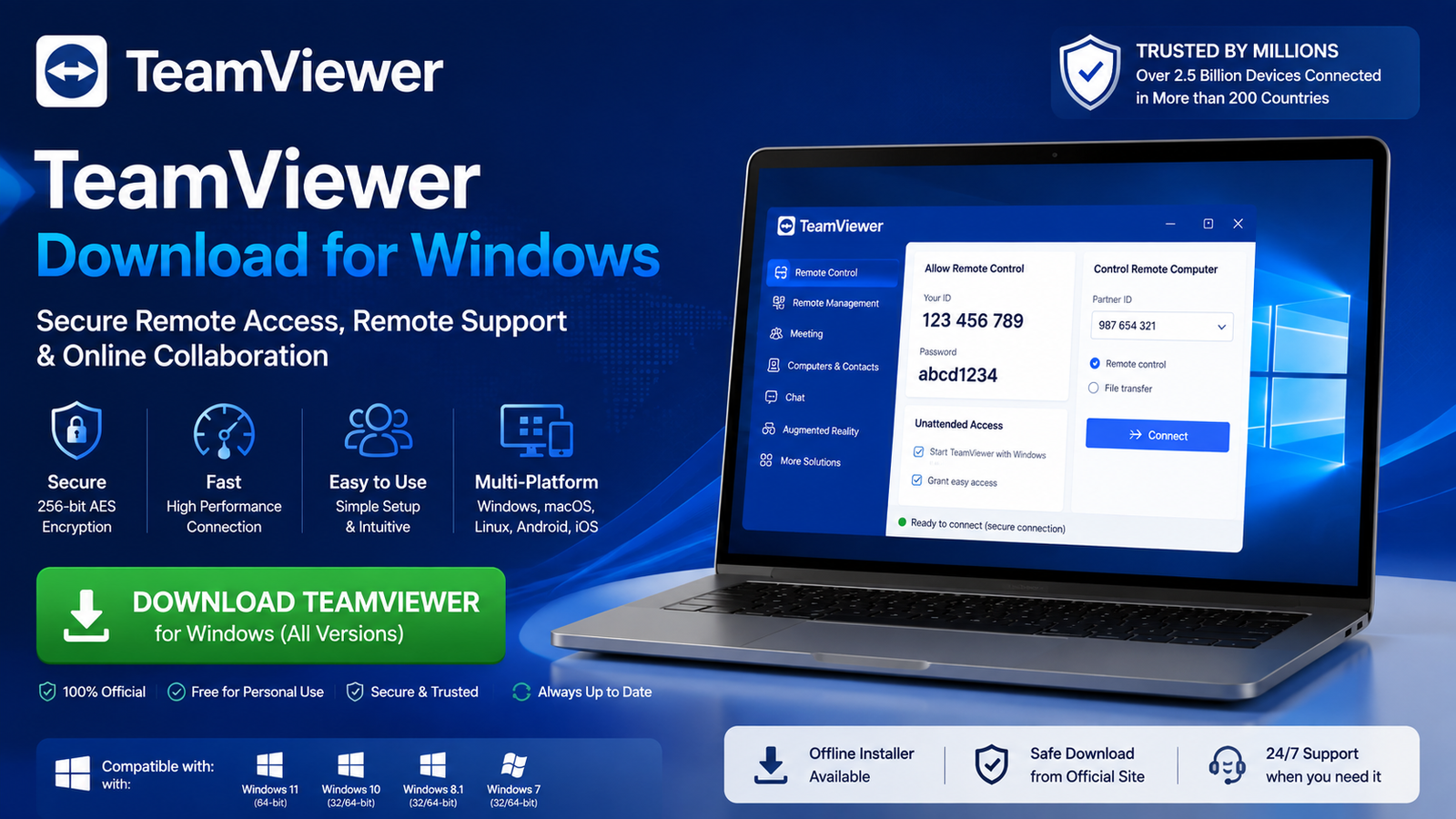
Download TeamViewer – the secure remote access and support solution for Windows.
TeamViewer is a remote access and remote support application that allows you to connect to another computer or device over the internet. It can be used to remotely control a PC, provide technical support, access your own computer from another location, transfer files, and manage authorized remote devices.
TeamViewer is available for Windows as well as other major platforms. For Windows users, the most important download options are TeamViewer Full Client, QuickSupport, and Host.
In this guide, you will learn how to download TeamViewer for Windows, choose the correct version, install it, connect to another PC, configure unattended access, transfer files, improve security, and fix common TeamViewer problems.
TeamViewer for Windows Overview
| Information | Details |
|---|---|
| Software | TeamViewer |
| Category | Remote Desktop / Remote Support |
| Platform | Windows |
| Main Use | Remote Access & Support |
| Full Client | Available |
| QuickSupport | Available |
| Host | Available |
| File Transfer & Unattended Access | Supported |
| Personal Use | Free option available |
| Commercial Use | Paid license generally required |
Full Client vs QuickSupport vs Host
Choosing the correct TeamViewer package is important.

TeamViewer Full Client
Suitable if you want to connect to another computer, receive incoming connections, provide remote support, access your own devices, and manage remote computers. For most users who want the complete application, this is the best starting point.
TeamViewer QuickSupport
Designed mainly for temporary remote assistance. It does not require the same traditional full installation process. Useful when someone is helping you fix a PC problem, or you do not want the full application installed.
TeamViewer Host
Designed for unattended access. The remote computer can be configured for authorized access even when nobody is sitting in front of it to approve every session. Ideal for your home PC, office workstation, or regular maintenance.
TeamViewer Free vs Paid
TeamViewer’s free option is intended for personal, non-commercial use. Examples may include helping family members, helping friends, accessing your own personal computer, or connecting between your own private devices.
Commercial or professional use generally requires an appropriate paid license. Examples include supporting customers, using TeamViewer as part of your job, managing company computers, or providing paid IT services.
It is important to distinguish personal use from commercial activity.

TeamViewer Main Features
Remote Desktop Access
Allows authorized users to connect to another computer remotely and interact with its desktop as if they were sitting in front of it.
Remote Support
A trusted technician or helper can connect remotely to troubleshoot problems instead of explaining every step by phone or message.
Unattended Access
Configure authorized access to your own remote computer without requiring someone to approve each connection. Ideal for remote work and personal device access.
File Transfer
TeamViewer can securely transfer documents, reports, project files, and troubleshooting files between connected computers.
Multi-Monitor & Remote Printing
If the remote PC uses multiple displays, TeamViewer supports multi-monitor workflows. Supported configurations also allow remote printing.
Wake-on-LAN
TeamViewer can work with Wake-on-LAN when the PC, network, firmware, and software are properly configured, allowing you to wake a sleeping PC.
TeamViewer Security & Scam Warning
Remote-access software can provide another person with significant control over a computer. For safer use, always use a strong password, enable two-factor authentication (2FA), review trusted devices, keep TeamViewer updated, and do not share session information publicly.
⚠️ Important Scam Warning
Legitimate software can be misused by scammers. Be suspicious if an unexpected caller or message asks you to install TeamViewer and requests access to online banking, email, or cryptocurrency accounts. Never provide remote access simply because someone claims to be from a bank, Microsoft, or government technical support.
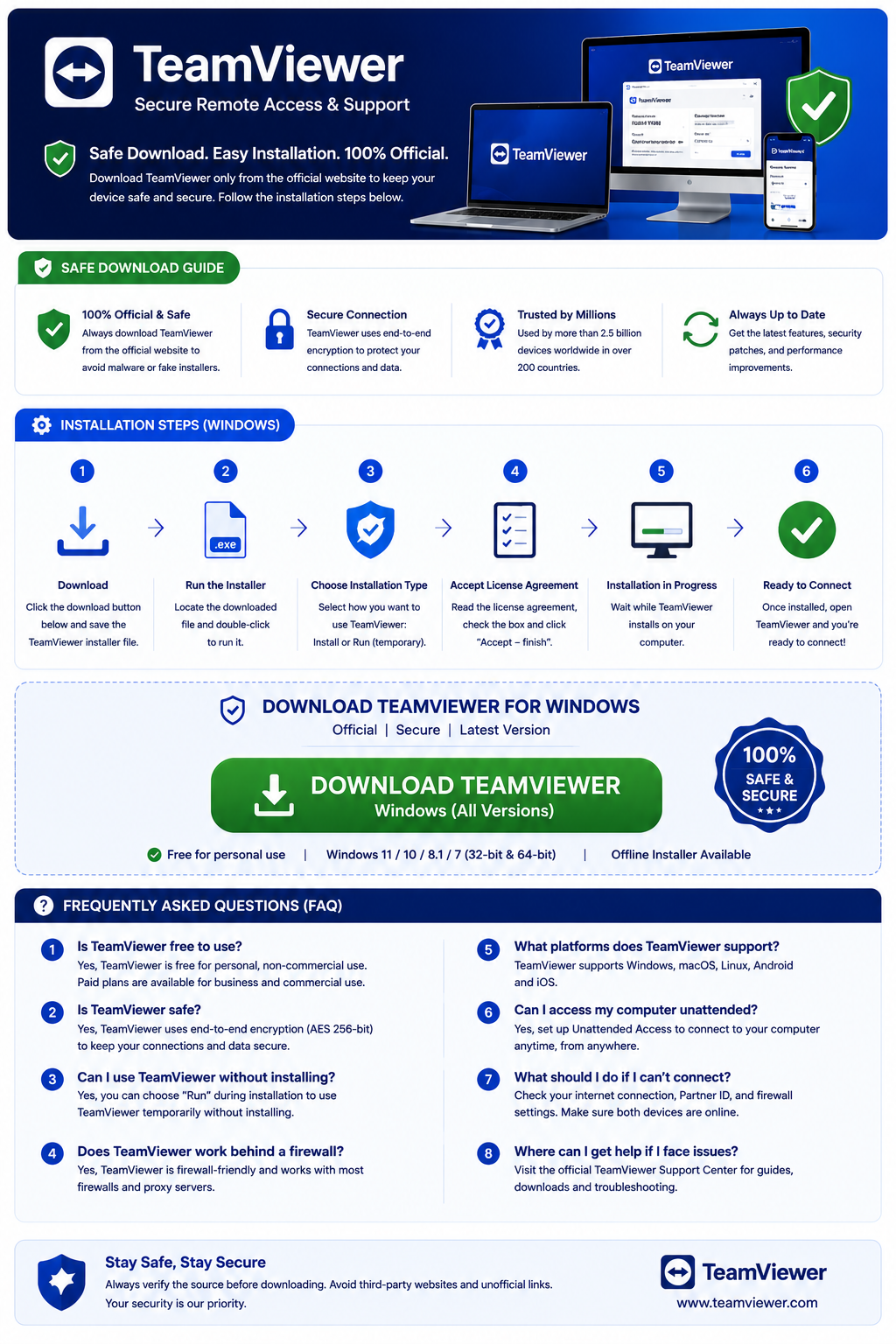
How to Download & Install TeamViewer on Windows
For safer installation, always use TeamViewer’s official source.
- Go to TeamViewer’s official Windows download section.
- Choose the correct product: Full Client, QuickSupport, or Host.
- Select the correct version (64-bit for most modern Windows PCs).
- Download the installer to your computer.
- Open your Downloads folder and double-click the installer.
- If prompted by Windows UAC, allow the setup to run.
- Choose the installation options appropriate for your situation.
- Allow setup to finish and then launch TeamViewer.

How to Connect & Transfer Files
A typical remote-support workflow is: both users open the appropriate TeamViewer application. The person receiving support follows the session instructions. The remote connection is authorized. The trusted support provider interacts with the computer. Either user ends the session when finished.
For devices you regularly access, adding them to an authorized account can be more convenient than setting up a temporary session each time. During supported sessions, TeamViewer also allows you to transfer files between connected computers—useful for moving documents, retrieving files from home, or sending support files.
TeamViewer Troubleshooting
Not Connecting
Check internet, remote PC offline status, firewalls, proxy settings, or outdated TeamViewer. Restart TeamViewer or Windows, and verify the correct account/session info.
Session Is Slow
Switch from Wi-Fi to Ethernet, move closer to the router, close active downloads, reduce remote display quality, or lower remote resolution.
File Transfer Not Working
Check if the remote session is still connected, file transfer permissions are allowed, disk space is available, and Windows permissions are not blocking it.
Password Not Working
Check for typing mistakes, ensure the correct remote device is selected, confirm unattended-access settings, and verify account permissions.
Black Screen
Update TeamViewer and Windows, restart the remote PC, or check for graphics driver and hardware acceleration issues.
“Commercial Use Suspected”
Do not use cracks or ID reset tools. Review TeamViewer’s personal-use terms and use their official process if you believe you were incorrectly classified.
TeamViewer vs AnyDesk
Both TeamViewer and AnyDesk provide remote desktop, file transfer, unattended access, multi-platform support, and business options. TeamViewer may suit users who prefer its device-management and support ecosystem. AnyDesk may suit users who prefer its interface or workflow. There is no universal winner; the better choice depends on your specific needs.
Frequently Asked Questions
Is TeamViewer free?
TeamViewer offers a free option for eligible personal, non-commercial use. Business and professional use generally requires a commercial license.
Is TeamViewer safe?
Yes, when downloaded from the official source and used only with trusted people. Always enable two-factor authentication and review trusted devices.
Is TeamViewer a virus?
No. Legitimate TeamViewer software is a remote-access application, not a virus. Fake or modified installers from unknown sources may still be dangerous.
Does TeamViewer work on Windows 11 and 10?
Current TeamViewer releases support compatible Windows 11 and Windows 10 environments.
Do both computers need TeamViewer?
Both sides need a compatible TeamViewer setup, but they do not necessarily need the same package. For example, support can use Full Client while the person receiving help uses QuickSupport.
Can TeamViewer transfer files?
Yes. File-transfer functionality is available in supported remote sessions.
Can TeamViewer access a computer without approval?
Yes, when Unattended Access has been deliberately configured and secured beforehand.
Can TeamViewer turn on a remote PC?
Wake-on-LAN can work in compatible, correctly configured environments. It cannot automatically turn on every PC without the required hardware and network setup.
Final Thoughts
TeamViewer is a practical remote-access solution for Windows users who need to support another computer, access their own devices remotely, transfer files, or manage authorized remote systems.
The most important choice is selecting the correct package: Full Client for complete access, QuickSupport for temporary support, and Host for unattended access. Also remember that TeamViewer’s free option is intended for eligible personal, non-commercial use, while business or professional activity generally requires an appropriate license.
For the safest experience, download TeamViewer from the official source, keep it updated, use two-factor authentication where appropriate, and never give remote access to an unexpected caller.
Ready to download TeamViewer?
Get the latest stable version from the official TeamViewer website. We always recommend downloading from official sources.


