
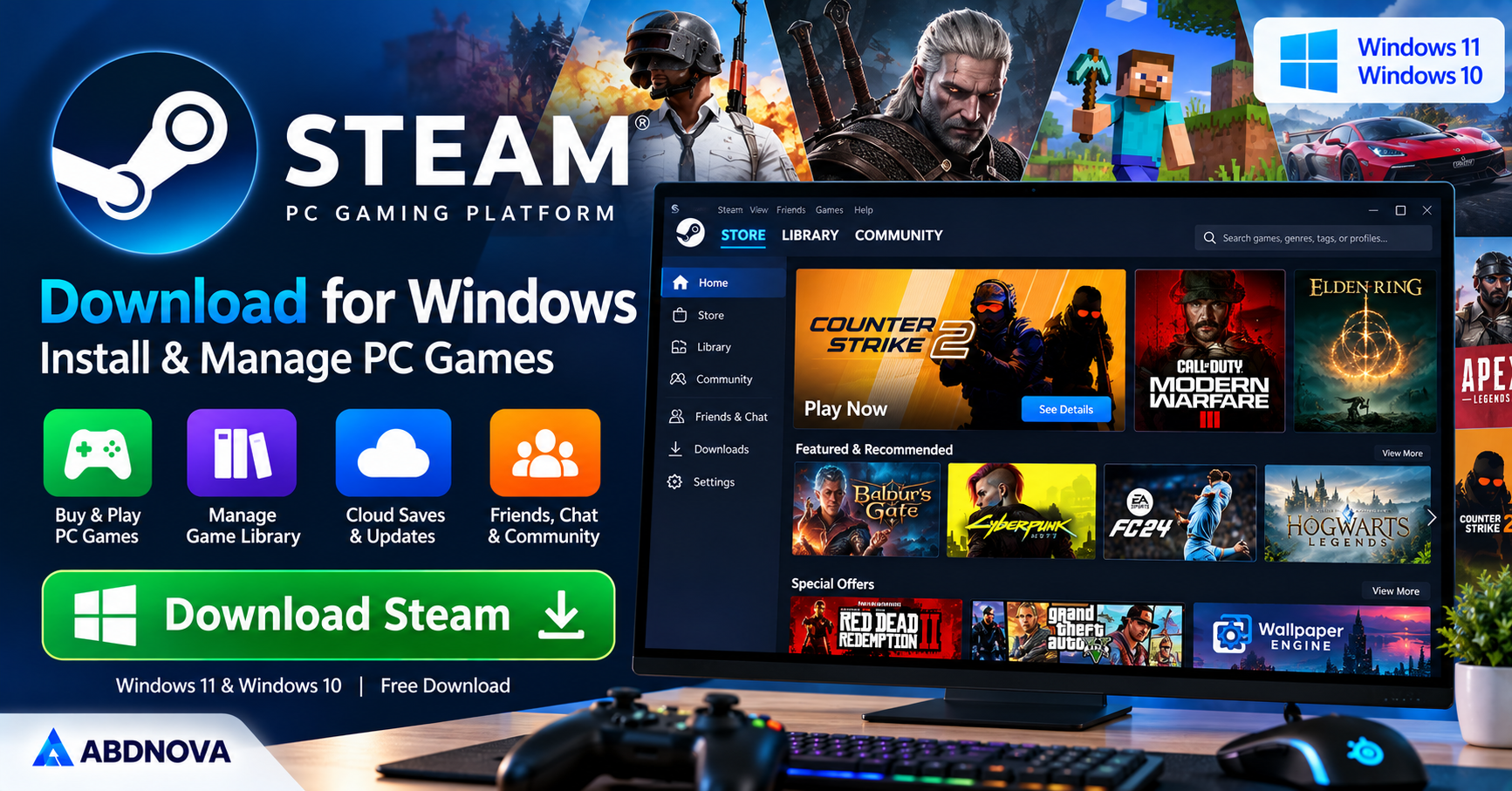

Steam Download for Windows
Steam Download for Windows lets Windows 11 and Windows 10 users discover, download, install, update, and manage PC games through Valve’s gaming platform.
Steam is a digital gaming platform developed by Valve that allows Windows users to download, install, purchase, and manage PC games from one application. It combines a large game store, personal game library, automatic updates, multiplayer features, cloud saves, and community tools.
Steam is available for compatible 64-bit Windows 11 and Windows 10 PCs. The Steam client is free to download, although some games and downloadable content require payment.
Whether you want to install free PC games, organize your gaming library, or manage game updates, Steam provides a convenient platform for Windows gaming.
Steam Download for Windows – Overview
| Software | Steam |
| Developer | Valve Corporation |
| Category | PC Gaming Platform & Digital Store |
| Operating System | Windows 11 & Windows 10 (64-bit) |
| License | Free client; games may be free or paid |
| Main Purpose | Download, Install & Manage PC Games |
| Game Store | Steam Store |
| Game Library | Supported |
| Automatic Updates | Supported |
| Cloud Saves | Supported Games |
| Controller Support | Steam Input & Compatible Controllers |
| Account Security | Steam Guard |
Steam Main Interface & Key Features
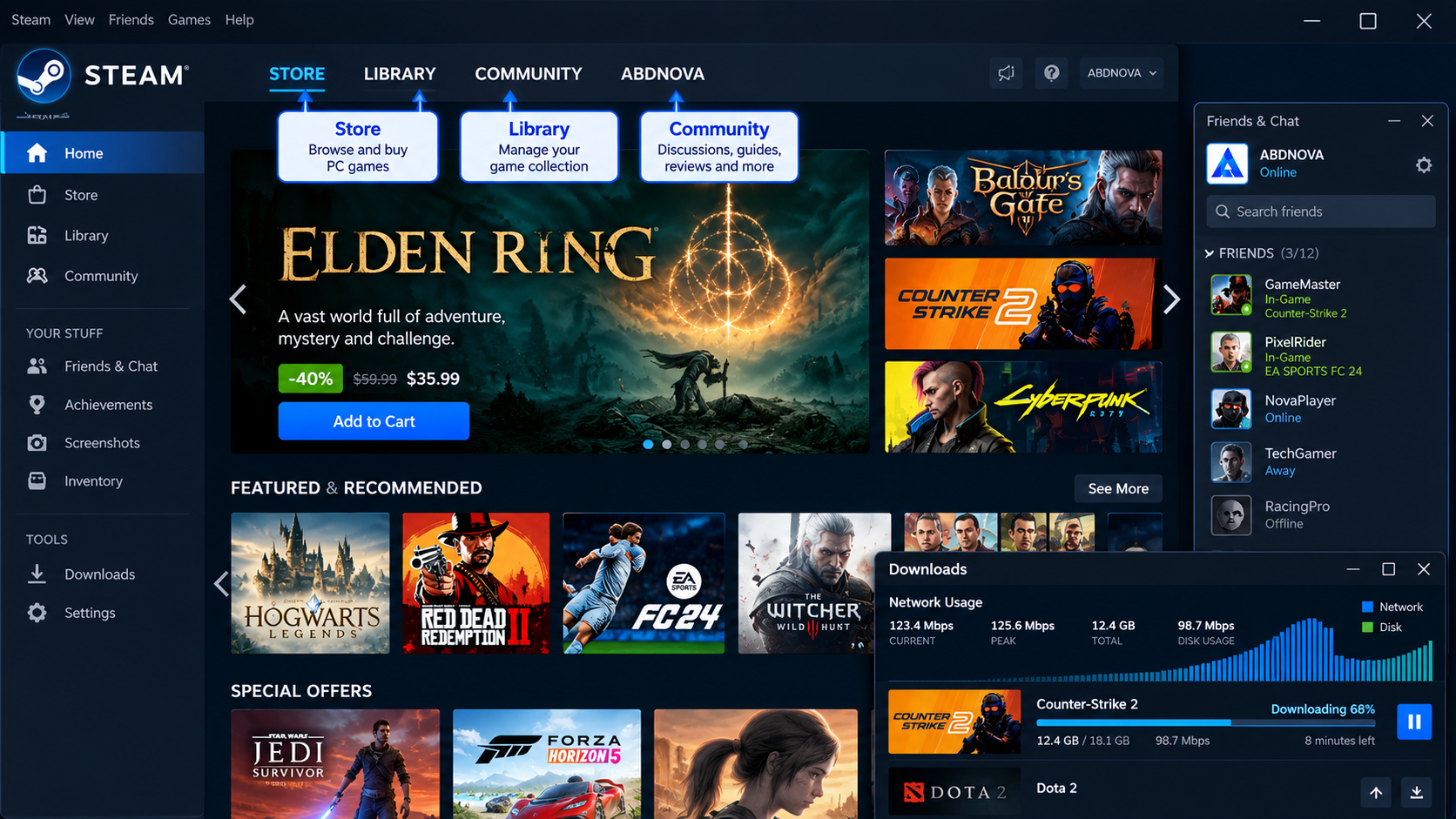
Steam includes several main sections for discovering, installing, and managing games.
Steam Store
Browse free-to-play and paid PC games, discover new releases, and review available downloadable content.
Game Library
Access purchased and installed games associated with your Steam account.
Automatic Updates
Keep supported games updated through Steam’s download and update management features.
Steam Cloud
Synchronize supported game saves and selected settings across compatible computers.
Friends & Chat
Communicate with other players using supported messaging and voice chat features.
Steam Workshop
Download community-created content for games that support Steam Workshop.
Steam Community
Access player reviews, discussions, guides, and community information.
Achievements
Track game progress and achievements in compatible titles.
Controller Support
Configure compatible gaming controllers through Steam Input and supported game settings.
Big Picture Mode
Use a controller-friendly interface designed for televisions and larger displays.
Storage Manager
Organize installed games across supported storage drives and Steam library locations.
Game File Verification
Check and repair missing or corrupted files in supported installed games.
Steam also includes wishlists, game recommendations, seasonal sales, and downloadable content management.
Steam System Requirements for Windows
The Steam client supports compatible 64-bit Windows systems.
| Component | Requirement |
|---|---|
| Operating System | Windows 11 or Windows 10 (64-bit) |
| Processor | Compatible Intel or AMD processor |
| RAM | Sufficient for Windows and selected games |
| Storage | Space for Steam and installed games |
| Internet | Required for downloads and online features |
| Graphics | Depends on individual game requirements |
| License | Free client; games may be free or paid |
Important: Steam ended support for 32-bit Windows on January 1, 2026. Windows 10 32-bit systems no longer receive Steam client updates or security updates.
Each game has its own hardware requirements, so check the game’s Steam Store page before installing or purchasing it.
How to Download & Install Steam on Windows 11 & 10
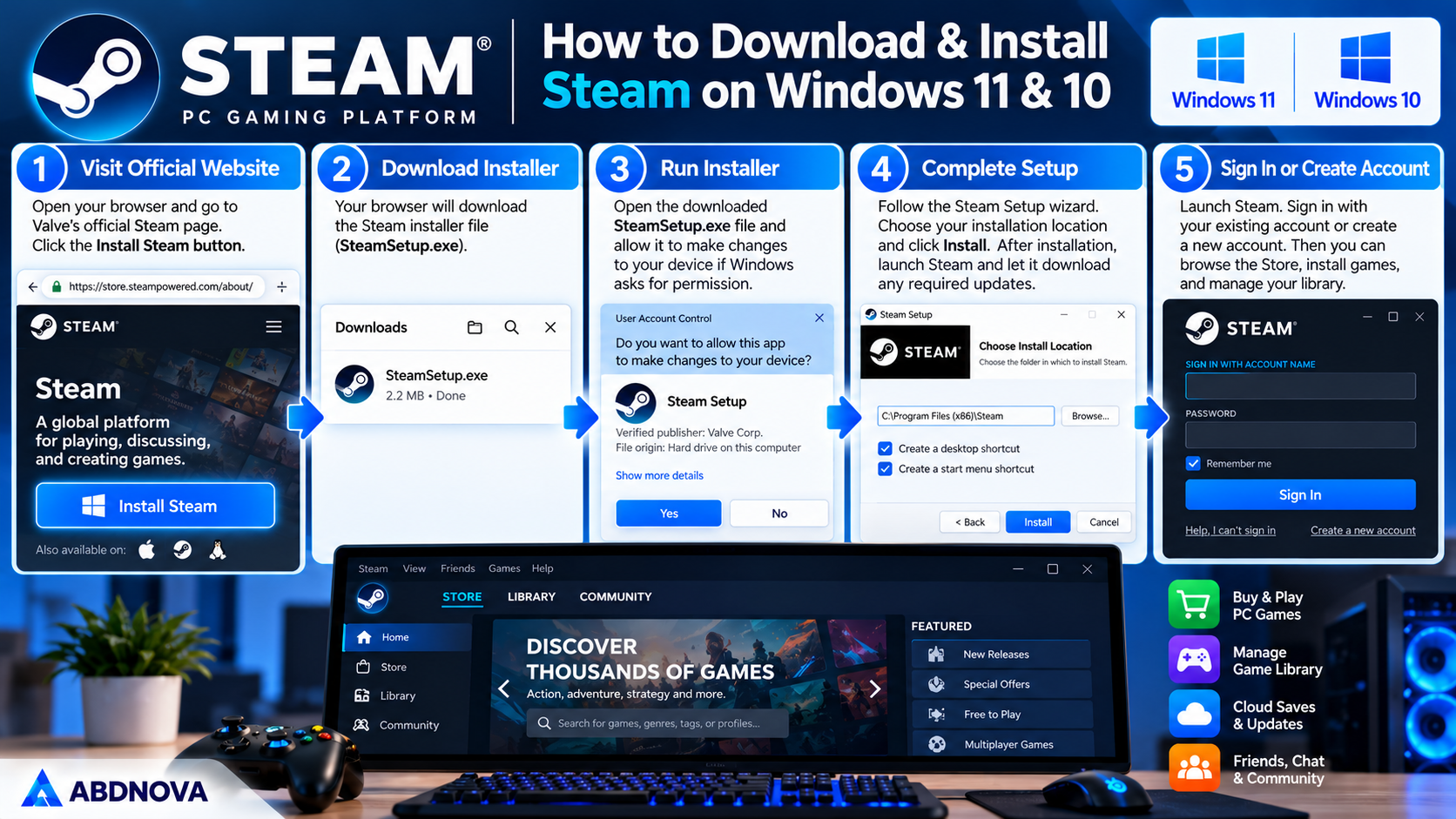
Download Steam directly from Valve’s official website rather than using modified or unofficial installers.
Steam Installation Steps
- Open the official Steam website.
- Click Install Steam.
- Download the Windows installer.
- Open the downloaded SteamSetup.exe file.
- Allow Windows permission if prompted.
- Select your preferred language.
- Choose the installation folder.
- Complete the installation.
- Launch Steam.
- Allow Steam to download any required updates.
After installation, Steam will display its sign-in screen.
Create or Sign In to a Steam Account
If you already have a Steam account, enter your login details.
New users can create an account by completing the registration process and verifying their email address.
For better account security, enable Steam Guard authentication.
How to Download & Install PC Games Using Steam
Steam allows you to install free-to-play games and games associated with your account.
Install Free PC Games
- Launch Steam.
- Open the Store tab.
- Search for a free-to-play game.
- Open its store page.
- Select Play Game or the available installation option.
- Choose an installation location.
- Confirm the required storage space.
- Start the download.
- Wait for installation to finish.
- Launch the game from your Library.
Install Purchased Games
- Open the Library tab.
- Select a game from your account.
- Click Install.
- Choose your preferred storage drive.
- Confirm the installation.
- Wait for Steam to download the game.
- Click Play when installation is complete.
Download time depends on game size, internet speed, and storage performance.
Steam Game Library, Storage Manager, Cloud Saves & Controller Support
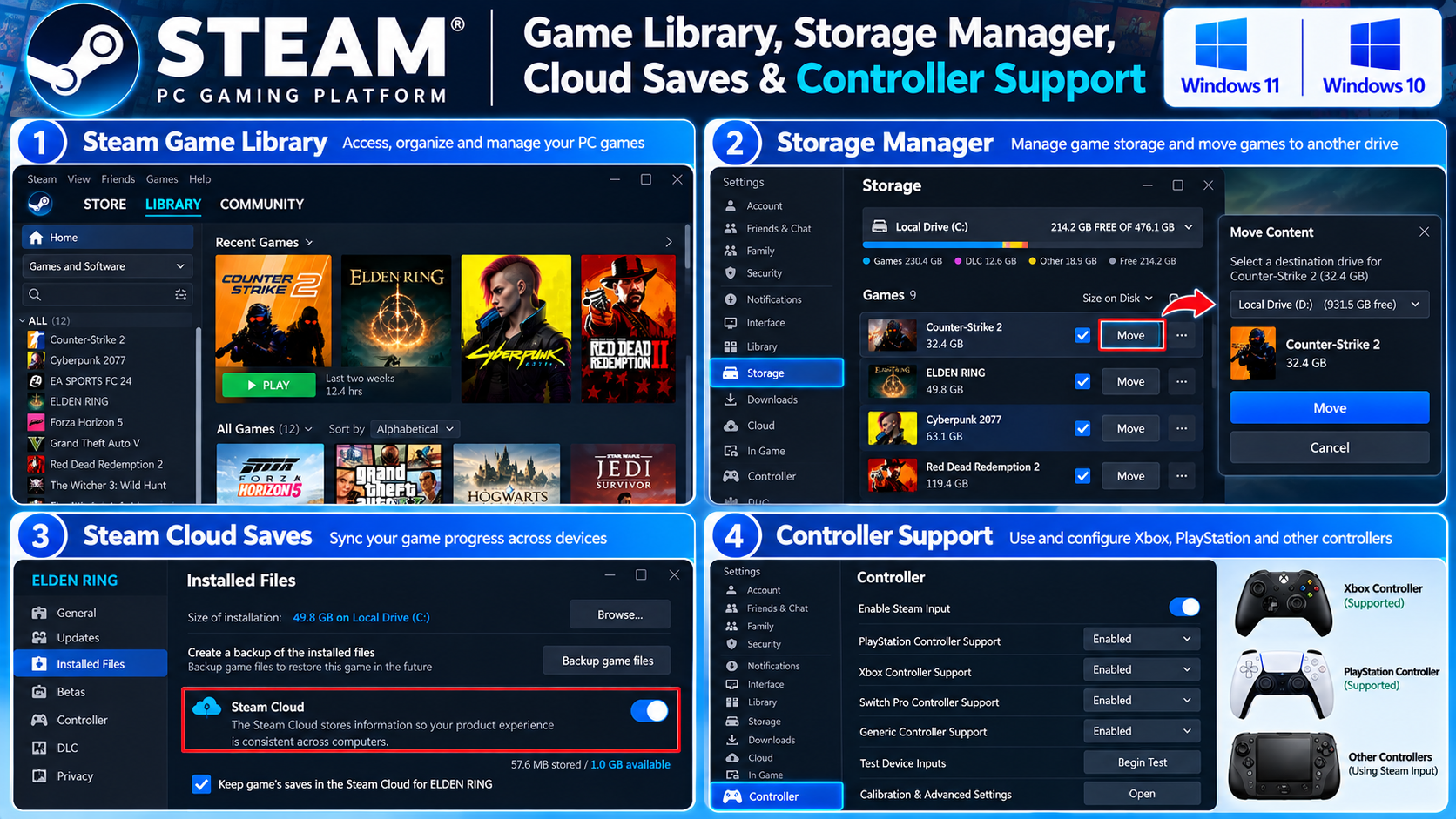
Steam Game Library – Organize & Manage Games
The Steam Library provides a central location for managing your PC games.
You can:
- View installed and uninstalled games.
- Launch games.
- Check game updates.
- Track achievements.
- Organize games into collections.
- Add games to Favorites.
- Manage downloadable content.
- Access game properties.
- Uninstall games.
- Check installed game files.
Create a Steam Game Collection
- Open your Steam Library.
- Find the Collections section.
- Create a new collection.
- Enter a collection name.
- Add the games you want to organize.
For example, you can create collections for racing, action, strategy, and multiplayer games.
Steam Storage Manager – Move Games to Another Drive
Modern PC games can require significant storage space. Steam includes a Storage Manager for organizing games across supported drives.
Add Another Steam Library Drive
- Open Steam.
- Select Steam > Settings.
- Open Storage.
- Select the option to add another drive or library location.
- Choose your preferred storage location.
- Confirm the new library.
Move an Installed Steam Game
- Open Steam > Settings > Storage.
- Select the drive containing the installed game.
- Select the game you want to move.
- Click Move.
- Choose the destination Steam library.
- Wait for the transfer to complete.
Moving games to an SSD may improve loading times, depending on the game and your hardware.
Steam Automatic Updates & Download Settings
Steam automatically checks for updates and downloads game files according to your settings.
Available download management options include:
- Download region selection.
- Bandwidth limits.
- Download schedules.
- Automatic game updates.
- Download queue management.
- Background download preferences.
Change Steam Download Settings
- Open Steam.
- Select Settings.
- Open Downloads.
- Review the available options.
- Adjust bandwidth or scheduling preferences.
- Save your changes.
If downloads are slow, check your internet connection, download region, and available disk space.
Steam Cloud Saves & Game Backup
Steam Cloud can synchronize saved game data and certain settings for supported games.
This feature is useful when playing the same game on another computer.
Check Steam Cloud Support
- Open Steam.
- Select a game in your Library.
- Open Properties.
- Find the Steam Cloud option if available.
- Confirm that synchronization is enabled.
Not every game supports Steam Cloud.
Back Up Steam Games
Steam also offers supported game backup functionality, although available options can vary by client version.
For important game data:
- Check whether the game supports Steam Cloud.
- Verify the location of local save files.
- Keep a separate backup of important saves.
- Confirm that game files and save data are included before deleting anything.
Steam Cloud should not be treated as a complete backup of every game or application.
Steam Friends, Chat & Community Features
Steam includes social features that allow players to communicate and participate in gaming communities.
Friends & Chat
You can add friends, exchange messages, and use supported voice chat features.
Steam Community
Steam Community provides access to:
- Game discussions.
- Player reviews.
- Community guides.
- Screenshots and artwork.
- Achievements.
- Game announcements.
Steam Workshop
Steam Workshop allows players to browse and subscribe to community-created content for supported games.
Workshop availability depends on the individual game.
Steam Controller Support & Big Picture Mode
Steam supports many popular gaming controllers through Steam Input and compatible game configurations.
Supported controllers can include Xbox, PlayStation, and other compatible devices.
Use Steam Big Picture Mode
Big Picture Mode provides a controller-friendly interface designed for televisions and larger displays.
- Open Steam.
- Find the Big Picture Mode option.
- Activate the mode.
- Connect a supported controller.
- Navigate your game library.
- Launch your preferred game.
This feature is useful when connecting a Windows gaming PC to a television.
Steam vs Epic Games Launcher
Steam and Epic Games Launcher both allow Windows users to download, install, and manage PC games. Steam provides extensive community features, Workshop integration for supported games, Steam Input, and Storage Manager.
Epic Games Launcher provides access to the Epic Games Store, including free-to-play titles and promotional game offers.
Both launchers can be installed on the same Windows PC.
For another PC gaming platform, read our Epic Games Launcher Download for Windows guide to learn about its installation, game library, free game promotions, and troubleshooting.
Steam Download Problems, Game File Verification & Safe Download
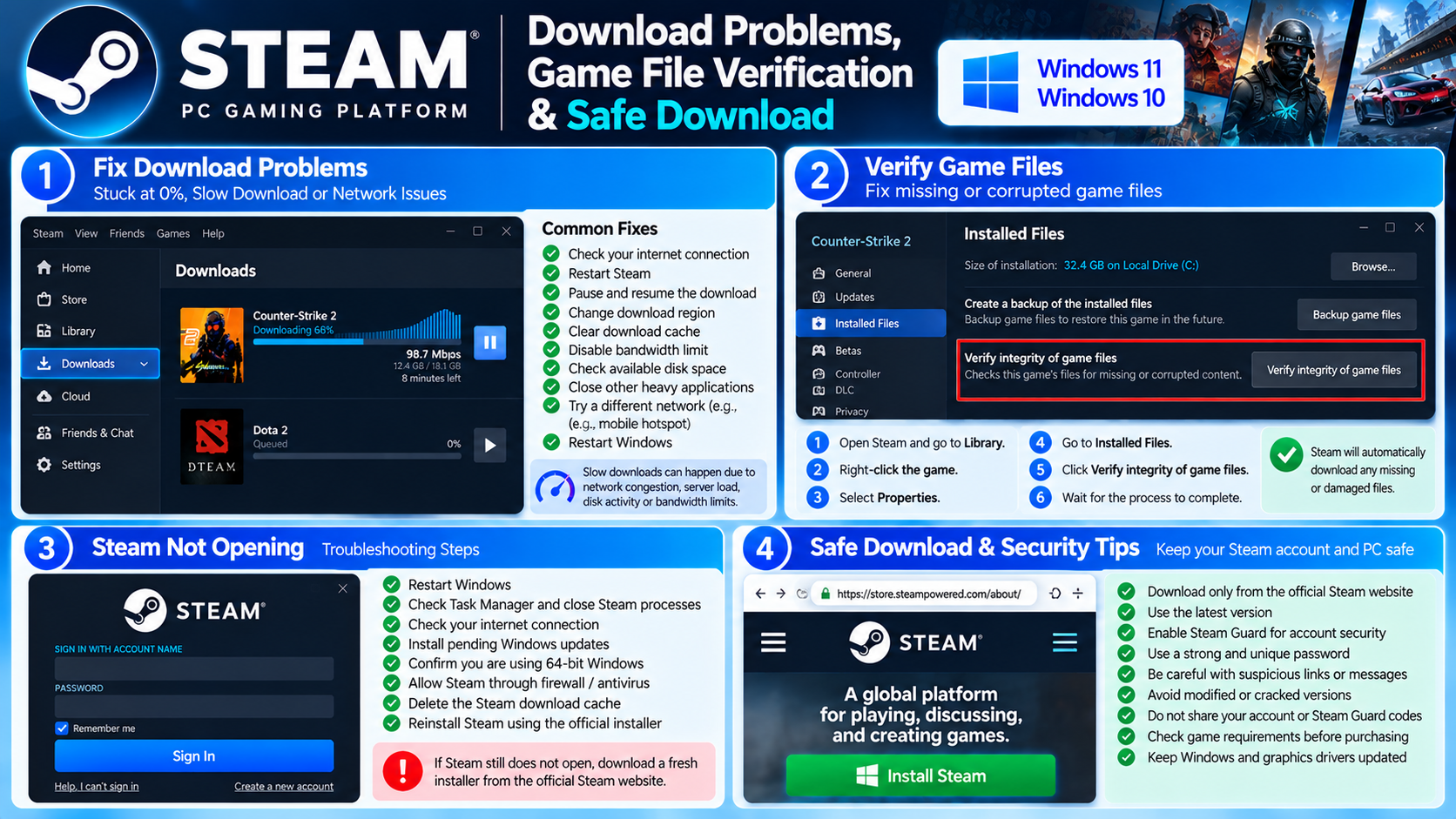
Steam Not Opening on Windows 11 or Windows 10
If Steam fails to launch, the issue may involve damaged client files, background processes, Windows compatibility, or software conflicts.
Troubleshooting Steps
- Restart Windows.
- Open Task Manager.
- Check whether Steam is already running.
- Close existing Steam processes if necessary.
- Launch Steam again.
- Check your internet connection.
- Install available Windows updates.
- Confirm that Windows is 64-bit.
- Check whether security software is blocking Steam.
- Reinstall Steam using the official installer if necessary.
Avoid deleting your Steam installation folder without checking your installed games and local data.
Steam Download Stuck at 0% or Running Slowly
Steam downloads can slow down or stop because of network problems, storage limitations, or temporary server issues.
Possible Fixes
- Restart Steam.
- Check your internet connection.
- Pause and resume the download.
- Check available disk space.
- Review download bandwidth limits.
- Change the Steam download region.
- Clear the download cache if necessary.
- Restart Windows.
Steam may also spend time unpacking or installing downloaded files, even when network activity appears low.
Steam Game Not Launching – Verify Game Files
Steam includes a file verification feature that can detect missing or corrupted game files.
How to Verify Game Files
- Open Steam.
- Go to Library.
- Right-click the affected game.
- Select Properties.
- Open Installed Files.
- Click Verify integrity of game files.
- Wait for verification to finish.
Steam may download replacement files if it detects missing or damaged content.
If the game still fails to open, check its graphics drivers, required software components, and official troubleshooting instructions.
Steam Login Problems & Steam Guard
If you cannot sign in to Steam:
- Check your account credentials.
- Verify your internet connection.
- Confirm Steam Guard authentication.
- Check your email or mobile authenticator.
- Use Steam’s official account recovery process when required.
Never share your Steam Guard codes, recovery codes, or password.
Avoid suspicious websites offering free Steam wallet funds, cracked games, or account verification through unfamiliar login pages.
Is Steam Free & Safe to Download?
Steam is legitimate gaming software developed by Valve. The desktop client is free, although many games and downloadable content packages require payment.
For safer use:
- Download Steam from Valve’s official website.
- Keep Steam updated.
- Enable Steam Guard.
- Use a strong password.
- Avoid modified Steam installers.
- Do not download cracked games.
- Check game requirements before purchasing.
- Review suspicious messages and login requests carefully.
Steam FAQ
Is Steam free for Windows?
Yes. Steam is free to download and use. Individual games may be free or paid.
Does Steam work on Windows 11?
Yes. Steam supports compatible 64-bit Windows 11 computers.
Can I install Steam on Windows 10?
Yes. Steam supports Windows 10 64-bit. Support for 32-bit Windows ended in January 2026.
Can I download free PC games using Steam?
Yes. Steam offers many free-to-play PC games.
Can I move Steam games to another drive?
Yes. Steam’s Storage Manager supports moving installed games between configured Steam library locations.
Does Steam automatically update games?
Yes. Steam supports automatic game updates and provides options to manage download preferences.
Can I play Steam games offline?
Some games support offline play through Steam Offline Mode. Availability depends on the game and its authentication requirements.
Does Steam Cloud save my game progress?
Steam Cloud synchronizes supported game saves. Not every game includes this feature.
Can I use a controller with Steam?
Yes. Steam supports many gaming controllers, although compatibility depends on the game and hardware.
Why is my Steam download slow?
Possible causes include network congestion, bandwidth limits, download region settings, storage performance, or temporary server issues.
Final Thoughts
Steam is a practical platform for downloading, installing, and managing PC games on Windows 11 and Windows 10. Its Store, Library, automatic updates, Storage Manager, cloud saves, and community features make it useful for both casual and experienced PC gamers.
For the best experience, install Steam from Valve’s official website, use a supported 64-bit Windows system, keep sufficient storage available, and enable Steam Guard to protect your account.
Ready to download Steam for Windows?
Windows 11 & 10 (64-bit) • PC Games • Store & Library
ABDNOVA does not host the Steam installer. The button opens Valve’s official Steam download page.


