


qBittorrent Download for Windows

qBittorrent is a free and open-source BitTorrent client for downloading and sharing files through the BitTorrent peer-to-peer network. It offers a clean desktop interface, magnet link support, torrent management, speed controls, RSS features, sequential downloading, and other useful tools without advertising.
For Windows users looking for a lightweight alternative to commercial torrent clients, qBittorrent is one of the most popular open-source choices.
This guide explains how to download qBittorrent for Windows 11 and Windows 10, install it safely, add torrent or magnet links, configure download settings, and fix common problems.
qBittorrent for Windows – Quick Overview
| Information | Details |
|---|---|
| Software | qBittorrent |
| Category | Download Manager / BitTorrent Client |
| Platform | Windows |
| License | Free & Open Source |
| Ads | No |
| Windows 11 | Supported |
| Windows 10 | Supported |
| 64-bit | Available |
| Torrent Files | Supported |
| Magnet Links | Supported |
| RSS | Supported |
| Speed Limits | Supported |
| Recommended Source | Official qBittorrent Website |
What Is qBittorrent?
qBittorrent is an open-source application designed for transferring files using the BitTorrent protocol.
Unlike a traditional download where a file normally comes directly from one web server, BitTorrent can transfer pieces of a file between multiple peers participating in the same torrent.
qBittorrent provides a graphical interface for managing those transfers.
The project is developed by volunteers and distributed as free, open-source software.
qBittorrent Features
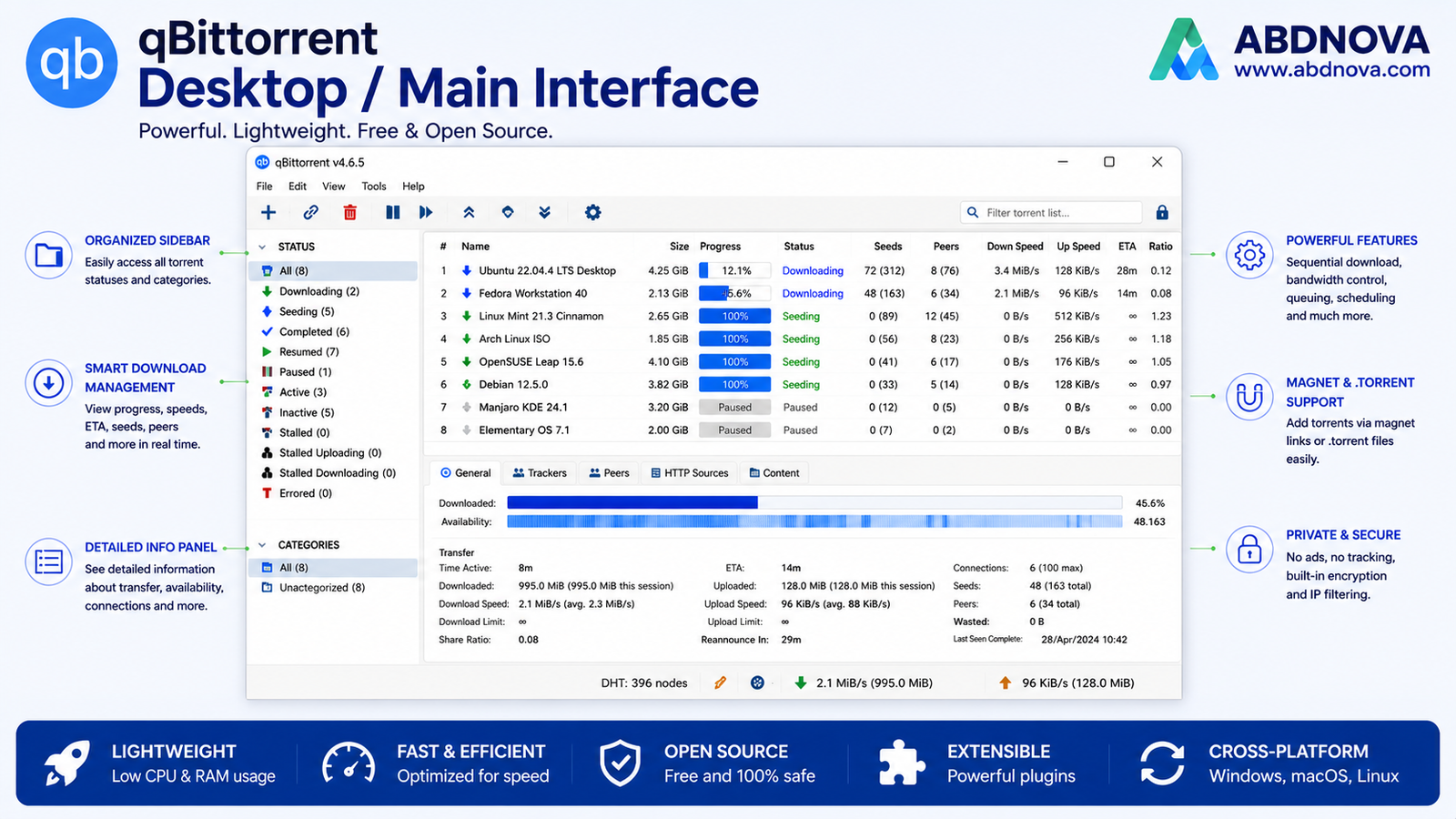
Clean and Ad-Free Interface
One of qBittorrent’s biggest advantages is its relatively simple interface.
The official project describes qBittorrent as providing a polished BitTorrent experience without ads.
The main window makes it easy to view:
Downloading torrents
Completed torrents
Download speed
Upload speed
Progress
Seeds
Peers
ETA
Ratio
Torrent & Magnet Link Support
qBittorrent supports normal torrent files as well as magnet links.
With a torrent file, you open the downloaded .torrent file in qBittorrent.
With a magnet link, the necessary torrent information can be obtained through the BitTorrent network without first downloading a separate .torrent file.
Download & Upload Speed Limits
qBittorrent lets you control bandwidth usage.
You can configure:
Download Limit
and
Upload Limit
This can be useful when you don’t want torrent traffic to consume all of your available internet bandwidth.
qBittorrent also provides an alternative speed mode for quickly switching between different bandwidth limits.
Sequential Downloading
qBittorrent includes sequential downloading functionality.
Instead of requesting file pieces in the normal distributed order, sequential mode prioritizes pieces in sequence.
However, this option isn’t necessary for ordinary torrent downloads and shouldn’t normally be enabled for everything.
RSS Support
More advanced users can use qBittorrent’s RSS functionality to follow feeds and automate certain torrent-download workflows.
For ordinary users who only want to download an occasional torrent, this feature can simply be ignored.
Torrent Queueing
If you’re downloading multiple torrents, qBittorrent can manage them through queueing.
This allows you to control how many downloads or uploads are active at the same time.
Encryption Support
qBittorrent includes BitTorrent protocol encryption options and various connection/privacy controls.
However, it’s important to understand:
BitTorrent encryption does not make torrent activity anonymous.
Peers participating in a torrent can normally see network information such as peer IP addresses.
qBittorrent Windows 11 & Windows 10
qBittorrent provides Windows builds through its official download page.
For ABDNOVA, our main target is:
Windows 11
and
Windows 10
Users should always check the current official download page before installing because supported Windows versions and available builds can change over time.
Official qBittorrent Download Page
qBittorrent 64-bit
Modern Windows computers generally use a 64-bit operating system.
To check your PC:
Settings → System → About → System type
If it shows:
64-bit operating system, x64-based processor
use the appropriate 64-bit Windows build provided by qBittorrent.
Rather than downloading an old installer specifically because a third-party website labels it “32-bit,” use the current builds offered by the official qBittorrent project.
How to Download qBittorrent for Windows

The safest option is qBittorrent’s official website.
Step 1 — Visit qBittorrent
Open the official download page.
Step 2 — Find Windows
Select the current Windows download option.
Step 3 — Choose the Appropriate Build
Choose the installer appropriate for your Windows PC.
Step 4 — Download
Save the setup file to your computer.
Step 5 — Verify the Source
Make sure you obtained the installer through qBittorrent’s official download information rather than a modified third-party package.
How to Install qBittorrent on Windows

Once the installer has downloaded:
Open your Downloads folder.
Double-click the qBittorrent installer.
Allow Windows to run it if prompted.
Select the installation language if requested.
Accept the license terms.
Choose the required components.
Select the installation folder.
Click Install.
Finish setup.
Launch qBittorrent.
For most users, the default installation options are sufficient.
How to Download a Torrent with qBittorrent
Before continuing, only download content that you have the legal right to obtain.
BitTorrent itself is a legitimate file-transfer technology, but copyrighted content can also be distributed without permission.
Using a Torrent File
If you have a legitimate .torrent file:
Open qBittorrent.
Choose Add Torrent File.
Select the .torrent file.
Choose where to save the content.
Review the included files.
Start the torrent.
qBittorrent will then connect to available peers.
How to Use a Magnet Link in qBittorrent
If a legitimate download source provides a magnet link:
Copy or click the magnet link.
Allow Windows/browser to open qBittorrent.
Review the torrent information.
Select the download location.
Choose the files you need.
Start the download.
Magnet links are convenient because you don’t need to manually download a .torrent file first.
Understanding Seeds, Peers & Leechers
These terms appear frequently in BitTorrent clients.
Seeds
Users who have the complete file and are sharing it.
Peers
Other users participating in the torrent swarm.
Leechers
Often used to describe users who are still downloading some or all of the content.
In general, a healthy torrent with more available seeds may download more reliably than one with very few active sources.
How to Change qBittorrent Download Location
To change where files are saved, open qBittorrent settings and locate the Downloads section.
Choose your preferred folder.
For example:
D:\Downloads\Torrents
Using a separate folder can make downloaded content easier to manage.
Make sure the selected drive has enough free storage before starting a large transfer.
How to Limit qBittorrent Download & Upload Speed
If qBittorrent is slowing down other internet activity, set bandwidth limits.
Open:
Tools → Options → Speed
Then configure appropriate:
Global Download Rate Limit
and
Global Upload Rate Limit
Don’t set the upload speed unnecessarily low if you’re actively participating in legitimate peer-to-peer distribution, because BitTorrent is designed around sharing data between peers.
qBittorrent Search Feature
qBittorrent includes an optional search system that can search supported torrent indexing services through plugins.
However, ABDNOVA does not need to provide lists of piracy-focused search plugins or torrent sites.
Users should only download material they have permission to access, such as:
Open-source software
Public-domain media
Linux distributions
Authorized archives
Files distributed by their copyright owners
This keeps the guide focused on legitimate uses of BitTorrent technology.
Related guide: After downloading legitimate files, you may also find our 7-Zip Download for Windows guide useful for opening and extracting compressed archives.
qBittorrent vs uTorrent
qBittorrent and µTorrent are two well-known BitTorrent clients.
Choose qBittorrent if:
You want a free, open-source and ad-free BitTorrent client.
For many Windows users, those three points are enough to make qBittorrent attractive.
qBittorrent vs Transmission
Both are open-source BitTorrent clients.
qBittorrent
Offers a feature-rich desktop interface with detailed torrent controls.
Transmission
Focuses strongly on simplicity and a lightweight interface.
Windows users who want more visible configuration options may prefer qBittorrent, while users who want a minimalist client may prefer Transmission.
Is qBittorrent Safe?
The official qBittorrent application is a legitimate open-source BitTorrent client.
For safer use:
Download qBittorrent from the official project
Keep it updated
Avoid modified installers
Don’t install cracked builds
Be cautious with unknown downloaded files
Scan suspicious downloads
Keep Windows Security enabled
Only download content from legitimate sources
Remember:
A safe BitTorrent client does not automatically make every file downloaded through BitTorrent safe.
The application and the content you download are two separate security considerations.
Is qBittorrent Legal?
The qBittorrent software and BitTorrent technology have legitimate uses.
BitTorrent can be used to distribute:
Linux distributions
Open-source software
Public-domain content
Large authorized datasets
Game updates
Files shared with permission
The legal issue depends primarily on what content you’re downloading or distributing and whether you have permission to do so.
Downloading copyrighted material without authorization may violate copyright law in your jurisdiction.
Common qBittorrent Problems

qBittorrent Won’t Install
Try:
Restart Windows → Download Fresh Official Installer → Run Setup Again
Also verify that you’re using a current Windows version supported by the available build.
qBittorrent Won’t Open
Try:
Restart Windows
Update qBittorrent
Close any stuck qBittorrent process
Reinstall the official application
Check Windows Security
Torrent Is Stuck at 0%
Possible causes include:
No available seeds
No connected peers
Dead torrent
Network restrictions
Incorrect settings
Firewall configuration
A torrent cannot download data if no source is currently available.
Download Speed Is Slow
Torrent speed depends on more than your internet package.
It can be affected by:
Number of seeds
Peer availability
Torrent health
Network congestion
Speed limits
Wi-Fi quality
Router configuration
A slow torrent doesn’t necessarily mean qBittorrent itself is slow.
qBittorrent Says Stalled
“Stalled” usually means the torrent isn’t currently transferring data.
This can happen when there aren’t enough available peers or when connected peers aren’t providing the required pieces.
Try waiting and checking whether the torrent has active seeds.
Magnet Link Doesn’t Open qBittorrent
Check whether qBittorrent is associated with magnet links.
You can also manually add a legitimate magnet URL using qBittorrent’s Add Torrent Link option.
Is qBittorrent Free?
Yes.
qBittorrent is free and open-source software.
The project is developed by volunteers and doesn’t require purchasing the application for normal use.
Frequently Asked Questions
Does qBittorrent work on Windows 11?
Yes. Current qBittorrent Windows builds are available for modern Windows PCs.
Does qBittorrent work on Windows 10?
Yes, supported current Windows builds are available. Check the official download page for the latest requirements.
Is qBittorrent free?
Yes. qBittorrent is free and open-source software.
Does qBittorrent contain ads?
The official qBittorrent project describes the client as ad-free.
Does qBittorrent support magnet links?
Yes. qBittorrent supports magnet links.
Why is my torrent stuck at 0%?
The torrent may have no available seeds or peers, or network/configuration issues may be preventing connections.
Is qBittorrent the same as BitTorrent?
No. BitTorrent is a peer-to-peer file-transfer protocol/ecosystem. qBittorrent is one application that implements the protocol.
Does qBittorrent make me anonymous?
No. BitTorrent peers can normally see network information such as IP addresses. qBittorrent should not be described as an anonymity tool.
Is downloading torrents illegal?
Torrent technology itself has legitimate uses. Whether a particular download is lawful depends on the content, your rights to it, and applicable law.
Download qBittorrent for Windows
Software: qBittorrent Platform: Windows Category: BitTorrent Client License: Free & Open Source Ads: No Magnet Links: Supported Recommended Source: Official qBittorrent Project
Download qBittorrent for Windows
Download qBittorrent — Official Website
Safe Download: Download qBittorrent from the official project and avoid modified or repacked installers. Only download files you are legally authorized to obtain.
Final Verdict
qBittorrent is an excellent option for Windows users looking for a free, open-source and ad-free BitTorrent client.
It supports the features most users need—including torrent files, magnet links, speed controls, queue management, RSS, and detailed torrent information—without making the interface unnecessarily complicated.
For most users:
Download qBittorrent → Install → Add a Legitimate Torrent/Magnet Link → Choose Folder → Start Download
Ready to download qBittorrent?
Get the current Windows build from the official qBittorrent project. Use BitTorrent only for content you are authorized to download or share.


