

PuTTY Download for Windows
PuTTY Download for Windows gives you a free and lightweight SSH and Telnet client for connecting to Linux servers, VPS hosting, network devices, and other remote systems from a Windows PC. This guide covers the correct Windows version, installation, SSH connection setup, security, and common problems.
PuTTY is a free and lightweight SSH and Telnet client that allows you to connect to remote computers, Linux servers, network devices, and other systems directly from your Windows PC.
It is widely used by system administrators, developers, students, website owners, and server users who need a simple way to access a remote command line.
PuTTY supports SSH, Telnet, serial connections, and several other connection methods. The PuTTY suite also includes useful tools such as PuTTYgen, PSCP, PSFTP, Plink, and Pageant.
If you want to download PuTTY for Windows 11 or Windows 10, this guide explains which version to choose, how to install it, and how to connect to a server safely.
PuTTY for Windows – Quick Overview
The official download page currently provides PuTTY 0.84 as MSI installers as well as standalone executables.
What Is PuTTY?
PuTTY is a client application primarily used to create remote terminal sessions.
A common example is connecting from a Windows computer to a Linux server using SSH.
The basic connection looks like this:
Windows PC → PuTTY → SSH → Remote Server
After the connection is established, PuTTY opens a terminal window where you can enter commands on the remote machine.
According to the official PuTTY documentation, PuTTY implements the client side of remote sessions and supports SSH, serial connections, Telnet and other legacy protocols.
What Is PuTTY Used For?
PuTTY can be useful when you need to:
Connect to a Linux server from Windows
Manage a VPS or dedicated server
Access a remote command line
Configure network devices
Use SSH connections
Use Telnet where appropriate
Connect through a serial port
Create and manage SSH keys
Transfer files securely using PuTTY utilities
Save frequently used server sessions
For website owners using VPS hosting, one of the most common uses is simply:
Open PuTTY → Enter Server IP → SSH → Login → Manage Server
PuTTY Features
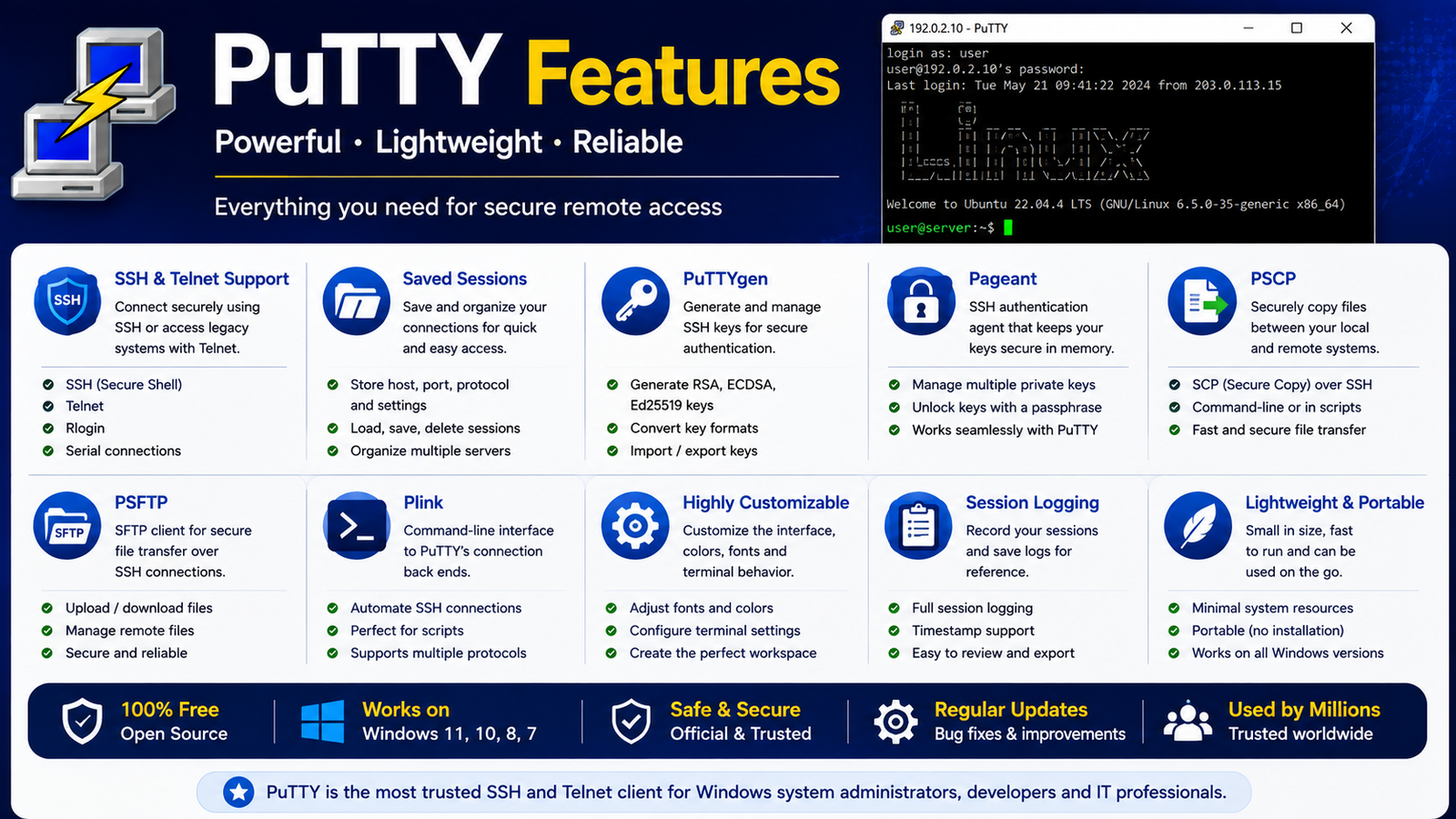
Despite its small size, PuTTY provides a useful collection of remote-access features.
SSH Connection
SSH is one of PuTTY’s most important features.
You can enter a server hostname or IP address, select SSH, and connect to the remote system.
The default SSH port is normally:
Port 22
However, some servers use a custom SSH port.
Saved Sessions
If you regularly connect to the same server, you don’t have to enter its information every time.
PuTTY allows you to save connection settings as a session.
You can save settings such as:
Hostname
Port
Protocol
Terminal preferences
Logging settings
SSH-specific settings
The official PuTTY FAQ specifically highlights its unified saved-session system as one of its useful features.
Session Logging
PuTTY can save terminal session activity to a log file.
This can be useful for:
Troubleshooting
Keeping command records
Server administration
Technical documentation
PuTTYgen
PuTTYgen is the key-generation utility included with the PuTTY suite.
It can be used when you need public/private key authentication instead of relying only on password-based SSH login.
Pageant
Pageant is PuTTY’s SSH authentication agent.
It can help manage SSH authentication keys when working with PuTTY and related tools.
PSCP
PSCP is a command-line secure copy client.
It can be used to transfer files securely between your Windows PC and a remote system.
PSFTP
PSFTP provides command-line SFTP file-transfer functionality.
This is useful when you need secure file transfers over SSH-compatible infrastructure.
Plink
Plink provides command-line access to PuTTY’s connection back ends.
It is particularly useful for scripts and command-line workflows.
These utilities are available as part of the official PuTTY Windows packages.
PuTTY Windows 11 & Windows 10
PuTTY is commonly used on modern Windows computers.
For most Windows 11 and Windows 10 PCs with Intel or AMD processors, you’ll normally want the:
64-bit x86 version
The official PuTTY download page specifically recommends 64-bit x86 for most users and describes the 32-bit version as mainly useful for backward compatibility with older systems.
PuTTY is also available for:
64-bit ARM
which is useful for compatible Windows on ARM devices.
PuTTY 64-bit vs 32-bit vs ARM64
Choosing the correct version is important.
Most Users Should Choose
64-bit x86
If you’re unsure about your Windows architecture:
Go to:
Settings → System → About → System type
You may see something similar to:
64-bit operating system, x64-based processor
In that case, choose the 64-bit x86 PuTTY installer.
PuTTY Installer vs Portable / Standalone EXE
PuTTY gives Windows users more than one way to run the program.
MSI Installer
The MSI package is the easiest option for most users.
It installs the PuTTY suite normally on Windows.
Recommended for:
Regular users
Server administrators
Users who need multiple PuTTY utilities
Permanent installation
Standalone putty.exe
The official site also provides individual executable files, including putty.exe.
This is useful when you don’t want a normal installation.
Recommended for:
Portable use
Occasional SSH connections
USB drive use
PCs where you don’t want a full installation
For most ABDNOVA visitors, I would recommend the:
64-bit MSI Installer
PuTTY Download for Windows – How to Download
Downloading PuTTY is straightforward.
Step 1 — Open the Official PuTTY Download Page
Always use the genuine PuTTY download source.
An important detail: the PuTTY developers explicitly state that putty.org is not their official website. Their long-standing official site is hosted at chiark.greenend.org.uk, and they also registered putty.software as an official landing page in 2025.
Official PuTTY Download Page
Step 2 — Find MSI Windows Installer
Look for:
MSI (‘Windows Installer’)
Step 3 — Choose Your Architecture
For most Windows PCs:
64-bit x86
For compatible ARM Windows computers:
64-bit Arm
Use 32-bit x86 only when you actually need the older architecture.
Step 4 — Download the Installer
Save the MSI file to your computer.
How to Install PuTTY on Windows
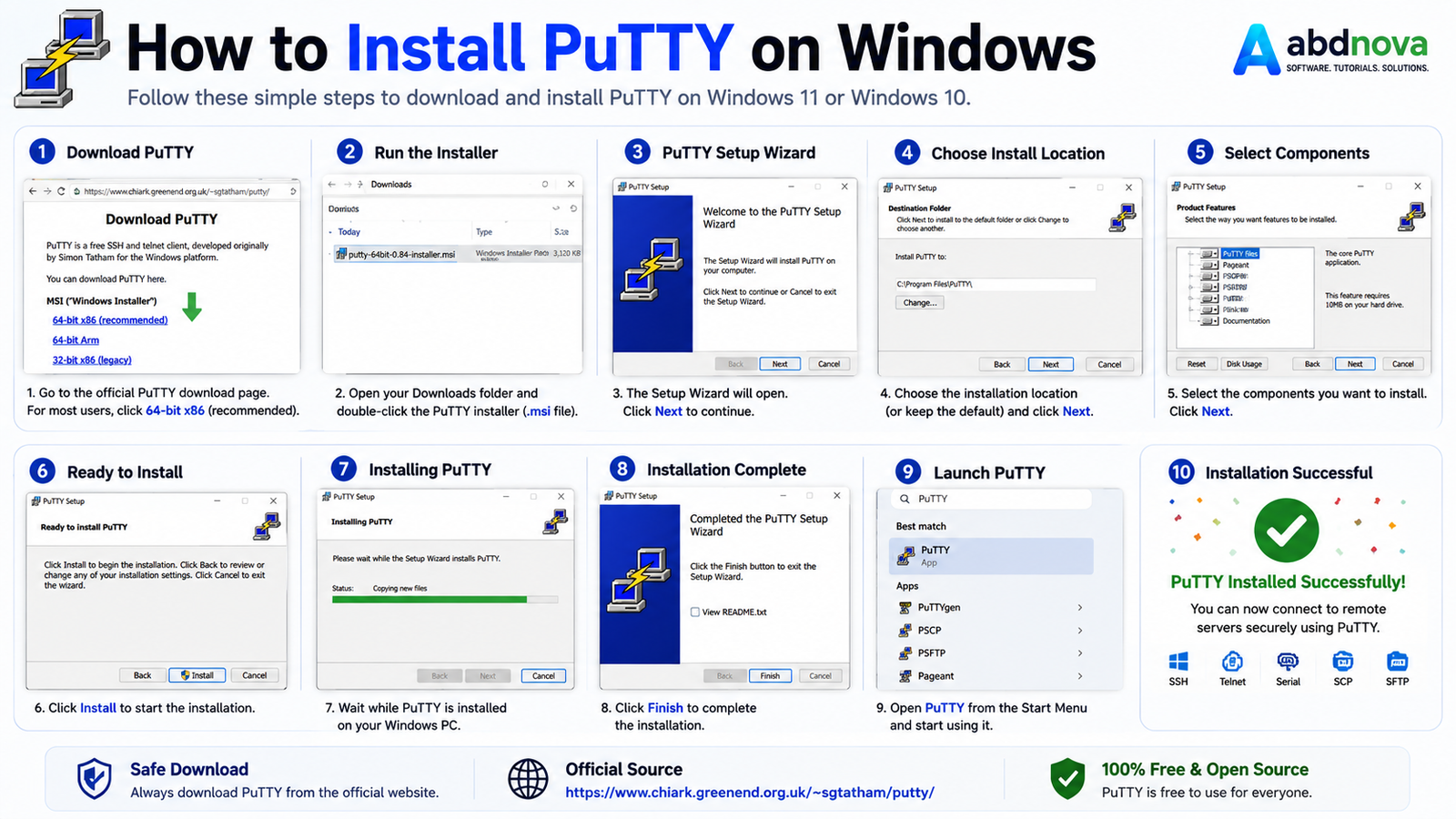
After downloading the installer:
Open your Downloads folder.
Double-click the PuTTY MSI installer.
Windows will open the PuTTY Setup Wizard.
Click Next.
Choose the installation location if necessary.
Select the required installation options.
Click Install.
Approve the Windows security prompt if shown.
Wait for installation to complete.
Click Finish.
PuTTY should now be available from the Windows Start menu.
How to Connect to a Server Using PuTTY
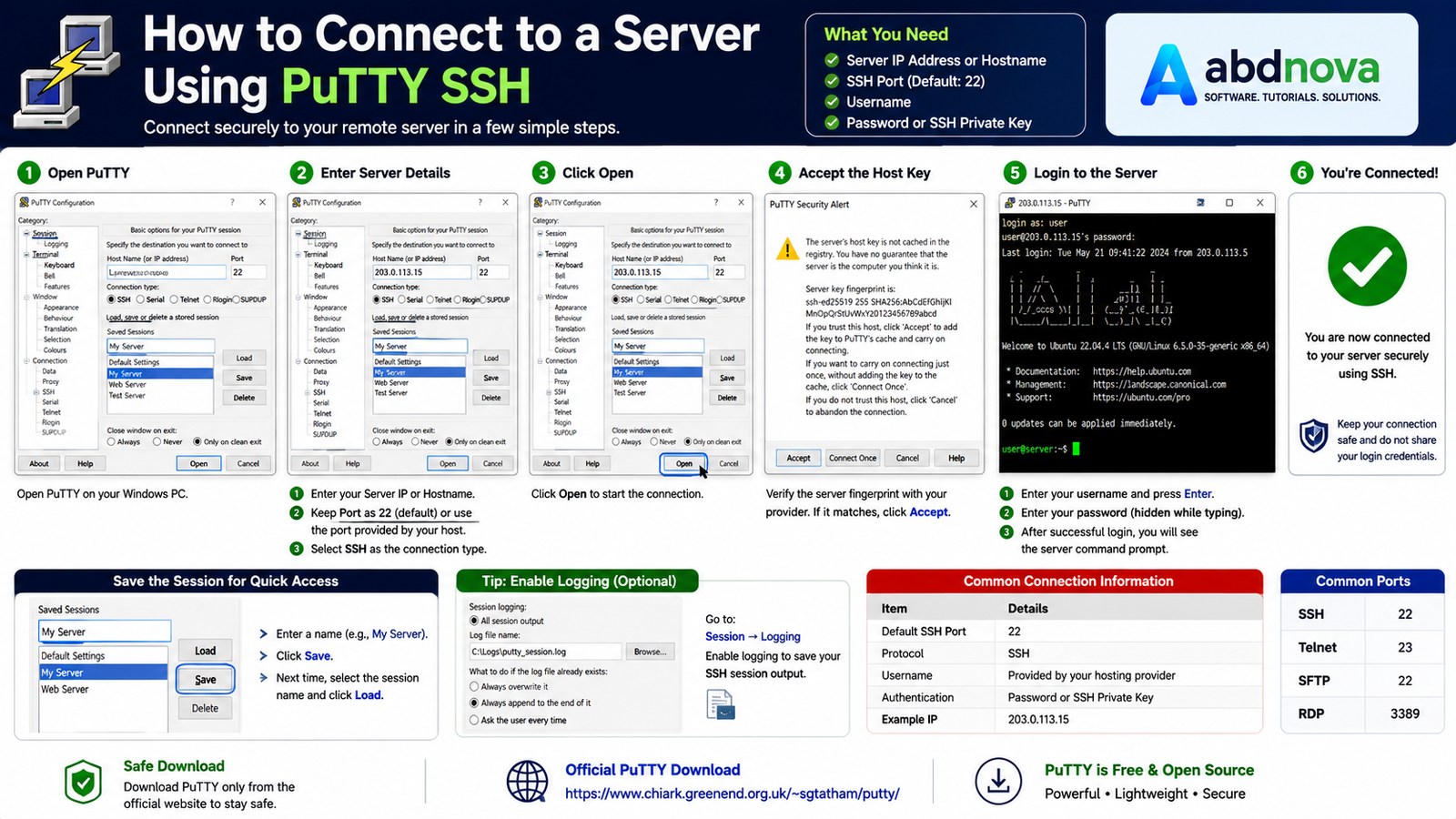
This is the most important part for many users.
You normally need:
Server IP/Hostname + SSH Port + Username + Authentication credentials
Step 1 — Open PuTTY
Launch PuTTY from Windows.
Step 2 — Enter Host Name
Under:
Host Name (or IP address)
enter your server address.
Example:
192.0.2.10
Step 3 — Enter Port
The standard SSH port is:
22
If your hosting provider gave you another port, use that instead.
Step 4 — Select SSH
Under connection type, select:
SSH
Step 5 — Click Open
PuTTY will attempt to connect to the server.
PuTTY Security Alert / Host Key
When connecting to a server for the first time, PuTTY may display a host-key security prompt.
Don’t blindly accept an unexpected key.
Ideally, compare the fingerprint shown by PuTTY with the SSH host-key fingerprint provided by your server administrator or hosting provider.
If they match, you can accept the key.
This helps protect against connecting to an unexpected system.
How to Login with PuTTY
Once the connection opens, the terminal may ask:
login as:
Enter the username supplied by your server provider.
For example:
username
Then provide the required authentication.
Depending on the server configuration, this may involve:
Password
SSH private key
Authentication agent
Another configured authentication method
After successful authentication, you’ll see the remote system’s command prompt.
Related guide: If you mainly need a graphical tool for transferring files to and from a server, see our FileZilla Download for Windows guide.
PuTTY SSH Key Authentication
Passwords aren’t the only way to authenticate to SSH servers.
PuTTY supports public-key authentication.
A typical setup involves:
PuTTYgen → Generate/prepare key → Add public key to server → Configure private key in PuTTY → Connect
SSH key authentication is commonly used for server administration.
However, keep your private key private.
Never publish or send your private SSH key to someone you don’t trust.
PuTTY vs Windows OpenSSH
Modern Windows versions can also provide OpenSSH functionality, so PuTTY isn’t the only way to use SSH on Windows.
The PuTTY developers themselves acknowledge this in their FAQ.
Choose PuTTY if:
You prefer a graphical interface for configuring SSH connections and saved sessions.
Choose Windows OpenSSH if:
You prefer working directly from Windows Terminal, PowerShell, or Command Prompt.
Neither is automatically better for every user.
Common PuTTY Problems
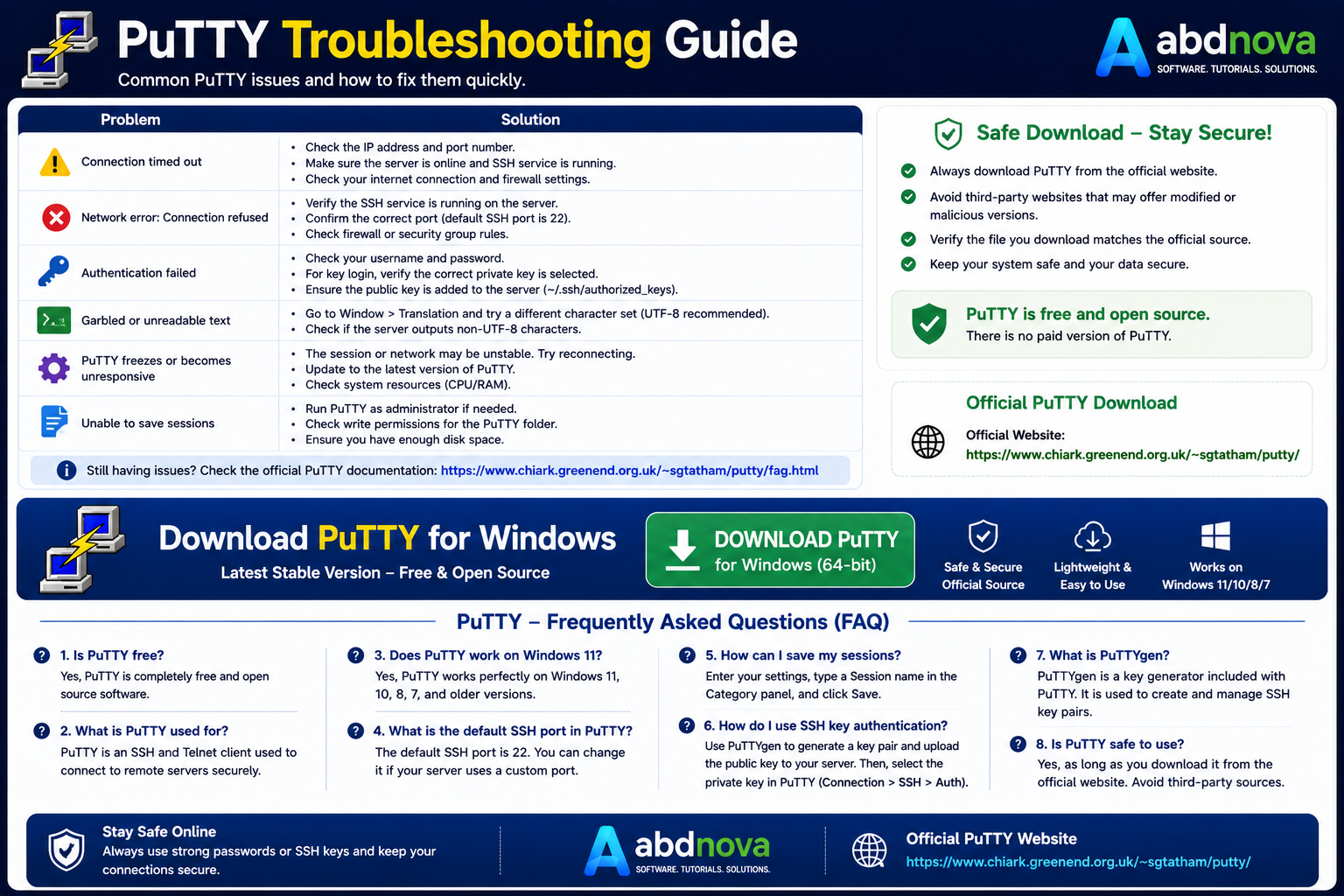
Connection Timed Out
Check:
Server IP
Internet connection
SSH port
Firewall
Server status
Also confirm that SSH is actually running on the remote server.
Connection Refused
This often means the destination was reached but isn’t accepting the connection on that port.
Check:
SSH service + Port + Firewall
Access Denied
Verify your:
Username
Password
SSH key
Server authentication configuration
Remember that PuTTY doesn’t know what username or password your server requires; those credentials come from the server administrator/provider.
PuTTY Window Closes Immediately
The remote server may have terminated the session.
Try reconnecting and check:
Login credentials
Server logs
SSH configuration
Network connection
SSH Key Not Working
Check whether:
The correct private key is selected
The matching public key exists on the server
File/key permissions are correct
The server allows that authentication method
The key format and configuration are appropriate
Is PuTTY Free?
Yes.
PuTTY is free software and open source. The official site describes it as a free SSH and Telnet implementation for Windows and Unix platforms.
You don’t need:
PuTTY Pro
PuTTY Crack
PuTTY Activation Key
or a paid activation to use the official PuTTY client.
Is PuTTY Safe?
PuTTY is legitimate software, but the source you download it from matters.
For safer downloading:
Use the official PuTTY download page
Prefer the latest stable release
Avoid modified installers
Avoid cracks and repacked downloads
Keep PuTTY updated
Verify signatures/checksums when appropriate
The current official stable version is PuTTY 0.84, released on May 22, 2026, and that release includes fixes for multiple security issues and bugs.
PuTTY FAQ
Is PuTTY available for Windows 11?
Yes. PuTTY is available for modern Windows systems, with x86-64 and ARM64 Windows installers available from the official download page.
Is PuTTY free?
Yes. PuTTY is free and open-source software.
Which PuTTY version should I download?
For most modern Intel or AMD Windows PCs, download the 64-bit x86 MSI installer.
Can PuTTY connect using SSH?
Yes. SSH is one of PuTTY’s primary uses.
Does PuTTY support Telnet?
Yes, although SSH should generally be preferred when secure remote access is required.
Can I use PuTTY without installing it?
Yes. The official site provides standalone putty.exe binaries in addition to MSI installers.
Does Windows already have SSH?
Modern Windows can provide OpenSSH, so PuTTY isn’t mandatory. Some users still prefer PuTTY because of its graphical configuration interface, saved sessions, terminal settings, and related utilities.
Final Verdict
PuTTY remains a simple and useful tool for anyone who needs to connect from Windows to a remote server or network device.
For most users, the process is straightforward:
Download 64-bit PuTTY → Install → Enter Server IP → Select SSH → Connect → Authenticate
Its combination of SSH access, saved sessions, PuTTYgen, Pageant, PSCP, PSFTP and Plink makes the PuTTY suite particularly useful for server administration without turning a basic SSH connection into a complicated workflow.
Ready to download PuTTY?
Windows • Free & Open Source • Official Download
ABDNOVA does not host the installer. The button opens the official PuTTY download source.


