

PeaZip Download for Windows – Free File Archiver
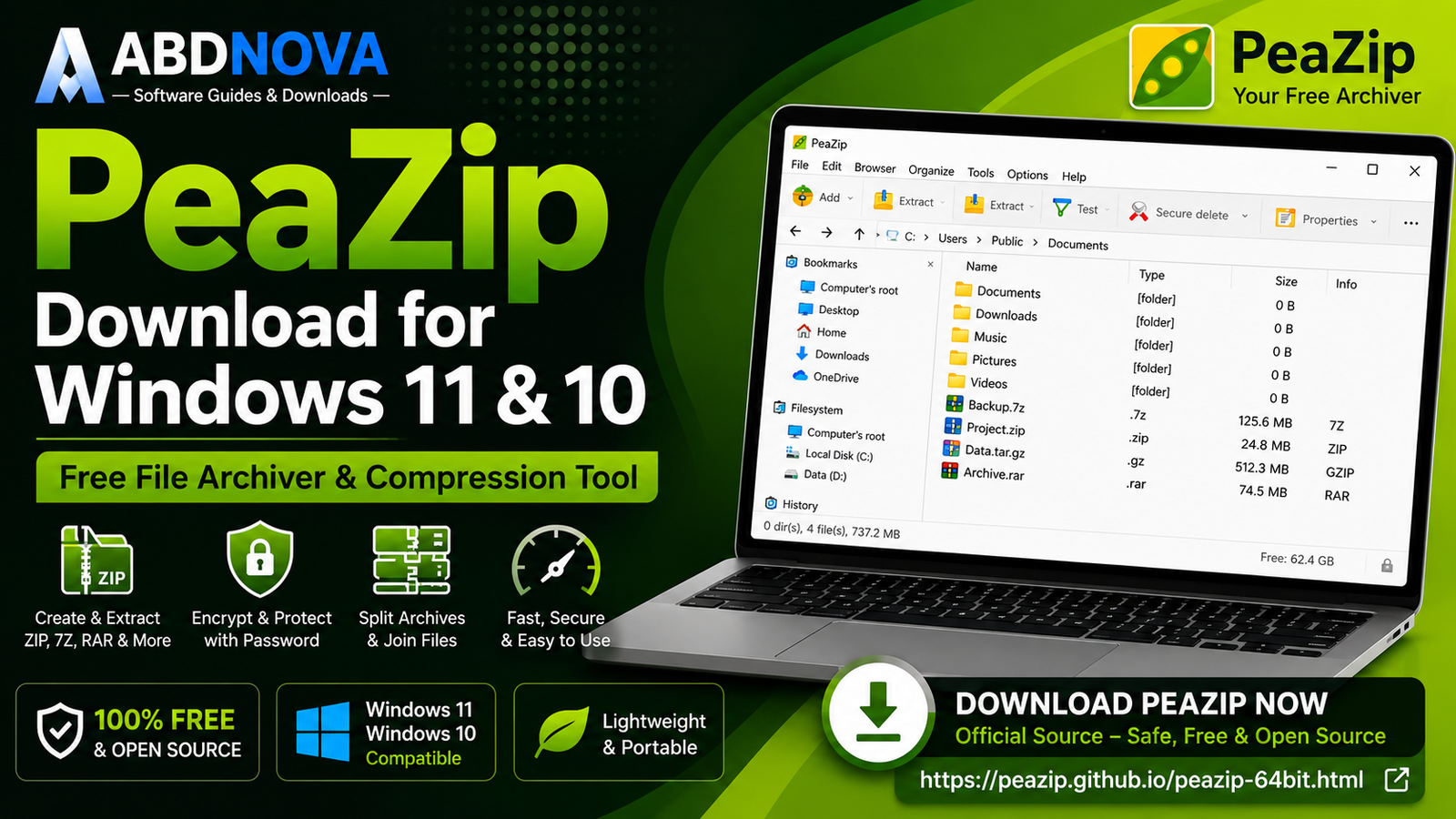
Download PeaZip for Windows 11 and 10 to create, open, extract, encrypt, split, test and manage ZIP, 7Z, RAR and many other archive formats.
PeaZip is a free and open-source file archiver for Windows with a graphical interface for creating, extracting and managing compressed files. It is a useful alternative to archive tools such as 7-Zip and WinRAR, particularly if you want broad format support, encryption features, archive conversion, hashing tools and a portable edition.
PeaZip can create ZIP and 7Z archives, extract RAR and many other formats, password-protect supported archives, split large files, test archives for errors, calculate hashes and perform several file-management operations.
This guide covers PeaZip Download for Windows, installation, its main interface, compression and encryption features, archive tools, comparison with 7-Zip and WinRAR, troubleshooting and safe official download options.
PeaZip Download for Windows – Quick Overview
| Information | Details |
|---|---|
| Software | PeaZip |
| Developer | Giorgio Tani / PeaZip Project |
| Current Version | 11.2.0 |
| Type | File Archiver & Compression Utility |
| License | Free & Open Source — LGPLv3 |
| Windows 11 | Supported |
| Windows 10 | Supported |
| Windows 64-bit | Supported |
| Portable Edition | Available |
| Create ZIP | Yes |
| Create 7Z | Yes |
| Extract RAR | Yes |
| Password Protection | Yes |
| Encryption | Supported |
| Split Archives | Yes |
| Archive Testing | Yes |
| Hashing Tools | Yes |
| Secure Delete | Yes |
| Official Source | PeaZip Project |
What Is PeaZip?
PeaZip is an open-source archive-management application designed to make compressed files easier to manage through Windows. It combines a traditional archive utility with a file-manager-style interface.
PeaZip can be used to:
- Create compressed archives.
- Extract existing archives.
- Browse archive contents.
- Compress multiple files and folders.
- Password-protect supported archives.
- Encrypt archive contents.
- Split large archives into volumes.
- Join split files.
- Test archives for errors.
- Calculate hashes and checksums.
- Securely delete files.
- Convert supported archive formats.
- Manage files through its built-in file manager.
PeaZip Installer vs Portable
PeaZip Installer
The normal installer is usually the best choice for a personal Windows PC. Installing PeaZip allows closer integration with Windows and can add convenient archive commands to File Explorer.
PeaZip Portable
The portable edition does not require a conventional Windows installation. It can be stored in a normal folder or on removable storage and is useful when you want to run PeaZip without permanently installing it.
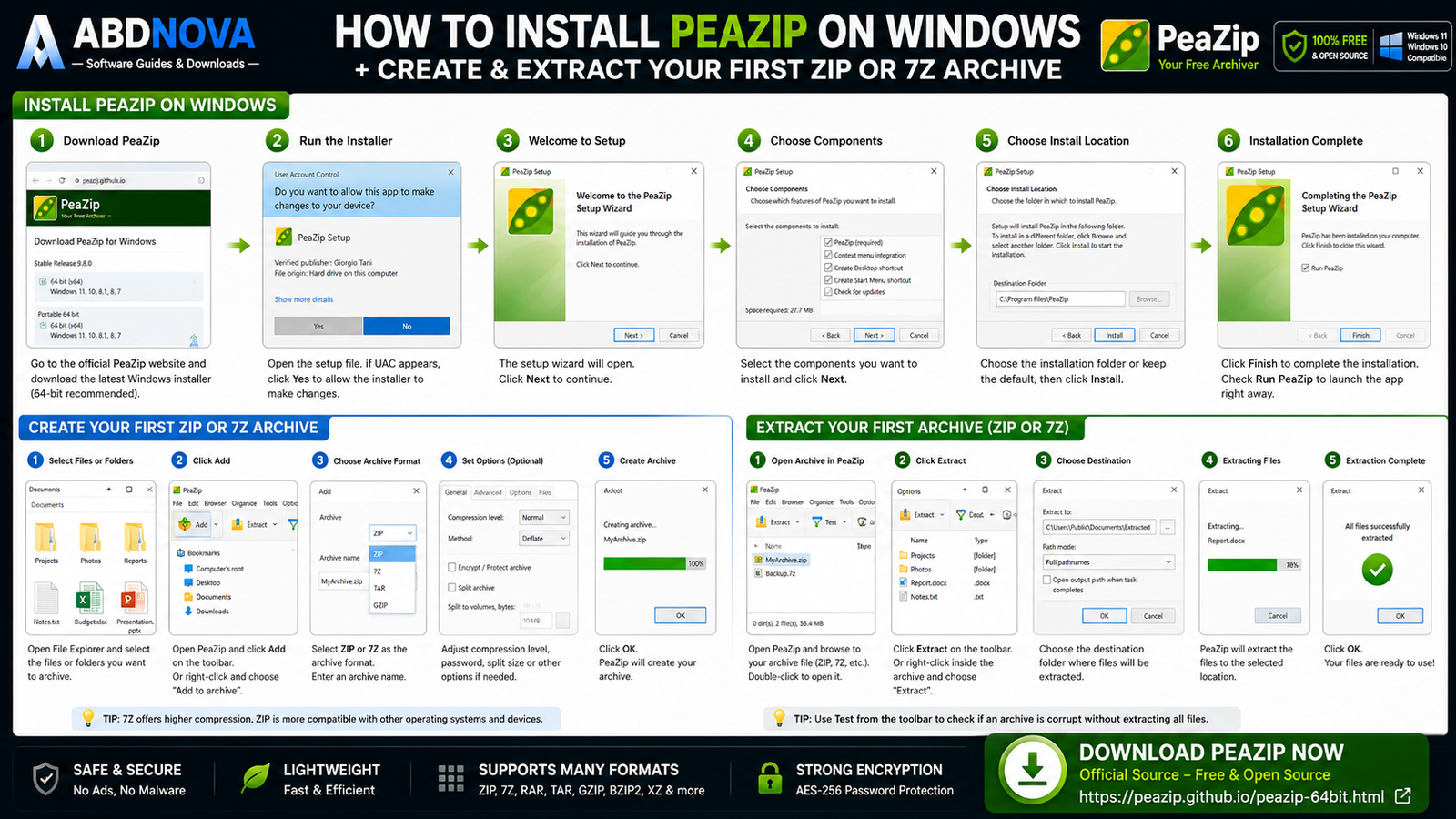
How to Install PeaZip on Windows
- Download PeaZip: Visit the official PeaZip website and choose the appropriate Windows package.
- Open the installer: Run the downloaded setup file.
- Check UAC: If Windows shows a User Account Control prompt, verify that the installer came from the official source.
- Review the license: Continue through the setup wizard.
- Choose installation options: Review the installation folder, file associations, context-menu integration and shortcuts.
- Install PeaZip: Start installation and wait for setup to complete.
- Launch PeaZip: Open the application and begin creating or extracting archives.
How to Create a ZIP Archive
Select the files or folders you want to compress, choose the option to add them to an archive and select ZIP as the output format. Choose the destination and required settings, then create the archive.
ZIP is a practical choice when compatibility with many devices and operating systems is important.
How to Create a 7Z Archive
Select your files or folders, choose 7Z as the archive format and configure the available compression settings. 7Z can be useful when compression efficiency and advanced archive options are more important than universal compatibility.
How to Extract ZIP, 7Z or RAR Files
Open the archive in PeaZip, choose an extraction command, select the destination folder and start extraction. PeaZip can extract ZIP, 7Z, RAR, TAR, GZIP, BZIP2, XZ and many additional formats.

PeaZip Main Interface and File Manager
PeaZip combines archive management with a file-manager-style interface. You can browse folders, select files, inspect archive contents and access common archive operations from the toolbar.
Add
Creates a new archive using the selected files or folders.
Extract
Extracts files from a supported archive to a selected destination.
Test
Checks supported archives for errors or corruption.
Open
Opens an archive so you can inspect its contents before extracting it.
Convert
Helps convert supported archives from one format to another where applicable.
Windows Context Menu Integration
When enabled during installation, PeaZip can integrate archive commands into Windows File Explorer. This allows actions such as adding selected files to an archive or extracting an archive without first opening the main PeaZip window.
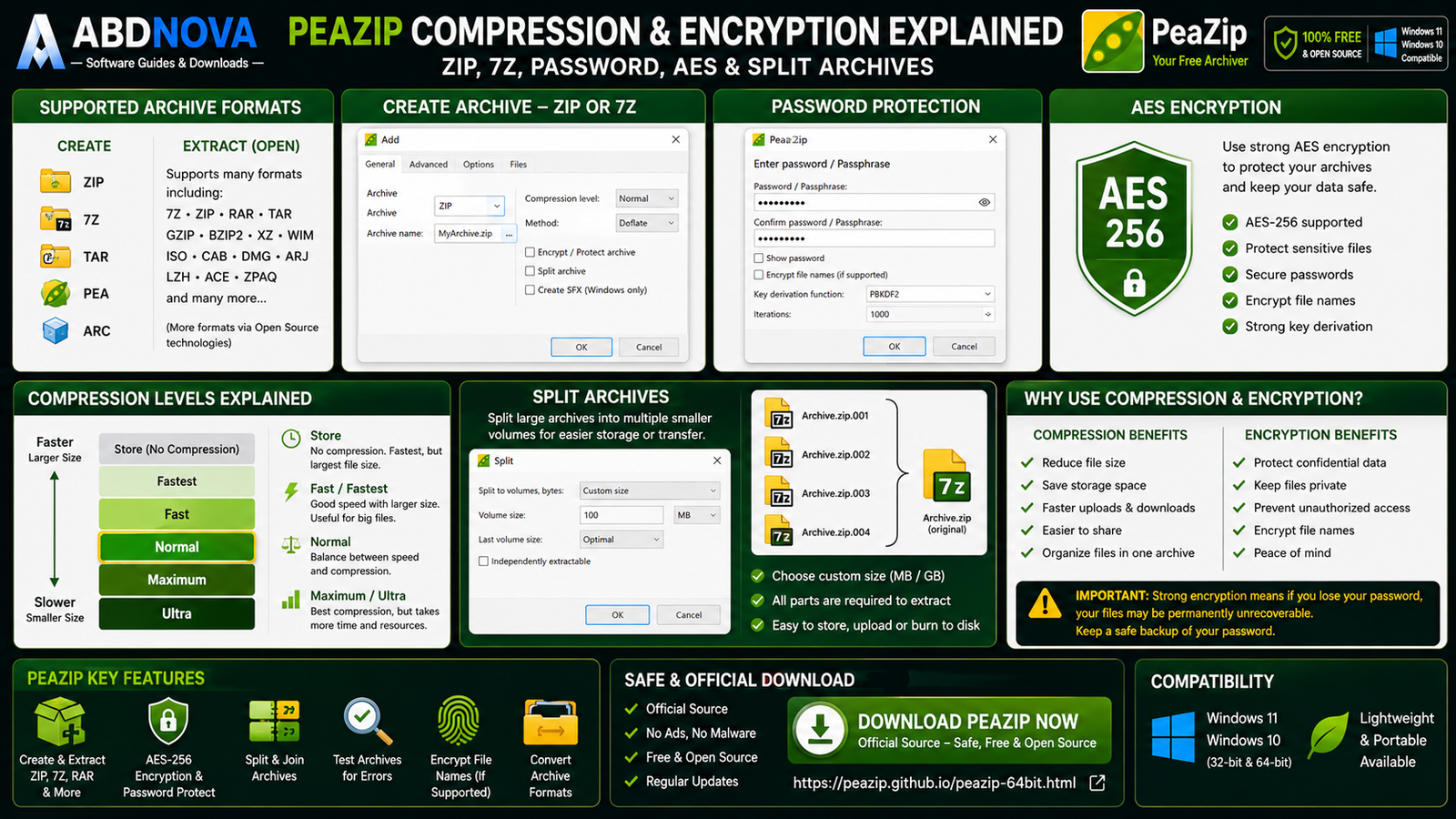
PeaZip Compression and Encryption Explained
PeaZip Supported Archive Formats
PeaZip works with a large collection of archive and compression formats. Frequently used formats include ZIP, 7Z, TAR, WIM, ARC, PEA, GZIP, BZIP2 and XZ, while many additional formats can be opened or extracted.
Password-Protected Archives
PeaZip can create password-protected archives when the selected archive format supports encryption. Choose the password or encryption options while creating the archive and use a strong, unique password.
AES Encryption
Supported archive formats can use strong encryption such as AES. Compression and encryption perform different jobs: compression reduces or reorganizes data to save space, while encryption protects data from unauthorized access.
Encrypt File Names
Some archive formats and configurations can also encrypt filenames. Without filename encryption, another person may potentially see the names of files stored inside an encrypted archive even if they cannot access the contents.
Split Large Archives
PeaZip can divide a large archive into multiple smaller volumes. This can be useful when working with storage limits, upload limits, removable media or large backup collections.
Keep every required archive volume together because extraction may require the complete set.
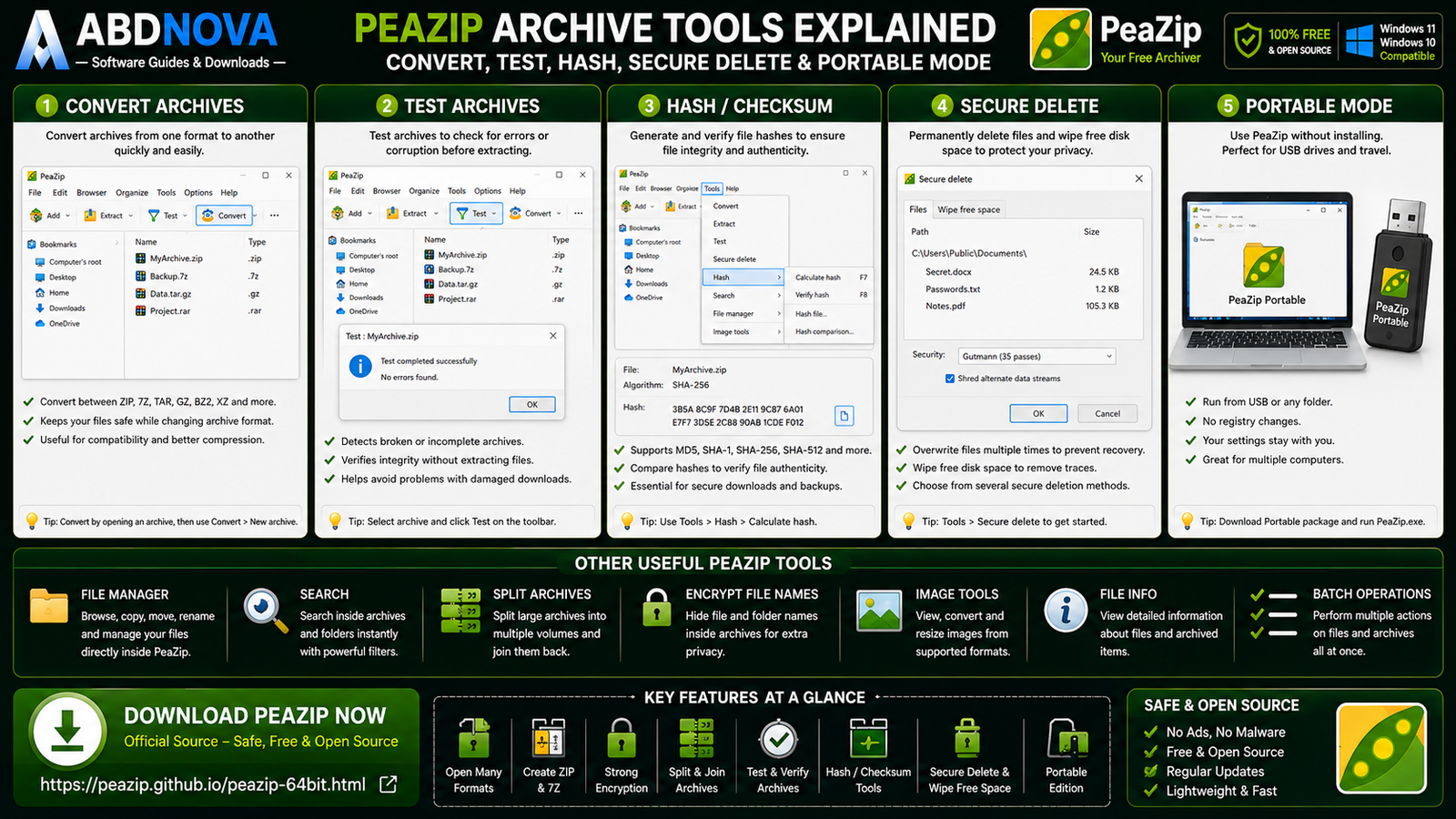
PeaZip Archive Tools Explained
Test an Archive
If you suspect that an archive is damaged, use PeaZip’s test function. It checks whether supported archive data can be read correctly without requiring you to manually inspect every extracted file.
A failed archive test can indicate corrupted data, a missing split volume or another archive problem.
File Hashing and Checksums
PeaZip includes hashing and checksum tools that can help verify file integrity when a trusted developer publishes an official checksum.
- Download the file from the trusted source.
- Calculate its hash using PeaZip.
- Compare the result with the publisher’s official checksum.
- Confirm that both values match exactly.
Secure File Deletion
PeaZip provides secure-delete functionality intended to make recovery more difficult by overwriting data.
Archive Conversion
PeaZip can help convert supported archives between formats. This can be useful when you need a different archive format for compatibility, storage or compression reasons.
Always verify important converted archives before deleting the original copy.
PeaZip File Manager
The built-in file manager lets you browse directories while keeping compression and archive-management commands readily available. It is useful for organizing downloaded archives, backups, software packages, documents and large folders.
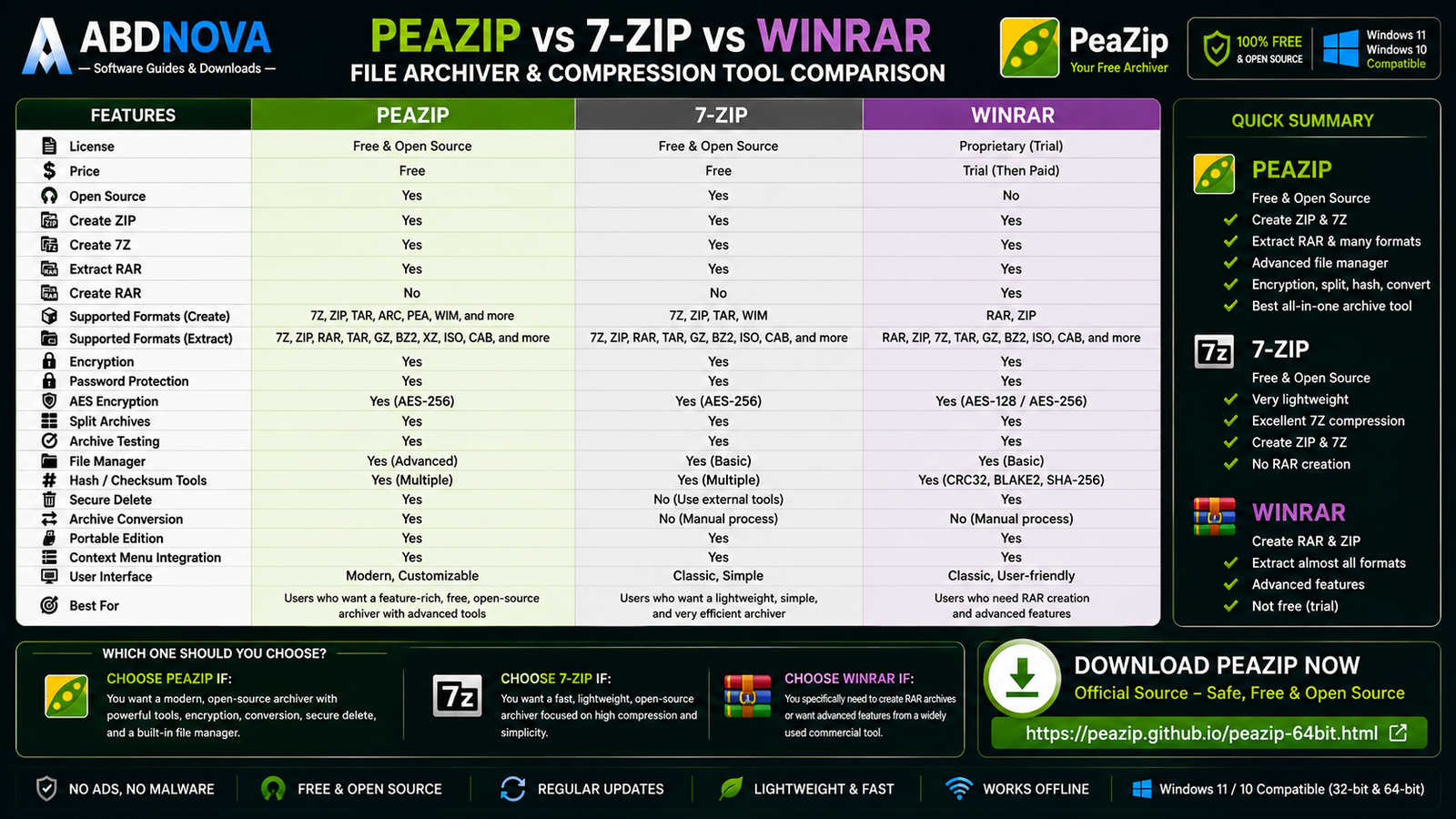
PeaZip vs 7-Zip vs WinRAR
| Feature | PeaZip | 7-Zip | WinRAR |
|---|---|---|---|
| Free | Yes | Yes | Trial / Commercial |
| Open Source | Yes | Yes | No |
| ZIP Creation | Yes | Yes | Yes |
| 7Z Creation | Yes | Yes | Yes |
| RAR Extraction | Yes | Yes | Yes |
| RAR Creation | No natively | No | Yes |
| Portable Option | Yes | Available | Available |
| Encryption | Yes | Yes | Yes |
| Archive Splitting | Yes | Yes | Yes |
| Archive Testing | Yes | Yes | Yes |
| Hash Tools | Yes | Yes | Available features vary |
| Feature-Rich GUI | Strong | Basic | Strong |
Choose PeaZip If
You want a free and open-source archive manager with a more feature-rich graphical interface, broad format support, encryption, conversion and file-management tools.
Choose 7-Zip If
You want a lightweight archive utility with strong 7Z support and a straightforward interface. You can also read our 7-Zip Download for Windows guide for installation, compression and extraction details.
Choose WinRAR If
You specifically require the WinRAR ecosystem or need native RAR archive creation. PeaZip and 7-Zip can open or extract RAR files, but native RAR creation is a different requirement.
These applications overlap considerably, so most users do not need all of them installed at the same time.
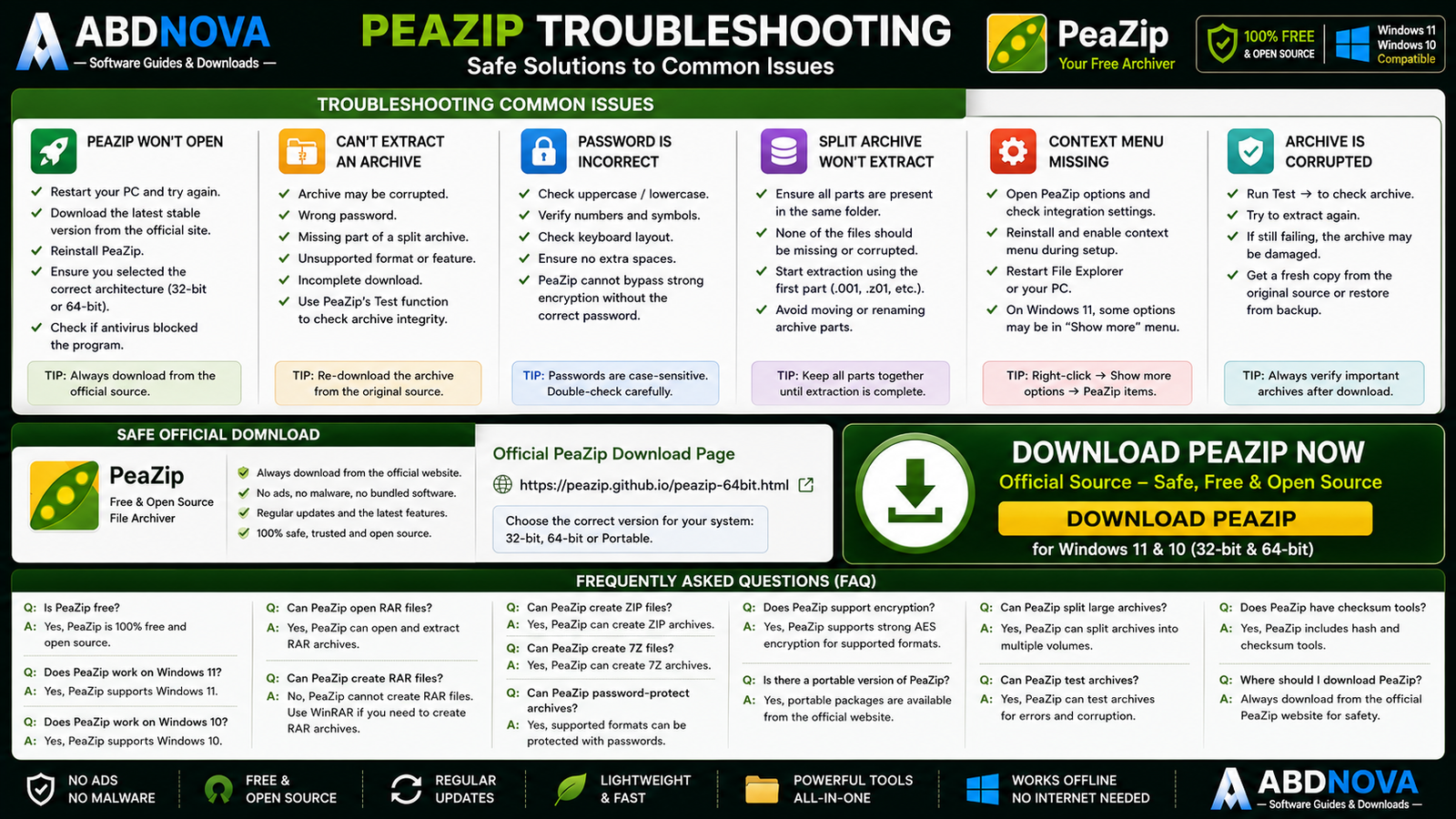
PeaZip Troubleshooting
PeaZip Won’t Open
Restart Windows, download the latest stable build from the official site, reinstall PeaZip and make sure you selected the correct Windows package.
Can’t Extract an Archive
Possible causes include a corrupted archive, incorrect password, missing split volume, incomplete download or unsupported archive feature. Use PeaZip’s archive-test function where appropriate.
Password Is Incorrect
Archive passwords are case-sensitive. Check uppercase and lowercase letters, numbers, symbols, keyboard layout and accidental spaces.
PeaZip cannot simply bypass correctly implemented archive encryption when you do not know the correct password.
Split Archive Won’t Extract
Make sure all archive parts are present in the same folder and that none are missing or corrupted. Start extraction using the appropriate first volume.
Context Menu Is Missing
Check PeaZip integration settings, reinstall with the appropriate context-menu option, restart File Explorer and restart Windows if necessary.
Archive Is Corrupted
Run PeaZip’s archive test. If corruption is confirmed, obtain another copy from the original source or restore the file from a known-good backup.
Is PeaZip Safe?
PeaZip is a legitimate free and open-source project. The safest approach is to obtain it directly from the official PeaZip website rather than unknown software-download pages.
- PeaZip Crack.
- PeaZip Pro Crack.
- PeaZip Activated.
- PeaZip Modified.
- PeaZip Repack.
PeaZip is already free, so there is no legitimate reason to download a cracked or modified copy.
Safe PeaZip Download for Windows
For PeaZip Download for Windows, use the official project website and choose the Windows installer or portable package that matches your requirements.
You can review the current Windows package on the official PeaZip Windows download page.
Frequently Asked Questions
Is PeaZip free?
Yes. PeaZip is free and open-source software released under the LGPLv3 license.
Does PeaZip work on Windows 11?
Yes. PeaZip supports modern 64-bit Windows systems, including Windows 11.
Does PeaZip work on Windows 10?
Yes. PeaZip can be used on Windows 10.
Can PeaZip open RAR files?
Yes. PeaZip can open and extract RAR archives.
Can PeaZip create RAR files?
PeaZip does not provide autonomous open-source RAR creation. If native RAR creation is specifically required, WinRAR is the more appropriate tool.
Can PeaZip create 7Z files?
Yes. PeaZip can create 7Z archives.
Can PeaZip create ZIP files?
Yes. ZIP creation is supported.
Can PeaZip password-protect archives?
Yes. PeaZip supports password protection when the selected archive format and encryption method support it.
Does PeaZip support encryption?
Yes. Strong encryption options are available for supported archive formats.
Is there a portable PeaZip version?
Yes. The PeaZip project provides a portable Windows edition that does not require conventional installation.
Can PeaZip split large archives?
Yes. PeaZip can divide large archives into multiple volumes.
Can PeaZip test an archive for corruption?
Yes. PeaZip includes archive-testing functionality for supported formats.
Does PeaZip have checksum tools?
Yes. PeaZip can calculate hashes and checksums for file-integrity verification.
Is PeaZip better than 7-Zip?
Neither is universally better. 7-Zip is lightweight and straightforward, while PeaZip provides a more feature-rich graphical archive-management environment.
Is PeaZip safe?
Yes, when downloaded from the official PeaZip project website. Avoid modified or unofficial installers.
Final Thoughts
PeaZip is a capable Windows archive utility for users who regularly work with compressed files. It combines ZIP and 7Z creation, RAR extraction, password protection, encryption, archive splitting, testing, hashing, archive conversion and file-management features in one free and open-source application.
For most Windows 11 and Windows 10 users, the official 64-bit installer is the logical starting point. If you prefer not to install the application conventionally, PeaZip also provides an official portable edition.
Ready to download PeaZip?
Get the latest supported Windows installer from the official PeaZip project. ABDNOVA recommends official sources only.


