

Paint.NET Download for Windows

Download Paint.NET for Windows to edit photos, work with layers, apply effects, crop and resize images, create transparent graphics, use plugins, and prepare website images.
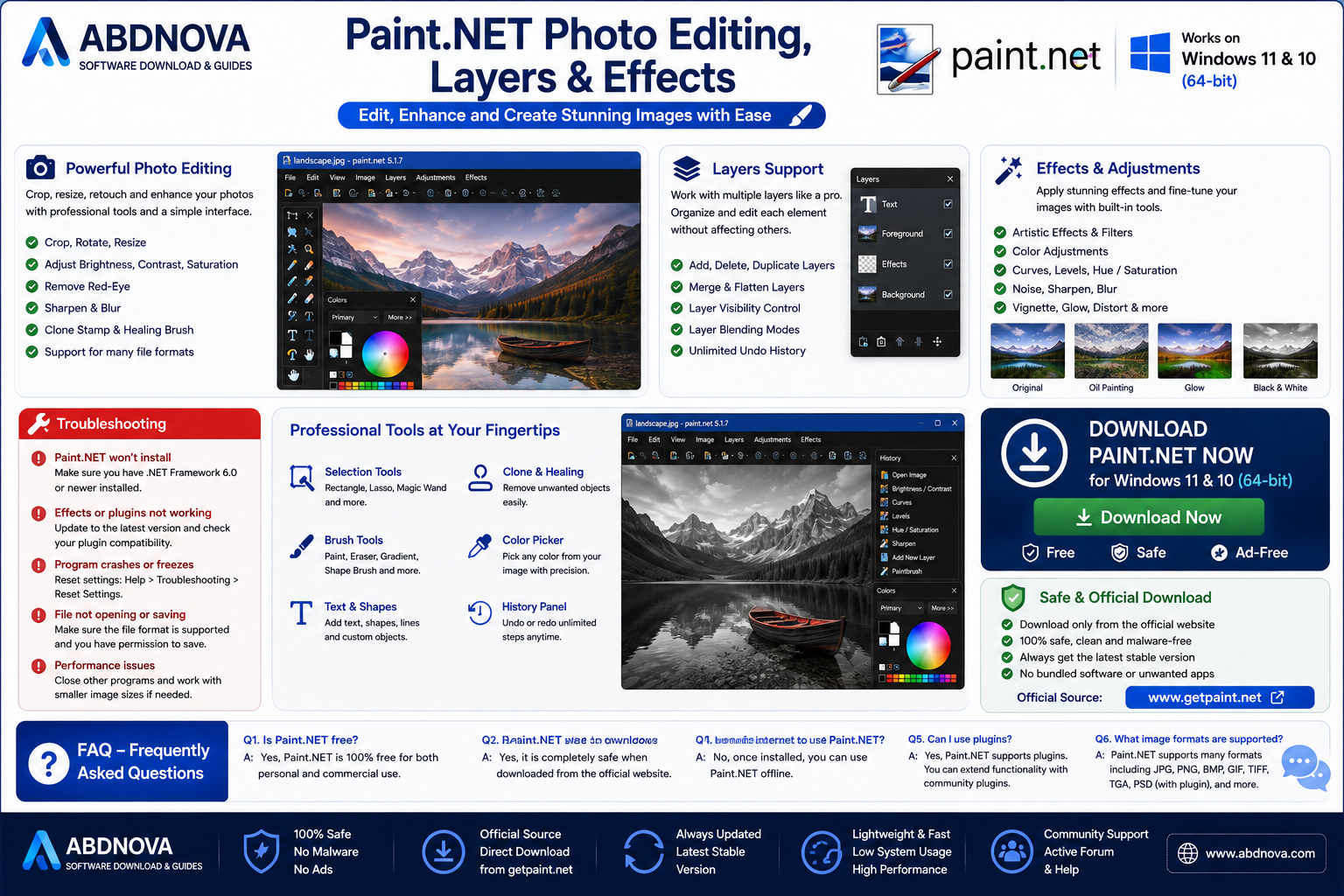
Paint.NET is a popular image and photo editing application designed for Windows. It provides an easy-to-use interface along with useful editing tools such as layers, effects, adjustments, drawing tools, selections, and unlimited undo history.
It is more powerful than a basic image editor while remaining easier to learn than many professional graphics applications. This makes Paint.NET useful for beginners, students, content creators, website owners, and anyone who needs to edit images without dealing with an overly complicated interface.
In this guide, you will learn how to download Paint.NET for Windows, install it safely, understand its main features, use layers and effects, resize and crop images, work with plugins, and troubleshoot common problems.
Paint.NET for Windows Overview
Paint.NET was originally developed as a university project and has evolved into a capable Windows image editor.
It is designed specifically for Windows and focuses on providing useful image-editing features in a clean and responsive interface.
Paint.NET Download Information
| Information | Details |
|---|---|
| Software | Paint.NET |
| Developer | dotPDN LLC |
| Category | Image & Photo Editor |
| Platform | Windows |
| Architecture | Depends on current release |
| Main Use | Image & Photo Editing |
| Layers | Supported |
| Effects | Supported |
| Plugins | Supported |
| Cost | Free option / paid Store distribution may be available |
| Official Website | getpaint.net |
Note: Paint.NET versions, Windows requirements, architecture support, pricing/distribution options, and features can change. Always check the official Paint.NET website before downloading.
What Is Paint.NET?
Paint.NET is an image-editing program created specifically for Windows PCs.
It sits between very basic drawing applications and more advanced professional graphics software.
You can use it for everyday tasks such as:
Cropping photos
Resizing images
Adding text
Adjusting brightness and contrast
Creating transparent backgrounds
Working with layers
Drawing shapes
Applying effects
Editing screenshots
Creating simple website graphics
Preparing social media images
The interface is relatively easy to understand, making Paint.NET suitable for users who do not need the complexity of a full professional graphics suite.
Why Download Paint.NET for Windows?
Windows includes basic tools for simple image tasks, but Paint.NET provides significantly more editing control.
For example, it supports layers, allowing different elements of an image to be edited independently.
This is useful when creating:
Website graphics
Thumbnails
Blog images
Simple logos
Product images
Screenshots
Social media graphics
Transparent PNG files
Paint.NET is also generally lightweight compared with larger professional image-editing suites.
Paint.NET Main Features

Clean User Interface
Paint.NET uses a familiar Windows-style interface.
The workspace provides quick access to:
Tools
Colors
Layers
History
Image controls
Effects
Adjustments
This layout makes it easier for beginners to start editing without spending a long time learning the interface.
Layer Support
Layers are one of Paint.NET’s most important features.
A layer works like a separate transparent sheet placed over or under other image elements.
For example, you could have:
Layer 1: Background Layer 2: Product image Layer 3: Text Layer 4: Logo
Each layer can be edited separately.
This makes it much easier to change individual elements without affecting the entire image.
Unlimited History
Paint.NET provides a history system that allows you to undo editing actions.
If you make a mistake while editing, you can return to an earlier state.
This is particularly useful when experimenting with:
Effects
Colors
Selections
Cropping
Drawing
Layer changes
The practical amount of history available can still depend on system resources and the document being edited.
Image Adjustments
Paint.NET includes adjustment tools for modifying the appearance of images.
Depending on the version, available adjustments can include controls for areas such as:
Brightness
Contrast
Hue
Saturation
Levels
Curves
Black and white
Sepia
These tools can help improve photographs or create different visual styles.
Effects and Filters
Paint.NET provides built-in effects that can transform an image.
Examples can include:
Blur
Sharpen
Distortion
Noise
Artistic effects
Stylization
Effects can be useful for both photo editing and graphic design.
Additional capabilities may also be available through compatible plugins.
Selection Tools
Paint.NET provides several tools for selecting parts of an image.
Selections allow you to edit only a specific area instead of changing the entire image.
Common selection workflows include:
Rectangle selection
Ellipse selection
Free-form selection
Magic Wand
For example, you could select a background area and remove it without deleting the main subject.
Drawing and Painting Tools
Paint.NET also includes standard drawing tools.
Depending on the current version, these may include:
Paintbrush
Pencil
Eraser
Paint Bucket
Gradient
Clone Stamp
Shapes
Text
This makes Paint.NET useful for simple graphic design as well as photo editing.
Transparency Support
Paint.NET can work with transparent image areas.
Transparency is particularly useful for:
Logos
Website graphics
Icons
Overlays
Product images
PNG is commonly used when transparency needs to be preserved.
When saving an image, make sure the selected format supports transparency.
Popular Image Formats
Paint.NET supports common image formats used for everyday editing.
These can include formats such as:
PNG
JPEG
GIF
BMP
TIFF
Native Paint.NET project files use the program’s own format to preserve editable information such as layers.
When working on a multi-layer project, keep an editable project copy before exporting a final JPEG or PNG.
Paint.NET Project Files
Paint.NET uses its own project format for editable documents.
Keeping the original project file is important if you want to return later and modify individual layers.
For example:
Editable project → Keep original Paint.NET project file
Then export separate versions for your website:
Website image → PNG / JPEG
Once layers are flattened into certain output formats, you may not be able to edit them independently in the same way.
How to Download Paint.NET for Windows
For a safe installation, use the official Paint.NET website or an officially supported distribution channel.
Step 1: Visit the Official Paint.NET Website
Open your browser and visit the official Paint.NET website.
Go to the download section.
Step 2: Review the Download Options
Paint.NET may be offered through more than one distribution method.
For example, an official direct download and a Microsoft Store version may have different pricing or installation arrangements.
Read the current information on the official website before choosing.
Step 3: Check Windows Compatibility
Make sure your Windows version and computer architecture meet the requirements of the current Paint.NET release.
Step 4: Download Paint.NET
Choose the appropriate official download option and save the installer/package to your computer.
Avoid modified installers from unknown download websites.
How to Install Paint.NET on Windows

The exact installation process depends on the distribution you choose.
For a traditional installer, the process generally follows these steps.
Step 1: Open the Downloaded Package
Locate the downloaded Paint.NET package.
If the download is packaged inside an archive, extract it according to the official instructions before running the installer.
Step 2: Run Setup
Open the Paint.NET installer.
Windows may ask for permission to make changes to your device.
Verify the source before continuing.
Step 3: Choose Installation Options
Follow the setup wizard.
For most users, the default or recommended installation options are suitable.
Step 4: Complete Installation
Wait while Paint.NET is installed.
When setup finishes, launch Paint.NET from the Start menu or desktop shortcut if one was created.
Paint.NET Microsoft Store vs Direct Download
Paint.NET may be available through the Microsoft Store as well as through its official website.
The application itself serves the same general image-editing purpose, but distribution, updates, pricing, and installation management may differ.
The Store version can provide convenient installation and updates through Microsoft’s platform.
The official website provides information about other available download options.
Check the current Paint.NET website for the latest differences before deciding which option is best for you.
How to Open an Image in Paint.NET
Launch Paint.NET and select:
File → Open
Choose an image from your computer.
You can also use the standard keyboard shortcut:
Ctrl + O
After opening the image, you can begin editing it with the available tools.
How to Resize an Image in Paint.NET
Resizing is useful when preparing images for websites or social media.
Open your image and choose the resize command from the Image menu.
Enter the required:
Width
Height
Resolution settings when relevant
When maintaining the original proportions, keep the aspect ratio linked.
For example, if a website requires:
1200 × 630
you can prepare an image for that target size.
Be careful when enlarging very small images because significant enlargement can reduce visual quality.
How to Crop an Image
Cropping removes unwanted areas around an image.
A common workflow is:
Open the image.
Use a selection tool.
Select the area you want to keep.
Choose the crop-to-selection command.
This is useful for removing unnecessary background space or changing image composition.
How to Add Text in Paint.NET
Select the Text tool.
Then choose settings such as:
Font
Size
Style
Color
Click on the image and enter your text.
For better flexibility, consider adding text on a separate layer.
That way, other image elements remain independent.
How to Remove a Background in Paint.NET

Simple backgrounds can sometimes be removed using selection tools such as the Magic Wand.
A basic workflow is:
Open the image.
Make sure the document supports transparency.
Select the background area.
Adjust selection tolerance if needed.
Delete the selected background.
Clean up remaining edges.
Save/export in a transparency-supporting format such as PNG.
Complex subjects, hair, shadows, and detailed backgrounds may require more advanced editing.
How to Use Layers in Paint.NET
Open the Layers panel and create a new layer when you want to add an independent element.
For example:
Background Layer ↓ Image Layer ↓ Text Layer ↓ Logo Layer
You can reorder layers to control which elements appear in front of others.
Layers may also have settings such as visibility and opacity.
Learning layers is one of the best ways to become more productive with Paint.NET.
How to Save and Export Images
When your work is complete, choose the appropriate format.
PNG
Good for:
Transparency
Logos
Screenshots
Website graphics
JPEG
Good for:
Photographs
Images where smaller file size is useful
JPEG does not preserve transparency.
Editable Project Format
Use Paint.NET’s native project format when you want to preserve layers and continue editing later.
A good workflow is:
Save editable master → Export final website copy
Paint.NET Plugins
Paint.NET supports plugins that can add extra effects, file-format support, or other capabilities.
Plugins are generally created by third-party developers.
Because third-party plugins can contain executable code, download them only from sources you trust.
Before installing a plugin:
Check compatibility with your Paint.NET version.
Check the developer/source.
Read installation instructions.
Scan suspicious downloads.
Avoid unknown modified packages.
A legitimate Paint.NET installation does not guarantee that every third-party plugin is safe.
Paint.NET System Requirements
Requirements depend on the Paint.NET version.
Modern releases may require relatively recent versions of Windows and particular processor architectures or system components.
Before downloading, check the official Paint.NET requirements for:
Supported Windows versions
Processor architecture
Memory
Storage
Required system components
This is especially important if you use an older Windows PC.
Common Paint.NET Problems
Paint.NET Won’t Install
Check:
Windows compatibility
Processor architecture
Available storage
Windows updates
Installer source
Required system components
Download the installer again from the official source if you suspect the file is incomplete.
Paint.NET Won’t Open
Try:
Restarting Windows
Updating Paint.NET
Checking Windows updates
Removing a recently added incompatible plugin
Repairing or reinstalling Paint.NET
If the problem started after installing a plugin, investigate that plugin first.
Image Won’t Open
The image may use an unsupported or damaged file format.
Try opening another image to determine whether the problem affects one file or the entire application.
A compatible file-format plugin may help with some additional formats, but only install plugins from trusted sources.
Plugin Not Working
Check whether the plugin supports your installed Paint.NET version.
Older plugins may stop working after application updates.
Follow the plugin developer’s current installation instructions.
Paint.NET Is Running Slowly
Performance can depend on:
Image dimensions
Number of layers
Available RAM
Effects being used
Other running applications
Plugin behavior
Very large images with many layers naturally require more system resources.
Transparency Disappears After Saving
Check the output format.
JPEG does not support transparent backgrounds.
Use a format such as PNG when transparency is required.
Paint.NET vs Microsoft Paint
Microsoft Paint is useful for very basic drawing and image tasks.
Paint.NET provides more advanced editing capabilities.
Both applications can be useful, but Paint.NET is generally better suited to users who need more control over image editing.
Related guide: If you need a more advanced free image editor with broader photo-manipulation tools, see our GIMP Download for Windows guide.
Paint.NET vs GIMP
Paint.NET and GIMP are both capable image editors, but they target somewhat different workflows.
Paint.NET
Good for:
Quick photo edits
Beginners
Screenshots
Website graphics
Simple layer-based designs
Users wanting a Windows-focused interface
GIMP
Better suited to:
More advanced image manipulation
Complex editing workflows
Broader cross-platform use
Users needing a larger professional-style toolset
GIMP can be more powerful for advanced tasks, while Paint.NET may be easier for users who want a simpler Windows image editor.
Paint.NET vs Photoshop
Adobe Photoshop is a professional image-editing application with a much broader range of advanced tools and workflows.
Paint.NET is much simpler.
For professional photography, advanced compositing, complex design work, and specialized production workflows, Photoshop provides substantially more functionality.
For everyday tasks such as cropping, resizing, adding text, editing screenshots, and creating simple website graphics, Paint.NET may be sufficient.
Is Paint.NET Safe?
Paint.NET is a legitimate Windows image-editing application.
For safer installation:
Download from the official Paint.NET website or an officially supported store.
Avoid unofficial modified installers.
Keep the application updated.
Be careful with third-party plugins.
Review download and installation options.
The safest approach is always to obtain software directly from its official source.
Is Paint.NET Free?
Paint.NET has historically provided a free download option from its official website, while a paid Microsoft Store version has also been offered.
Distribution and pricing can change, so check the official Paint.NET website for current information.
The Store purchase can also be a way to support development while providing Store-managed installation and updates.
Frequently Asked Questions
Is Paint.NET available for Windows?
Yes. Paint.NET is designed for Windows.
Does Paint.NET work on Windows 11?
Current Paint.NET versions support appropriate modern Windows environments. Check the official requirements for the release you want to install.
Can I use Paint.NET on Windows 10?
Support depends on the Paint.NET version. Check the current official system requirements, especially when using an older Windows release.
Is Paint.NET completely free?
An official free download option has traditionally been available, while a paid Microsoft Store distribution has also been offered. Check the official website for current pricing and download options.
Does Paint.NET support layers?
Yes. Layer support is one of Paint.NET’s key image-editing features.
Can Paint.NET remove image backgrounds?
Yes, simple backgrounds can be removed using selection tools and transparency. Complex backgrounds may require more detailed manual editing.
Can Paint.NET open PSD files?
Native and plugin-based file-format support can change. Check current Paint.NET documentation and trusted plugin options if you need to work with Photoshop PSD files.
Does Paint.NET support plugins?
Yes. Paint.NET supports plugins that can extend its features. Only install third-party plugins from trusted sources.
Can Paint.NET edit PNG files?
Yes. PNG is commonly used with Paint.NET and is particularly useful when transparency is required.
Is Paint.NET better than GIMP?
It depends on your needs. Paint.NET is generally simpler and Windows-focused, while GIMP provides a broader set of advanced image-editing capabilities.
Final Thoughts
Paint.NET is an excellent choice for Windows users who need more editing power than a basic image application without the complexity of a large professional graphics suite.
Its combination of layers, effects, image adjustments, selections, drawing tools, transparency, plugins, and a straightforward interface makes it useful for photo editing, screenshots, blog graphics, thumbnails, and everyday design work.
For beginners, the interface is relatively easy to learn. More experienced users can extend its capabilities through compatible plugins and layer-based workflows.
Download Paint.NET from the official Paint.NET website or an officially supported distribution channel, check that the current version supports your Windows system, and keep an editable project copy when working with layered designs.
Ready to download Paint.NET?
Get Paint.NET through its official website or an officially supported distribution channel. ABDNOVA recommends official download sources only.


