


Krita Download for Windows 11 & 10
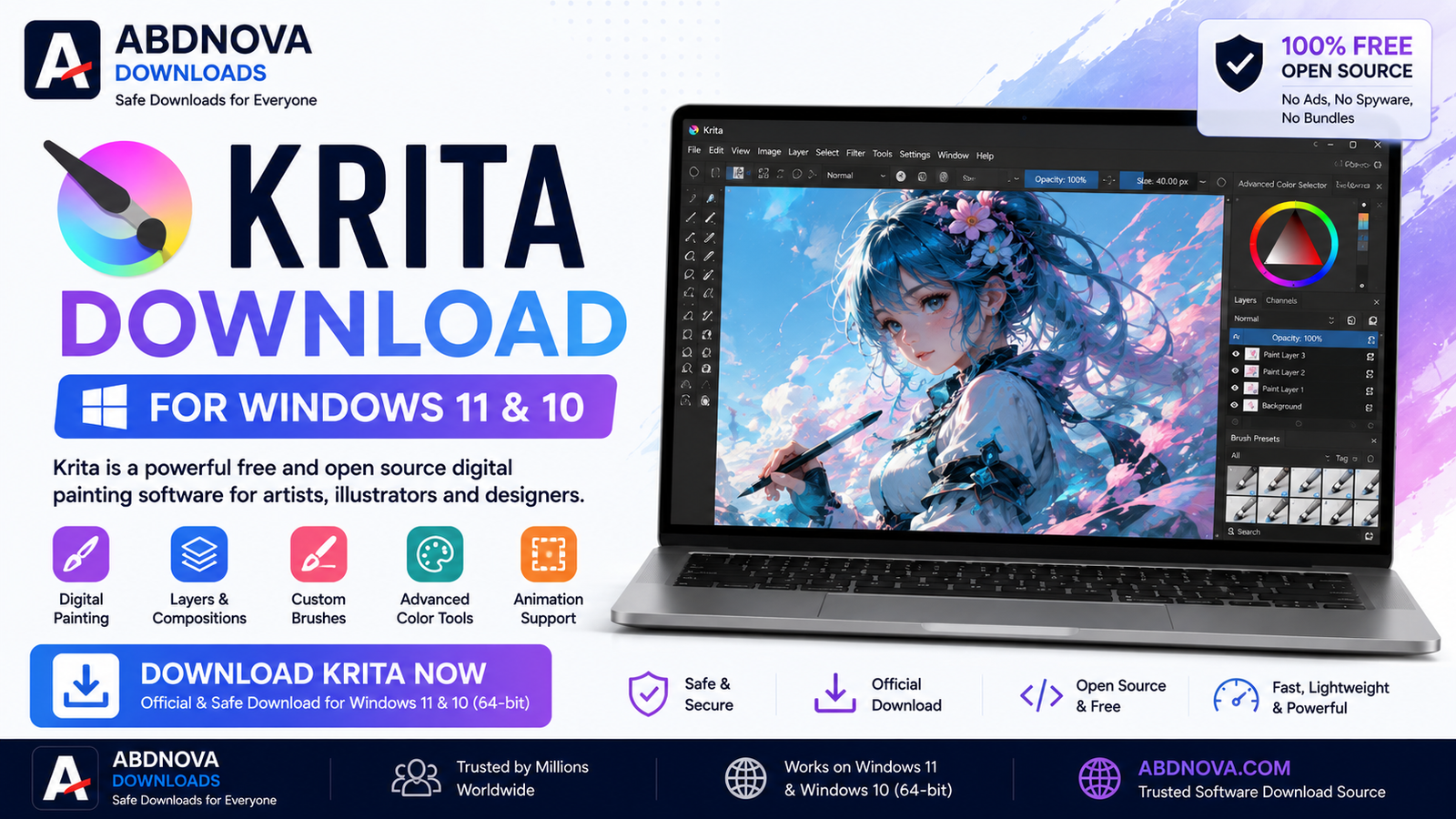
Krita is a free and open-source digital painting and illustration application designed for artists, illustrators, concept designers, comic creators, and anyone who wants to create digital artwork on a Windows PC.
If you are looking for Krita Download for Windows 11 or Windows 10, the safest option is to download the latest stable version from the official Krita website.
Krita provides professional drawing tools such as customizable brushes, layers, masks, drawing assistants, animation tools, color management, and graphics tablet support—all without requiring a subscription.
This guide covers the essential features, installation process, system requirements, drawing tools, troubleshooting, and safe download information.
Krita Overview
Krita is primarily designed for digital painting and illustration rather than traditional photo editing.
It can be used for:
Digital painting
Illustration
Concept art
Character design
Comics and manga
Texture painting
Storyboards
2D animation
Sketching
Krita Key Information
| Information | Details |
|---|---|
| Software | Krita |
| Developer | Krita Foundation |
| Category | Graphics / Digital Painting |
| Platform | Windows |
| Supported Windows | Windows 11 & Windows 10 |
| License | Free & Open Source |
| Main Purpose | Digital painting & illustration |
| Layers | Supported |
| Graphics Tablets | Supported |
| Animation | Supported |
| Official Source | Krita |
Download Krita for Windows 11 & 10
For most modern Windows PCs, the standard 64-bit Windows version is the appropriate choice.
Before downloading:
Make sure your Windows system is compatible.
Use the official Krita website.
Choose the latest stable release.
Make sure you have enough storage and RAM for your artwork.
Update your graphics drivers if necessary.
Avoid modified third-party installers.
Main Features of Krita

1. Professional Brush Engine
Krita provides a large collection of brushes for different styles of digital artwork.
You can use brushes for:
Sketching
Inking
Painting
Shading
Texturing
Pixel art
Brush settings can also be customized to create your own drawing experience.
2. Layers and Masks
Krita supports a layer-based workflow, making it easier to edit different parts of an artwork independently.
Depending on your project, you can work with features such as:
Paint layers
Group layers
Vector layers
Filter masks
Transparency masks
Selection masks
This makes complex illustrations easier to organize.
3. Graphics Tablet Support
Krita is designed to work with pressure-sensitive drawing tablets.
With compatible hardware and drivers, pen pressure can control properties such as brush size and opacity.
This makes Krita particularly useful for artists using drawing tablets and pen displays.
4. Drawing Assistants
Krita includes drawing assistants that can help with perspective and precise artwork.
These tools are useful for:
Buildings
Backgrounds
Perspective drawings
Concept art
Comics
5. Stabilizers for Smooth Lines
Artists who create line art can use brush stabilization tools to produce smoother strokes.
This can be particularly useful for:
Inking
Comics
Character outlines
Digital handwriting
6. 2D Animation
Krita also includes tools for frame-by-frame animation.
Artists can use it for:
Short animations
Animated sketches
Storyboards
Character movement
Simple 2D animation projects
For large professional animation productions, dedicated animation software may offer a more specialized workflow.
Krita Main Interface
Krita provides a customizable workspace.
Important interface areas include:
Canvas
The main area where you draw and paint.
Toolbar
Provides quick access to common tools and commands.
Toolbox
Contains drawing, selection, transformation, text, shape, and other tools.
Layers Docker
Used to create and organize layers.
Brush Presets
Provides quick access to available brushes.
Advanced Color Selector
Helps select and adjust colors while painting.
Krita's dockers and workspace layout can be customized depending on your workflow.
How to Install Krita on Windows

Step 1: Download Krita
Visit the official Krita website and open the download section.
Choose the current stable Windows version.
Step 2: Run the Installer
Open the downloaded installer.
If Windows displays a security prompt, confirm that the installer came from the expected source.
Step 3: Follow the Setup Wizard
Review the installation options and continue through the setup process.
Step 4: Complete Installation
Wait for Krita to finish installing.
Step 5: Launch Krita
Open Krita from the Start menu or desktop shortcut.
You can now create a new document or open an existing supported file.
How to Start Drawing in Krita

After opening Krita:
Select File → New.
Choose your canvas size.
Set the resolution if necessary.
Create the document.
Select a brush.
Choose a color.
Start drawing on the canvas.
For larger artwork intended for printing, consider the required dimensions and resolution before starting.
Krita File Formats
Krita's native project format is:
KRA
The KRA format is the best choice when you want to preserve Krita project information such as layers.
Krita can also work with several common image formats, including formats such as:
PNG
JPEG
TIFF
PSD
BMP
Format compatibility and preservation of advanced features can vary.
For ongoing editing, save your main project as KRA, then export another format when you need to publish or share the finished image.
Krita for Drawing Tablets
If you're using a graphics tablet:
Install the latest official tablet driver.
Connect the tablet.
Open Krita.
Select a pressure-sensitive brush.
Test pen pressure.
If pressure does not work, check both Krita's tablet settings and the manufacturer's driver configuration.
Related guide: If you also need a free image editor focused more on photo editing and image manipulation, see our GIMP Download for Windows guide.
Krita vs GIMP
Krita and GIMP are both free and open-source graphics applications, but their main focus differs.
Choose Krita primarily for drawing and painting.
Choose GIMP primarily for photo editing and image manipulation.
Many users can benefit from having both.
Krita vs Photoshop
Photoshop and Krita overlap in some areas but have different strengths.
Krita is free and open source and focuses strongly on digital painting and illustration.
Photoshop is commercial software with extensive professional photo-editing, design, and Creative Cloud integration.
For users mainly interested in free digital painting software, Krita is an excellent option.
Krita System Requirements
Requirements can change between releases, but for a comfortable Windows experience you should have:
Large canvases, many layers, animation projects, and high-resolution artwork require more RAM and processing power.
Always check Krita's current official requirements before downloading a new major release.
Is Krita Free?
Yes.
Krita is free and open-source software.
You can download the standard desktop application without purchasing a subscription.
Paid store versions may also be offered through certain platforms as a way of supporting development, but the official desktop version remains available as free software.
Common Krita Problems and Fixes
Krita Is Running Slowly
Try:
Closing unnecessary applications.
Reducing extremely large canvas sizes.
Reducing unnecessary layers.
Updating your graphics driver.
Updating Krita.
Checking available RAM.
Large artwork can require significant memory.
Pen Pressure Is Not Working
If your tablet works but pressure sensitivity does not:
Update the tablet driver.
Restart Krita.
Check Krita's tablet settings.
Try a pressure-sensitive brush.
Check Windows Ink/tablet configuration where appropriate.
Krita Won't Open
Try:
Restart Windows.
Install the latest stable Krita version.
Update Windows.
Update your graphics driver.
Reinstall Krita if necessary.
Krita Crashes with Large Files
Large documents with many layers can consume substantial RAM.
Try:
Closing other applications.
Reducing document size where practical.
Saving regularly.
Keeping sufficient free storage available.
Updating Krita.
PSD File Looks Different in Krita
Krita supports PSD files, but complex Photoshop-specific features may not always transfer perfectly between applications.
For Krita projects, keep your editable master file in KRA format whenever possible.
Is Krita Safe?
Krita is a legitimate open-source graphics application maintained by the Krita project.
For safer installation:
Download from the official Krita website.
Use the latest stable release.
Avoid cracked or modified packages.
Keep Krita updated.
Keep Windows and graphics drivers updated.
Safe Download Guide
For a safe Krita download:
✓ Download from the official Krita website ✓ Choose the latest stable Windows version ✓ Avoid modified installers ✓ Verify security prompts before installation ✓ Keep Krita updated
ABDNOVA should direct visitors to the official Krita download source rather than hosting modified installers.
Download Krita for Windows
Software: Krita Developer: Krita Foundation Platform: Windows Windows: Windows 11 & Windows 10 Category: Graphics / Digital Painting License: Free & Open Source Main Features: Brushes, layers, illustration, tablet support & animation Download Source: Official Krita website
Download Krita
[ Download Krita for Windows ]
Recommended: Download the latest stable Krita version directly from the official developer.
Frequently Asked Questions
What is Krita?
Krita is free, open-source digital painting and illustration software designed primarily for artists.
Is Krita free?
Yes. Krita is free and open source.
Does Krita work on Windows 11?
Yes, current Krita versions support compatible Windows 11 systems.
Can I use Krita on Windows 10?
Yes, supported Krita releases can run on compatible Windows 10 systems.
Is Krita good for digital painting?
Yes. Digital painting and illustration are among Krita's primary purposes.
Does Krita support drawing tablets?
Yes. Krita supports pressure-sensitive graphics tablets and pen displays with compatible drivers.
Can Krita open PSD files?
Yes, Krita supports PSD files, although some Photoshop-specific features may not transfer perfectly.
Can Krita create animations?
Yes. Krita includes tools for frame-by-frame 2D animation.
Is Krita better than GIMP?
It depends on the task. Krita is generally better suited to digital painting and illustration, while GIMP focuses more heavily on image editing and manipulation.
Does Krita require a powerful PC?
Basic drawing does not require a high-end computer, but large canvases, many layers, and animation projects can benefit from additional RAM and processing power.
Where should I download Krita?
Download Krita from the official Krita website for the safest installation.
Ready to download Krita?
Get the latest stable Windows release from the official Krita website. ABDNOVA recommends official download sources only.


