

Greenshot Download for Windows
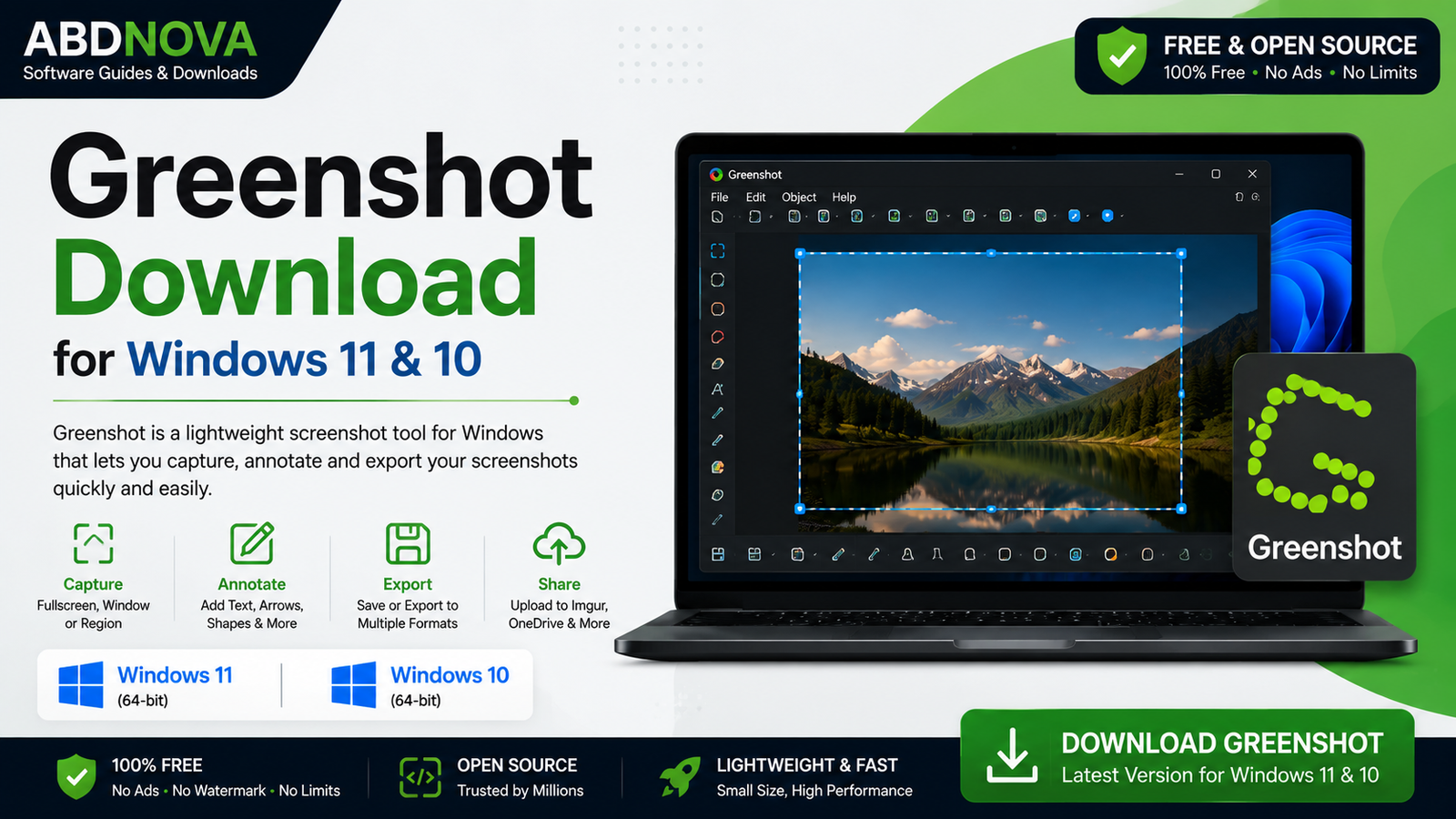
Greenshot Download for Windows gives Windows 11 and Windows 10 users a lightweight way to capture a region, window, or full screen and quickly annotate screenshots with arrows, text, highlights, shapes, and other editing tools.
Greenshot Download for Windows – Overview
| Software | Greenshot |
| Platform | Windows |
| Compatible OS | Windows 11 & Windows 10 |
| Category | Screenshot / Screen Capture |
| License | Open Source |
| Best For | Screenshots and annotations |
What Is Greenshot?
Greenshot is a screenshot capture and annotation utility designed to make everyday screen capture fast and simple. It can capture selected regions, individual windows, the full screen, and supported scrolling content.
After capturing an image, you can open it in the built-in editor, save it to a file, copy it to the clipboard, print it, or send it to configured destinations.
Greenshot Main Interface, Screenshot and Annotation Features
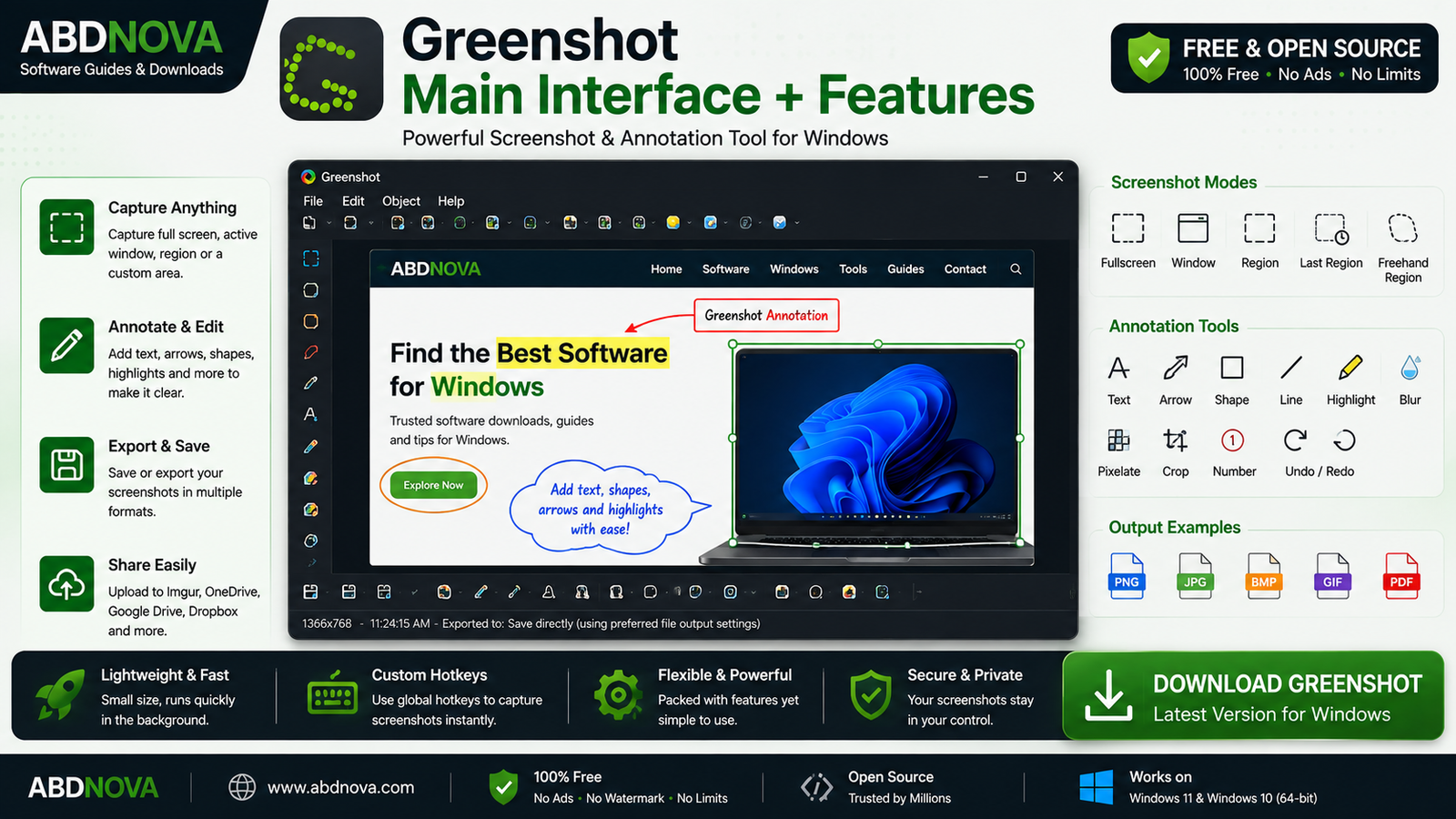
Region Capture
Region capture lets you select only the part of the screen you need. This is useful for tutorials, software guides, error messages, and documentation where unnecessary desktop content should be excluded.
Window and Full-Screen Capture
Greenshot can capture a specific application window or everything visible on the screen. Window capture can reduce the need for manual cropping after taking a screenshot.
Built-in Image Editor
The Greenshot editor includes tools for adding text, arrows, rectangles, ellipses, lines, highlights, speech bubbles, numbered steps, and basic effects.
Blur or Obscure Information
Editing tools can help obscure parts of a screenshot before sharing it. Always review the final image carefully when it contains private or sensitive information.
Greenshot Screenshot, Region Capture, Annotation and Scrolling Capture
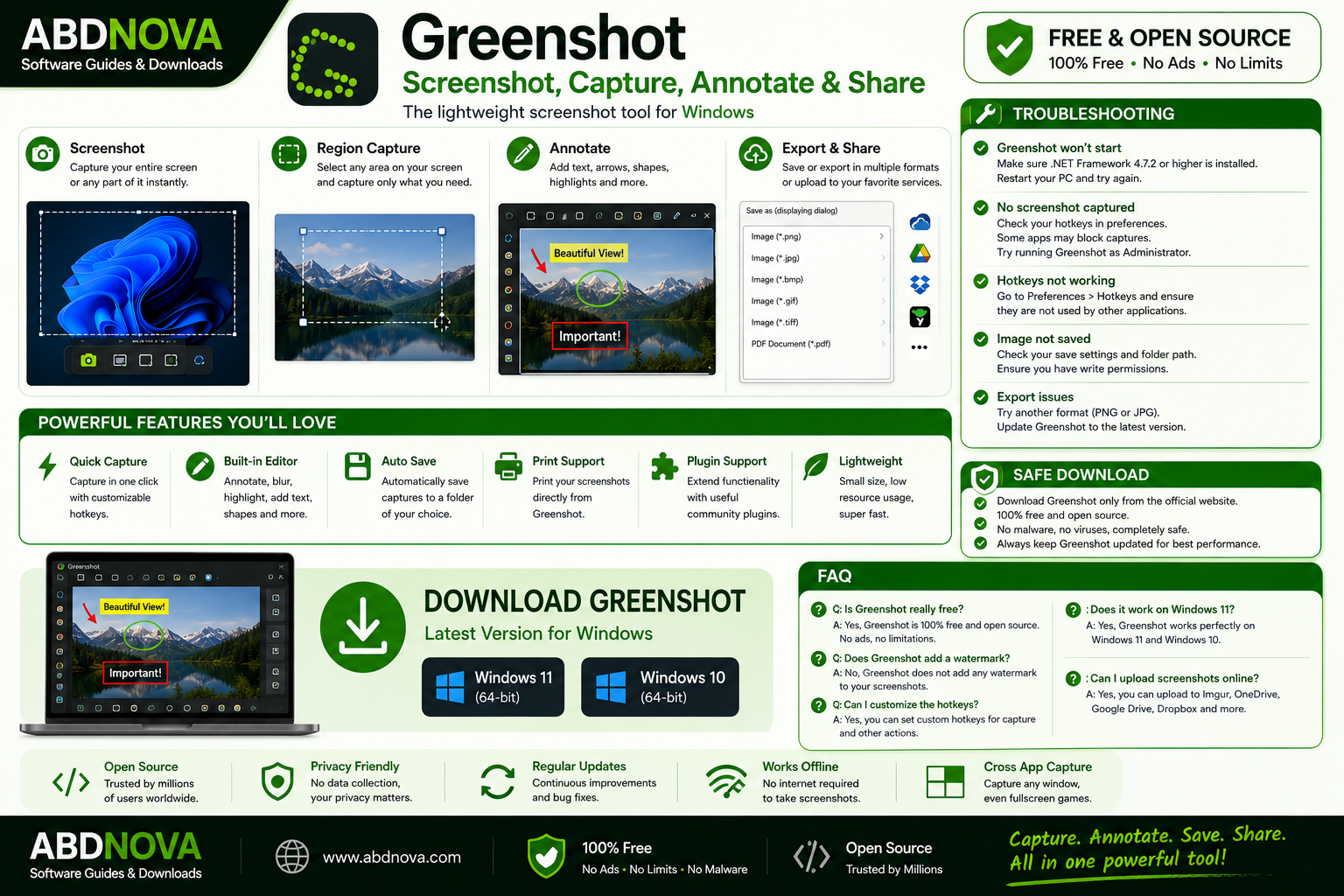
Scrolling Capture
Greenshot can capture certain scrolling content, particularly webpages in supported environments. Compatibility can vary depending on the browser, application, and Greenshot version.
Keyboard Shortcuts
Greenshot is designed around quick screenshot shortcuts. Typical actions include using Print Screen for region capture, Alt + Print Screen for the active window, and Ctrl + Print Screen for full-screen capture. Shortcut behavior can vary depending on your configuration.
Screenshot Output Options
- Open in Greenshot Image Editor
- Save directly to a file
- Save As
- Copy to clipboard
- Open in another supported application
- Send to configured destinations
Supported Image Formats
Greenshot can work with common screenshot formats such as PNG, JPEG/JPG, BMP, and GIF. PNG is usually a good choice for screenshots containing interface text because it keeps text and UI elements clear.
How to Install Greenshot on Windows
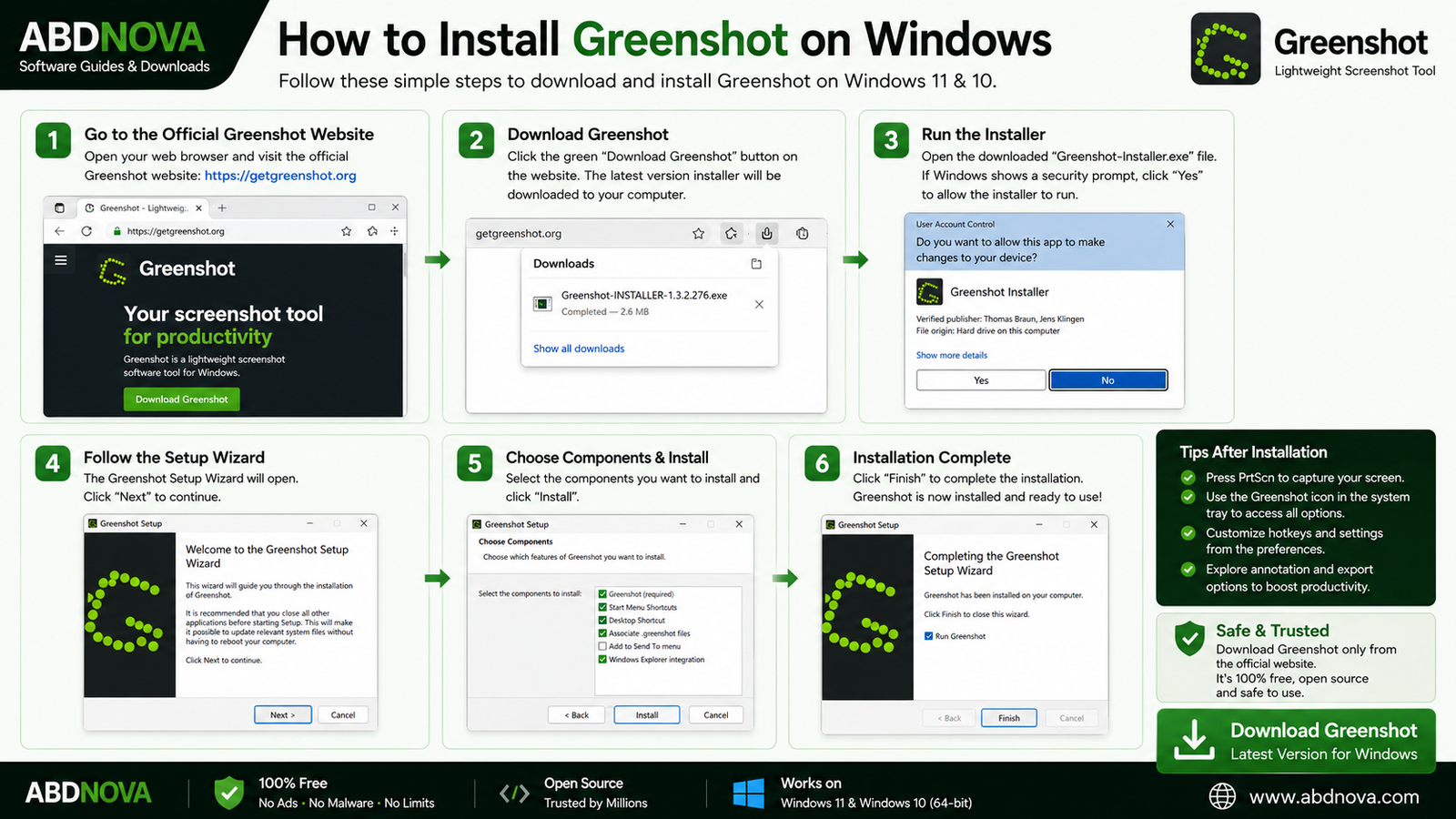
- Visit the official Greenshot website.
- Locate the Windows download.
- Download the current installer from the legitimate source.
- Open the setup file.
- Verify the source if Windows displays a security prompt.
- Follow the installation wizard.
- Choose the required components and settings when available.
- Complete installation and launch Greenshot.
How to Take a Screenshot with Greenshot
- Launch Greenshot and keep it running in the Windows system tray.
- Use your configured capture shortcut.
- Select a region, window, or full-screen capture.
- Choose Open in Image Editor if you want to annotate it.
- Add arrows, text, highlights, shapes, or numbered steps.
- Save or copy the finished screenshot.
Greenshot vs ShareX
Both tools can capture screenshots and add annotations, but they target different workflows. Greenshot focuses on lightweight screenshot capture and simple editing, while ShareX adds advanced features such as screen recording, GIF recording, OCR, and workflow automation.
Related Guide: Read our ShareX Download for Windows guide if you need more advanced capture and recording features.
Greenshot vs Windows Snipping Tool
Windows Snipping Tool is convenient for basic screenshots and recording. Greenshot provides a screenshot-focused workflow with additional annotation and output options, making it useful for users who regularly create instructional or documentation images.
Greenshot System Requirements
- Operating System: Windows 11 / Windows 10
- Processor: Standard compatible Intel or AMD processor
- RAM: 2 GB or more recommended
- Storage: Minimal free disk space
- Display: Standard Windows-compatible display
- Internet: Required for downloading and updates
Common Greenshot Problems and Solutions
Print Screen Shortcut Not Working
Another application such as Windows Snipping Tool, OneDrive, another screenshot program, or a keyboard utility may already be using the same key. Change the Greenshot hotkey if necessary.
Greenshot Doesn’t Start
Restart Windows and check Task Manager for an existing Greenshot process. If necessary, close the process, update Greenshot, or reinstall it from the legitimate source.
Screenshot Doesn’t Save
Check that the destination folder exists, your Windows account has permission to write to it, and the drive has enough available storage.
Screenshot Editor Doesn’t Open
Check the destination settings after capture and make sure the Greenshot Image Editor is available as an output destination.
Print Screen Opens Windows Snipping Tool
Windows may be configured to use the Print Screen key for its built-in capture tool. Change that Windows setting or assign Greenshot a different screenshot shortcut.
Scrolling Capture Doesn’t Work
Scrolling capture does not work with every application. Update Greenshot, try a supported browser, capture smaller sections, or take multiple screenshots manually.
Related Screenshot and Image Guides
For advanced screen recording, GIF creation, OCR, and automation, see our ShareX Download for Windows guide.
For more detailed image editing after capturing screenshots, see our Paint.NET Download for Windows guide.
Is Greenshot Free?
Greenshot is an open-source screenshot tool, and its Windows version has traditionally been available free of charge. Check the current official project information for the latest licensing and platform details.
Is Greenshot Safe?
Greenshot is a well-known open-source screenshot utility. Use the official project source, avoid modified installers and suspicious third-party download buttons, keep Windows security enabled, and review screenshots before sharing them.
Greenshot FAQ
Is Greenshot free?
The Windows version of Greenshot has traditionally been available as free, open-source software. Check the official project site for current details.
Does Greenshot work on Windows 11?
Greenshot can be used on modern Windows systems. Use the latest available release for the best compatibility.
Can Greenshot capture a selected area?
Yes. Region capture is one of Greenshot’s primary screenshot features.
Can Greenshot record video?
Greenshot is primarily designed for screenshots rather than screen recording. If you need video or GIF recording, ShareX is a more suitable option.
Can Greenshot capture a scrolling webpage?
Greenshot provides scrolling capture in supported scenarios, but compatibility varies by application, browser, and version.
Does Greenshot have an image editor?
Yes. Its built-in editor can add arrows, text, shapes, highlights, numbered steps, and other annotations.
Can Greenshot blur sensitive information?
Yes. Greenshot includes tools that can help obscure selected parts of screenshots before sharing.
Final Thoughts
Greenshot is a practical choice for users who mainly need fast screenshots, lightweight annotation tools, scrolling capture in supported scenarios, and flexible output options without the complexity of a full screen-recording suite.
If you are looking for Greenshot Download for Windows, use the legitimate Greenshot source and keep the application updated for the best compatibility.
Ready to download Greenshot?
Windows 11 & 10 • Open Source • Screenshot Tool
ABDNOVA does not host the Greenshot installer. The button opens the Greenshot website so you can use the legitimate download source.


