


Apple Music Download for Windows – Music Streaming & Library App

Download Apple Music for Windows 11 and 10 to stream music, manage your personal library, access iTunes purchases, download songs offline, view lyrics and play Lossless or Dolby Atmos content.
Apple Music Download for Windows gives Windows users Apple’s dedicated desktop app for streaming Apple Music, managing a personal music library and accessing music previously purchased through iTunes Store.
The app supports playlists, offline downloads, Sync Library, synchronized lyrics, Apple Music Radio, Lossless and Hi-Res Lossless audio, Dolby Atmos and imported local music.
Apple has moved modern Windows music management away from the traditional all-in-one iTunes experience. Apple Music now handles music, Apple TV handles movies and TV shows, and Apple Devices manages iPhone and iPad backups, updates, restores and synchronization.
Apple Music Download for Windows – Quick Overview
| Information | Details |
|---|---|
| Software | Apple Music |
| Developer | Apple |
| Platform | Windows |
| Windows 11 | Supported |
| Windows 10 | Supported on compatible systems |
| Official Source | Microsoft Store |
| App Download | Free |
| Subscription | Required for subscription-catalog features |
| Personal Music Library | Yes |
| iTunes Store Purchases | Yes |
| Offline Music | With Apple Music subscription |
| Lossless Audio | Yes |
| Hi-Res Lossless | Up to 24-bit / 192 kHz |
| Dolby Atmos | Supported |
| Lyrics | Yes |
| Playlists | Yes |
| Sync Library | Yes |
| Local Music Import | Yes |
| iPhone/iPad Management | Use Apple Devices |
What Is Apple Music for Windows?
Apple Music is Apple’s dedicated Windows music application.
Apple Music for Windows can be used to:
- Stream Apple Music.
- Access your personal music library.
- Manage albums, artists, songs and playlists.
- Access iTunes Store music purchases.
- Import music already stored on your PC.
- Download Apple Music content for offline listening.
- Use Sync Library.
- View synchronized lyrics.
- Listen to Apple Music Radio.
- Play Lossless and Hi-Res Lossless audio.
- Play supported Dolby Atmos music.
- Manage playback and queue settings.
Apple Music vs iTunes on Windows
Apple’s current Windows ecosystem separates functions that were previously combined inside iTunes.
| Feature | Apple Music | iTunes |
|---|---|---|
| Modern Music App | Yes | Legacy workflow |
| Apple Music Streaming | Yes | Older workflow |
| Music Library | Yes | Yes |
| Playlists | Yes | Yes |
| Lossless | Yes | Not the modern Apple Music experience |
| Dolby Atmos | Yes | Not the modern Apple Music experience |
| Offline Apple Music Downloads | Yes | Legacy workflow |
| iTunes Purchases | Yes | Yes |
| Podcasts | No | Yes |
| Audiobooks | No | Yes |
| iPhone/iPad Management | No | Legacy |
| Modern Device Management | Use Apple Devices | Legacy |
For modern Windows use:
- Music: Apple Music.
- Movies & TV: Apple TV.
- iPhone/iPad management: Apple Devices.
- Podcasts & audiobooks: iTunes.
If you still use Apple’s older media workflow, see our iTunes Download for Windows guide.

How to Install Apple Music on Windows
- Open Microsoft Store from the Windows Start menu.
- Search for Apple Music.
- Choose the official app published by Apple.
- Select Get.
- Wait for Microsoft Store to download and install the app.
- Open Apple Music from the Start menu.
- Sign in with your Apple Account.
- Use the same Apple Account you use on your other Apple devices if you want access to a synchronized library.

Apple Music Main Interface, Library & Playback
Home
Home provides personalized music recommendations based on your listening activity.
New
Use the New section to explore new releases and featured music.
Radio
Apple Music includes radio stations and other available radio programming.
Library
Your Library contains music that you have added, imported or purchased.
Library categories can include:
- Albums.
- Artists.
- Songs.
- Playlists.
Search
Search across Apple Music or your existing personal library.
Now Playing
Playback controls include play/pause, previous/next, volume, queue, lyrics, shuffle and repeat.
Build Your Apple Music Library
You can build your Windows music library using:
- Apple Music subscription content.
- iTunes Store purchases.
- Existing music stored on your computer.
- Previous purchases.
- Other supported music sources.
Import Music from Your Windows PC
Apple Music is not limited to streaming. You can import compatible music files already stored on your PC.
This can include:
- MP3 collections.
- Music copied from an older computer.
- Purchased digital music.
- Personal audio collections.
- Music previously managed through iTunes.

Apple Music Library, Sync Library & Offline Downloads
Apple Music Subscription
The Apple Music app itself is free to install, but full access to Apple’s subscription music catalog requires an Apple Music subscription or an eligible Apple One plan.
Subscription features can include:
- Music streaming.
- Offline downloads.
- Personalized recommendations.
- Playlists.
- Lossless audio.
- Dolby Atmos.
- Music videos and other supported content.
Availability can vary by country or region.
Download Songs for Offline Listening
Apple Music subscribers can download supported music to a Windows PC for offline playback.
- Open Apple Music.
- Add a song, album or playlist to your Library.
- Find it under Library.
- Select the Download button.
Sync Library Explained
Sync Library keeps your music library available across compatible devices that use the same Apple Account.
On Windows:
Apple Music → Sidebar Actions → Settings → General → Sync Library
Sync Library requires an eligible Apple Music subscription or iTunes Match account.
iTunes Store Purchases
Installing Apple Music does not mean you lose music previously purchased through iTunes.
Apple Music for Windows can access and manage music from your iTunes library, including eligible iTunes Store purchases.
Apple Music Lossless, Hi-Res Lossless & Dolby Atmos
Apple Music Lossless Audio
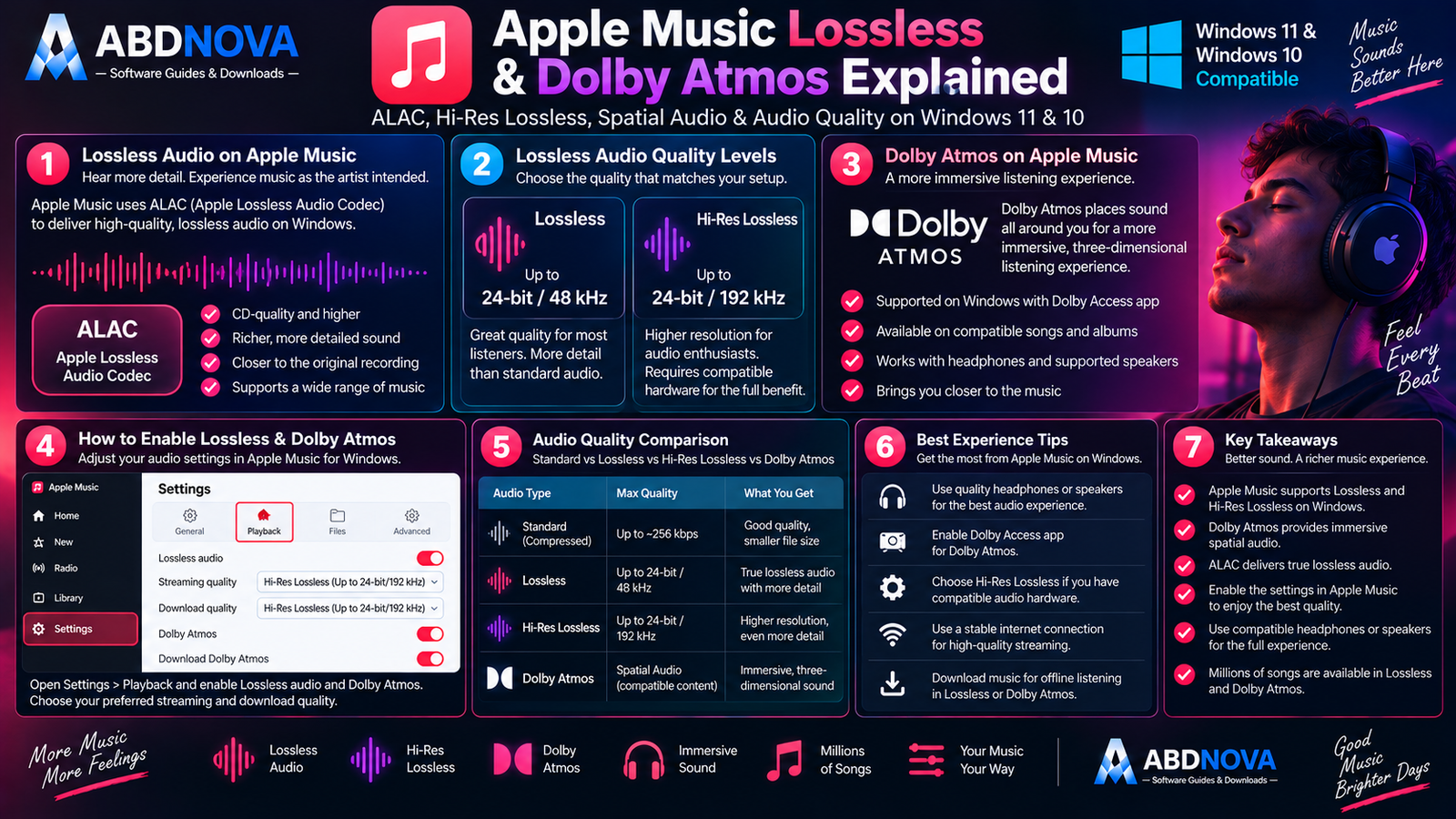
Apple Music for Windows supports Lossless Audio using Apple’s ALAC format.
| Audio Mode | Maximum Quality |
|---|---|
| Lossless | Up to 24-bit / 48 kHz |
| Hi-Res Lossless | Up to 24-bit / 192 kHz |
To enable Lossless:
- Open Apple Music.
- Open Sidebar Actions.
- Select Settings.
- Open Playback.
- Enable Lossless audio.
- Select your preferred streaming or download quality.
Hi-Res Lossless
Hi-Res Lossless can reach up to 24-bit/192 kHz, but getting the full benefit may require suitable headphones, speakers, DACs or audio interfaces.
Dolby Atmos
Apple Music for Windows supports compatible music in Dolby Atmos.
Supported Dolby Atmos content can provide a more immersive spatial presentation than conventional stereo.
You can configure Dolby Atmos under:
Apple Music → Settings → Playback
Not every song is available in Dolby Atmos, and availability can vary by region.
Lyrics
Apple Music supports synchronized lyrics for compatible songs.
Playlists
You can create playlists for genres, artists, favorites, workouts, travel and personal collections.
Apple Music Queue
The queue lets you control what plays next without permanently changing a playlist.
You can add, rearrange, remove or skip tracks and use shuffle or repeat controls.

Apple Music vs Spotify vs iTunes vs MusicBee
| Feature | Apple Music | Spotify | iTunes | MusicBee |
|---|---|---|---|---|
| Main Focus | Apple music streaming & library | Streaming & discovery | Legacy Apple media workflows | Local music management |
| Windows App | Yes | Yes | Yes | Yes |
| Streaming Music | Yes | Yes | Legacy workflow | No streaming catalog |
| Offline Music | Subscription | Premium | Legacy / owned content | Local files |
| Lyrics | Yes | Yes | Limited | Library-focused |
| Personal Library | Strong | Local Files support | Strong traditional library | Excellent |
| Lossless | Up to 24-bit/192 kHz | Plan/region dependent | Not modern Apple Music workflow | Plays lossless local files |
| Dolby Atmos | Yes | Availability varies | Not modern Apple Music workflow | Not subscription-focused |
| iTunes Purchases | Integrated | No | Yes | Imported local files possible |
| Best For | Apple ecosystem & high-quality streaming | Discovery & cross-platform streaming | Legacy Apple workflows | Large local libraries |
Apple Music vs Spotify
Both provide dedicated Windows apps, music streaming, playlists, lyrics and offline downloads for eligible subscribers.
Apple Music integrates more deeply with Apple’s ecosystem and provides documented Lossless and Hi-Res Lossless playback. Spotify places strong emphasis on music discovery, playlists and cross-platform listening.
Apple Music vs MusicBee
Apple Music is better suited to streaming and Apple’s music ecosystem.
MusicBee is better suited to users who own and organize large local music collections and want advanced tagging, library management and audio-output controls.
Apple Music + Apple Devices
Apple Music and Apple Devices work together in Apple’s modern Windows ecosystem.
Apple Music manages your music library, while Apple Devices manages connected iPhones, iPads, backups, restores, updates and supported synchronization workflows.

Apple Music Troubleshooting
Apple Music Won’t Install
Check that Windows is updated, Microsoft Store is working, enough storage is available and your internet connection is stable.
Apple Music Won’t Open
Close and reopen the app, restart Windows, update Apple Music, update Windows and repair or reset the application through Windows settings if necessary.
Music Library Is Missing
Open Settings → General → Sync Library and confirm that you are signed in with the correct Apple Account.
Remember that Sync Library requires an eligible Apple Music subscription or iTunes Match account.
Songs Won’t Download
Check that:
- Your Apple Music subscription is active.
- You are signed into the correct Apple Account.
- Sync Library is enabled.
- Your internet connection works.
- Your PC has enough storage.
Lossless Option Is Missing
Open Settings → Playback and look for the Lossless audio option.
Apple Music and Lossless availability can vary by country or region.
Dolby Atmos Isn’t Working
Check that the song supports Dolby Atmos, Dolby Atmos is enabled in Apple Music, Windows audio output is configured correctly and Dolby Access is installed.
Safe Apple Music Download for Windows
The safest source for Apple Music Download for Windows is Apple’s official Windows support page and Microsoft Store.
Use the official Apple Music for Windows installation guide and install Apple Music through Microsoft Store.
- Apple Music Crack.
- Apple Music Premium Crack.
- Apple Music MOD.
- Apple Music Activated.
- Apple Music Repack.
- Unofficial Apple Music installers.
The official Apple Music app is free to install. Paid subscription features are handled through Apple’s legitimate subscription system.
Frequently Asked Questions
Does Apple Music work on Windows 11 and Windows 10?
Yes. Apple provides a dedicated Apple Music app for modern Windows PCs through Microsoft Store.
Is Apple Music free to download?
Yes. The application itself is free to install, although full Apple Music streaming requires an eligible subscription.
Where should I download Apple Music for Windows?
Use Apple’s official Windows instructions and the Microsoft Store version.
Can Apple Music play Lossless audio on Windows?
Yes. Apple supports Lossless up to 24-bit/48 kHz and Hi-Res Lossless up to 24-bit/192 kHz.
Does Apple Music for Windows support Dolby Atmos?
Yes, for supported content. Apple’s current Windows documentation notes that Dolby Access is required for supported Dolby Atmos playback.
Can I download Apple Music songs for offline listening?
Yes. Apple Music subscribers can download supported music added to their Library for offline playback.
Can I import my own music into Apple Music?
Yes. Apple Music for Windows can import compatible music already stored on your PC.
Can I access old iTunes Store purchases?
Yes. Apple Music can manage eligible music from your iTunes library, including iTunes Store purchases.
Does Apple Music replace iTunes?
For modern music management and Apple Music listening, Apple Music is Apple’s dedicated Windows app. iTunes remains useful for podcasts, audiobooks and selected legacy workflows.
Can Apple Music back up my iPhone?
No. Use Apple Devices for iPhone and iPad backup, restore, update and device management.
What is Sync Library?
Sync Library keeps eligible music available across supported devices using the same Apple Account.
Is Apple Music safe?
Yes, when installed through Apple’s official Microsoft Store distribution.
Final Thoughts
Apple Music Download for Windows gives Windows 11 and Windows 10 users a modern way to access Apple’s music ecosystem without relying on the traditional iTunes interface.
The app combines Apple Music streaming, personal music-library management, playlists, offline downloads, synchronized lyrics, iTunes Store purchases, Sync Library, Lossless and Hi-Res Lossless audio and Dolby Atmos in a dedicated Windows experience.
For current Windows users, Apple Music works best as part of Apple’s newer app ecosystem alongside Apple Devices for iPhone and iPad management and Apple TV for movies and TV content.
Ready to download Apple Music?
Install Apple Music through Apple’s official Windows instructions and Microsoft Store. ABDNOVA recommends official sources only.


