
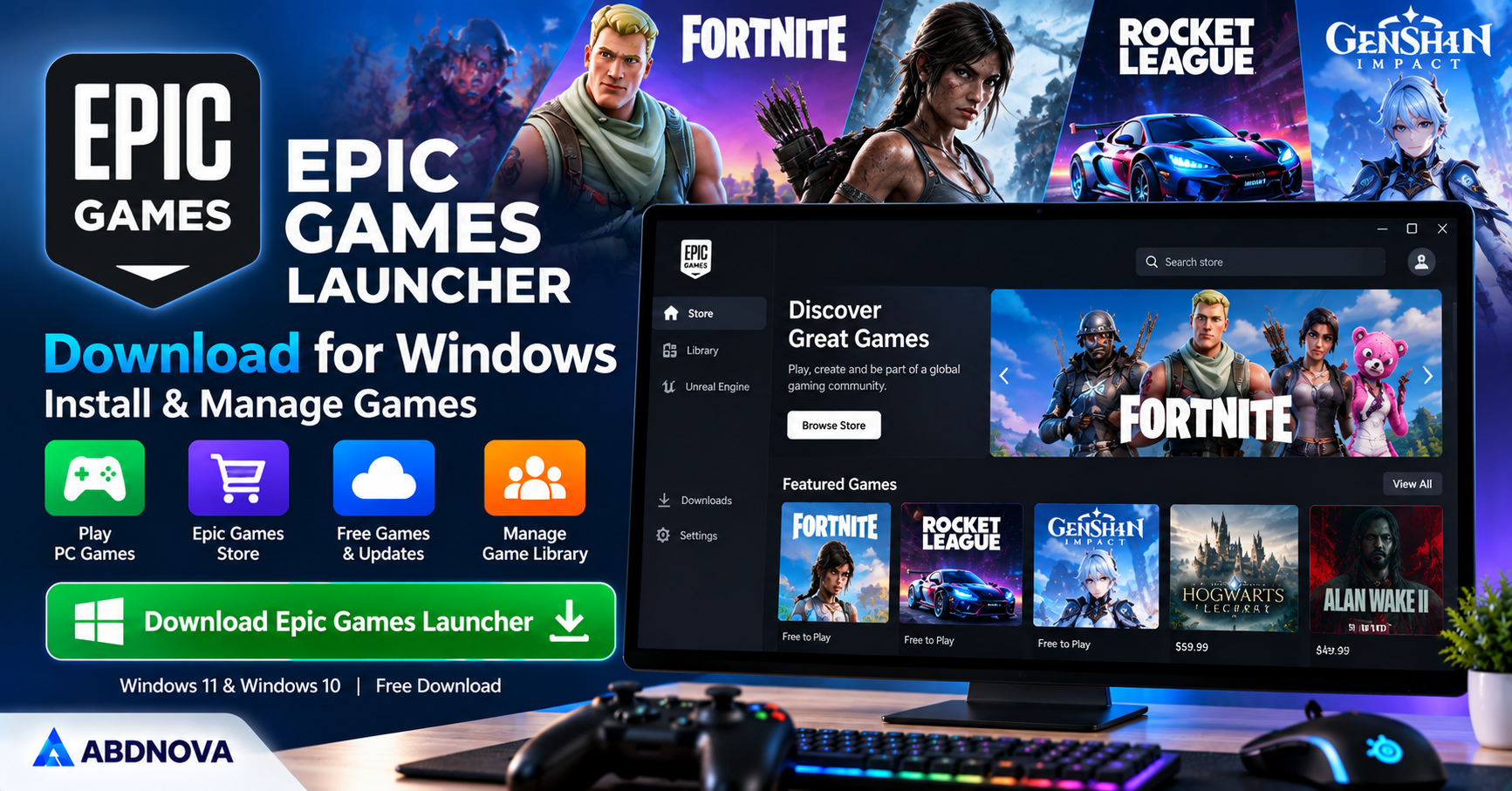

Epic Games Launcher Download for Windows
Epic Games Launcher Download for Windows lets Windows 11 and Windows 10 users discover, download, install, update, and manage PC games through the Epic Games Store.
Epic Games Launcher is a free desktop application developed by Epic Games that allows Windows users to discover, download, install, purchase, and manage PC games. It provides access to the Epic Games Store, a personal game library, automatic updates, free game promotions, and supported online gaming features.
The launcher is available for compatible Windows 11 and Windows 10 computers. Users can install free-to-play games such as Fortnite, purchase other PC games, manage downloads, and organize their gaming collection from one application.
Whether you want to download your first PC game, claim promotional free games, or move installed games to another drive, Epic Games Launcher provides a convenient way to manage your PC gaming experience.
Epic Games Launcher at a Glance
| Software | Epic Games Launcher |
| Developer | Epic Games |
| Category | PC Game Launcher & Digital Store |
| Operating System | Windows 11 & Windows 10 |
| License | Free |
| Main Purpose | Download, Install & Manage PC Games |
| Game Store | Epic Games Store |
| Game Library | Supported |
| Automatic Updates | Supported |
| Free Games | Free-to-play titles and promotional offers |
The launcher itself is free, but some games, add-ons, and in-game purchases require payment.
Epic Games Launcher Main Interface & Key Features
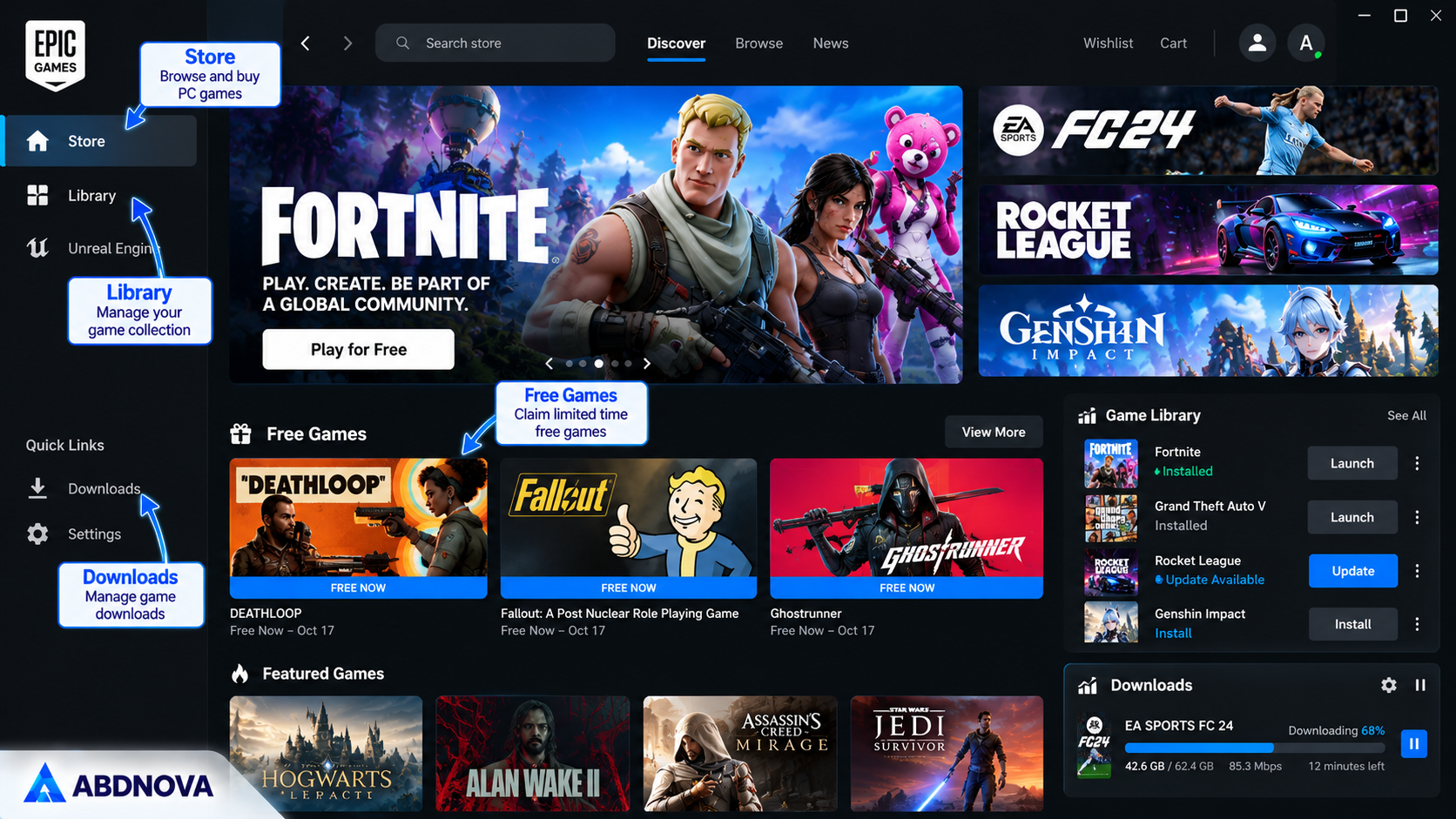
Epic Games Launcher provides a modern interface with sections for browsing games, accessing your library, managing downloads, and adjusting application settings.
Epic Games Store
Browse, discover, and purchase supported PC games through the integrated digital store.
Game Library
Access games associated with your Epic Games account and manage installed titles.
Free Games
Claim eligible promotional games during their availability periods.
Automatic Updates
Keep supported games updated with available automatic update options.
Download Manager
Monitor game downloads, installation progress, and supported download settings.
Game Installation
Install supported games on compatible storage drives.
Cloud Saves
Synchronize game progress across supported computers for compatible titles.
Friends Features
Connect with friends through available Epic online services.
Game Verification
Check and repair damaged or missing files in supported installed games.
Game Management
Install, update, launch, manage, and uninstall games from your library.
Account Security
Protect your Epic Games account with two-factor authentication and appropriate security settings.
Available features can vary depending on the game and launcher version.
Epic Games Launcher System Requirements for Windows
Epic Games Launcher requires a compatible Windows PC and an internet connection for downloading and accessing online services.
| Component | Requirement |
|---|---|
| Operating System | Supported 64-bit Windows 10 or Windows 11 |
| Processor | Compatible Intel or AMD processor |
| RAM | 4 GB or more recommended for the launcher |
| Storage | Space for the launcher and selected games |
| Graphics | Depends on the individual game |
| Internet | Required for downloads and online features |
| Account | Epic Games account for store and library access |
For smoother gaming, an SSD, sufficient RAM, and updated graphics drivers are recommended.
Important: The launcher’s requirements are different from individual game requirements. Modern games such as Fortnite may require substantially more memory, storage, and graphics performance.
How to Download & Install Epic Games Launcher on Windows 11 & 10
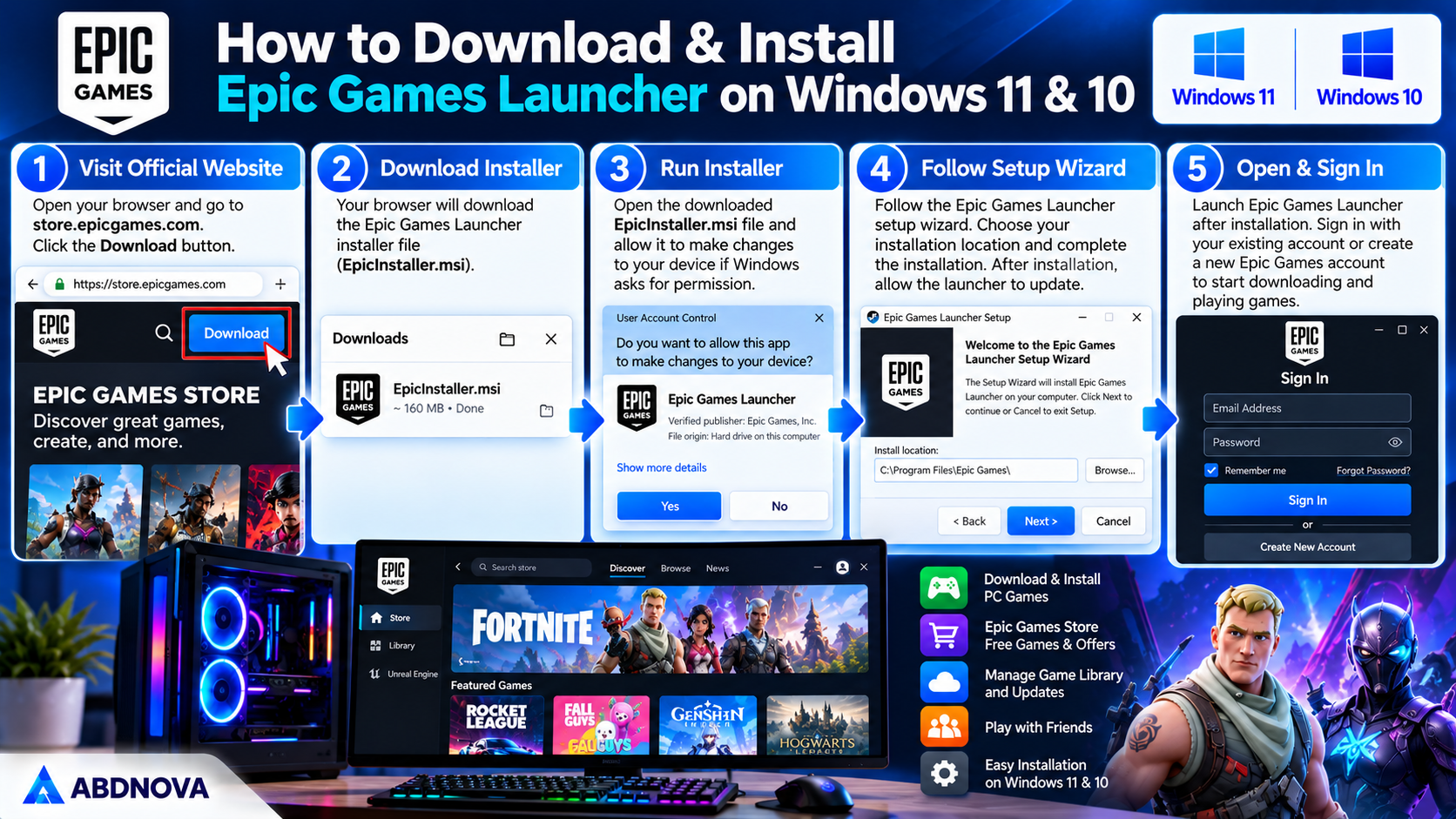
Download Epic Games Launcher directly from Epic Games’ official website.
Installation Steps
- Open the official Epic Games website.
- Find the Download option for Epic Games Launcher.
- Download the Windows installer.
- Open the downloaded installation file.
- Allow Windows permission if prompted.
- Follow the installation wizard.
- Choose an installation location if the installer provides that option.
- Complete the setup.
- Launch Epic Games Launcher.
- Allow any required launcher updates to finish.
After installation, you can sign in to your Epic Games account.
Create or Sign In to an Epic Games Account
If you already have an Epic Games account, sign in using your supported login method.
New users can create an account through Epic Games’ registration process.
For better security, enable two-factor authentication and use a strong, unique password.
How to Download & Install PC Games Using Epic Games Launcher
Epic Games Launcher allows users to download games from the Epic Games Store and install titles associated with their accounts.
Install a Free-to-Play Game
- Open Epic Games Launcher.
- Sign in to your account.
- Open the Store.
- Search for a free-to-play game.
- Open the game’s store page.
- Select Get or the available acquisition option.
- Complete the free checkout process if required.
- Open your Library.
- Select the game and choose Install.
- Select the installation location and start downloading.
After installation finishes, launch the game from your Library.
Install a Purchased Game
- Open Epic Games Launcher.
- Select Library.
- Find the purchased game.
- Click the game’s installation option.
- Choose a storage location.
- Confirm the installation.
- Wait for the download to finish.
- Select Launch to start playing.
Download time depends on game size, internet speed, and storage performance.
Epic Games Store Free Games – How to Claim Them
Epic Games Store regularly offers promotional games that eligible users can claim during a limited availability period.
How to Claim a Free Game
- Open Epic Games Launcher.
- Go to the Store.
- Find the current free games section.
- Select an available promotional game.
- Open its store page.
- Click Get.
- Complete the checkout process if required.
- Confirm that the game appears in your Library.
Promotional offers, regional availability, and eligibility conditions can vary. Games successfully claimed under the applicable offer terms generally remain associated with your account.
Epic Games Library, Free Games, Cloud Saves & Game Management
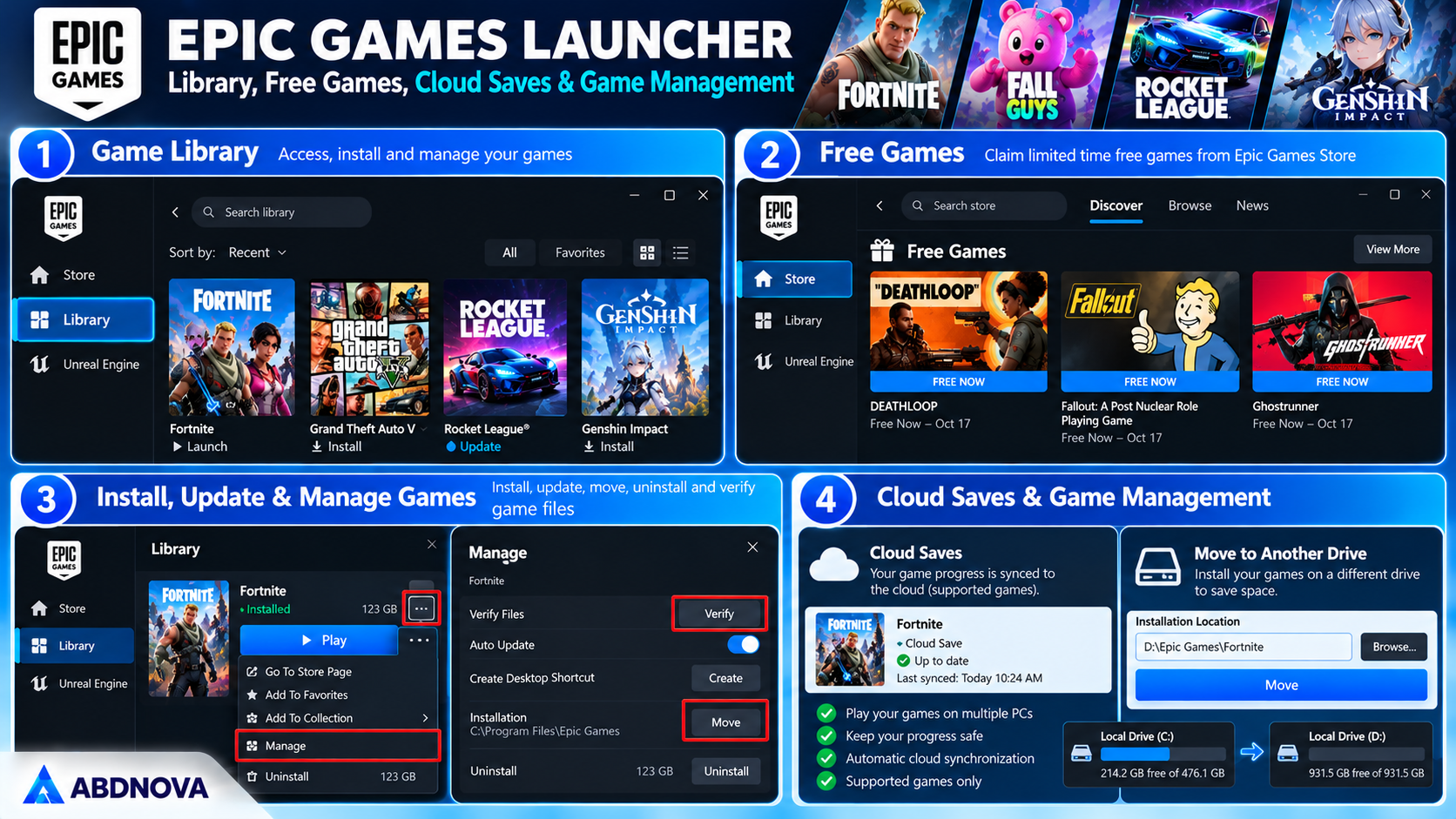
Epic Games Library – Install, Update & Manage Games
The Library section displays games associated with your Epic Games account.
You can:
- View your available games.
- Install and launch supported titles.
- Monitor installation status.
- Update installed games.
- Verify game files.
- Manage supported add-ons.
- Uninstall games.
- Locate installed game folders.
- Review available game management options.
How to Uninstall a Game
- Open Epic Games Launcher.
- Select Library.
- Find the installed game.
- Open its three-dot menu.
- Select Uninstall.
- Confirm the action.
Uninstalling a game removes its installed game files. Local save files and other data may be handled differently depending on the game.
Epic Games Launcher Download Manager & Updates
Epic Games Launcher includes download management features for installing and updating supported games.
Depending on the current launcher version, you may be able to:
- View download progress.
- Pause and resume downloads.
- Manage queued installations.
- Adjust download throttling.
- Enable or disable automatic updates for supported games.
- Review installation errors.
Manage Download Settings
- Open Epic Games Launcher.
- Open your profile or launcher settings.
- Find the available download preferences.
- Review bandwidth or throttling settings.
- Adjust the options as needed.
- Return to the Downloads section.
Avoid running several large downloads simultaneously if your internet connection is limited.
How to Move Epic Games to Another Drive
Epic Games Launcher supports selecting an installation location when installing games.
Moving an existing installation requires additional care because the launcher may not provide a universal one-click move option for every title.
Recommended Method
- Check whether the game supports a built-in move option.
- Back up important local game saves.
- Uninstall the game if necessary.
- Reinstall it through Epic Games Launcher.
- Select the new storage drive during installation.
- Allow the installation to complete.
- Launch the game to verify that it works.
For supported games, Epic Games also documents methods for relocating existing game files without downloading everything again. Follow the official procedure for the specific title before manually changing installation folders.
Epic Games Cloud Saves & Game Progress
Epic Games supports cloud save synchronization for compatible games.
Cloud saves can help keep game progress available across supported computers when using the same account.
Check Cloud Save Support
- Open Epic Games Launcher.
- Open the launcher’s settings.
- Check whether cloud saves are enabled.
- Review the game’s available cloud save support.
- Allow synchronization to finish before closing the launcher.
Not every game supports cloud saves.
For important progress, consider keeping a separate backup of local save files when the game permits it.
Epic Games Launcher vs Steam
Epic Games Launcher and Steam are popular platforms for downloading and managing PC games.
| Feature | Epic Games Launcher | Steam |
|---|---|---|
| Free Client | Yes | Yes |
| PC Game Store | Yes | Yes |
| Game Library | Yes | Yes |
| Automatic Updates | Yes | Yes |
| Cloud Saves | Supported Games | Supported Games |
| Promotional Free Games | Regular Store Promotions | Selected Promotions |
| Community Features | More Limited | Extensive |
| Controller Features | Game-Dependent | Steam Input |
| Game File Verification | Yes | Yes |
Epic Games Launcher is useful for accessing Epic Games Store purchases, Fortnite, and promotional free games. Steam offers a broader set of integrated community, controller, and library management features.
Both applications can be installed on the same Windows PC.
For another PC gaming platform, read our Steam Download for Windows guide to learn about Steam installation, game libraries, downloads, and game management.
Epic Games Launcher Download Problems, Game Verification & Safe Download
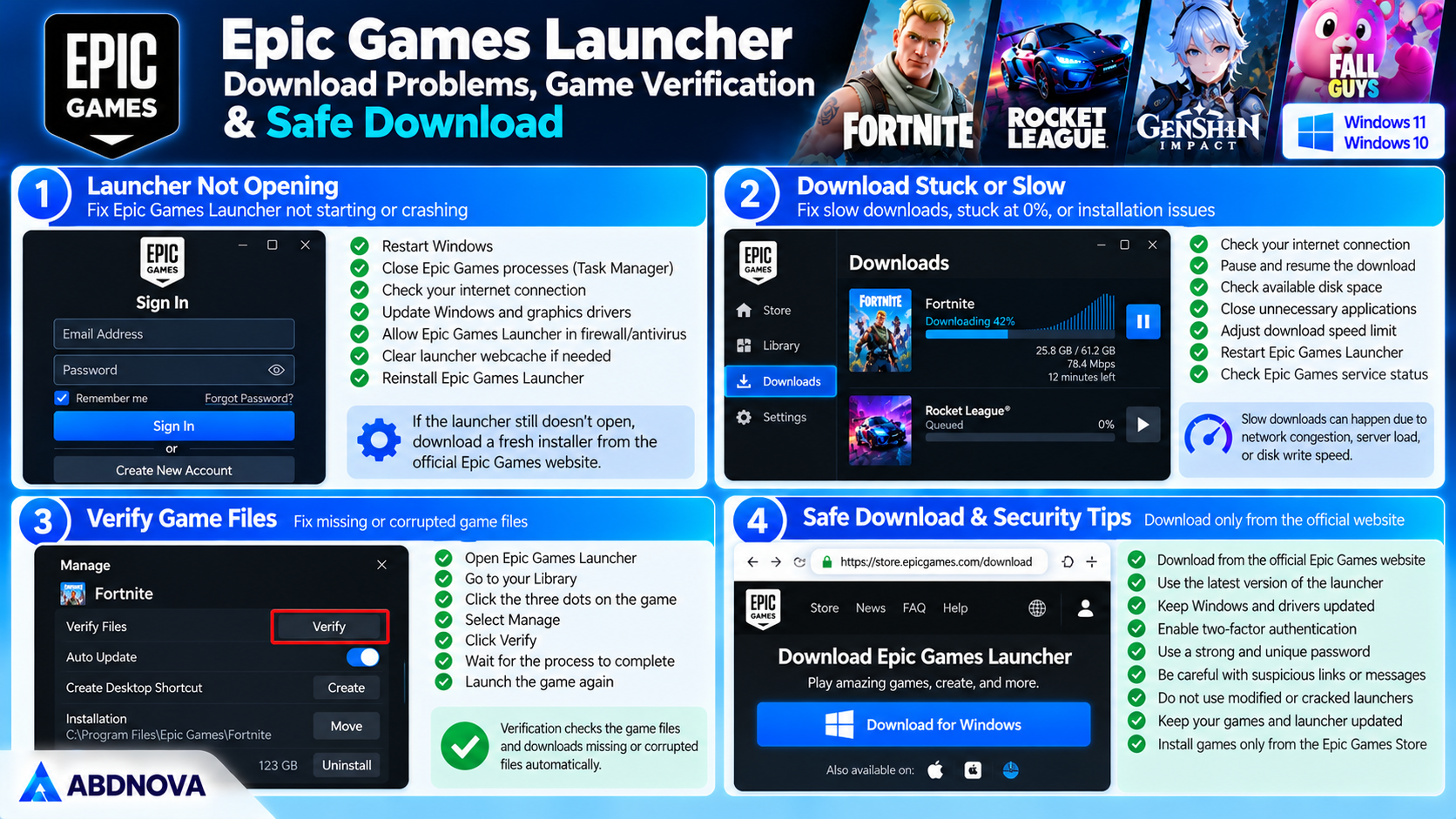
Epic Games Launcher Not Opening on Windows
If Epic Games Launcher does not open, the problem may involve damaged application files, Windows compatibility, graphics drivers, or background software conflicts.
Troubleshooting Steps
- Restart Windows.
- Open Task Manager.
- Close any existing Epic Games Launcher processes.
- Launch the application again.
- Check your internet connection.
- Install available Windows updates.
- Update your graphics drivers.
- Check whether security software is blocking the launcher.
- Clear the launcher webcache if required.
- Reinstall the official launcher if the problem continues.
Avoid deleting installed game folders or saved data without checking what will be affected.
Epic Games Download Stuck, Slow or Not Installing
Downloads may stop or slow down because of network issues, insufficient storage, download settings, or temporary service problems.
Possible Fixes
- Restart Epic Games Launcher.
- Check your internet connection.
- Pause and resume the download.
- Confirm that enough storage is available.
- Check download throttling settings.
- Close unnecessary background applications.
- Restart Windows.
- Check Epic Games’ service status.
- Clear the launcher cache if appropriate.
A download may appear slow while the launcher is verifying, unpacking, or writing files to disk.
Epic Games Game Not Launching – Verify Game Files
Epic Games Launcher includes a verification feature that can check installed games for missing or corrupted files.
How to Verify Game Files
- Open Epic Games Launcher.
- Select Library.
- Find the affected game.
- Open its three-dot menu.
- Select Manage.
- Click Verify.
- Wait for verification to complete.
The launcher will check the installed files and may download replacements if necessary.
If the game still does not start, review its hardware requirements, graphics drivers, anti-cheat components, and official troubleshooting instructions.
Epic Games Login Problems & Account Security
If you cannot sign in to Epic Games Launcher:
- Check your email address and password.
- Verify your internet connection.
- Complete any required authentication steps.
- Check whether Epic Games services are experiencing problems.
- Use the official account recovery process if needed.
Recommended Security Practices
- Enable two-factor authentication.
- Use a unique password.
- Never share verification codes.
- Avoid suspicious login websites.
- Review unexpected account security notifications.
- Do not use unofficial account or game unlock tools.
Is Epic Games Launcher Free & Safe to Download?
Epic Games Launcher is legitimate software developed by Epic Games. The launcher is free to download, but individual games and additional content may require payment.
For safer use:
- Download from Epic Games’ official website.
- Keep the launcher updated.
- Install games from trusted sources.
- Enable two-factor authentication.
- Avoid modified or cracked installers.
- Review game system requirements.
- Keep Windows and graphics drivers updated.
Epic Games Launcher FAQ
Is Epic Games Launcher free for Windows?
Yes. The launcher is free to download and use, although some games and additional content are paid.
Does Epic Games Launcher work on Windows 11?
Yes. It supports compatible Windows 11 computers.
Can I install Epic Games Launcher on Windows 10?
Yes. It supports compatible Windows 10 systems.
Can I download free PC games from Epic Games?
Yes. The Epic Games Store offers free-to-play games and promotional free game offers.
Do I need an Epic Games account?
An Epic Games account is generally required to claim games, manage your store library, and use account-related services.
Can I install Epic Games and Steam together?
Yes. Both launchers can be installed on the same Windows PC.
Does Epic Games Launcher update games automatically?
Yes. Automatic updates are supported for compatible games, with available settings depending on the launcher and game.
Can I move Epic Games to another drive?
You can choose an installation drive for supported games. Moving an existing installation may require reinstalling or following Epic Games’ official relocation instructions.
Does Epic Games support cloud saves?
Yes. Cloud saves are available for supported games, but not every title includes this feature.
Why is Epic Games Launcher not opening?
Possible causes include corrupted launcher cache, outdated Windows components, background conflicts, or installation problems.
How do I fix a corrupted Epic Games installation?
Open the game’s Library menu, select Manage, and use Verify to check and repair supported game files.
Final Thoughts
Epic Games Launcher is a convenient platform for downloading, installing, and managing PC games on Windows 11 and Windows 10. Its integrated game store, library, free game promotions, automatic updates, and file verification tools make it useful for PC gamers.
For the best experience, download the launcher from Epic Games’ official website, keep Windows and graphics drivers updated, maintain enough storage space, and enable two-factor authentication to protect your account.
Ready to download Epic Games Launcher?
Windows 11 & 10 • PC Games • Store & Library
ABDNOVA does not host the Epic Games Launcher installer. The button opens the official Epic Games download page.


