
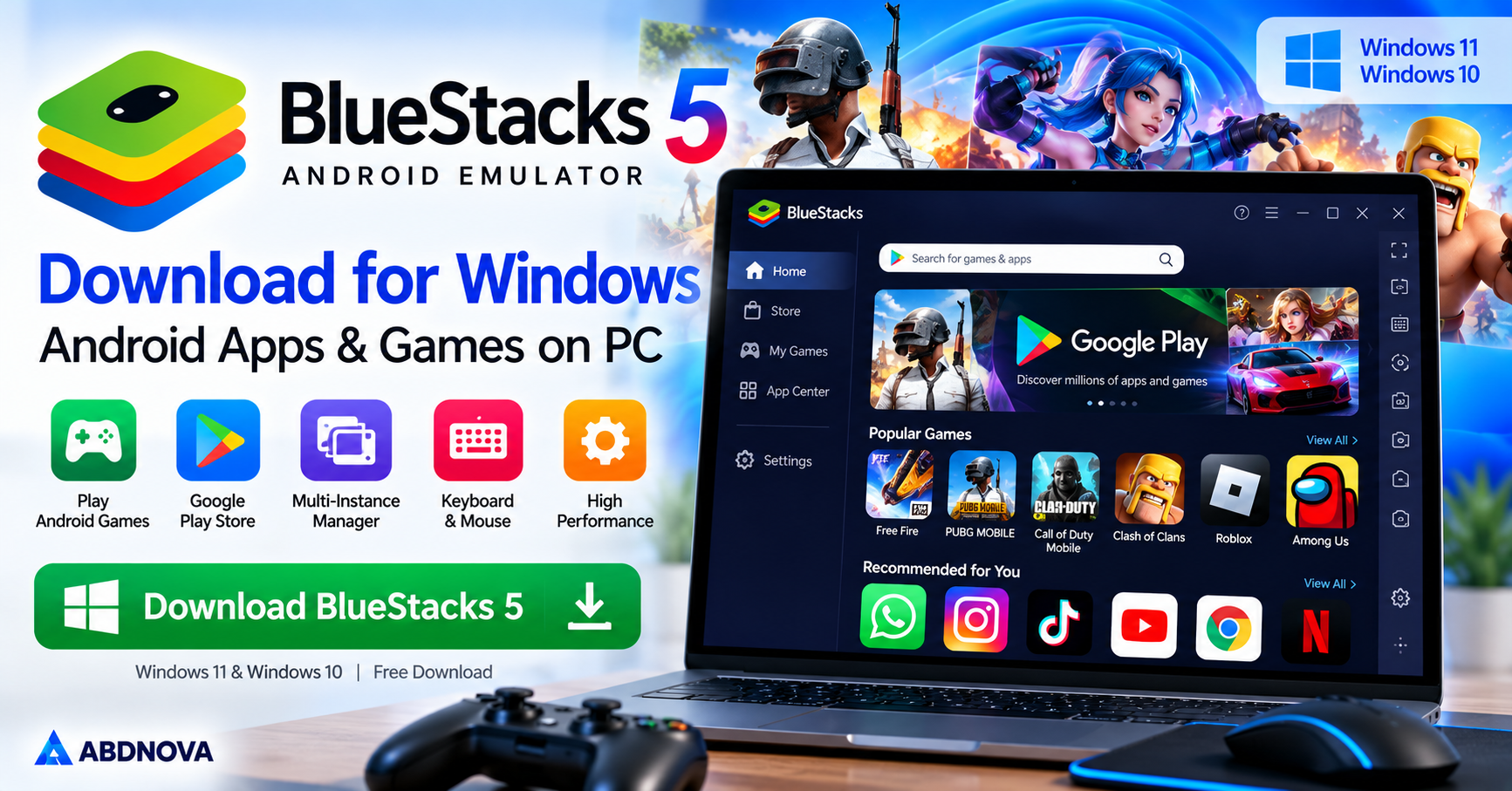

BlueStacks Download for Windows
BlueStacks Download for Windows lets Windows 11 and Windows 10 users run compatible Android apps and games on a PC with keyboard, mouse and gamepad controls.
BlueStacks is an Android emulator that lets you run Android apps and games on a Windows PC. With BlueStacks 5, you can play mobile games using a keyboard and mouse, install compatible Android applications, and enjoy a larger display without needing a separate Android device.
BlueStacks is particularly popular among PC users who want customizable gaming controls, multiple emulator instances, and adjustable performance settings. Actual performance depends on your processor, RAM, graphics hardware, and virtualization configuration.
BlueStacks 5 at a Glance
| Software | BlueStacks 5 |
| Developer | BlueStacks |
| Category | Android Emulator |
| Operating System | Windows 11 and Windows 10 |
| License | Free with optional paid features |
| Main Purpose | Run Android apps and games on PC |
| App Installation | Google Play Store and compatible APK files |
| Controls | Keyboard, mouse and gamepad |
| Virtualization | Recommended for better performance |
BlueStacks 5 Main Interface & Key Features
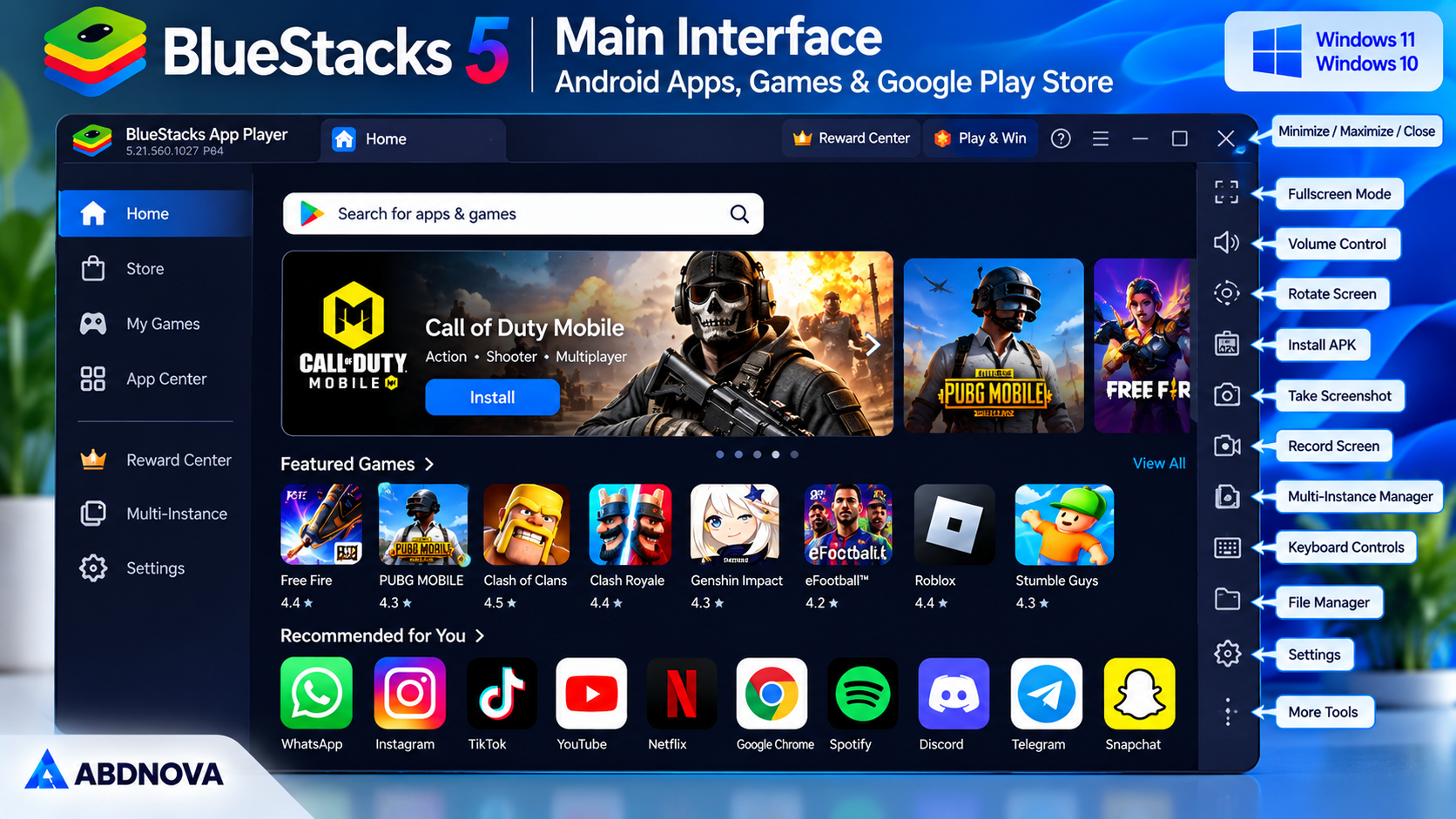
BlueStacks provides an Android environment inside Windows. Its main interface gives you access to installed applications, the Google Play Store, emulator settings, and gaming tools.
Android Apps & Games
Run compatible Android applications and mobile games directly on Windows.
Keyboard & Mouse Controls
Map touchscreen actions to PC keyboard and mouse inputs for supported games.
Multi-Instance Manager
Run multiple Android instances with different applications or accounts.
Performance Settings
Adjust CPU allocation, memory usage, resolution, frame rate, and supported graphics options.
Game Controls Editor
Customize keyboard, mouse, and gamepad control layouts for compatible games.
Eco Mode
Reduce resource usage when running multiple instances.
Macros
Record and replay supported sequences of actions.
APK Installation
Install compatible Android application packages from trusted sources.
Gamepad Support
Use supported controllers with compatible Android games.
Screen Recording & Screenshots
Capture gameplay and application activity.
Some games and applications may restrict emulator use or require features that are unavailable in an emulated Android environment.
BlueStacks 5 System Requirements for Windows
BlueStacks requires a Windows PC with sufficient hardware resources. The official baseline requirements include:
| Component | Minimum Requirement |
|---|---|
| Operating System | Windows 7 or later in baseline requirements; latest releases require Windows 10 or later |
| Processor | Intel or AMD processor |
| RAM | 4 GB |
| Storage | 5 GB free disk space |
| Graphics | Compatible graphics hardware with updated drivers |
| Permissions | Administrator access |
For a smoother experience on Windows 11 or Windows 10, consider:
- 8 GB RAM or more.
- An SSD for faster loading.
- A modern multi-core Intel or AMD processor.
- Updated graphics drivers.
- Hardware virtualization enabled where supported.
- Enough additional storage for Android games and applications.
Requirements can differ for specific Android instances, graphics modes, and newer BlueStacks releases.
How to Download & Install BlueStacks 5 on Windows 11 & 10
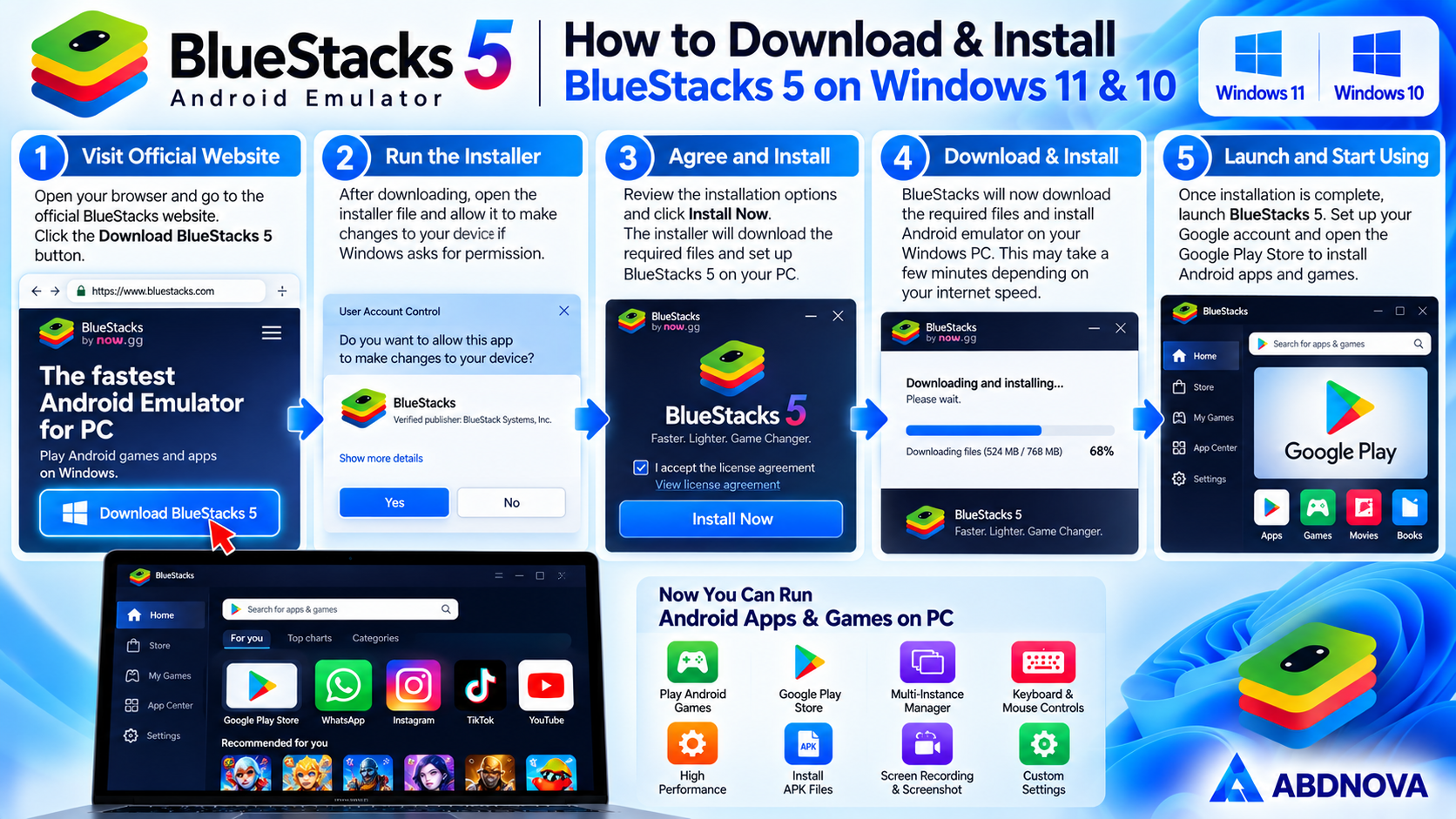
Download BlueStacks from the official developer website to avoid modified or potentially unsafe installers.
- Visit the official BlueStacks website.
- Find the download option for BlueStacks 5.
- Download the Windows installer.
- Open the downloaded setup file.
- Allow the installer to make changes if Windows requests permission.
- Review the installation options.
- Select Agree and Install or the installation button shown by your installer.
- Wait while the installer downloads and configures the required files.
- Launch BlueStacks after installation finishes.
- Complete the initial Android setup if prompted.
An internet connection is generally needed for the initial download, setup, and Google Play services.
How to Install Android Apps & Games Using BlueStacks
Once BlueStacks is installed, you can access compatible Android apps through the Google Play Store.
Install From Google Play Store
- Open BlueStacks on your Windows PC.
- Launch the Google Play Store.
- Sign in with your Google account.
- Search for the Android app or game you want.
- Select the application.
- Click Install.
- Wait for installation to complete.
- Launch the app from the BlueStacks home screen.
Not every Android application will work correctly in BlueStacks. Some applications depend on device-specific hardware, security checks, or services that an emulator cannot provide.
Install an APK File
BlueStacks also supports installing compatible APK files.
- Download an APK from a trusted, authorized source.
- Open BlueStacks.
- Use the Install APK option.
- Select the APK file.
- Wait for installation to finish.
- Open the installed application.
Avoid modified APKs, cracked games, and files from untrusted websites.
BlueStacks Gaming Controls, Multi-Instance Manager & Performance Settings
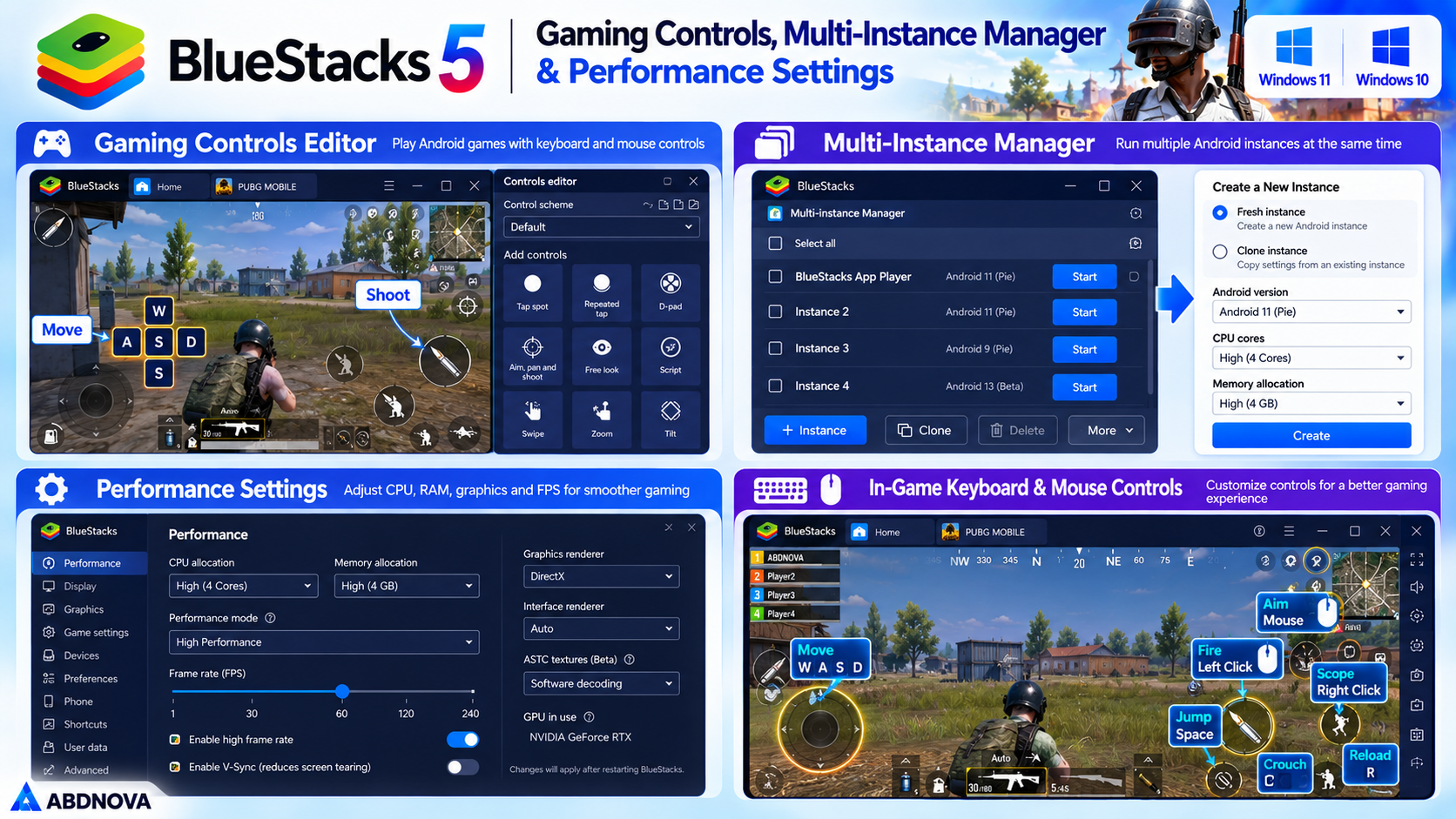
BlueStacks Keyboard, Mouse & Game Controls
One advantage of BlueStacks is the ability to play Android games with PC controls instead of touchscreen gestures.
Common control options include movement keys, mouse aiming, shooting and action buttons, touch mapping, custom key combinations, and supported gamepad controls.
To customize controls:
- Open a game in BlueStacks.
- Open the Game Controls menu.
- Launch the Controls Editor.
- Select or adjust the available control mappings.
- Save your changes.
- Return to the game and test the controls.
Available controls depend on the game and its compatibility with BlueStacks.
BlueStacks Multi-Instance Manager
Multi-Instance Manager allows you to create and manage separate Android emulator environments. This can be useful when running different Android applications or managing multiple game sessions.
How to Create Another Instance
- Open BlueStacks Multi-Instance Manager.
- Select Instance.
- Choose a fresh instance or clone an existing instance.
- Select an available Android version if creating a fresh instance.
- Configure CPU, RAM, and other options.
- Create the instance.
- Start it from Multi-Instance Manager.
Running multiple instances increases CPU and memory usage. Computers with limited RAM may experience slower performance.
BlueStacks Performance Settings for Smooth Gaming
BlueStacks provides several settings that can improve performance on compatible hardware.
- CPU Allocation: Assign enough CPU cores without leaving Windows short of processing resources.
- Memory Allocation: Increase allocated RAM when necessary while keeping sufficient memory available for Windows.
- Performance Mode: Choose a mode appropriate for your computer and workload.
- Frame Rate: Select an FPS limit supported by the game and your hardware.
- Display Resolution: Lower the emulator resolution if games run slowly.
- Graphics Settings: Try a supported graphics renderer if a game displays incorrectly.
- Virtualization: Enable supported Intel VT-x or AMD-V in BIOS/UEFI when appropriate.
The best configuration depends on the specific game and PC hardware. Higher settings do not always produce better results.
BlueStacks 5 vs BlueStacks X
BlueStacks offers different products and experiences, so it is useful to understand their purpose.
| Feature | BlueStacks 5 | BlueStacks X |
|---|---|---|
| Main Purpose | Local Android emulation | Game discovery and launching |
| Android Apps | Runs compatible apps locally | May launch games through available BlueStacks experiences |
| Performance Configuration | Extensive emulator settings | Depends on launched experience |
| Multi-Instance Support | Yes | Through compatible local emulator |
| Best For | Android apps and games on PC | Finding and launching supported games |
If your main goal is to install and run Android apps locally on Windows, BlueStacks 5 is the more direct choice.
BlueStacks Virtualization, Troubleshooting & Safe Download
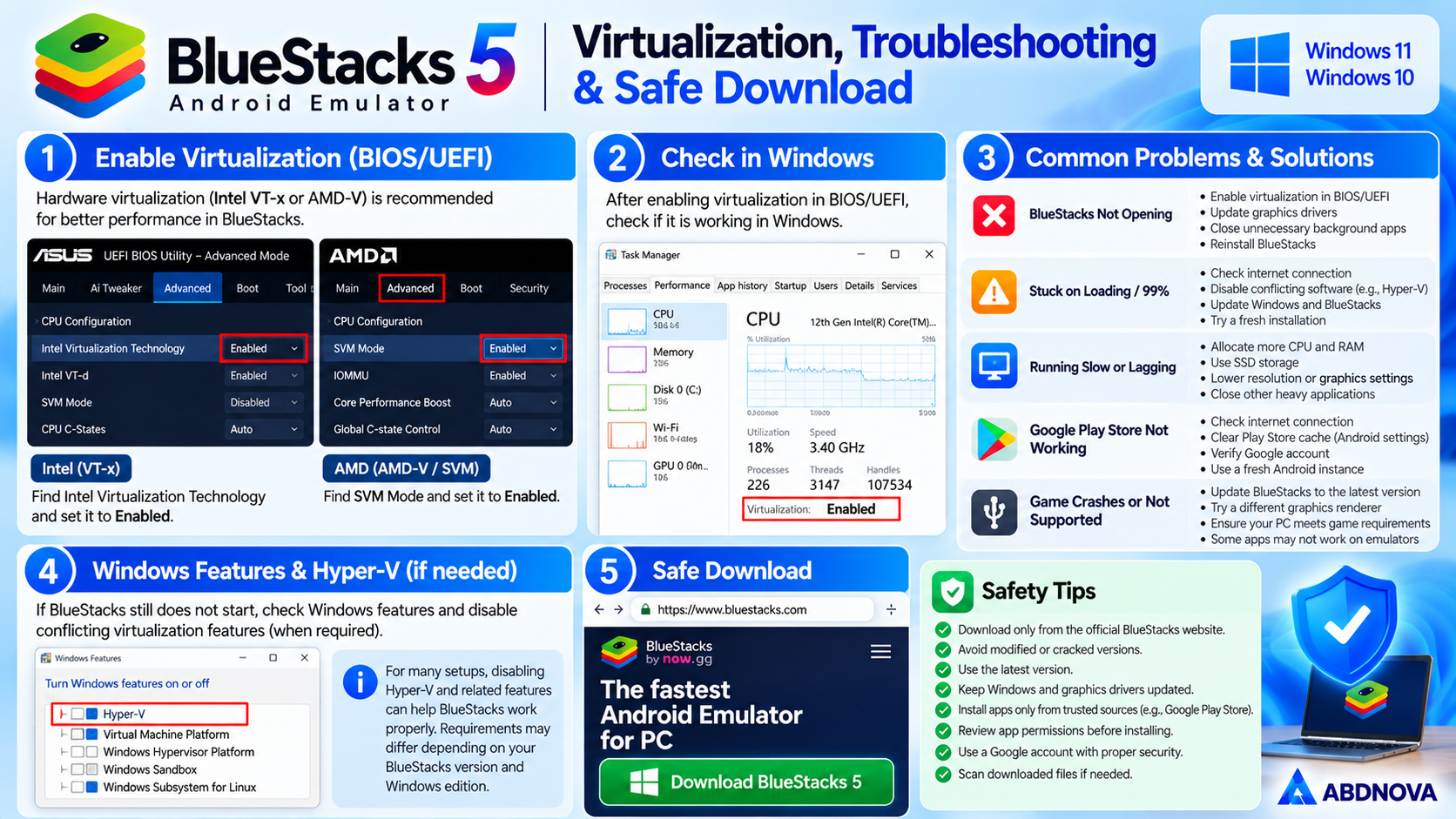
BlueStacks Not Opening on Windows
If BlueStacks does not start, the problem may involve virtualization settings, outdated graphics drivers, insufficient resources, or software conflicts.
- Restart Windows.
- Check whether your PC meets the requirements.
- Update your graphics drivers.
- Check virtualization support and settings.
- Close unnecessary applications.
- Install available BlueStacks updates.
- Check Windows virtualization and Hyper-V compatibility.
- Reinstall BlueStacks if the problem continues.
Avoid changing BIOS or Windows virtualization settings without checking which configuration your installed BlueStacks version supports.
BlueStacks Running Slow or Lagging
Slow performance is often caused by limited system resources or unsuitable emulator settings.
- Close unnecessary background programs.
- Use an SSD where possible.
- Reduce emulator display resolution.
- Lower the number of active instances.
- Adjust CPU and RAM allocation.
- Update graphics drivers.
- Enable supported hardware virtualization.
- Lower in-game graphics settings.
- Check that Windows has sufficient free storage.
For demanding Android games, 4 GB of system RAM may be insufficient for a comfortable experience even if the emulator installs successfully.
Google Play Store Not Working in BlueStacks
If the Play Store does not open, download applications, or complete sign-in:
- Check your internet connection.
- Restart BlueStacks.
- Verify your Google account credentials.
- Check the date and time settings.
- Update BlueStacks.
- Clear Google Play Store cache within the Android environment if appropriate.
- Try a fresh Android instance if the current one is damaged.
Some Google Play applications may not appear because they are incompatible with the emulator’s Android version or virtual device configuration.
Is BlueStacks Safe for Windows?
BlueStacks is legitimate Android emulator software. Downloading the official version and installing applications from trusted sources helps reduce security risks.
- Download BlueStacks from its official website.
- Keep Windows and BlueStacks updated.
- Install Android applications from trusted sources.
- Avoid modified APK files.
- Review app permissions before granting access.
- Use appropriate Google account security.
- Avoid cracked or modified BlueStacks builds.
Remember that Android apps running inside BlueStacks may still collect information or request permissions, just as they would on a physical Android device.
BlueStacks vs Android Screen Mirroring
BlueStacks runs a separate Android environment on your Windows PC. If you instead want to display and control an existing Android phone from Windows, see our scrcpy Download for Windows guide. These tools serve different purposes.
BlueStacks FAQ
Is BlueStacks free for Windows?
Yes. BlueStacks 5 can be downloaded and used for free, although optional paid features or services may be offered.
Does BlueStacks work on Windows 11?
Yes. BlueStacks 5 supports compatible Windows 11 PCs.
Can I use BlueStacks on Windows 10?
Yes. BlueStacks 5 supports Windows 10 on compatible hardware.
Can BlueStacks run Android games on PC?
Yes. BlueStacks can run many compatible Android games with keyboard, mouse, and supported gamepad controls.
Does BlueStacks need virtualization?
Hardware virtualization is recommended for better performance and may be required for certain configurations or Android instances.
Can I install APK files in BlueStacks?
Yes. BlueStacks supports installing compatible APK files from trusted sources.
Can I run multiple Android apps at the same time?
Yes. BlueStacks supports multitasking and provides Multi-Instance Manager for separate Android environments, subject to hardware limitations.
Is 4 GB RAM enough for BlueStacks?
4 GB meets the baseline minimum requirement, but 8 GB or more is preferable for smoother performance.
Is BlueStacks the same as Android on a phone?
No. BlueStacks runs an emulated Android environment on Windows. Some hardware-dependent or security-sensitive apps may not function the same way as on a physical phone.
Why is BlueStacks not opening?
Possible causes include incompatible virtualization settings, outdated graphics drivers, insufficient memory, software conflicts, or installation problems.
Final Thoughts
BlueStacks is a practical option for Windows users who want to run Android apps and games on a larger screen. Its keyboard and mouse controls, performance settings, APK support, and Multi-Instance Manager make it particularly useful for mobile gaming on a PC.
For the best experience, use the official BlueStacks installer, keep your graphics drivers updated, enable compatible virtualization settings, and adjust emulator resources according to your hardware. Users with 8 GB RAM or more and an SSD will generally have more flexibility when running demanding games or multiple Android instances.
Ready to download BlueStacks 5?
Windows 11 & 10 • Android Emulator • Apps & Games
ABDNOVA does not host the BlueStacks installer. The button opens the official BlueStacks 5 download page.


