

WPS Office Download for Windows
WPS Office Download for Windows gives Windows 11 and Windows 10 users an all-in-one productivity suite for documents, spreadsheets, presentations, and PDFs.
WPS Office combines Writer, Spreadsheet, Presentation, and PDF tools in one application. It supports common Microsoft Office file formats including DOCX, XLSX, and PPTX, making it useful for office work, school assignments, reports, spreadsheets, presentations, and everyday PDF tasks.
WPS Office is available as a free download for Windows. The free edition covers many everyday office tasks, while optional paid plans provide additional PDF editing, AI features, templates, cloud storage, and other premium tools.
WPS Office Download for Windows – Overview
| Software | WPS Office |
| Developer | Kingsoft Office Software |
| Platform | Windows |
| Windows Support | Windows 11 and Windows 10 |
| Main Tools | Writer, Spreadsheet, Presentation, PDF |
| License | Free with optional paid plans |
| Office Formats | DOC/DOCX, XLS/XLSX, PPT/PPTX and more |
| PDF Support | Yes |
| Offline Use | Supported for local file work |
| Best For | Documents, spreadsheets, presentations and PDF tasks |
WPS Office Main Interface & Key Features
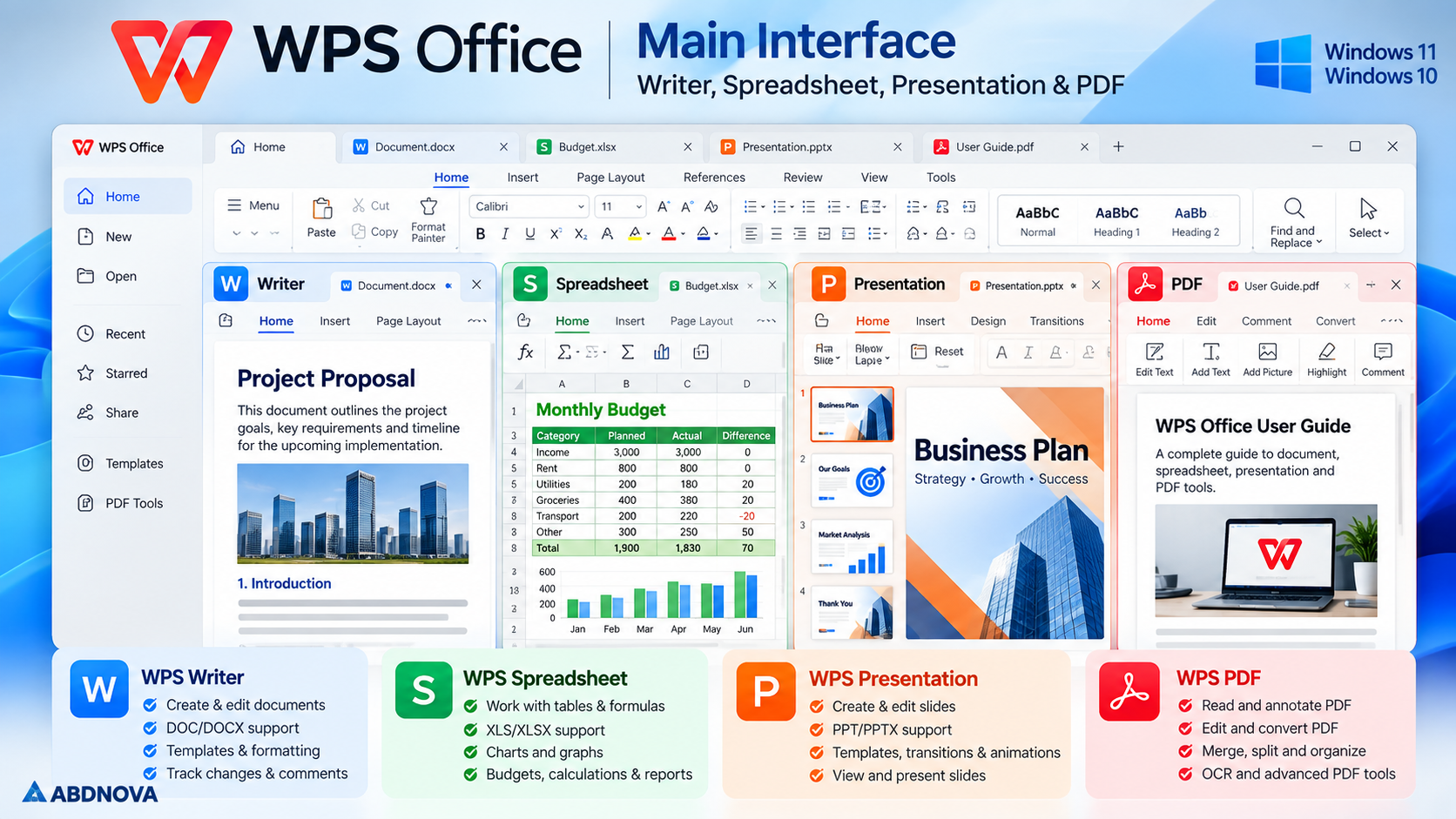
WPS Office brings its main productivity tools into one workspace, so users can work with documents, spreadsheets, presentations, and PDFs without installing separate applications for each basic task.
WPS Writer
Create and edit reports, letters, resumes, assignments, and other text documents.
WPS Spreadsheet
Work with tables, formulas, calculations, budgets, charts, and Excel-compatible files.
WPS Presentation
Create, edit, and view presentations and common PowerPoint formats.
WPS PDF
Read PDFs and access annotation, conversion, editing, merge, split, OCR, and other PDF tools depending on the selected plan.
Templates
WPS Office provides templates for documents, spreadsheets, presentations, resumes, and other projects.
Cloud Features
Users can sign in to synchronize supported files and continue working across compatible devices.
WPS Office also uses a tabbed interface, allowing multiple files to remain open inside the same workspace. This can be more convenient than managing many separate application windows.
Microsoft Office File Compatibility
One of the main advantages of WPS Office is compatibility with commonly used Microsoft Office formats.
| WPS Tool | Common Formats |
|---|---|
| Writer | DOC, DOCX, RTF, TXT |
| Spreadsheet | XLS, XLSX, CSV |
| Presentation | PPT, PPTX, PPSX |
This allows users to receive a DOCX, XLSX, or PPTX file, open it in WPS Office, make changes, and save the document again.
However, complex Microsoft Office documents may not always behave exactly the same in another office suite. Files containing advanced macros, unusual formatting, embedded objects, specialized fonts, or Microsoft-specific features should be checked carefully after opening or editing them.
If you specifically require Microsoft’s desktop Office applications, see our Microsoft Office 2024 Download for Windows guide.
How to Download and Install WPS Office on Windows
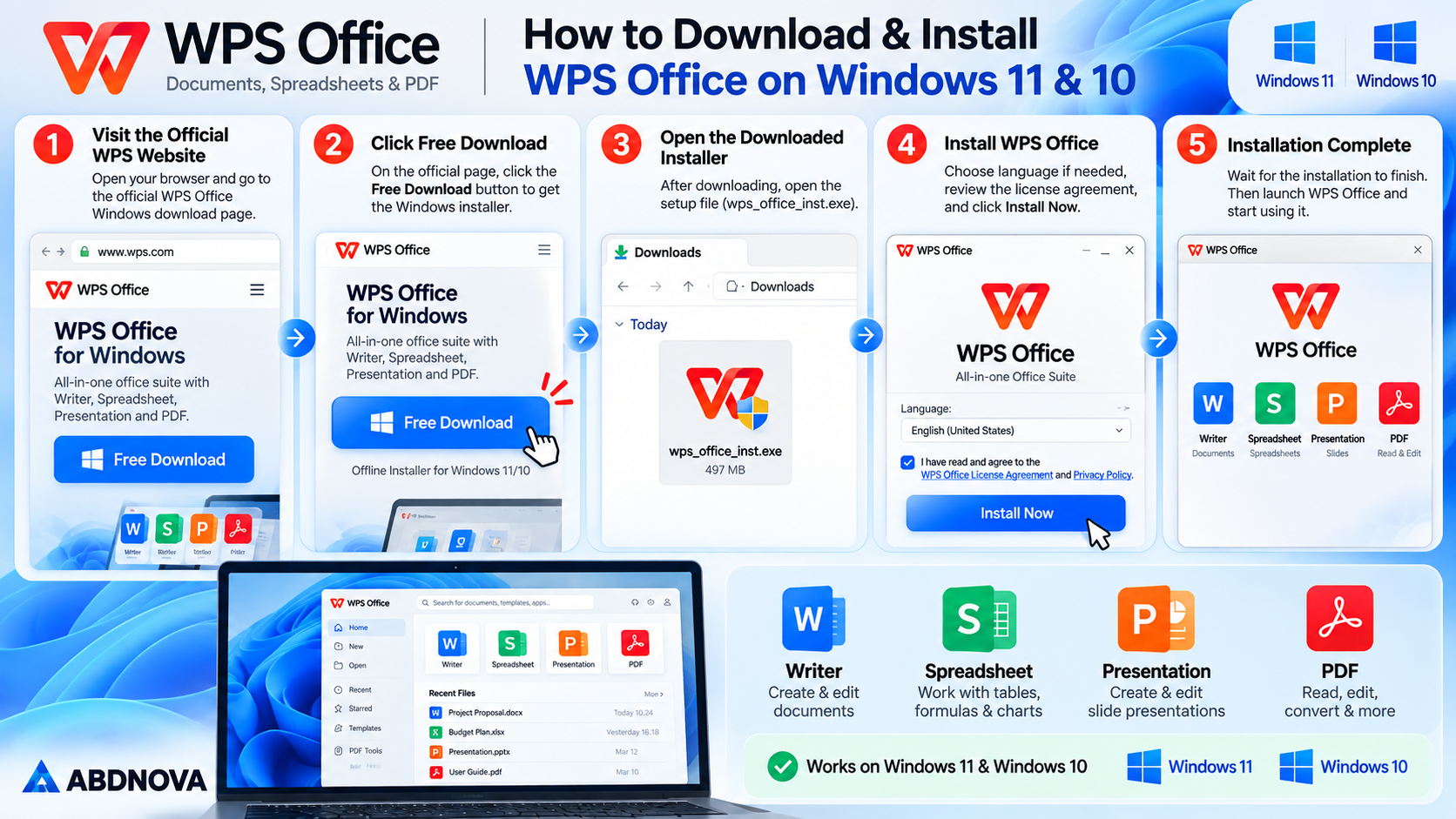
WPS Office should be downloaded directly from the official WPS website.
- Visit the official WPS Office Windows download page.
- Select Free Download.
- Wait for the Windows installer to download.
- Open the downloaded setup file.
- Review the installation options and license information.
- Select the required installation settings.
- Start the installation.
- Wait for WPS Office to finish installing.
- Launch WPS Office.
After installation, you can create a new document, spreadsheet, or presentation or open an existing supported file.
Signing in is not necessary for every basic local task, but a WPS account is useful when you want to use cloud synchronization and other account-based services.
Working With Documents in WPS Writer
WPS Writer is the word-processing component of WPS Office. Its interface and document tools should feel familiar to users who have previously worked with Microsoft Word or similar word processors.
WPS Writer can be used to:
- Create new documents
- Open DOC and DOCX files
- Format text and paragraphs
- Insert tables and images
- Add headers and footers
- Add comments
- Track document changes
- Use document templates
- Save documents in supported formats
- Export suitable documents to PDF
These features make Writer useful for reports, letters, resumes, business documents, assignments, and general office work.
WPS Spreadsheet, Formulas & Charts
WPS Spreadsheet is designed for working with numerical and tabular data. It supports common Excel-compatible formats and includes formulas, charts, tables, and data-management tools.
You can use WPS Spreadsheet for:
- XLS and XLSX workbooks
- CSV files
- Formulas and calculations
- Tables and data organization
- Charts and graphs
- Budgets
- Expense records
- Inventory sheets
- Sales reports
- Business calculations
For normal spreadsheets, the available tools cover many everyday requirements.
However, important Excel workbooks containing advanced macros or Microsoft-specific features should be checked carefully before relying on the edited file. Compatibility with common formats does not mean every advanced Excel feature will work identically.
WPS Presentation
WPS Presentation provides tools for creating and editing slide presentations. It supports common PowerPoint formats, including PPT and PPTX.
Users can create presentations with:
- Text and headings
- Images
- Shapes
- Tables
- Charts
- Transitions
- Animations
- Presentation templates
Existing PowerPoint presentations can also be opened and edited in WPS Office.
As with documents and spreadsheets, complex PowerPoint files containing unusual fonts, advanced animations, embedded content, or Microsoft-specific features should be reviewed after opening them in WPS Presentation.
WPS Office Documents, Spreadsheets, Presentations & PDF Tools
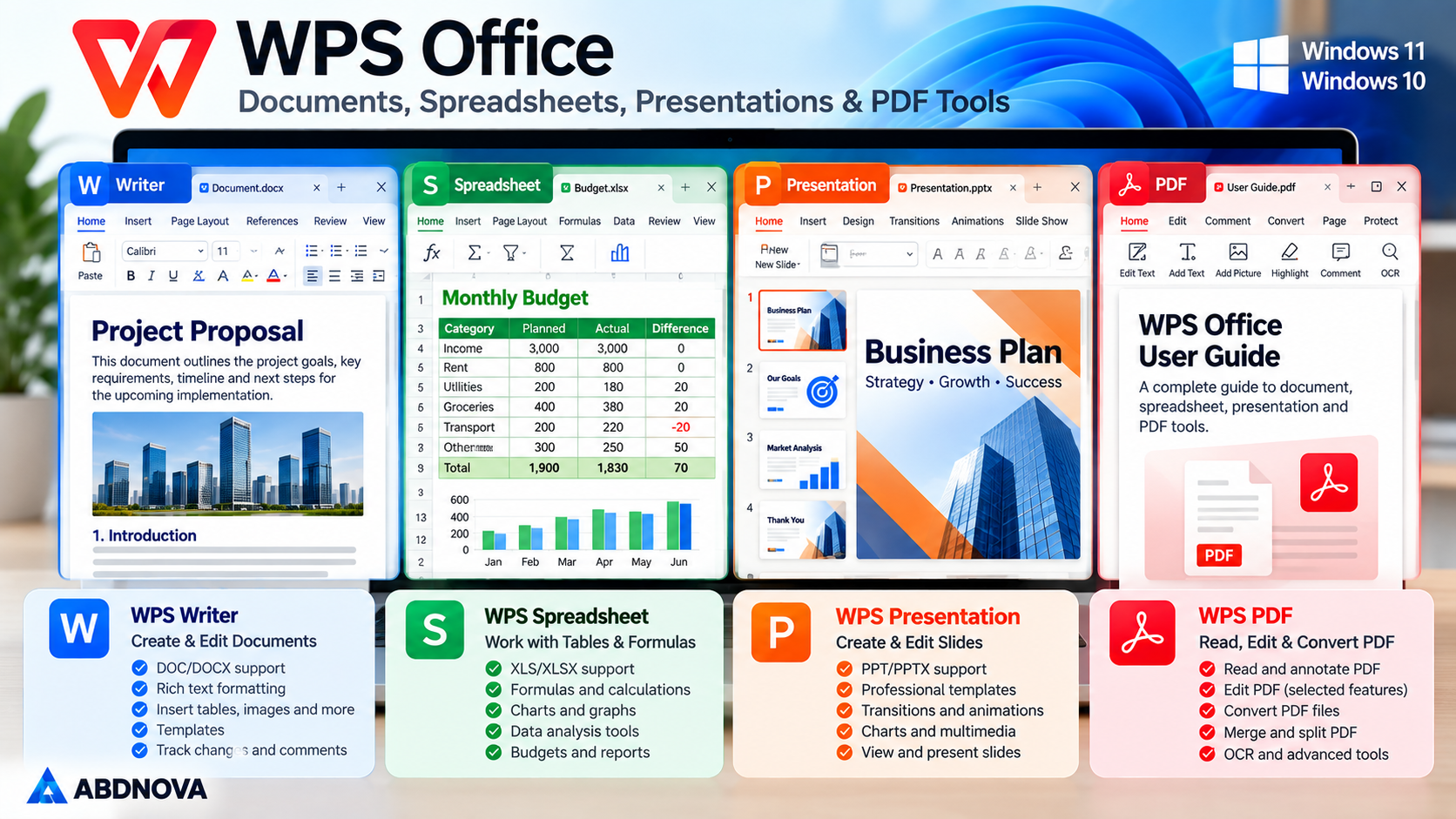
WPS PDF Tools
PDF functionality is integrated directly into WPS Office, making it possible to handle office documents and PDFs from the same suite.
Depending on the feature and WPS plan, PDF tools can include:
- PDF reading
- Highlighting and annotations
- PDF conversion
- PDF editing
- Merge PDF files
- Split PDF files
- OCR
- Electronic signatures
- PDF organization tools
There is an important difference between the free and premium versions. The free edition includes PDF reading and basic PDF functionality, while some advanced PDF editing, conversion, OCR, and related features require a paid WPS plan.
If a PDF feature displays a subscription or upgrade message, it may simply be a premium feature rather than a problem with WPS Office.
For users who mainly need a dedicated Windows PDF toolkit, our PDF24 Creator Download for Windows guide covers another PDF-focused option.
WPS Office Free vs WPS Pro+
| Feature | WPS Standard Free | WPS Pro+ |
|---|---|---|
| Writer | Yes | Yes |
| Spreadsheet | Yes | Yes |
| Presentation | Yes | Yes |
| PDF Reader | Yes | Yes |
| Basic PDF Features | Yes | Yes |
| Advanced PDF Editing | Limited | Included |
| PDF Conversion | Limited | Expanded |
| Templates | Limited | Expanded |
| Cloud Storage | Limited | Higher Limit |
| Advanced OCR | Limited | Included |
| AI Features | Limited | Higher Access |
| Advertising | May Be Present | No Advertising |
WPS Office can be installed and used without purchasing a subscription. The free edition provides the core Writer, Spreadsheet, Presentation, and basic PDF functionality required for many everyday tasks.
Plan features, cloud limits, AI usage limits, and pricing can change over time. Check the current WPS plan information before purchasing a subscription.
Using WPS Office Offline
WPS Office can be used for local document work without maintaining a constant internet connection.
After installation, supported local documents, spreadsheets, presentations, and PDFs can be opened from the computer. This is useful when working somewhere without reliable internet access.
However, an internet connection is required for features that depend on online services, including:
- Cloud synchronization
- Online templates
- Some AI features
- Account synchronization
- Certain online collaboration features
Users who prefer local storage can keep important files directly on their Windows PC instead of relying entirely on cloud storage.
WPS Cloud Sync
WPS Office provides cloud-based features for users who sign in with a WPS account.
Cloud synchronization can be useful when working with the same documents on multiple compatible devices. For example, a document started on a Windows PC can be stored in the supported cloud service and accessed later from another device.
Before placing sensitive business or personal documents in any cloud service, review the available privacy, security, and sharing settings and decide whether local or cloud storage is more appropriate.
WPS Office Free vs Pro+, Troubleshooting & Safe Download
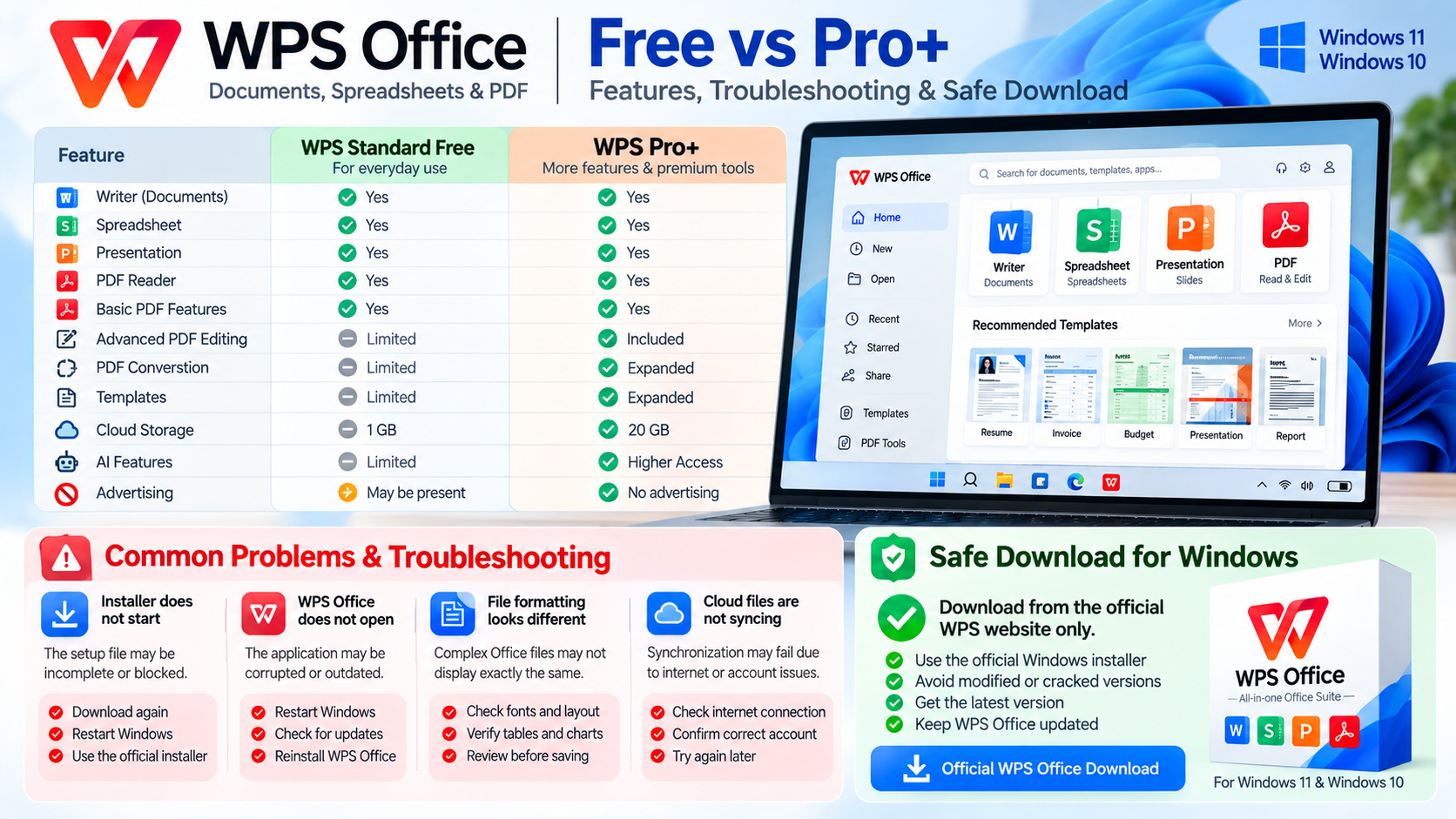
WPS Office Troubleshooting on Windows
WPS Office Installer Does Not Start
If the installer does not open, confirm that the setup file was downloaded from the official WPS source.
Delete an incomplete installer and download a fresh copy if necessary. Restarting Windows and trying the installation again can also resolve temporary installation problems.
WPS Office Does Not Open
Restart Windows first and try launching WPS Office again.
If the application still does not start, check for available WPS Office updates or reinstall the application using a fresh installer from the official source.
DOCX, XLSX or PPTX Formatting Looks Different
Complex Microsoft Office files may not render exactly the same in another office suite.
Check:
- Fonts
- Page layout
- Tables
- Charts
- Formulas
- Macros
- Animations
- Embedded objects
For important business or academic documents, review the final file before printing, sharing, or submitting it.
Files Open in Another Application
If DOCX, XLSX, PPTX, or PDF files automatically open in another program, Windows default app settings may need to be changed.
On Windows 11 or Windows 10, open:
Settings → Apps → Default apps
Choose the required file type and select WPS Office as the preferred application where appropriate.
WPS Cloud Files Are Not Syncing
Check the internet connection and confirm that you are signed in to the correct WPS account.
If synchronization remains unavailable, local documents can still be accessed normally from the computer.
A PDF Feature Asks for Payment
Some advanced PDF features are part of WPS premium plans.
If editing, conversion, OCR, or another advanced PDF tool asks you to upgrade, check whether that particular function is included in the free edition before troubleshooting the installation.
Safe WPS Office Download for Windows
The safest way to install WPS Office is to obtain the Windows installer directly from the official WPS website.
Avoid websites offering modified, cracked, patched, or unofficial WPS Office installers. You do not need a modified version to use WPS Office because an official free edition is already available.
Before installing, make sure you are downloading the correct Windows version from the legitimate developer source. Keeping WPS Office updated can also provide compatibility improvements, security fixes, and newer features.
WPS Office FAQ
Is WPS Office free for Windows?
Yes. WPS Office has a free edition that provides Writer, Spreadsheet, Presentation, and basic PDF functionality. Some advanced PDF, AI, template, cloud, and other premium features require a paid plan.
Does WPS Office work on Windows 11 and Windows 10?
Yes. WPS Office provides a Windows desktop version that can be used on Windows 11 and Windows 10.
Can WPS Office open Microsoft Word files?
Yes. WPS Writer supports common Microsoft Word formats such as DOC and DOCX.
Can WPS Office open Excel spreadsheets?
Yes. WPS Spreadsheet supports common spreadsheet formats including XLS, XLSX, and CSV.
Can WPS Office open PowerPoint files?
Yes. WPS Presentation supports common presentation formats including PPT and PPTX.
Does WPS Office include a PDF reader?
Yes. WPS Office includes PDF functionality. PDF reading and basic features are available, while some advanced editing, conversion, OCR, and other tools may require a premium plan.
Do I need a WPS account to use WPS Office?
An account is not required for every basic local task. Signing in becomes useful when using WPS cloud storage, synchronization, and other account-based services.
Can WPS Office be used offline?
Yes. Supported local files can be opened and edited without a constant internet connection. Cloud synchronization, online services, and some AI features require internet access.
Is WPS Office a replacement for Microsoft Office?
WPS Office can handle many common document, spreadsheet, presentation, and PDF tasks and supports widely used Microsoft Office formats. However, users who depend on advanced Microsoft-specific features, complex macros, specialized add-ins, or exact formatting compatibility should verify their files carefully.
Final Thoughts
WPS Office is a practical Windows productivity suite for users who want documents, spreadsheets, presentations, and PDF tools in one application. Support for common DOCX, XLSX, PPTX, and PDF files makes it suitable for everyday home, school, and office work.
The free edition covers many common productivity tasks, while users who require advanced PDF editing, additional AI features, expanded cloud services, or other premium tools can consider a paid WPS plan. For a safe installation, always use the official WPS Office Windows installer.
Ready to download WPS Office?
Windows 11 & 10 • Free Edition • Documents, Spreadsheets, Presentations & PDF
ABDNOVA does not host the WPS Office installer. The button opens the official WPS Office Windows download page.


