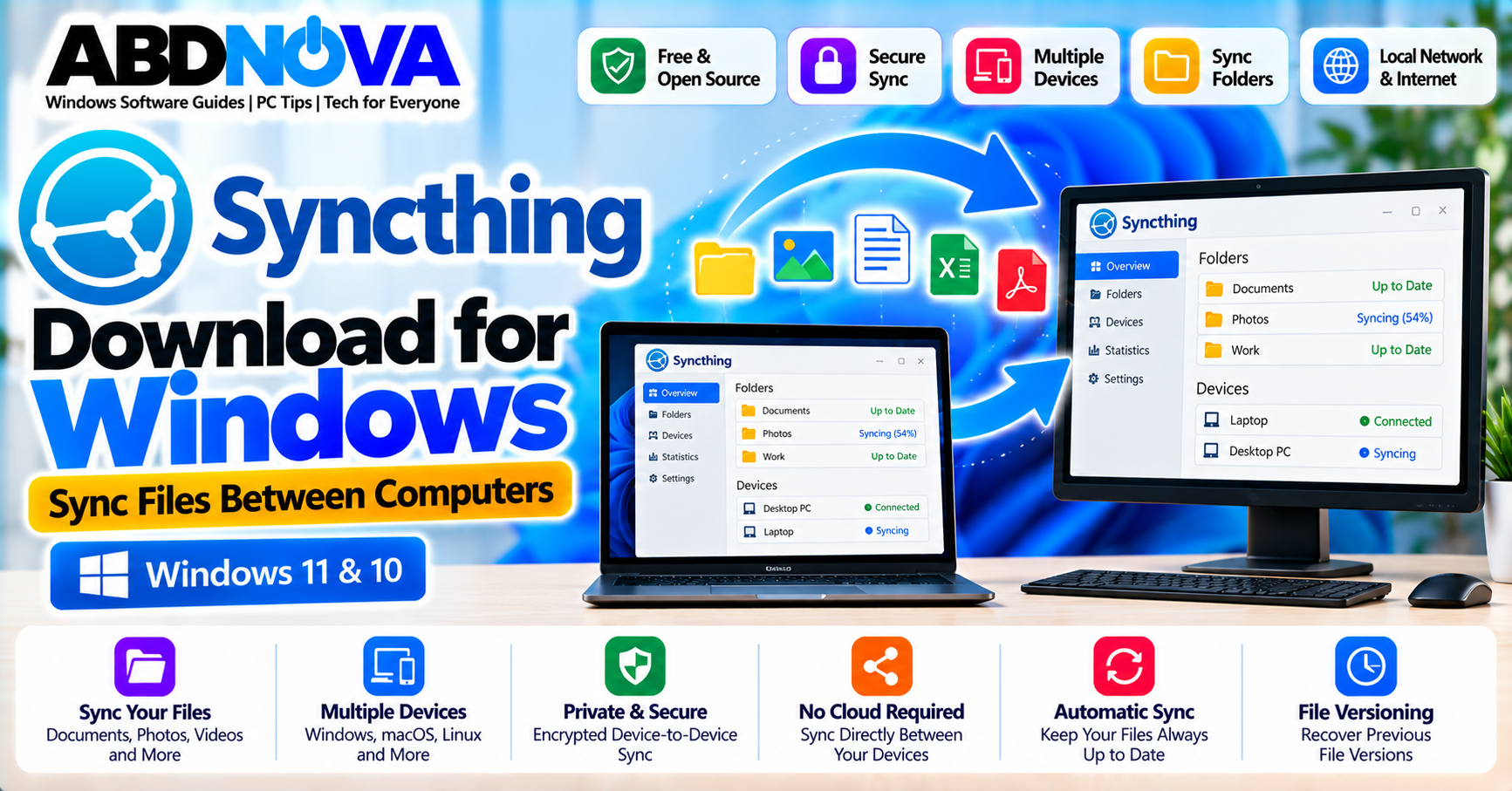

Syncthing Download for Windows – Sync Files Between Computers
Syncthing is a free and open-source file synchronization application that keeps selected folders synchronized between two or more computers and other supported devices.
Instead of requiring your synchronized files to be permanently stored in a central cloud-storage account, Syncthing transfers data directly between configured devices whenever possible. This makes it useful for synchronizing documents, photos, projects, archives, and other folders between computers you control.
Syncthing works across Windows, macOS, Linux, and several other platforms. Configuration is normally handled through a local web-based management interface where you can add trusted devices, share folders, monitor synchronization, and change advanced settings.
Syncthing for Windows 11 & 10
Syncthing can be used on modern Windows PCs, including Windows 11 and Windows 10. The current stable release is Syncthing 2.1.5, released on September 8, 2026.
| Detail | Information |
|---|---|
| Software | Syncthing |
| Current Stable Version | 2.1.5 |
| Platforms | Windows, macOS, Linux & others |
| License | Free & Open Source |
| Main Use | Continuous file synchronization |
| Central Cloud Storage Required | No |
| Local Network Sync | Supported |
| Internet Sync | Supported |
| File Versioning | Supported |
| Management | Local web interface |
Syncthing Main Interface, Devices, Folders & Sync Status
Syncthing is primarily managed through a browser-based graphical interface. Although it opens in a web browser, the management interface normally runs locally on your computer.
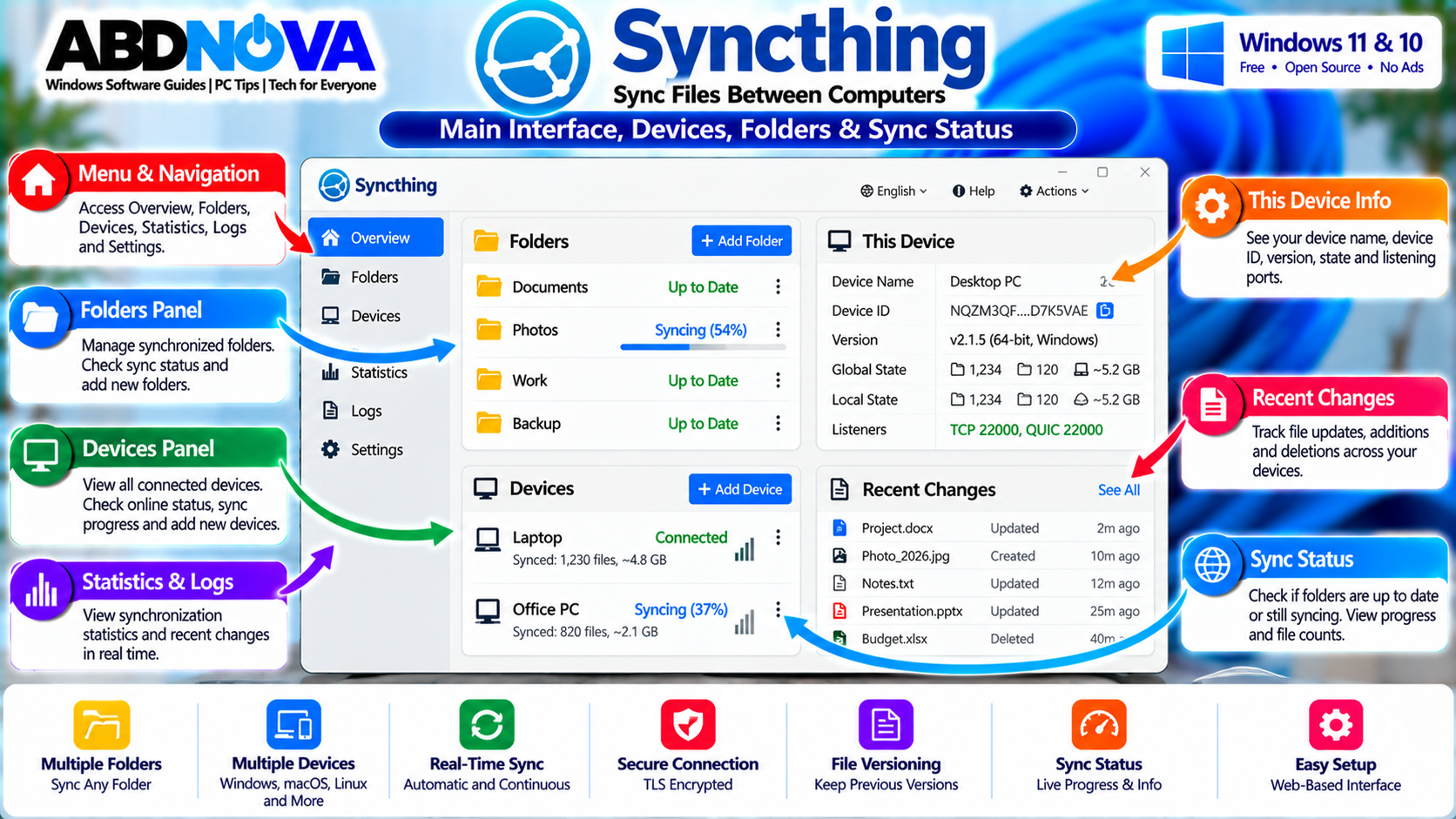
The Syncthing interface can display information such as:
- Shared folders
- Remote devices
- Synchronization status
- Device connectivity
- Folder status
- Download and upload rates
- Local state
- Global state
- Recent changes
- Connections
- Configuration options
Syncthing Key Features
- Free and open-source
- No central cloud-storage account required
- Synchronization between multiple computers
- Windows, macOS, Linux and other platform support
- Device ID authentication
- TLS-protected communication
- Automatic device discovery
- Local network discovery
- Internet synchronization
- Relay support
- Multiple synchronized folders
- Send & Receive folders
- Send Only folders
- Receive Only folders
- File versioning
- Ignore patterns
- Bandwidth limits
- Conflict handling
- Automatic synchronization
- Block-based file synchronization
How Syncthing Works
Syncthing connects trusted devices and synchronizes selected folders between them.
Computer A ↔ Computer B
Each computer has a unique Device ID. After both devices have been added and accepted, you choose which folders should be shared. Syncthing then compares the files and transfers the required changes.
If both computers are on the same local network, synchronization can normally occur directly over that network. Computers on different networks can also synchronize over the internet when connectivity is available.
No Traditional Cloud Storage Required
Syncthing works differently from traditional cloud-storage services.
Computer A → Cloud Server → Computer B
Syncthing:
Computer A ↔ Computer B
Your synchronized files do not need to be permanently stored in a central Syncthing cloud-storage account. However, the participating devices need appropriate connectivity for synchronization to occur.
How to Set Up Syncthing & Sync Files Between Two Windows PCs
The exact Windows installation experience can depend on whether you use the core Syncthing package or one of the Windows integrations listed by the project. The core synchronization workflow remains similar.
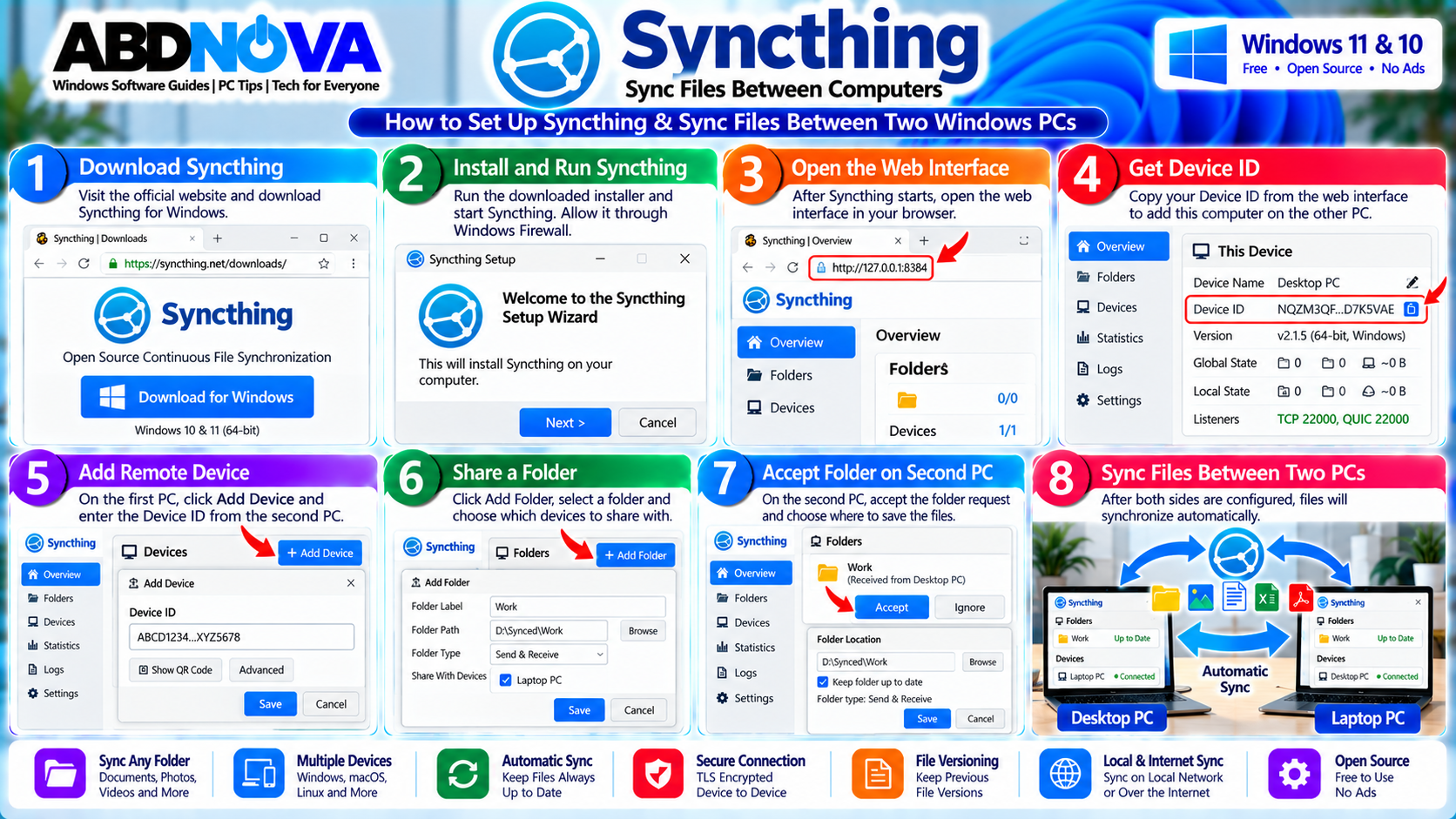
- Download Syncthing from the official project.
- Start Syncthing on the first Windows PC.
- Allow appropriate Windows Firewall access when required.
- Open the local Syncthing web interface.
- Find the first computer’s Device ID.
- Run Syncthing on the second computer.
- Find the second computer’s Device ID.
- Add each computer as a remote device.
- Accept the device connection where required.
- Create or select a folder to synchronize.
- Share that folder with the second computer.
- Accept the folder on the second PC.
- Select its local folder location.
- Allow the initial synchronization to finish.
Example: Desktop and Laptop
Suppose you have a desktop and laptop and want to synchronize a work folder:
Laptop: D:\Synced Files\Work
On the desktop, add the laptop using its Device ID and share the Work folder with it. On the laptop, accept the trusted device and shared-folder request, then choose where the synchronized files should be stored.
After the initial synchronization finishes, Syncthing can monitor the folder and automatically transfer later changes between the devices according to the selected folder mode.
Syncthing Device ID, Folder Sharing, File Versioning & Security
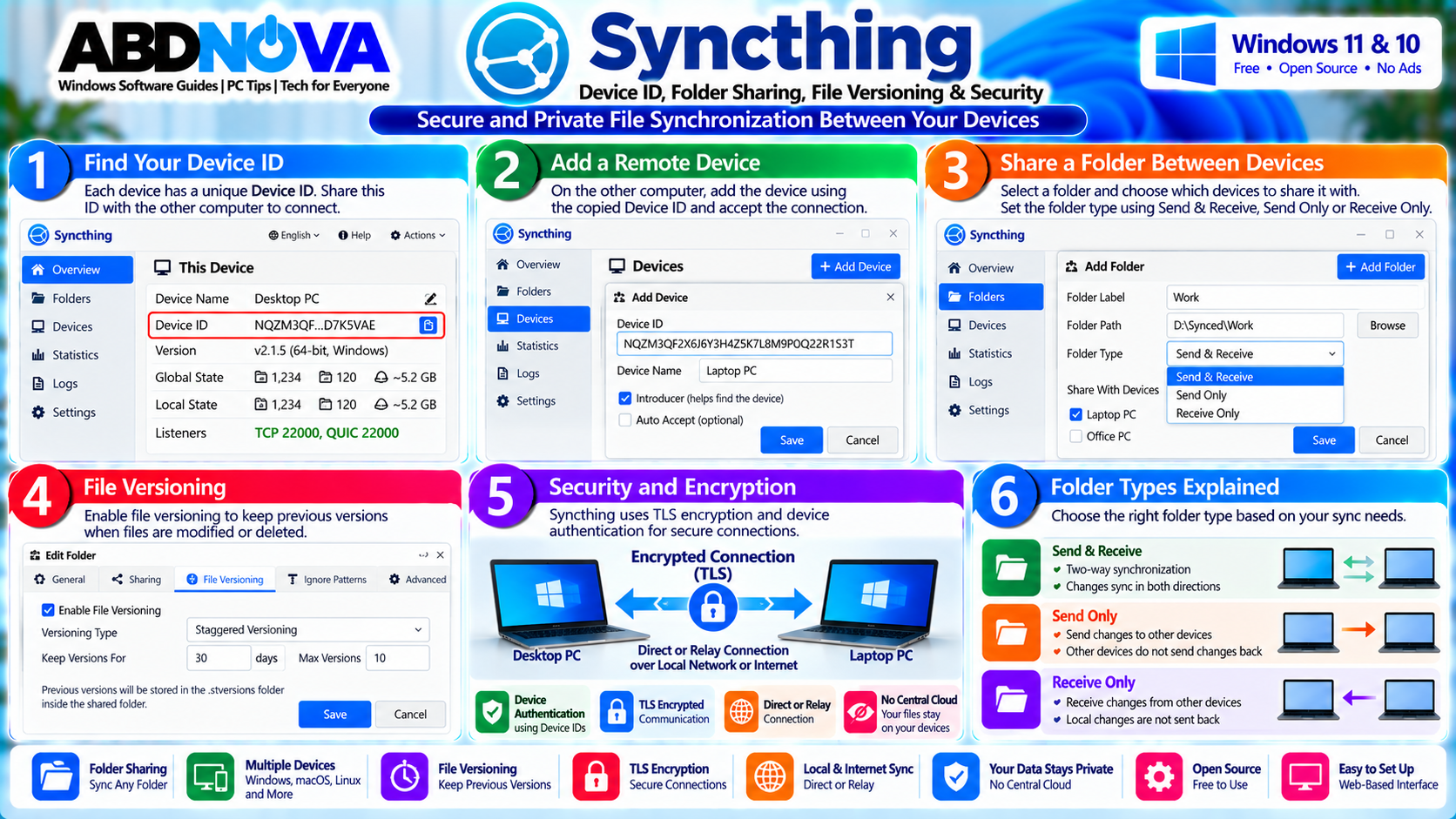
Device IDs are a central part of Syncthing’s trusted-device model. Each device has a unique cryptographic identity and must be explicitly added and accepted before participating in synchronization.
Understanding the Device ID
To connect two computers, each computer needs to know and accept the other computer’s Device ID.
Laptop → Add Desktop Device ID
A Device ID is used for device identification and authentication. It is not the same thing as a normal password.
Send & Receive Folder
Send & Receive is the normal two-way synchronization mode. Changes can originate on either device.
A file created or modified on the desktop can synchronize to the laptop, while a file modified on the laptop can synchronize back to the desktop.
Send Only Folder
A Send Only folder treats one device as the authoritative source for normal local changes.
This can be useful for certain distribution or backup-style workflows, although synchronization should not automatically be treated as a complete backup strategy.
Receive Only Folder
A Receive Only folder is primarily intended to receive changes from other devices.
This can be useful when a secondary computer should maintain a synchronized copy without normally being used to modify the shared files.
Synchronize Multiple Computers
Syncthing is not limited to two devices. Several trusted computers can participate in a synchronization setup.
Folders can be shared only with the devices that need them. Not every folder needs to be synchronized to every connected computer.
Sync Files Over a Local Network
When configured devices are on the same local network, Syncthing can use local discovery and direct network communication.
This is useful for synchronizing:
- Large video folders
- Photos
- Documents
- Project files
- Software archives
- Backup copies
Actual transfer performance depends on Wi-Fi or Ethernet speed, storage performance, CPU performance, file sizes, and other network conditions.
If you only need quick manual file transfers between nearby devices rather than continuous folder synchronization, see our LocalSend Download for Windows guide.
Sync Files Over the Internet
Syncthing can also synchronize devices located on different networks.
Syncthing uses discovery mechanisms to help configured devices locate each other. When possible, devices establish a direct connection. If direct connectivity is unavailable, relay infrastructure can help synchronization continue.
Relay connections can be slower than direct connections, particularly when synchronizing large amounts of data.
Syncthing Ports & Windows Firewall
Syncthing normally handles much of its networking automatically. However, Windows Firewall, routers, corporate networks, VPNs, and unusual network configurations can affect connectivity.
The synchronization protocol commonly uses:
UDP 22000 for supported QUIC synchronization connections
For most home users, allowing Syncthing appropriately through Windows Firewall is a better first step than manually changing router settings.
Syncthing Security & Encryption
Syncthing protects device-to-device communication using TLS. Trusted devices are identified using cryptographic device identities, so an unknown computer cannot simply join your synchronization group without authorization.
The official project describes Syncthing communication as encrypted and authenticated. :chatgpt-content-reference{index=”4″}
For sensitive systems, protect each Windows computer with appropriate account security and disk protection where required.
Syncthing File Versioning
Optional file versioning can preserve earlier versions when files are replaced or deleted by changes received from another device.
Versioning can be useful when:
- A file is accidentally modified.
- A synchronized file is replaced.
- A remote deletion reaches another computer.
- You need an earlier synchronized version.
Versioning must be configured appropriately on the device where you want previous versions retained.
Synchronization Is Not the Same as Backup
Suppose you accidentally delete Important.xlsx from a normal two-way synchronized folder. That deletion may also synchronize to other devices.
For valuable files, use file versioning and maintain an independent backup.
For external-drive backup and folder comparison workflows, see our FreeFileSync Download for Windows – Folder Sync & Backup Guide.
Syncthing File Conflicts
If the same file is independently modified on multiple devices before synchronization can reconcile the changes, Syncthing can create a conflict copy instead of silently choosing one version.
When a conflict occurs:
- Review both versions.
- Compare their contents.
- Decide which changes should be retained.
- Merge changes manually if necessary.
- Remove unnecessary conflict copies after resolution.
Ignore Files & Folders
Syncthing supports ignore patterns that can exclude content you do not want synchronized.
Examples include:
- Temporary files
- Cache folders
- Application-generated files
- Large files not required on another computer
- Specific file extensions
Pause Sync & Limit Bandwidth
You can pause folders or devices when synchronization is temporarily unnecessary. This can be useful while traveling, troubleshooting, working with large files, or using a limited connection.
Bandwidth limits can also prevent Syncthing from consuming all available network capacity. This is useful when multiple users share a connection or when video calls and streaming need priority.
Syncthing vs Cloud Storage
Syncthing and traditional cloud storage solve related but different problems.
| Syncthing | Traditional Cloud Storage |
|---|---|
| Files synchronize between configured devices whenever possible | Files are normally uploaded to provider servers |
| No central Syncthing storage account required | Usually requires a cloud account |
| Useful when you control the participating devices | Useful for permanent online storage and browser access |
| Devices need connectivity to synchronize | Cloud copy can remain available while another device is offline |
Syncthing vs FreeFileSync
Syncthing and FreeFileSync are both useful for file synchronization, but they are designed around different workflows.
| Syncthing | FreeFileSync |
|---|---|
| Continuous synchronization between configured devices | Folder comparison and synchronization jobs |
| Designed around network-connected devices | Well suited to local, external and network storage locations |
| Desktop ↔ Laptop automatic synchronization | PC → External SSD backup workflow |
| Device IDs and trusted-device relationships | Source/destination folder-pair workflow |
Some users may use both: Syncthing for continuous computer-to-computer synchronization and FreeFileSync for separate external-drive backups.
Syncthing Connection Problems, Sync Troubleshooting & Safe Download
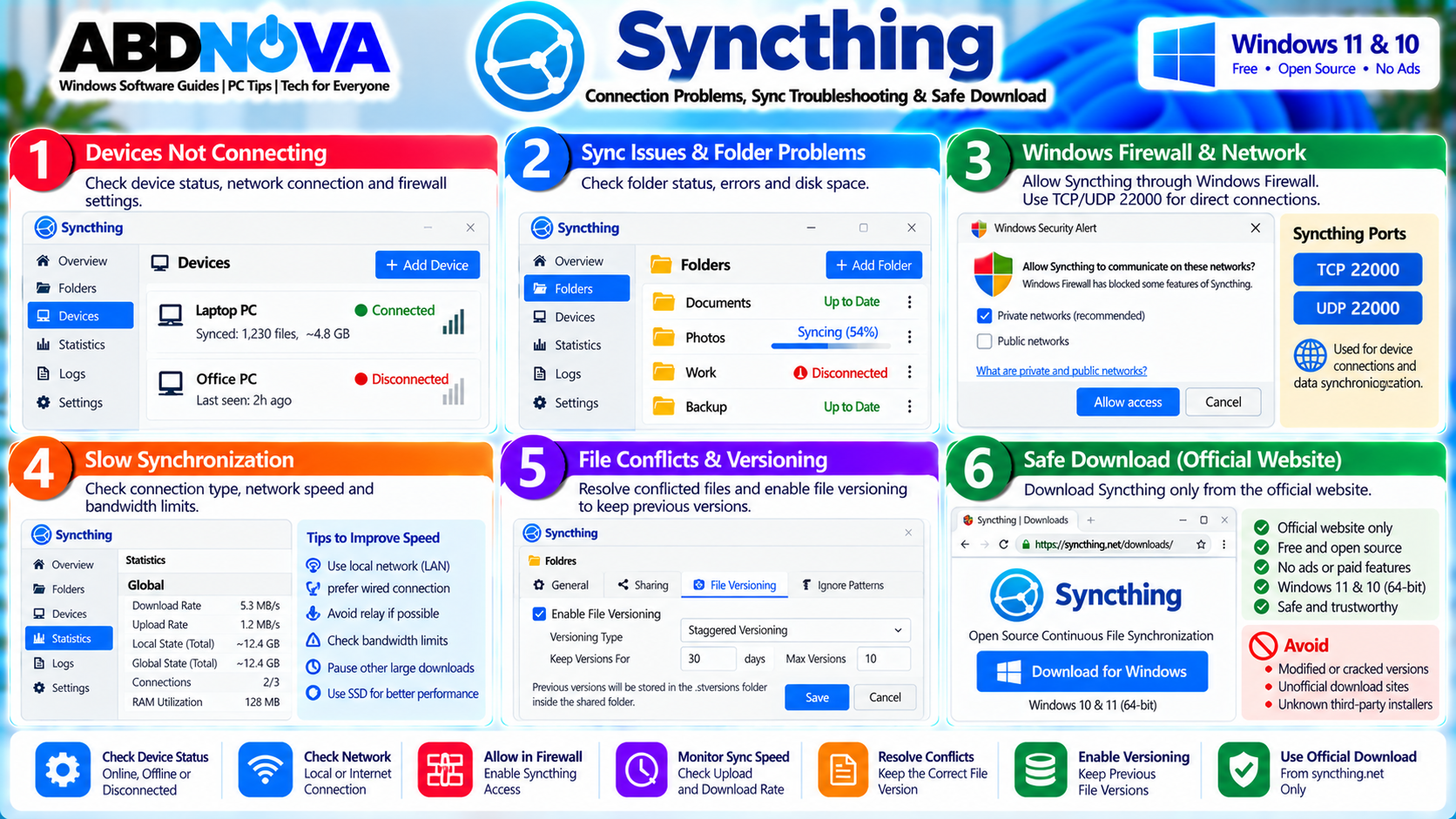
If Syncthing cannot connect or synchronize correctly, first check the device configuration, network connectivity, firewall permissions, folder paths, and synchronization status.
Devices Are Not Connecting
- Confirm Syncthing is running on both computers.
- Verify both Device IDs.
- Make sure each device accepted the other.
- Check Windows Firewall.
- Check local-network or internet connectivity.
- Restart Syncthing.
- Restart the network connection.
- Review remote-device status.
- Check whether a VPN or restrictive network is interfering.
Folder Is Not Synchronizing
- Confirm the folder is shared with the correct device.
- Confirm the remote device accepted the folder.
- Check that the folder path exists.
- Check file-system permissions.
- Make sure the remote device is online.
- Make sure the folder is not paused.
- Check ignore rules.
- Check available disk space.
- Review Syncthing for error messages.
Syncthing Synchronization Is Slow
Slow synchronization can result from:
- Using a relay instead of a direct connection
- Weak Wi-Fi
- Limited internet upload speed
- Large numbers of small files
- Slow HDD storage
- Antivirus scanning
- CPU limitations
- Bandwidth limits
- Slow remote-device performance
For local synchronization, a direct Ethernet connection will often provide better performance than weak Wi-Fi.
Windows Firewall Blocks Syncthing
If Windows asks whether Syncthing should communicate through the firewall, allow appropriate access for networks you trust. For many home setups, private-network access is the relevant option.
Avoid opening unnecessary public-network access unless you understand why it is required.
Syncthing Keeps Creating Conflict Files
Conflict files usually mean the same file was changed independently on different devices.
To reduce conflicts:
- Allow synchronization to finish before editing on another computer.
- Avoid editing the same file simultaneously on multiple devices.
- Check device connectivity.
- Review conflict copies before deleting them.
Safe Syncthing Download
Download Syncthing only from the official project website or its official release channels.
Syncthing’s download page provides the core Windows builds and also lists Windows integrations. Integrations can be maintained separately from the core project, so check what you are downloading before installation.
Avoid:
- Modified Syncthing executables
- Unofficial repacks
- Fake premium editions
- Unknown download portals
- Bundled installers from untrusted sources
- Cracked versions
Frequently Asked Questions
What is Syncthing?
Syncthing is an open-source application that synchronizes files between multiple trusted devices.
Is Syncthing free?
Yes. Syncthing is free and open-source software.
Does Syncthing work on Windows 11?
Yes. Syncthing can be used on Windows 11.
Does Syncthing work on Windows 10?
Yes. Syncthing can also be used on Windows 10.
What is the latest stable Syncthing version?
As of September 30, 2026, the latest stable release is Syncthing 2.1.5, released on September 8, 2026.
Does Syncthing require an account?
No traditional cloud-storage account is required to synchronize your own configured Syncthing devices.
Are files uploaded to a Syncthing cloud?
Syncthing does not require central cloud storage for synchronized files. Configured devices exchange file data directly whenever possible, with relay infrastructure available when direct connectivity cannot be established.
Is Syncthing encrypted?
Yes. Device-to-device communication is protected using TLS, and trusted devices are authenticated using cryptographic device identities.
Can Syncthing sync two Windows PCs?
Yes. Two Windows computers can be connected using their Device IDs and selected folders can then be shared between them.
Can Syncthing synchronize more than two computers?
Yes. Multiple trusted devices can participate in a Syncthing setup.
Does Syncthing work over the internet?
Yes. Devices can synchronize across different networks when connectivity can be established.
Does Syncthing support file versioning?
Yes. Optional file versioning can retain previous versions under configured conditions.
Is Syncthing a backup program?
Syncthing is primarily a synchronization application. Because unwanted changes and deletions can synchronize between devices, important files should also have an independent backup.
Final Thoughts
Syncthing is a practical solution for keeping folders synchronized between Windows computers without relying on a traditional central cloud-storage account.
Once trusted devices are connected using their Device IDs and folders are shared, Syncthing can automatically transfer new and changed files between computers. It can work over a local network or the internet, with encrypted device-to-device communication and relay support when direct connectivity is unavailable.
For a normal desktop-and-laptop setup, Send & Receive provides convenient two-way synchronization. Send Only and Receive Only modes are available for more specialized workflows.
For important data, configure appropriate file versioning and maintain a separate backup. Synchronization provides convenience and redundancy, but it should not be your only protection against accidental deletion, corruption, or unwanted changes.
Download Syncthing for Windows
Get the current Windows release directly from the official Syncthing project.