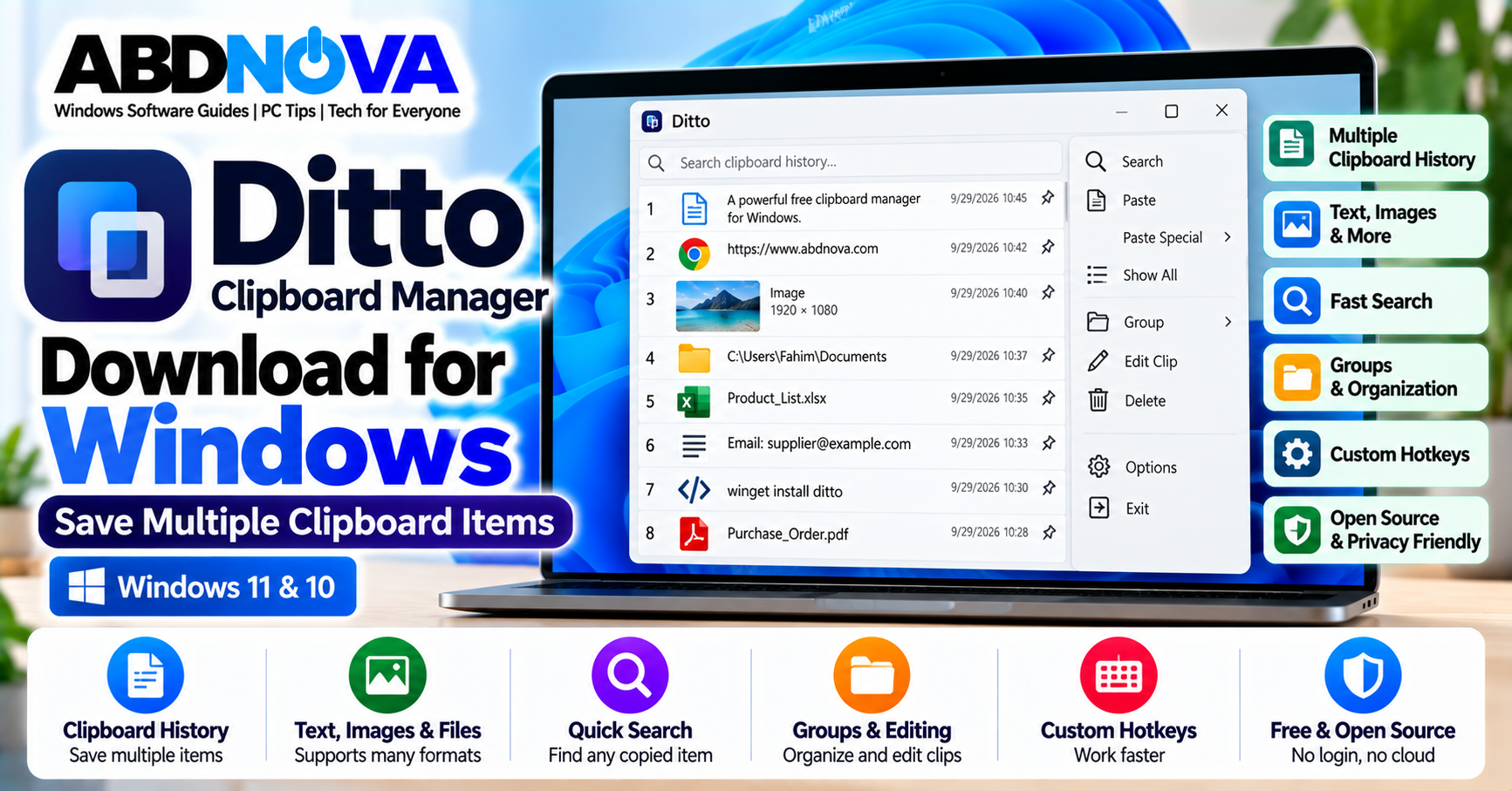

Ditto Clipboard Manager Download for Windows
Ditto Clipboard Manager is a free and open-source Windows utility that extends the standard Windows clipboard. Instead of keeping only the most recently copied item, Ditto stores multiple clipboard entries so you can search for and reuse them later.
It can store text, images, HTML, and other supported clipboard formats. This makes Ditto useful for office work, writing, coding, data entry, customer support, research, and other workflows involving frequent copying and pasting.
Ditto follows a local-first approach. Normal clipboard history is stored locally, and the project states that no login, cloud service, or telemetry is required.
Ditto Clipboard Manager for Windows 11 & 10
Ditto works alongside the familiar Windows clipboard workflow. You can continue using Ctrl + C to copy and Ctrl + V for normal pasting, while Ditto maintains a history of supported copied items.
As of September 2026, the latest stable release is Ditto 3.25.113.0, released on September 27, 2026.
| Detail | Information |
|---|---|
| Software | Ditto Clipboard Manager |
| Current Version | 3.25.113.0 |
| Platform | Windows |
| Windows 11 | Supported |
| Windows 10 | Supported |
| License | Free & Open Source |
| Account Required | No |
| Cloud Required | No for normal clipboard storage |
| Telemetry | No, according to the official project |
| Portable Version | Available |
Ditto Main Interface, Quick Paste & Clipboard History
After installation, Ditto normally runs from the Windows system tray while you continue copying information normally.
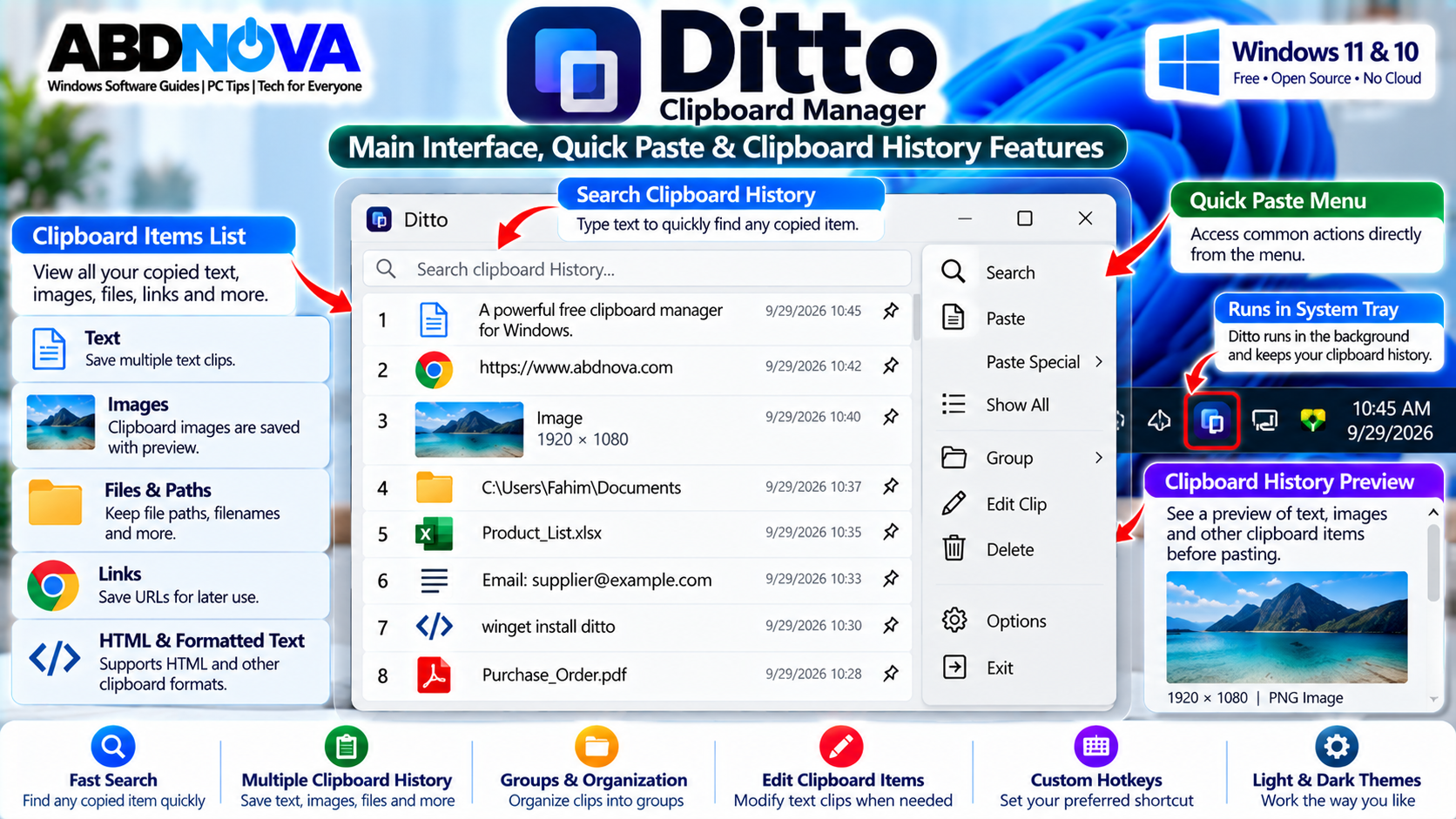
For example, you can copy:
- A paragraph from a webpage
- An email address
- An image
- A product code
- A URL
- A command
- A file path
Instead of losing access to older items whenever something new is copied, Ditto records supported clipboard entries in its local database.
Ditto Key Features
- Multiple clipboard history
- Text clipboard storage
- Image clipboard storage
- HTML and custom clipboard formats
- Fast clipboard search
- Quick Paste window
- Keyboard shortcuts
- Portable version
- Local clipboard database
- No account required
- No cloud required for normal storage
- No telemetry
- Custom hotkeys
- Clip editing
- Groups for organizing clips
- Multiple-paste options
- Unicode support
- Dark themes
Ditto Quick Paste Window
The Quick Paste window is the part of Ditto you will use most frequently. The default shortcut is:
The second key is the backquote key, normally near the upper-left area of a standard keyboard.
After opening Quick Paste, you can:
- Browse previous clipboard entries.
- Search for a specific clip.
- Select the item you need.
- Press Enter or double-click it.
- Paste it into the previous application.
How to Install & Use Ditto Clipboard Manager on Windows
The official Ditto project provides several installation methods, including a regular installer, portable version, Winget, Chocolatey, and a Windows Store app.
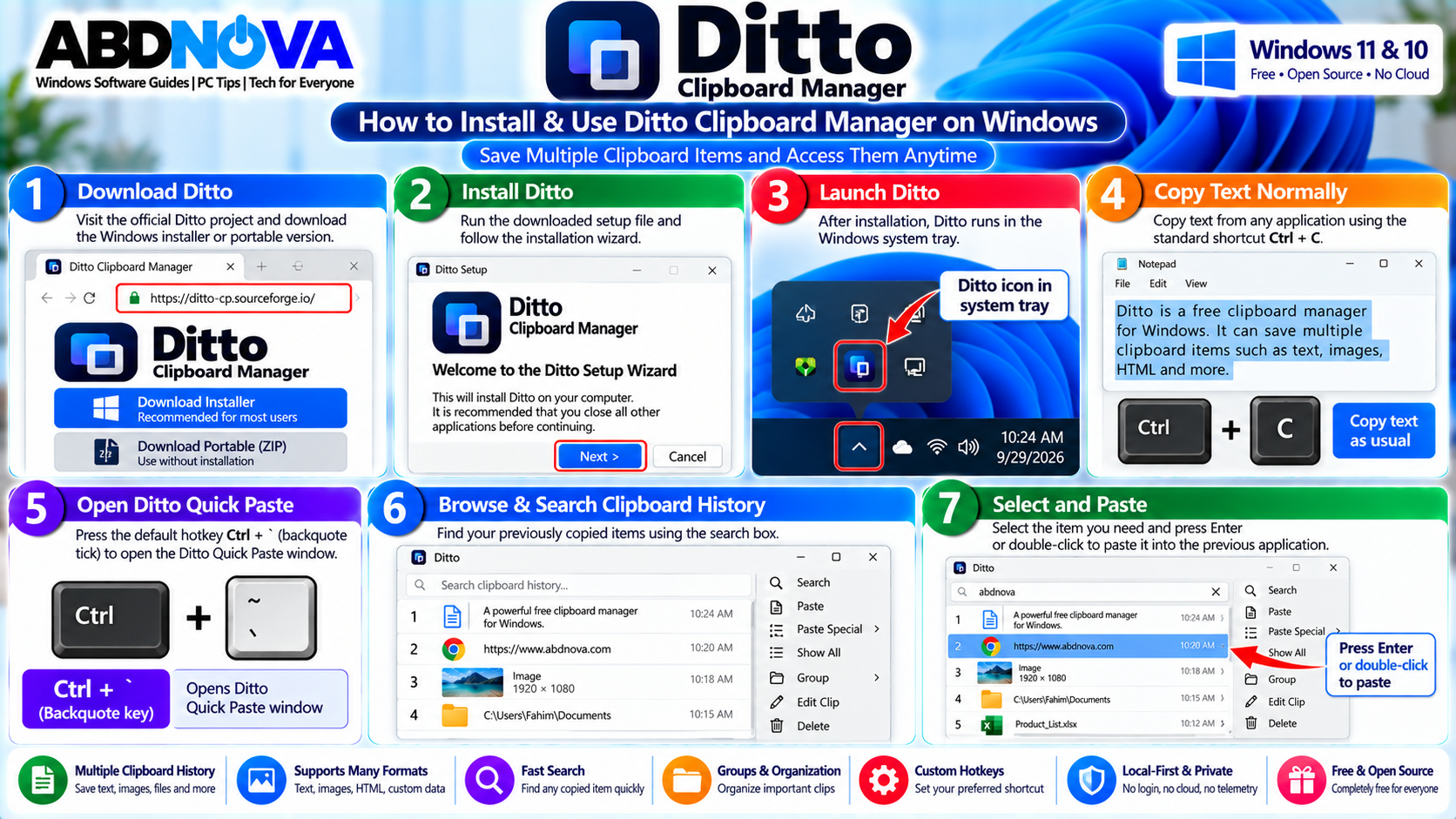
Install Ditto With the Windows Installer
- Visit the official Ditto website or project page.
- Download the Windows installer.
- Open the downloaded setup file.
- Approve the Windows security prompt if required.
- Follow the installation wizard.
- Complete installation.
- Launch Ditto.
- Look for the Ditto icon in the Windows system tray.
Once Ditto is running, copy some text using Ctrl + C, then press Ctrl + `. The copied item should appear in the Quick Paste window.
Install Ditto With Winget
Users who prefer the command line can install Ditto with Winget:
winget install -e --id Ditto.DittoYou can run Winget from Windows Terminal or Command Prompt. For more information about Microsoft’s modern command-line application, see our Windows Terminal Download for Windows guide.
Ditto Portable Version
Ditto also provides an official portable version. This can be useful if you prefer not to perform a traditional installation or want to keep utilities in a dedicated portable-app folder.
How to Use Ditto
The basic workflow is simple:
- Launch Ditto.
- Copy information normally using Ctrl + C.
- Continue copying additional items as needed.
- Press Ctrl + ` when you need an older item.
- Find the required clip.
- Double-click it or select it and press Enter.
- Paste it into your previous application.
Ditto Clipboard Search, Multiple Paste, Groups & Hotkeys
Ditto becomes especially useful when you regularly work with many copied items and need to retrieve information without repeatedly returning to its original source.
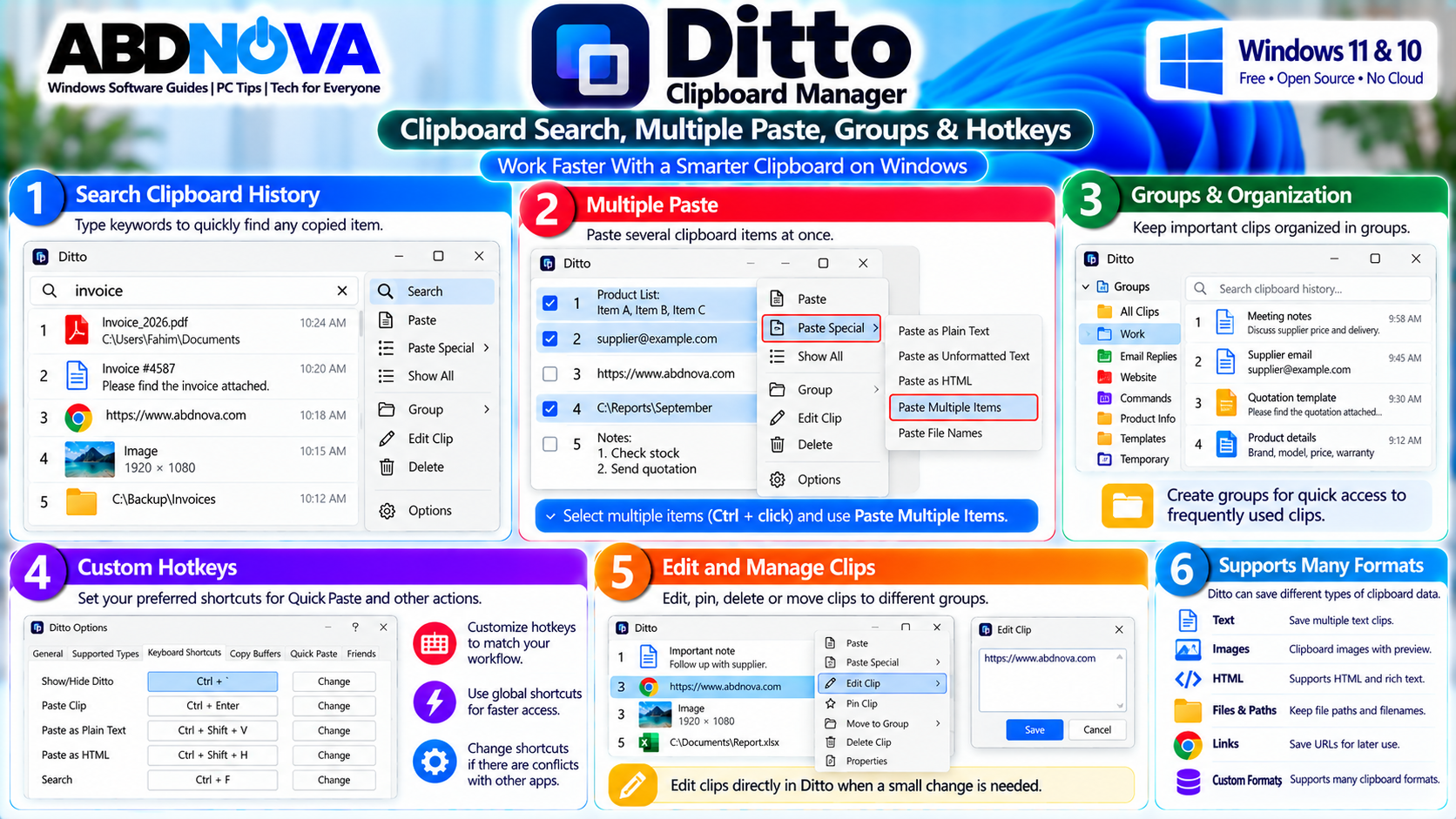
Search Clipboard History
Instead of manually scrolling through hundreds of clips, use Ditto’s search feature to locate older clipboard entries.
This can be useful for finding:
- Email addresses
- Product codes
- URLs
- Commands
- File paths
- Phone numbers
- Standard replies
- Names and addresses
- Frequently reused text
Copy and Paste Multiple Items
Without a clipboard manager, repetitive work often looks like this:
With Ditto, you can copy several items first and then retrieve the required clips from clipboard history as you work through the destination application.
This can be particularly useful for repetitive data-entry and research tasks.
Save Text, Images & Other Clipboard Data
Ditto is not limited to plain text. Depending on the source and destination applications, it can store clipboard data such as:
- Plain text
- Rich text
- HTML
- Images
- File-related clipboard data
- Application-specific custom formats
Organize Clips Into Groups
Groups can help separate reusable clipboard information from temporary clipboard history.
For example, you could create groups for:
- Work
- Email Replies
- Website
- Commands
- Product Information
- Templates
Edit Saved Clips
Current Ditto releases include tools for editing stored clips. This can be convenient when a saved text clip needs a small adjustment before it is reused.
Ditto Keyboard Shortcuts
The default Quick Paste shortcut is Ctrl + `. Ditto also provides configurable shortcut options so experienced users can adapt the program to their workflow.
If the default shortcut conflicts with another application, change it through Ditto’s settings.
Ditto vs Windows Clipboard History
Windows 11 and Windows 10 already include built-in Clipboard History, which can be opened with:
For basic clipboard history, Windows + V may be sufficient. Ditto is designed for users who want additional clipboard-management features.
| Ditto | Windows Clipboard History |
|---|---|
| Extensive searchable history | Built into Windows |
| Groups for reusable clips | Basic clipboard-history workflow |
| Configurable hotkeys | Windows + V shortcut |
| Additional clip-management tools | Simpler clipboard management |
| Portable option available | No separate installation required |
You do not necessarily need both workflows. Choose the clipboard system that matches how much clipboard management you actually need.
Start Ditto With Windows
A clipboard manager is most useful when it is already running whenever you need it. Ditto can be configured to start automatically with Windows so you do not have to launch it manually after every restart.
If Ditto does not start automatically, check its startup-related settings.
Ditto Clipboard Database & Privacy
Ditto stores clipboard history in a database on your computer. This persistent history is one of the reasons it can provide more functionality than a single temporary clipboard item.
However, clipboard history should be treated as potentially sensitive data because information you copy may remain in the local database until it is deleted according to your configuration.
Sensitive Information
Avoid unnecessarily copying highly sensitive information while a clipboard manager is recording clipboard history, including:
- Passwords
- Recovery codes
- Private keys
- Authentication tokens
- Banking information
- Confidential business information
Delete Clipboard History
Clipboard history can grow over time. Periodically deleting unnecessary clips can keep the database manageable and reduce the amount of old clipboard information stored on your PC.
Before deleting permanent or important clips, make sure you no longer need them.
Ditto Privacy, Troubleshooting & Safe Download
Ditto is designed around local clipboard management, but configuration issues, shortcut conflicts, or application-specific clipboard formats can occasionally cause problems.
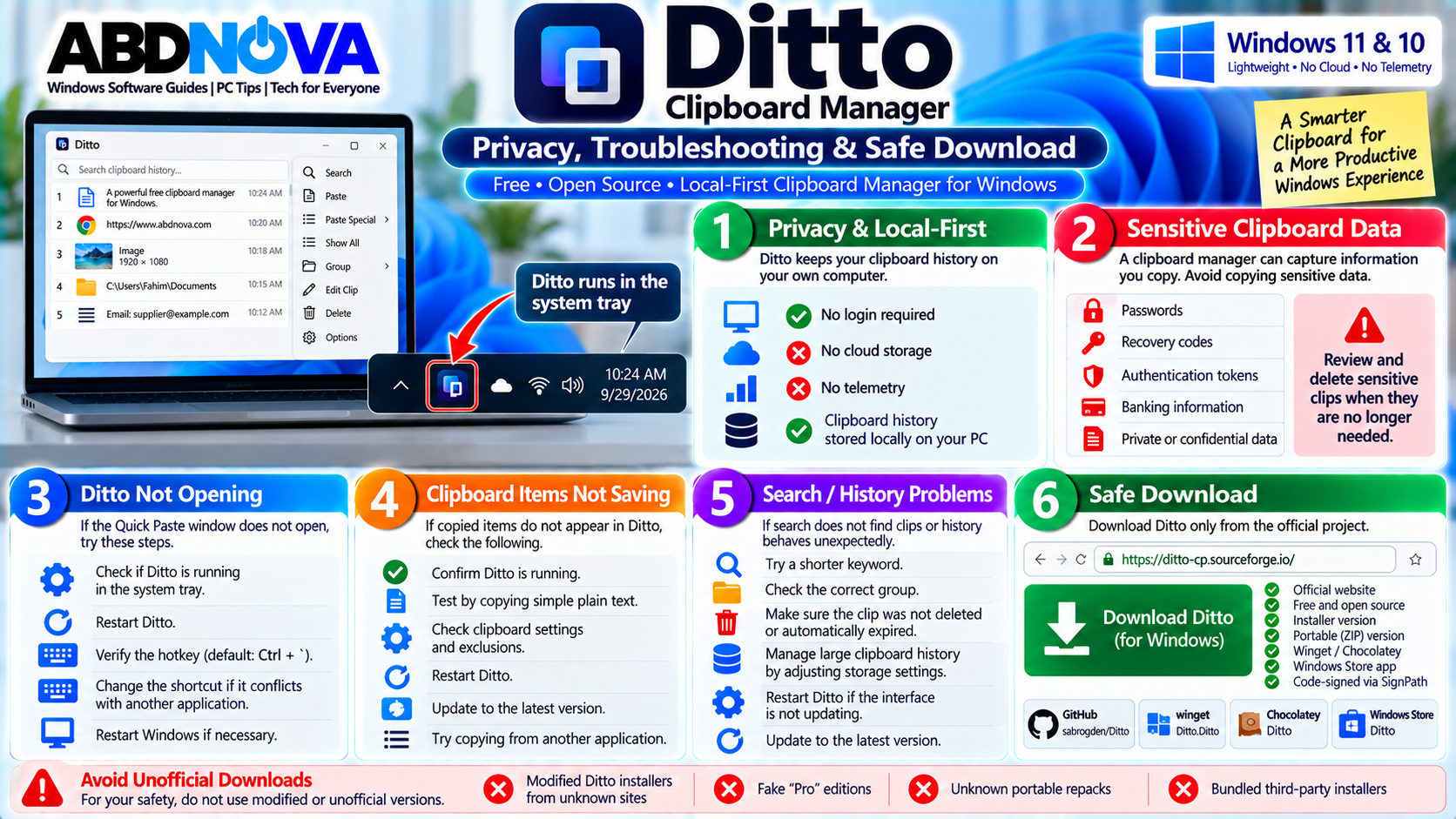
Ditto Not Opening With Hotkey
If Ctrl + ` does not open Ditto:
- Confirm Ditto is running.
- Check the Windows system tray.
- Restart Ditto.
- Check the configured keyboard shortcut.
- Make sure another application is not using the same shortcut.
- Try assigning a different Ditto hotkey.
- Restart Windows if necessary.
Ditto Not Saving Clipboard Items
If copied items do not appear in Ditto:
- Confirm Ditto is running.
- Try copying simple plain text.
- Restart Ditto.
- Check clipboard-related settings.
- Check whether the application or clipboard format is excluded.
- Update Ditto to the latest stable version.
- Test copying from another application.
Some applications use specialized clipboard formats, so behavior can vary depending on the information being copied.
Ditto Search Not Finding a Clip
- Clear the current search.
- Try a shorter keyword.
- Check whether the clip still exists.
- Check the correct group.
- Restart Ditto if the interface is not updating.
- Update to the latest stable version.
Deleted or automatically expired clips cannot be found after they are removed from the clipboard database.
Ditto Clipboard History Is Too Large
If Ditto accumulates more clipboard entries than you need, consider:
- Keeping fewer clips
- Deleting unnecessary history
- Removing large image clips
- Organizing permanent clips into groups
- Reviewing automatic cleanup settings
Safe Ditto Download
Download Ditto only from the official project or its documented distribution channels.
Avoid:
- Modified Ditto installers
- Unknown portable repacks
- Fake “Pro” editions
- Bundled third-party installers
- Unofficial pages offering modified builds
Frequently Asked Questions
What is Ditto Clipboard Manager?
Ditto extends the Windows clipboard by storing copied items in searchable history so they can be retrieved and reused later.
Is Ditto free?
Yes. Ditto is free and open-source software.
Does Ditto work on Windows 11?
Yes. Ditto can be used on modern Windows PCs, including Windows 11.
Does Ditto work on Windows 10?
Yes. Ditto can be used as a clipboard manager on Windows 10.
What is the latest Ditto version?
As of September 29, 2026, the latest stable release is Ditto 3.25.113.0, released on September 27, 2026.
What is the default Ditto shortcut?
The default Quick Paste shortcut is Ctrl + `.
Can Ditto save images?
Yes. Ditto can store images and other supported clipboard formats in addition to text.
Does Ditto require an account?
No. The official project states that Ditto requires no login.
Does Ditto use cloud storage?
Ditto describes its standard clipboard operation as local-first and does not require cloud storage for normal clipboard history.
Does Ditto have a portable version?
Yes. The official Ditto project provides a portable option in addition to the normal installer.
Is Ditto better than Windows + V?
They provide clipboard history at different levels. Windows Clipboard History is convenient for basic use, while Ditto provides additional features such as extensive searchable history, groups, configurable shortcuts, and more clip-management tools.
Final Thoughts
Ditto Clipboard Manager is useful for Windows users who frequently copy and paste text, images, links, file paths, commands, product information, or other data.
Instead of losing easy access to previous clipboard entries every time you copy something new, Ditto keeps searchable history that can be reopened through the Quick Paste interface.
Search, groups, customizable hotkeys, clip management, portable operation, and local-first storage make Ditto particularly useful for productivity-heavy Windows workflows. Because clipboard history can contain sensitive information, review stored clips and retention settings carefully.
Download Ditto Clipboard Manager
Get the latest Windows installer or portable version from the official Ditto project.