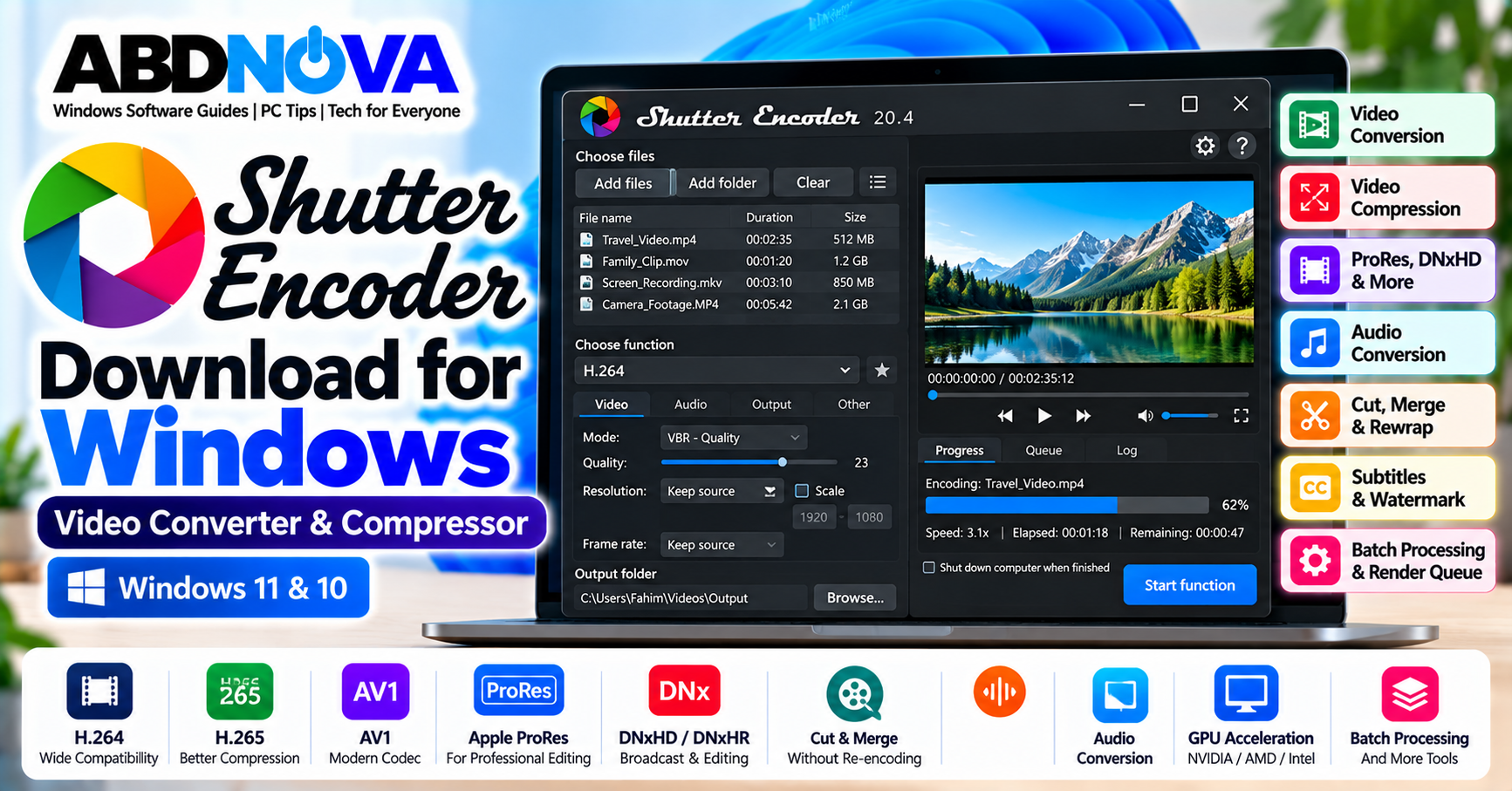

Shutter Encoder Download for Windows – Video Converter & Compressor
Shutter Encoder is a free multimedia conversion and processing application for Windows. It is designed for video editors, content creators, filmmakers, and everyday users who need to convert, compress, rewrap, edit, or analyze video and audio files.
Shutter Encoder is built around FFmpeg and provides a graphical interface for many powerful multimedia functions. Instead of entering FFmpeg commands manually, you can add files, select a function, adjust the required settings, and start processing from one interface.
The current official release is Shutter Encoder 20.4. It supports 64-bit Windows systems including Windows 11 and Windows 10 and is available as both an EXE installer and a portable ZIP package.
Shutter Encoder for Windows 11 & 10
| Detail | Information |
|---|---|
| Software | Shutter Encoder |
| Current Version | 20.4 |
| Platform | Windows 11 & Windows 10 |
| Architecture | 64-bit |
| Windows Packages | EXE installer and portable ZIP |
| Core Technology | FFmpeg |
| License | Free software |
| Advertising | None |
| Main Uses | Video conversion, compression, editing and media processing |
| Official Source | Shutter Encoder developer website |
Shutter Encoder Main Interface, Video Conversion & Compression Features
The Shutter Encoder interface is built around a straightforward workflow: add your media, choose a processing function, configure the settings, select an output location, and start the job.
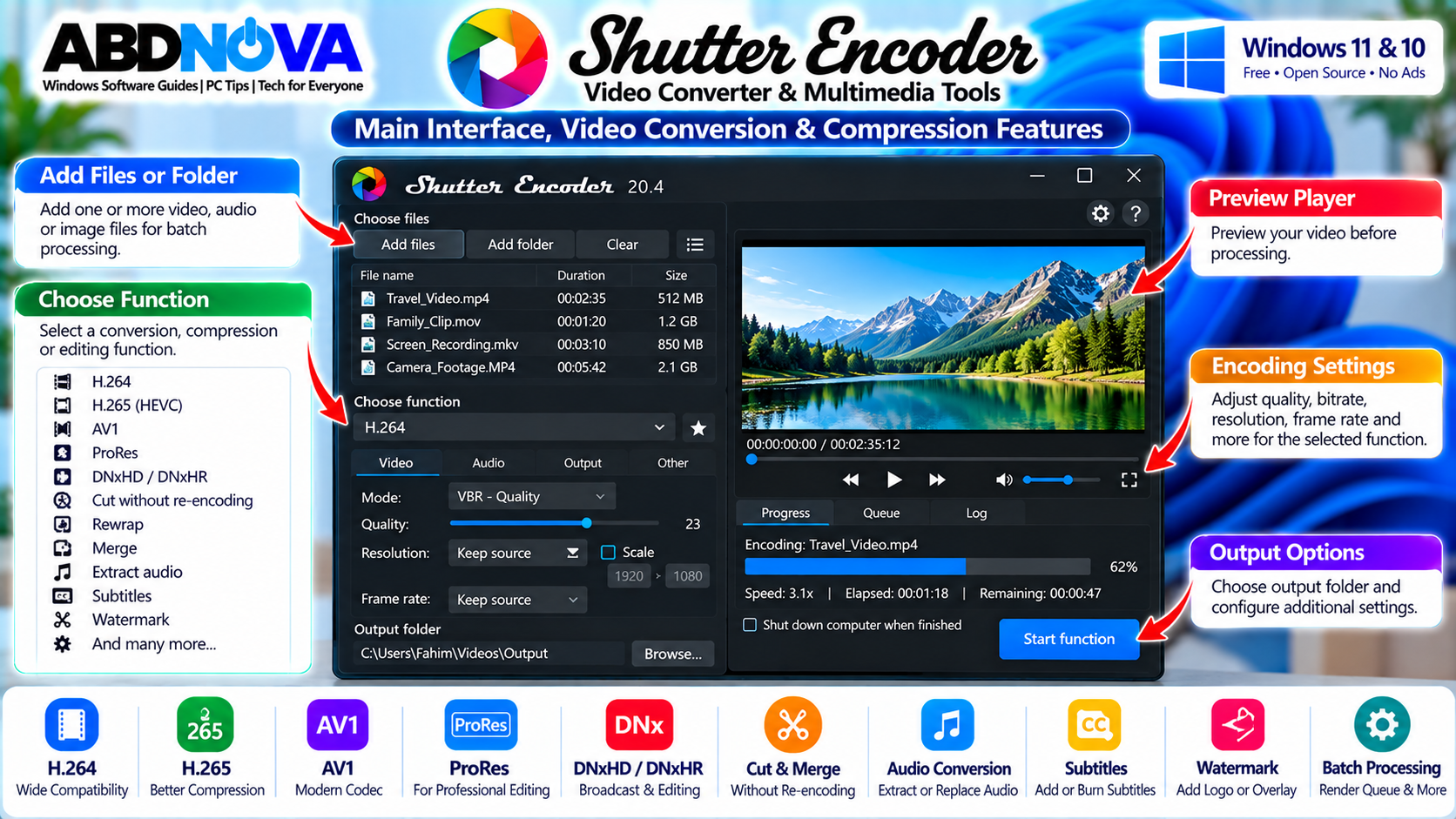
Important Shutter Encoder features include:
- Video conversion and compression
- H.264, H.265/HEVC, H.266, VP8, VP9 and AV1 encoding
- Apple ProRes, DNxHD, DNxHR and GoPro CineForm
- Audio conversion and extraction
- Video rewrapping
- Cutting without re-encoding
- Video merging
- Subtitle processing
- Cropping and resolution scaling
- Watermarks and overlays
- Color correction and LUT support
- Hardware acceleration
- Batch processing and render queues
- Target file-size controls
- Media analysis tools
Multiple files can be added for batch processing, which is useful when you need to convert a collection of videos using the same settings.
Download Shutter Encoder for Windows
The developer provides two official Windows packages:
Windows ZIP: Portable version
For most Windows users, the EXE installer is the simplest option. The portable ZIP is useful if you prefer to run Shutter Encoder without a traditional installation.
How to Install & Convert Videos With Shutter Encoder on Windows
Shutter Encoder is straightforward to install and use for basic video conversion.
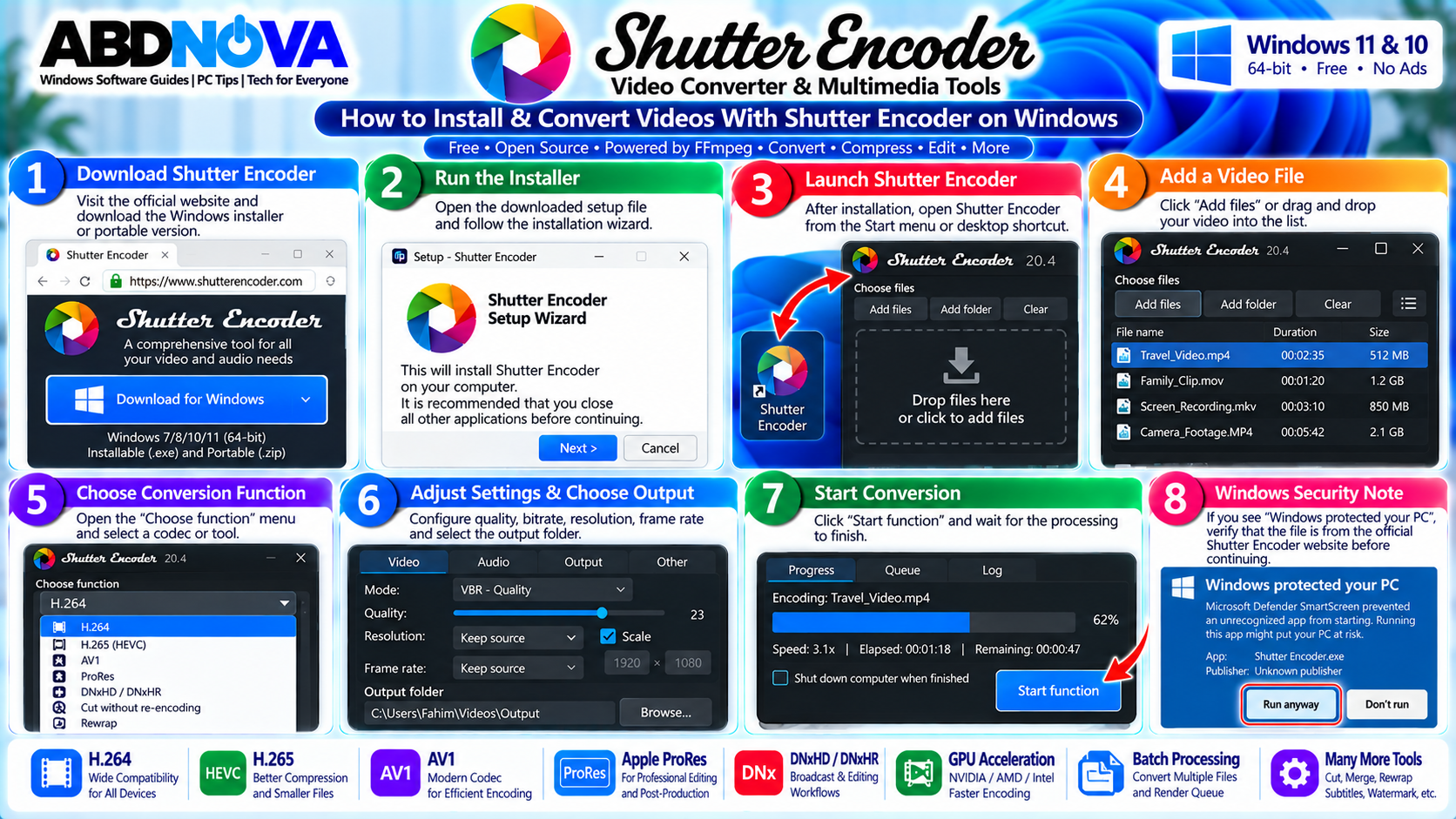
Install Shutter Encoder
- Visit the official Shutter Encoder website.
- Locate the Windows download options.
- Download the Windows EXE installer.
- Open the downloaded installer.
- Follow the installation instructions.
- Complete setup and launch Shutter Encoder.
Use the Portable Version
If you prefer not to install the application, download the official Windows ZIP package, extract it to a folder, and run Shutter Encoder from the extracted files.
The portable version can be convenient for:
- Portable software collections
- External drives
- Test systems
- PCs where you prefer not to perform a traditional installation
How to Convert a Video to H.264
- Launch Shutter Encoder.
- Add your video file.
- Open the Choose function menu.
- Select H.264.
- Configure bitrate or quality settings.
- Select the output location.
- Review the settings.
- Click Start function.
- Wait for encoding to finish.
The converted video is saved to the selected output destination.
Compress Video With Shutter Encoder
Shutter Encoder can reduce video file size using different codecs and quality settings. Final file size depends on factors including the video codec, bitrate, resolution, frame rate, audio bitrate, source complexity, duration, and selected quality settings.
For broad playback compatibility, H.264 remains a practical choice. H.265 can provide better compression efficiency in many situations, while AV1 is another modern option when efficient compression is important and the target devices support it.
Compress Video to a Target File Size
For supported video encoding functions, Shutter Encoder includes a File size option. You can enter an approximate target size in megabytes and let the encoder calculate settings intended to approach that result.
This can be useful when preparing videos for:
- Messaging
- Website uploads
- Cloud storage
- Social platforms
- Limited storage
Shutter Encoder H.264, H.265, AV1, ProRes & GPU Acceleration
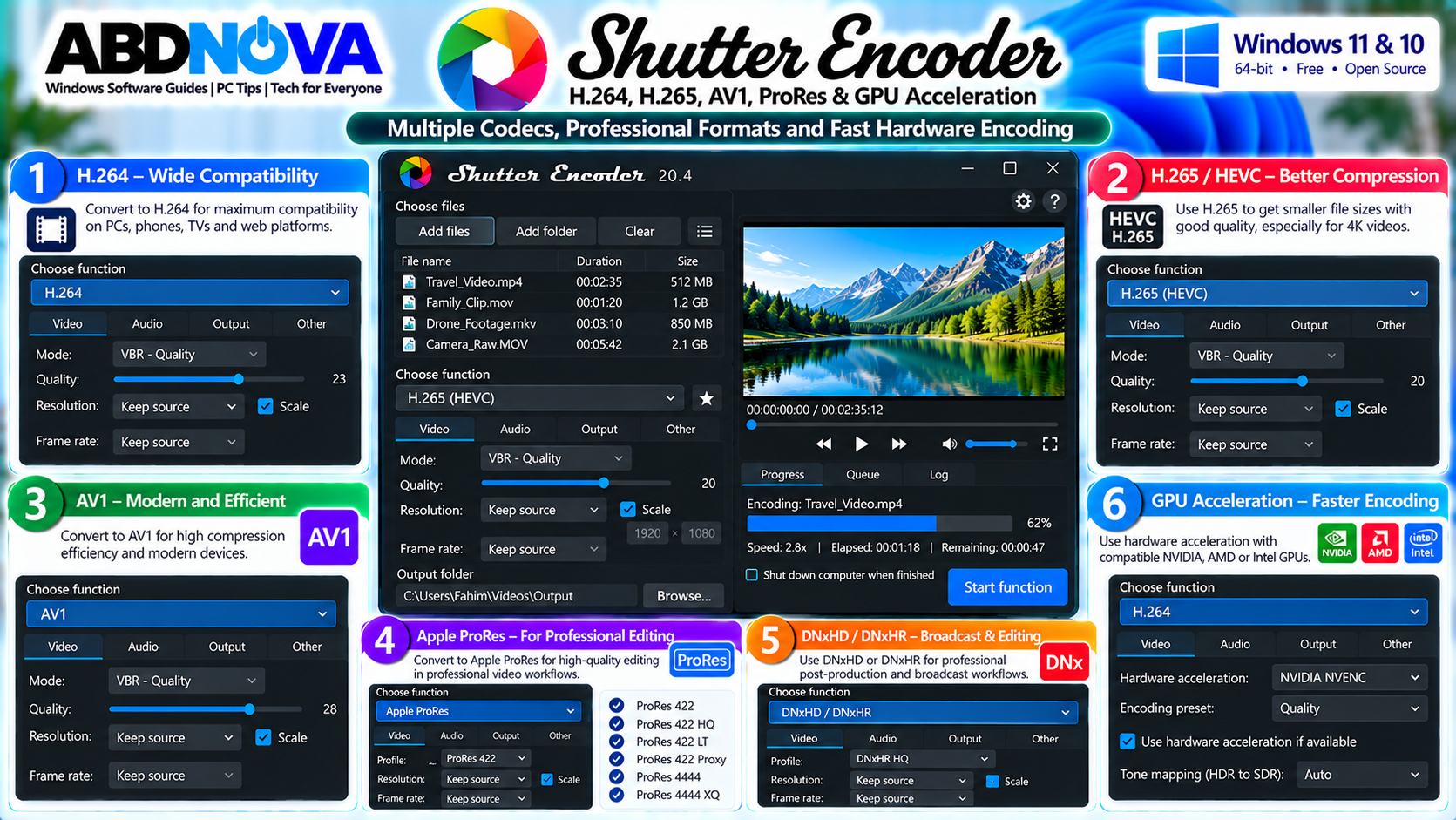
Shutter Encoder supports both common delivery codecs and professional editing formats, making it useful for simple video compression as well as post-production workflows.
H.264 Video Conversion
H.264 is one of the most widely supported video codecs and is a practical choice when compatibility is important.
H.264 files generally work well across Windows PCs, smartphones, tablets, smart TVs, web browsers, media players, and video platforms.
H.265 / HEVC Conversion
H.265, also known as HEVC, provides efficient compression and can be useful for 4K video, large media collections, storage optimization, and high-quality compressed output.
Compatibility and hardware support can vary more than H.264, especially on older devices.
AV1 Video Encoding
AV1 is another supported output codec designed for efficient video compression. It can be useful when reducing storage or bandwidth requirements is important.
Software AV1 encoding can be computationally demanding, so conversion may take considerably longer depending on your hardware and settings.
Professional Editing Codecs
Shutter Encoder also supports professional editing formats including:
- Apple ProRes
- DNxHD
- DNxHR
- GoPro CineForm
- Uncompressed video
These formats are useful when preparing footage for video-editing and post-production workflows. Larger file sizes are normal because editing codecs generally prioritize editing performance and quality rather than minimum storage use.
GPU Hardware Acceleration
Shutter Encoder supports hardware-accelerated processing with compatible NVIDIA, AMD, and Intel graphics hardware.
Availability depends on the selected codec, operation, GPU, operating system, and installed drivers.
Hardware encoding can significantly improve processing speed, but CPU encoding can provide better encoding quality in some situations. For important projects, compare output quality before committing to a large batch.
Useful Video Editing & Processing Features
Cut Without Re-Encoding
The Cut without re-encoding function can remove sections of compatible media without performing a complete conversion.
This can make processing faster and avoid additional quality loss from another encode. Precise cutting can still depend on the keyframe structure of the source video.
Rewrap Without Re-Encoding
The Rewrap function changes the media container without necessarily re-encoding its video and audio streams. This can be much faster than converting the complete video when the existing codecs are already suitable.
Merge Video Files
Shutter Encoder can merge compatible media files, which is useful for camera clips, screen recordings, or multiple segments belonging to the same project.
Extract Audio From Video
Audio can be extracted or converted to formats including WAV, AIFF, FLAC, ALAC, MP3, AAC, AC3, Opus, Vorbis, Dolby Digital Plus, and Dolby TrueHD.
Resize, Crop & Rotate Video
Scaling controls allow you to change video resolution using options such as Adapt, Stretch, and Crop. Shutter Encoder also provides different scaling algorithms, including bilinear, bicubic, and Lanczos.
Video cropping, rotation, and horizontal mirroring can also be applied directly.
Subtitles & Watermarks
Subtitle-processing features support formats including SRT, VTT, SCC, ASS, and SSA. Depending on the workflow, subtitles can be embedded or burned into the video.
You can also overlay an image or video for logos, channel branding, project identifiers, copyright marks, and other graphics.
Batch Conversion & Render Queue
Multiple files can be added and processed together, making Shutter Encoder useful for camera footage, video archives, phone videos, screen recordings, and project exports.
The render queue allows different jobs to be prepared with different settings. For example:
Video 2 → H.265
Video 3 → ProRes
A Watch Folder feature is also available for automated or repetitive media-processing workflows.
Video Quality & Bitrate Controls
Supported codecs provide different bitrate-control methods, including:
- VBR: Variable bitrate changes according to video complexity.
- CBR: Constant bitrate targets a more consistent bitrate.
- CQ / CRF: Constant-quality encoding prioritizes a selected quality level while allowing bitrate and file size to vary.
There is no single ideal bitrate for every video. Resolution, frame rate, source quality, codec, motion complexity, and intended playback environment all matter.
Media Analysis Tools
Shutter Encoder also includes analysis functions useful for more technical workflows:
- Loudness & True Peak
- Audio normalization
- Cut detection
- Black detection
- Media offline detection
- VMAF
- FrameMD5
Because Shutter Encoder uses FFmpeg for much of its underlying media processing, users who need command-line workflows can also see our FFmpeg Download for Windows guide.
Shutter Encoder vs HandBrake
Both applications can convert and compress video, but their focus differs.
| Shutter Encoder | HandBrake |
|---|---|
| Video conversion and compression | Strong focus on video transcoding |
| Professional editing codecs | Focused primarily on delivery-oriented encoding |
| Rewrap and lossless cutting tools | Different transcoding-focused workflow |
| Audio and subtitle processing | Audio and subtitle options available within transcoding workflows |
| Media analysis functions | Primarily focused on producing converted video files |
Which workflow is more convenient depends on what you need to do with the source media.
Shutter Encoder Video Compression, Troubleshooting & Safe Download
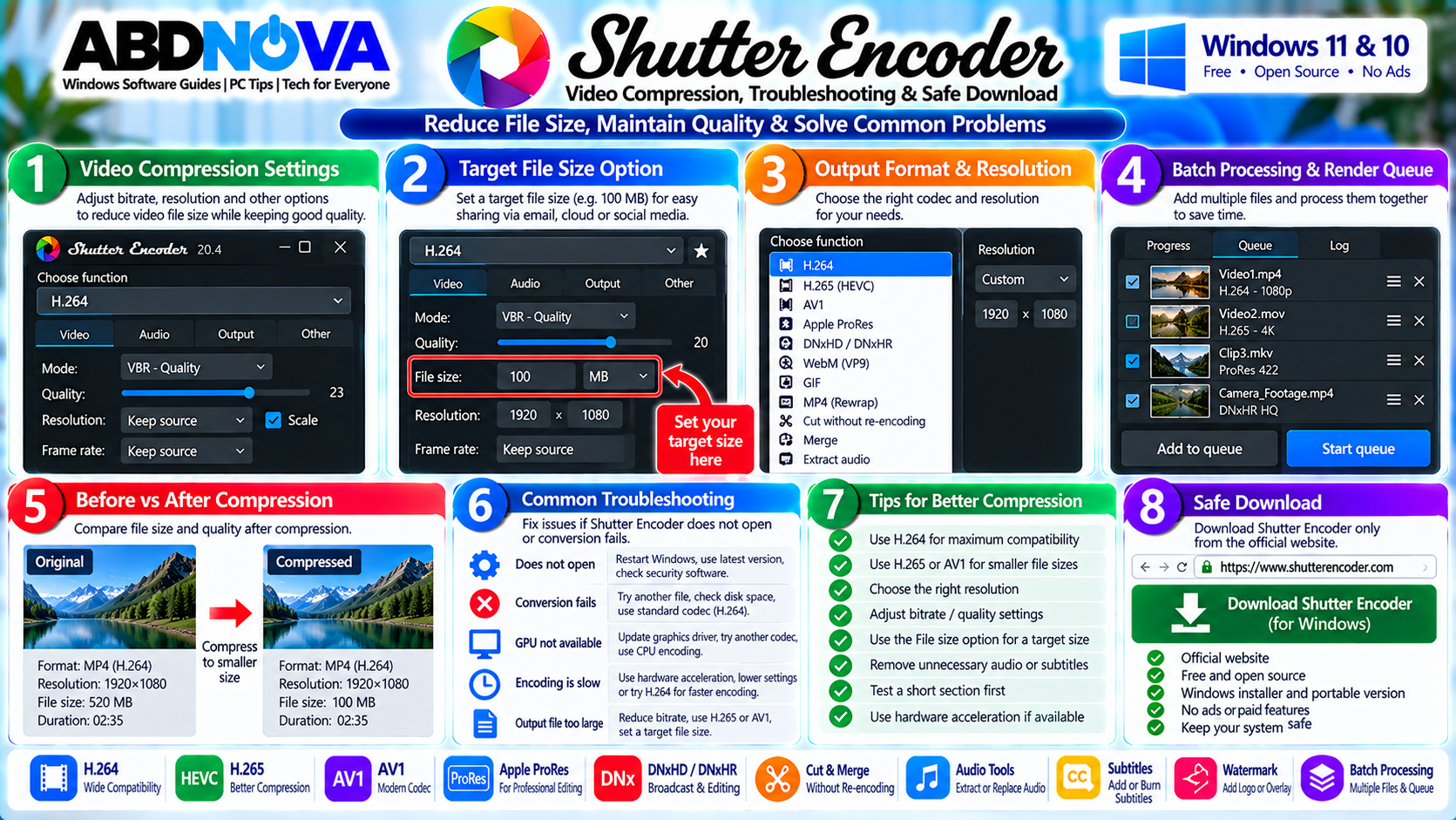
If Shutter Encoder does not open, encoding fails, GPU acceleration is unavailable, or the resulting file is larger than expected, check the source file, output settings, available storage, codec selection, and graphics drivers.
Shutter Encoder Does Not Open
- Confirm you downloaded the correct Windows package.
- Use the official developer website.
- Restart Windows.
- Check whether security software blocked the application.
- Verify the downloaded file.
- Try the official portable package.
- Update Windows and graphics drivers.
Video Conversion Fails
If encoding fails:
- Test another source video.
- Check available disk space.
- Verify the output folder.
- Try a standard codec such as H.264.
- Disable unusual advanced settings.
- Update Shutter Encoder.
- Check whether the source file is damaged.
- Try CPU encoding if GPU encoding fails.
GPU Encoding Is Not Available
Hardware acceleration requires compatible graphics hardware, drivers, and codec support.
If the expected GPU option is unavailable:
- Update the GPU driver.
- Check whether the GPU supports the selected codec.
- Restart Shutter Encoder.
- Try another codec.
- Use CPU encoding if necessary.
Converted Video Is Too Large
Try reducing the video bitrate, using a more efficient codec, lowering resolution when appropriate, reducing audio bitrate, or using the target File Size function.
Conversion Is Slow
Video encoding speed depends on the CPU, GPU, codec, resolution, frame rate, quality settings, filters, source format, and storage performance.
4K H.265 or AV1 processing can take considerably longer than a basic H.264 conversion. Compatible hardware acceleration can improve speed.
Safe Shutter Encoder Download
Download Shutter Encoder directly from its official developer website. The official site provides both the Windows installer and portable ZIP package.
Avoid:
- Modified installers
- Unofficial repacks
- Fake premium versions
- Unknown portable packages
- Bundled installers
- Cracked versions
Frequently Asked Questions
Is Shutter Encoder free?
Yes. Shutter Encoder is completely free software without usage limitations or advertising. The project is supported through donations.
Does Shutter Encoder work on Windows 11 and 10?
Yes. The official 64-bit Windows version supports Windows 11 and Windows 10.
What is the latest Shutter Encoder version?
As of September 2026, the official website lists Shutter Encoder 20.4 as the current version.
Is Shutter Encoder based on FFmpeg?
Yes. FFmpeg provides much of the underlying multimedia-processing functionality used by Shutter Encoder.
Can Shutter Encoder compress videos?
Yes. It supports video encoding with H.264, H.265, VP9, AV1 and other codecs with configurable bitrate, quality, resolution, and additional settings.
Can I compress a video to a specific file size?
Shutter Encoder includes a target File Size option for supported video codecs. It attempts to approach the selected size, although the final result is not guaranteed to be exact.
Does Shutter Encoder support H.265 and AV1?
Yes. Both H.265/HEVC and AV1 are available as output codecs.
Does Shutter Encoder support ProRes?
Yes. Apple ProRes is available alongside other professional editing codecs such as DNxHD, DNxHR and GoPro CineForm.
Can Shutter Encoder use GPU acceleration?
Yes. Hardware acceleration is available with compatible NVIDIA, AMD, and Intel graphics hardware depending on the selected codec and GPU capabilities.
Is there a portable version?
Yes. The official website provides a Windows ZIP package that can be used without a traditional installation.
Final Thoughts
Shutter Encoder is more than a basic Windows video converter. It combines video conversion, compression, professional editing codecs, audio processing, rewrapping, cutting without re-encoding, subtitles, scaling, watermarks, color tools, GPU acceleration, batch processing, and media analysis in one interface.
For general compatibility, H.264 is a practical starting point. H.265 and AV1 can provide more efficient compression for supported devices, while ProRes, DNxHD, and DNxHR are useful for editing and post-production workflows.
Download Shutter Encoder from the official developer website and test important conversion settings on a short sample before processing valuable or large video collections.
Download Shutter Encoder for Windows
Get the latest official Windows installer or portable ZIP package.