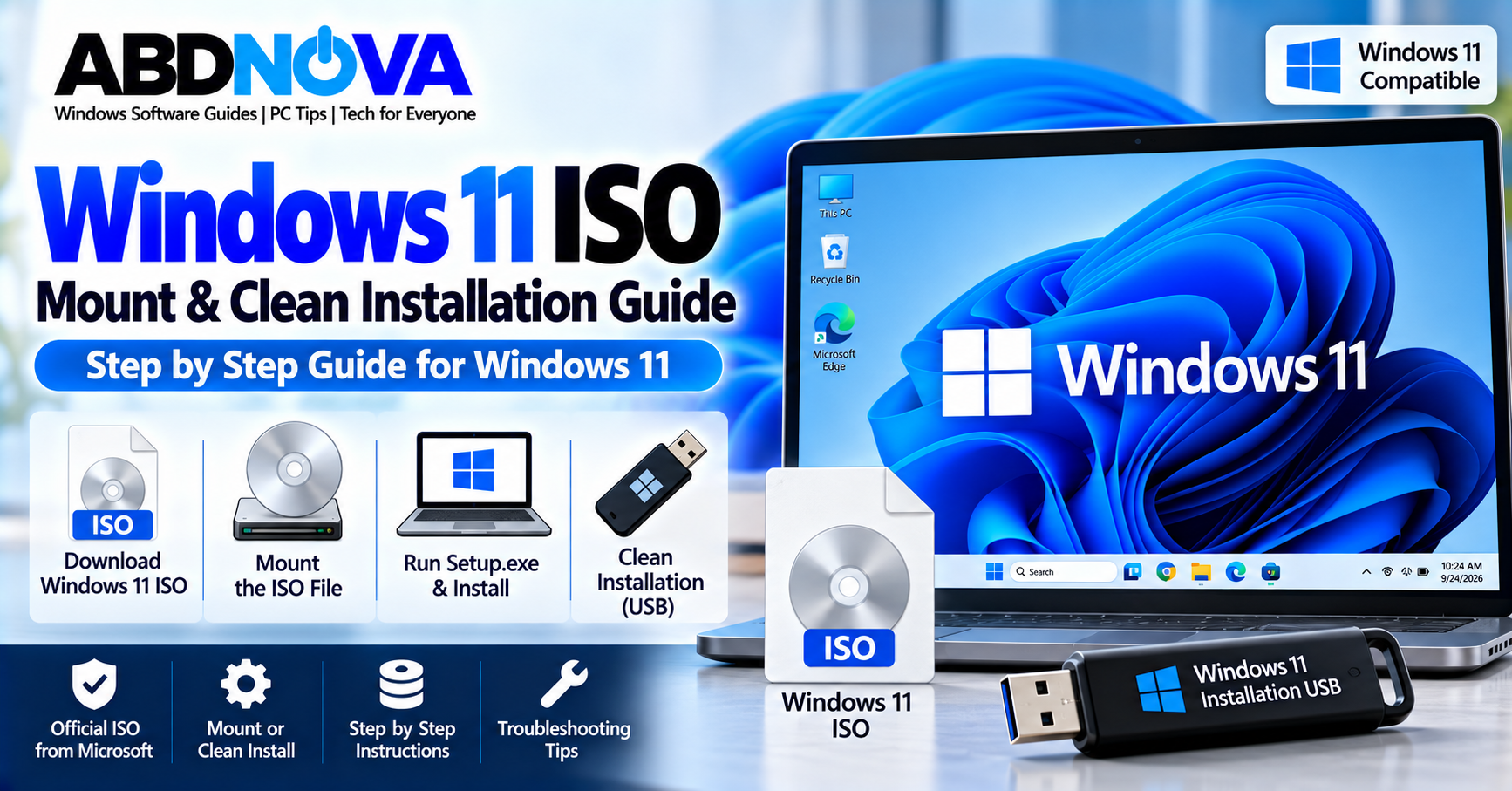

Windows 11 ISO Mount & Clean Installation Guide
A Windows 11 ISO is an official disk image containing the files required to install or reinstall Windows 11. You can mount an ISO directly inside Windows to run Setup, or use Windows installation media when you need a clean installation.
These methods are different. Mounting the ISO and launching setup.exe from an existing Windows installation is commonly used for an in-place installation or upgrade. A full clean installation normally involves starting the PC from bootable Windows installation media.
What Is a Windows 11 ISO?
An ISO is a single disk-image file containing Windows installation files. Microsoft’s Windows 11 download service provides ISO and installation-media options for reinstalling Windows, creating bootable media, virtual machines, and clean installations.
A Windows 11 ISO is useful when you want to:
- Reinstall Windows 11.
- Perform an in-place repair installation.
- Create bootable Windows 11 installation media.
- Perform a clean installation.
- Install Windows 11 in a virtual machine.
- Keep official Windows installation media for recovery.
If you still need the official ISO, see our Windows 11 ISO Download guide.
Windows 11 ISO – Mount, Setup.exe & Installation Options
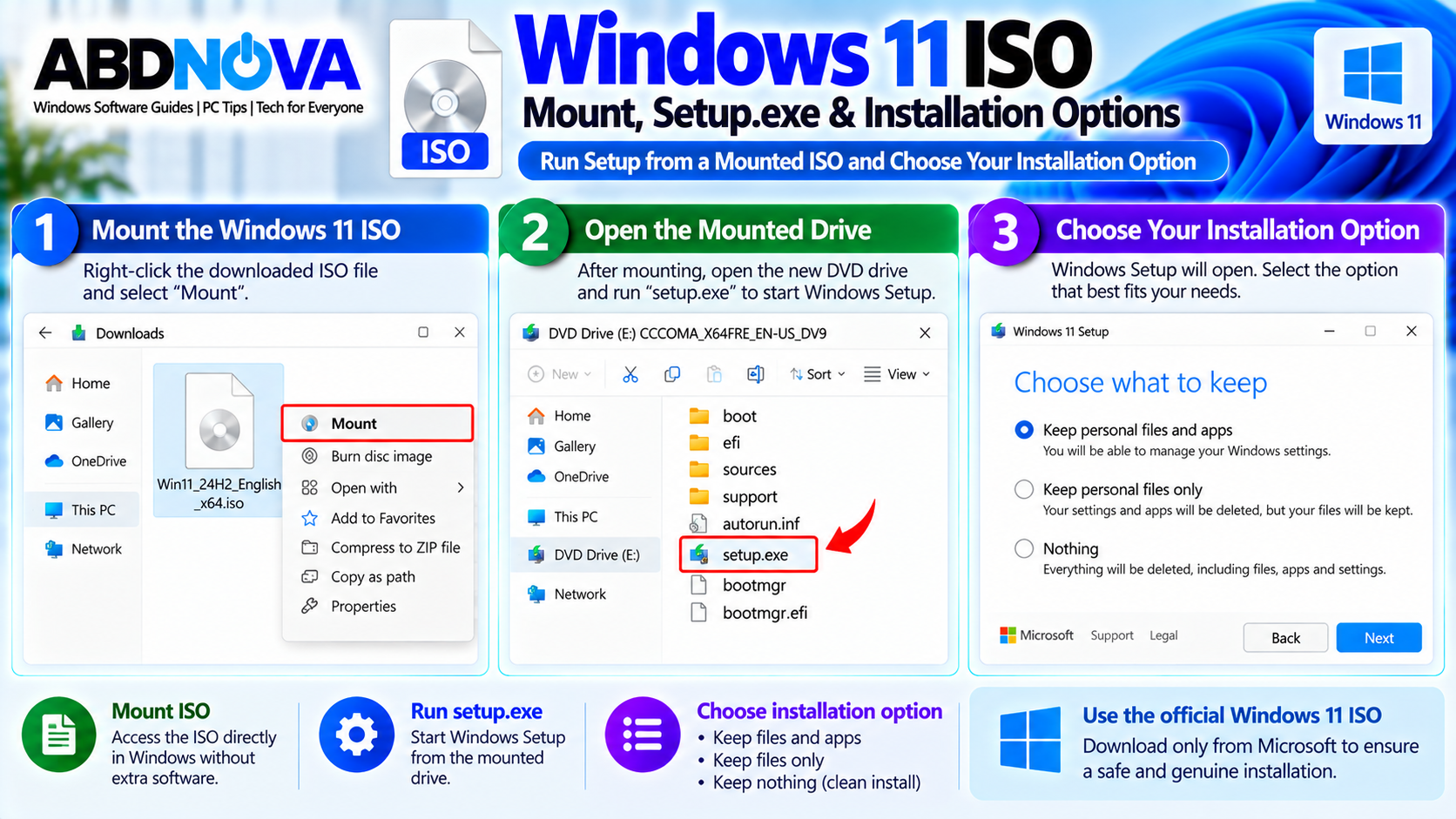
Before starting, decide whether you need an in-place installation from inside Windows or a full clean installation using bootable media.
| Method | Best Used For |
|---|---|
| Mounted ISO + setup.exe | Starting Windows Setup from an existing working Windows installation |
| Bootable USB | Clean installation, installing on a new drive, or reinstalling when Windows cannot boot |
Windows 11 Minimum Requirements
Before installing Windows 11, confirm that the computer meets Microsoft’s minimum hardware requirements.
| Requirement | Minimum |
|---|---|
| Processor | Compatible 64-bit CPU, 1 GHz or faster, 2 or more cores |
| RAM | 4 GB |
| Storage | 64 GB or larger |
| Firmware | UEFI, Secure Boot capable |
| TPM | TPM 2.0 |
| Graphics | DirectX 12 compatible with WDDM 2.0 |
| Display | 720p display larger than 9 inches |
Before You Install Windows 11
A clean installation can be destructive, so preparation is important.
Before starting:
- Back up documents, photos, videos, and other important files.
- Check Windows 11 hardware compatibility.
- Confirm TPM 2.0 and Secure Boot support.
- Check your current Windows edition.
- Confirm Windows activation.
- Save important software licenses and account information.
- Keep a laptop connected to power.
- Download important network or storage drivers if required by the PC manufacturer.
- Disconnect unnecessary external storage devices.
Check Your Windows Edition
The Windows edition you reinstall should match the existing license.
Open:
Under Windows specifications, check Edition. For example, reinstall Windows 11 Home if the device is licensed for Home, or Windows 11 Pro if it is licensed for Pro.
Download the Official Windows 11 ISO
Use Microsoft’s official Windows 11 download service to obtain genuine installation files. Microsoft’s current public Windows 11 download page provides the latest release ISO and installation-media options.
How to Mount Windows 11 ISO & Run Setup
Windows can mount an ISO directly without additional ISO-mounting software.
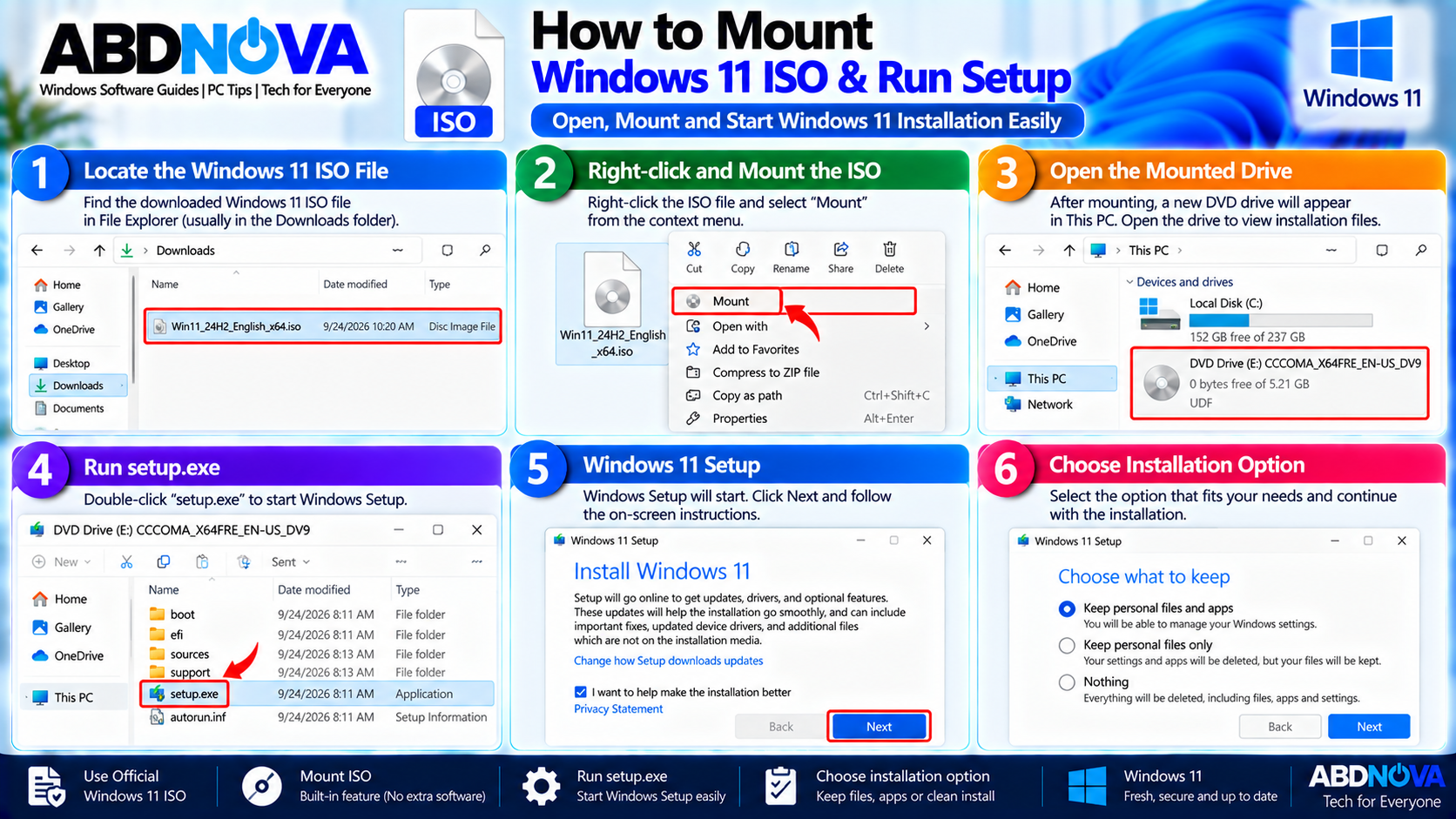
- Open File Explorer.
- Locate the downloaded Windows 11 .iso file.
- Right-click the ISO.
- Select Mount.
- Windows creates a virtual DVD drive.
- Open the mounted drive.
- Locate and double-click setup.exe.
Windows Setup will then start from the mounted ISO.
Mounting an ISO Is Not the Same as Booting From It
This distinction is important. When you mount an ISO while Windows is already running and launch setup.exe, Setup starts from the existing Windows environment.
Depending on the supported setup path, Windows can provide choices such as:
- Keep personal files and apps
- Keep personal files only
- Keep nothing
Check the selected option carefully before starting installation.
Reinstall Windows 11 From a Mounted ISO
If Windows still starts normally, mounting an official ISO can be a convenient way to launch Windows Setup without first booting from external installation media.
After mounting the ISO, open the virtual drive and run:
Follow Windows Setup and carefully review what will be retained before selecting Install. The PC can restart several times while Windows is being installed.
Windows 11 Clean Installation – Bootable USB, Drive & Partition Setup
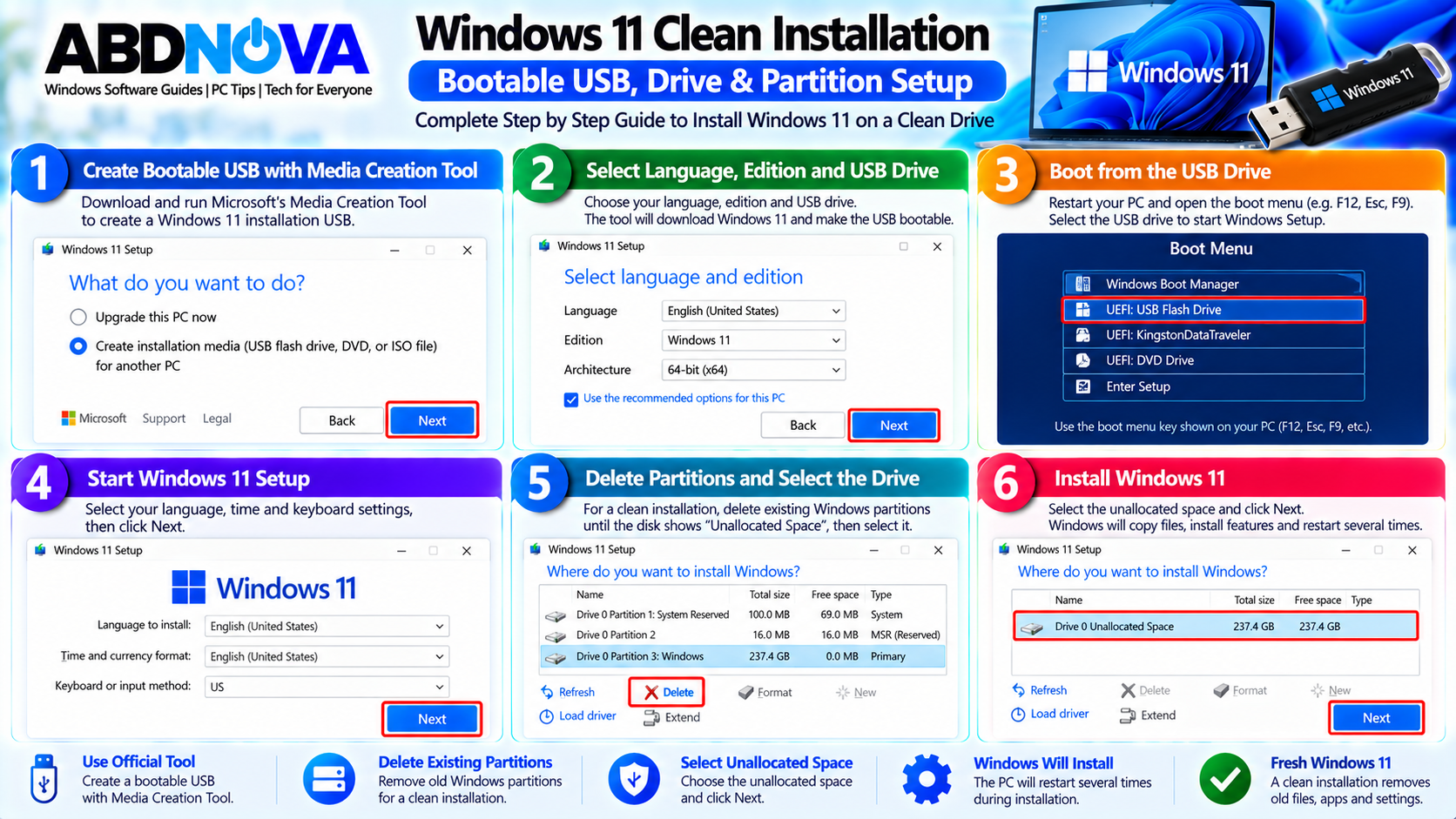
For Microsoft’s full clean-install procedure, prepare Windows installation media and start the computer from that media.
Create Windows 11 Bootable Installation Media
Microsoft’s Media Creation Tool can create Windows 11 installation media on a USB flash drive. A blank USB drive with at least 8 GB of space is recommended because existing content on the USB will be deleted.
For the complete process, see our Windows 11 Media Creation Tool guide.
Boot the PC From the Windows 11 USB
- Connect the Windows installation USB.
- Shut down or restart the computer.
- Open the PC manufacturer’s boot menu.
- Select the Windows installation USB.
- Wait for Windows Setup to start.
- Select the language and regional settings.
- Select the keyboard settings.
- Choose Install Windows 11.
- Continue through Windows Setup.
Windows 11 Product Key During Clean Installation
Windows Setup may ask for a product key. If Windows was previously activated on the same PC with a valid digital license, Setup can provide an I don’t have a product key option.
Select the Windows edition that matches the device’s existing license.
On some computers, Setup automatically detects a product key stored in firmware, so the product-key screen may not appear.
Select the Windows Installation Drive Carefully
This is one of the most important stages of a clean installation. Microsoft’s clean-install procedure can involve deleting partitions on the target Windows disk until the intended installation area appears as Unallocated Space.
If you are uncertain which disk contains important data, stop before deleting or formatting anything and verify the drive first.
Install Windows 11
After selecting the correct installation destination, continue with Install. Windows Setup copies files, installs Windows components, configures the system, and restarts the PC several times.
Do not force the computer to shut down while Windows installation is in progress.
After a Windows 11 Clean Installation
After Windows finishes installing, complete the initial setup and check the system before restoring all personal data.
Recommended steps include:
- Connect to the internet.
- Sign in with the appropriate Microsoft account.
- Check Windows activation.
- Run Windows Update.
- Install available security and quality updates.
- Check Device Manager for missing drivers.
- Install manufacturer-specific drivers when required.
- Test Wi-Fi or Ethernet.
- Test Bluetooth and audio.
- Check display resolution and graphics.
- Reinstall applications.
- Restore personal files from your backup.
ISO Mount vs Bootable USB
| Mounted ISO | Bootable USB |
|---|---|
| Used while an existing Windows installation is running | Used by booting the PC from installation media |
| Convenient for launching setup.exe | Suitable for a full clean installation |
| Can support in-place reinstall or upgrade paths | Useful when Windows cannot boot |
| Does not itself erase the drive | Clean-install choices can erase data and partitions |
Clean Install vs In-Place Reinstall
An in-place reinstall starts Windows Setup from an existing Windows environment and can preserve personal files, applications, and settings depending on the option selected.
A clean installation starts from Windows installation media and provides a fresh Windows installation. Microsoft’s clean-install procedure removes personal files, apps, settings, and manufacturer customizations from the Windows installation being replaced.
For troubleshooting a damaged but still bootable Windows installation, an in-place reinstall can therefore be less disruptive than a complete clean installation.
Windows 11 Clean Install Troubleshooting, Activation & Safe Installation
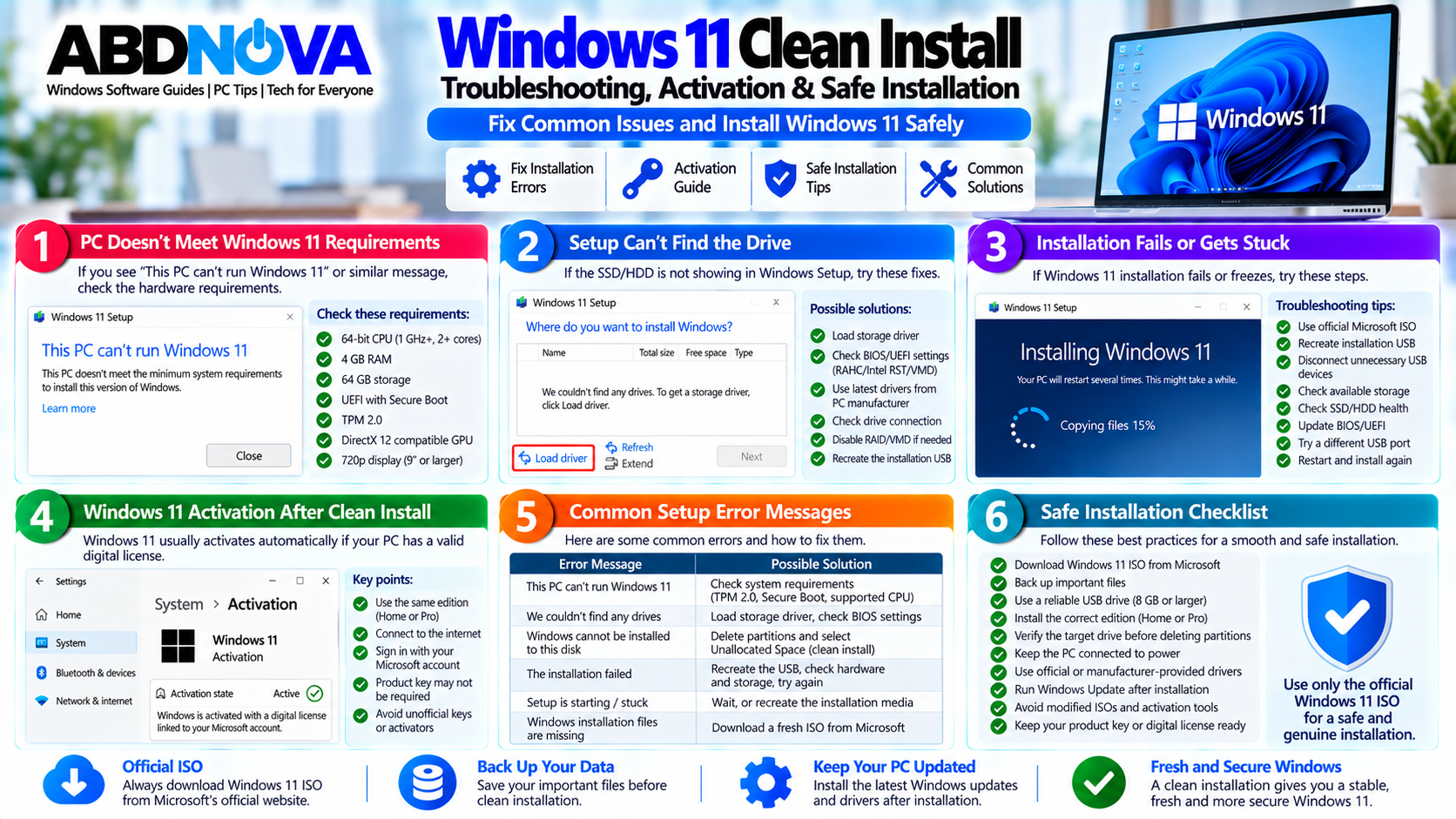
If Windows Setup fails, cannot detect the target drive, reports compatibility problems, or activation does not complete as expected, check the underlying cause before repeating destructive installation steps.
Windows 11 Setup Cannot Find the Drive
If the internal SSD does not appear during Windows Setup, possible causes include:
- Storage-controller configuration
- Missing storage drivers
- RAID or VMD configuration
- Firmware settings
- Drive connection or hardware problems
Check the PC or motherboard manufacturer’s support documentation before changing storage-controller settings.
Windows 11 Says the PC Is Not Compatible
Check Microsoft’s official Windows 11 requirements. Windows 11 requires compatible hardware including a supported 64-bit processor, at least 4 GB RAM, 64 GB storage, UEFI firmware with Secure Boot capability, and TPM 2.0.
Microsoft’s PC Health Check utility can also help assess Windows 11 eligibility from an existing Windows installation.
Avoid unofficial scripts intended to bypass CPU, TPM 2.0, or Secure Boot requirements.
Windows 11 Installation Fails or Gets Stuck
If Windows installation fails:
- Confirm hardware compatibility.
- Verify that the ISO or installation media came from Microsoft.
- Disconnect unnecessary USB devices.
- Check available storage.
- Check SSD or HDD health.
- Check manufacturer firmware and drivers.
- Recreate the installation USB if necessary.
- Restart and try again after identifying possible causes.
If the existing Windows installation still boots, consider less disruptive recovery options before performing a destructive clean installation. Our Windows 11 Recovery Environment (WinRE) guide covers Microsoft’s built-in recovery tools.
Windows 11 Activation After Reinstallation
If the PC already has a valid digital license and you reinstall the matching Windows edition, Windows normally activates again after connecting to the internet.
When appropriate, sign in using the Microsoft account associated with the device’s digital license.
Safe Windows 11 ISO Installation
For a safer installation:
- Use Microsoft’s official Windows 11 installation files.
- Back up important data first.
- Install the Windows edition matching your license.
- Verify the correct disk before deleting partitions.
- Keep the computer connected to reliable power.
- Confirm Windows 11 hardware requirements.
- Use official or manufacturer-provided drivers.
- Run Windows Update after installation.
- Avoid modified ISOs and activation tools.
Frequently Asked Questions
Can I mount a Windows 11 ISO without additional software?
Yes. Windows can mount ISO files directly through File Explorer, so separate ISO-mounting software is generally unnecessary.
Does mounting a Windows 11 ISO delete my files?
No. Simply mounting an ISO does not erase the PC. What happens to your files depends on the installation option you choose afterward.
Can I perform a clean install directly from a mounted ISO?
Running setup.exe from a mounted ISO inside the existing Windows installation starts Setup from within Windows. For Microsoft’s full clean-install procedure, boot the computer from Windows installation media.
Does a Windows 11 clean installation delete everything?
A clean installation removes personal files, apps, settings, and manufacturer customizations from the Windows installation being replaced. Back up important data before starting.
Do I need a new Windows 11 product key?
Not necessarily. A PC with an existing valid digital license can normally reactivate after reinstalling the matching Windows edition and connecting to the internet.
Does Windows 11 require TPM 2.0?
Yes. TPM 2.0 is part of Microsoft’s minimum Windows 11 hardware requirements.
Does Windows 11 require Secure Boot?
Microsoft lists UEFI firmware with Secure Boot capability as part of the minimum Windows 11 system requirements.
Where should I download the Windows 11 ISO?
Download Windows 11 installation files from Microsoft’s official Windows 11 download service rather than modified or unofficial ISO sources.
Final Thoughts
A Windows 11 ISO provides several useful installation and recovery options. If Windows still works, you can mount the ISO and launch setup.exe for an in-place installation path. If you need a completely fresh installation, create Windows installation media and boot the PC from it.
The most important step before a clean installation is backing up your data. A genuine clean installation can erase personal files, installed applications, settings, and existing Windows partitions on the selected drive.
Always verify the target disk carefully and use genuine Windows installation files from Microsoft.
Download Windows 11 ISO
Get the latest official Windows 11 ISO and installation media directly from Microsoft.