
Windows 11 Upgrade Assistant – Upgrade Guide for Compatible PCs
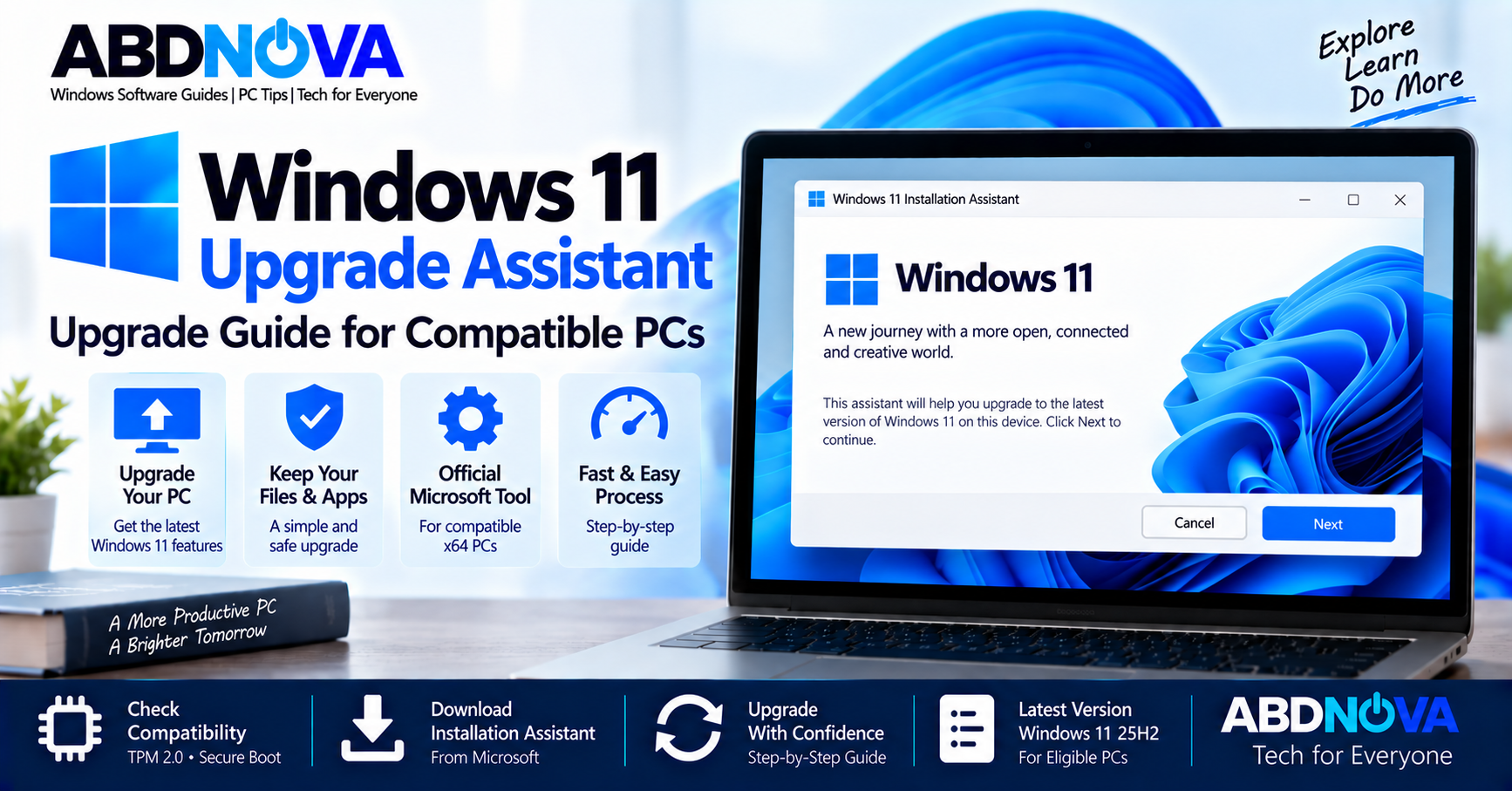
Windows 11 Upgrade Assistant is Microsoft’s official method for manually upgrading the Windows installation on the compatible PC you are currently using. Microsoft officially calls the tool Windows 11 Installation Assistant.
For most eligible PCs, Windows Update remains the normal upgrade route. However, Installation Assistant provides an official manual alternative when you want to upgrade a compatible x64 computer without waiting for the normal Windows Update rollout.
As of September 2026, Microsoft’s public Windows 11 download page lists Windows 11 2025 Update, version 25H2 as the current release.
Windows 11 Upgrade Options
| Method | Best For |
|---|---|
| Windows Update | Normal recommended Windows 11 upgrade |
| Installation Assistant | Manually upgrading the current compatible x64 PC |
| Windows 11 Installation Media | Upgrade, reinstall, or installation using USB media |
| Windows 11 ISO | Advanced installation, virtual machines, or manual media creation |
Microsoft recommends waiting until Windows Update indicates that Windows 11 is ready for a specific PC. Installation Assistant can provide another official upgrade route for an eligible device.
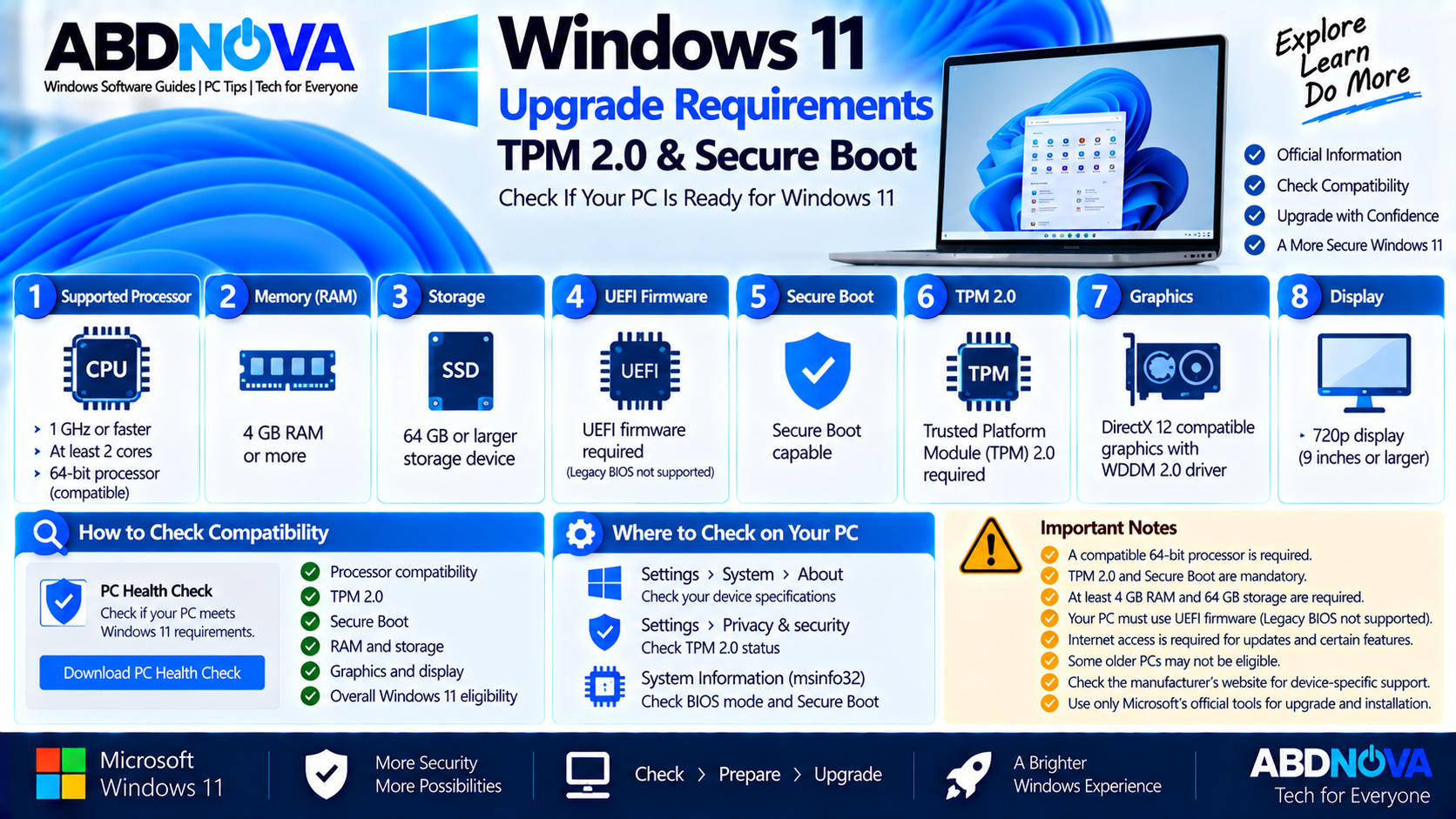
Windows 11 Upgrade Requirements, TPM 2.0 & Secure Boot
Before upgrading, make sure the PC meets Microsoft’s Windows 11 minimum hardware requirements.
- Compatible 64-bit processor running at 1 GHz or faster with at least 2 cores
- 4 GB RAM or more
- 64 GB or larger storage device
- UEFI firmware
- Secure Boot capable
- TPM 2.0
- DirectX 12-compatible graphics with a WDDM 2.0 driver
- 720p display larger than 9 inches
- Internet access for updates and certain features
For a direct upgrade from Windows 10, Microsoft requires an eligible device running Windows 10 version 2004 or later.
Check If Your PC Can Upgrade to Windows 11
Before starting the upgrade, check compatibility through Windows Update or Microsoft’s PC Health Check application.
On Windows 10, open:
If the PC qualifies and Microsoft has made the upgrade available for that device, Windows Update should display the Windows 11 upgrade option.
PC Health Check can also help identify whether important requirements such as TPM 2.0, Secure Boot, processor compatibility, RAM, and storage meet Windows 11 requirements.
Before Upgrading to Windows 11
A normal supported Windows upgrade is designed to preserve existing data, but creating a backup before installing a new Windows version is strongly recommended.
Before upgrading:
- Back up important documents, photos, and other files.
- Connect a laptop to AC power.
- Use a stable internet connection.
- Make sure enough free storage is available.
- Install important driver updates when appropriate.
- Disconnect unnecessary external hardware if it causes compatibility issues.
- Keep your Microsoft account information available.
- Save important software license information.
- Check the PC manufacturer’s Windows 11 compatibility information.
Upgrade Windows 11 Through Windows Update
For most compatible PCs, Windows Update is the preferred upgrade method.
On Windows 10, open:
Select Check for updates. If Windows 11 is offered for the device, follow the on-screen option to download and install it.
Microsoft rolls out upgrades after compatibility evaluation, so an eligible PC may not receive the upgrade at exactly the same time as another device.
Windows 11 Installation Assistant
The Windows 11 Installation Assistant is Microsoft’s official manual-upgrade tool for the PC you are currently using.
Microsoft currently describes Installation Assistant as the best option for installing Windows 11 on the device currently in use.
Installation Assistant Requirements
Before using the tool, make sure:
- You have a valid Windows 10 or Windows 11 license.
- The PC meets Windows 11 hardware requirements.
- Windows 10 version 2004 or later is installed when upgrading from Windows 10.
- At least 9 GB of free disk space is available for the Windows 11 download.
- You have administrator privileges.
- The PC uses an x64 processor.
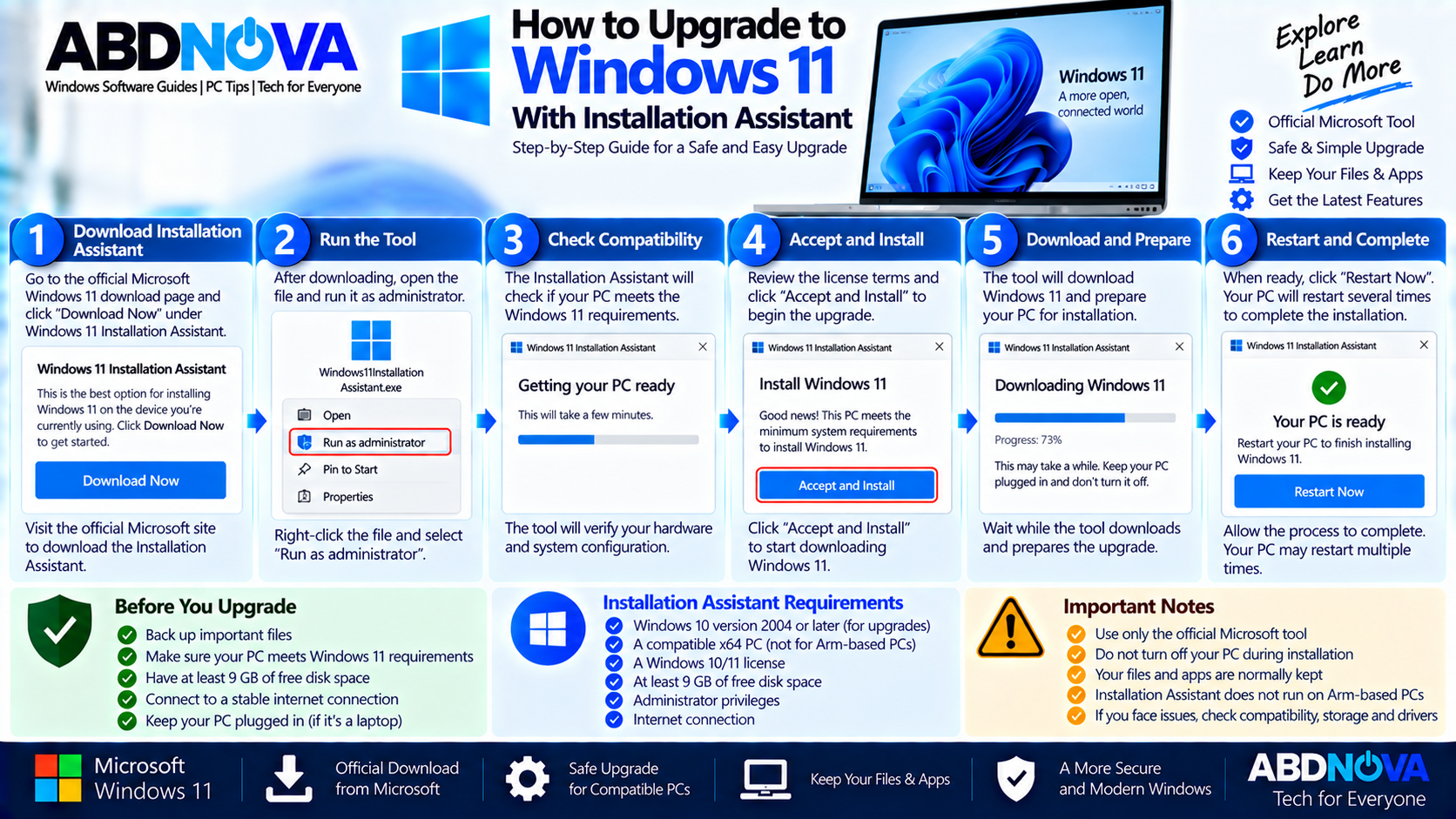
How to Upgrade to Windows 11 With Installation Assistant
Use Microsoft’s official Windows 11 download page to obtain the Installation Assistant.
- Open Microsoft’s official Windows 11 download page.
- Locate Windows 11 Installation Assistant.
- Select Download Now.
- Run the downloaded Installation Assistant as administrator.
- Wait while the tool checks hardware compatibility.
- Review Microsoft’s license terms.
- Select Accept and Install.
- Allow Windows 11 to download and prepare the upgrade.
- When prompted, select Restart Now.
- Allow Windows Setup to complete the installation.
If you want a dedicated guide for Microsoft’s tool, see our Windows 11 Installation Assistant Download article.
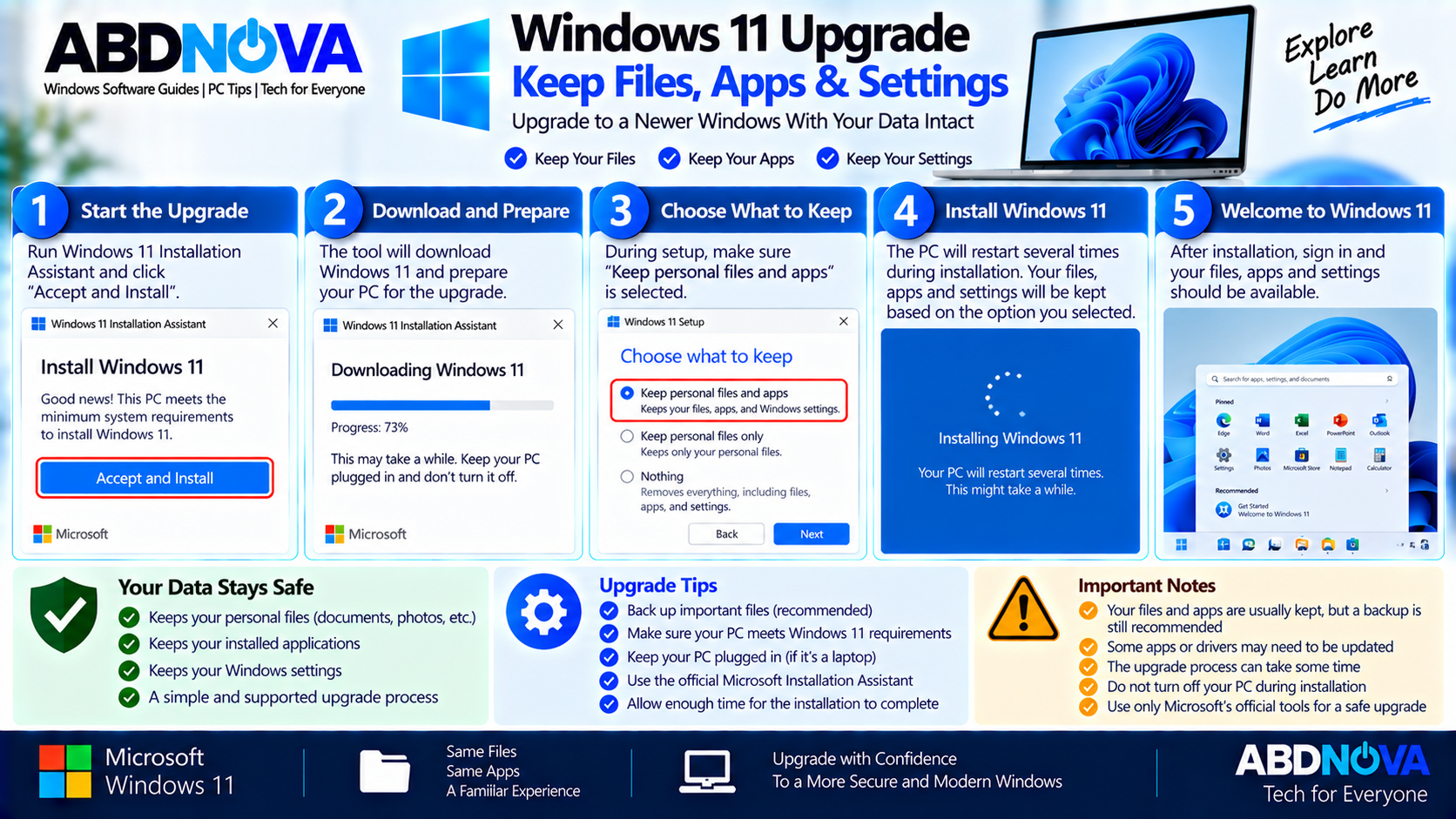
Windows 11 Upgrade – Keep Files, Apps & Settings
A normal supported Windows upgrade is designed to migrate your existing files and data. Even so, back up important files before beginning the upgrade.
When performing an in-place Windows installation through installation media, Windows Setup can provide different options.
Keep Personal Files and Apps
This option keeps personal data, installed applications, and Windows settings.
Keep Personal Files Only
This option preserves personal data but removes installed applications.
Nothing
This option removes personal files, applications, and settings.
Upgrade Windows 11 to a Newer Feature Version
Windows upgrade tools are not limited to moving from Windows 10 to Windows 11. Microsoft also provides mechanisms for manually installing newer Windows feature updates on compatible PCs.
For normal monthly quality and security updates, continue using Windows Update rather than treating Installation Assistant as a replacement for regular updating.
For information about the current Windows 11 feature release, see our Windows 11 25H2 Download guide.
Installation Assistant vs Installation Media
The two Windows installation methods have different purposes.
| Installation Assistant | Installation Media |
|---|---|
| Designed mainly for upgrading the current PC | Useful for installation or reinstallation |
| Runs from the existing Windows installation | Can create or use bootable installation media |
| Simple manual upgrade method for compatible x64 PCs | Useful for another PC or USB-based installation |
| No bootable USB required for the normal Assistant workflow | Suitable when bootable USB media is needed |
If you need bootable installation media rather than a direct upgrade of the current PC, see our Windows 11 Media Creation Tool guide.
Windows 11 Installation Assistant Does Not Support Arm PCs
Microsoft currently states that Windows 11 Installation Assistant works only with x64 processors and does not run on Arm-based PCs.
Do not use modified versions of Installation Assistant to bypass this limitation.
Microsoft provides a separate Windows 11 Arm64 ISO for compatible Arm-based systems.
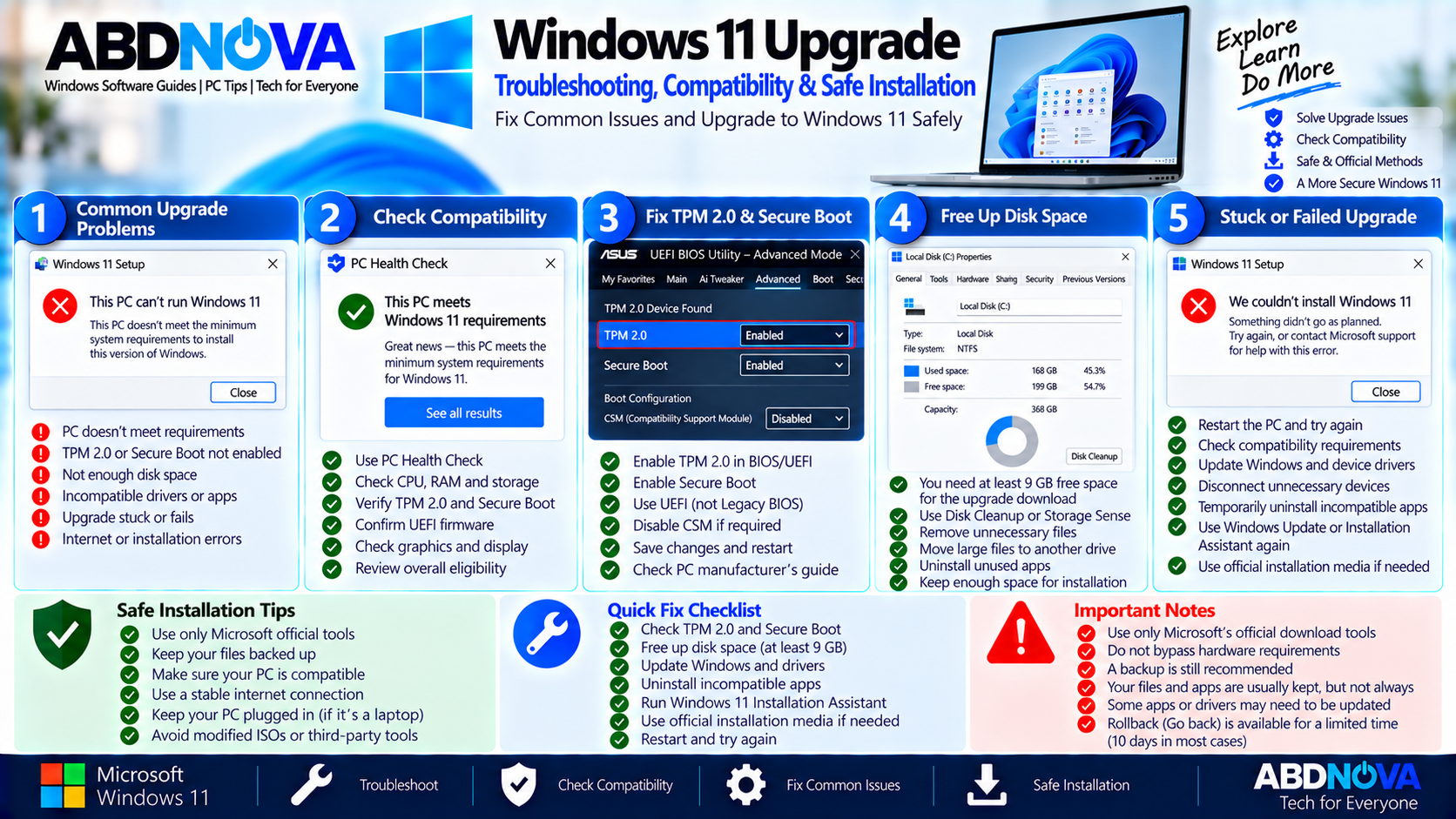
Windows 11 Upgrade Troubleshooting, Compatibility & Safe Installation
Windows 11 Upgrade Is Stuck or Fails
An upgrade can fail because of insufficient storage, incompatible drivers or applications, hardware compatibility problems, damaged Windows components, or an installation error.
If the upgrade fails:
- Restart the PC and check Windows Update again.
- Confirm Windows 11 hardware eligibility.
- Check available disk space.
- Install important Windows updates.
- Update important device drivers.
- Temporarily disconnect unnecessary external devices.
- Remove incompatible applications if Windows identifies them.
- Check the PC manufacturer’s Windows 11 compatibility information.
- Retry with Microsoft’s official Installation Assistant when appropriate.
- Use official Windows installation media if another installation method is required.
TPM 2.0 or Secure Boot Requirement Fails
If compatibility checks report TPM 2.0 or Secure Boot problems, first determine whether the required feature is available but disabled in the PC’s UEFI firmware.
Check the computer or motherboard manufacturer’s official instructions before changing firmware settings.
Not Enough Free Space
Microsoft currently requires at least 9 GB of free disk space for Installation Assistant to download Windows 11.
The Windows 11 operating-system requirement itself specifies a 64 GB or larger storage device.
Remove unnecessary temporary files or move large personal files to appropriate backup storage if more free space is required.
After Upgrading to Windows 11
After Windows 11 starts successfully, open:
Install available Windows updates and check for required device drivers.
Also verify that important hardware and applications work correctly:
- Wi-Fi and Ethernet
- Bluetooth
- Audio
- Display and graphics
- Printers
- Webcam
- Security software
- Frequently used applications
To check the installed Windows version, press Windows + R, type:
winverand press Enter.
Can You Go Back After Upgrading?
Windows provides a limited rollback period after an upgrade.
Open:
Microsoft states that the Go back option is available only for a limited time and, in most cases, for 10 days after upgrading.
Going back keeps personal files, but applications and drivers installed after the upgrade can be removed, and settings changes made after upgrading can be reversed.
Safe Windows 11 Upgrade
Use Microsoft’s official upgrade and installation methods:
- Windows Update
- Windows 11 Installation Assistant
- Official Windows installation media
- Official Windows 11 ISO
Avoid:
- Modified Windows 11 ISO files
- Pre-activated Windows images
- KMS activation packages
- Hardware-requirement bypass scripts
- Unknown upgrade assistants
- Unverified third-party Windows download sites
A valid Windows license is still required for activation.
Frequently Asked Questions
What is Windows 11 Installation Assistant?
It is Microsoft’s official application for manually upgrading a compatible x64 PC to Windows 11. It provides an alternative when you do not want to wait for the normal Windows Update rollout.
What Windows 11 version is currently available?
As of September 2026, Microsoft’s public Windows 11 download page lists Windows 11 2025 Update, version 25H2 as the current release.
Does Windows 11 Installation Assistant work on Arm PCs?
No. Microsoft’s current Installation Assistant supports x64 PCs and does not run on Arm-based computers.
How much free space does Installation Assistant require?
Microsoft specifies at least 9 GB of free disk space to download Windows 11 through Installation Assistant. Windows 11 itself requires a 64 GB or larger storage device.
Will upgrading to Windows 11 delete my files?
A normal supported upgrade is designed to migrate files and data, but Microsoft recommends backing up important files before installing a new Windows version.
Should I use Windows Update or Installation Assistant?
Windows Update is the normal upgrade route and Microsoft recommends waiting until the upgrade is offered for the device. Installation Assistant provides an official manual alternative for an eligible compatible x64 PC.
Can I return to my previous Windows version?
Usually, Windows provides a Go back option for a limited period after an upgrade. Microsoft states that this is 10 days in most cases.
Final Thoughts
For most users, Windows Update is the normal way to upgrade to Windows 11 because it offers the upgrade after evaluating device eligibility and compatibility.
For a compatible x64 PC that needs a manual upgrade, Windows 11 Upgrade Assistant, officially named Windows 11 Installation Assistant, provides a straightforward Microsoft-supported alternative.
Before upgrading, verify TPM 2.0, Secure Boot, processor and other Windows 11 requirements, back up important files, connect the PC to reliable power and internet, and use only Microsoft’s official Windows installation tools.
Windows 11 Installation Assistant
Download Microsoft’s official Installation Assistant for a compatible x64 PC.