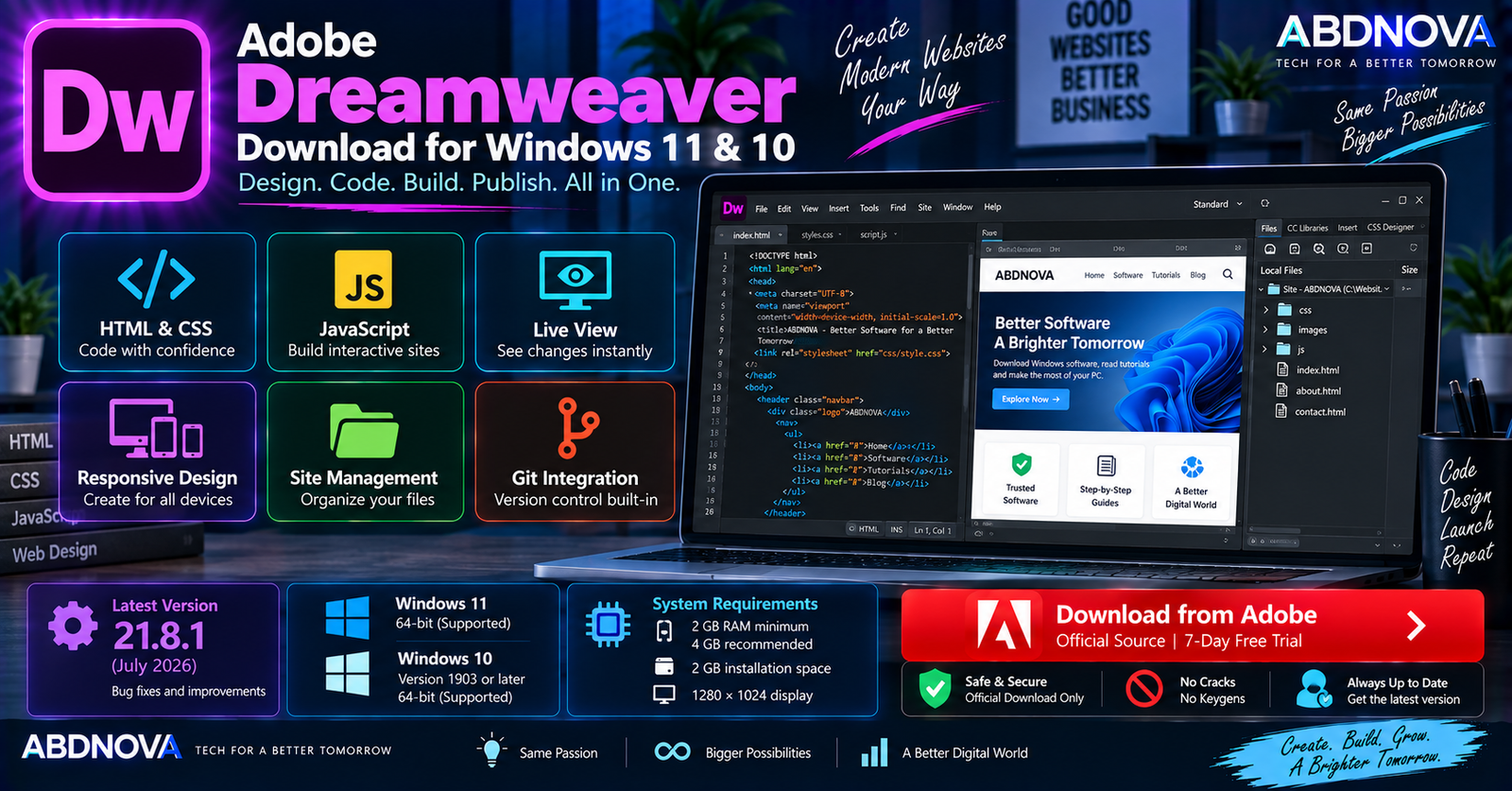

Adobe Dreamweaver Download for Windows 11 & 10
Adobe Dreamweaver Download for Windows gives web designers and developers a professional environment for creating, coding, previewing, managing, and publishing websites. It combines a visual design workspace with direct HTML, CSS, and JavaScript editing.
Dreamweaver is still actively maintained. The current documented release is Dreamweaver 21.8.1, released in July 2026. It supports both 64-bit Windows 11 and Windows 10 version 1903 or later.
Its combination of code editing, Live View, responsive design tools, site management, Git integration, templates, and publishing features makes Dreamweaver useful for users who prefer an integrated web-development environment instead of several separate tools.
Adobe Dreamweaver for Windows at a Glance
| Details | Information |
|---|---|
| Software | Adobe Dreamweaver |
| Developer | Adobe |
| Category | Web Design & Development |
| Current Version | 21.8.1 |
| Release | July 2026 |
| Windows 11 | Supported — 64-bit |
| Windows 10 | Version 1903 or later — 64-bit |
| Processor | Intel Core 2 / AMD Athlon 64, 2 GHz+ |
| RAM | 2 GB minimum; 4 GB recommended |
| Storage | 2 GB plus temporary installation space |
| Display | 1280 × 1024 |
| HTML / CSS / JavaScript | Supported |
| Live View | Yes |
| Git Integration | Yes |
| License | Paid subscription |
| Free Trial | 7 days |
| Official Source | Adobe |
Adobe Dreamweaver 21.8.1
Dreamweaver 21.8.1 is Adobe’s current documented release from July 2026. The update includes bug fixes following the larger Dreamweaver 21.8 release.
Among the fixes, Adobe addressed problems involving third-party extension installation and Preview in Browser/Open in Browser for files opened from locations such as OneDrive, Dropbox, and local drives.
The Dreamweaver 21.8 generation also updated several underlying components and added built-in server behaviors and database bindings for supported data-driven workflows.
Adobe Dreamweaver for Windows 11 & 10
Dreamweaver on Windows 11
Current Dreamweaver 21.8.1 officially supports 64-bit Windows 11. Windows 11 users can install the latest release through Adobe Creative Cloud Desktop.
Dreamweaver combines coding, visual preview, asset management, and site-management tools in one application, which can reduce the need to constantly switch between a separate editor, browser preview, visual design tool, and file-management utility.
Dreamweaver on Windows 10
Unlike several newer Adobe applications that now have stricter Windows requirements, Dreamweaver 21.8.1 continues to support Windows 10 version 1903 or later, 64-bit.
Windows 11 64-bit → Supported
Windows 10 1903+ 64-bit → Supported
Adobe Dreamweaver System Requirements
| Component | Requirement |
|---|---|
| Processor | Intel Core 2 or AMD Athlon 64, 2 GHz or faster |
| Operating System | Windows 10 version 1903+ 64-bit or Windows 11 64-bit |
| RAM | 2 GB minimum |
| Recommended RAM | 4 GB |
| Storage | 2 GB for installation plus approximately 2 GB temporary free space |
| Display | 1280 × 1024 with 16-bit video card |
| Internet | Required for activation, subscription validation, and online services |
Dreamweaver’s official minimum requirements are relatively modest. However, more memory can be useful when running Dreamweaver together with several browsers, local development servers, Photoshop, Illustrator, and other development tools.
How to Download & Install Adobe Dreamweaver
Dreamweaver should be downloaded through Adobe’s official website and Creative Cloud system.
- Open Adobe’s official Dreamweaver page.
- Select Free Trial or choose an eligible subscription.
- Sign in with your Adobe account.
- Install Adobe Creative Cloud Desktop if required.
- Open Creative Cloud Desktop.
- Find Dreamweaver.
- Select Install.
- Wait for installation to finish.
- Launch Dreamweaver.
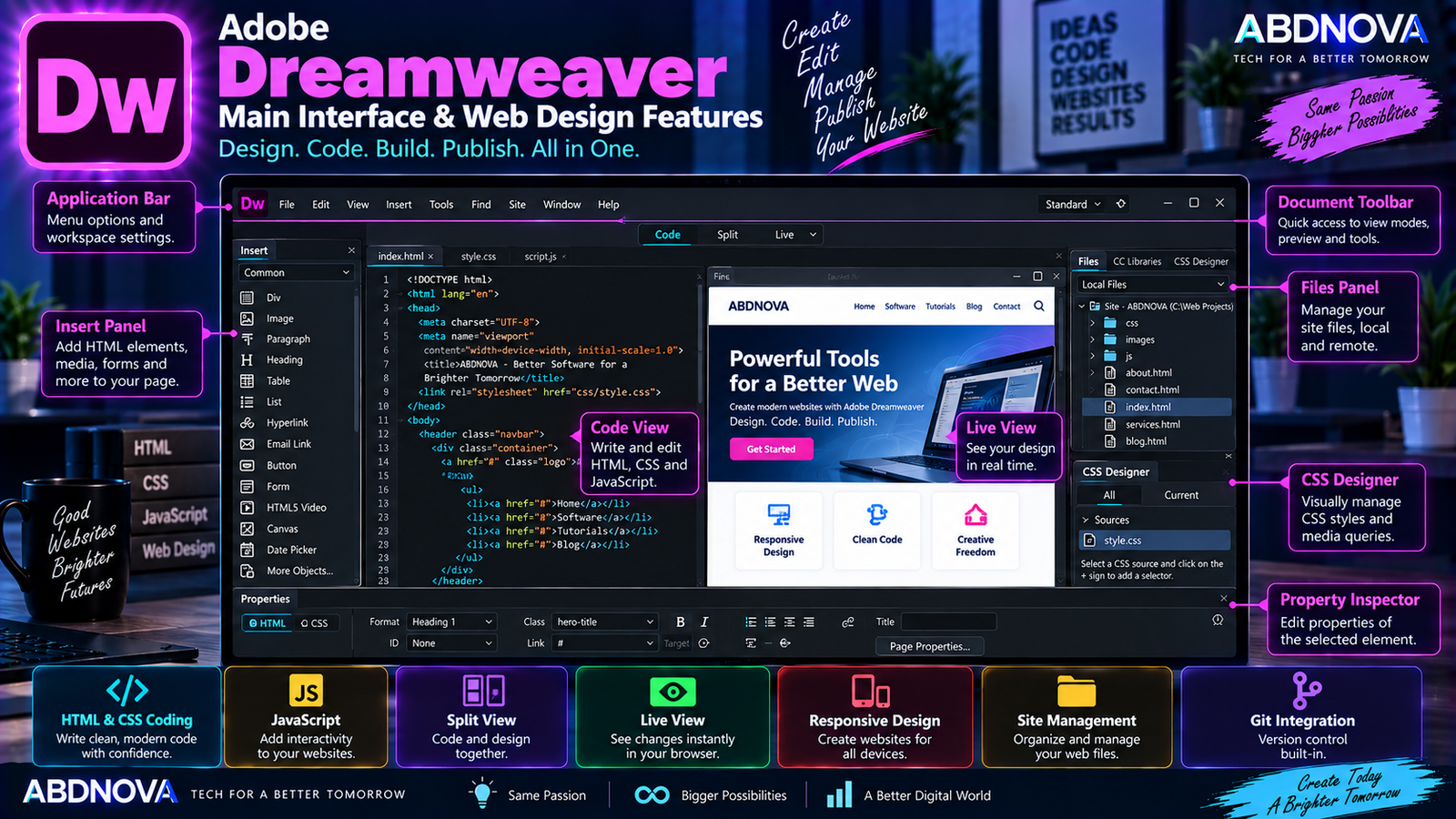
Adobe Dreamweaver Main Interface & Web Design Features
Dreamweaver provides a development workspace built around both source-code editing and visual website creation. Major tools include the code editor, document workspace, Files panel, Properties tools, Live View, Insert tools, and site-management features.
Code Editor
Dreamweaver includes a dedicated code editor for writing and editing web code. Core supported web technologies include:
- HTML.
- CSS.
- JavaScript.
Its coding engine and code hints can make common web-development tasks faster while still allowing direct control over the source code.
Code Hints
Code hints help complete common syntax and show available elements or properties while you type. They can help beginners learn HTML and CSS while reducing repetitive typing for more experienced developers.
Live View
Live View provides a visual representation of the web page while you work. Developers can interact with page content and inspect changes without completely leaving the Dreamweaver environment.
This combination of code and visual feedback is one of the features that distinguishes Dreamweaver from conventional text-focused code editors.
Responsive Website Design
Dreamweaver is designed for creating responsive websites that adapt to different devices and screen sizes.
Developers can combine:
- HTML structure.
- CSS layouts.
- Responsive CSS.
- JavaScript.
- Visual previews.
This makes it possible to create and test web content intended for desktops, laptops, tablets, and mobile devices.
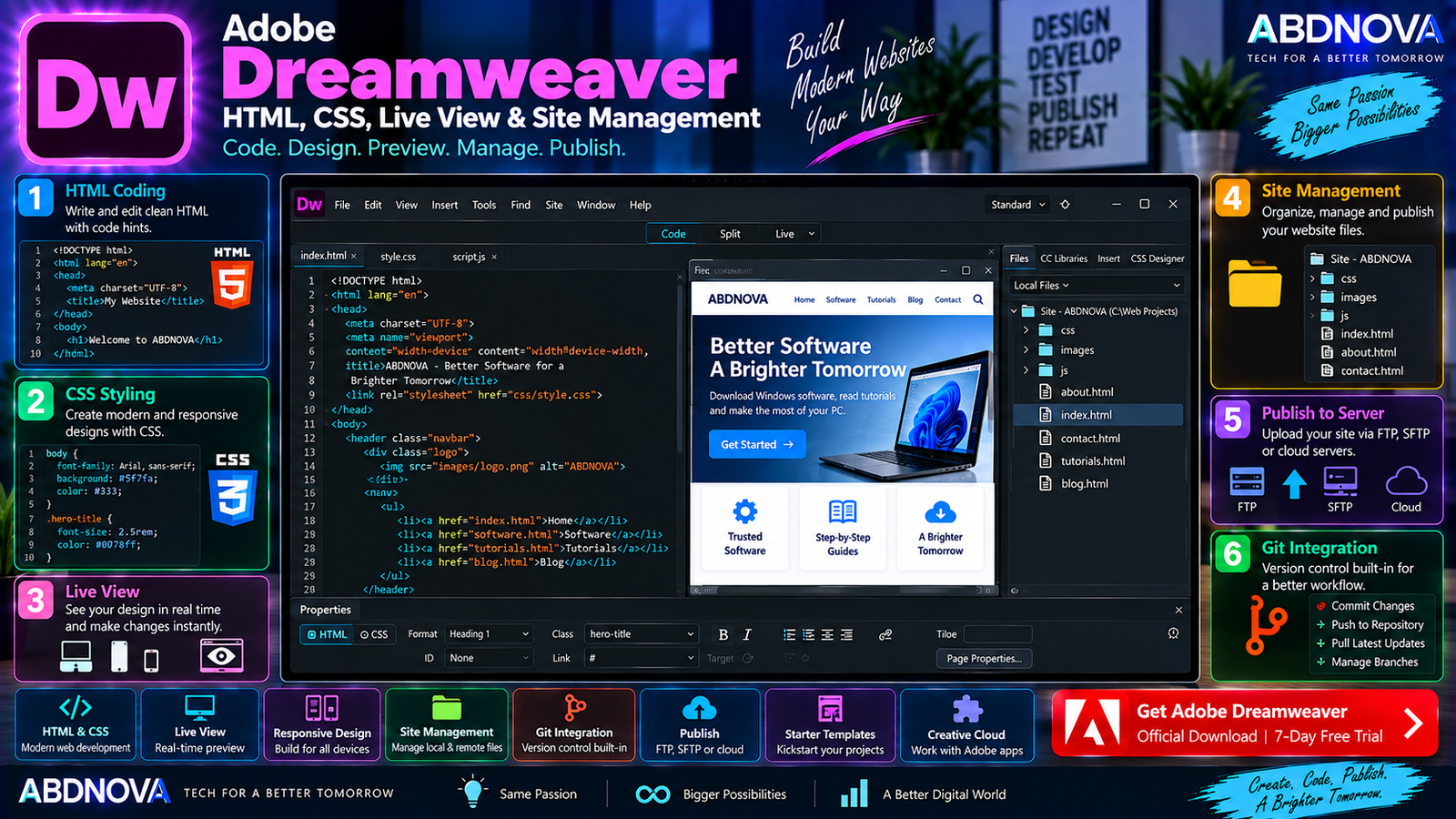
Adobe Dreamweaver HTML, CSS, Live View & Site Management
HTML Editing
Dreamweaver gives developers direct control over HTML page structure. You can create and edit headings, paragraphs, links, images, tables, forms, lists, navigation elements, and other page components.
CSS Editing
CSS tools can be used to manage:
- Typography.
- Colors.
- Spacing.
- Borders.
- Backgrounds.
- Responsive layouts.
- Navigation.
- Page positioning.
- Mobile design.
The combination of code editing and visual feedback can make it easier to inspect styling changes while developing a page.
JavaScript Development
Dreamweaver supports JavaScript-based web development for interactive website elements such as menus, buttons, forms, animations, and dynamic page behavior.
Starter Templates
Adobe provides starter templates that can reduce setup time for common projects, including:
- HTML emails.
- About pages.
- Blogs.
- Ecommerce pages.
- Newsletters.
- Portfolios.
These templates can be customized instead of starting every project from an empty document.
Site Management
Dreamweaver is more than a code editor. Its site-management tools help define and manage the files that belong to a website project.
index.html
about.html
contact.html
css/
js/
images/
assets/
Files Panel
The Files panel keeps website folders and project assets accessible from within Dreamweaver. It can be used to manage HTML pages, CSS files, JavaScript files, images, fonts, documents, and other website resources.
Preview in Browser
Dreamweaver can open website pages in a browser so you can test how they behave outside the editor.
Browser testing remains important because layouts and interactive features can behave differently across browsers and screen sizes.
Git Integration
Dreamweaver includes built-in Git integration for common source-control operations. Git is useful for:
- Tracking code changes.
- Managing project history.
- Working with development teams.
- Reverting unwanted changes.
- Maintaining branches.
Multi-Monitor Support
Dreamweaver supports multi-monitor workflows on Windows. For example, the code workspace can remain on one display while another monitor is used for visual design, browser testing, or documentation.
Creative Cloud Libraries
Dreamweaver can work with supported Creative Cloud Library assets such as logos, images, graphics, and other brand resources.
If you use multiple Adobe applications, Creative Cloud Desktop handles their installation and updates. See our Adobe Creative Cloud Desktop Download for Windows guide for the Adobe app-management workflow.
Server Behaviors & Database Bindings
Dreamweaver 21.8 added built-in server behaviors and database bindings for supported data-driven workflows, reducing the need for additional extensions for these capabilities.
Adobe Dreamweaver vs Visual Studio Code
| Feature | Dreamweaver | Visual Studio Code |
|---|---|---|
| Code Editor | Yes | Yes |
| Visual Web Editing | Yes | Limited |
| Live View | Yes | Browser / extensions |
| HTML / CSS / JavaScript | Yes | Yes |
| Git | Built-in | Built-in |
| Site Management | Strong | Project / folder based |
| Extensions | Available | Extensive ecosystem |
| Visual Beginner Workflow | Stronger | More code-focused |
| Price | Paid | Free |
Dreamweaver combines code editing with visual website design and dedicated site-management tools. Visual Studio Code is primarily a code editor with a much larger extension ecosystem.
Adobe Dreamweaver vs WordPress
Dreamweaver and WordPress serve different purposes. Dreamweaver is desktop software for creating and editing website code and project files, while WordPress is a database-backed content management system built around themes, plugins, blocks, and an administration dashboard.
Dreamweaver can be useful when developers want direct control over HTML, CSS, JavaScript, and website files. WordPress is commonly used when a site requires convenient content publishing and management through a browser-based dashboard.
Is Adobe Dreamweaver Free?
No. Adobe Dreamweaver is commercial software. Adobe currently provides an official 7-day free trial containing the full application and latest updates.
After the trial, continued use requires an eligible Creative Cloud membership. Pricing can vary by region, billing method, taxes, and current Adobe offers.
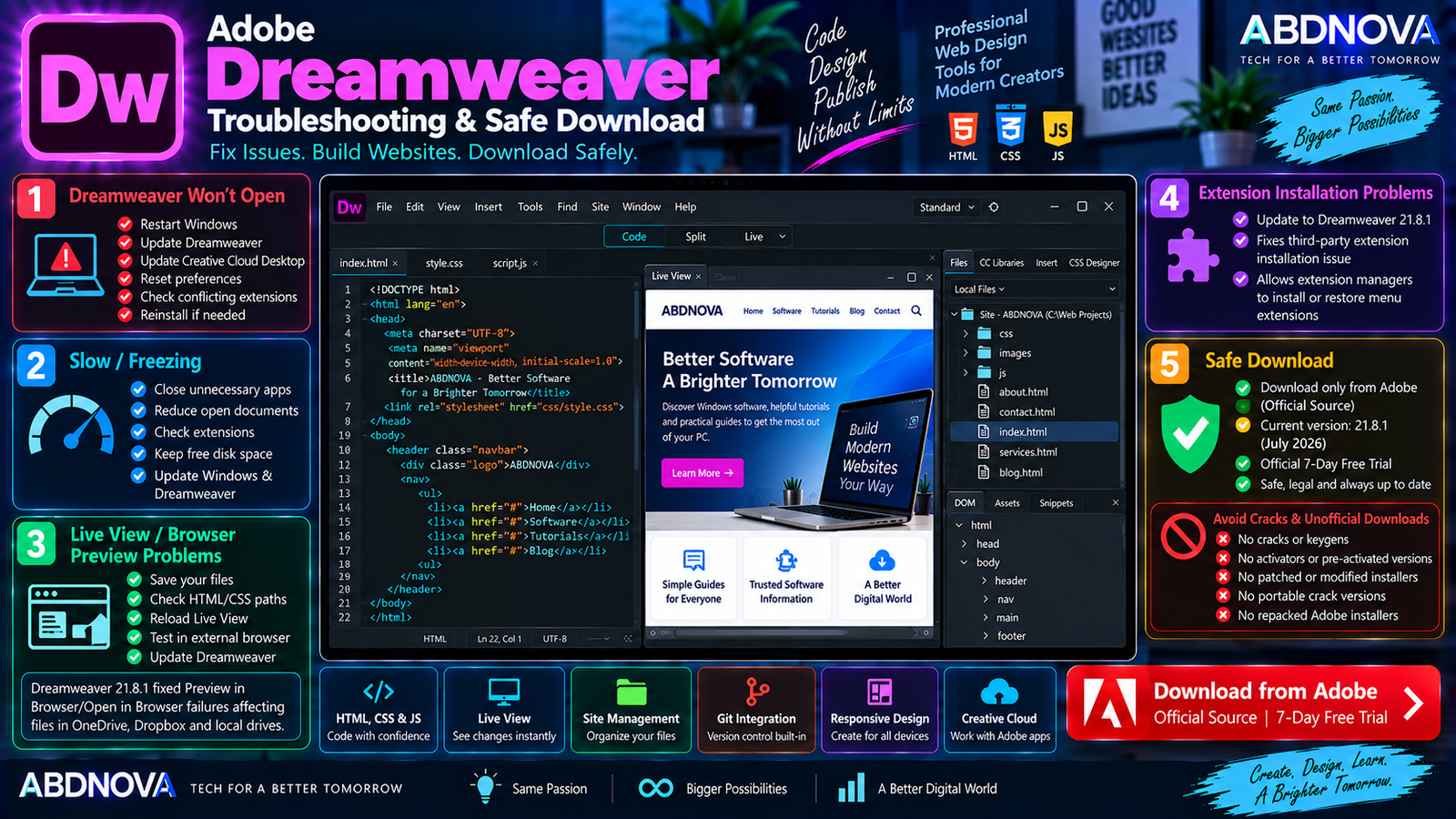
Adobe Dreamweaver Troubleshooting & Safe Download
Dreamweaver Won’t Open
Try:
- Restart Windows.
- Update Dreamweaver.
- Update Creative Cloud Desktop.
- Reset Dreamweaver preferences.
- Temporarily disable problematic third-party extensions.
- Check available storage.
- Reinstall Dreamweaver if necessary.
Also confirm that the PC is running a supported 64-bit version of Windows.
Dreamweaver Is Running Slowly
If Dreamweaver becomes slow:
- Close unnecessary applications.
- Restart Dreamweaver.
- Keep sufficient free disk space.
- Reduce unnecessary open documents.
- Check problematic extensions.
- Update Dreamweaver and Windows.
- Use more RAM for larger development workflows.
Live View Is Not Working
If Live View does not display the website correctly:
- Check the HTML and CSS for errors.
- Save modified files.
- Reload Live View.
- Test the page in an external browser.
- Check linked CSS and JavaScript files.
- Confirm that local site paths are correct.
- Update Dreamweaver.
Preview in Browser Fails
Update Dreamweaver first. Version 21.8.1 fixed a Preview in Browser/Open in Browser problem that could affect files stored in OneDrive, Dropbox, and other locations.
Third-Party Extension Won’t Install
Again, update Dreamweaver first. Adobe’s 21.8.1 release includes a fix for an issue that could prevent third-party extension managers from installing or restoring menu extensions correctly.
How to Update Adobe Dreamweaver
Keeping Dreamweaver updated is useful for bug fixes, compatibility improvements, updated third-party components, and security-related changes.
Safe Adobe Dreamweaver Download
Always obtain Dreamweaver directly through Adobe and the official Creative Cloud system.
- Dreamweaver cracks.
- Dreamweaver keygens.
- Dreamweaver activators.
- Pre-activated Dreamweaver copies.
- Lifetime-activated copies.
- Unofficial portable cracks.
- Patched Dreamweaver installers.
- Modified Creative Cloud installers.
- Repacked Adobe installers.
Unofficial installers can contain outdated components, unwanted modifications, malware, or unauthorized activation tools. Use Adobe’s official installer and legitimate Creative Cloud licensing instead.
Frequently Asked Questions
Does Adobe Dreamweaver work on Windows 11?
Yes. Dreamweaver 21.8.1 officially supports 64-bit Windows 11.
Does Dreamweaver still support Windows 10?
Yes. Current Dreamweaver 21.8.1 supports Windows 10 version 1903 or later, 64-bit.
What is the latest Adobe Dreamweaver version?
Adobe’s current documented release is Dreamweaver 21.8.1, released in July 2026.
Is Adobe Dreamweaver discontinued?
No. Adobe continues to maintain Dreamweaver, with version 21.8.1 released in July 2026.
Is Adobe Dreamweaver free?
No. Dreamweaver is paid software, but Adobe currently provides an official 7-day full trial.
Can Dreamweaver create responsive websites?
Yes. Dreamweaver is designed for creating and publishing responsive web content across different browsers and devices.
Does Dreamweaver support HTML, CSS, and JavaScript?
Yes. HTML, CSS, and JavaScript are core technologies supported by Dreamweaver’s web-development environment.
Does Dreamweaver have Git support?
Yes. Dreamweaver includes Git integration for common source-control operations.
Can Dreamweaver visually edit websites?
Yes. Live View provides visual interaction with page content while Dreamweaver also gives direct access to the underlying code.
Final Thoughts
Adobe Dreamweaver Download for Windows remains a practical option for developers and designers who want code editing, visual web design, Live View, responsive-design tools, site management, Git support, and publishing features in one application.
Its main distinction from conventional code editors is the combination of a visual design environment with direct HTML, CSS, and JavaScript control.
Current Dreamweaver 21.8.1 supports both Windows 11 and Windows 10 version 1903 or later, provided the operating system is 64-bit. Adobe also provides a 7-day full trial for users who want to test the application before continuing with a paid membership.
For a safe installation, download Dreamweaver directly from Adobe rather than using cracks, activators, modified installers, or unofficial software packages.
Download Adobe Dreamweaver for Windows
Start the official 7-day Dreamweaver trial directly from Adobe.