
Surfshark VPN Download for Windows 11 & 10
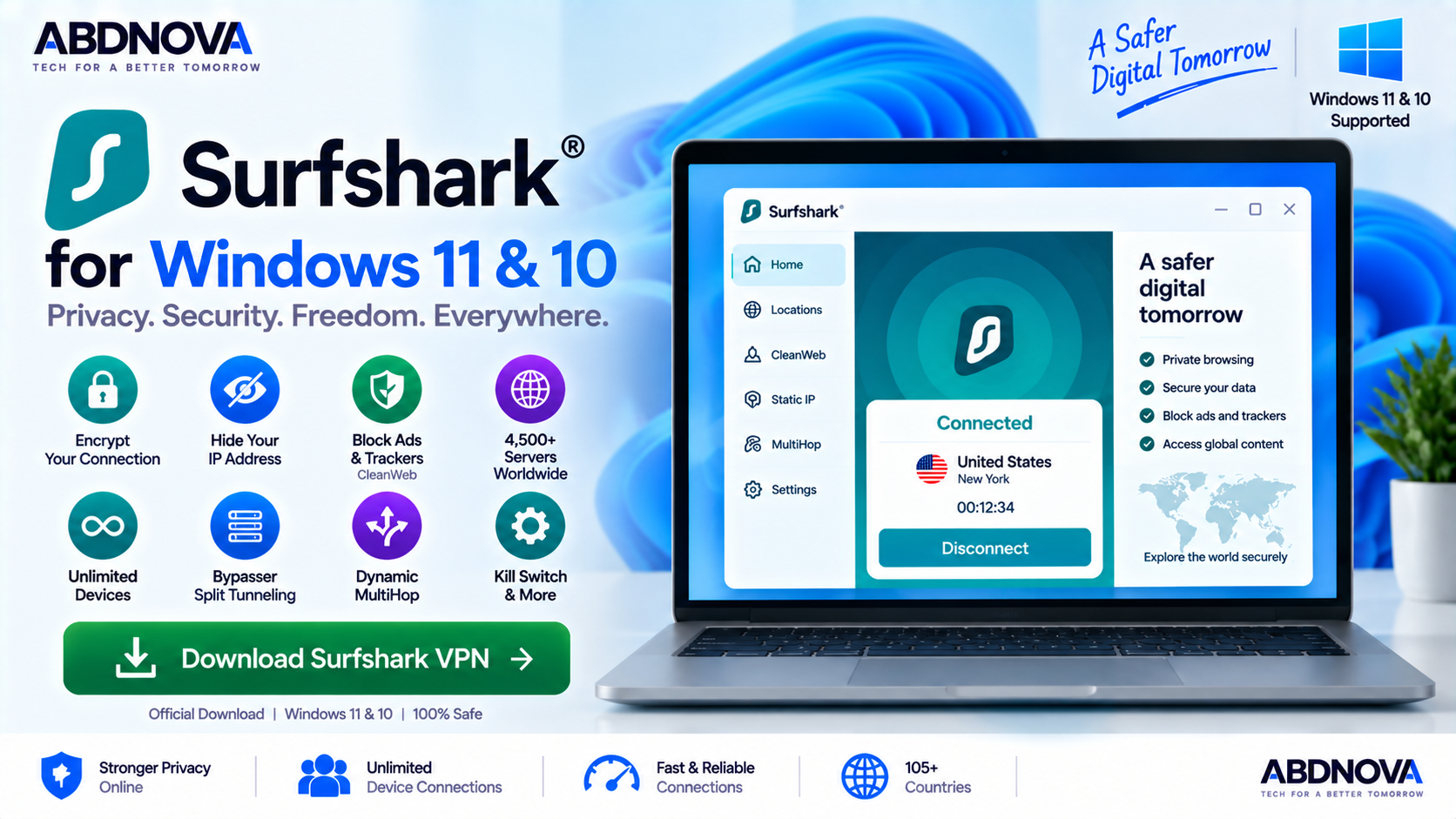
Download Surfshark VPN for Windows 11 and 10 to use WireGuard, Kill Switch, Bypasser, CleanWeb, Dynamic MultiHop, NoBorders, IP Rotator and unlimited device connections.
Surfshark VPN Download for Windows gives Windows users a privacy and security application that encrypts internet traffic, changes the visible IP address and helps protect online activity on public and private networks.
The Windows app combines straightforward VPN connections with advanced tools such as Kill Switch, Bypasser split tunneling, CleanWeb, Dynamic MultiHop, NoBorders, IP Rotator, Auto-connect and other privacy features.
One of Surfshark’s most distinctive advantages is unlimited simultaneous device connections. A single subscription can protect multiple supported computers, phones, tablets and other compatible devices without a fixed device limit.
Surfshark currently advertises a network of more than 4,500 VPN servers in 100 countries.
Surfshark VPN for Windows at a Glance
| Information | Details |
|---|---|
| Software | Surfshark VPN |
| Category | VPN / Privacy & Security |
| Windows 11 | Supported |
| Windows 10 | Supported |
| Architecture | x64 and ARM64 |
| Legacy Windows | Legacy app available for Windows 7 / 8 |
| Main Protocols | WireGuard, OpenVPN, IKEv2 |
| Kill Switch | Yes |
| Split Tunneling | Yes — Bypasser |
| Ad / Tracker Protection | CleanWeb |
| MultiHop | Dynamic MultiHop |
| Restricted Network Feature | NoBorders |
| IP Rotation | Yes |
| Simultaneous Connections | Unlimited |
| Server Network | 4,500+ servers |
| Countries | 100 |
| Money-Back Guarantee | 30 days |
| License | Paid subscription |
Download Surfshark VPN for Windows 11 & 10
The safest installation source is Surfshark’s official Windows download page.
Surfshark currently provides:
- Windows x64 installer.
- Windows ARM64 installer.
- Microsoft Store option.
Most Intel and AMD Windows computers should use the standard x64 installer. ARM-based Windows PCs should select the dedicated ARM64 version.
- Surfshark cracks.
- Premium-unlocked versions.
- Free activation keys.
- Patched installers.
- Pre-activated packages.
- Torrented installers.
- Unknown download mirrors.
A VPN handles sensitive internet traffic, so using an altered installer creates an unnecessary security risk.
Surfshark VPN for Windows 11
Surfshark works with Windows 11 and combines VPN and privacy features inside one desktop application.
After installation, you can sign in, choose a VPN location or use Quick-connect to establish a protected connection automatically.
Windows 11 users can access features including:
- Quick-connect.
- WireGuard.
- Kill Switch.
- Bypasser.
- CleanWeb.
- Dynamic MultiHop.
- NoBorders.
- IP Rotator.
- Pause VPN.
- Auto-connect.
- Static IP locations.
- Dedicated IP where available.
- Antivirus with an eligible Surfshark One plan.
Surfshark also provides an ARM64 installer for compatible Windows 11 computers.
Surfshark VPN for Windows 10
Surfshark also supports Windows 10.
The general workflow is the same:
Important features such as Bypasser, Kill Switch, CleanWeb and Dynamic MultiHop are available directly from the Windows desktop application.
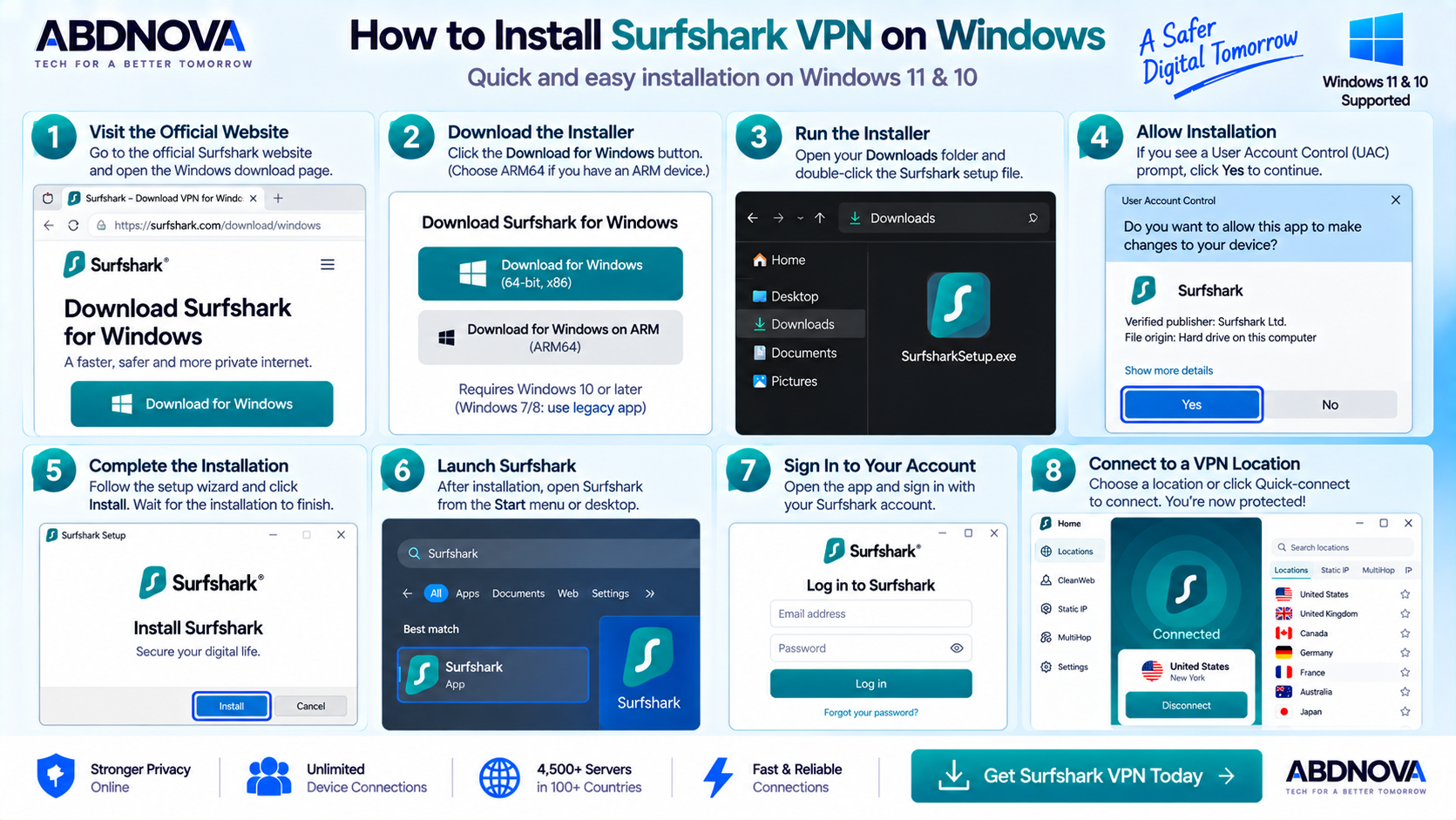
How to Install Surfshark VPN on Windows
Step 1: Visit the Official Surfshark Website
Open Surfshark’s official Windows download page.
Step 2: Download Surfshark for Windows
Select the regular Windows installer.
If your computer uses an ARM64 processor, choose the ARM64 option instead.
Step 3: Open the Installer
Open your Downloads folder and run the Surfshark setup file.
If Windows displays a User Account Control prompt, confirm that you downloaded the installer from the official Surfshark website before continuing.
Step 4: Install Surfshark
Follow the setup instructions and allow installation to complete.
Step 5: Launch Surfshark
Open Surfshark from the Start menu or desktop.
Step 6: Sign In
Sign in using the Surfshark account connected to your active subscription.
Step 7: Choose a VPN Location
Select the country or server location you want from the location list.
Step 8: Quick-connect
Click Quick-connect.
Once Surfshark confirms the VPN connection, supported internet traffic is routed through the encrypted VPN connection.
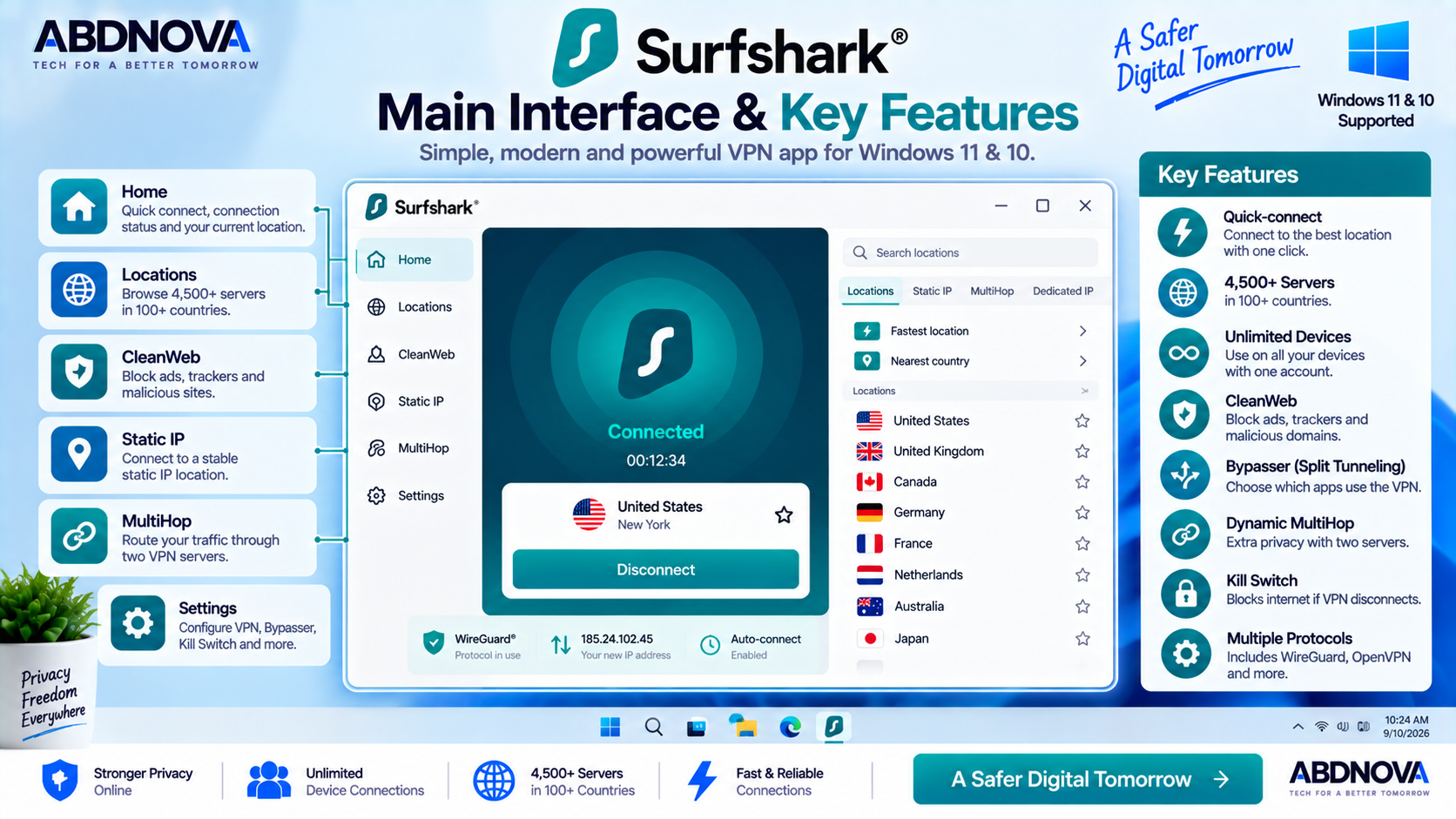
Surfshark VPN Main Interface & Key Features
Surfshark uses a relatively simple desktop interface designed to make basic VPN connections quick while keeping advanced settings accessible.
The main interface provides access to:
- Connection status.
- Quick-connect.
- VPN locations.
- Recent locations.
- Favorites.
- VPN settings.
- Security features.
- Additional Surfshark products depending on your plan.
For normal everyday use, the workflow is simple:
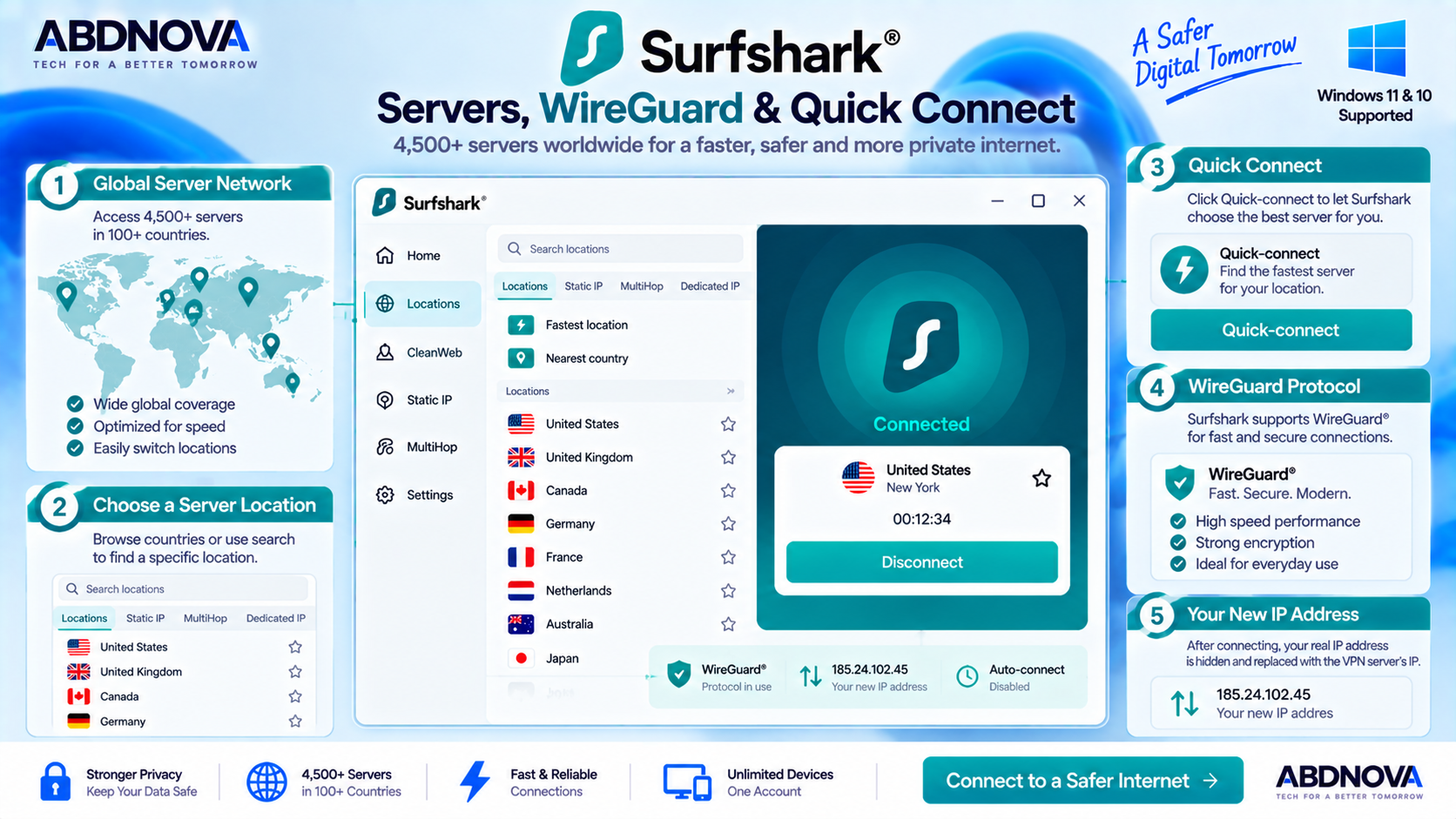
Surfshark Servers, WireGuard & Quick-connect
Quick-connect
If you do not need a specific country or city, Quick-connect is the easiest way to start using Surfshark.
Instead of manually selecting a server each time, Quick-connect allows Surfshark to establish a suitable VPN connection automatically.
VPN Server Network
Surfshark currently advertises more than 4,500 servers in 100 countries.
You can choose a specific location whenever your workflow requires one.
For better performance, starting with a geographically nearby server is usually sensible because longer routes can increase latency.
WireGuard
WireGuard is one of Surfshark’s main VPN protocol options.
A VPN protocol determines how the encrypted connection between your Windows PC and the VPN server is created.
WireGuard is widely used for modern VPN connections because of its relatively compact design and strong performance characteristics.
Surfshark also provides manual WireGuard configuration for users who need more control, although the standard Windows application is easier for most users.
Auto-connect
Surfshark can automatically establish a VPN connection when appropriate instead of requiring you to connect manually every time.
This can be particularly useful on laptops that frequently move between home, office and public Wi-Fi networks.
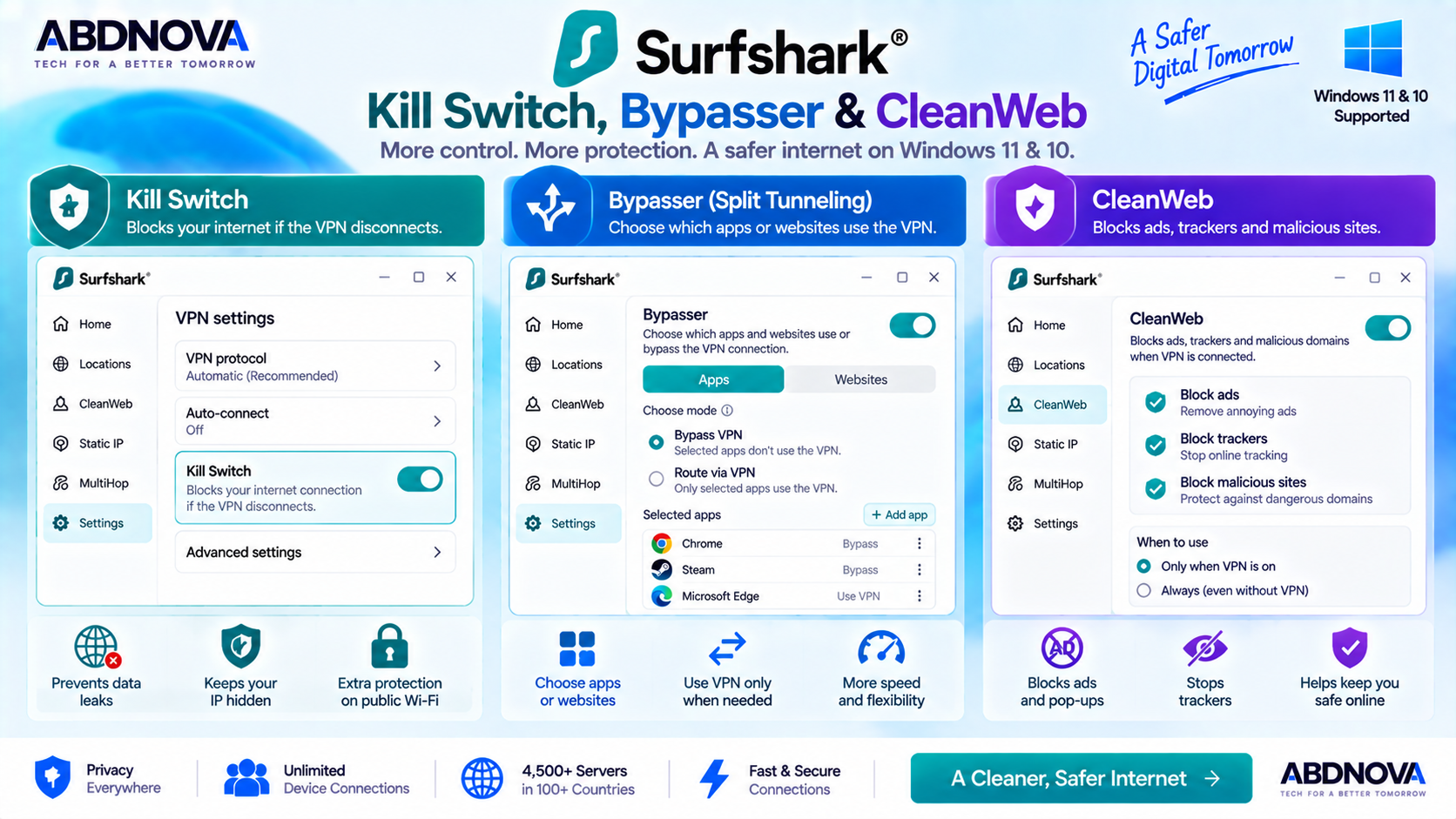
Surfshark Kill Switch, Bypasser & CleanWeb
Kill Switch
Surfshark’s Kill Switch can block internet traffic if the VPN connection unexpectedly drops.
This helps prevent traffic from continuing outside the protected VPN tunnel.
To configure it on Windows:
Bypasser Split Tunneling
Surfshark calls its split-tunneling feature Bypasser.
Bypasser gives you control over which applications or websites use the VPN and which use the regular internet connection.
Bypass VPN
Selected applications or websites avoid the VPN connection.
Route via VPN
Only selected applications are specifically routed through the VPN.
You can configure the feature from:
CleanWeb
CleanWeb adds another browsing-protection layer to Surfshark.
Inside the VPN app, CleanWeb can help block known:
- Ads.
- Trackers.
- Malicious domains.
Surfshark also provides CleanWeb through supported browser extensions, although browser-extension behavior differs somewhat from the full VPN-app implementation.
Surfshark Dynamic MultiHop
Dynamic MultiHop sends VPN traffic through two VPN servers instead of one.
A standard VPN route looks roughly like this:
Dynamic MultiHop instead uses:
Surfshark allows users to choose entry and exit locations.
This adds another routing layer, although using two VPN locations can reduce performance compared with a normal single-server connection.
Surfshark NoBorders
NoBorders is designed for restrictive or difficult network environments.
Surfshark says it can detect restricted networks and present VPN servers that may be more suitable for those conditions.
Surfshark IP Rotator
IP Rotator changes your Surfshark VPN IP periodically while maintaining the VPN connection.
Surfshark’s current feature documentation says the VPN IP can rotate approximately every 5 to 10 minutes without disconnecting the VPN.
This gives users another privacy option when they prefer their VPN IP address to change over time.
Surfshark Pause VPN
Pause VPN temporarily disables the VPN for a selected period and then automatically reconnects it.
Current options include:
- 5 minutes.
- 30 minutes.
- 2 hours.
This can be more convenient than manually disconnecting and later forgetting to reconnect.
Surfshark Static IP vs Dedicated IP
Static IP
Static IP locations allow you to reconnect using the same IP address from a shared static-IP server.
Dedicated IP
A Dedicated IP is assigned specifically for your use rather than being shared with other Surfshark customers.
Dedicated IP can be useful for:
- IP-sensitive services.
- Remote access.
- Workflows where changing IP addresses trigger frequent verification.
Availability and additional pricing should be checked on Surfshark’s current official website.
Surfshark Antivirus on Windows
Surfshark offers additional cybersecurity products beyond the VPN, but they are not necessarily included with every VPN subscription.
Surfshark Antivirus on Windows requires an eligible Surfshark One subscription.
It is important to distinguish:
Surfshark VPN — VPN encryption, routing and privacy tools.
Surfshark Antivirus — separate malware-protection functionality available with qualifying plans.
Surfshark and Other VPN Options
If you want to compare Surfshark with a VPN that provides an official permanent free plan, see our Proton VPN Download for Windows guide.
Proton VPN takes a different approach to plans and features, while Surfshark’s standout practical benefit is unlimited simultaneous device connections.
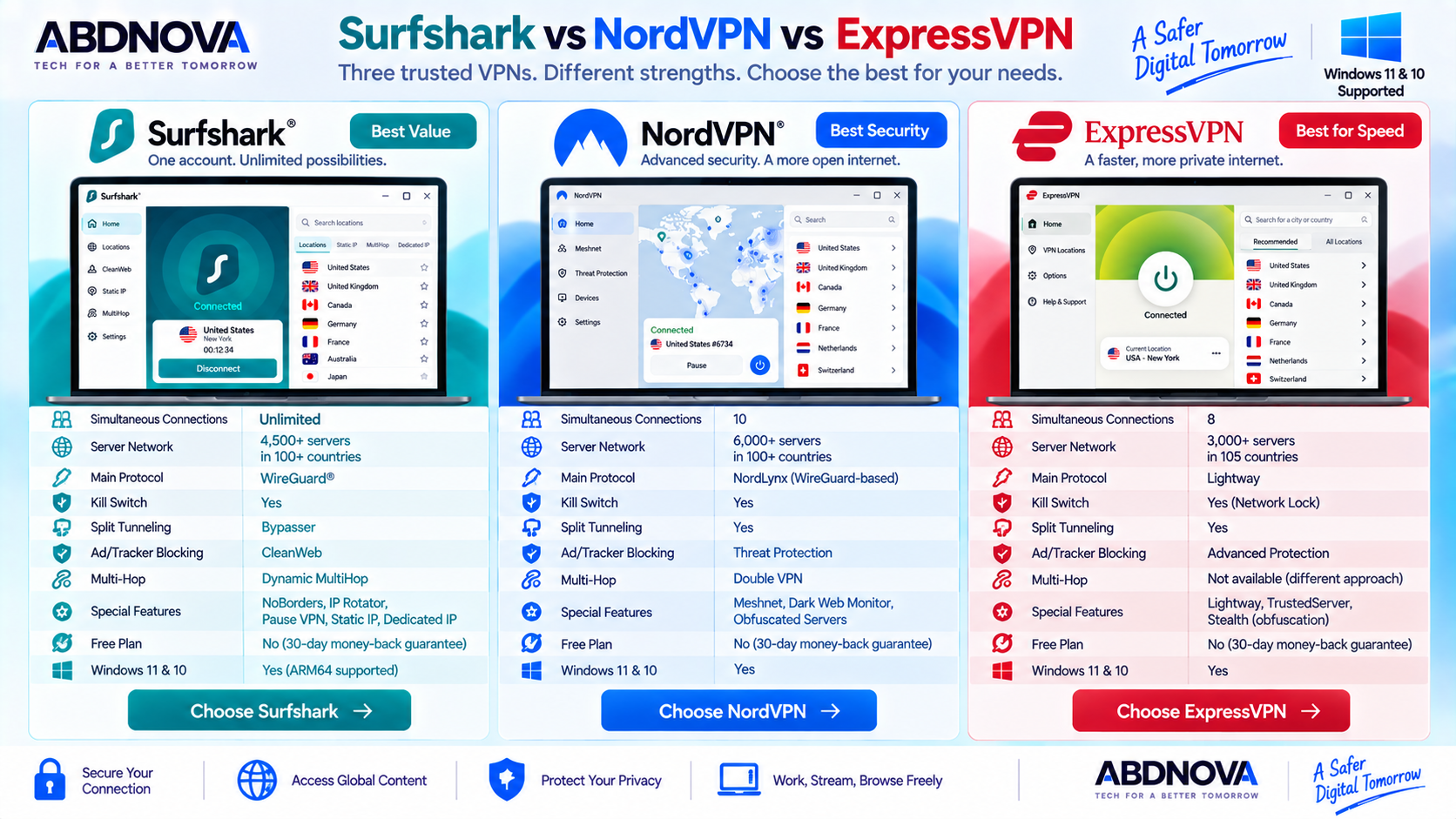
Surfshark vs NordVPN vs ExpressVPN
| Feature | Surfshark | NordVPN | ExpressVPN |
|---|---|---|---|
| Windows 11 | Yes | Yes | Yes |
| Windows 10 | Yes | Yes | Yes |
| Main Modern Protocol | WireGuard | NordLynx | Lightway |
| Kill Switch | Yes | Yes | Yes |
| Split Tunneling | Bypasser | Yes | Yes |
| Ad / Threat Blocking | CleanWeb | Threat Protection | Advanced Protection |
| MultiHop | Dynamic MultiHop | Double VPN | Different feature approach |
| Distinctive Feature | Unlimited devices, IP Rotator, NoBorders | NordLynx, Meshnet | Lightway, streamlined interface |
| Free Full VPN Plan | No | No | No |
Surfshark is particularly attractive for households and users with many devices because it allows unlimited simultaneous connections.
NordVPN emphasizes features such as NordLynx, Meshnet and its broader security ecosystem.
ExpressVPN emphasizes the Lightway protocol and a relatively streamlined Windows experience.
The better choice depends on the features, devices, performance requirements and subscription terms that matter most to you.
Is Surfshark VPN Free?
Surfshark is primarily a paid VPN service.
It does not provide a permanent unrestricted free Windows VPN plan equivalent to its normal paid subscription.
Surfshark currently offers a 30-day money-back guarantee and may also provide a limited trial under specific conditions.
Trial conditions and promotions can change, so check Surfshark’s official website before subscribing.
If a permanent legitimate free VPN tier is important to you, compare our Proton VPN for Windows guide.
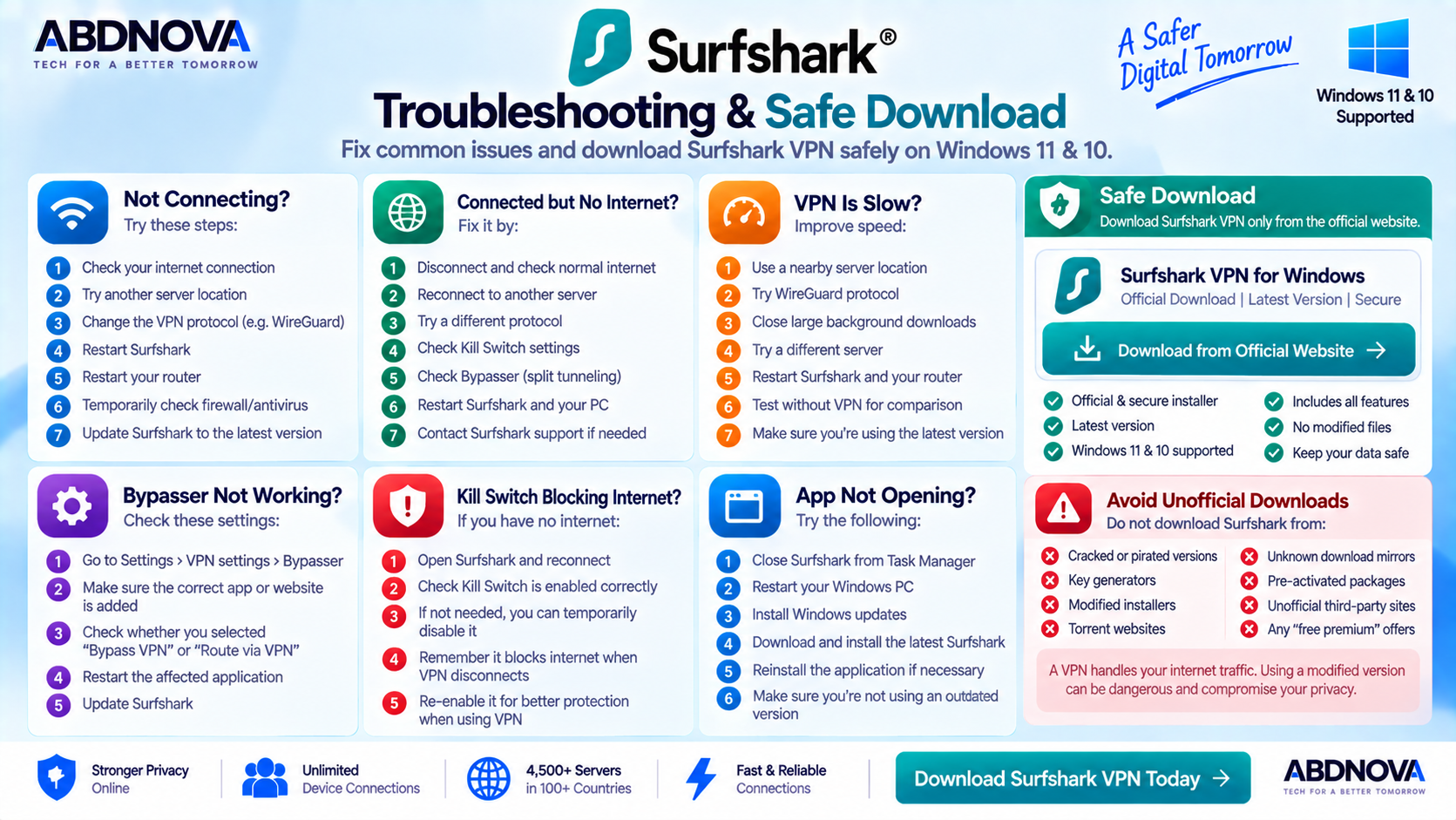
Surfshark Troubleshooting on Windows
Surfshark Not Connecting
First confirm that your normal internet connection works without the VPN.
Then try:
- Disconnect and reconnect Surfshark.
- Select another VPN location.
- Restart Surfshark.
- Try another VPN protocol.
- Restart Windows.
- Restart your router.
- Check whether firewall or security software is interfering.
- Update Surfshark.
Surfshark Connected but No Internet
If Surfshark shows a successful VPN connection but websites or applications cannot access the internet:
- Disconnect Surfshark and test the normal connection.
- Reconnect Surfshark.
- Try another server.
- Change VPN protocol.
- Restart the browser.
- Check Bypasser.
- Check Kill Switch.
- Restart Surfshark.
- Restart Windows.
If Kill Switch is enabled and the VPN connection fails, internet access may intentionally remain blocked.
Surfshark VPN Is Slow
VPN encryption and server routing can add some performance overhead.
If Surfshark feels unusually slow:
- Connect to a nearby location.
- Try another server.
- Try WireGuard.
- Close large background downloads.
- Restart Surfshark.
- Restart your router.
- Test the connection without the VPN.
- Update Surfshark.
Bypasser Not Working
Open:
Confirm the correct application or website is included in the intended mode.
Remember:
- Bypass VPN means the selected item avoids the VPN.
- Route via VPN means the selected item is specifically routed through the VPN.
Restart the affected application after changing Bypasser settings if necessary.
Kill Switch Blocking Internet
If internet access stops after Kill Switch is enabled, the feature may be working as designed while Surfshark is disconnected.
Reconnect Surfshark or review:
Disabling Kill Switch can restore ordinary internet access, but it removes that protection against traffic exposure when the VPN disconnects.
Surfshark App Not Opening
- Close any existing Surfshark process.
- Restart Windows.
- Try opening Surfshark again.
- Install available Windows updates.
- Download the latest Surfshark installer.
- Reinstall if necessary.
Surfshark warns that sufficiently outdated versions may eventually experience login issues.
How to Update Surfshark VPN
Keeping Surfshark current is important for security, compatibility, stability and bug fixes.
If the application cannot update normally, download the current Windows installer from Surfshark and run it over the existing installation.
Surfshark’s current manual-update instructions recommend using the official Windows installer rather than downloading an update from a third-party website.
Safe Surfshark VPN Download for Windows
Download Surfshark only from the official Surfshark website or its official Microsoft Store listing.
Windows 11: Supported
Windows 10: Supported
x64: Available
ARM64: Available
Servers: 4,500+
Device connections: Unlimited
Permanent free VPN: No
Crack required: No
- Surfshark cracks.
- Key generators.
- Patched installers.
- Pre-activated packages.
- Torrented installers.
- Modified EXE or MSI packages.
- Unknown mirrors.
Frequently Asked Questions
Is Surfshark available for Windows 11?
Yes. Surfshark supports Windows 11 and provides both x64 and ARM64 Windows options.
Does Surfshark work on Windows 10?
Yes. Surfshark currently supports Windows 10.
Can Surfshark run on Windows ARM devices?
Yes. Surfshark provides a dedicated ARM64 Windows installer for compatible devices.
Can I use Surfshark on Windows 7 or Windows 8?
Surfshark provides a legacy application for older Windows 7 and Windows 8 systems, but these legacy environments receive fewer updates and should not be treated like current Windows 10 or 11 installations.
Is Surfshark free?
No. Surfshark is primarily a paid VPN service and does not provide a permanent unrestricted free Windows VPN plan.
How many devices can I use with Surfshark?
Surfshark currently allows unlimited simultaneous device connections under one account.
How many servers does Surfshark have?
Surfshark currently advertises more than 4,500 VPN servers in 100 countries.
Does Surfshark support WireGuard?
Yes. WireGuard is supported in the Surfshark Windows application and can also be configured manually when needed.
Does Surfshark have a Kill Switch?
Yes. Kill Switch can block internet access if the VPN connection unexpectedly drops.
Does Surfshark support split tunneling?
Yes. Surfshark calls its split-tunneling feature Bypasser.
What is Surfshark CleanWeb?
CleanWeb is Surfshark’s ad, tracker and malicious-domain blocking feature.
What is Dynamic MultiHop?
Dynamic MultiHop sends traffic through two Surfshark VPN servers and lets you choose entry and exit locations.
Where should I download Surfshark?
Use Surfshark’s official Windows download page or official Microsoft Store listing rather than third-party download sites.
Final Thoughts
Surfshark VPN Download for Windows is a strong option for Windows users who want more than a simple connect-and-disconnect VPN client.
Its Windows application combines Quick-connect, WireGuard, Kill Switch, Bypasser, CleanWeb, Dynamic MultiHop, NoBorders, IP Rotator, Pause VPN, Static IP and optional Dedicated IP functionality.
Its biggest practical advantage is unlimited simultaneous device connections, making Surfshark particularly convenient for users who want to protect many supported devices with one subscription.
Surfshark is a paid VPN rather than a permanent free service. Users who specifically need an official free VPN tier can also compare our Proton VPN Download for Windows guide.
For Windows 11 and Windows 10, download the correct x64 or ARM64 installer directly from Surfshark and keep the application updated.
Download Surfshark VPN for Windows
Get the current Windows x64 or ARM64 application directly from Surfshark. ABDNOVA recommends official software sources only.