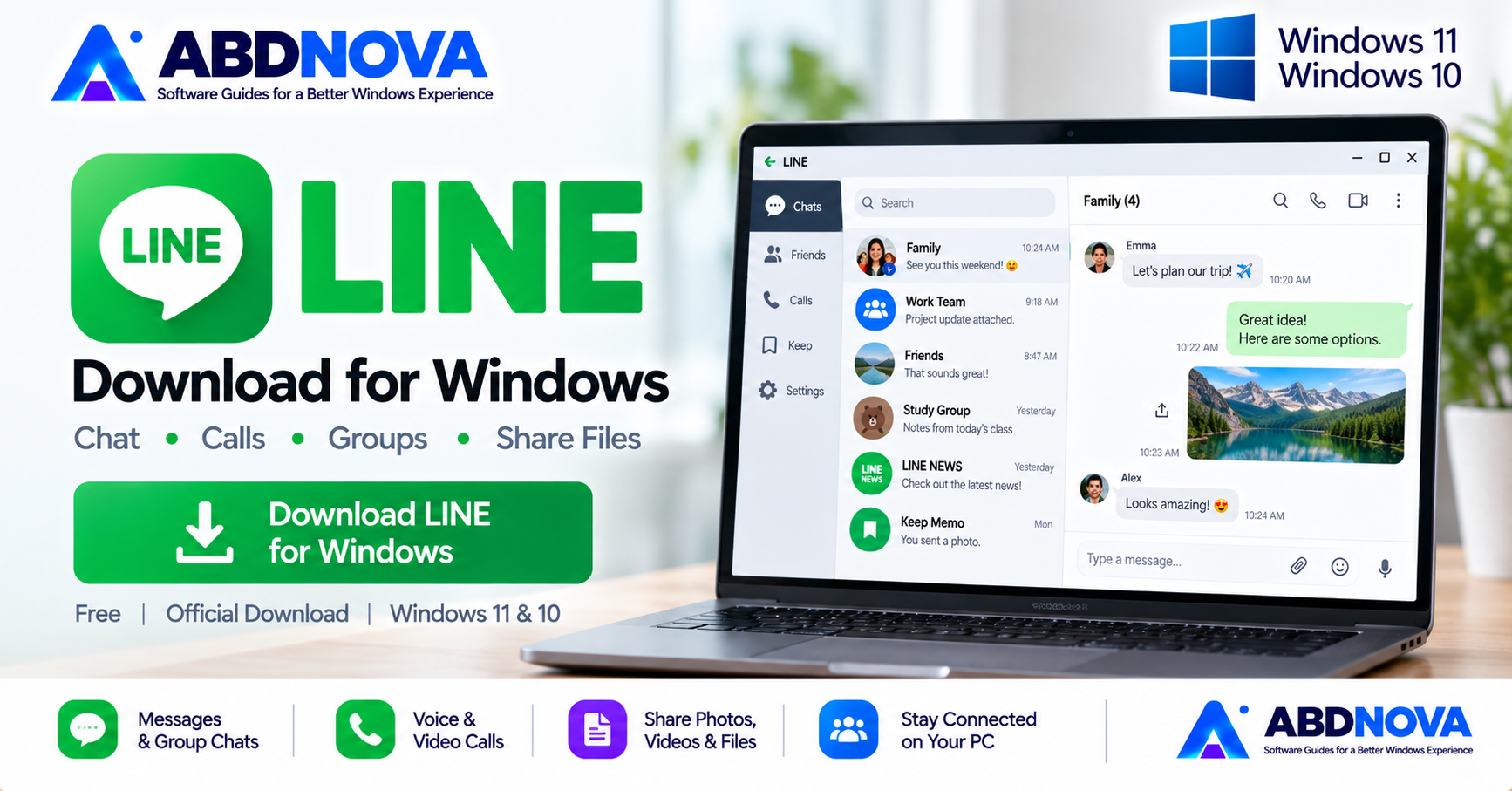

LINE Download for Windows 11 & 10
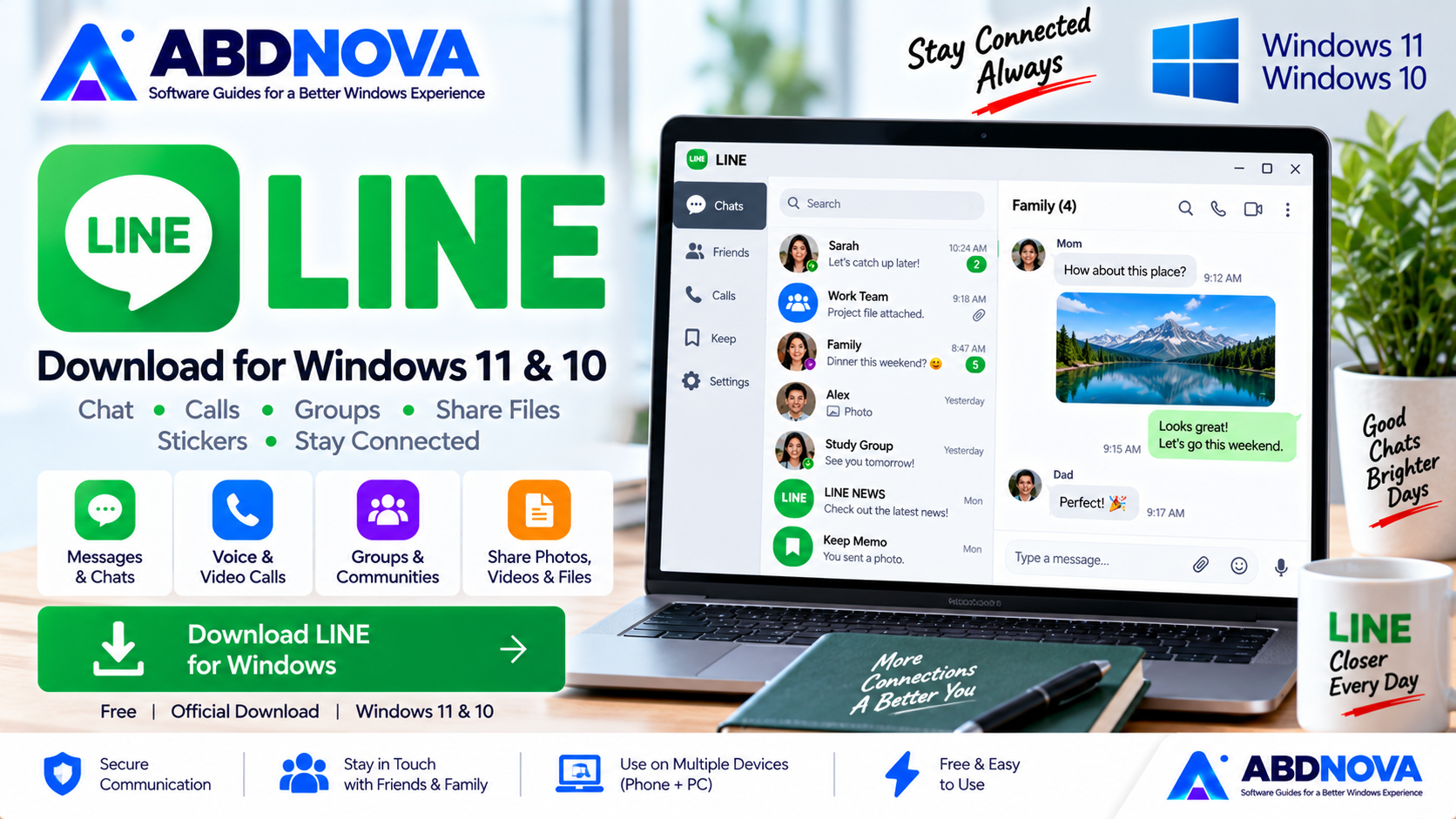
Download LINE for Windows 11 and 10 to send messages, manage groups, share photos and files, and make supported voice or video calls from your PC.
LINE Download for Windows gives existing LINE users a convenient desktop version of the popular communication service.
With LINE for Windows, you can send messages, manage chats and groups, share photos and files, and use supported voice and video calling features without constantly switching back to your phone.
The desktop app is designed to work with an existing LINE account and provides a more comfortable messaging experience when you are already working on a Windows PC.
LINE for Windows at a Glance
| Information | Details |
|---|---|
| Software | LINE |
| Platform | Windows |
| Windows 11 | Supported |
| Windows 10 | Version 1607 or later recommended |
| Architecture | 64-bit / x64 for latest version |
| Category | Messaging & Communication |
| Account | Existing LINE account required |
| PC Signup | Not supported |
| QR Code Login | Yes |
| Email & Password Login | Yes |
| Biometric Login | Supported where available |
| Messages & Groups | Yes |
| Voice & Video Calls | Yes |
| File Sharing | Yes |
| Price | Free to download and use |
Download LINE for Windows 11 & 10
The safest way to install LINE is directly from the official LINE website.
LINE officially provides a Windows desktop application, and the Help Center also references the Windows Store as an official distribution option.
- Modified LINE installers.
- Cracked versions.
- Third-party repacks.
- Unknown download mirrors.
- Old unsupported installers unless specifically required.
LINE for Windows 11
LINE works on modern Windows 11 PCs when the system meets the current requirements.
Once logged in, you can manage conversations, type messages with a full keyboard, share files from Windows and use supported calling features from a larger screen.
For current releases, a 64-bit Windows environment is recommended.
LINE for Windows 10
LINE also supports Windows 10 provided the system meets current requirements.
- Windows 10 version 1607 or later.
- 64-bit / x64 Windows.
Windows 10 version 1511 or earlier is limited to older LINE releases.
Windows 10 and Windows 11 32-bit systems are limited to LINE 9.1.2, and update support for 32-bit Windows has ended. Windows 8.1 and earlier are no longer supported. :contentReference[oaicite:4]{index=4}
Important: You Need an Existing LINE Account
LINE for PC is designed as an additional way to access an account that already exists on your main device.
You cannot create a new LINE account directly from the Windows PC version. LINE’s official Help Center specifically states that PC signup is not supported. :contentReference[oaicite:5]{index=5}
How to Install LINE on Windows
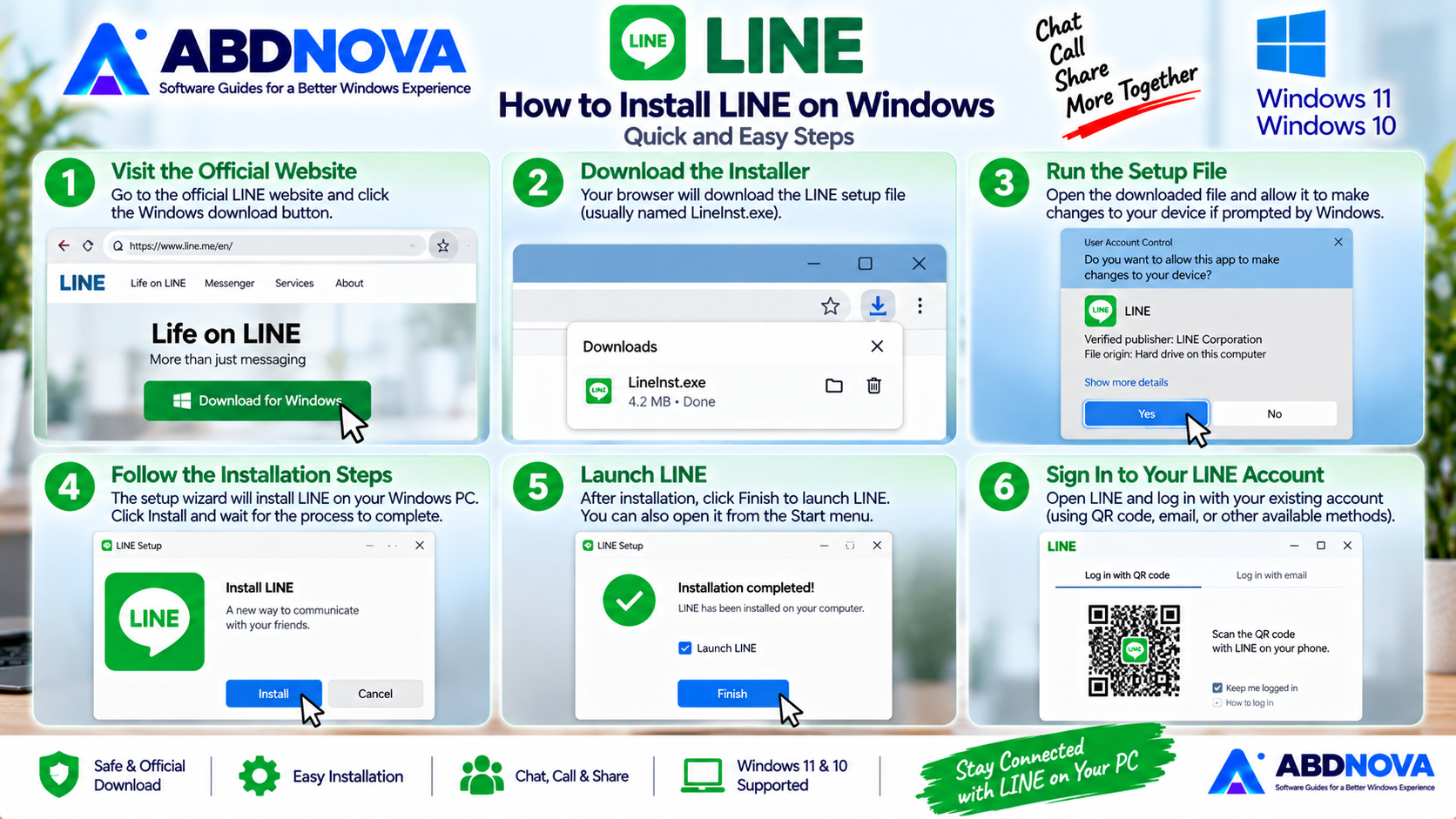
- Visit the official LINE website.
- Select the Windows desktop download.
- Download the installer.
- Open the downloaded setup file.
- Follow the installation instructions.
- Launch LINE after installation.
- Sign in to your existing LINE account.
After a successful login, LINE is ready to use from your Windows desktop.
How to Log In to LINE on PC
LINE currently supports several PC login methods.
QR Code Login
QR code login is one of the easiest methods.
- Open LINE on your Windows PC.
- Display the login QR code.
- Open LINE on your main device.
- Launch LINE’s QR code reader.
- Scan the code shown on the PC.
- Approve the login on your main device.
If the QR code expires, generate a new one and scan it again. :contentReference[oaicite:6]{index=6}
Email & Password Login
You can also log in using the email address and password registered to your LINE account.
If you have not registered an email address or cannot remember your credentials, check or update the account information from your main device.
Biometric Login
LINE also supports login using biometric information associated with your main device, such as fingerprint or face authentication, where supported.
LINE recommends biometric login as a more secure option than relying only on email and password. :contentReference[oaicite:7]{index=7}
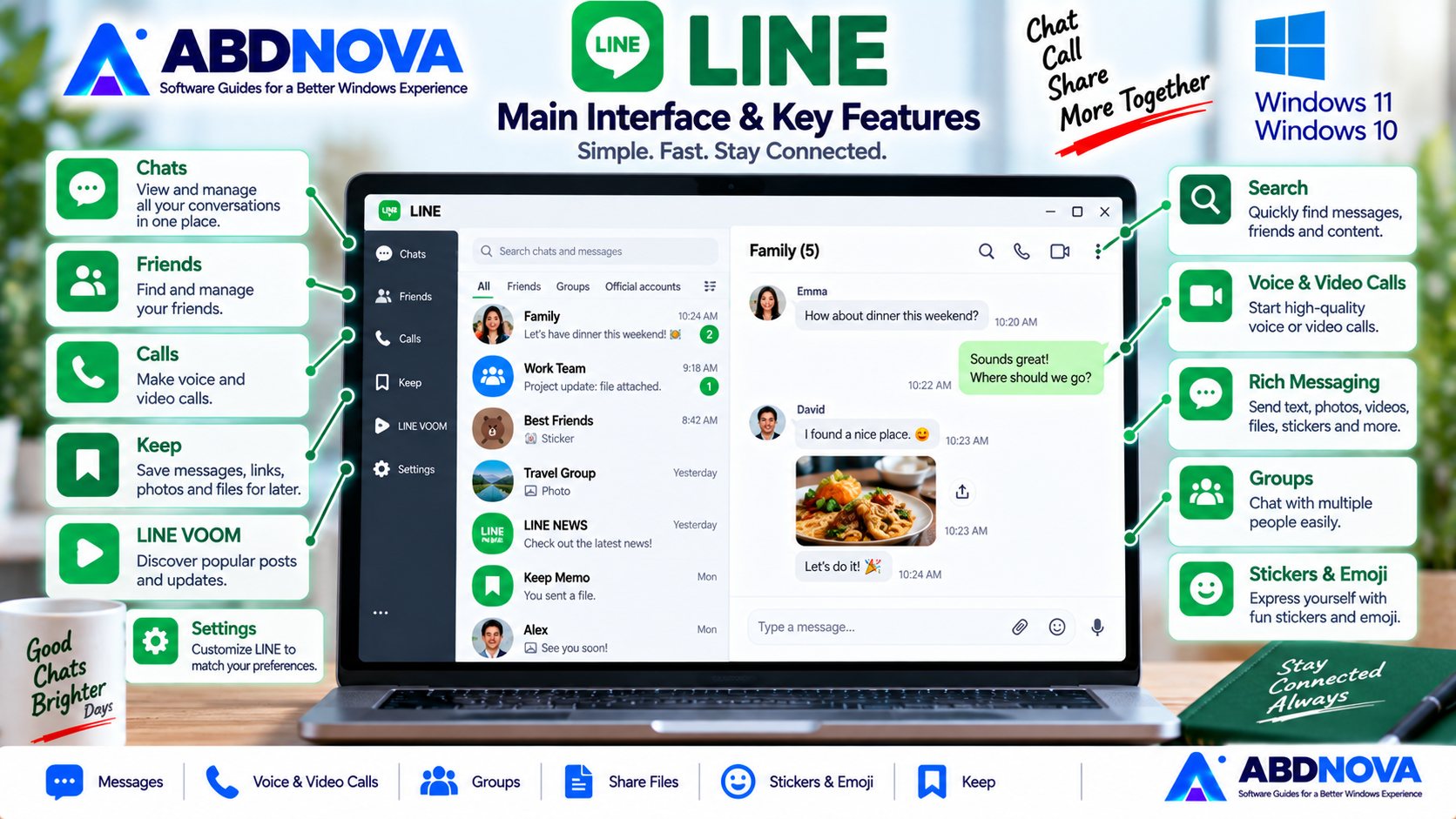
LINE Main Interface & Key Features
LINE Desktop provides a clean interface designed for managing conversations from a PC.
Common areas include:
- Chats.
- Friends.
- Groups.
- Calls.
- Notifications.
- Settings.
- Shared media and files.
The larger desktop interface can be particularly useful when you are managing several conversations or writing longer messages.
Messages & Chats
Messaging remains LINE’s core feature.
You can:
- Start one-to-one conversations.
- Reply to messages.
- React to messages.
- Check read/unread status.
- Manage conversations directly from Windows.
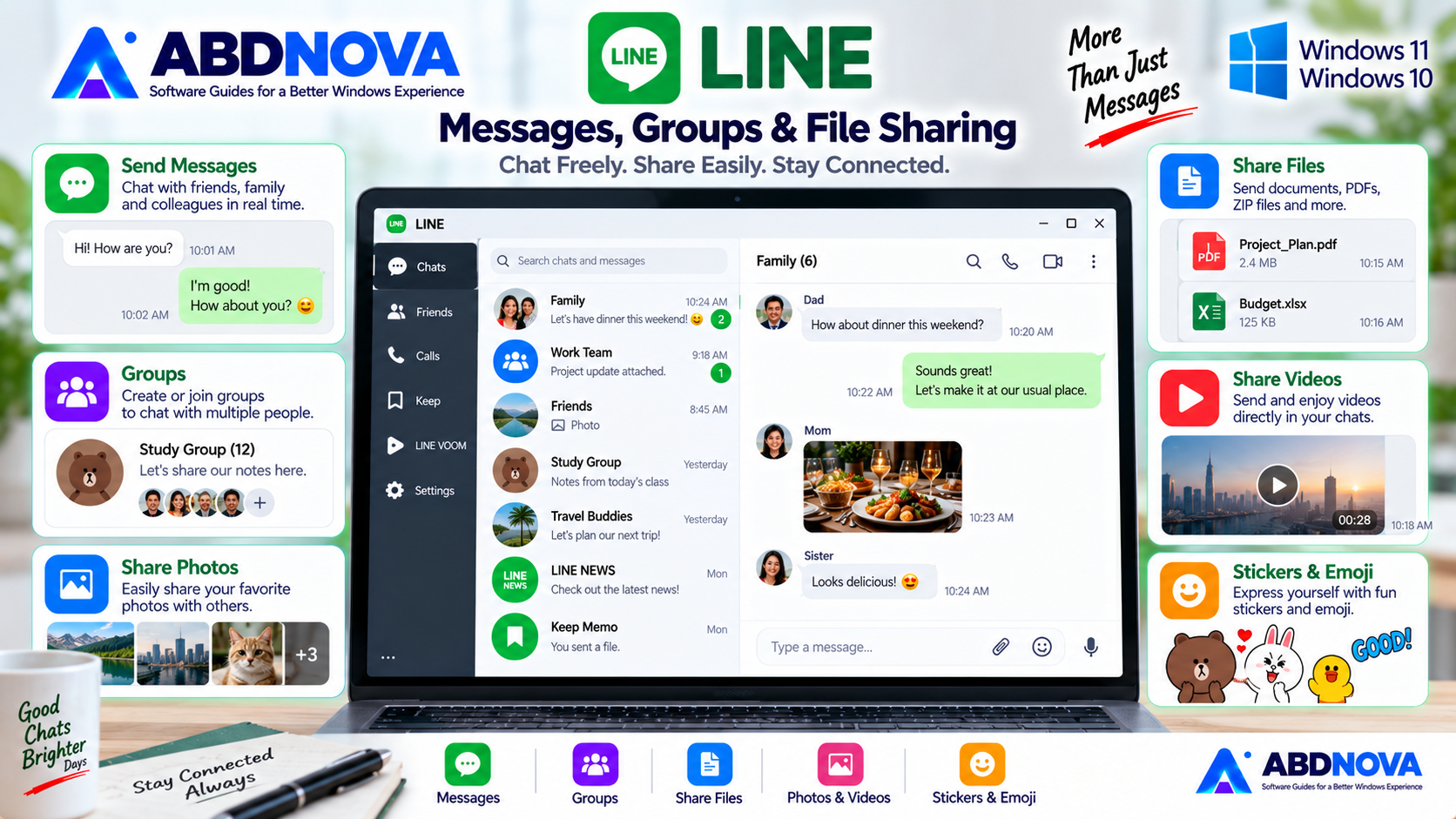
LINE Messages, Groups & File Sharing
Groups
LINE groups make it easier to communicate with several people in one conversation.
Groups can be useful for:
- Family conversations.
- Friends.
- Study groups.
- Communities.
- Work-related discussions.
LINE can also create groups from multi-person chats.
Photos, Videos & File Sharing
LINE Desktop makes sharing content already stored on your PC more convenient.
You can work with:
- Photos.
- Videos.
- Documents and other supported files.
- Links shared in chats.
This is particularly useful when the content you want to send is already stored on the Windows computer.
Stickers & Emoji
LINE is well known for its stickers and emoji ecosystem.
They provide a more expressive way to communicate than plain text and are deeply integrated into the LINE experience.
Depending on the account and region, both free and paid items may be available.
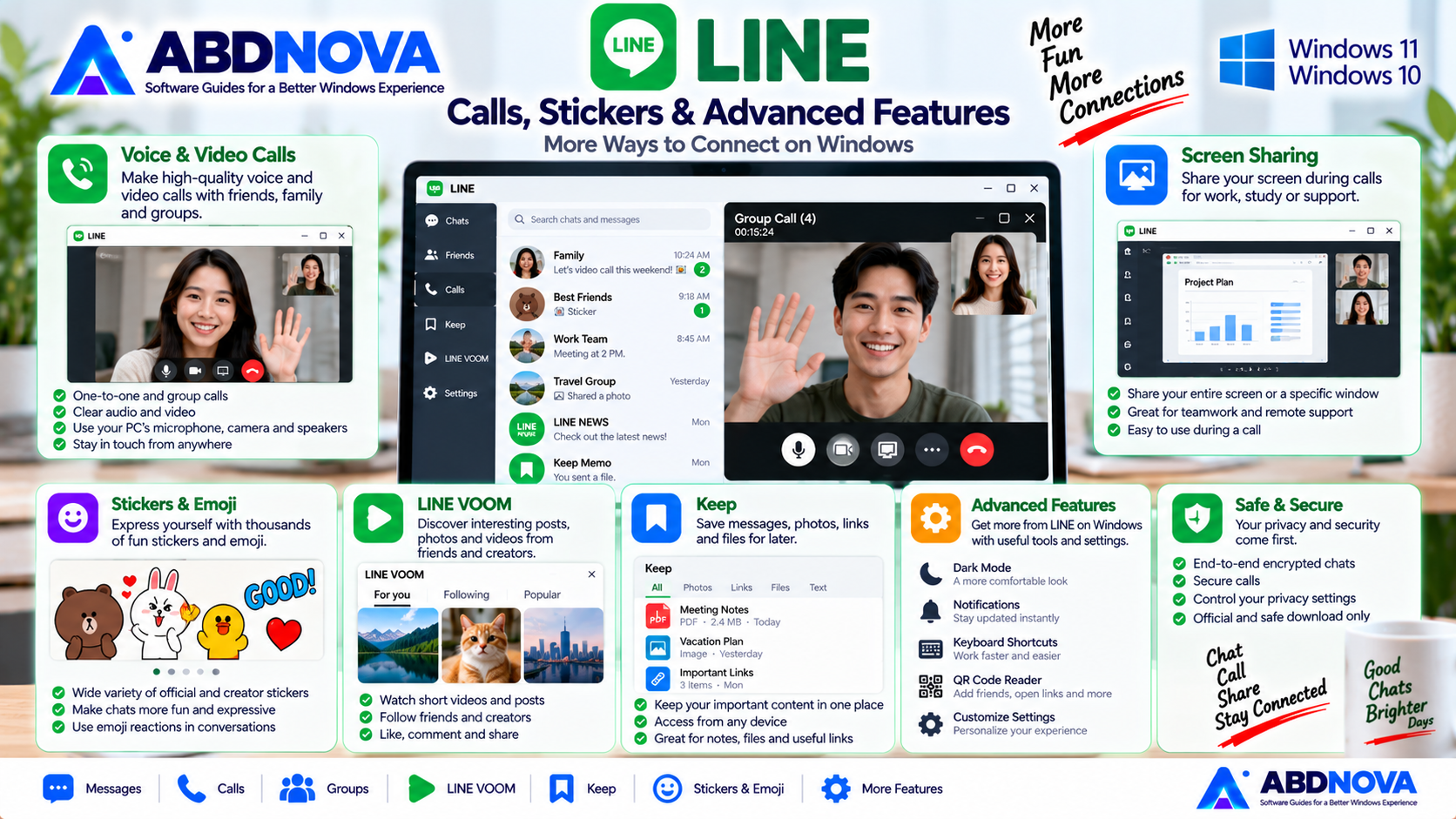
LINE Calls, Stickers & Advanced Features
Voice & Video Calls
LINE is not limited to text messaging.
The Windows desktop version also supports voice and video calling features.
Desktop calls can be especially convenient for longer conversations because you can use:
- Your computer monitor.
- Microphone.
- Speakers.
- Headset.
- Webcam.
QR Code Features
LINE’s QR tools are not limited to desktop login.
The QR code reader can also be used for supported functions such as:
- Adding friends.
- Opening URLs.
- Reading text.
- Scanning supported QR codes.
On Windows and Mac, LINE can also scan certain QR code images shared in chats or captured from the screen.
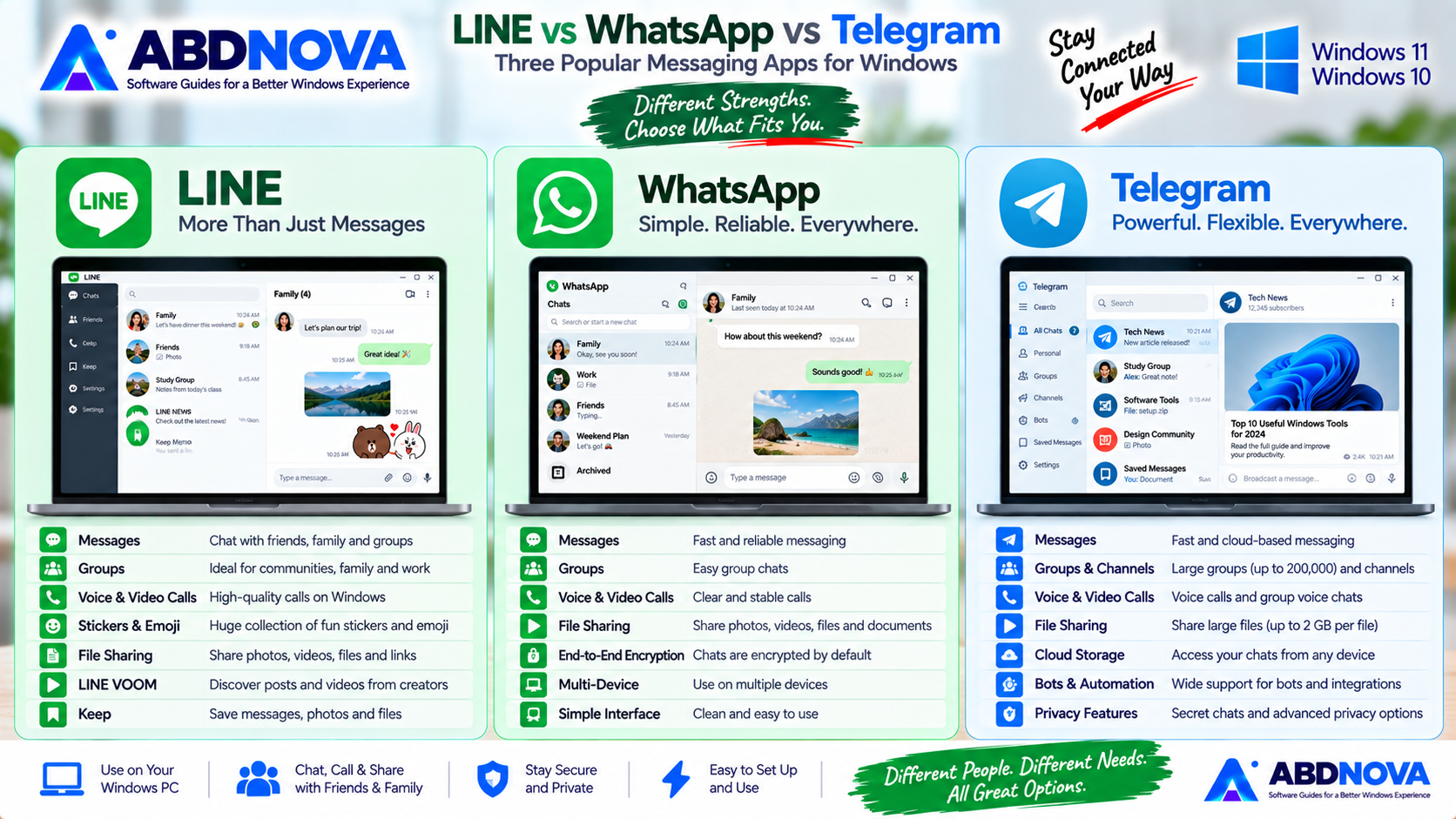
LINE vs WhatsApp vs Telegram
| Feature | LINE | Telegram | |
|---|---|---|---|
| Windows Desktop App | Yes | Yes | Yes |
| Messaging | Yes | Yes | Yes |
| Groups | Yes | Yes | Yes |
| Voice Calls | Yes | Yes | Yes |
| Video Calls | Yes | Yes | Yes |
| File Sharing | Yes | Yes | Yes |
| Stickers | Major ecosystem | Yes | Yes |
| Channels | Different LINE ecosystem | Available | Strong |
| Large Communities | Groups / ecosystem | Communities | Strong |
| Cloud-Based Multi-Device Messaging | Account dependent | Supported | Strong |
| Best For | Existing LINE users | Mainstream phone messaging | Cloud chats, groups & channels |
LINE is a strong choice for users already active in the LINE ecosystem and who frequently use LINE chats, groups, calls, stickers and related services.
WhatsApp is widely used for everyday phone-centered communication and desktop messaging.
If you want cloud-synced conversations, large groups, channels, bots and broader community features, see our Telegram Desktop Download for Windows guide. :contentReference[oaicite:8]{index=8}
Is LINE for Windows Free?
Yes. The Windows desktop application can be downloaded and used without purchasing the desktop software.
LINE may also offer optional paid items or services, including certain stickers and emoji, depending on the account and region.
LINE PC System Requirements
- Windows: Windows 10 version 1607 or later.
- Architecture: 64-bit / x64.
- Windows 11: Supported on compatible 64-bit systems.
- 32-bit Windows 10 / 11: Limited to LINE 9.1.2; update support ended.
- Windows 8.1 or earlier: Not supported.
These requirements match LINE’s current official Help Center. :contentReference[oaicite:9]{index=9}
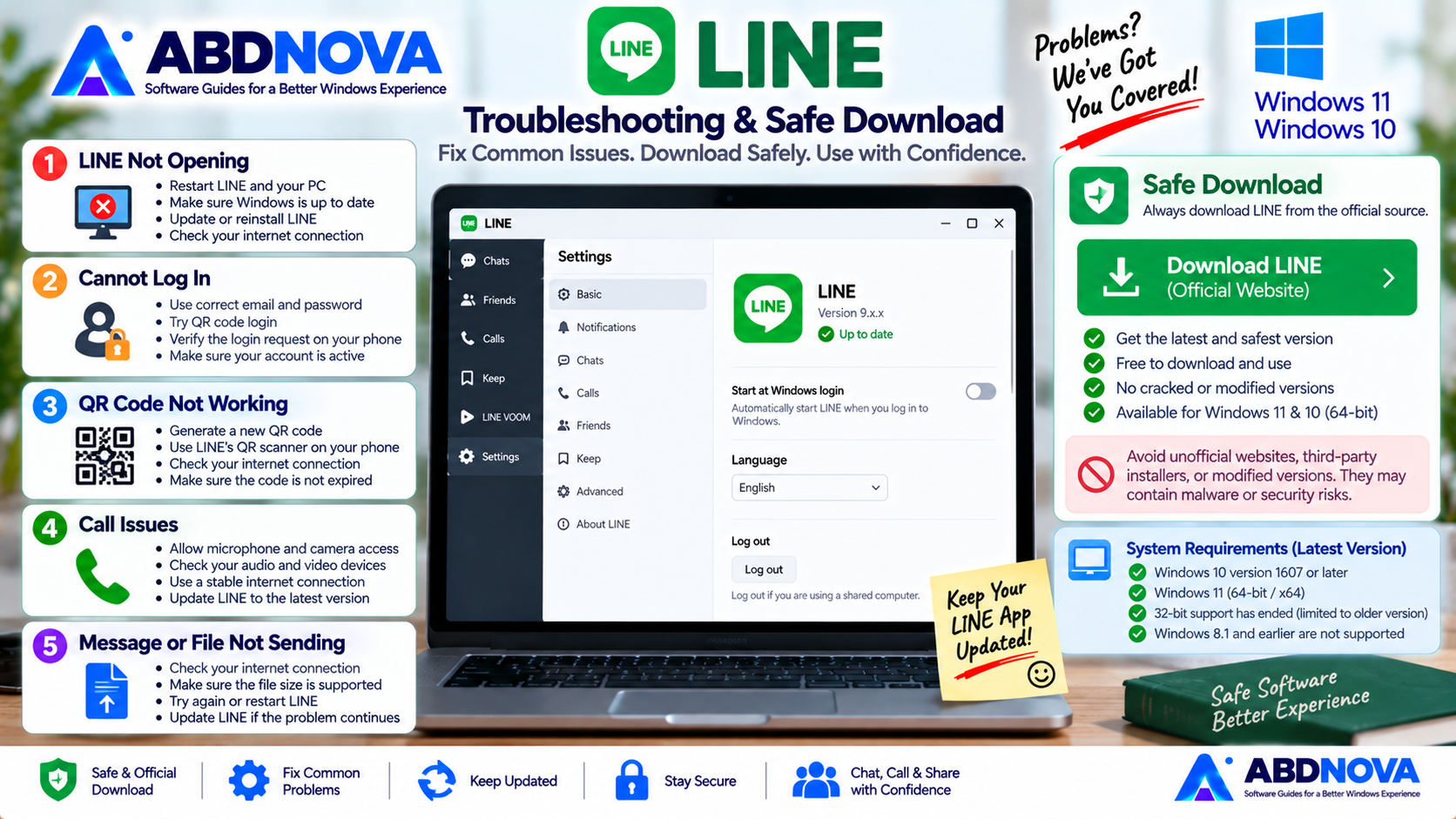
LINE Troubleshooting on Windows
LINE Not Opening on Windows
If LINE crashes or fails to start:
- Restart LINE.
- Restart Windows.
- Update Windows.
- Update LINE.
- Check your internet connection.
- Confirm the PC meets LINE’s current requirements.
- Check whether security software is interfering.
If the problem continues, reinstall the latest official version.
Cannot Log In to LINE
Confirm that you are using the correct account credentials.
For QR login, check whether the QR code has expired. If it has, generate a fresh code and try again.
During certain first-time or post-reinstallation logins, LINE may display a verification code on the PC that must be confirmed on your main device within the allowed time. :contentReference[oaicite:10]{index=10}
LINE QR Code Not Working
- Generate a new QR code.
- Make sure your main-device camera can see the entire code.
- Check the internet connection on both devices.
- Use LINE’s built-in QR reader.
- Approve the login request on your main device.
How to Log Out of LINE on Windows
On a shared computer, logging out after your session is recommended.
LINE specifically recommends logging out when a PC is shared with other people. :contentReference[oaicite:11]{index=11}
Safe LINE Download for Windows
Always download LINE from an official LINE source.
The official website provides the Windows desktop application, and LINE’s documentation also references official Windows distribution options.
- LINE Crack.
- Modified LINE installers.
- Repacked installers.
- Unknown third-party download sites.
- Old unsupported builds unless specifically required.
Use the official LINE download page for the current Windows version.
Frequently Asked Questions
Does LINE work on Windows 11?
Yes. LINE works on supported Windows 11 systems. For the latest version, use a compatible 64-bit/x64 Windows environment.
Does LINE still support Windows 10?
Yes. The latest version supports Windows 10 version 1607 or later on 64-bit/x64 systems.
Is LINE available for 32-bit Windows?
Older LINE versions may still work, but update support for 32-bit Windows has ended. Windows 10 and Windows 11 32-bit systems are limited to LINE 9.1.2.
Can I create a new LINE account on my PC?
No. LINE states that new accounts cannot be created from LINE for PC. You need an existing account created on your main supported device.
Can I log in to LINE on PC using a QR code?
Yes. Display the QR code on LINE for PC, scan it with LINE on your main device and approve the login.
Can I log in with my email and password?
Yes, if an email address and password are already registered to your LINE account.
Does LINE support biometric login on PC?
Yes. LINE supports login using biometric information associated with the main device where supported.
Can LINE Desktop share files?
Yes. LINE Desktop supports photos, videos, files and links shared through chats.
Can LINE make voice and video calls on Windows?
Yes. LINE includes supported voice and video calling functionality on the desktop application.
Is LINE for Windows free?
Yes. The desktop application is free to download and use, although optional paid content and services may be available separately.
Final Thoughts
LINE Download for Windows is a convenient option for existing LINE users who want to move everyday messaging from a phone screen to a desktop PC.
Messages, groups, voice and video calls, photos, files, stickers and QR-based login are easier to manage when you are already working on Windows.
The main limitation is that the Windows application is not a standalone signup platform. You need an existing LINE account from your main device before you can use LINE for PC.
For the latest release, use a 64-bit Windows 11 system or Windows 10 version 1607 or later, and download LINE only from an official source.
Download LINE for Windows
Get the current Windows desktop application directly from the official LINE website. ABDNOVA recommends official sources only.