


PDFsam Basic Download for Windows 11 & 10

Download PDFsam Basic for Windows 11 and 10 to merge, split, rotate, extract, mix and insert PDF pages locally without uploading your documents.
PDFsam Basic Download for Windows gives Windows users a free and open-source PDF utility for merging, splitting, rotating, extracting, mixing and inserting PDF pages.
Its biggest advantage is privacy. PDFsam Basic processes documents locally on your computer, so core PDF jobs do not require uploading files to a third-party server.
It is especially useful for home, office, accounting, document-management, scanning and everyday PDF organization.
PDFsam Basic Download for Windows – Quick Overview
| Information | Details |
|---|---|
| Software | PDFsam Basic |
| Current Version | 6.0.5 |
| Type | PDF Split / Merge Utility |
| Windows 11 | Supported |
| Windows 10 | Supported |
| Architecture | 64-bit |
| Price | Free |
| Open Source | Yes |
| License | AGPLv3 |
| Merge PDF | Yes |
| Split PDF | Yes |
| Rotate PDF | Yes |
| Extract Pages | Yes |
| Mix / Interleave PDFs | Yes |
| Insert Pages | Yes |
| No Watermark | Yes |
| No Built-in File Size Limit | Yes |
| Offline Processing | Yes |
| EXE | Yes |
| MSI | Yes |
| Portable ZIP | Yes |
What Is PDFsam Basic?
PDFsam Basic is a focused PDF page-management application rather than a full PDF editor.
PDFsam Basic includes six core tools:
- Merge.
- Split.
- Mix.
- Rotate.
- Extract Pages.
- Insert Pages.
This simplicity makes it useful for users who do not need text editing, OCR, annotations, signatures or advanced PDF design tools.
PDFsam Basic Windows Download Options
Windows Downloader EXE
For most personal Windows PCs, the regular Windows downloader is the simplest option.
MSI Installer
The 64-bit MSI package is useful for managed or business deployment.
Portable ZIP
The 64-bit Portable ZIP is useful when you want to run PDFsam Basic without a normal Windows installation.

How to Install PDFsam Basic on Windows
- Visit the official PDFsam Basic download page.
- Choose the Windows download.
- For normal use, select the Windows EXE downloader.
- Open the downloaded installer.
- Review the setup options.
- Complete the installation wizard.
- Launch PDFsam Basic from the Start menu.

PDFsam Basic Main Interface & Core Tools
PDFsam Basic uses a straightforward module-based interface.
The home screen gives direct access to:
- Merge.
- Split.
- Mix.
- Rotate.
- Extract.
- Insert.
Merge PDF Files
The Merge tool combines multiple PDFs into one document.
You can also merge only selected page ranges from each input file.
For example:
Merge Bookmarks & Forms
The Merge tool includes options for controlling bookmarks and handling AcroForms.
This can be important when merging interactive PDF documents that contain form fields rather than only static pages.
Split PDF Files
PDFsam Basic can split PDFs in several ways:
- At specific page numbers.
- Every page.
- At odd or even pages.
- Every specified number of pages.
- By bookmark level.
- By approximate file size.

PDFsam Basic Split, Extract & Rotate Tools
Split PDF by File Size
If a PDF is too large for email or an upload portal, PDFsam Basic can divide it into smaller files based on an approximate target size.
Split PDF by Bookmarks
Long documents can be split by bookmark level.
This is useful for:
- Books.
- Manuals.
- Reports.
- Training documents.
- Multi-chapter PDFs.
Extract Pages
The Extract module creates a new PDF containing only the selected pages.
For example:
Rotate PDF Pages
PDF pages can be rotated by:
- 90°.
- 180°.
- 270°.
You can rotate all pages, selected pages or particular page ranges.
Page Range Syntax
Many PDFsam Basic modules support detailed page ranges.
This means pages 1 through 10, page 14 and page 25 through the end.
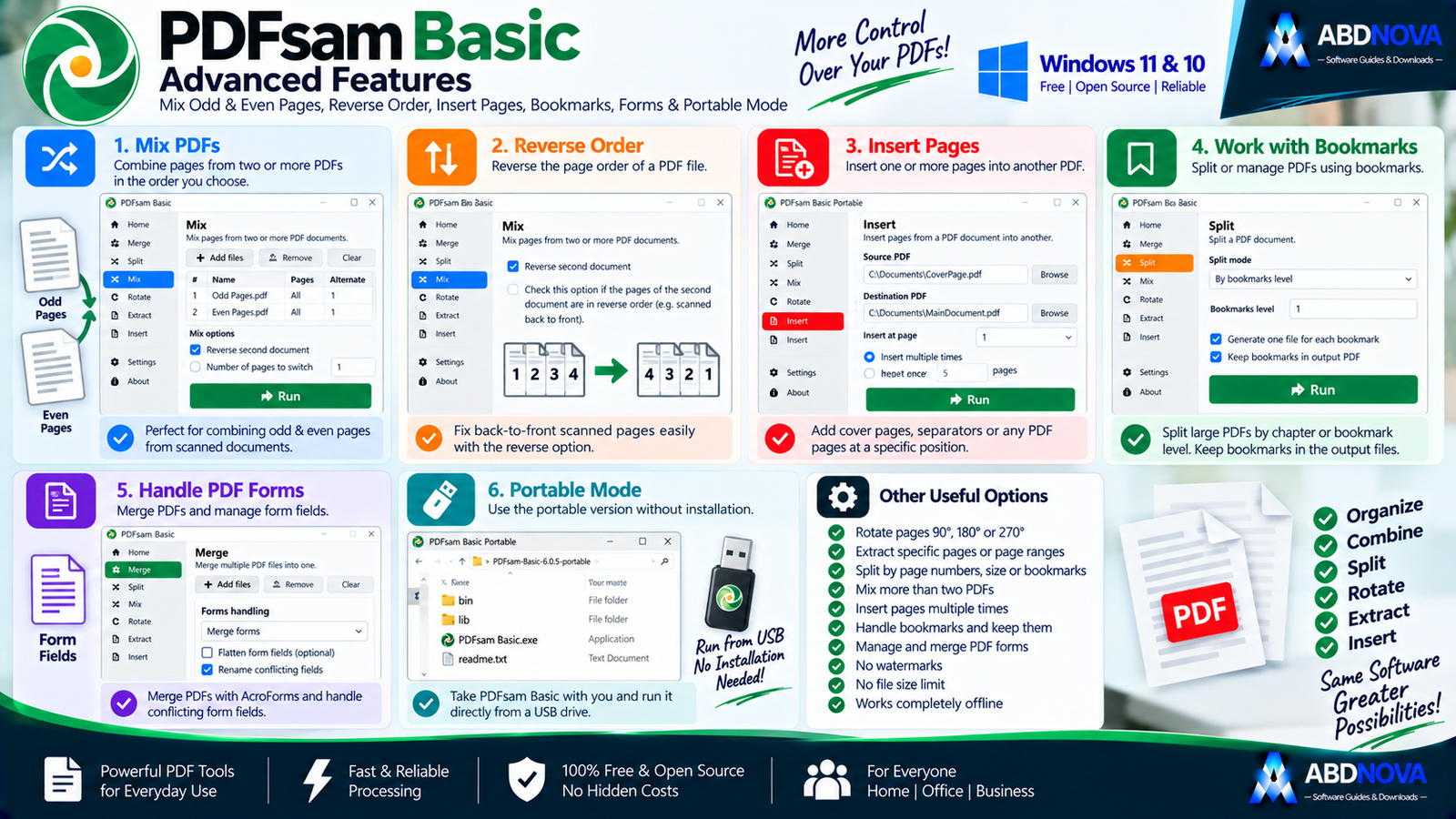
PDFsam Basic Advanced Features – Mix, Insert & Offline Privacy
Mix PDF Files
The Mix tool interleaves pages from two or more PDF files.
For example:
PDF B: 2, 4, 6, 8
Result: 1, 2, 3, 4, 5, 6, 7, 8
Fix Odd & Even Scanner Pages
This is especially useful with single-sided scanners.
You can scan the front sides first, flip the stack, scan the back sides and then use Mix to reconstruct the original order.
If one of the scans is reversed, PDFsam provides a Reverse option to correct the sequence.
Mix More Than Two PDFs
The Mix tool can interleave multiple PDFs and lets you control how many consecutive pages are taken from each file before moving to the next one.
Insert Pages Multiple Times
The Insert Pages tool can insert the same PDF or selected pages repeatedly inside another document.
This can be useful for:
- Separator pages.
- Repeated forms.
- Standard notices.
- Cover sheets.
- Recurring instructions.
PDFsam Basic Works Offline
One of the strongest reasons to use PDFsam Basic is its local-processing workflow.
Your PDF documents remain on your computer rather than being uploaded to a third-party PDF service.
This can be particularly useful for:
- Business data.
- Invoices.
- Contracts.
- Internal reports.
- Personal documents.
- Confidential information.
No Watermarks
PDFsam Basic does not add watermarks to processed PDF files.
No Built-in File Size Limit
PDFsam Basic does not impose a built-in application-level file-size limit.
Practical processing speed still depends on:
- RAM.
- CPU.
- Storage speed.
- PDF complexity.
- Number of pages.

PDFsam Basic vs PDF24 Creator vs PDF-XChange Editor vs SumatraPDF
| Feature | PDFsam Basic | PDF24 Creator | PDF-XChange Editor | SumatraPDF |
|---|---|---|---|---|
| Read PDFs | Limited workflow | Yes | Yes | Excellent |
| Merge PDFs | Yes | Yes | Yes | No |
| Split PDFs | Yes | Yes | Yes | No |
| Rotate Pages | Yes | Yes | Yes | Basic viewing rotation |
| Extract Pages | Yes | Yes | Yes | No |
| Mix Odd/Even Pages | Excellent | Different workflow | Limited / different tools | No |
| PDF Compression | No | Yes | Available features | No |
| OCR | No | Yes | Available by edition/features | No |
| Full PDF Editing | No | Basic tools | Strong | No |
| Open Source | Yes | Different model | No | Yes |
| Offline Processing | Yes | Yes | Yes | Yes |
| Best For | Split / merge / page operations | All-in-one free PDF toolkit | Advanced PDF editing | Lightweight reading |
The main difference is focus. PDFsam Basic specializes in focused PDF page manipulation, PDF24 Creator provides a broader free PDF toolbox, PDF-XChange Editor targets advanced editing, and SumatraPDF focuses on fast lightweight reading.
PDFsam Basic vs PDFsam Visual vs PDFsam Enhanced
| Feature | PDFsam Basic | PDFsam Visual | PDFsam Enhanced |
|---|---|---|---|
| Free | Yes | Trial / Paid | Paid editing features |
| Open Source | Yes | No | No |
| Merge | Yes | Yes | Yes |
| Split | Yes | Yes | Yes |
| Rotate | Yes | Yes | Yes |
| Extract | Yes | Yes | Yes |
| Mix PDFs | Yes | Yes | Different workflow |
| Compress PDF | No | Yes | Yes |
| Visual Page Organization | Basic | Excellent | Strong |
| Crop PDF | No | Yes | Yes |
| Edit PDF Text | No | No | Yes |
| OCR | No | Tools depend on edition | Yes |
| Best For | Free split / merge jobs | Visual PDF toolbox | Full Windows PDF editing |

PDFsam Basic Troubleshooting
PDFsam Basic Won’t Install
Check that the PC is using Windows 10 or above and 64-bit Windows.
If installation fails:
- Restart Windows.
- Download a fresh official installer.
- Confirm sufficient disk space.
- Try the MSI or Portable version if appropriate.
PDFsam Basic Opens Slowly
Large documents or many input files can require more processing time.
Try:
- Closing unnecessary applications.
- Using local SSD storage.
- Working with fewer files at once.
- Ensuring enough free RAM and disk space.
Merge Output Has Wrong Page Order
Check the PDF file order before pressing Run and verify that the selected page ranges are correct.
Mix Produces Wrong Odd/Even Order
If one scanner output was created back-to-front, enable the Reverse option for that input file.
Split Output Is Not What You Expected
Confirm whether you selected:
- Split by page numbers.
- Split every N pages.
- Split by bookmarks.
- Split by size.
Portable or Installer?
- EXE — normal personal installation.
- MSI — managed Windows deployment.
- Portable ZIP — no traditional installation.
Is PDFsam Basic Safe?
Yes, when downloaded directly from the official PDFsam website.
PDFsam Basic is free and open-source software under AGPLv3, and the official project emphasizes that PDF files remain on the local computer during core processing.
- PDFsam Basic Crack.
- PDFsam Premium Crack.
- Modified PDFsam.
- Repacked installers.
- Unknown third-party download sites.
PDFsam Basic is already free, so there is no legitimate reason to use a cracked edition.
Safe PDFsam Basic Download for Windows
The safest source for PDFsam Basic Download for Windows is the official PDFsam website.
Use the official PDFsam Basic download page to get the current Windows EXE, MSI or Portable ZIP package.
Frequently Asked Questions
Is PDFsam Basic free?
Yes. PDFsam Basic is completely free.
Is PDFsam Basic open source?
Yes. It is released under the AGPLv3 license.
What is the latest PDFsam Basic version?
The current official download page lists PDFsam Basic 6.0.5.
Does PDFsam Basic work on Windows 11?
Yes. The requirement is Windows 10 or above, so Windows 11 is supported.
Does PDFsam Basic work on Windows 10?
Yes. Windows 10 64-bit is supported.
Does PDFsam Basic add watermarks?
No. The official project states that PDFsam Basic has no watermarks.
Is there a file size limit?
PDFsam Basic states that there is no built-in application-level file-size limit.
Can PDFsam Basic merge PDFs?
Yes. Merge is one of its primary tools.
Can PDFsam Basic split a PDF by file size?
Yes. Split-by-size is supported.
Can PDFsam Basic combine odd and even scanner pages?
Yes. The Mix tool is specifically designed for this type of workflow.
Does PDFsam Basic work offline?
Yes. Core processing occurs locally without uploading your PDF documents.
Is there a portable version?
Yes. The official Windows download page provides a 64-bit Portable ZIP package.
Final Thoughts
PDFsam Basic Download for Windows is a strong choice for Windows 11 and Windows 10 users who want focused PDF page-management tools without paying for a full PDF editor.
Its combination of Merge, Split, Mix, Rotate, Extract and Insert Pages, along with page-range controls, bookmark-based splitting, size-based splitting, scanner-page interleaving, no watermarks, no built-in file-size limits and local offline processing, makes it especially useful for everyday document organization.
If you mainly need PDF page operations rather than OCR, text editing or a complete PDF suite, PDFsam Basic keeps the workflow simple and private.
Ready to download PDFsam Basic?
Get the latest Windows EXE, MSI or Portable ZIP directly from the official PDFsam website. ABDNOVA recommends official sources only.


