

Caesium Image Compressor Download for Windows 11 & 10
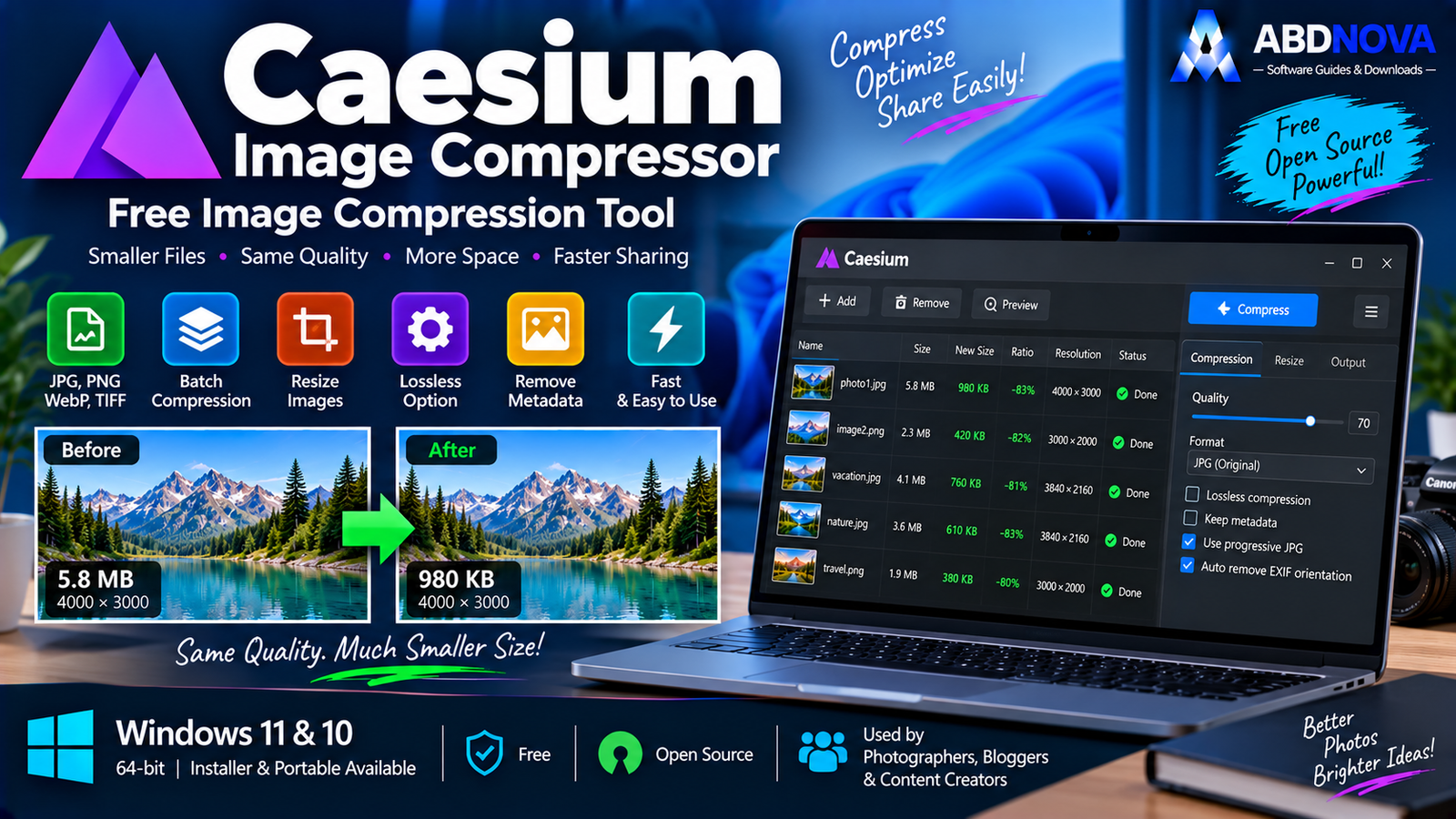
Download Caesium Image Compressor for Windows 11 and 10 to compress, resize and optimize JPG, PNG, WebP and TIFF images individually or in batches.
Caesium Image Compressor Download for Windows gives Windows users a free and open-source tool for reducing image file sizes while maintaining useful visual quality.
It is especially useful for large JPG, PNG, WebP or TIFF images that take up too much storage or are unnecessarily large for websites, email, uploads and sharing.
Instead of resizing and saving every image manually, Caesium can process multiple files together and lets you control compression quality, dimensions, output format, metadata and other optimization settings.
Caesium Image Compressor Download for Windows – Quick Overview
| Information | Details |
|---|---|
| Software | Caesium Image Compressor |
| Current Desktop Version | 2.8.5 |
| Type | Image Compressor / Optimizer |
| Windows 11 | Supported |
| Windows 10 | Build 1809 or later |
| Architecture | 64-bit only |
| Installer | Yes |
| Portable Version | Yes |
| Price | Free |
| License | GPL-3.0 |
| Open Source | Yes |
| JPG | Yes |
| PNG | Yes |
| WebP | Yes |
| TIFF | Supported in current desktop branch |
| Batch Compression | Yes |
| Image Resize | Yes |
| Lossless Option | Yes |
| Metadata Options | Yes |
| JPEG Progressive / Baseline | Yes |
| Dark / Light Theme | Yes |
What Is Caesium Image Compressor?
Caesium Image Compressor is designed primarily to reduce image file size and, when needed, image resolution while preserving acceptable visual quality.
Caesium can be useful for:
- Website images.
- Blog graphics.
- Product photos.
- Photography collections.
- Email attachments.
- Social-media images.
- Reducing storage use.
- Batch optimization.
- Image resizing.
- JPG to WebP conversion.
Caesium is not intended to replace a full photo editor. Its main purpose is straightforward: make image files smaller efficiently.
Caesium Installer vs Portable Version
Installer Version
The installer is the best choice for users who want Caesium installed normally on Windows and available like other desktop applications.
Portable Version
The official Portable package can be extracted and run without a traditional installation.
It is useful for:
- USB drives.
- Portable software folders.
- Temporary computers.
- Users who do not want a normal installation.
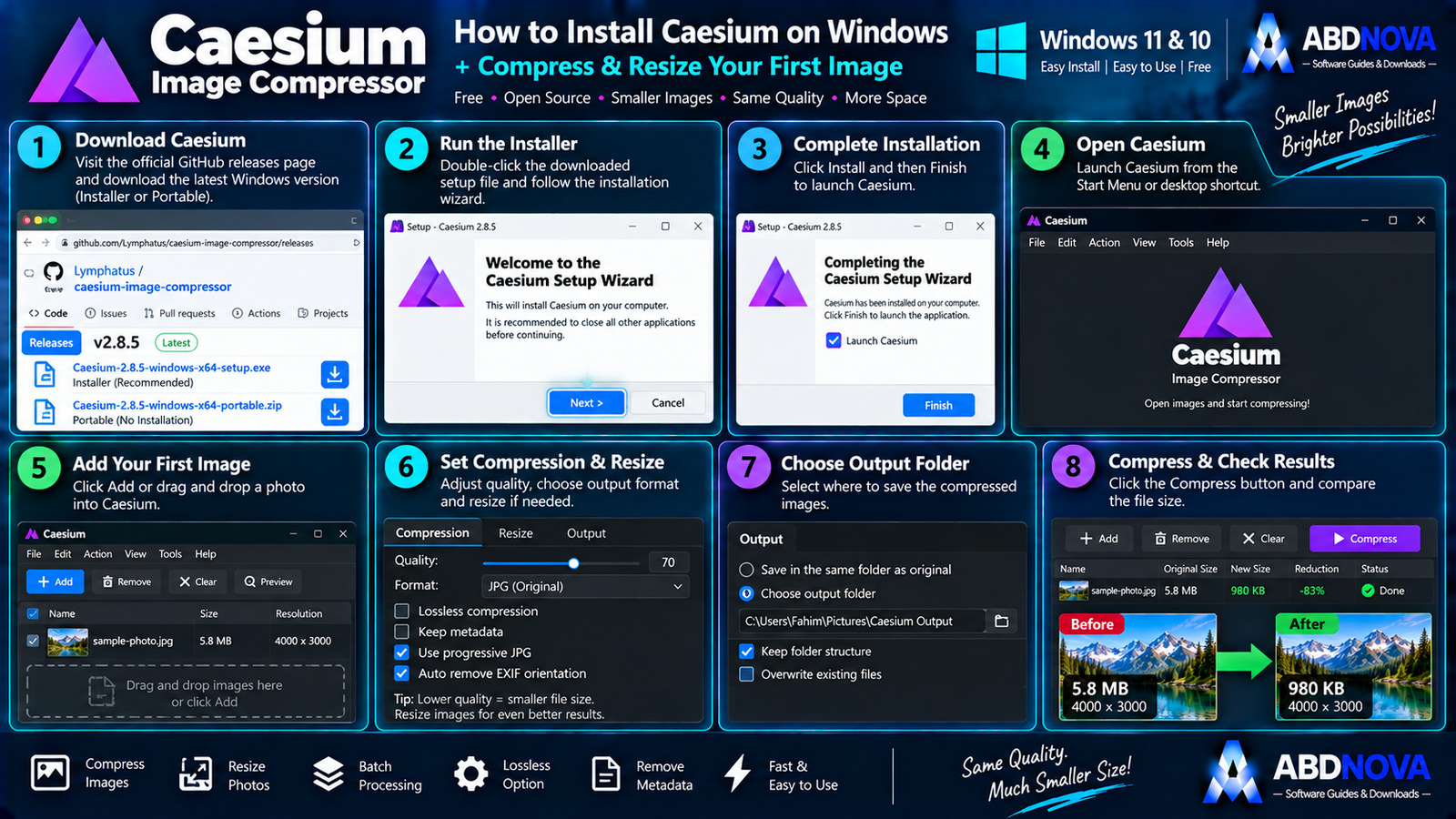
How to Install Caesium Image Compressor on Windows
- Open the official Caesium website or official release page.
- Find the current stable Windows version.
- Choose the Installer for a normal setup or Portable for folder-based use.
- Download the package.
- Open the installer if you selected the Installer version.
- Follow the setup instructions.
- Launch Caesium Image Compressor.
- Add your first image.
How to Compress Your First Image
The basic workflow is:
- Add the image you want to optimize.
- Choose a compression-quality setting.
- Select the output folder.
- Start compression.
- Compare the optimized result with the original.
For example, a 5.8 MB photo might become significantly smaller after optimization, but the exact reduction depends on the original image, dimensions, format, content and compression settings.
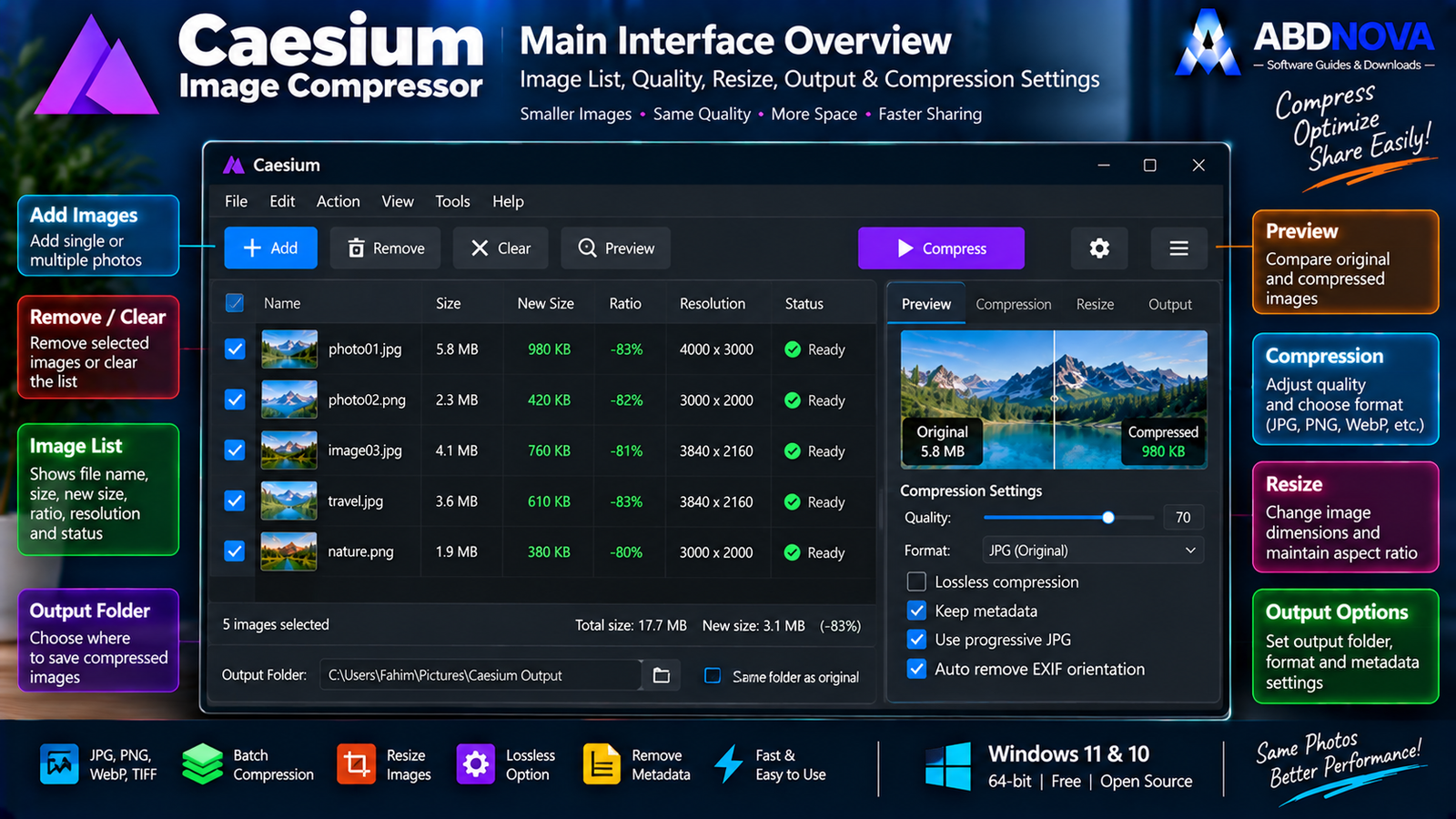
Caesium Image Compressor Main Interface & Workflow
Caesium uses a relatively simple interface designed for processing one or many images without opening a separate editor for each file.
Image List
Add the JPG, PNG, WebP or other supported images that you want to optimize.
Compression Quality
The quality controls determine the balance between image quality and output file size.
In general:
Lower quality → Smaller file → Greater risk of visible quality loss
Resize Options
You can reduce image dimensions while compressing to produce even smaller output files.
Output Settings
Choose where optimized images should be saved and configure the appropriate output format and related settings.
Image Quality vs File Size
Maximum compression is not automatically the best optimization.
For example, reducing a 4 MB image to 300 KB may appear impressive, but the result is not useful if fine detail, text, gradients or skin texture become visibly damaged.
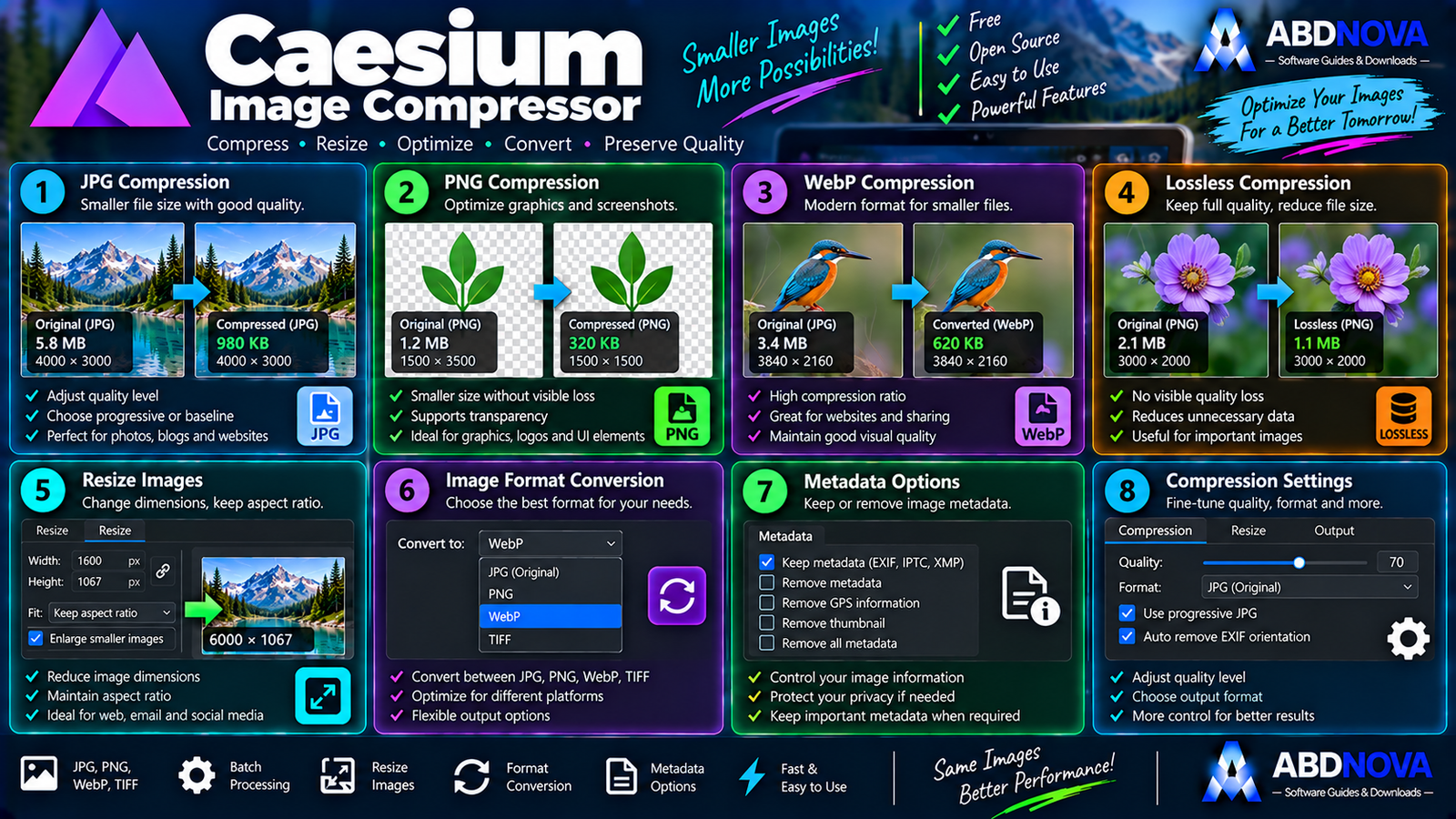
Caesium Image Compression – JPG, PNG, WebP & TIFF
JPG Compression
JPEG is commonly used for:
- Photographs.
- Blog images.
- Website banners.
- Product photos.
- Travel photography.
- Social images.
JPEG uses lossy compression, so lowering quality too aggressively can permanently remove visible image information.
Current Caesium releases also provide a progressive/baseline JPEG option.
PNG Compression
PNG is commonly used for:
- Graphics.
- Screenshots.
- Logos.
- UI elements.
- Images requiring transparency.
PNG and JPEG use different compression techniques, so do not expect the same percentage reduction from both formats.
WebP Compression
WebP is particularly useful for websites because it can often provide smaller files while retaining good visual quality.
A common web workflow is:
Always inspect the converted image before deleting the original.
TIFF Support
The modern Caesium desktop branch also includes TIFF support, making it more flexible for higher-quality imaging and photography workflows.
Resize Images While Compressing
Sometimes resizing produces a greater practical saving than compression alone.
For example:
If a photo will only appear around 1200–1600 pixels wide on a website, keeping the full camera resolution may be unnecessary.
Maintain Aspect Ratio
Keep the original aspect ratio when resizing ordinary photographs to avoid stretched or squashed images.
For example:
6000 × 4000 → 1200 × 800
maintains the same proportions.
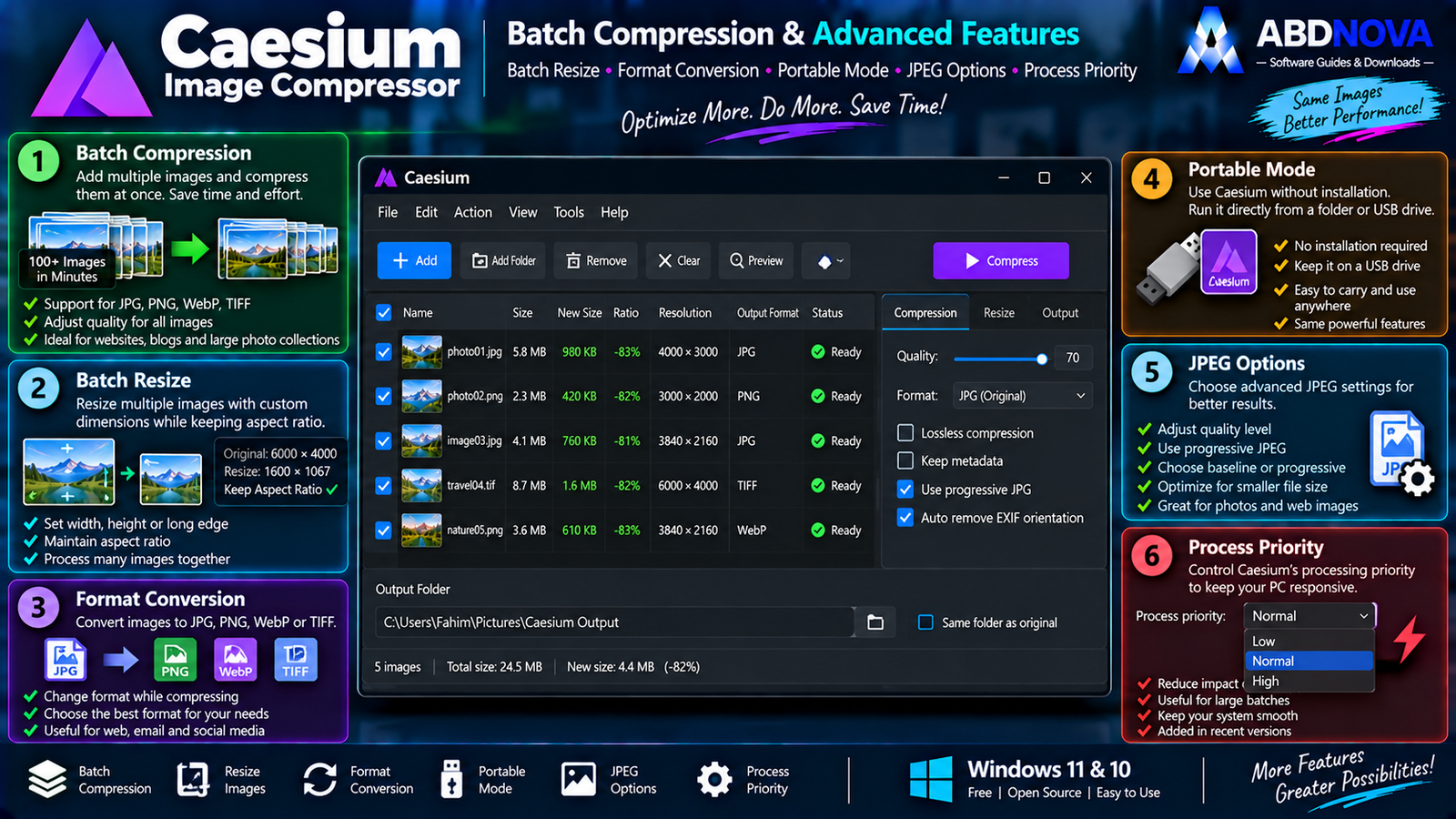
Caesium Batch Compression & Advanced Features
Batch Image Compression
Batch processing is one of the biggest reasons to use Caesium instead of manually optimizing images in a full photo editor.
If you have 100 website images, you can configure the compression settings once and process multiple files together.
This is useful for:
- Website owners.
- Bloggers.
- Photographers.
- Ecommerce images.
- Social-media content.
- Large photo collections.
Batch Resize
Compression and resizing can be combined into one workflow.
Image Format Conversion
Caesium can change output formats as part of an optimization workflow.
For example:
JPG → WebP
Choose the format according to how the image will be used rather than simply selecting whichever format produces the smallest number.
Lossless Compression
Caesium also provides a Lossless Compression option for workflows where preserving image information is more important than producing the smallest possible output file.
Lossless files can naturally remain larger than aggressively compressed lossy images.
Metadata Options
Photos may contain metadata such as camera details, capture settings and software information.
Caesium provides metadata-handling options that can preserve metadata in supported workflows.
For personal photography, this information may be useful. For web publishing, unnecessary metadata may simply increase file size or expose information that you do not need to distribute.
Compression Preview & Comparison
Do not judge optimization only by the final file-size number.
Check:
- Fine detail.
- Text.
- Hair.
- Tree branches.
- Gradients.
- Shadows.
- Skin texture.
- Sharp edges.
If visible artifacts appear, increase the quality and recompress from the original image.
If you also manage large image libraries and need strong batch-conversion and format tools, see our XnView MP Download for Windows guide.
Caesium Online
The developer also provides an official browser-based Caesium compressor for users who only need occasional optimization without installing the desktop application.
The desktop version remains more practical when you regularly process many local files or need a dedicated Windows application.
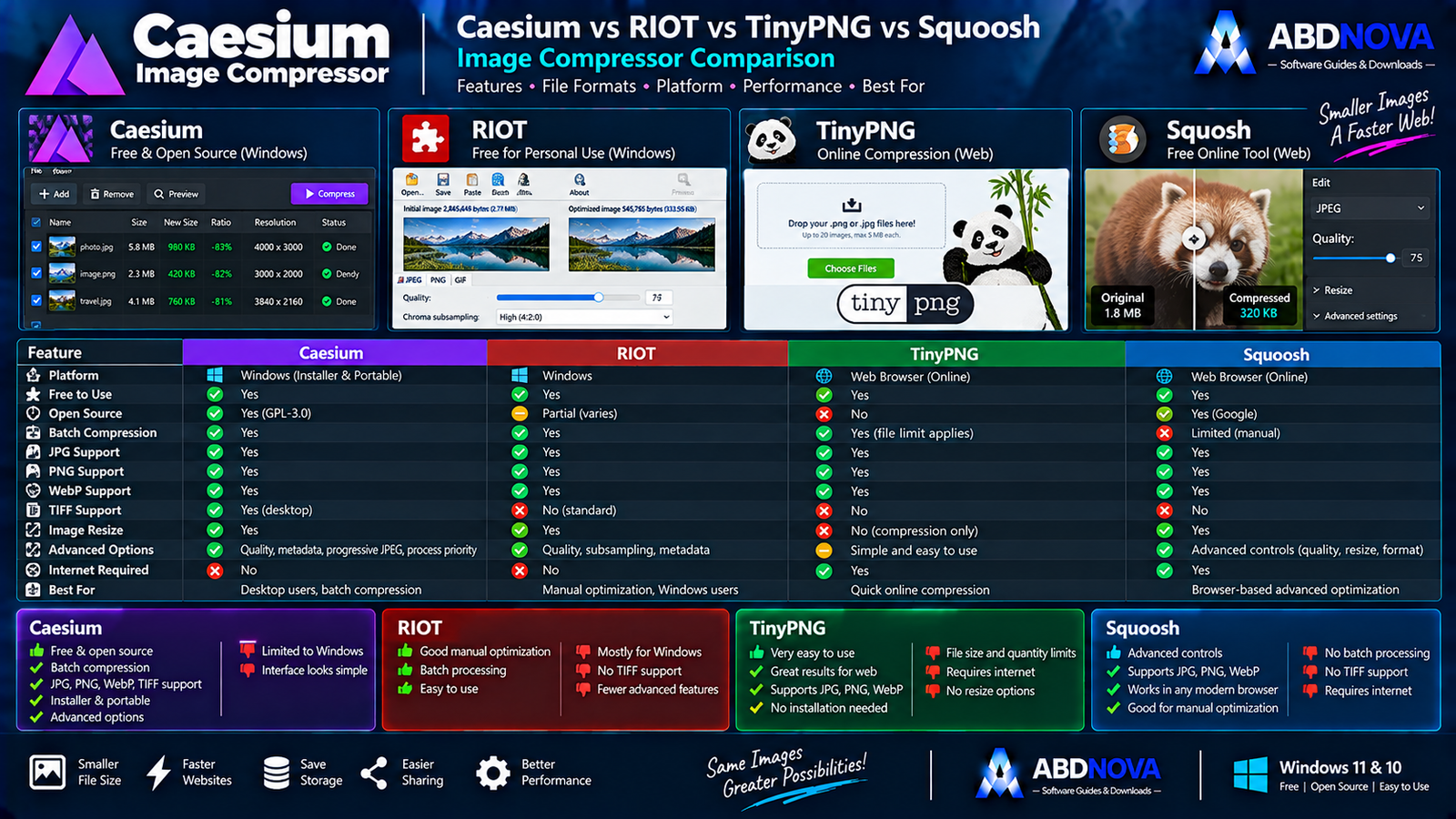
Caesium vs RIOT vs TinyPNG vs Squoosh
| Feature | Caesium | RIOT | TinyPNG | Squoosh |
|---|---|---|---|---|
| Windows Desktop App | Yes | Yes | No | Browser |
| Free Option | Yes | Yes | Limited online service | Yes |
| Open Source | Yes | Varies by component/version | No | Yes |
| Batch Workflow | Yes | Yes | Limits vary | Limited |
| JPG | Yes | Yes | Yes | Yes |
| PNG | Yes | Yes | Yes | Yes |
| WebP | Yes | Supported workflows | Yes | Yes |
| TIFF Desktop Support | Yes | Varies | No | No |
| Resize | Yes | Yes | Limited | Yes |
| Portable Windows Version | Yes | Availability varies | No | No |
| Best For | Desktop batch compression | Image optimization | Quick online compression | Browser-based manual optimization |
Caesium’s main advantage is its combination of free + open source + desktop + batch compression + resizing + portable support.
For users who need more photo-viewing and basic editing features alongside batch operations, our FastStone Image Viewer Download for Windows guide covers another related Windows image utility.
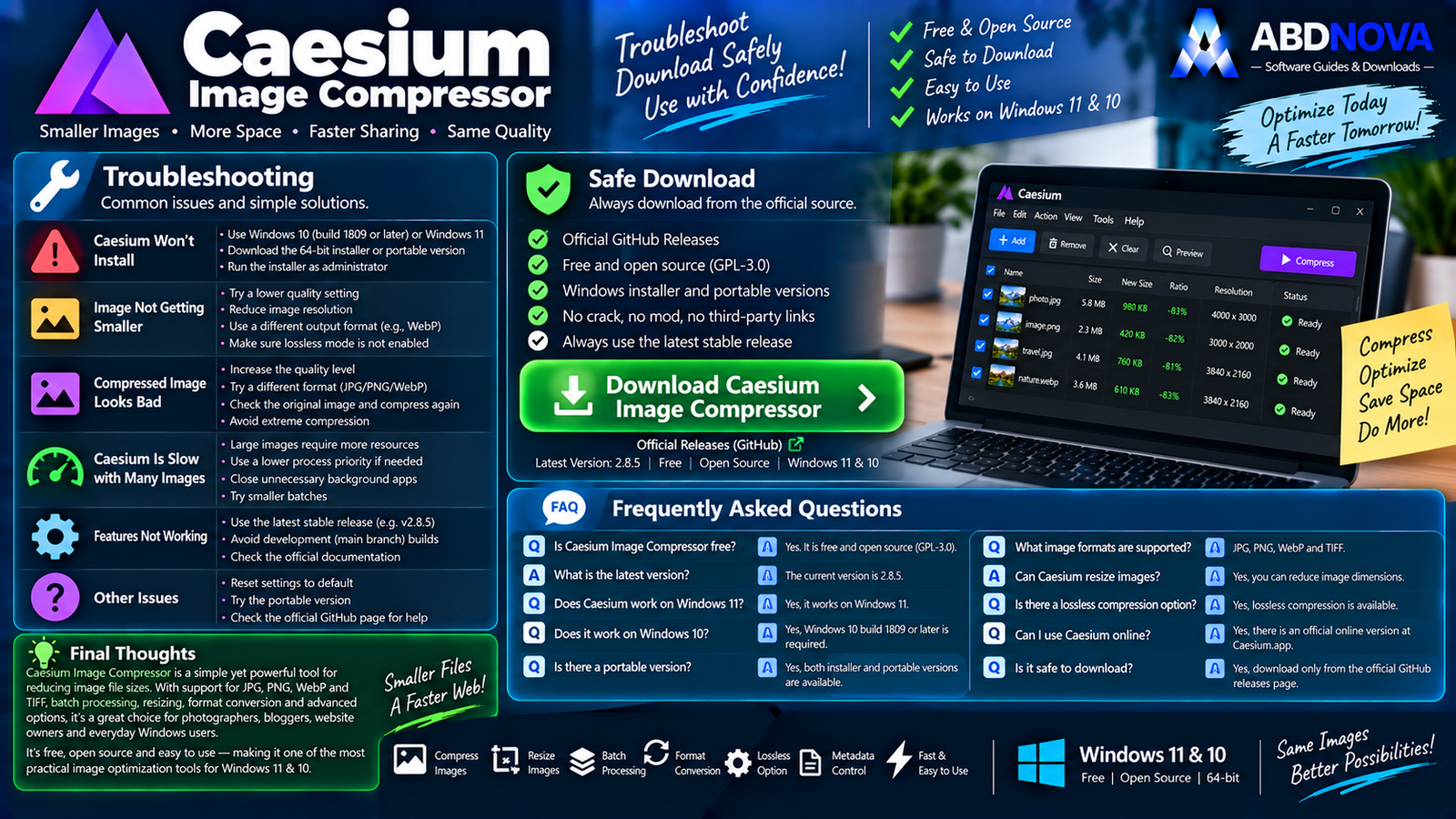
Caesium Image Compressor Troubleshooting
Caesium Won’t Install
Check that your PC meets the current Windows requirement:
- Windows 10 build 1809 or later.
- Windows 11.
- 64-bit Windows.
Image Doesn’t Become Much Smaller
Some source images are already heavily compressed.
Try:
- Adjusting quality.
- Reducing dimensions.
- Trying an appropriate output format.
- Checking whether Lossless mode is enabled.
Compressed Image Looks Bad
Your compression setting may be too aggressive. Increase the quality and compress the original image again.
Caesium Is Slow with Many Images
Large high-resolution batches naturally require more CPU and memory. Current Caesium versions also provide process-priority controls that can help manage how its workload interacts with other programs.
Portable or Installer?
Choose:
- Installer — regular everyday use.
- Portable — no traditional installation or easier folder-based use.
Is Caesium Image Compressor Safe?
Yes, when downloaded directly from the official Caesium project.
Caesium Image Compressor is free and open-source software distributed under the GPL-3.0 license.
- Caesium Crack.
- Caesium Pro Crack.
- Caesium Premium.
- Modified Caesium.
- Pre-Activated Caesium.
- Unknown repacked installers.
Caesium is already free, so there is no legitimate reason to use a cracked or modified edition.
Safe Caesium Image Compressor Download for Windows
The safest source for Caesium Image Compressor Download for Windows is the official Caesium website.
Use the official Caesium Image Compressor page to get the current Windows Installer or Portable package.
Frequently Asked Questions
Is Caesium Image Compressor free?
Yes. Caesium is free and open-source software licensed under GPL-3.0.
What is the current Caesium Image Compressor version?
The current stable desktop version verified for this article is Caesium Image Compressor 2.8.5.
Does Caesium work on Windows 11?
Yes. Caesium supports modern 64-bit Windows systems including Windows 11.
Does Caesium work on Windows 10?
Yes. The current desktop branch requires Windows 10 build 1809 or later.
Is Caesium 64-bit?
Yes. The current Windows version is 64-bit only.
Is there a portable Caesium version?
Yes. The official project provides both Installer and Portable Windows packages.
Can Caesium compress JPG images?
Yes. JPEG is one of its primary supported compression formats.
Can Caesium compress PNG images?
Yes. PNG compression is supported.
Does Caesium support WebP?
Yes. WebP is part of the primary desktop compression workflow.
Does Caesium support TIFF?
Yes. Modern Caesium desktop releases include TIFF support.
Can Caesium resize images?
Yes. It can reduce image dimensions while performing compression.
Can Caesium compress multiple images at once?
Yes. Batch compression is one of its main advantages.
Does Caesium have lossless compression?
Yes. A Lossless Compression option is available for workflows where preserving image information is more important than achieving the smallest possible output file.
Is there an online Caesium compressor?
Yes. The developer provides an official browser-based version in addition to the desktop application.
Final Thoughts
Caesium Image Compressor Download for Windows is a practical option for Windows 11 and Windows 10 users who regularly need to reduce image file sizes without opening a full photo editor.
Its combination of JPG, PNG, WebP and TIFF support, adjustable quality, image resizing, batch processing, format conversion, metadata options, Lossless Compression and official Installer and Portable packages makes it especially useful for photographers, bloggers, website owners and content creators.
For website optimization, remember that the smallest possible file is not always the best result. Aim for a sensible balance between page weight and visible image quality, and always keep your original files before performing large batch operations.
Ready to download Caesium Image Compressor?
Get the latest stable Windows Installer or Portable package directly from the official Caesium website. ABDNOVA recommends official sources only.


