

PotPlayer Download for Windows – Customizable Multimedia Player

Download PotPlayer for Windows 11 and 10 to play video and audio with hardware acceleration, subtitles, multiple audio tracks, playlists, filters and extensive customization.
PotPlayer Download for Windows gives Windows 11 and Windows 10 users a free, highly customizable multimedia player developed by Kakao.
PotPlayer combines broad video and audio compatibility with advanced controls for hardware acceleration, subtitles, audio tracks, video processing, playlists, filters, screenshots, playback speed and interface customization.
It is especially useful for Windows users who want more playback control than a simple media player provides.
PotPlayer Download for Windows – Quick Overview
| Information | Details |
|---|---|
| Software | PotPlayer |
| Developer | Kakao Corp. |
| Type | Video & Audio Player |
| Platform | Windows |
| Windows 11 | Supported |
| Windows 10 | Supported |
| 64-bit | Yes |
| 32-bit | Yes |
| Hardware Acceleration | DXVA, CUDA, QuickSync |
| Subtitle Support | Yes |
| Multiple Audio Tracks | Yes |
| 3D Playback | Yes |
| Built-in Codecs | Yes |
| OpenCodec | Supported |
| Playlists | Yes |
| Customization | Extensive |
| License | Freeware |
| Official Source | PotPlayer / Kakao |
What Is PotPlayer?
PotPlayer is a Windows-focused multimedia player originally associated with Daum and currently developed by Kakao Corp.
PotPlayer can be used for:
- Movies and TV shows.
- MKV, MP4, AVI, MOV and WMV playback.
- MP3, FLAC, AAC and other audio files.
- 4K and very high-resolution video.
- Hardware-accelerated playback.
- Multiple audio tracks.
- Embedded and external subtitles.
- DVDs and supported media devices.
- Online and network streams.
- Playlists.
- Screenshots and scene previews.
- Video filters and processing.
- Playback-speed adjustment.
- Interface customization.
PotPlayer 32-bit vs 64-bit
PotPlayer 64-bit
For virtually all normal Windows 11 PCs, use the 64-bit version.
For 64-bit Windows 10 systems, the 64-bit PotPlayer build is also the recommended choice.
PotPlayer 32-bit
Use the 32-bit installer only when you are running a 32-bit Windows environment or have a specific compatibility requirement.

How to Install PotPlayer on Windows
- Open the official PotPlayer download source.
- Choose the 64-bit build for most modern Windows PCs.
- Use the 32-bit installer only when required.
- Open the downloaded installer.
- Verify the official source if Windows displays a UAC prompt.
- Select your preferred installer language.
- Review the installation options.
- Use the default options unless you have a specific reason to change them.
- Complete installation and launch PotPlayer.
- Open your first video or audio file.
How to Play Your First Video
You can open media using the Open File command, drag and drop a file directly into PotPlayer, or use Windows file associations.
PotPlayer Main Interface & Playback Controls
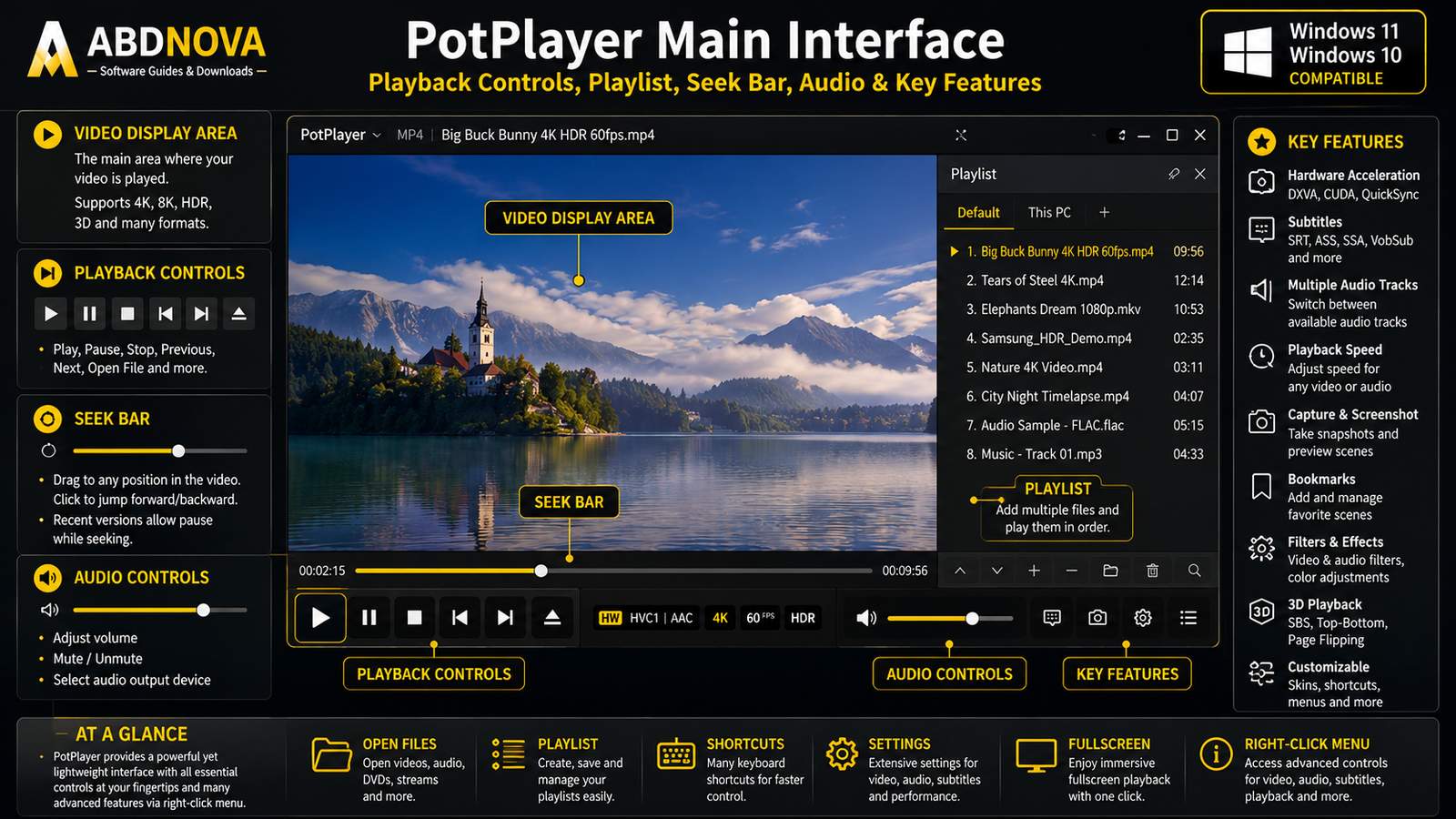
PotPlayer keeps its main interface relatively compact while exposing a large number of advanced controls through menus and the right-click context menu.
Video Area
The central area displays the currently playing video.
Playback Controls
Common controls include play, pause, stop, previous, next, seek, volume and fullscreen.
Seek Bar
Drag the seek bar to move backward or forward through the current media file.
Playlist
The playlist can hold multiple video or audio files for sequential playback.
Right-Click Menu
The context menu provides access to video, audio, subtitles, playback, filters, aspect ratio, screen size, capture and Preferences.

PotPlayer Video Playback, Hardware Acceleration & Codecs
Supported Video Formats
Common examples include:
- MKV.
- MP4.
- MOV.
- AVI.
- WMV.
- FLV.
- MPEG.
- H.264.
- H.265 / HEVC.
- VP9.
- VOB.
- TS.
- MXF.
Supported Audio Formats
PotPlayer can also play formats such as MP3, AAC, WMA, FLAC, OGG, AC3, DTS and WAV.
Common playlist formats include M3U, PLS, ASX and CUE.
Built-in Codecs & OpenCodec
PotPlayer includes built-in codec support, which means normal playback generally does not require installing a separate large codec pack.
OpenCodec can extend codec functionality when additional components are required.
Hardware Acceleration
PotPlayer supports several hardware-acceleration technologies.
- DXVA: Uses compatible Windows and GPU hardware for video decoding.
- CUDA: Can use compatible NVIDIA hardware for supported workloads.
- QuickSync: Uses compatible Intel graphics hardware.
Hardware decoding can reduce CPU load and improve playback efficiency with demanding high-resolution media.
PotPlayer 4K & 8K Playback
PotPlayer can handle 4K and other high-resolution media, and current PotPlayer information also lists 8K playback capability.
Video Filters & Processing
Advanced users can configure options including:
- Scaling.
- Deinterlacing.
- Color adjustments.
- Sharpening.
- Noise reduction.
- Aspect ratio.
- Video renderer.
- Custom filters.
If you also work with video conversion, codecs or media processing outside a player, see our FFmpeg Download for Windows guide.
PotPlayer Subtitles, Audio Tracks, Playback Speed & Capture
Subtitle Support
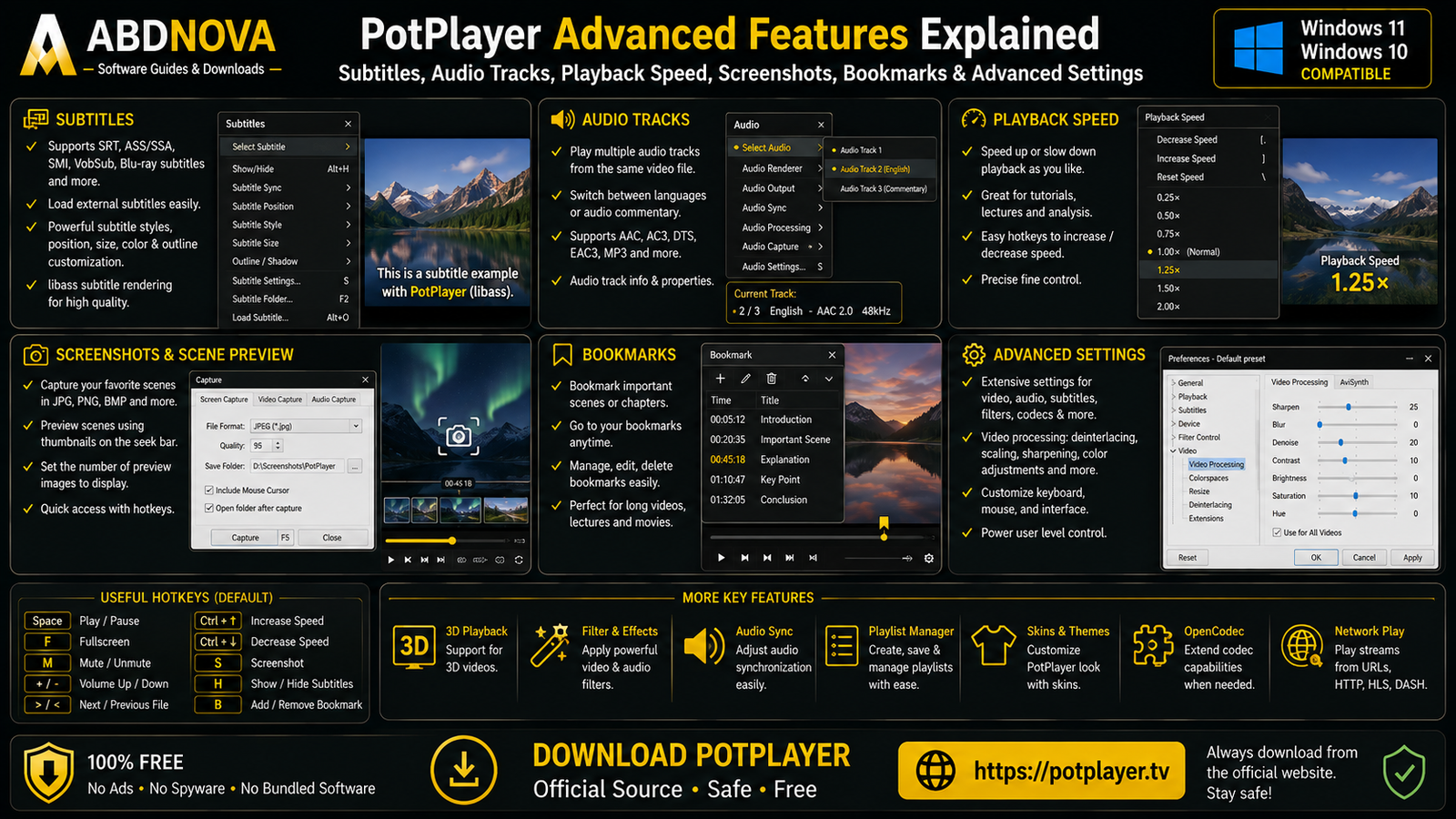
PotPlayer supports many subtitle types, including SRT, SMI, ASS, SSA, VobSub and Blu-ray subtitle formats.
libass Subtitle Rendering
Current PotPlayer development includes libass subtitle rendering, which can be useful for complex ASS and SSA subtitles containing advanced positioning and styling.
External Subtitles
If you have:
movie.mkv
movie.srt
in the same folder, PotPlayer can load the external subtitle alongside the video. You can also load subtitle files manually.
Subtitle Synchronization
If subtitles appear too early or too late, use PotPlayer’s timing controls to adjust synchronization without permanently editing the subtitle file.
Multiple Audio Tracks
PotPlayer lets you switch between multiple available audio streams in supported media files.
This is useful for multilingual movies, commentary tracks and Blu-ray-derived media.
Audio Configuration
PotPlayer includes controls for:
- Audio renderer.
- Speaker configuration.
- Audio synchronization.
- Volume.
- Equalizer.
- Audio processing.
- Audio-track selection.
Playback Speed
You can increase or decrease playback speed for tutorials, lectures, podcasts, meetings and long videos.
Frame-by-Frame Playback
Frame stepping allows precise inspection for screenshots, video analysis, animation review and encoding checks.
Screenshots & Scene Preview
PotPlayer includes video-capture and scene-preview tools that can help you inspect or navigate long videos.
Bookmarks
You can bookmark important scenes or chapters and return to them later.
3D Video Playback
PotPlayer also includes 3D playback capabilities with supported output methods including Side by Side, Top and Bottom and Page Flipping.
Online & Network Playback
PotPlayer can handle supported local, online and network sources.
Recent development includes improvements for HTTP streams and built-in HLS/DASH playback handling.

PotPlayer vs VLC vs MPC-BE vs MPC-HC
| Feature | PotPlayer | VLC | MPC-BE | MPC-HC |
|---|---|---|---|---|
| Platform Focus | Windows | Cross-platform | Windows | Windows |
| Free | Yes | Yes | Yes | Yes |
| Open Source | No | Yes | Yes | Yes |
| Hardware Acceleration | Yes | Yes | Yes | Yes |
| Subtitles | Excellent | Excellent | Excellent | Excellent |
| Multiple Audio Tracks | Yes | Yes | Yes | Yes |
| 4K Playback | Yes | Yes | Yes | Yes |
| Customization | Extensive | Moderate | Advanced | Advanced |
| Best For | Maximum Windows customization | Cross-platform playback | Open-source Black Edition playback | Classic lightweight MPC playback |
PotPlayer vs VLC
VLC’s major advantage is broad cross-platform availability. PotPlayer is Windows-focused and exposes a deeper Windows-specific playback and customization environment.
For the cross-platform alternative, see our VLC Media Player Download for Windows guide.
PotPlayer vs MPC-BE
Both are powerful Windows media players with hardware acceleration, subtitles, audio-track controls and extensive settings.
PotPlayer offers deep built-in customization, while MPC-BE has the advantage of being free and open source.
PotPlayer vs MPC-HC
MPC-HC offers a cleaner classic Media Player Classic workflow, while PotPlayer exposes more built-in playback and interface settings.
Users who prefer simplicity may find MPC-HC easier, while users who enjoy configuring nearly every aspect of playback may prefer PotPlayer.

PotPlayer Troubleshooting
PotPlayer Won’t Open
Restart Windows, reinstall the current version, reset unusual settings, check Windows security software and download a fresh installer from the official source if necessary.
Video Plays but the Screen Is Black
Try changing the video renderer, updating GPU drivers, enabling or disabling hardware decoding, resetting custom video filters and testing another file.
4K Video Stutters
Enable hardware acceleration, update the GPU driver, close heavy background applications, test DXVA or QuickSync where appropriate and confirm that the GPU supports the video’s codec.
Subtitles Don’t Appear
Check the selected subtitle track, visibility, external subtitle filename, renderer, position and subtitle format.
Subtitles Are Out of Sync
Adjust subtitle timing forward or backward until the text matches the dialogue.
No Sound
Check PotPlayer volume, Windows volume, the selected audio track, audio renderer, Windows output device and speaker configuration.
Audio Is Out of Sync
Use PotPlayer’s audio-synchronization controls to compensate for small timing delays.
HTTP Stream Doesn’t Play
Update PotPlayer first. Current development has included improvements for HTTP streams and built-in HLS/DASH handling.
Safe PotPlayer Download for Windows
The safest source for PotPlayer Download for Windows is the official PotPlayer/Kakao website.
Use the official PotPlayer website and choose the appropriate 32-bit or 64-bit Windows build.
- PotPlayer Crack.
- PotPlayer Premium Crack.
- PotPlayer Pro.
- PotPlayer Activated.
- PotPlayer Mod.
- Modified PotPlayer.
- Unofficial PotPlayer repacks.
PotPlayer is already freeware, so there is no legitimate reason to use cracked or modified copies.
Frequently Asked Questions
Does PotPlayer work on Windows 11?
Yes. Windows 11 is supported.
Does PotPlayer work on Windows 10?
Yes. Windows 10 is supported.
Is PotPlayer free?
Yes. PotPlayer is distributed as freeware.
Is PotPlayer open source?
No. PotPlayer is proprietary freeware, unlike VLC, MPC-BE and MPC-HC.
Should I download PotPlayer 32-bit or 64-bit?
For a modern 64-bit Windows 11 or Windows 10 PC, choose the 64-bit build.
Does PotPlayer support hardware acceleration?
Yes. PotPlayer supports hardware-acceleration technologies including DXVA, CUDA and Intel QuickSync.
Can PotPlayer play 4K video?
Yes, provided the computer has sufficient hardware and codec support.
Can PotPlayer play 8K video?
PotPlayer can handle very high-resolution media when the system has sufficient GPU, codec and decoding capability.
Does PotPlayer support subtitles?
Yes. PotPlayer supports text, DVD and Blu-ray subtitle formats including SRT, SMI, ASS, SSA and VobSub.
Can PotPlayer play multiple audio tracks?
Yes. You can switch between available audio streams in supported media containers.
Does PotPlayer have built-in codecs?
Yes. PotPlayer includes built-in codec support and can also use OpenCodec.
Does PotPlayer support HLS and DASH?
Current PotPlayer development includes built-in HLS and DASH playback handling.
Is PotPlayer better than VLC?
It depends on your needs. PotPlayer offers deeper Windows-specific customization, while VLC is a strong choice when cross-platform support is more important.
Is PotPlayer better than MPC-BE?
PotPlayer provides extensive customization and built-in options, while MPC-BE has the advantage of being open source.
Is PotPlayer safe?
Yes, when downloaded directly from the official PotPlayer/Kakao source.
Final Thoughts
PotPlayer Download for Windows is a strong option for Windows 11 and Windows 10 users who want more playback control and customization than a basic media player provides.
Its hardware acceleration, broad format compatibility, subtitle tools, multiple audio-track support, built-in codecs, OpenCodec integration, playlists, screenshots, bookmarks, 3D playback, streaming support and extensive video and audio configuration make it particularly suitable for advanced Windows users.
For most modern PCs, the 64-bit PotPlayer build is the appropriate choice. Download it from the official source rather than using third-party repacks or modified installers.
Ready to download PotPlayer?
Get the official 32-bit or 64-bit Windows build directly from the PotPlayer/Kakao website. ABDNOVA recommends official sources only.


