


MPC-HC Download for Windows – Lightweight Media Player

Download MPC-HC for Windows 11 and 10 to play video and audio with hardware decoding, HDR, subtitles, playlists, custom hotkeys and advanced renderer controls.
MPC-HC Download for Windows gives Windows 11 and Windows 10 users a fast, lightweight and highly configurable open-source media player based on the classic Media Player Classic interface.
MPC-HC, short for Media Player Classic – Home Cinema, focuses on straightforward local media playback while still providing advanced controls for video, audio, subtitles, filters, renderers, keyboard shortcuts and playback behavior.
The actively maintained clsid2 version combines the familiar MPC-HC interface with modern components such as LAV Filters and MPC Video Renderer.
MPC-HC Download for Windows – Quick Overview
| Information | Details |
|---|---|
| Software | Media Player Classic – Home Cinema |
| Short Name | MPC-HC |
| Current Stable Release | 2.7.4 |
| Release Date | July 20, 2026 |
| Software Type | Video & Audio Player |
| License | GPL v3 |
| Free | Yes |
| Open Source | Yes |
| Windows 11 | Supported |
| Windows 10 | Supported |
| HDR Playback | Yes |
| Hardware Decoding | Yes |
| Subtitle Support | Yes |
| Playlist Support | Yes |
| DirectShow | Yes |
| Custom Hotkeys | Yes |
| Resume Playback | Yes |
| Official Maintained Source | clsid2 MPC-HC GitHub |
What Is MPC-HC?
MPC-HC is a Windows video and audio player based on the classic Media Player Classic design.
MPC-HC can be useful for:
- Movies and TV shows.
- MP4 and MKV playback.
- Audio playback.
- Subtitle playback.
- Hardware-accelerated decoding.
- HDR video.
- Playback-speed control.
- Frame stepping.
- Playlist playback.
- Video rotation and zoom.
- Custom keyboard shortcuts.
- Resume playback.
- Optional online-video playback using yt-dlp.
- Compatible third-party DirectShow filters.
MPC-HC is particularly useful for users who want a lightweight player without sacrificing advanced playback controls.
Which MPC-HC Should You Download?
This distinction is important because the original MPC-HC project stopped active development years ago.
The actively maintained continuation is the clsid2/mpc-hc project on GitHub.
MPC-HC Stable vs Development Build
| Build | Best For |
|---|---|
| Stable Release | Normal everyday playback and recommended for most users |
| Development Build | Testing newer changes before they reach a stable release |
The current stable release is MPC-HC 2.7.4. Development builds may contain newer changes, but they are intended primarily for testing.

How to Install MPC-HC on Windows
- Open the maintained MPC-HC GitHub Releases page.
- Choose the latest stable release.
- Download the appropriate Windows installer package.
- Avoid outdated versions from unofficial mirror sites.
- Open the downloaded setup file.
- If Windows displays a UAC prompt, confirm that the file came from the maintained GitHub project.
- Follow the installer.
- Launch MPC-HC from the Windows Start menu.
- Open your first video or audio file.
How to Open Your First Video
Use File → Open File or simply drag and drop a supported media file into MPC-HC.
You can also associate supported video and audio file types with MPC-HC depending on your Windows configuration.

MPC-HC Main Interface & Playback Controls
MPC-HC uses a compact classic-style media-player interface.
Menu Bar
The menu bar provides access to File, View, Play, Navigate, Favorites, Help and configuration options.
Video Area
The main viewing area displays the current video. When audio-only content is playing, this area may remain blank or show the configured background.
Seek Bar
The seek bar lets you move backward or forward through the current media.
Playback Controls
Typical controls include play, pause, stop, previous, next, frame controls and volume.
Status Information
MPC-HC can show playback timing and other useful information according to the selected interface configuration.
Playlists
You can add several media files and play them sequentially through the built-in playlist.

MPC-HC Video Playback, Hardware Acceleration & HDR
MPC-HC includes modern video playback functionality despite its lightweight interface.
- Hardware video decoding.
- HDR playback.
- Renderer configuration.
- Video rotation.
- Flipping and mirroring.
- Stretching.
- Zoom.
- Pan & Scan.
- Custom keyboard and mouse actions.
MPC Video Renderer
MPC Video Renderer, often called MPCVR, is one of the most important components in the modern MPC-HC playback stack.
Starting with MPC-HC 2.7.4, MPC Video Renderer became the default renderer on the majority of systems.
Why MPC Video Renderer matters:
- Modern video rendering.
- HDR playback support.
- Hardware-decoding integration.
- Compatibility with current Windows GPUs.
- Improved high-resolution playback workflows.
MPC-HC HDR Playback
MPC-HC can play HDR video using compatible renderers.
The maintained project recommends MPC Video Renderer for modern systems, while madVR is another possible renderer for advanced users.
MPC-HC Hardware Acceleration
Hardware acceleration allows compatible GPU hardware to process part of the video-decoding workload.
This can be especially helpful for HEVC, high-resolution, high-bitrate and HDR video files.
For Windows 10 and Windows 11 systems using MPC Video Renderer, the maintained project recommends D3D11 hardware decoding for optimal performance when supported.
LAV Filters
MPC-HC uses LAV Filters as important components of its modern playback stack.
MPC-HC 2.7.4 updated LAV Filters and MPC Video Renderer as part of the current stable release.
Users normally do not need to manually configure every LAV Filter option, although advanced users can customize decoding behavior when needed.
If you also work directly with media conversion, codecs or command-line processing, see our FFmpeg Download for Windows guide.

MPC-HC Subtitles, Audio Tracks, Playback Speed & Hotkeys
Subtitle Support
MPC-HC provides extensive subtitle functionality.
You can configure:
- Font.
- Size.
- Position.
- Language preferences.
- Subtitle delay.
- Subtitle tracks.
- External subtitle files.
External Subtitles
If you have:
movie.mkv
movie.srt
in the same folder, MPC-HC can usually detect the appropriately named subtitle file. You can also load subtitles manually.
Subtitle Synchronization
If subtitles appear too early or too late, MPC-HC provides timing controls and hotkeys to correct small synchronization differences without editing the original subtitle file.
Online Subtitle Search
MPC-HC can integrate with OpenSubtitles functionality.
Anonymous subtitle downloads can sometimes reach service quota limits, so a temporary download failure does not automatically mean MPC-HC itself is broken.
Multiple Audio Tracks
For media containing several audio streams, you can select the desired track through MPC-HC’s playback menus.
This can include different languages, commentary tracks or different audio configurations.
Playback Speed
MPC-HC allows playback-speed adjustment, making it useful for tutorials, lectures, slow-motion review and quickly checking long recordings.
Resume Playback
MPC-HC can remember recently played files and their positions so that long movies or recordings can resume close to where you stopped.
The option can be managed under Options → Player → History.
Custom Keyboard Shortcuts
MPC-HC provides customizable keyboard and mouse actions for:
- Play and pause.
- Seeking.
- Volume.
- Fullscreen.
- Audio tracks.
- Subtitles.
- Playback speed.
- Frame stepping.
- Pan & Scan.
Rotation, Flip, Mirror & Zoom
MPC-HC can rotate, flip, mirror, stretch and zoom video through its Pan & Scan controls and hotkeys.
Frame Stepping
Frame-by-frame playback can help with video analysis, screenshots, animation inspection and finding an exact moment in a video.
YouTube & Online Video Support
MPC-HC can open supported online-video URLs when configured with optional yt-dlp integration.
Some higher-quality online-video workflows can also benefit from FFmpeg being available.

MPC-HC vs VLC vs PotPlayer vs Windows Media Player
| Feature | MPC-HC | VLC | PotPlayer | Windows Media Player |
|---|---|---|---|---|
| Main Focus | Lightweight Windows playback | Cross-platform playback | Advanced Windows playback | Simple Windows playback |
| Open Source | Yes | Yes | No | No |
| Hardware Decoding | Yes | Yes | Yes | Yes |
| HDR | Renderer dependent | System dependent | Yes | System dependent |
| Subtitles | Excellent | Excellent | Strong | Basic / moderate |
| Custom Filters | Strong DirectShow support | Different architecture | Strong | Limited |
| Custom Hotkeys | Yes | Yes | Yes | Limited |
| Best For | Advanced lightweight Windows playback | Broad cross-platform playback | Deep playback customization | Simple local playback |
MPC-HC vs VLC Media Player
MPC-HC is especially attractive if you want a lightweight Windows-focused player with extensive DirectShow, filter and renderer control.
VLC is better suited to users who want one familiar media player across Windows and other operating systems with a broader built-in network-media ecosystem.
For the cross-platform alternative, see our VLC Media Player Download for Windows guide.
MPC-HC vs PotPlayer
PotPlayer is another advanced Windows media player with extensive settings and customization options.
MPC-HC’s main advantages include its open-source maintained project, classic interface and integration with components such as LAV Filters and MPC Video Renderer.
MPC-HC vs Windows Media Player
Windows Media Player is easier for basic local playback, while MPC-HC provides deeper control over filters, renderers, hardware decoding, subtitles, audio tracks, shortcuts and technical playback settings.
Is MPC-HC Free and Open Source?
Yes. The maintained MPC-HC project is free and open source under the GPL v3 license.
There is no legitimate reason to download a cracked, activated or modified edition.
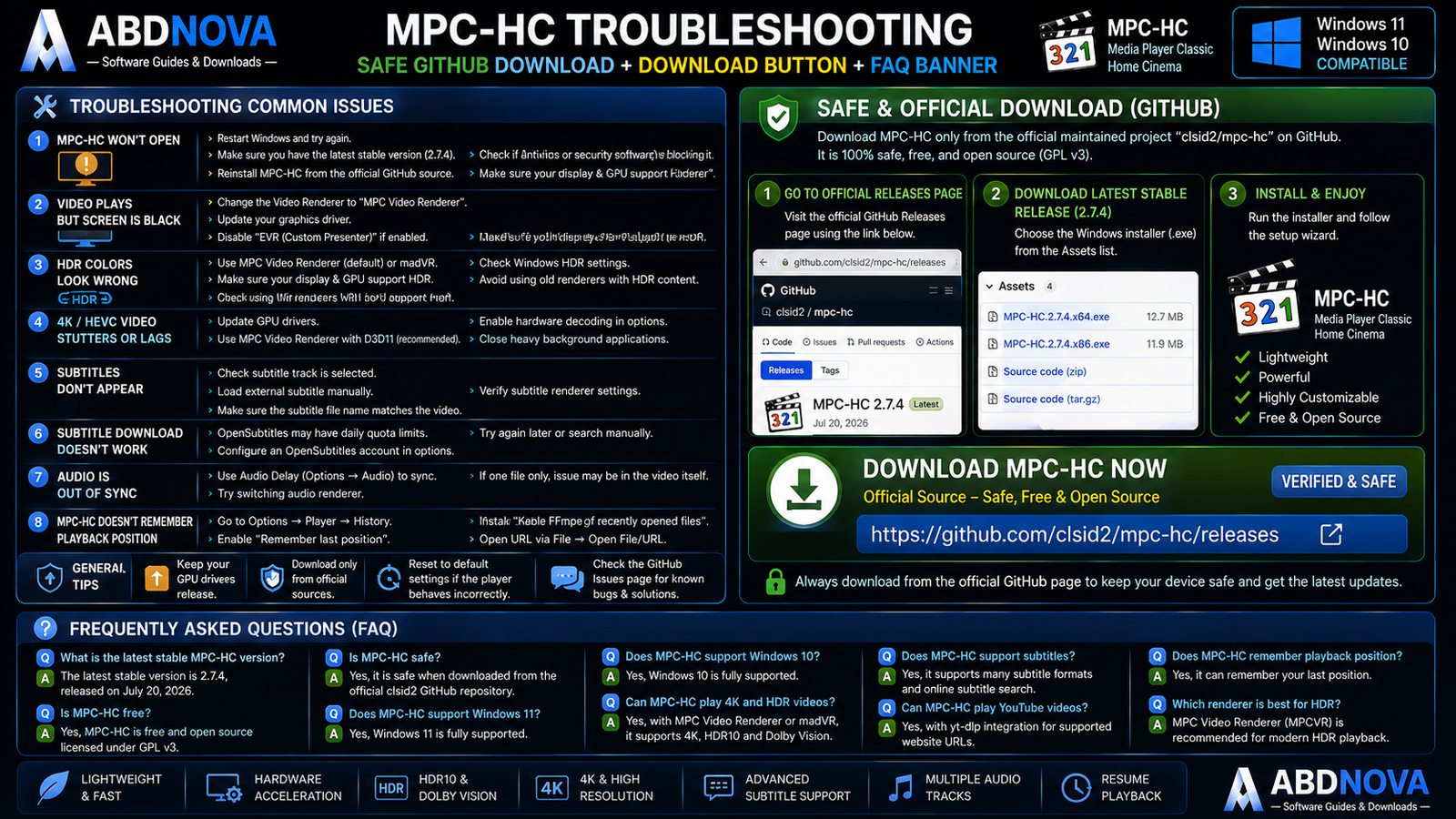
MPC-HC Troubleshooting
MPC-HC Won’t Open
Restart Windows, install the latest stable version, reinstall MPC-HC from the maintained GitHub source, reset unusual settings and check whether security software blocked the application.
Video Plays but the Screen Is Black
Check the selected video renderer. Try MPC Video Renderer and update your graphics driver.
HDR Colors Look Wrong
Check the renderer, Windows HDR settings, GPU driver and display capability. Using an unsuitable renderer can result in incorrect HDR colors.
4K or HEVC Video Stutters
Update GPU drivers, use MPC Video Renderer, enable appropriate hardware decoding, try D3D11 decoding on compatible Windows 10/11 systems and close heavy background applications.
Subtitles Don’t Appear
Check the selected subtitle track, external subtitle filename, subtitle settings, position and renderer compatibility. Try manually loading the subtitle file.
Subtitle Download Doesn’t Work
OpenSubtitles quota limits can temporarily prevent anonymous subtitle downloads. Configuring an OpenSubtitles account may help where appropriate.
Audio Is Out of Sync
Use MPC-HC’s audio-delay controls to move the audio forward or backward until synchronization is correct.
MPC-HC Doesn’t Remember Playback Position
Open Options → Player → History and make sure playback-history and resume behavior are enabled.
YouTube URL Doesn’t Play
Online-video playback requires optional tools such as yt-dlp. Update yt-dlp and confirm that it is configured correctly. Some higher-quality streams may also require FFmpeg.
Safe MPC-HC Download for Windows
The safest source for MPC-HC Download for Windows is the maintained clsid2 GitHub Releases page.
Use the official maintained MPC-HC GitHub Releases page and select the current stable release rather than a development build.
- MPC-HC Crack.
- MPC-HC Pro.
- MPC-HC Activated.
- MPC-HC Premium.
- Modified MPC-HC.
- MPC-HC Repack.
The maintained MPC-HC project is already free and open source.
Frequently Asked Questions
What is the latest stable MPC-HC version?
The current stable release is MPC-HC 2.7.4.
When was MPC-HC 2.7.4 released?
It was released on July 20, 2026.
Is MPC-HC still being developed?
Yes. The clsid2 fork is actively maintained with bug fixes, updated playback components and other improvements.
Is MPC-HC free?
Yes. MPC-HC is free and open-source software.
Does MPC-HC work on Windows 11?
Yes. Windows 11 is listed in the maintained project’s system requirements.
Does MPC-HC work on Windows 10?
Yes. Windows 10 is supported.
Can MPC-HC play HDR video?
Yes, with a compatible renderer. MPC Video Renderer is included and recommended for modern systems.
Does MPC-HC support hardware acceleration?
Yes. MPC-HC supports hardware-accelerated video decoding on compatible systems.
Can MPC-HC play subtitles?
Yes. MPC-HC provides extensive embedded and external subtitle support.
Can MPC-HC remember playback position?
Yes. Playback-history and resume settings allow supported files to continue near the previous position.
Can MPC-HC rotate videos?
Yes. MPC-HC supports rotation, flipping, mirroring, stretching and zooming.
Can MPC-HC play YouTube URLs?
MPC-HC can use optional yt-dlp integration to open supported website URLs.
Is MPC-HC better than VLC?
Neither is universally better. MPC-HC is excellent for lightweight and highly configurable Windows playback, while VLC is better suited to users who want broad cross-platform playback.
Is MPC-HC safe?
Yes, when downloaded from the maintained clsid2 GitHub repository.
Final Thoughts
MPC-HC Download for Windows remains an excellent choice for users who want a fast, lightweight and highly configurable Windows media player without unnecessary complexity.
Modern maintained releases combine the familiar MPC-HC interface with updated LAV Filters, MPC Video Renderer, hardware decoding, HDR playback, subtitle controls, playlists, custom shortcuts, playback resume, video transformations and optional online-video support.
The most important point is to use the maintained clsid2 build instead of an abandoned historical package from an unknown website. For normal Windows 11 and Windows 10 users, choose the current stable release rather than a development build.
Ready to download MPC-HC?
Get the latest stable Windows release directly from the maintained clsid2 GitHub project. ABDNOVA recommends official sources only.


