


AIMP Download for Windows – Powerful Music Player
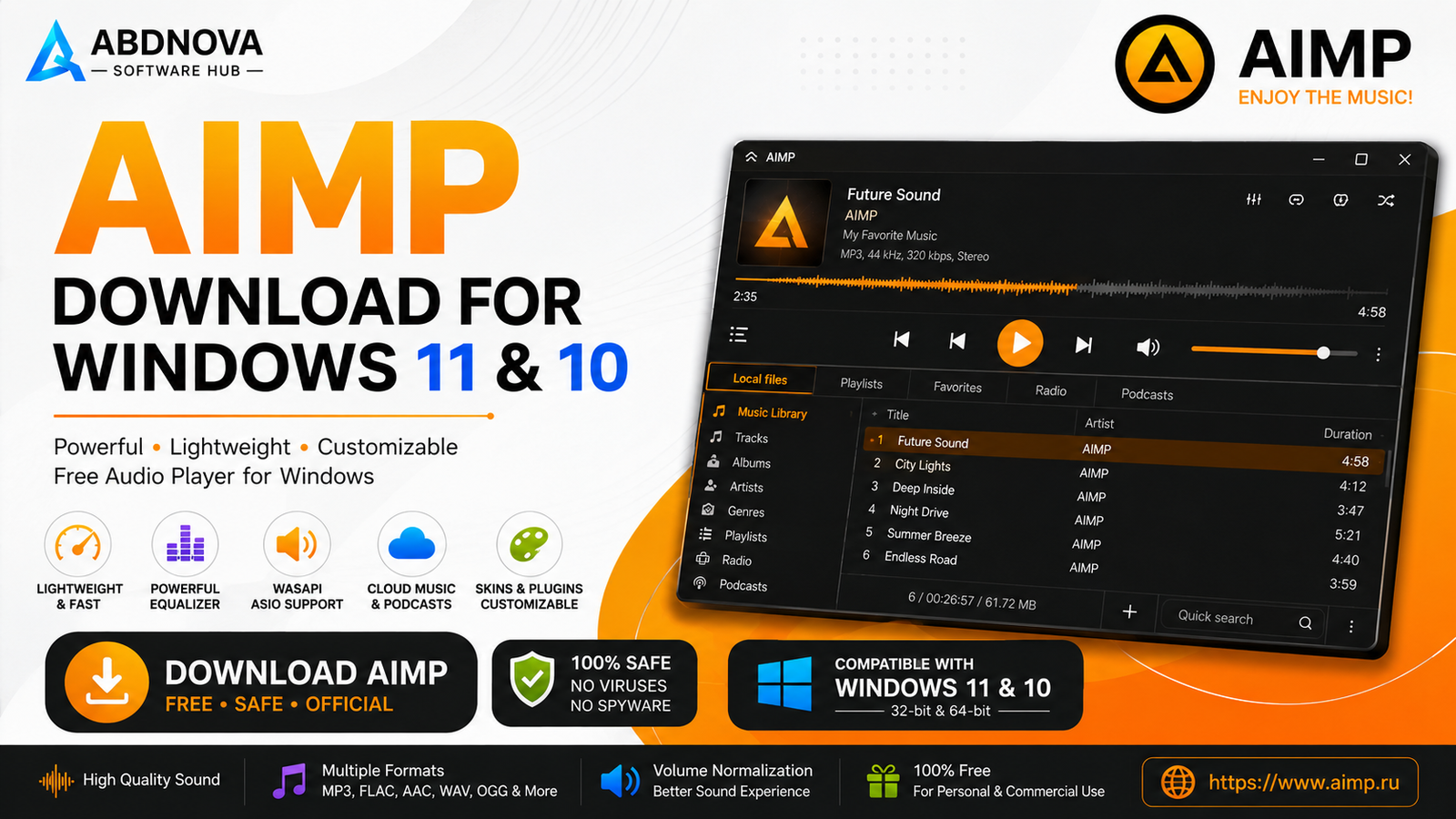
Download AIMP for Windows 11 and 10 to play MP3, FLAC and other audio formats, organize music, create playlists, use internet radio, podcasts, cloud sources and advanced audio controls.
AIMP Download for Windows gives Windows 11 and Windows 10 users a lightweight but feature-rich desktop audio player for local music, playlists, internet radio, podcasts and supported cloud music sources.
AIMP combines a Music Library, broad audio-format support, a 20-band equalizer, sound effects, volume normalization, skins, plugins and advanced Windows audio-output methods such as WASAPI and ASIO.
It is particularly useful for users who want more control over music playback and organization than a basic Windows media application provides.
AIMP Download for Windows – Quick Overview
| Information | Details |
|---|---|
| Software | AIMP |
| Current Stable Version | 5.40.2726 |
| Release Date | September 1, 2026 |
| Type | Audio Player & Music Library |
| License | Free |
| Windows 11 | Supported |
| Windows 10 | Supported |
| 32-bit | Available |
| 64-bit | Available |
| No-Installer Build | Available |
| Music Library | Yes |
| Internet Radio | Yes |
| Equalizer | 20-band |
| Audio Effects | Yes |
| Cloud Support | Yes |
| Podcasts | Yes |
| Official Source | AIMP Project |
What Is AIMP?
AIMP is a Windows music player designed for users who want more control over playback, playlists, audio output, music organization and sound effects.
AIMP can help you:
- Play local music collections.
- Organize tracks through a Music Library.
- Create multiple and smart playlists.
- Listen to internet radio.
- Manage podcasts.
- Access supported cloud music sources.
- Use playback queues and track ratings.
- Apply equalizer settings and sound effects.
- Customize the interface with skins.
- Extend functionality through plugins.
AIMP is primarily focused on audio rather than video, making it a good option when music playback and organization are your main priorities.
Why Use AIMP on Windows?
AIMP combines a traditional desktop music-player experience with advanced audio and library-management features.
Typical uses include:
- Playing large local music collections.
- Organizing albums, artists and tracks.
- Creating playlists for different activities.
- Listening to internet radio stations.
- Using high-quality Windows audio-output modes.
- Adjusting equalizer settings.
- Changing playback speed or pitch.
- Using volume normalization and ReplayGain.
- Listening to podcasts.
- Accessing music from supported cloud services.
AIMP 32-bit vs 64-bit
The current stable AIMP branch provides both 32-bit and 64-bit Windows builds.
For most modern Windows 11 and Windows 10 computers, the 64-bit version is the logical choice. Use the 32-bit version only when you specifically need compatibility with a 32-bit Windows environment.
AIMP Installer vs No-Installer Build
Standard Installer
The standard installer is best for most users who plan to use AIMP regularly. It provides a normal Windows installation and makes the player convenient to access.
No-Installer Build
The no-installer build can be useful if you want to keep AIMP in a separate folder, avoid a traditional installation, use it temporarily or keep a removable copy.

How to Install AIMP on Windows
- Open the official AIMP website: Go to the Windows download section.
- Choose the stable release: Avoid beta versions unless you specifically want to test them.
- Select the architecture: Choose 64-bit for most modern Windows computers.
- Download the installer: Save the official setup file.
- Run the installer: Open it and review the setup options.
- Complete installation: Finish setup and launch AIMP.
- Add your music: Open a music folder or add it to the Music Library.
How to Add Music to AIMP
You can open individual audio files or add complete folders containing your music collection.
For larger libraries, the Music Library is more practical because it allows tracks to be browsed and organized using information such as artists, albums and metadata.

AIMP Main Interface, Music Library & Playlists
AIMP’s interface combines playback controls with playlist and library-management tools.
Music Library
The Music Library can organize large music collections, maintain listening statistics, assign ratings and work with smart playlists.
This can be much easier than manually opening individual folders every time you want to find a song.
AIMP Playlists
AIMP supports multiple playlists and flexible playlist management.
You can create playlists for:
- Albums.
- Artists.
- Genres.
- Favorites.
- Workouts.
- Study music.
- Internet radio.
- Podcasts.
- Recently played tracks.
Smart playlists can also be generated using Music Library information.
Playback Controls
AIMP provides standard play, pause, previous, next and volume controls along with more advanced playback-management options.

AIMP Audio Formats – MP3, FLAC, AAC, WAV, OGG & More
AIMP supports a wide range of common and advanced audio formats.
Supported format examples include:
- MP3.
- AAC and AC3.
- FLAC.
- WAV.
- WMA.
- OGG.
- OPUS.
- APE.
- M4A and M4B.
- DTS.
- MIDI.
- AIFF.
- DSF and DFF.
- WebM audio.
- Various tracker and module formats.
This broad compatibility allows AIMP to handle both normal music libraries and collections containing less-common or lossless audio formats.

AIMP Equalizer, WASAPI, ASIO & Sound Effects
AIMP Audio Output
AIMP supports several Windows audio-output methods:
- DirectSound.
- WASAPI.
- WASAPI Exclusive.
- ASIO.
The default audio-output method is normally suitable for everyday listening. Advanced users with compatible audio hardware may choose WASAPI Exclusive or ASIO depending on their setup.
20-Band Equalizer
AIMP includes a 20-band equalizer for adjusting different frequency ranges.
You can use equalizer presets or manually tune the bands for your headphones, speakers or listening preferences.
AIMP Sound Effects
AIMP includes effects such as:
- Reverb.
- Flanger.
- Chorus.
- Pitch.
- Tempo.
- Echo.
- Speed.
- Bass.
- Enhancer.
- Voice Remover.
Volume Normalization & ReplayGain
AIMP supports volume-normalization and ReplayGain-related functionality that can help reduce large volume differences between quieter and louder tracks.

AIMP Internet Radio, Podcasts, Cloud Music, Skins & Plugins
Internet Radio
AIMP supports internet-radio playback using formats such as MP3, AAC, AAC+, OGG and WAV.
The player can also capture supported internet-radio streams in several audio formats.
Podcasts
AIMP includes podcast support, allowing you to manage and listen to podcast content alongside your normal music library.
Cloud Music
AIMP can work with supported cloud sources including OneDrive, Google Drive, Dropbox and WebDAV.
If you use Microsoft’s cloud storage on Windows, see our Microsoft OneDrive Download for Windows guide.
AIMP Skins
AIMP supports downloadable skins and interface customization. This allows users to choose a simple appearance or a more visual themed interface.
AIMP Plugins
Plugins can extend AIMP with additional integrations, audio-processing functionality, visualizations, metadata tools and other features.
AIMP vs foobar2000 vs VLC
| Feature | AIMP | foobar2000 | VLC |
|---|---|---|---|
| Main Focus | Music playback | Advanced audio playback | Audio & video playback |
| Music Library | Strong | Strong | Basic |
| Equalizer | 20-band | Available | Available |
| Customization | Strong | Highly customizable | More limited |
| Internet Radio | Yes | Yes | Yes |
| Video Playback | Not primary focus | Not primary focus | Excellent |
| Advanced Audio | Strong | Excellent | Good |
| Beginner Friendly | Strong | More technical | Strong |
| Best For | Desktop music listening | Advanced audio users | General media playback |
AIMP vs foobar2000
foobar2000 provides extensive flexibility for advanced audio users. AIMP generally offers a more polished out-of-the-box interface with strong library, playlist and visual-customization features.
AIMP vs VLC Media Player
VLC is more suitable when you want one application for both audio and video playback. AIMP is more specifically focused on music libraries, playlists, audio output, equalizer controls and music customization.
For full audio and video playback, see our VLC Media Player Download for Windows guide.
Is AIMP Safe?
Yes, when AIMP is downloaded directly from its official project website.
- AIMP Crack.
- AIMP Pro Crack.
- AIMP Premium.
- AIMP Activated.
- Modified AIMP.
- AIMP Repack.
AIMP is already available free from its official source, so modified or cracked copies provide no legitimate benefit.
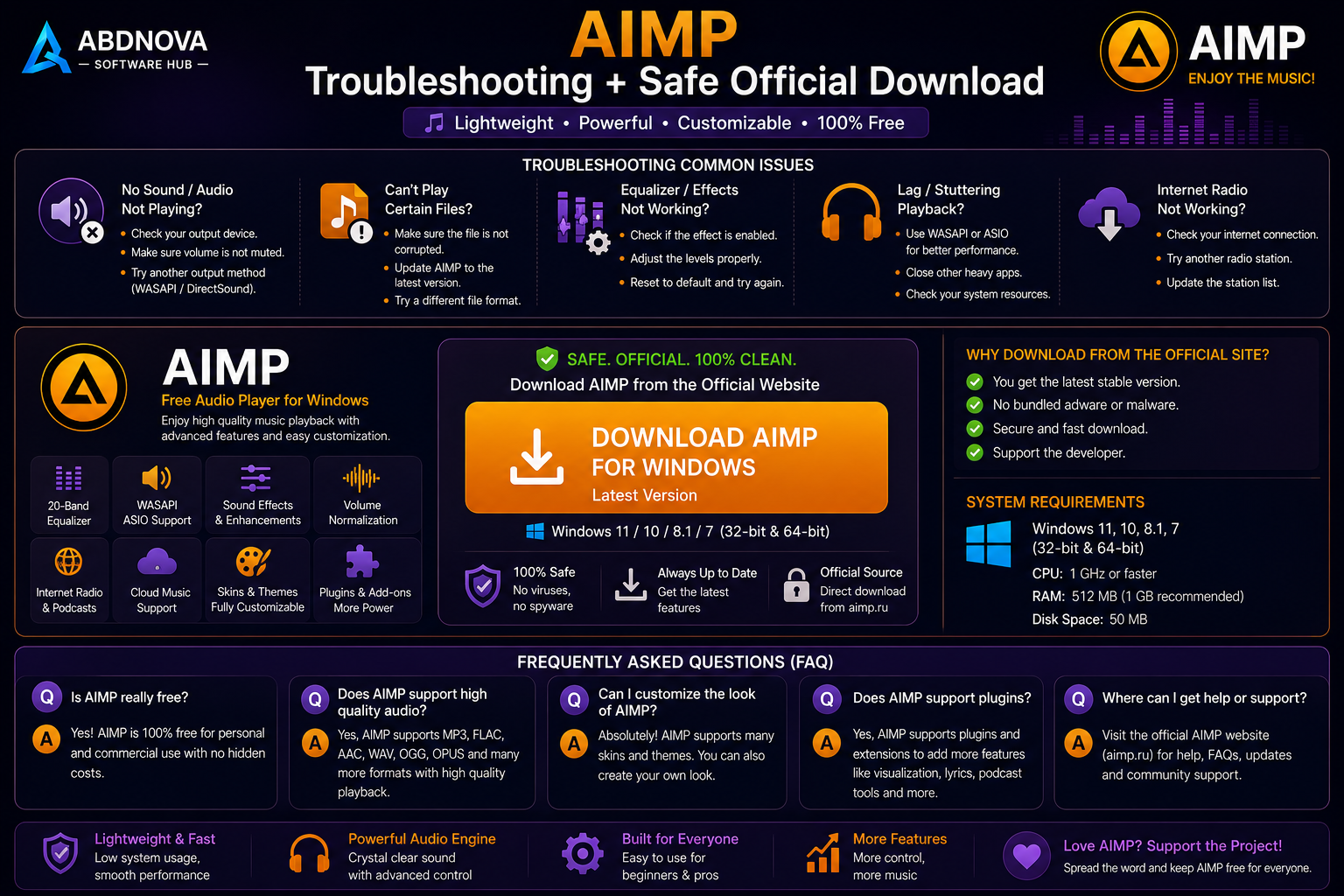
AIMP Troubleshooting
AIMP Won’t Open
Restart Windows, install the current stable AIMP version, reinstall the application if necessary and check whether an incompatible third-party plugin is causing the problem.
AIMP Has No Sound
Check the selected Windows output device, AIMP audio-output settings, Windows volume, the audio driver and whether the media file itself is damaged.
No Sound After Changing WASAPI or ASIO
If playback stops after selecting WASAPI Exclusive or ASIO, switch back to a standard output method and test again.
Advanced output modes depend on compatible audio hardware, drivers and configuration.
AIMP Plugin Does Not Work
The plugin may be outdated or incompatible with the current AIMP version. Look for a compatible plugin release rather than forcing an old version to load.
Music Library Does Not Show New Tracks
Refresh or rescan the music source and confirm that the correct folder has been included in your Music Library configuration.
Internet Radio Does Not Play
The radio station may be offline, its stream address may have changed or the stream may no longer be available. Try another station before assuming AIMP itself is not working.
Safe AIMP Download for Windows
The safest source for AIMP Download for Windows is the official AIMP project website.
Check the current stable Windows version and available packages on the official AIMP Download Center.
Frequently Asked Questions
Is AIMP free?
Yes. AIMP is available free from the official project website.
What is the latest stable AIMP version?
The current stable Windows release in the source article is AIMP 5.40.2726, dated September 1, 2026.
Does AIMP work on Windows 11?
Yes. The current AIMP desktop build supports modern Windows systems including Windows 11.
Does AIMP work on Windows 10?
Yes. Windows 10 is supported.
Is AIMP available in 64-bit?
Yes. Official 64-bit Windows builds are available.
Is there a portable AIMP version?
AIMP provides a build without the installer that can be used in a portable-style setup.
Does AIMP play FLAC?
Yes. FLAC is included in AIMP’s supported audio-format list.
Does AIMP play MP3?
Yes. MP3 playback is supported.
Does AIMP support internet radio?
Yes. Internet-radio playback is included among AIMP’s features.
Does AIMP have an equalizer?
Yes. AIMP includes a 20-band equalizer and multiple sound effects.
Does AIMP support WASAPI and ASIO?
Yes. AIMP supports DirectSound, WASAPI, WASAPI Exclusive and ASIO output methods.
Does AIMP support cloud music?
Yes. AIMP can work with supported cloud sources including OneDrive, Google Drive, Dropbox and WebDAV.
Does AIMP play videos?
AIMP is primarily an audio player. VLC Media Player is a more suitable choice when full video playback is required.
Is AIMP safe?
Yes, when downloaded from the official AIMP project website. Avoid modified or unofficial packages.
Final Thoughts
AIMP Download for Windows is a strong choice for Windows 11 and Windows 10 users who want more than basic music playback. It combines broad audio-format support, a capable Music Library, flexible playlists, internet radio, podcasts, cloud support, skins, plugins, a 20-band equalizer, sound effects and advanced Windows audio-output options.
For most modern Windows PCs, the stable 64-bit build is the practical starting point. Use the official AIMP download center and avoid modified or unofficial installers.
Ready to download AIMP?
Get the latest stable Windows version directly from the official AIMP project. ABDNOVA recommends official sources only.


